Usage of Navigation tool , Timeliner and Clash Detection test using Naviswork
Q.1
Aim - Usage of Navigation tool , Timeliner and Clash Detection test using Naviswork
Introduction - Export the Revit architecture and structure model to Navisworks Cache file
Procedure -
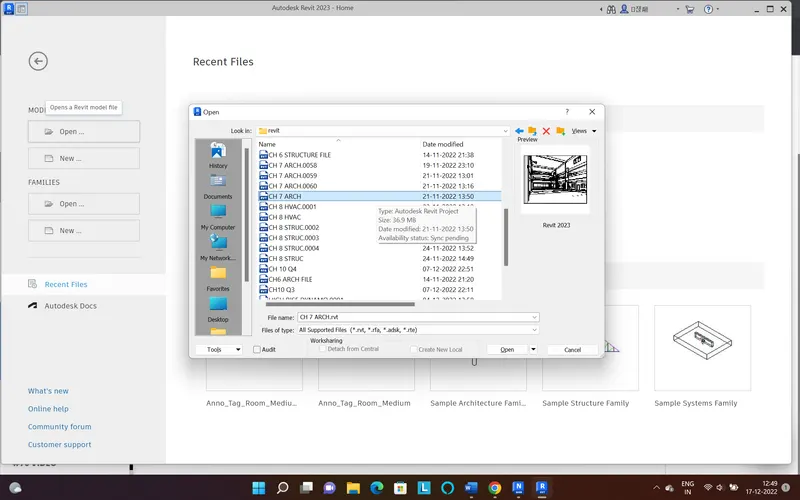
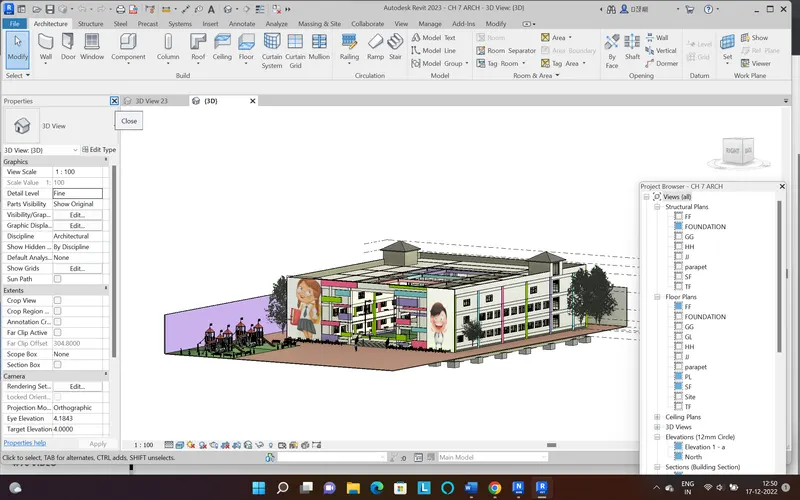
1. first open revit and open the file you want to export
2. once the file is open go to the 3D view of the model
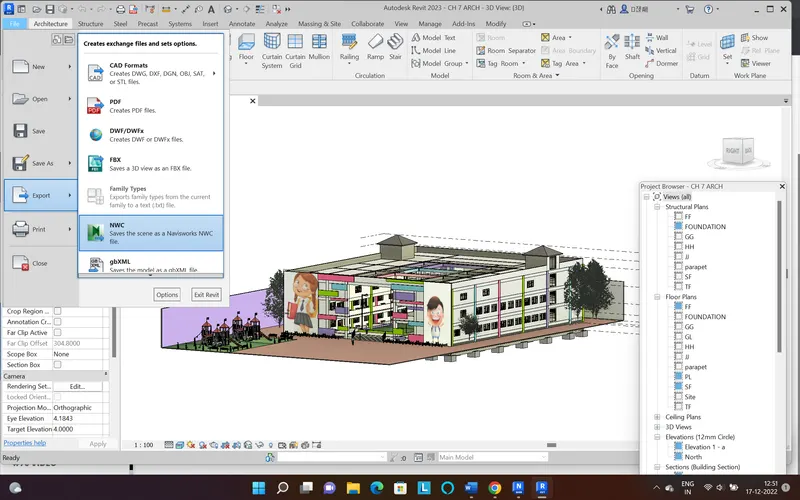
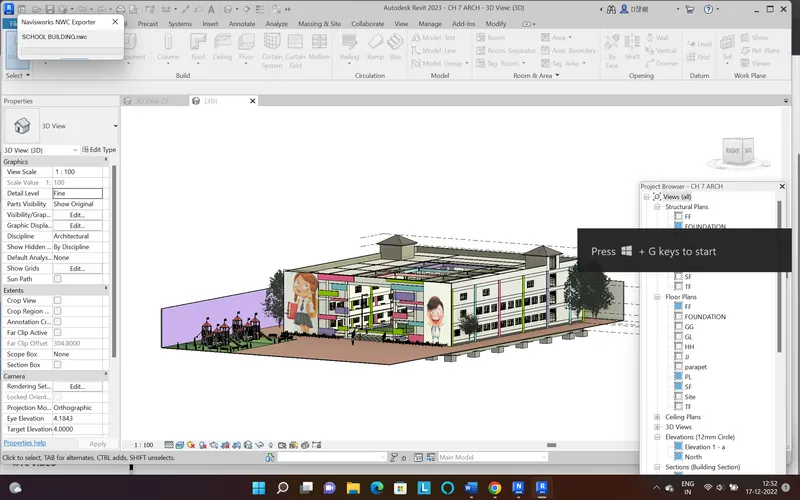
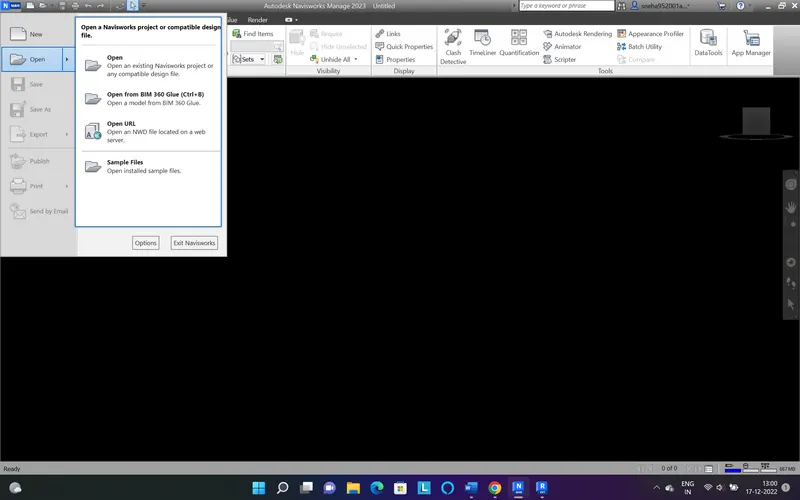
3. then go to file option and select the export option and select the NWC file as you want to export the file to naviswork
4. click open and the file will be exported
Result -
Q.2
Aim - Usage of Navigation tool , Timeliner and Clash Detection test using Naviswork
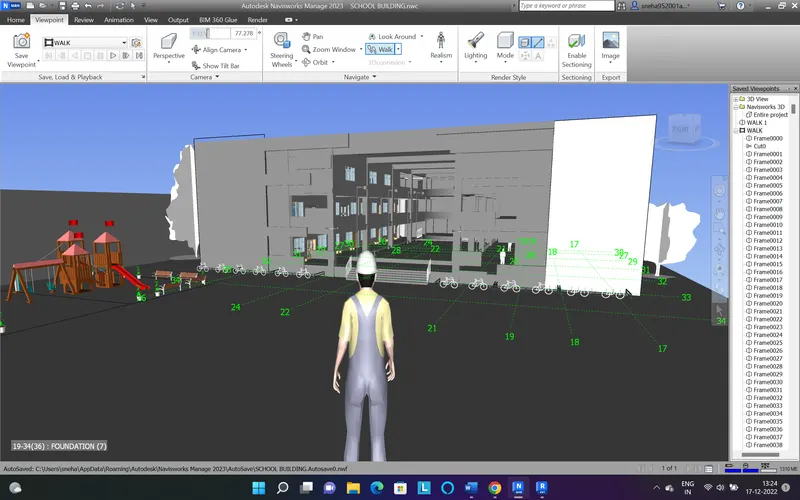
Introduction - Use Navigate Tool to walk around the model and walk through the rooms created and record your moving as animation in your Navisworks file
Procedure -
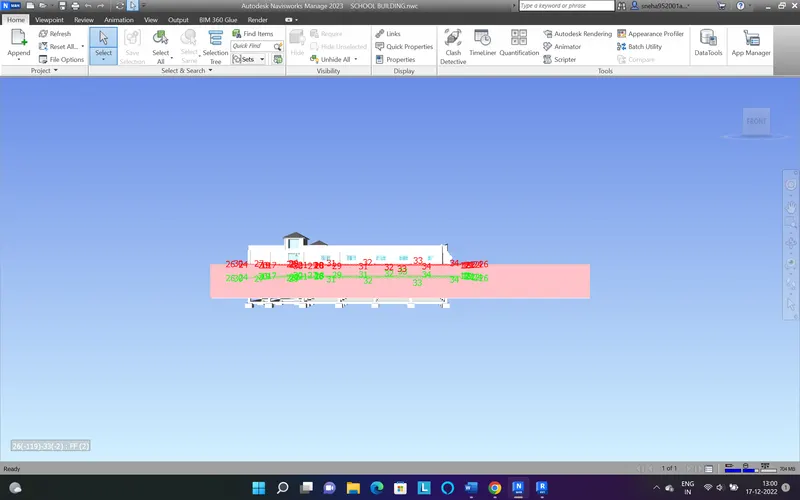
1. To walk through the model first open the naviswork and then open the model
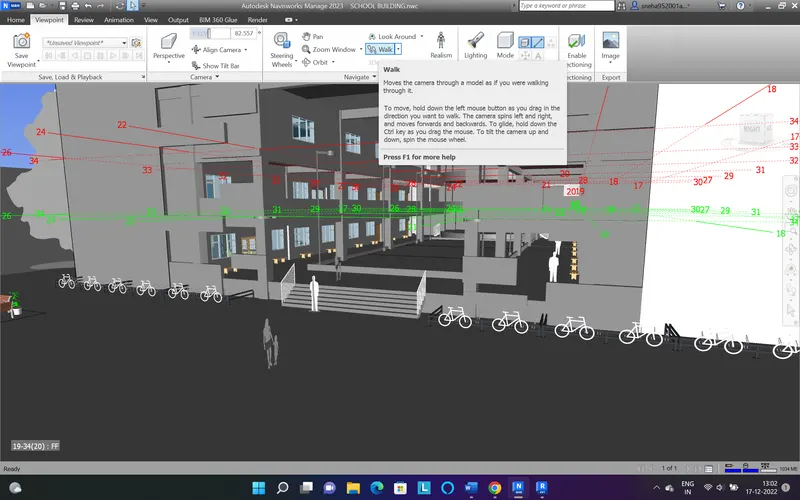
2. then go to the viewport option you will see the walk option there to record the walk go to the save viewport - record option
3. then go to the walk option and by using curser walk through the model when you are done just click stop the recording will stop
4. save the recording
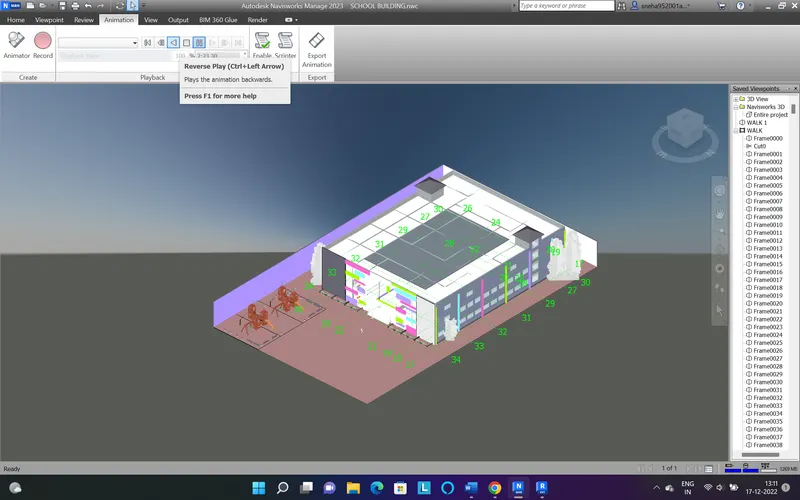
5. to play the recording go to the animation tab and play the reording
Result -
Q.3
Aim - Usage of Navigation tool , Timeliner and Clash Detection test using Naviswork
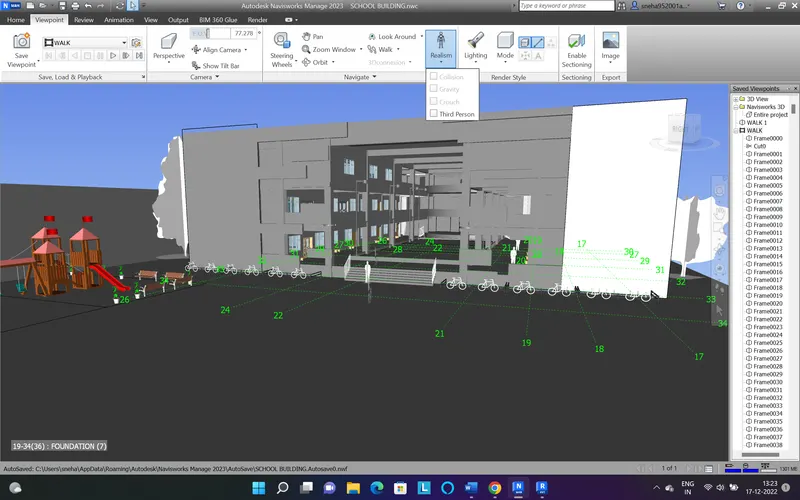
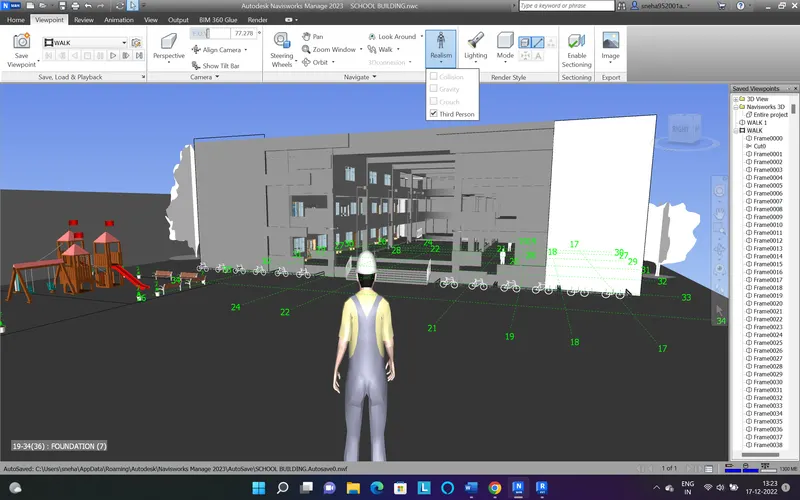
Introduction - Use Navigate tool to use Realism feature to walk through the model and record your moving as animation in Navisworks file
Procedure -
1. To walk through the model using realism oprion first open the naviswork and then open the model
2. then go to the viewport option you will see the walk option there and realism option go to realism oprion and check the third person
3. then go to the walk option and to record the walk go to the save viewport - record option then by using curser walk through the model when you are done just click stop the recording will stop
4. save the recording
5. to play the recording go to the animation tab and play the reording
Result -
Q.4
Aim - Usage of Navigation tool , Timeliner and Clash Detection test using Naviswork
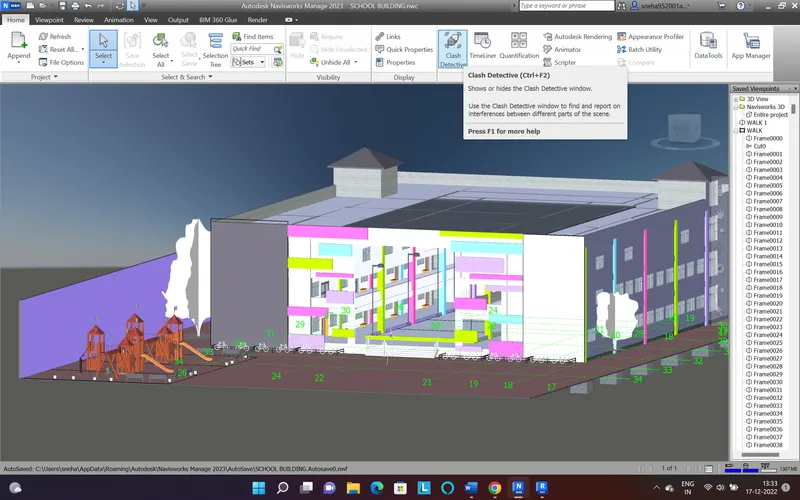
Introduction - Create a clash detection test
Procedure -
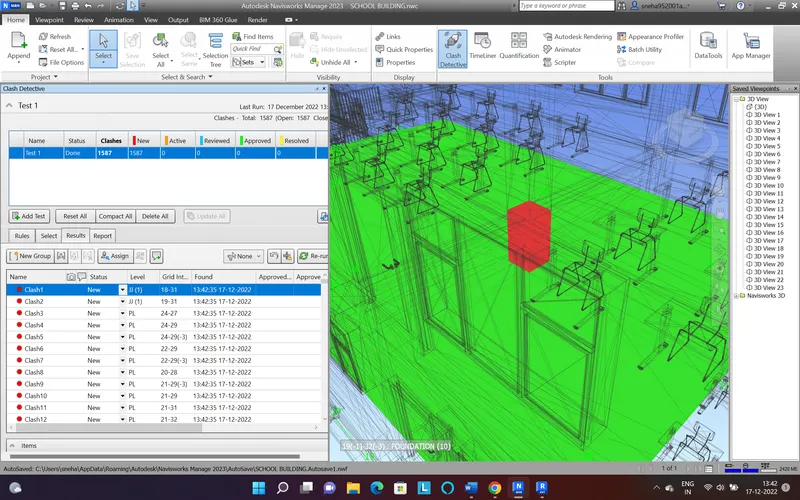
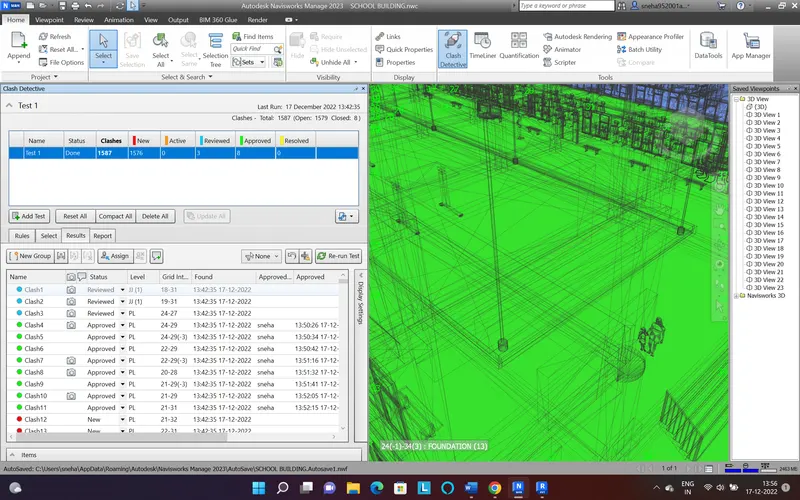
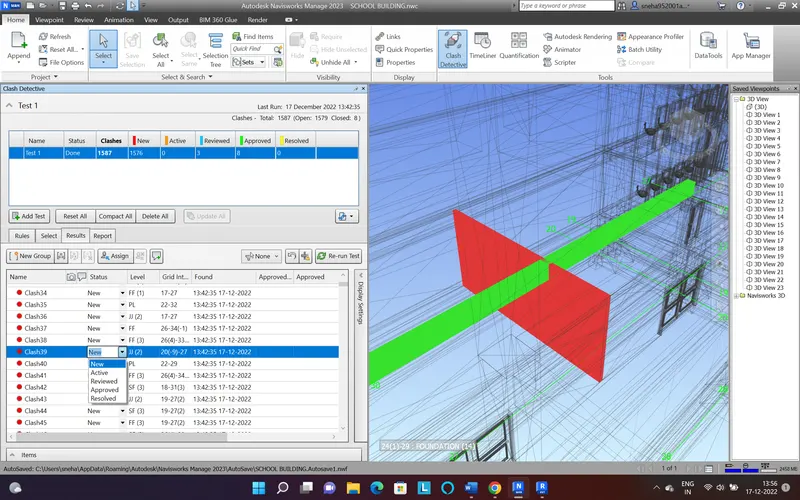
1. To run clash detection test go to the home tab - clash detection
2. then add test select the plan and run the test
3. after test is ran you will get the list of clashes
4. go through the list and remark the clash as reviewed, resolved or approved
Result -
Q.5
Aim -Usage of Navigation tool , Timeliner and Clash Detection test using Naviswork
Introduction - Using the Timeliner feature in Navisworks prepare a schedule for the project developed
Procedure -
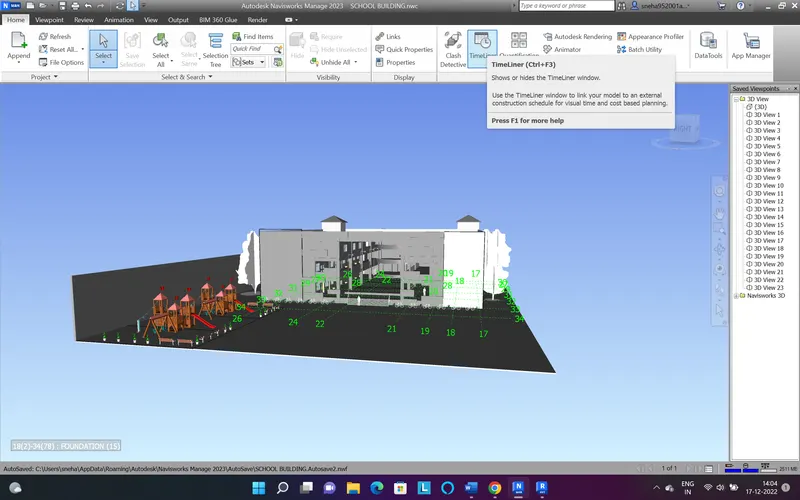
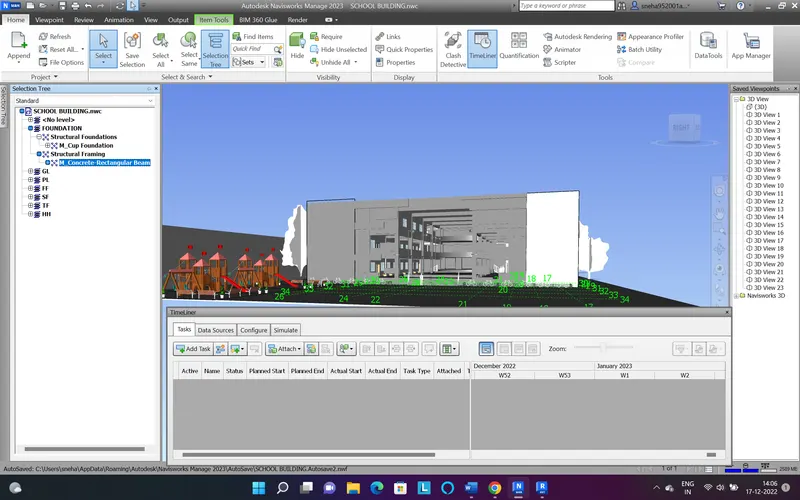
1. to prepare the schedule of project development go to home - timeliner
2. then add selection tree to select the model element
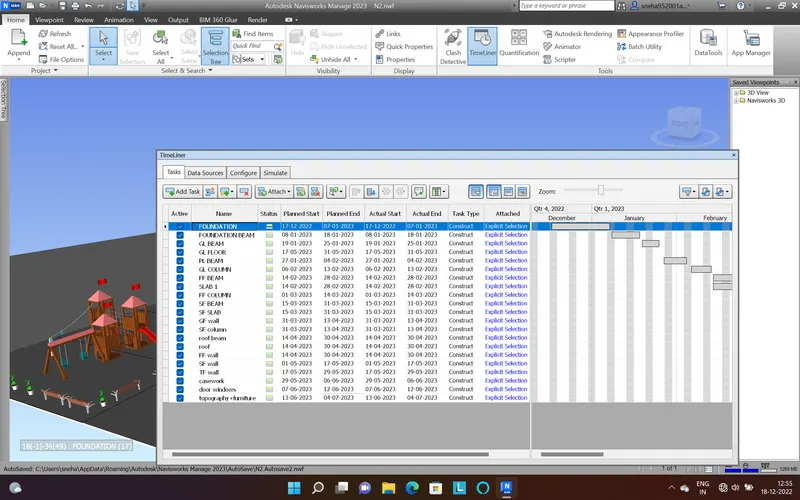
3. then add the task name the task and add the starting date and end date
4. select the task type to attach go to the attach and attach current selection
5. then one by one add every model element into the scedule
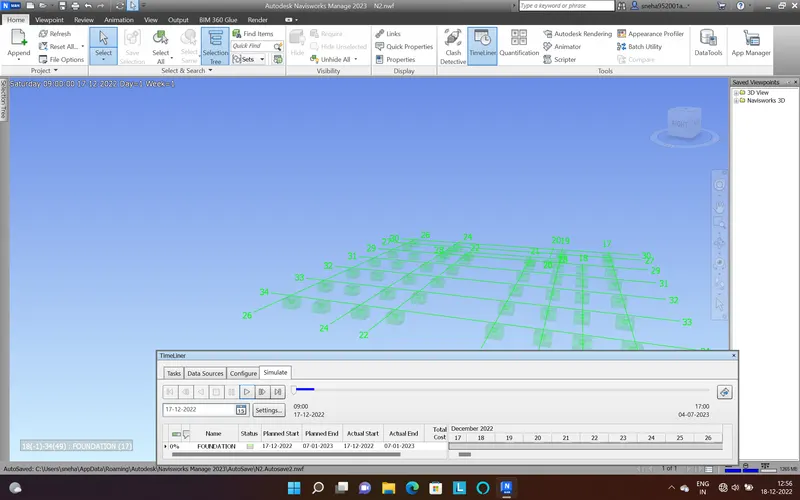
6. once the schedule is complete go to the simulate option then play the timliner and export it and save it
Result -