Usage of Navigation tool , Timeliner and Clash Detection test using Naviswork
Usage of Navigation tool , Timeliner and Clash Detection test using Naviswork
Introduction:
Naviswork is a 3D design review package for Microsoft windows. It is used primarily in construction industries to complement 3D design packages such as Autodesk Revit, AutoCAD etc.. Naviswork allows users to open and combine 3D models; navigate around them in real-timeand review the model using a set of tools including comments, redlining, viewpoint and measurements. A selection of plug-ins enhances the package adding inetrference detection, 4D time simulation, photorealistic rendering and PDF-like publishing.
Naviswork has a number of built-in functionalities:
- Roamer- The core part allows users to open models from a range of 3D design and laser scan forats and combine them into a single3D model. Users can anvigate around the model in real-time and review the model with a rangeof mark-up tools.
- Publisher: This allows users to publish the complete 3D model into a single NWD file that can be freely opened by anyone using Freedom, a free viewer.
- Clash Detective: A functionality to enable interference detection. This means users can select parts of the model and look for places where the geometry conflicts. This is for finding faults in the design.
- Renderer: With the Renderer , users canapply materials and lighting to the model and produce photo realistic images and animations.
- Quantification: By "taking off" the model, users can automatically make material estimates, measure areas and count building components.
- Timeliner: Adds 4D simulation so the user can link geometry to times and dates and to simulate the construction or demolition of the model over time. Also links with project scheduling software to import task data.
- Animator: A feature that allows the users to animate the model and interact with it.
- Scripter:This allows the user to setup a collection of actions that he/she want to happen when certain events conditions are met.
1.
Aim:
To export the Revit architecture and structure model created in week 6 challenge to Navisworks Cache file following the export settings.
Procedure:
- Initially Open the Autodesk account and download the Naviswork Manage software.
- Now, open the Architectural model created in week 6 challenge in the Revit software.
- Then go to File --> Export --> NWC file.
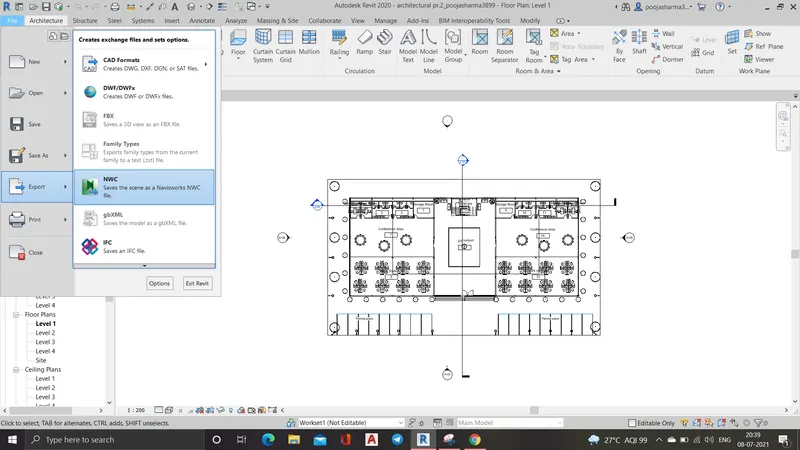
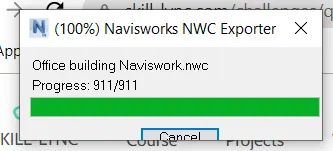
- Now, save the file.
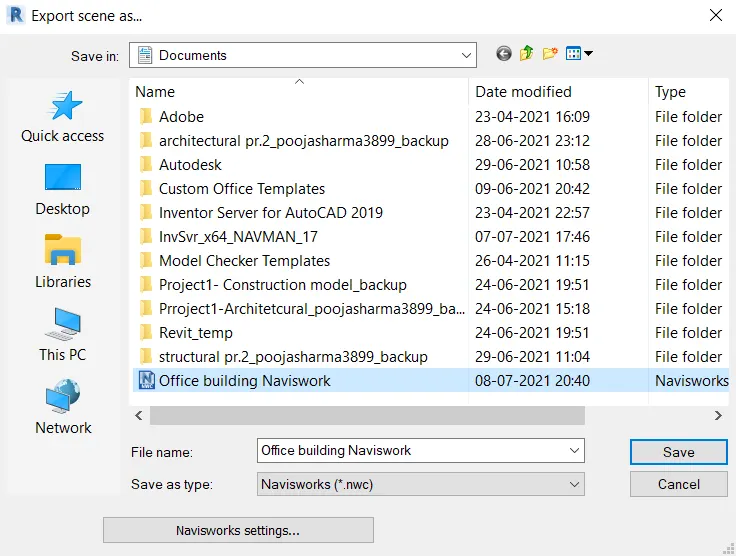
- Hence, the file is exported.
Result:
- The architecture model of the office building is successfully exported to the Naviswork cache file.
2.
Aim:
To use navigate tool to walk around the model and walk through the rooms created and record your moving as animation in your Navisworks file.
Procedure:
- Initially open the architecture file in the Naviswork.
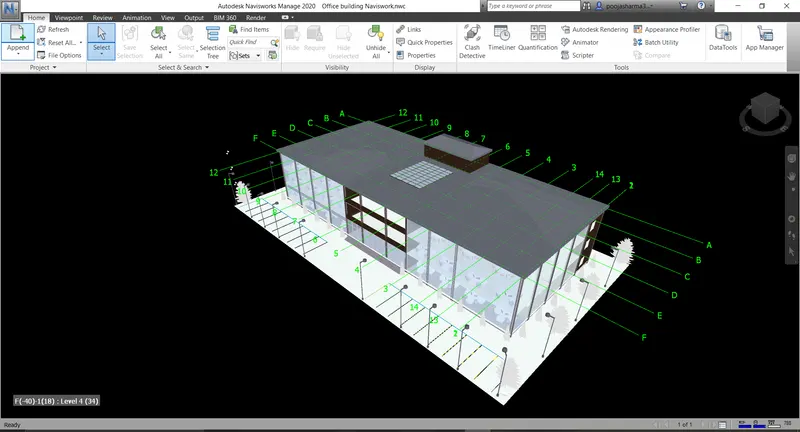
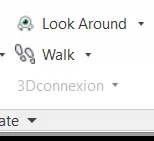
- Now, go to walk option in the viewport tab of the Naviswork software.
- Use the record option in the save viewport option to record animated view of each and every room
 .
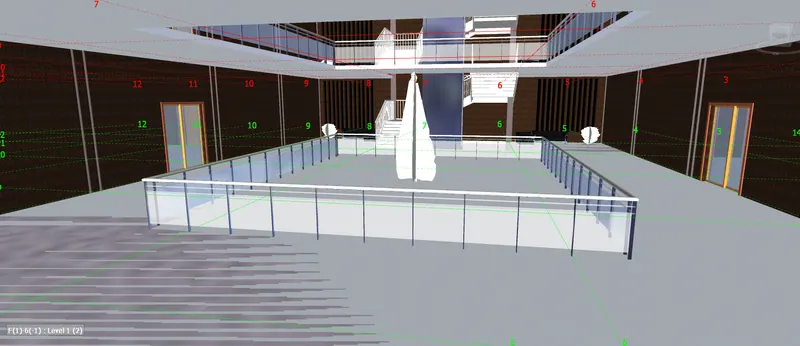
. - Entrance area:
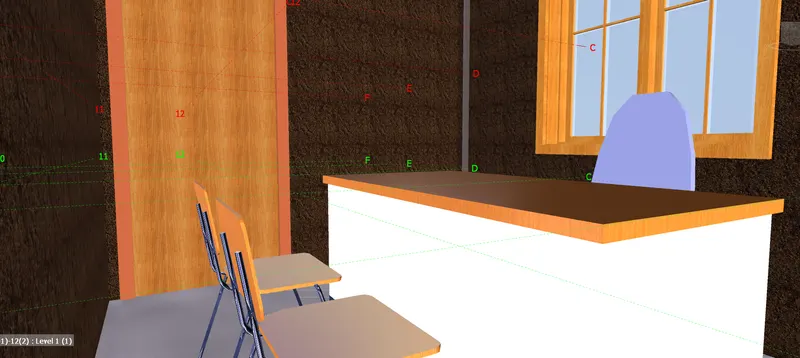
- Manager's room:
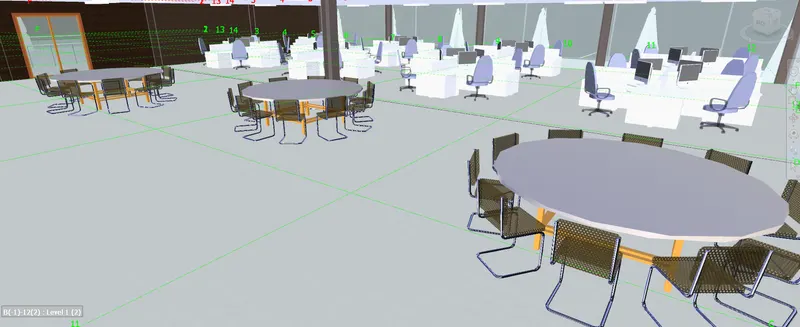
- Work station cum conference area:
- Wash Room:
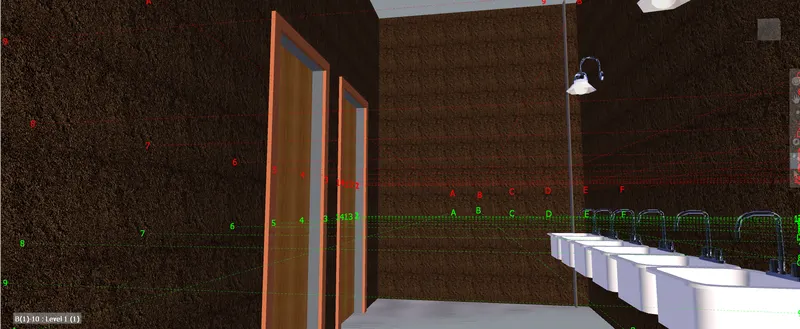
- Courtyard:
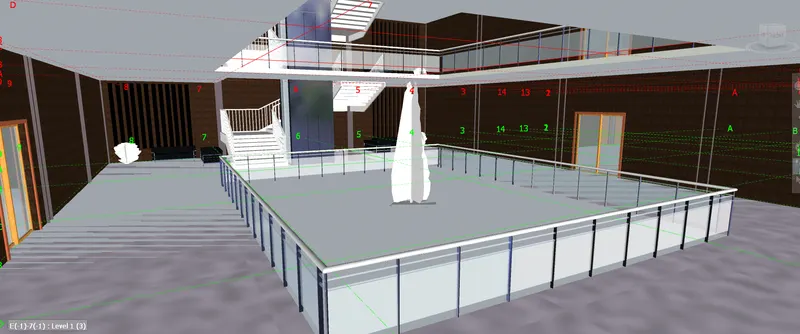
- Cafeteria:
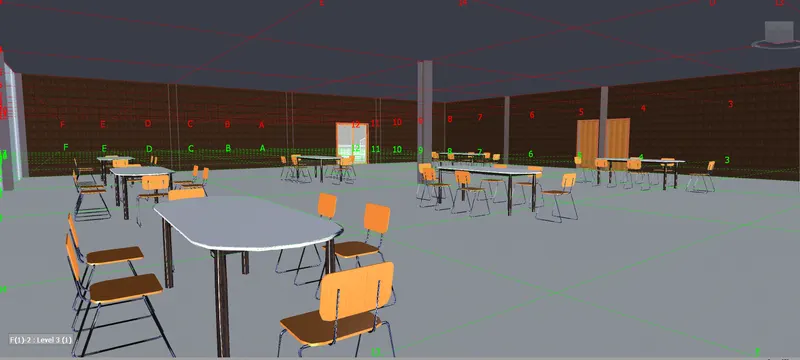
- Wash room in Cafeteria:
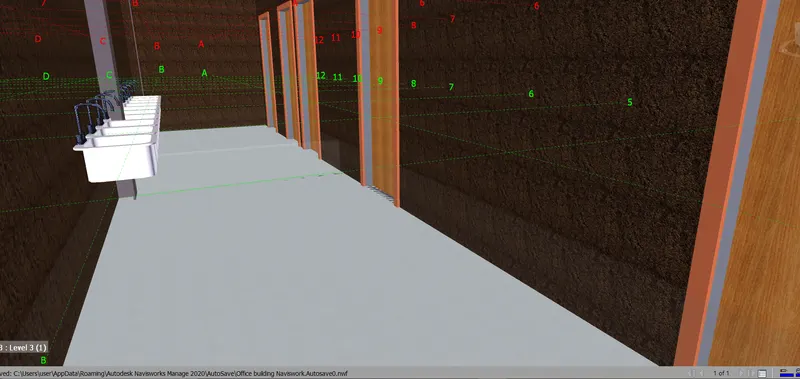
- Toilet:
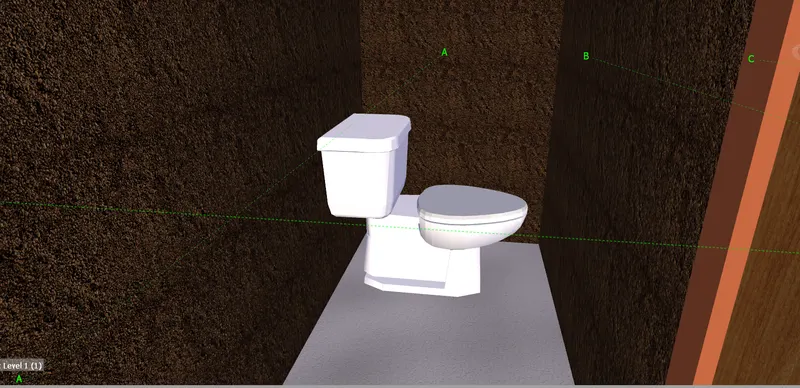
- Hence, Walk through the building is completed.
Result:
Walk around the model is completed.
3.
Aim:
To use Realism feature to walk through the model and record moving as animation in Navisworks file.
Procedure:
- In the Naviswork software under the Viewport tab go to Realism and in realism choos third person.
- Now, again record the moving from save viewport option.
- Entrance area:
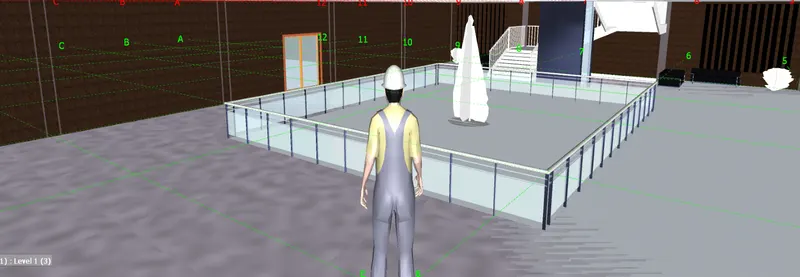
- Conference area and work station:
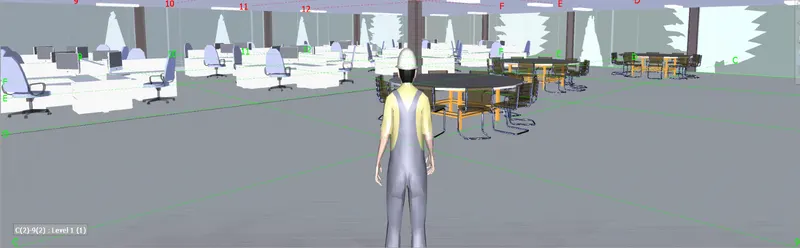
- Manager's Room:
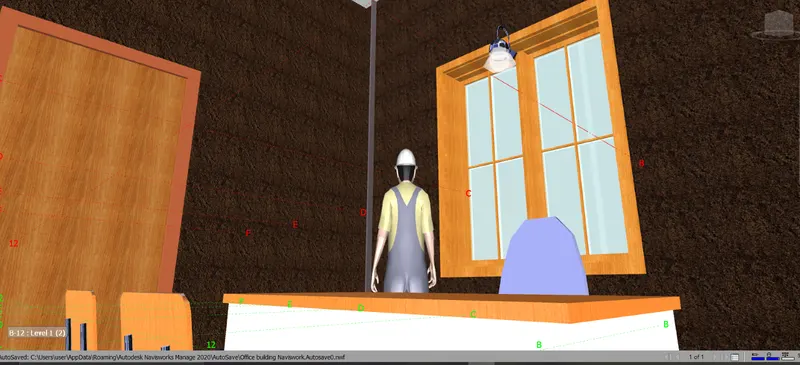
- Courtyard:
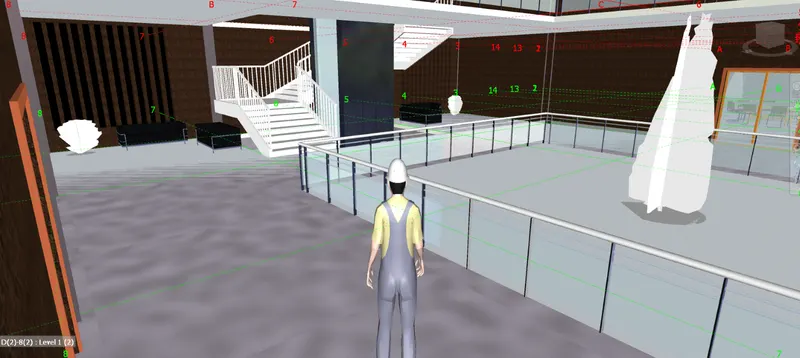
- Cafeteria:
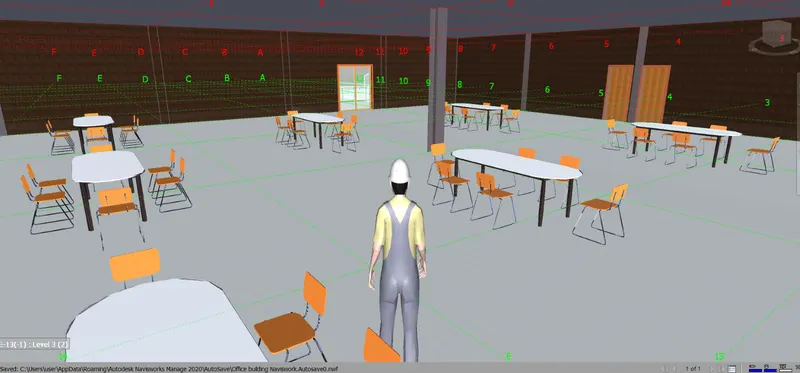
- Wash area at cafeteria:
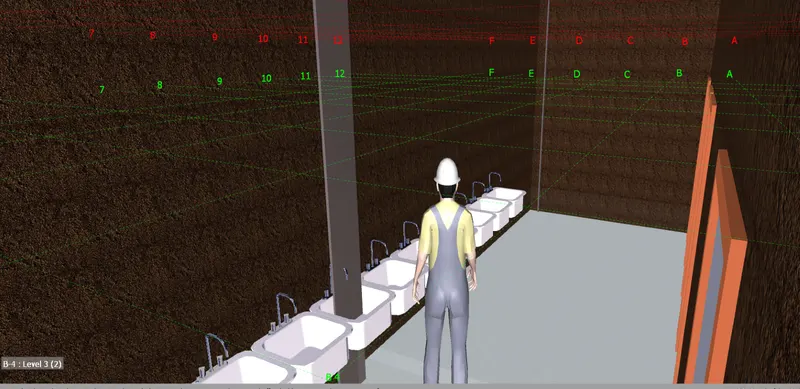
- Hence, the realism walk around is completed.
Result:
Walk through the model using Realism is completedly successfully.
4.
Aim:
To create the clash detection test between the two models.
Procedure:
- Initially append the structural model to this architetural model.
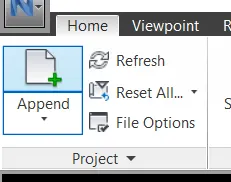
a)
- Initially go to home tab and in that choose clash detective icon.

b)
- Study the clashes between two models:
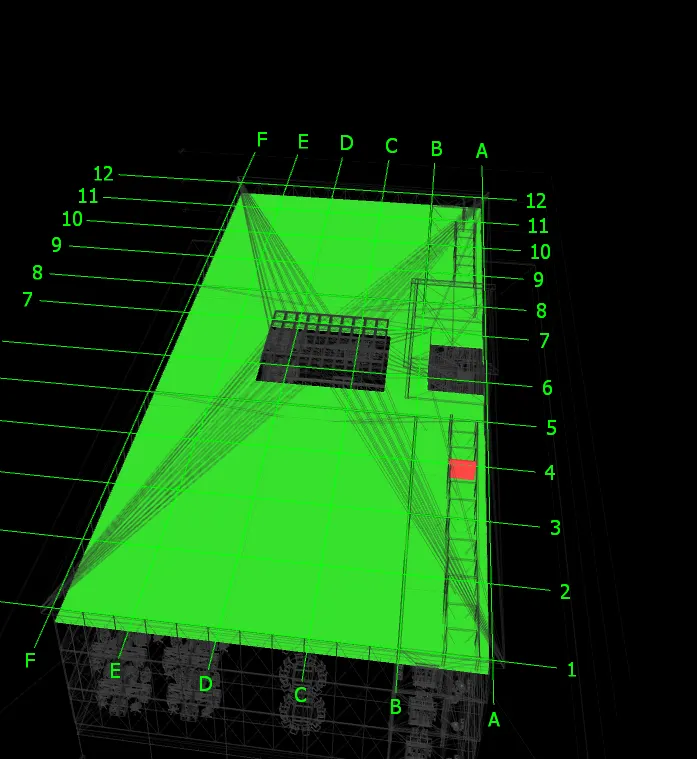
c) List which of the clashes could be approved
d) List which of the clashes could be neglected ( will be taken care later)
e) List which of the clashes can be resolved
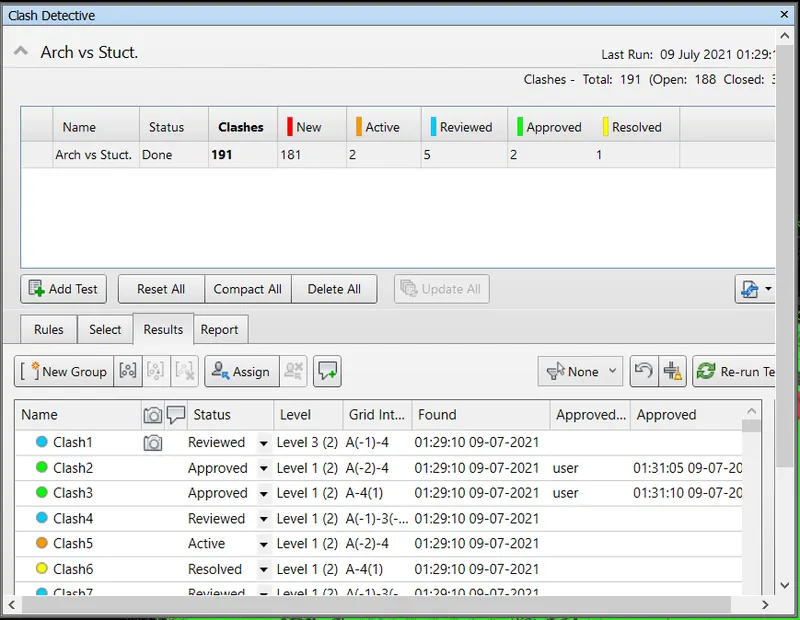
f) Save the results after color coding the clashes to the Navisworks file
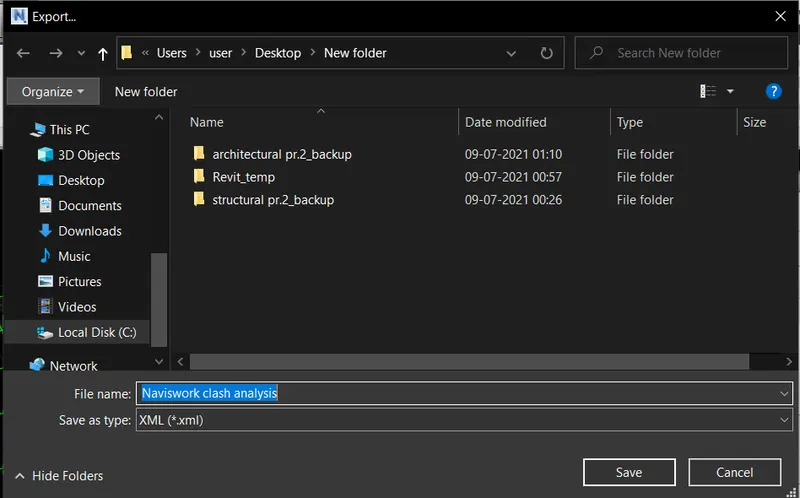
- Hence, completed.
Result:
The Naviswork clash analysis have been successfully carried out.
5.
Aim:
To use the Timeliner feature in Navisworks to prepare a schedule for the project developed in week 6 to 8 by adding reasonable assumptions for task start date and end date and simulate the task completion as a visual simulation.
Procedure:
- Initially open the structural model in the revit.
- Then go to file menu --> Export --> NWC file.
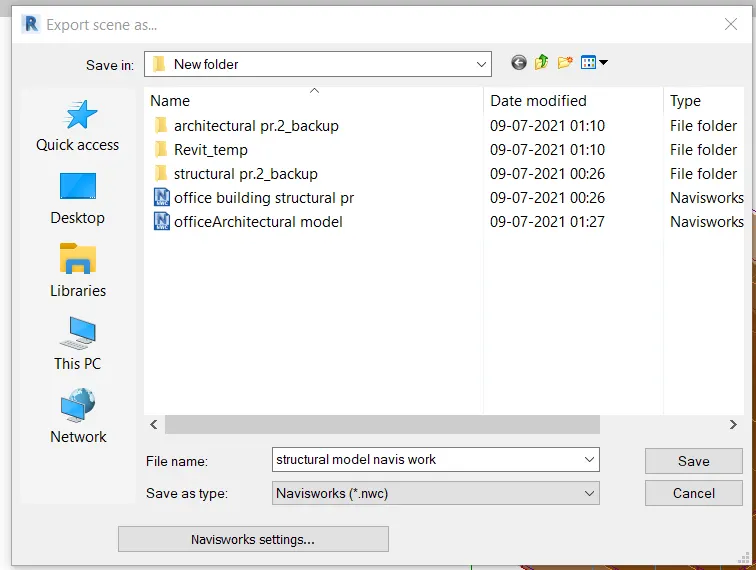
- Now, open the structural model in Naviswork software.
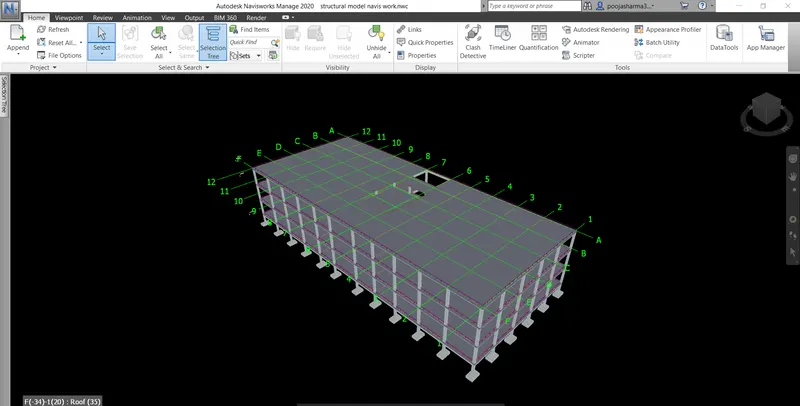
- Now, go to Timeliner in the home tab.
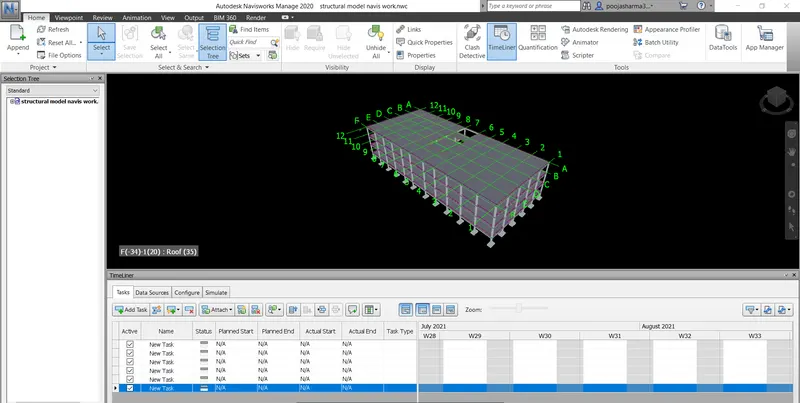
- Click add task option available in the Timeliner to add new tasks.
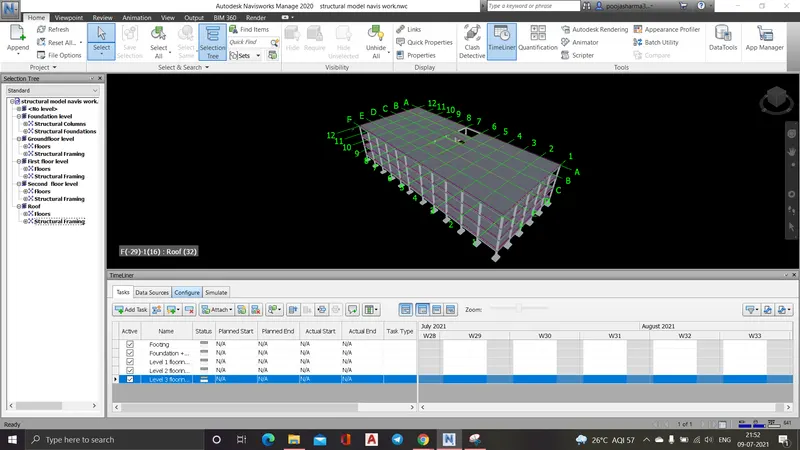
- Next we have to update the planned and actual dates and provide type (construct).
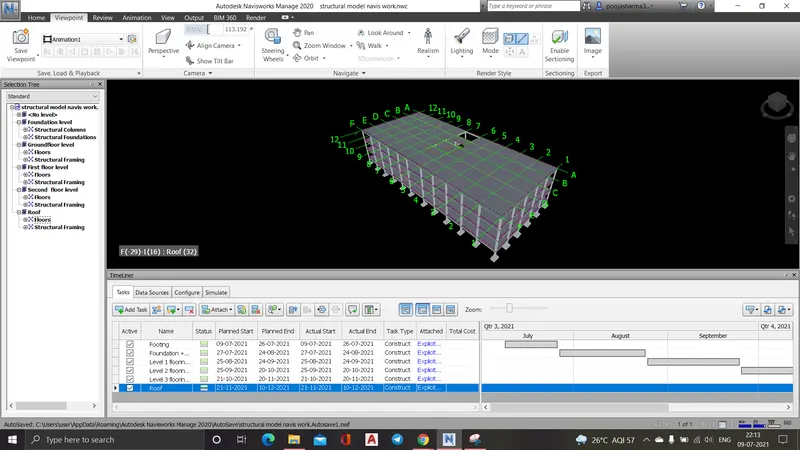
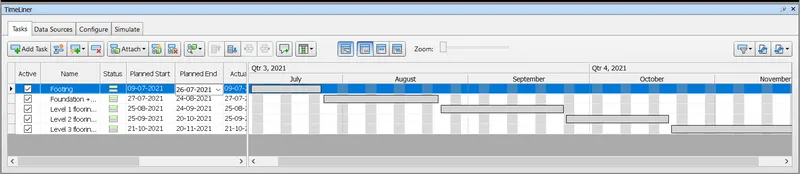
- Click on simulate and record it and save the work.
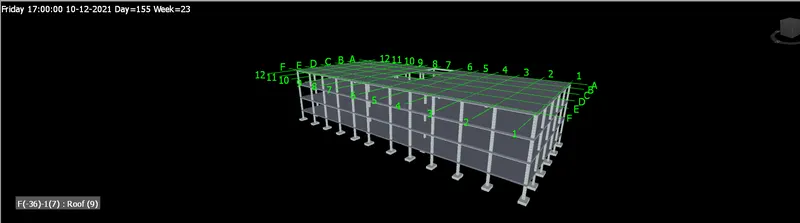
- Hence, the Timeliner simulation is completed.
Result:
Timeliner feature in the navis work has been successfully completed and the result is given below-