Tool Test-2
AIM:-
- For the given component, check for the geometrical errors and mesh with the given element Quality criteria.
- Use tetra elements to model the component and there should not have any peaks and kinks and dips on the surface of the component.
PROCEDURE:-
1) IMPORTING THE CAD MODEL:-
- Open the ANSA software and import the cad geometry by clicking on File>Open>Browse the file from the list. Click OK.
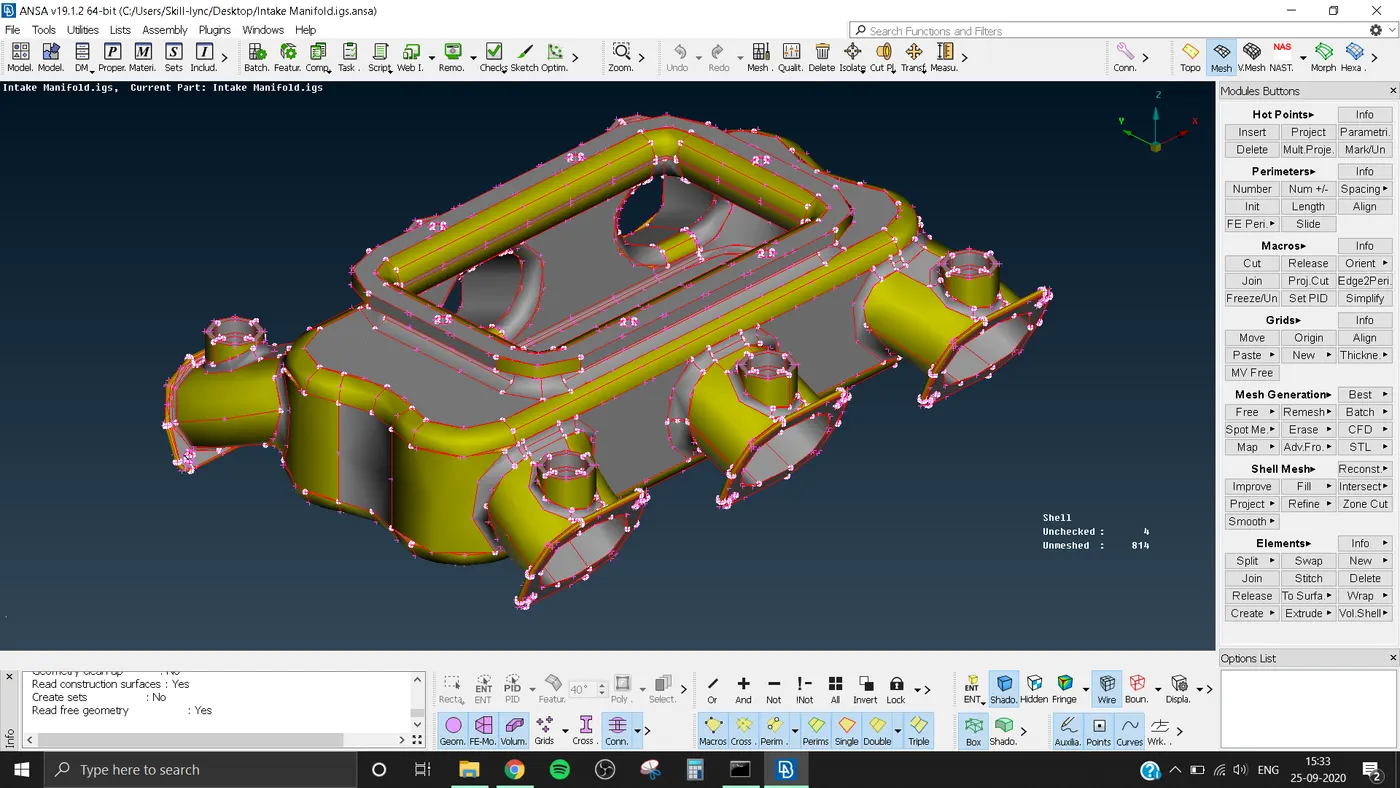
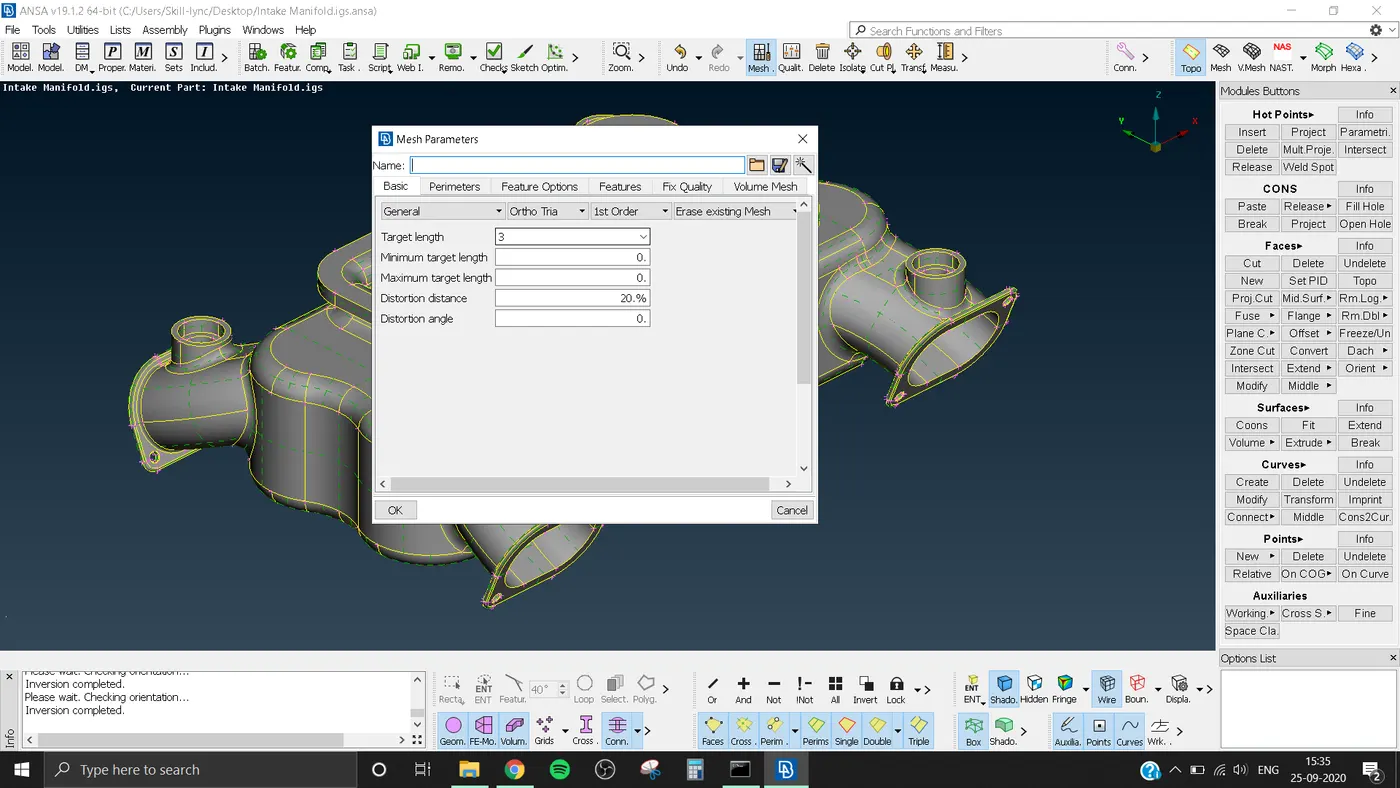
- We can give the Length Parameter as 3, by going to Mesh Module, under Parameter tab click on Length. Give Length as 3.
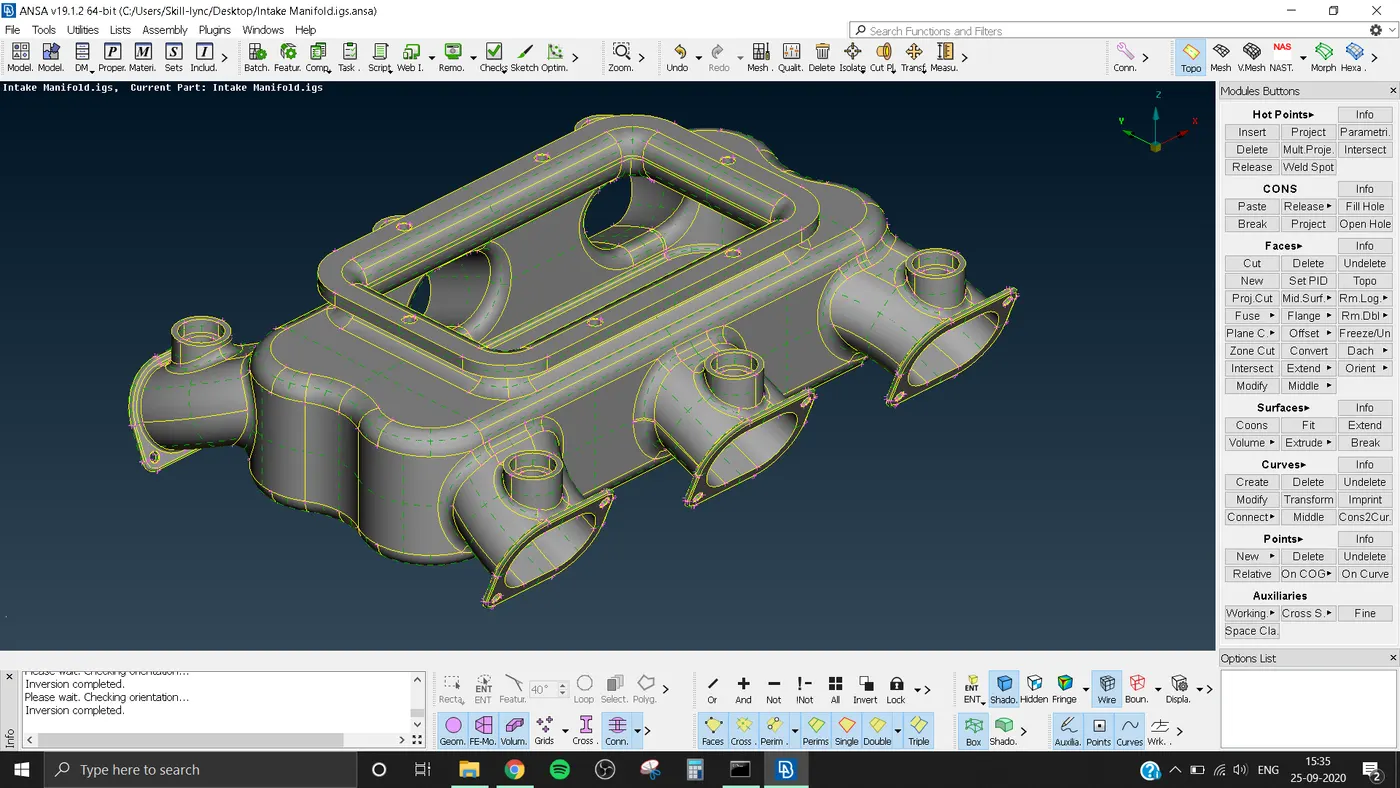
- Perform the topo function to arrange the faces and geometry of the model by selecting the Topo Module>Faces>topo. then make a box selection over our geometry.
- Middle Click.
2)GEOMETRY CLEANUP:-
- After doing the topo, we can do the Geometry Check, by clicking on the Checks tool on Tools toolbar.
- From the window appearing, check in the check list as our requirement, it include options like Unchecked faces, Collapsed Cons, Triple Cons, Needle Faces etc. Click on EXECUTE.
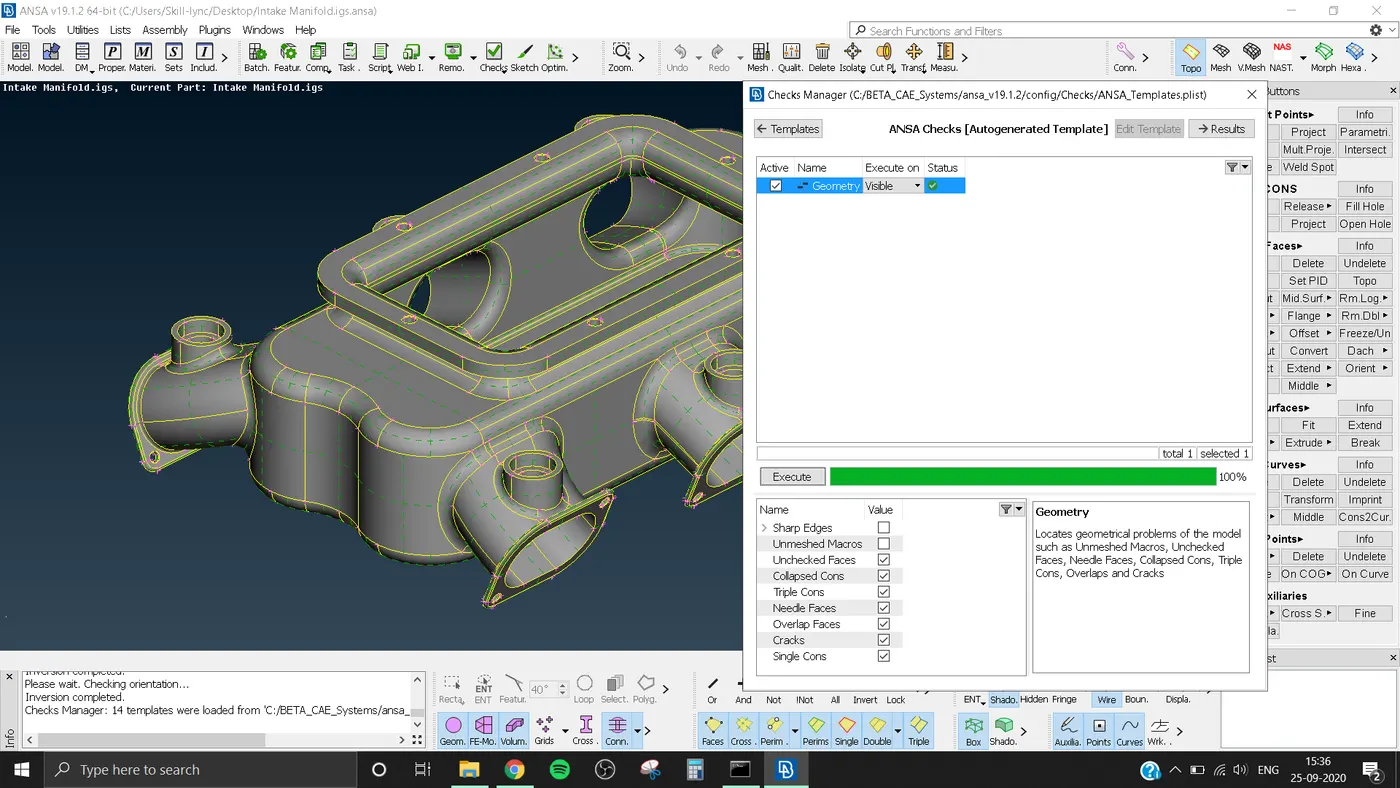
- The errors appered can be eliminated by Auto Fix, If the auto fix can't eliminate the error we should do it manualy.
- After clearing all the errors again do the Check.
- IF the window shows 100% with a green strip then your geometry is ready.
3) SETTING THE QUALITY CRITERIA:-
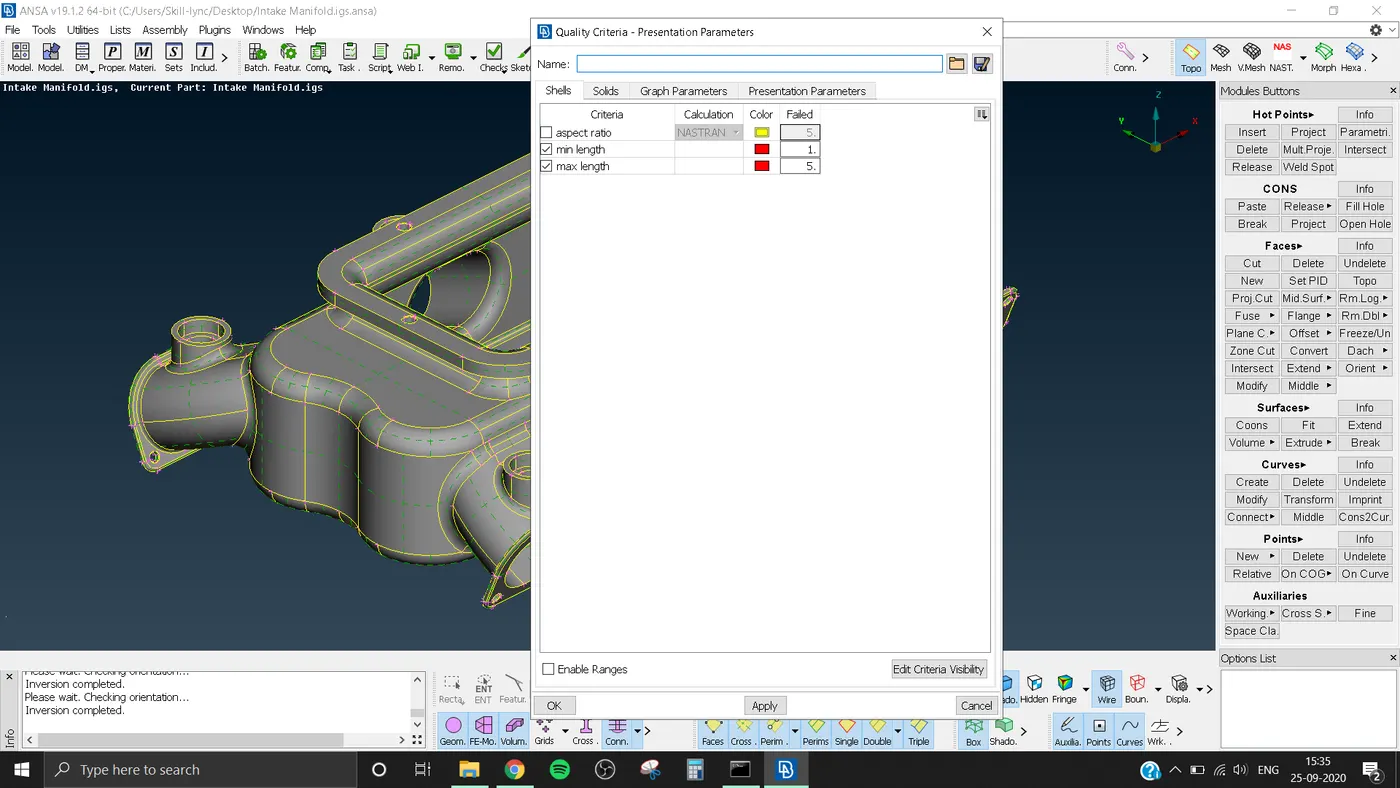
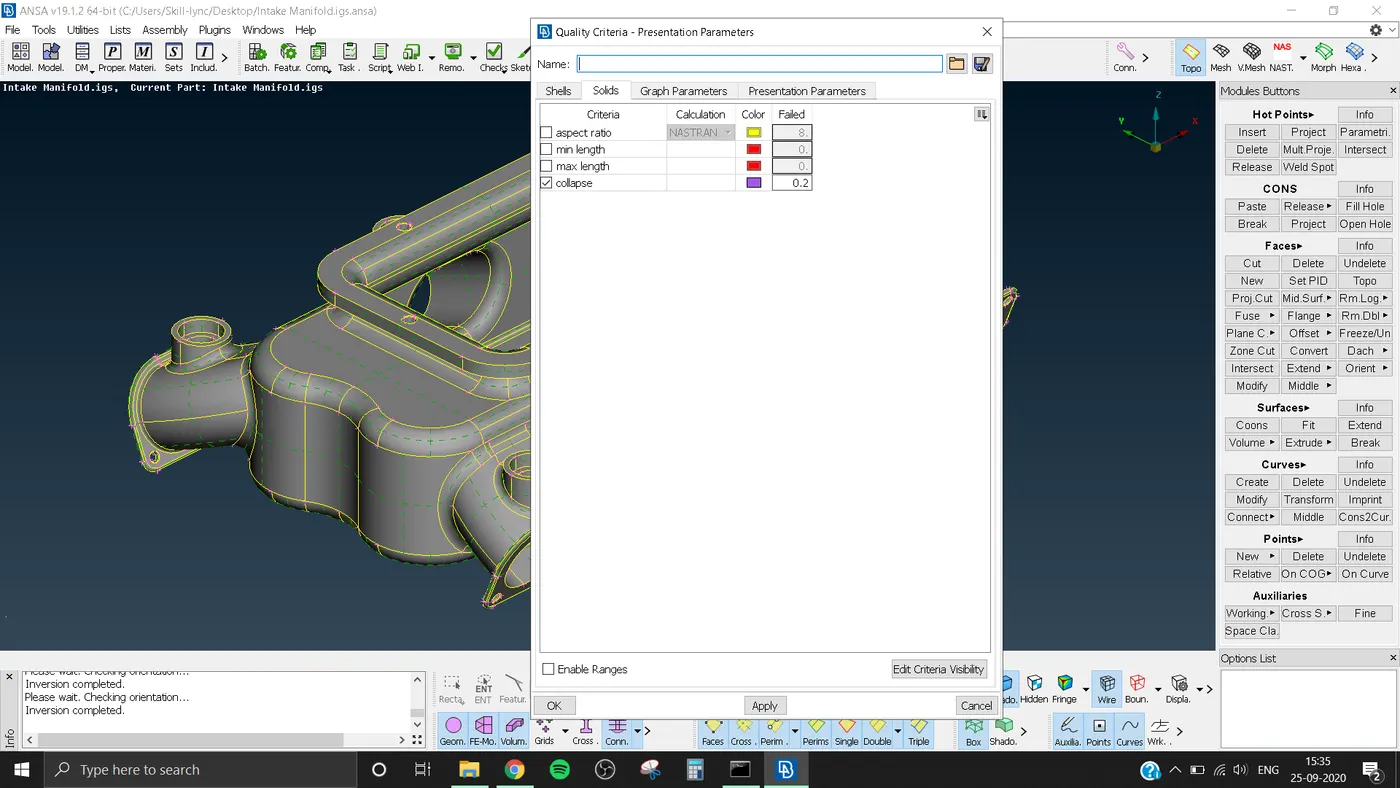
- Setting the quality criteria as give. Minimum and maximum length is for surface mesh and Tet colapse for volume mesh.
- Also the target length is set to 1
-
S.No
Quality Criteria
Value
1
Target/Average length
3
2
Minimum Length
1
3
Maximum Length
5
4
Tetcolapse
0.2
4) Surface Meshing:-
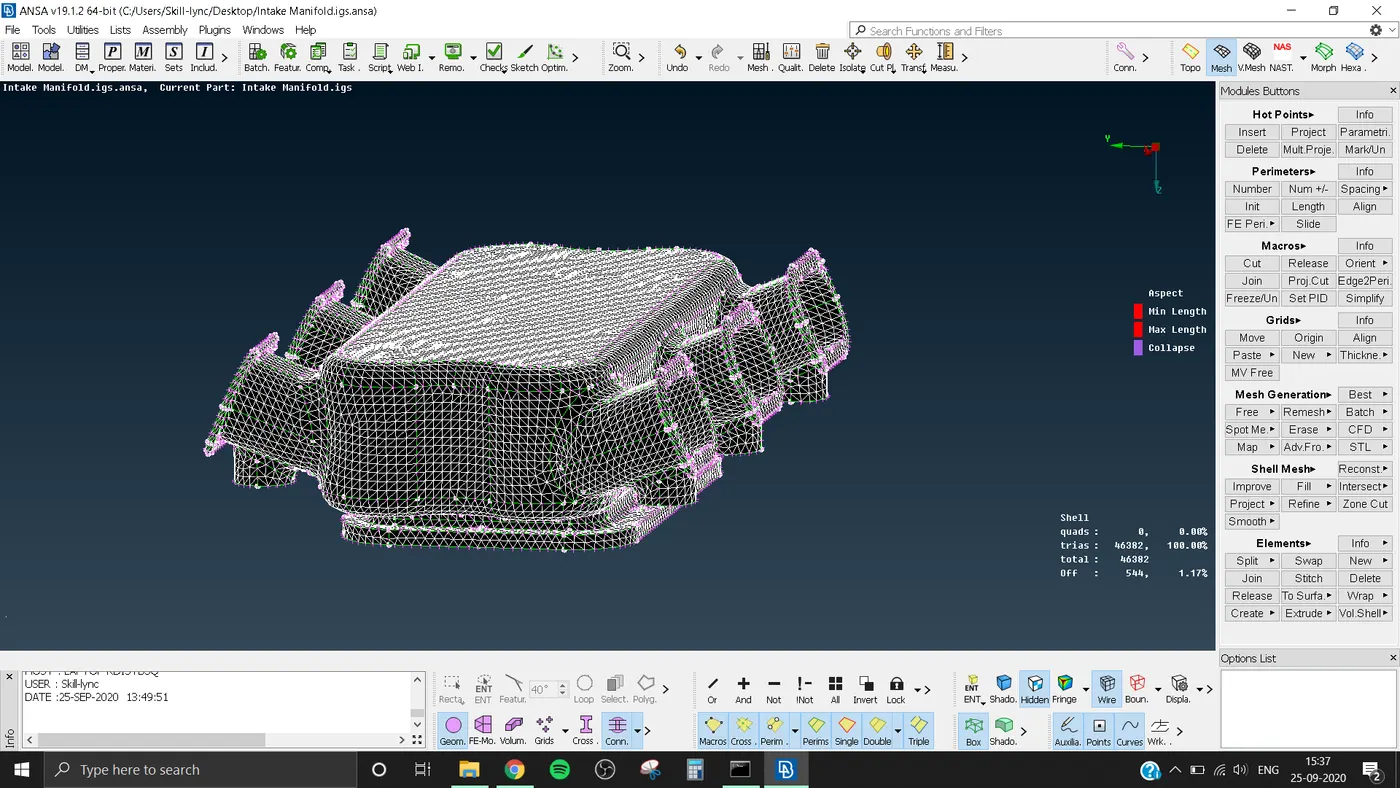
- This part is Meshed using ortho trias or normal trias.
- Ortho trias are mainly used in areas where there is complex shapes or curved areas, like fillet region.
- Normal trias are used in areas where it is flat.
- Meshing is done by using Spot.Mesh under mesh generaton in Mesh module also after spot mest we can use reconstruct to get a good pattern.
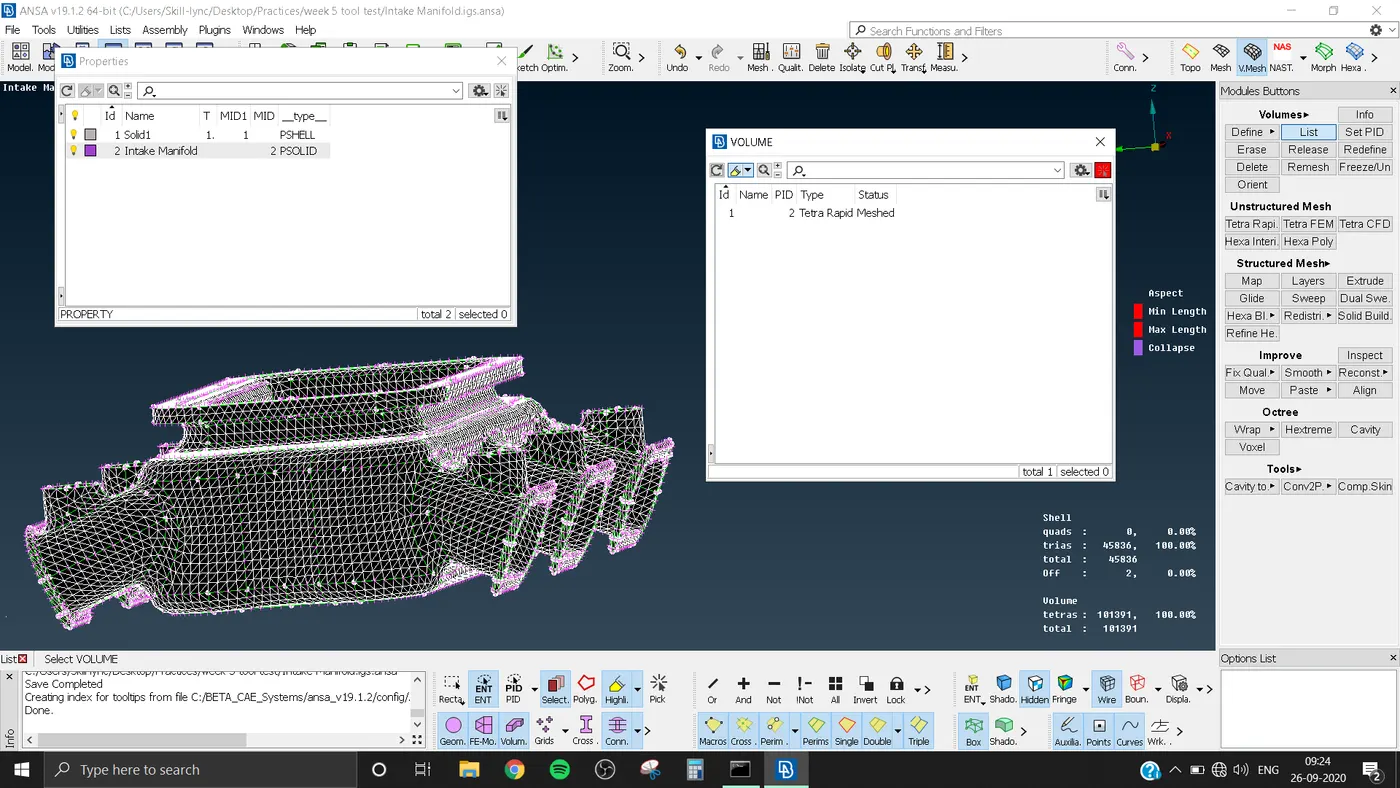
5) Volume Meshing:-
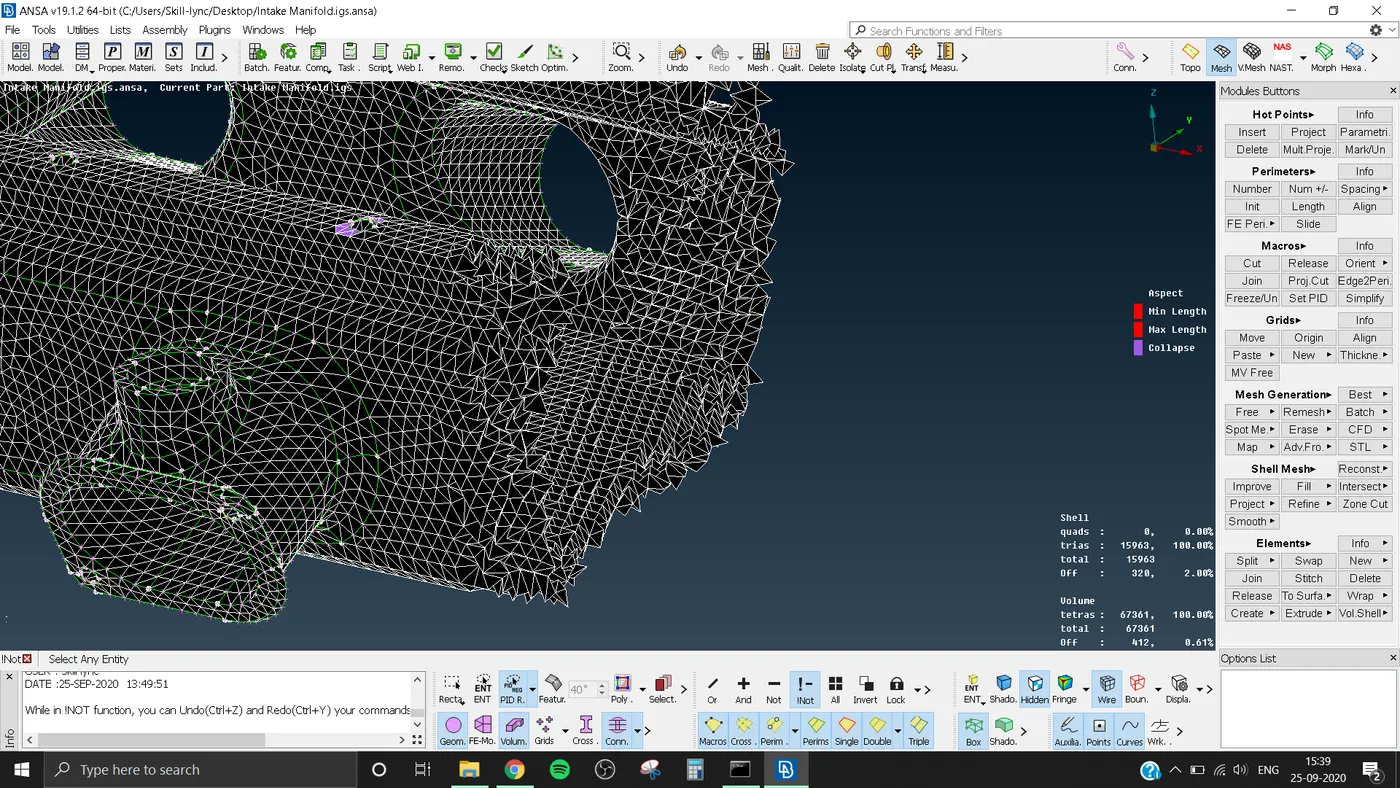
- For volume meshing first we have to define the volume.
- For that click on Define under Volume in V.Mesh module. Choose manual
- Select the part. Set property ID.
- Then select List in the Volume .
- You can see that the part is unmeshed and undefine.
- Right click on it, Select remesh.
- Select Tetra Rapid or Tetra FEM.
- Click ok.
- Then the Volume mesh is formed for that part.
- Do this for each part.
LEARNING OUTCOMES:-
- From this I have learned to make Volume and Volume Mesh.
- How to solve the errors in Volume mesh like TetCollapse.
- Use of Ortho trias and normal trias
CONCLUSION:-
All geometrical errors are cleared and meashing is done with the givien criteria. The Shell is having a total of 45836 trias and volume is having 101391 tetras.