Tool Test 1
Aim:
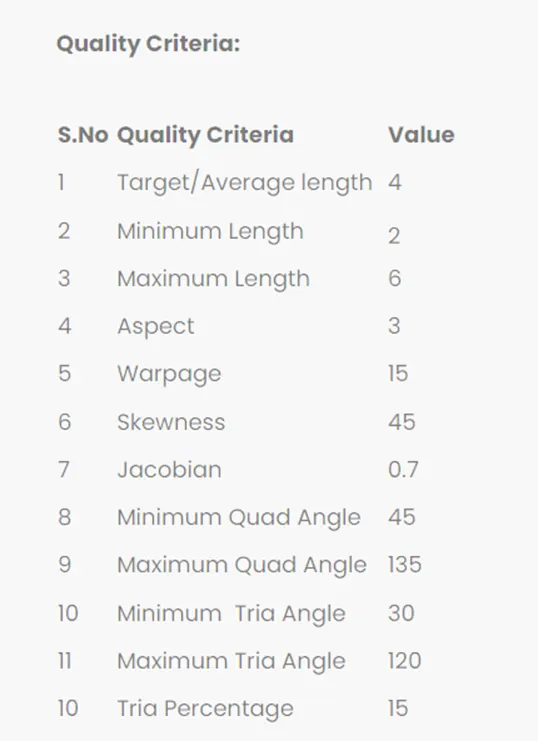
To Model the tool testing using the quality criteria shown below.
Objective:
This tool test carries two models (i.e. Plastic model, Sheet metal model). For both the models, Mid surface should be taken and meshed as per below quality criteria. Thickness should be assigned to both the models. (Refer “Model Requirements” in “Grading Policy” to know what to be done in the model)
Procedure:
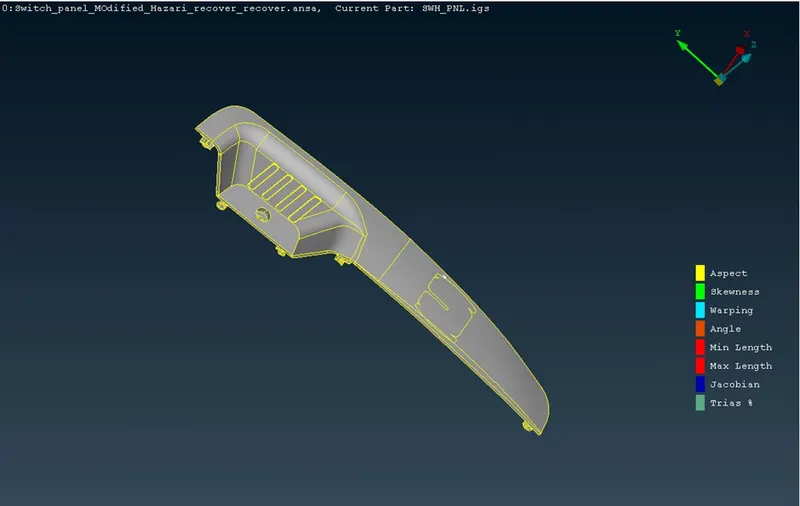
- Import the model and to Ansa workbench.
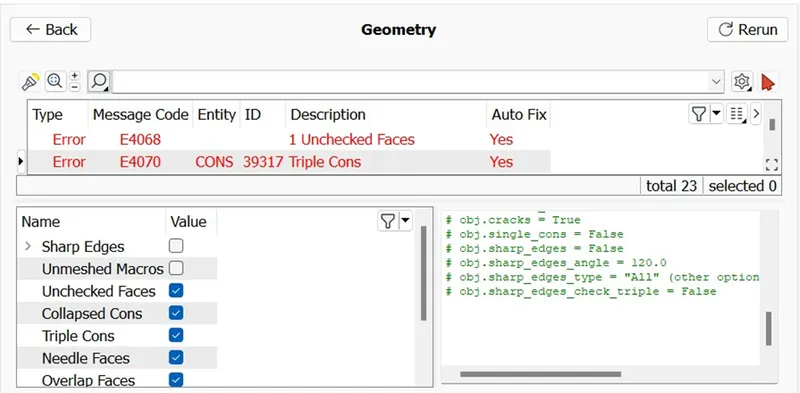
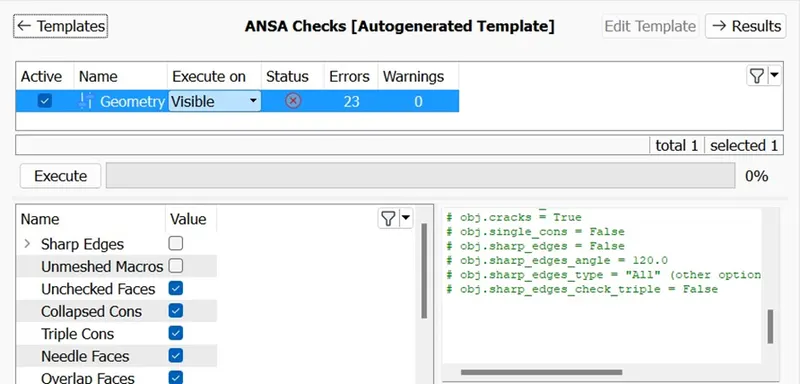
- Check geometry if the geometry is showing some error right click and fix it.
- After fixing the geometry go for mesh click length option and select the model set the length to 1.
- And macro length to 1 to get the best visual of the model.
- Now click the
- Check geometry of the tool if there is errors we can right click and select error and fix it.
- Geometry can be cleared before starting to capture mid surface.
- Now using offset option and creating new mid surface.
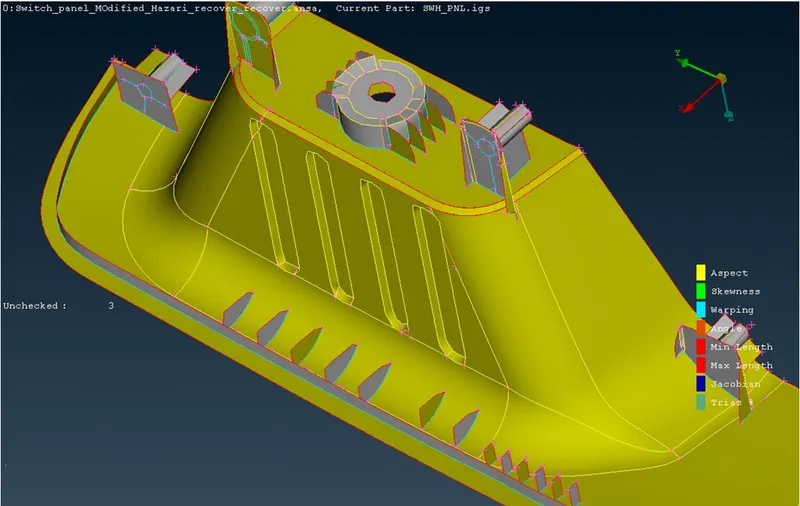
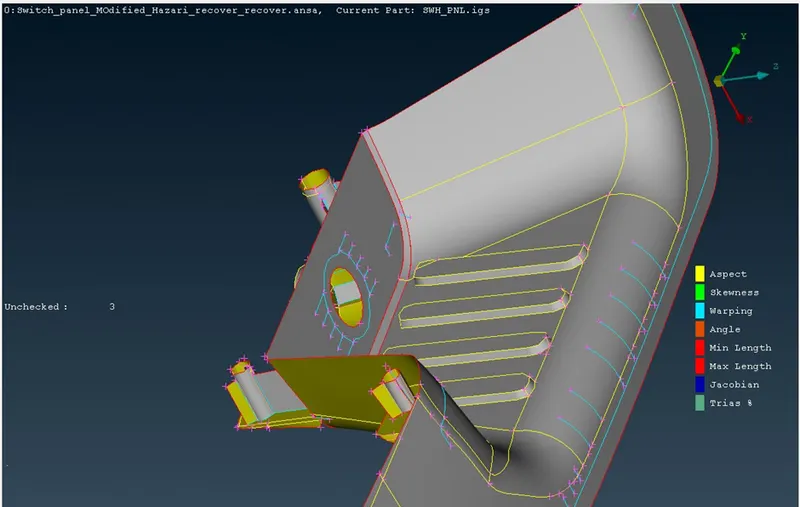
- After mid surface generated storing it in a PShell.
- By using the option of set pid.
- After doing all the process now we can go for meshing.
- First we need to define the Quality criteria for the model.
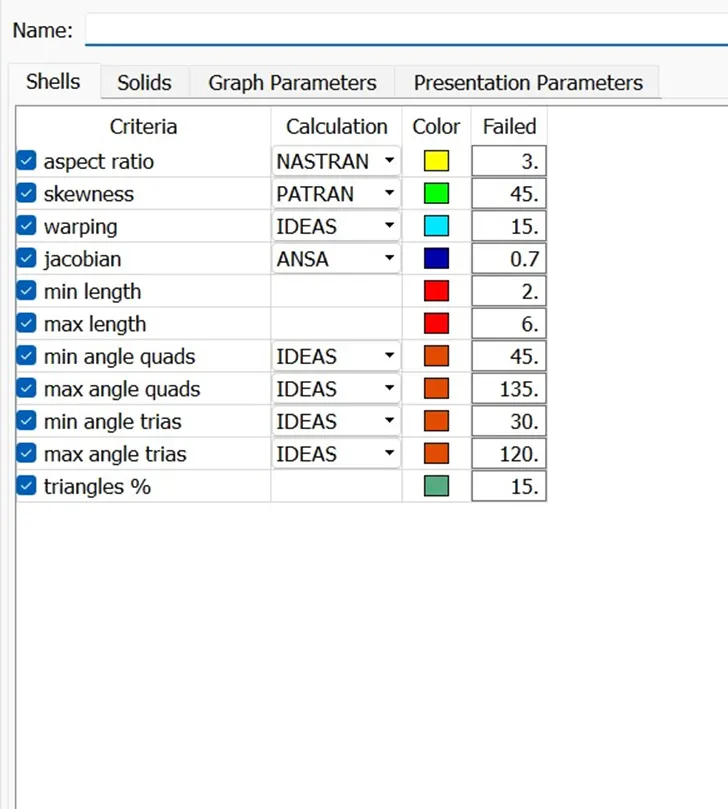
- And defining the average length.
- After defining the all the criteria we can use Best option to mesh the model.
- Selecting the model and clicking the middle mouse button.
- Mesh will be applied to the entire model.
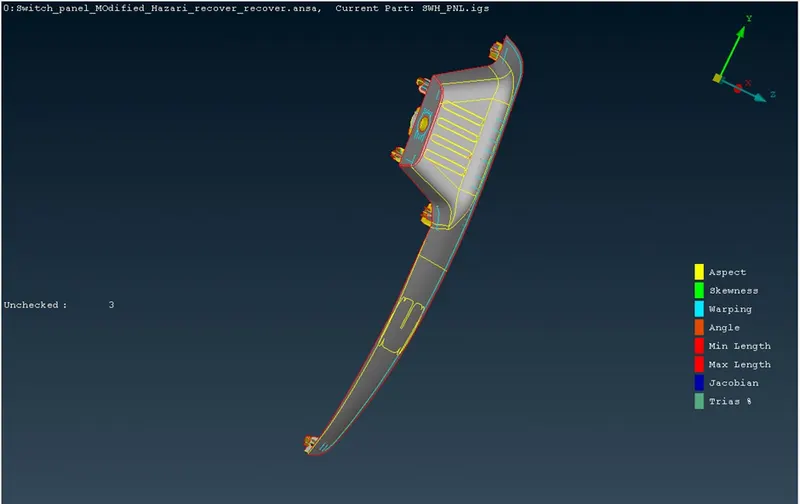
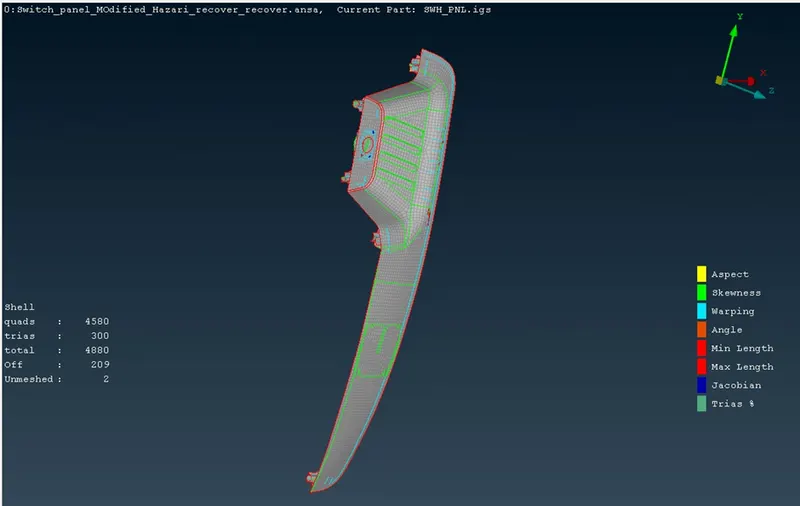
- After defining the all the criteria we can use Best option to mesh the model.
- Selecting the model and clicking the middle mouse button.
- Mesh will be applied to the entire model.
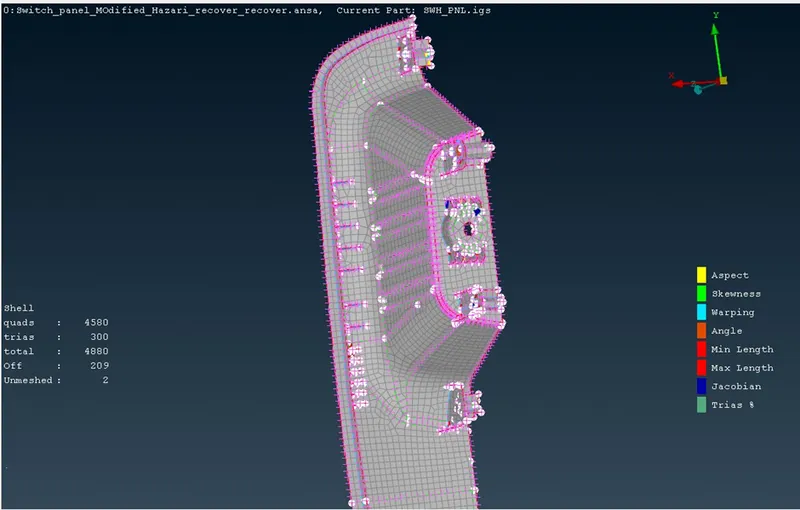
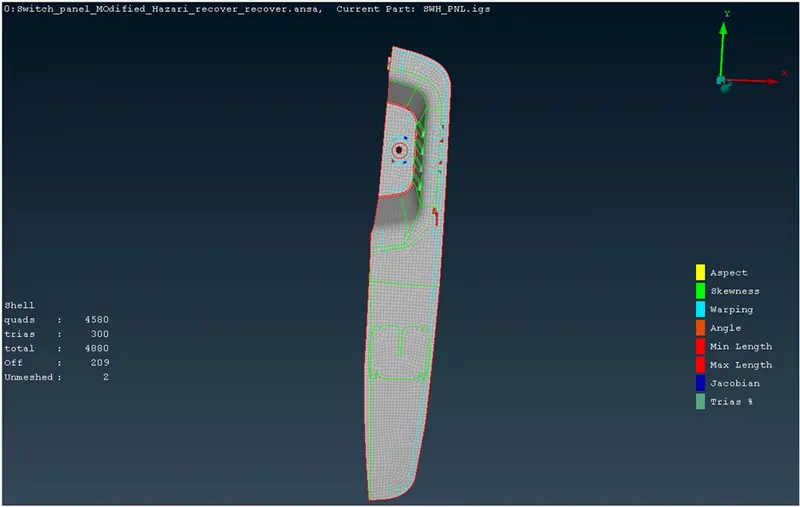
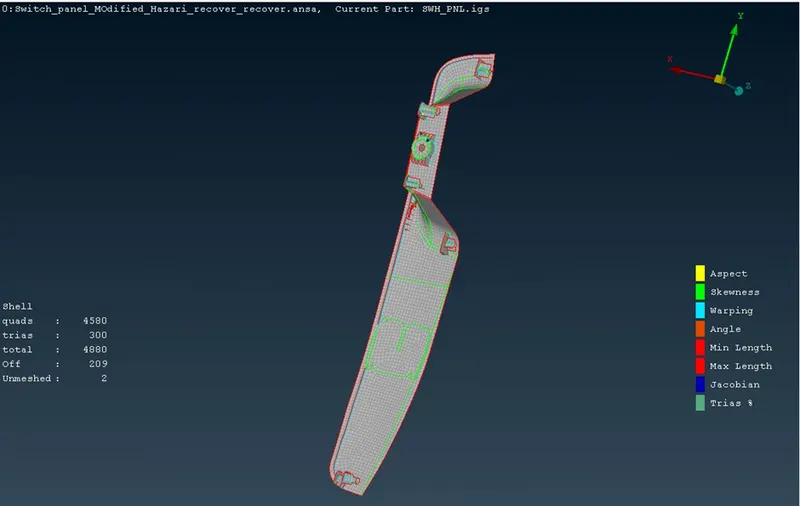
- Using Reconstruct option we can select the entity where the quality is unsatisfied and hit the middle mouse button it will clear the quality.
- We can use Smooth option to clear quality too.
Model2:
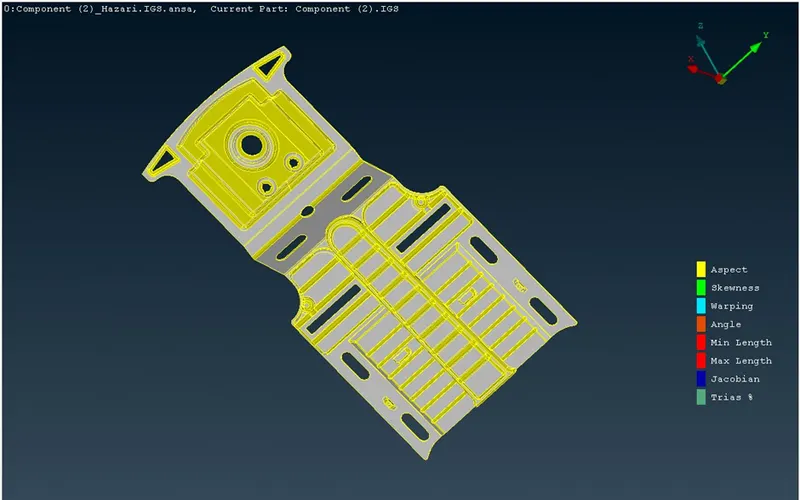
- Creating the the model we need to check the geometry and clear the geometry.
- After clearing we can go for generating the mid surface.
- After Generating the all the midsurface we have to join using the New option.
- Joining all the cons to generate a single model.
- Now defining the length of the material using length option.
- Now by defining the Quality criteria and average length.
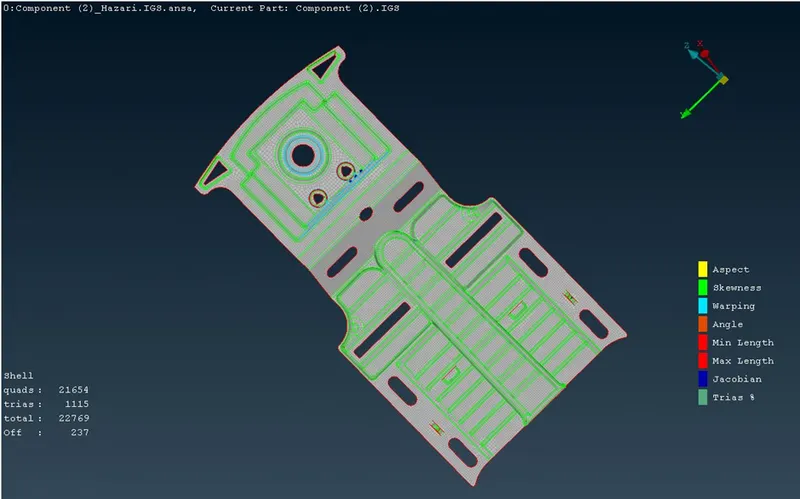
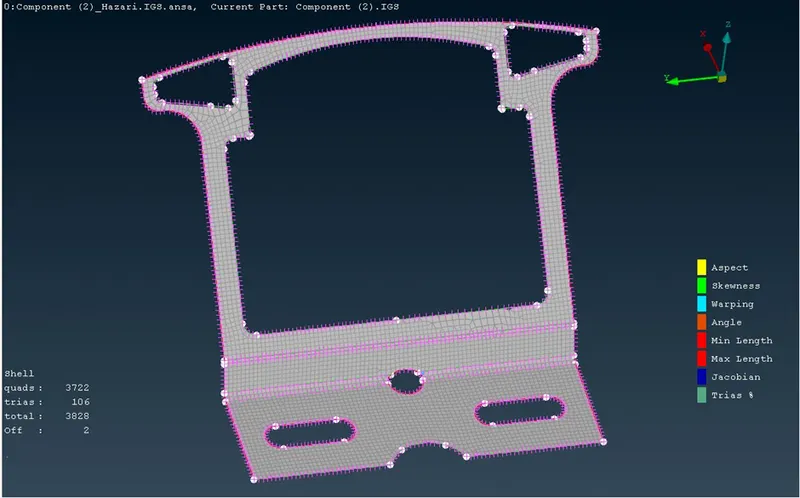
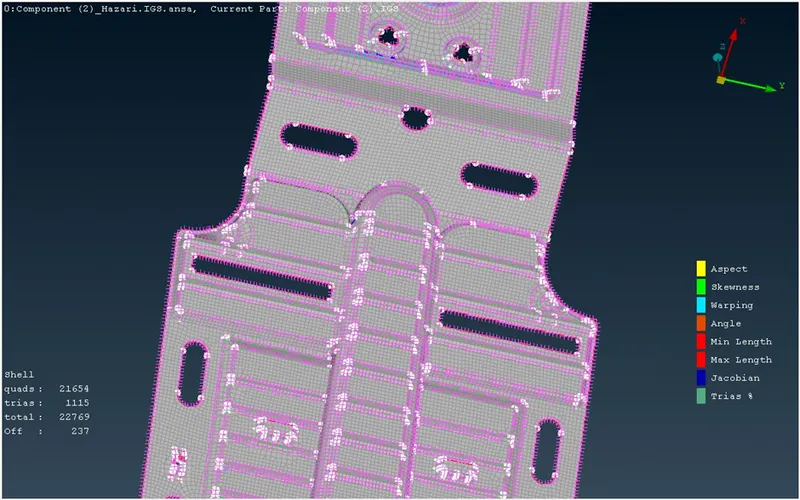
- Now we can go for meshing using Best option.
- Selecting the model and clicking the middle mouse click and generating the fine mesh.
- After Mesh generated we can clear the quality by using Reconstruct option.
- We can use smooth option to generate the smooth mesh.
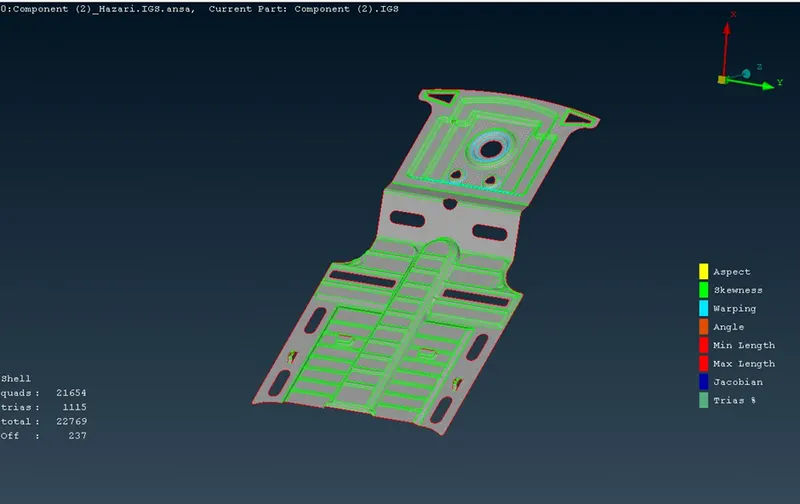
Conclusion:
- We have successfully checked the geometry and generated the mesh by defining appropriate quality criteria as per the Aim.
- We have successfully done the tool testing.