To Generate seismic loading based on IS code and to run the analysis using TSD
Questions:
1. Generate seismic loading based IS codal provisions and zone II. Any other data you can assume and input accordingly.
2. Run the analysis. Summarize your understanding of the analysis results.
Solutions:
1. Generate seismic loading based IS codal provisions and zone II. Any other data you can assume and input accordingly.
Solution:
AIM: To generate the seismic loading based on the IS codal provisions and zone ll in the TSD software.
PROCEDURE:
- The very first step is to open the previous assignment in the TSD software.
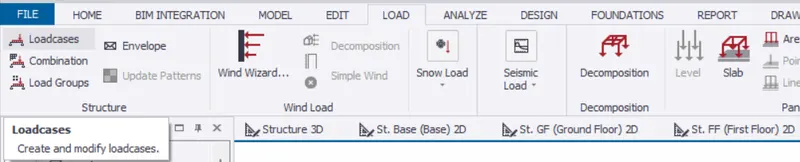
- Then go to the Model tab then there will be an option called Loadcases just click on that just as shown in the below given image:
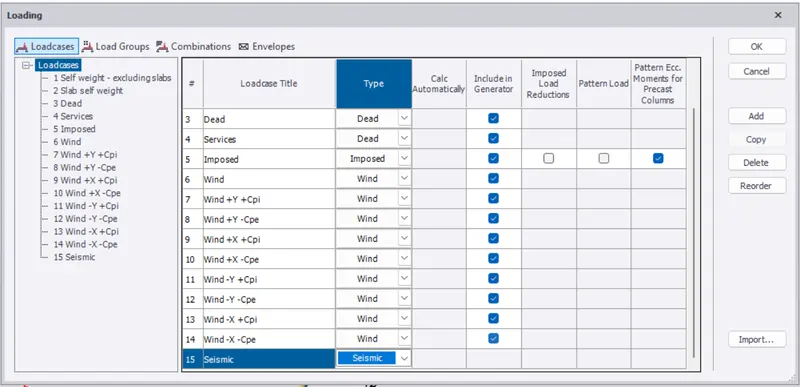
- After that there will be another dialouge box named as the Loading and in that dialouge box add the seismic load by adding the loads just as shown in the below given image:
- To generate the seismic loadings, go to the Load tab just click on that option just as shown in the below given image:

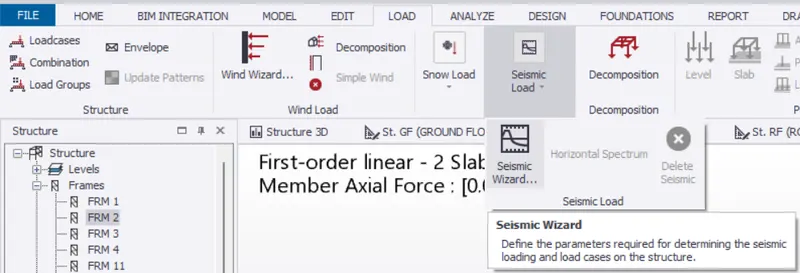
- And in the Load tab there will be an option called Seismic Load just click on that option just as shown in the below given image:
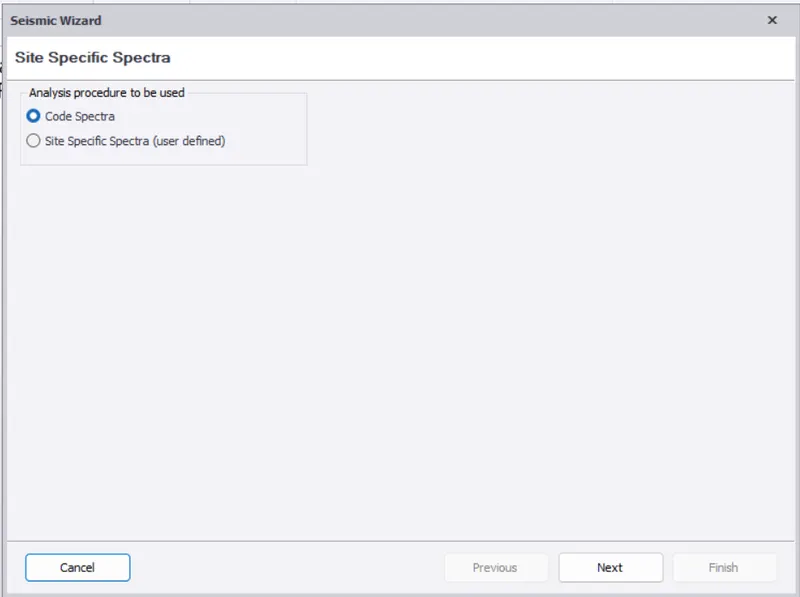
- After that there will be another dialouge box named as the Seismic Wizard (Site Specific Wizard) and click on the Code Spectra option and then click on the Next option just as shown in the below given image:
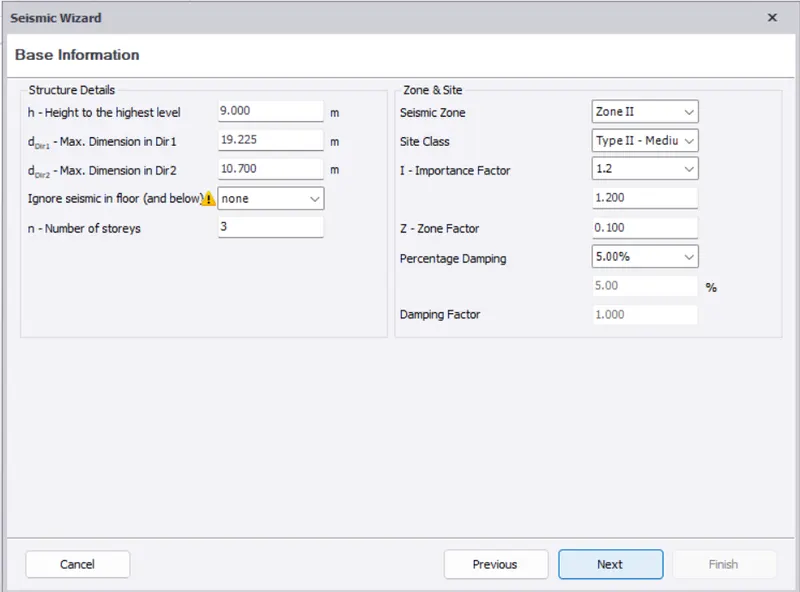
- Now after that there will be another dialouge box after clicking on the Next option named as the Base Information, fill the details just as shown in the below given image and then click on the option Next as shown below:
- Now after that there will be another dialouge box after clicking on the Next option named as the Structure Irregularities, fill the details just as shown in the below given image and then click on the option Next as shown below:
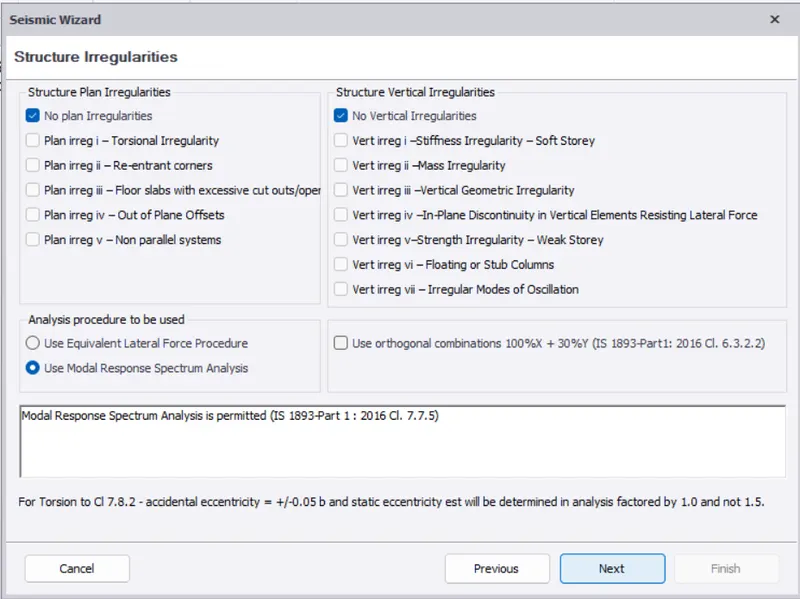
- Now after that there will be another diazlouge box after clicking on the Next option named as the Fundamental Period, fill the details just as shown in the below given image and then click on the option Next as shown below:
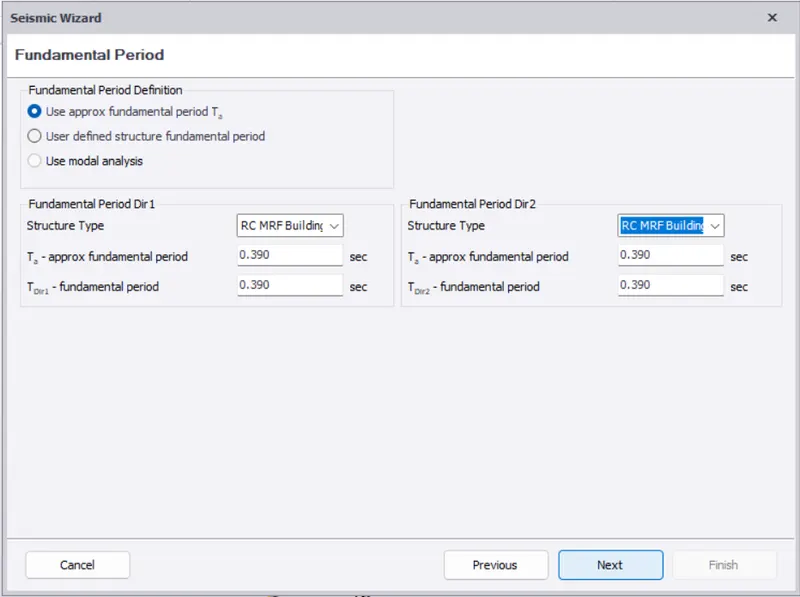
- Now after that there will be another diazlouge box after clicking on the Next option named as the Seismic Force Resisting System, fill the details just as shown in the below given image and then click on the option Next as shown below:
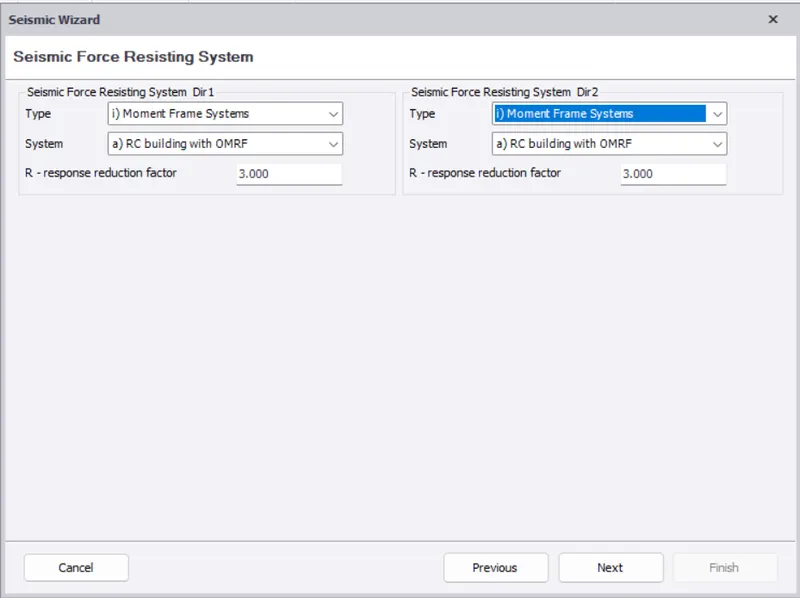
- Now after that there will be another diazlouge box after clicking on the Next option named as the Effective Seismic Weight and add the seismic weights, fill the details just as shown in the below given image and then click on the option Next as shown below:
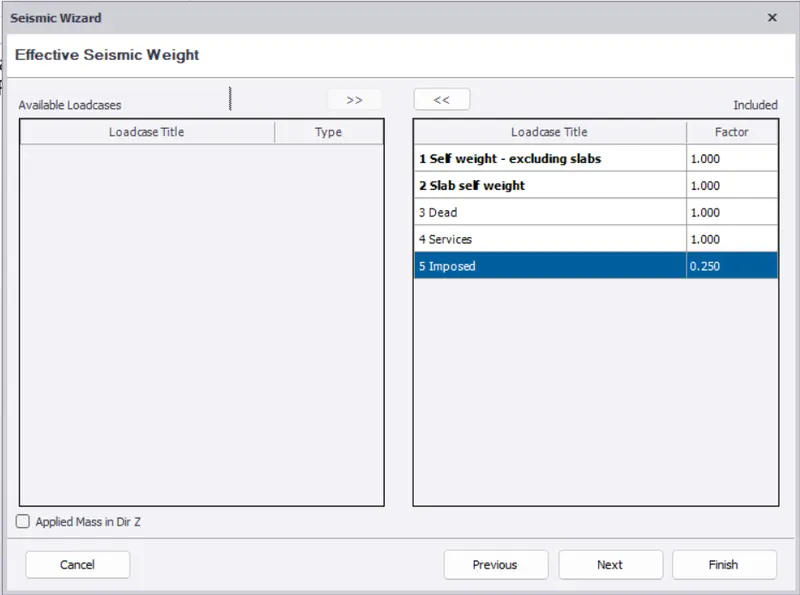
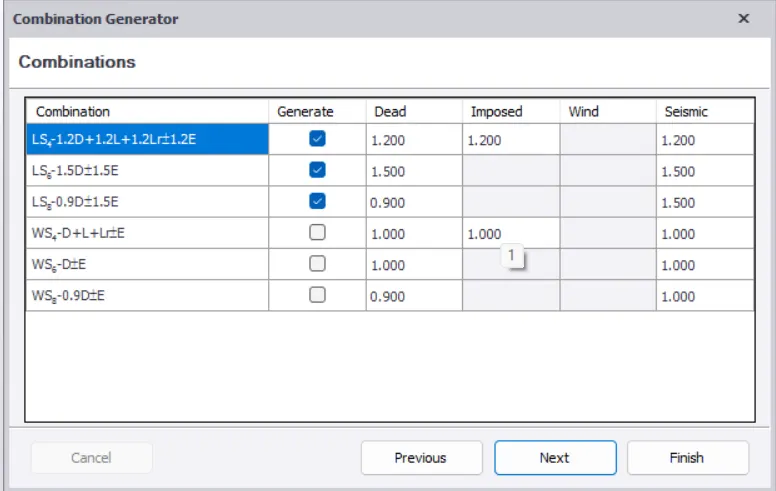
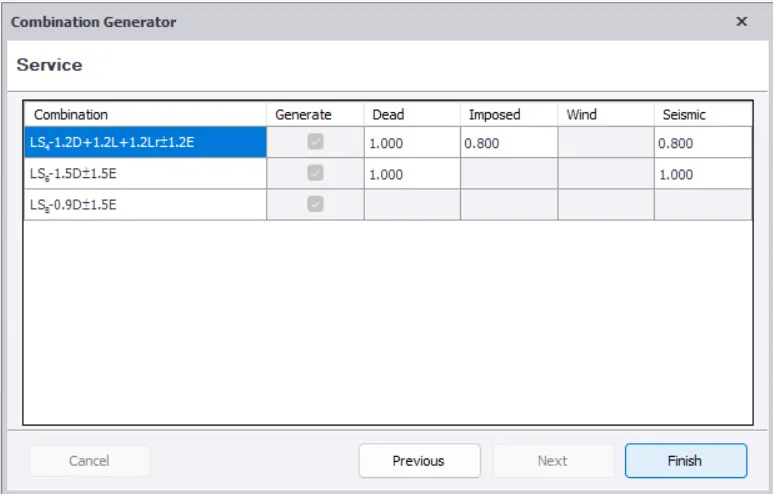
- Now after that there will be another diazlouge box after clicking on the Next option named as the Combination Generator(Combinations) and check the combination factor value as shown in the below given image:
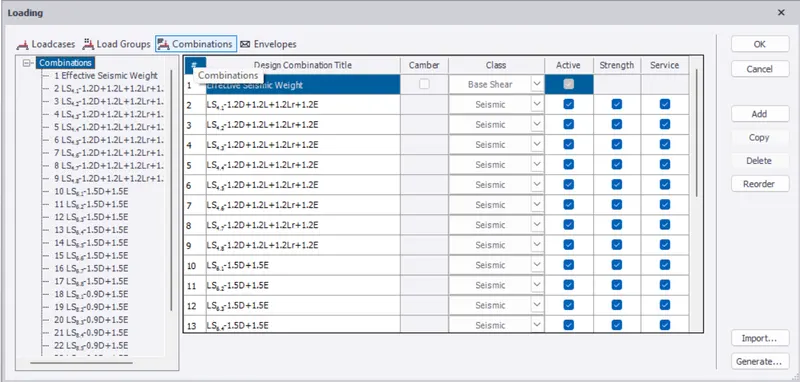
- After this the seismic loading is generated by the software itself just as we can see in the below given image:
2. Run the analysis. Summarize your understanding of the analysis results.
Solution:
AIM: To run the analysis and to summarize your understanding of the analysis result.
PROCEDURE:
- First of all we need to open the TSD software as shown in the below given image:
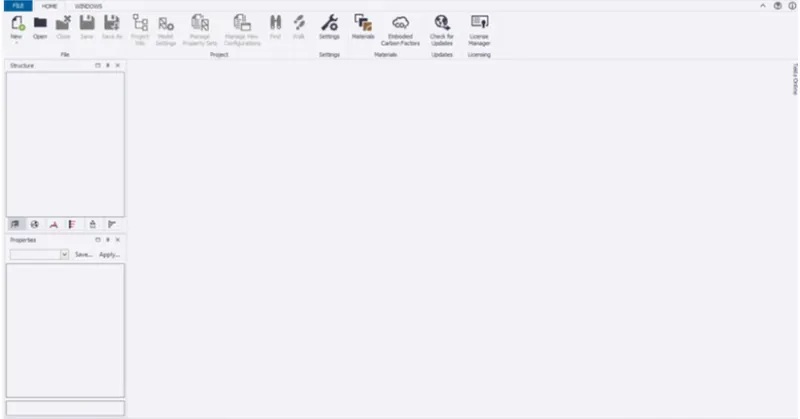
- Now we will be opening the previous assignment on which we were working as shown in the below given image:
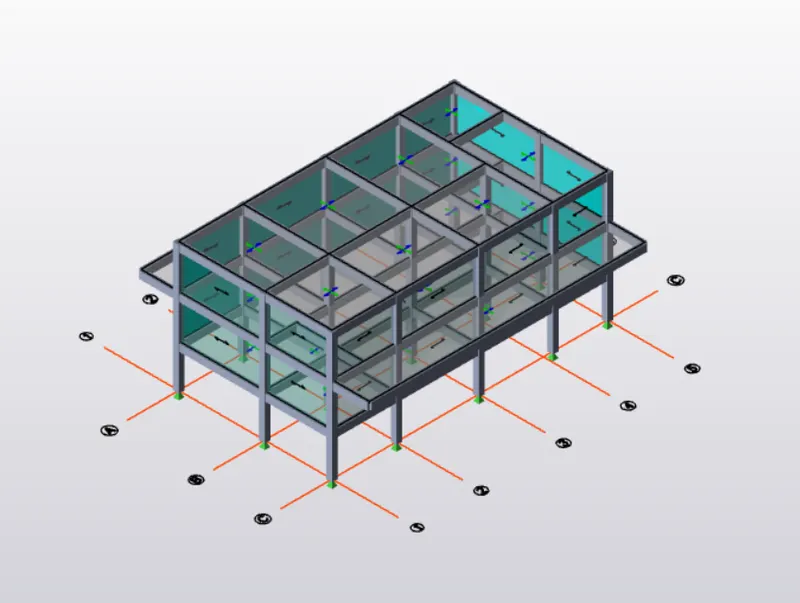
- Now go to the Analyze tab just click on that option just as shown in the below given image:

- Now in the Analyze tab there will be an option called Settings just as shown in the below given image:
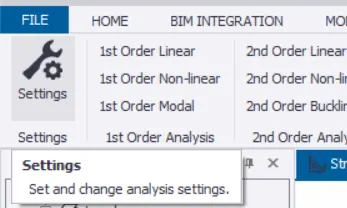
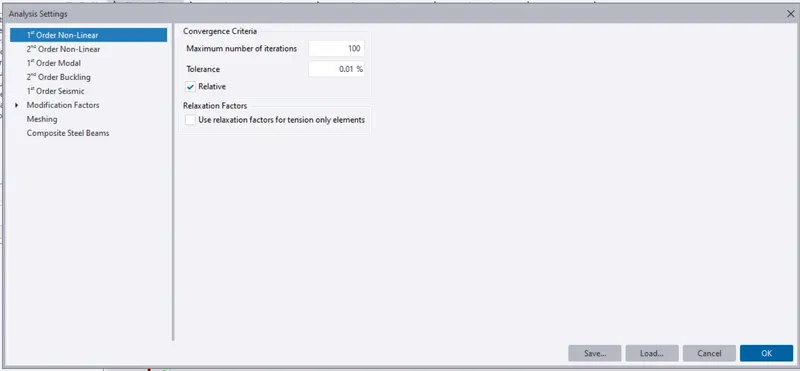
- After clicking on the option Settings then there will be another dialouge box named as the Analysis settings and in that dialouge box there will be an option Convergence Criteria and the Relaxation factor fill these factors just as shown in the below given image:
- After that in the same dialouge box there will be another option named as the Modification Factors just click on that option after that there will be another option in the modification factor named as the Steel and then there will be another one option Building analysis click on that and make sure the factor must be 1.0 just as shown in the below given image:
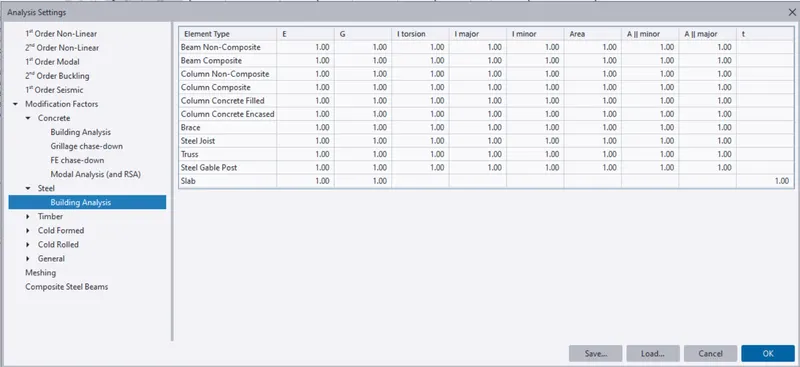
- Now there will be another option in Modification factor Concrete in that and then there will be another one option Building analysis click on that and make sure the factor must be 1.0 just as shown in the below given image:
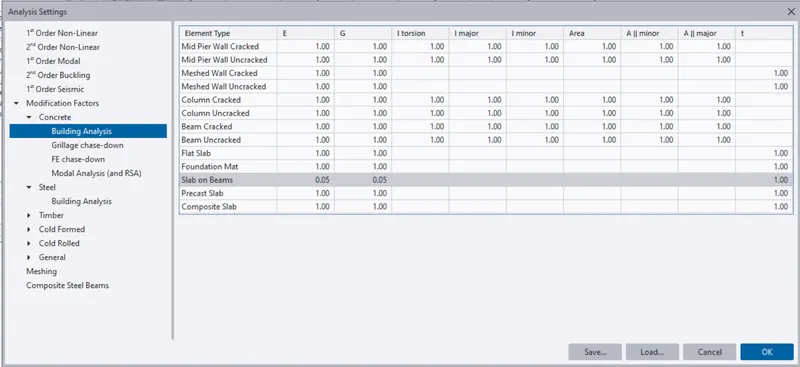
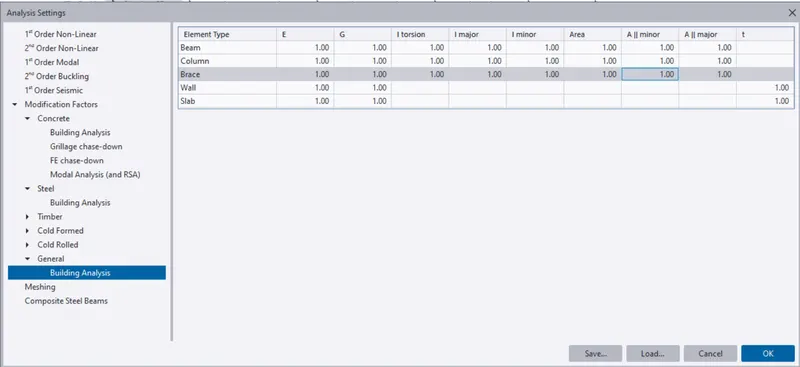
- Again there will be another option in Modification factor General in that and then there will be another one option Building analysis click on that and make sure the factor must be 1.0 just as shown in the below given image:
Bending Moment:
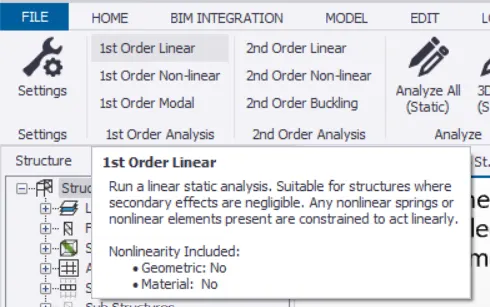
- Now in the analyze tab there will be an option called 1st Order Linear just click on that option just as shown in the below given image:
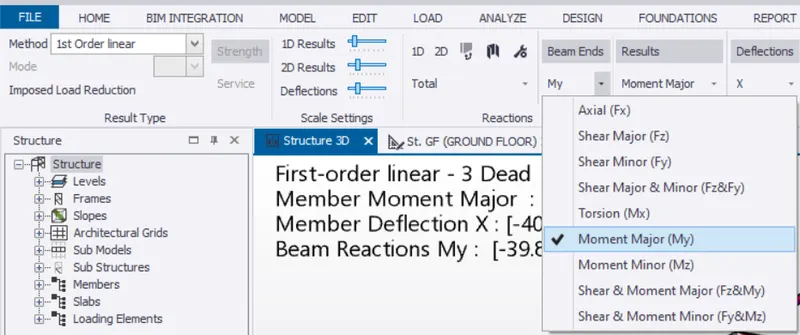
- Now after that there will be an option called Beam Ends just click on that option then there will be a drop-down list and in that list there will be an option called Moment Major (My) just click on that option just as shown in the below given image:
- After that in the Analyze tab there will be another option called Results just click on that option then there will be a drop-down list and in that list there will be an option named as the Moment Major just click on that option just as shown in the below given image:
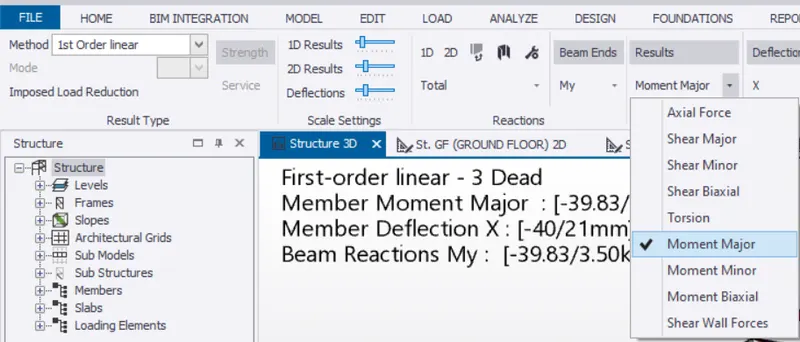
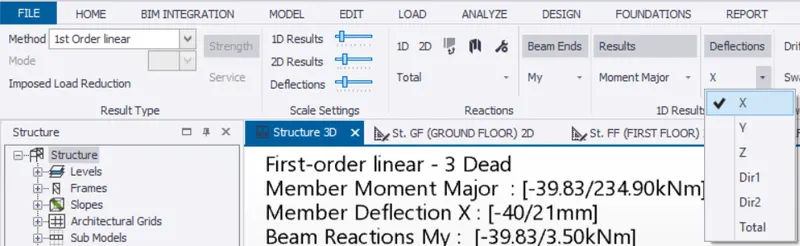
- After that select the direction, and to select the direction there will be an option named as the Deflection just click and then there will be a drop-down list and in that list there will be another options select the directions just as shown in the below given image:
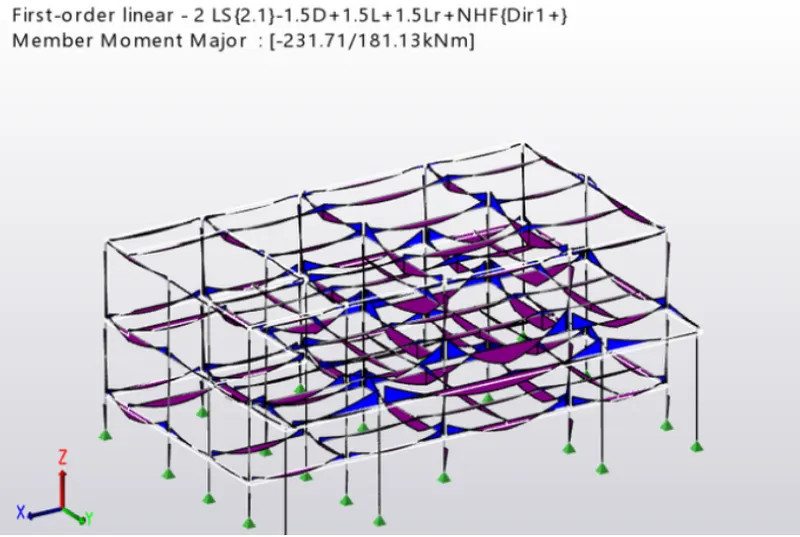
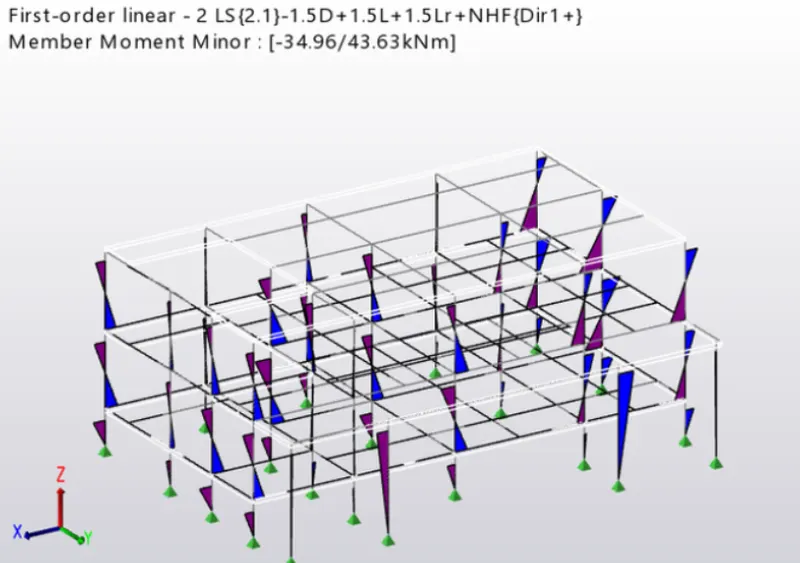
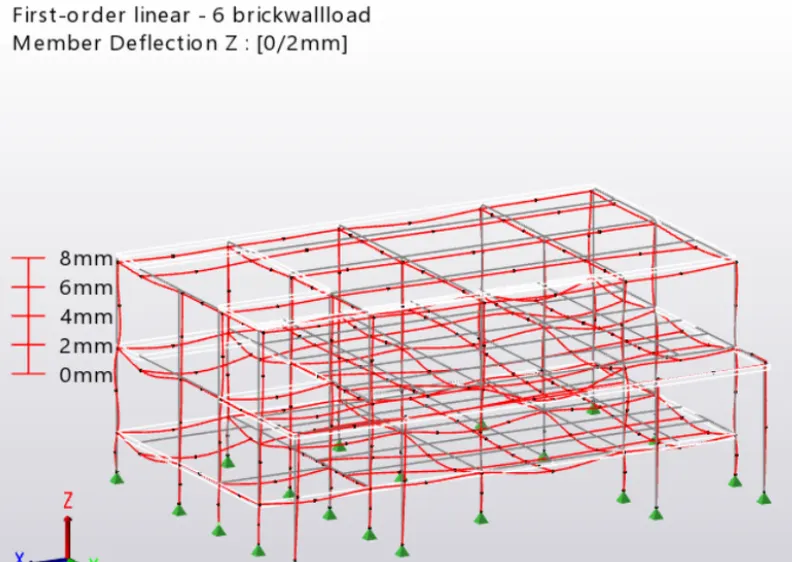
RESULT (Bending Moment Diagram):
Shear Force:
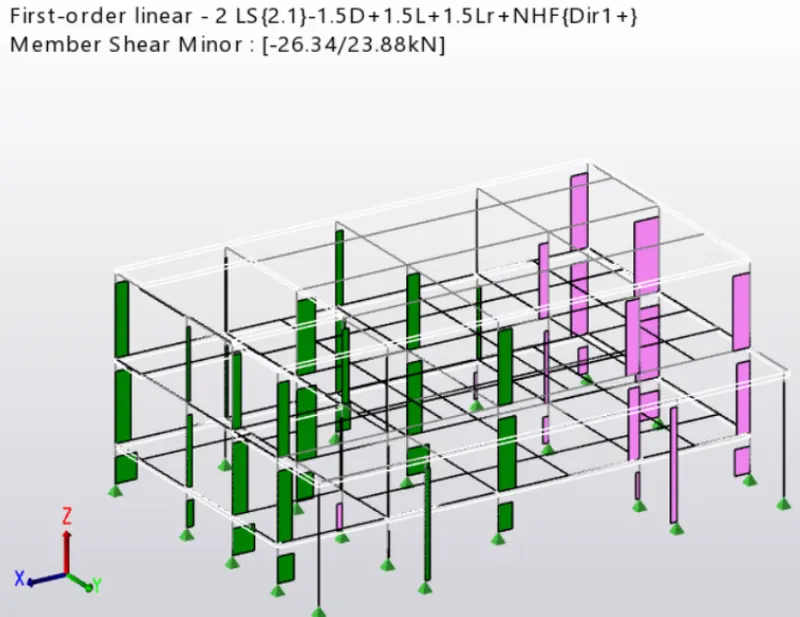
- Repeat the same procedure as we have done for the bending moment.
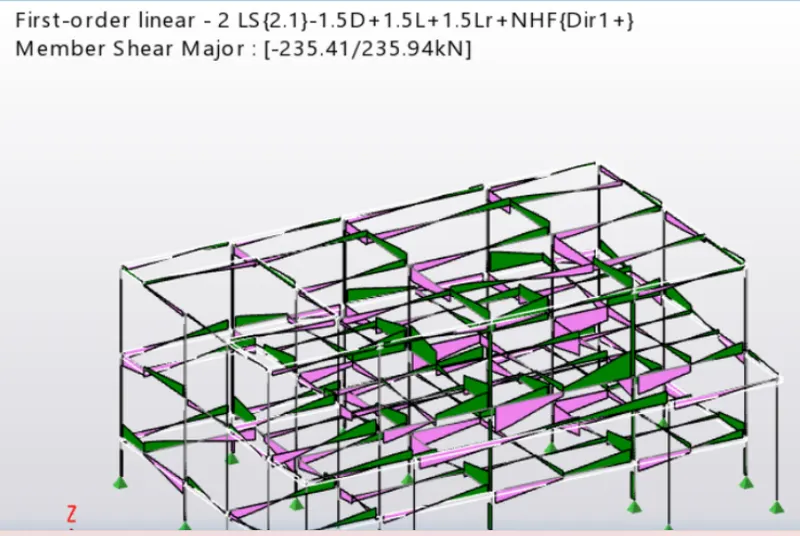
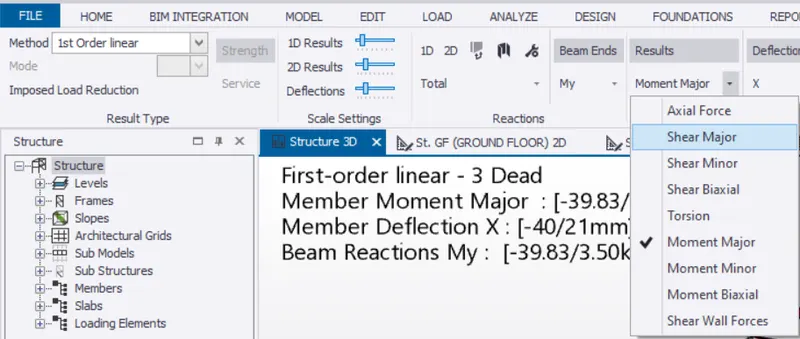
- Just go to the option Result in the Analyze tab click on that then there will be a drop-down list and in that list there will be an option called Shear Major (Fz) just click on that option just as shown in the below given image:
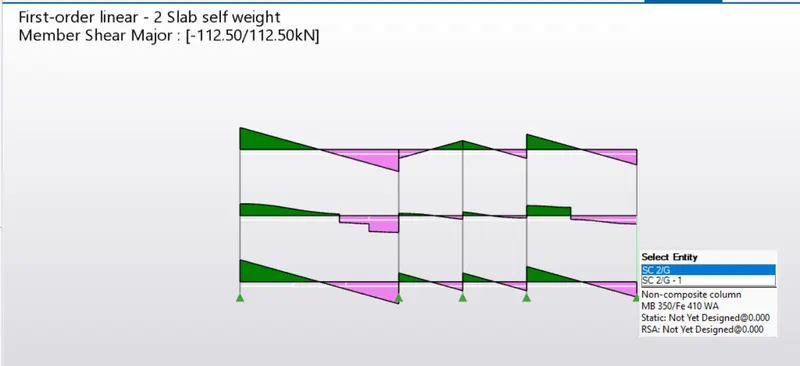
Result (Shear Major):