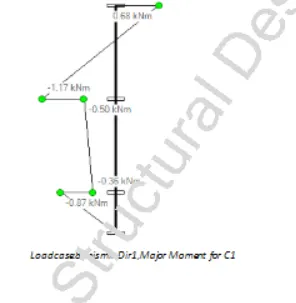
To Generate report for Steel Industrial and RC structures using TSD
1. Generate report for the steel building design from challenges 1 – 6 along with the loading summary
AIM : To generate load summary report for the steel building design
INTRODUCTION : Report commands are accessed from the report ribbon tab where we can customize model and member reports with specific content.
- MODEL REPORT : Create or edit chapters of the model report. Customisation to select particular level, frame, plane and substructure option is also available in model report.
- Example : Structure, Analysis, Loading, Load cases etc
- MEMBER REPORT : Create or edit chapters of the member report
- Example : Diagram and results of SFD, BMD, Deflections etc
- SHOW REPORT : Displays selected style report
PROCEDURE :
- Open steel building model
- First run analysis for the model
- Then go to report tab and select "Beam end forces"
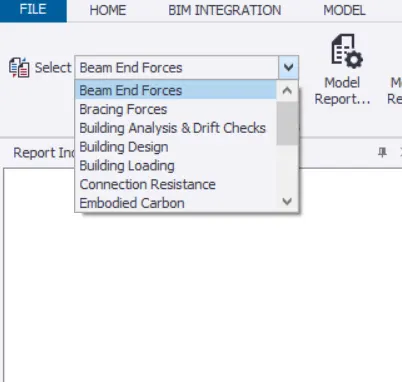
- Click on Model report settings and select necessary content for report generation
- Example : For Beam end forces, In "Structure"
Select level, loading, loadcase summary, combination and seismic load 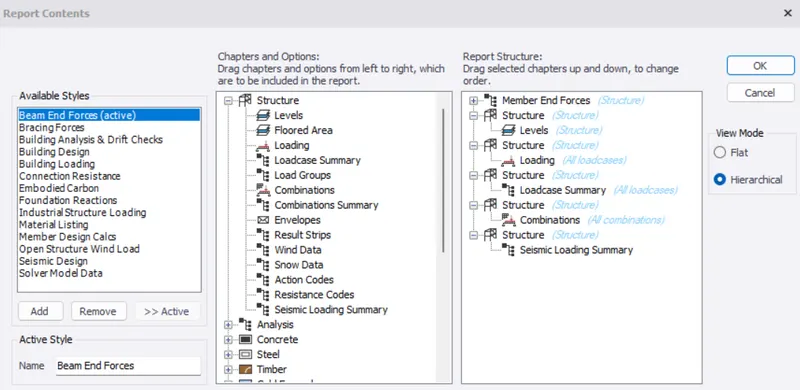
- Example : For Beam end forces, In "Structure"
- Now select Show report
- Similarly generate analysis
- Click on Model report settings and select necessary content for report generation
- Example : For Beam end forces, Analysis
Select element and move it to right side 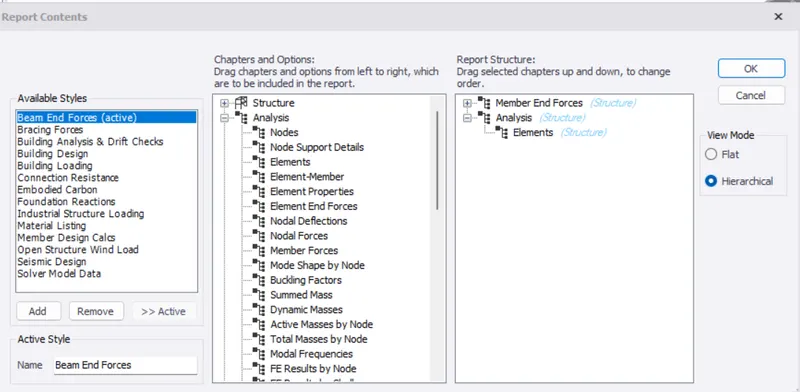
- Right click and select Model Filter
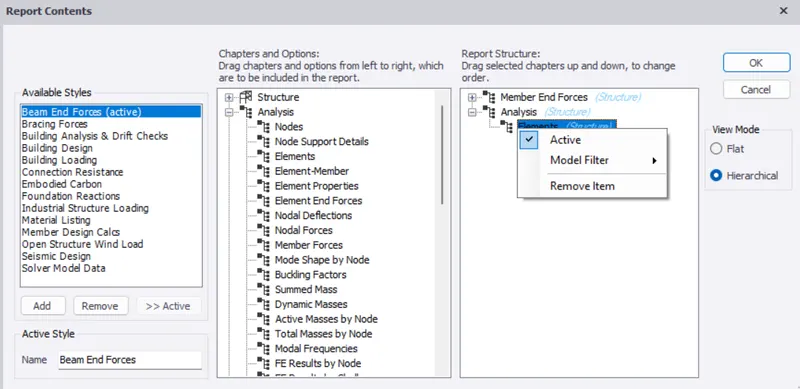
- Select "Edit/New"
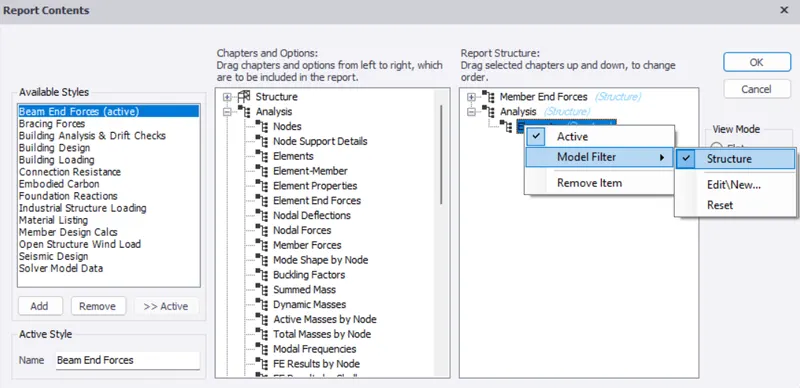
- We get a "Select Filters"
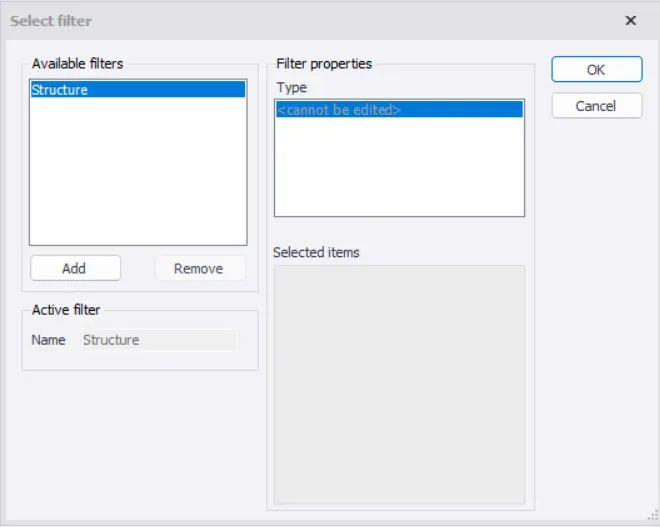
- Select "Add"
- Select the levels and click ok
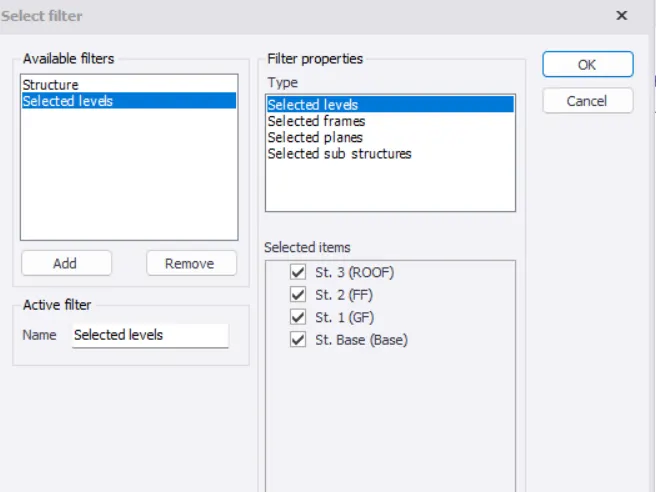
- Example : For Beam end forces, Analysis
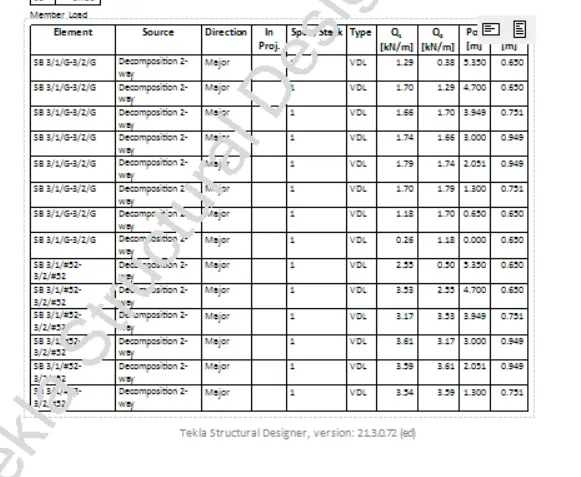
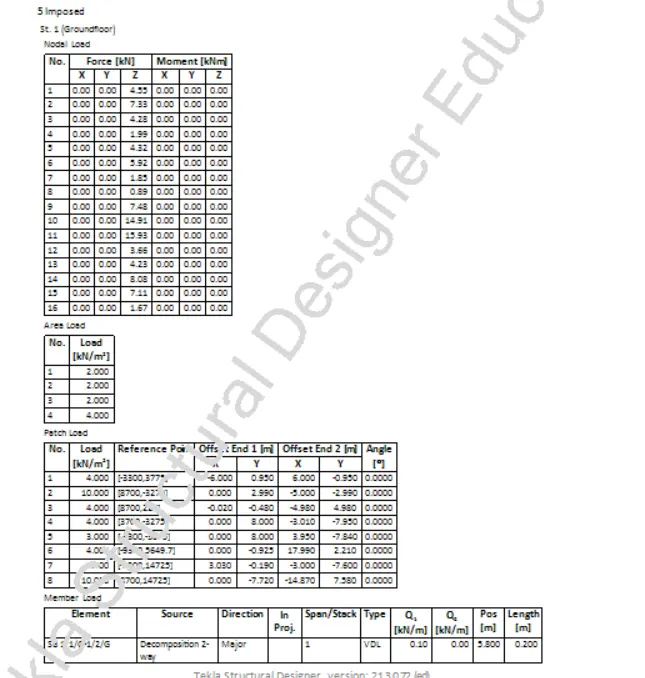
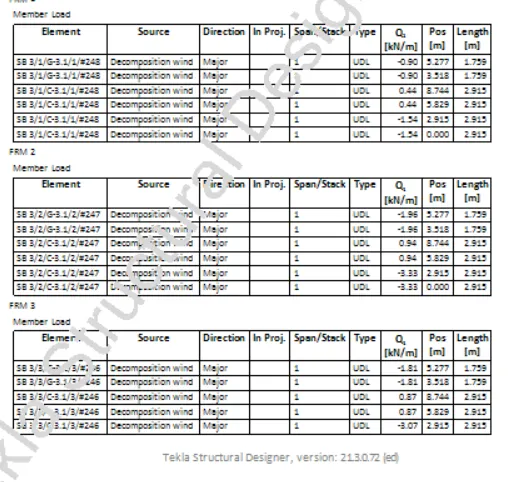
RESULTS : Structure report( For few members)
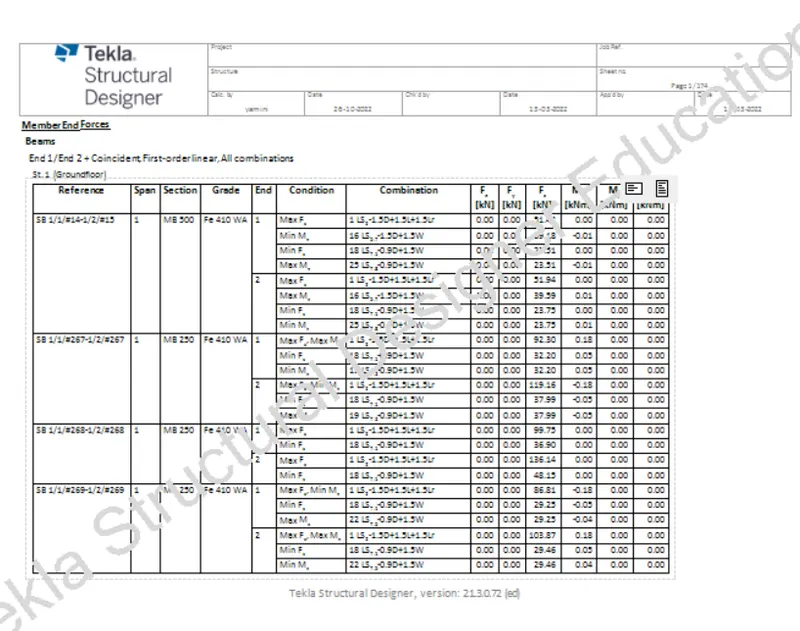
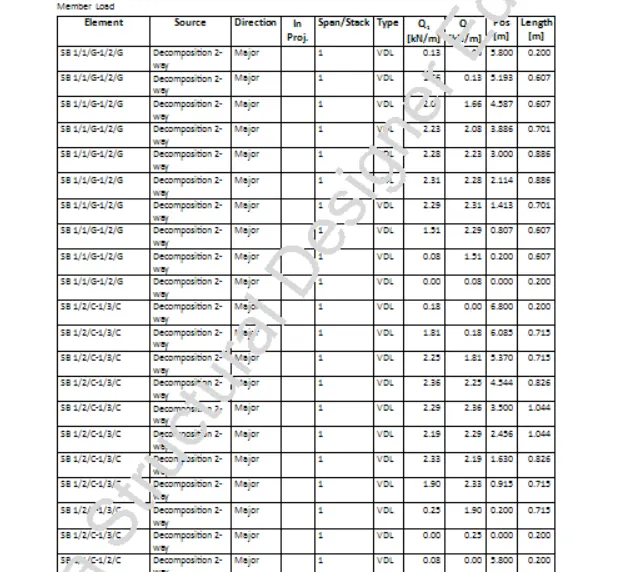
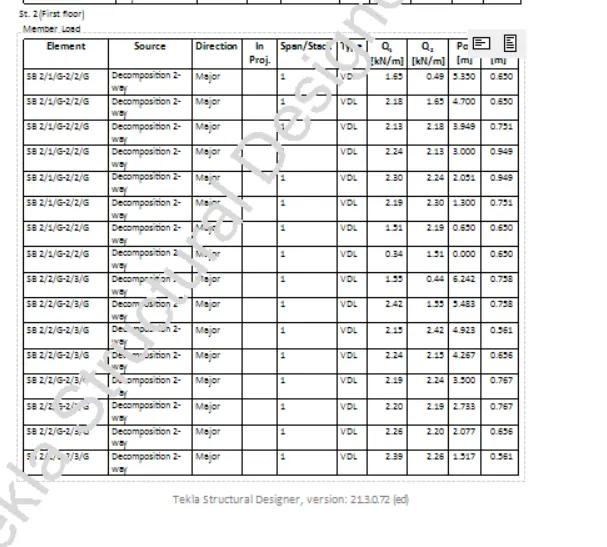
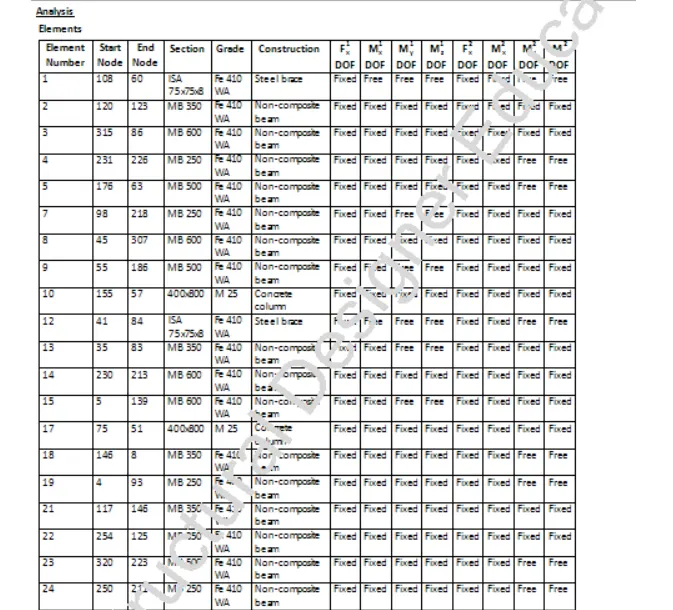
- Analysis report( for few members)
- Nodal deflections
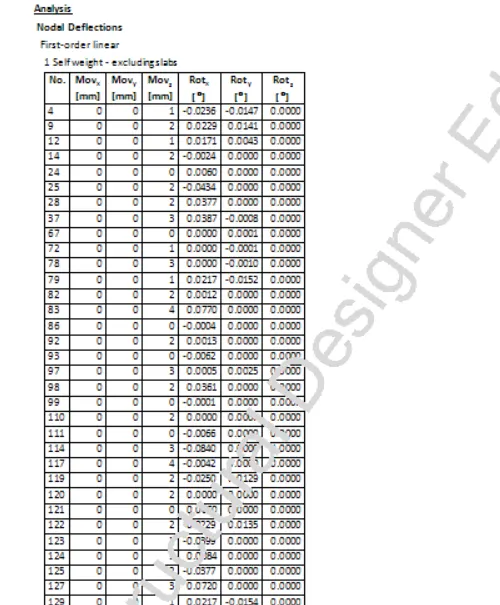
- MEMBER FORCES REPORT
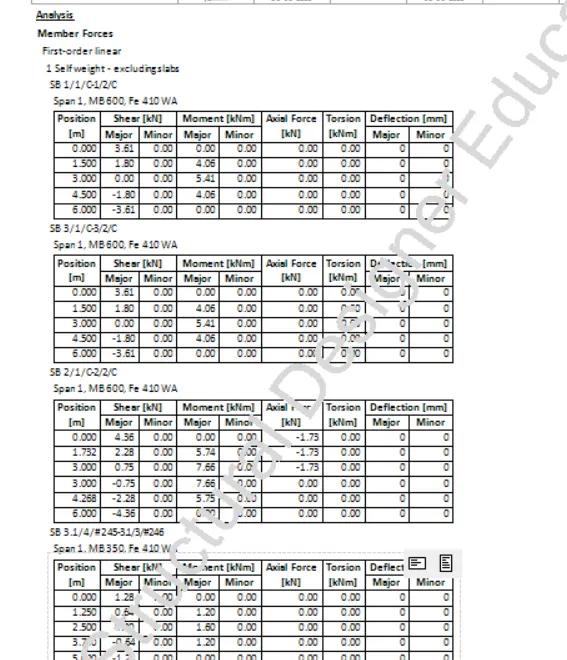
2. Generate report for RC structure along with the loading summary
AIM : To Generate loading summary report for RC structure
INTRODUCTION : Report commands are accessed from the report ribbon tab where we can customize model and member reports with specific content.
- MODEL REPORT : Create or edit chapters of the model report. Customisation to select particular level, frame, plane and substructure option is also available in model report.
- Example : Structure, Analysis, Loading, Load cases etc
- MEMBER REPORT : Create or edit chapters of the member report
- Example : Diagram and results of SFD, BMD, Deflections etc
- SHOW REPORT : Displays selected style report
PROCEDURE:
- Open RC building model
- First run analysis for the model
- Then go to report tab and select "Beam end forces"
- Click on Model report settings and select necessary content for report generation
- Example : For Beam end forces
Select level, loading, loadcase summary, combination and seismic load
- Example : For Beam end forces
- Now select Show report
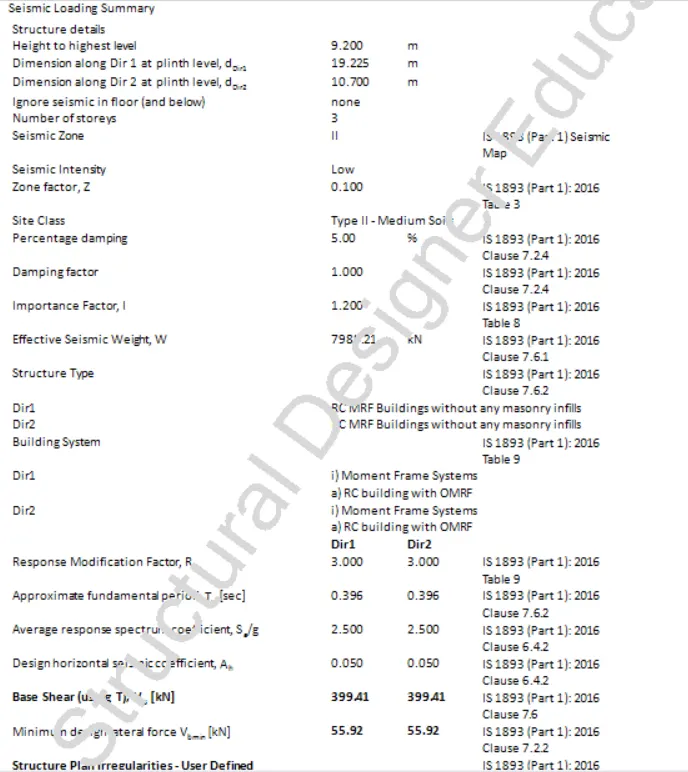
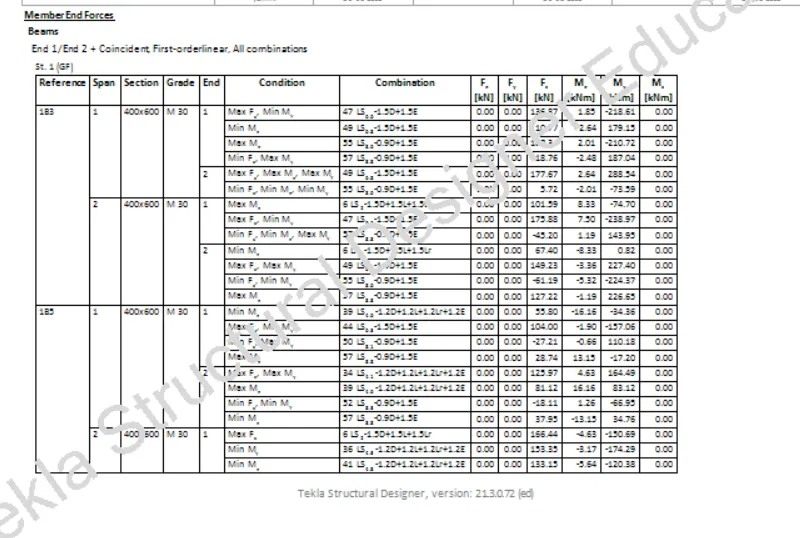
RESULTS :
- RC Structure report
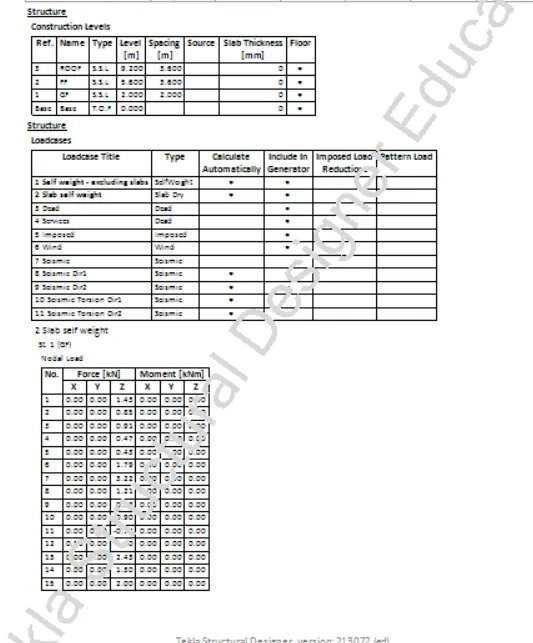
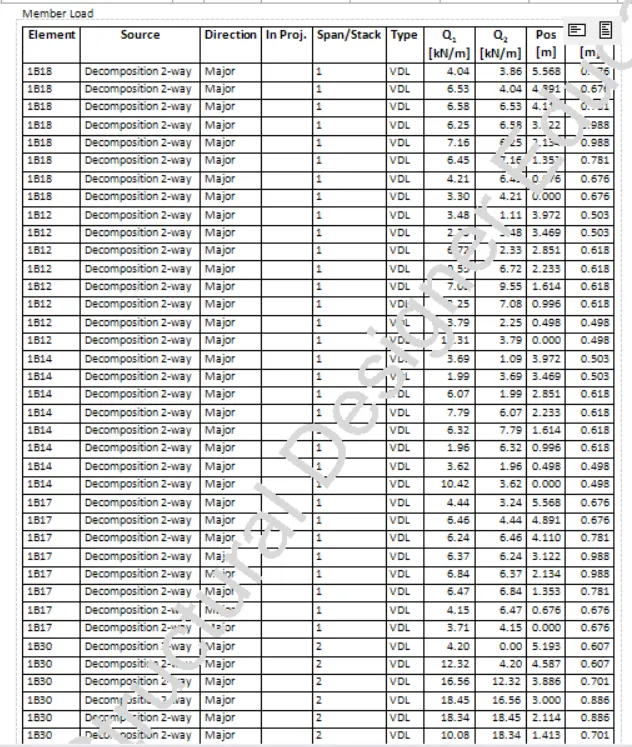
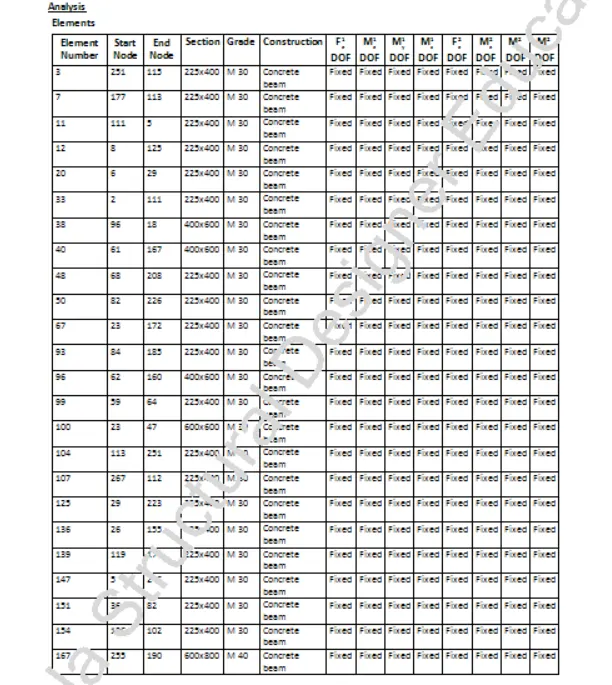
- Analysis report( for few members)
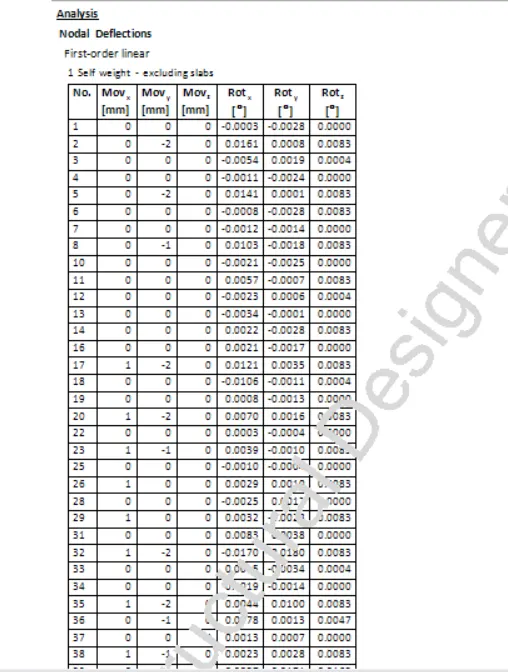
- NODAL DEFLECTIONS
3. Update the layers settings in the model and generate plan drawings and details from the model
AIM : To generate report for the model on generate plan drawings and details
INTRODUCTION : Report commands are accessed from the report ribbon tab where we can customize model and member reports with specific content.
- MODEL REPORT : Create or edit chapters of the model report. Customisation to select particular level, frame, plane and substructure option is also available in model report.
- Example : Structure, Analysis, Loading, Load cases etc
- MEMBER REPORT : Create or edit chapters of the member report
- Example : Diagram and results of SFD, BMD, Deflections etc
- SHOW REPORT : Displays selected style report
PROCEDURE :
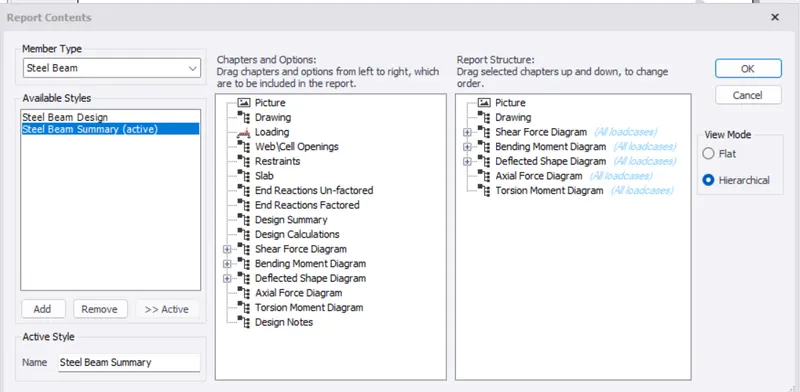
- Go to Report tab and select "Member report"
- Generate Report for contents
- Picture, Drawing, SFD, BMD, Deflection diagram, Axial force diagram and Torsion moment diagram
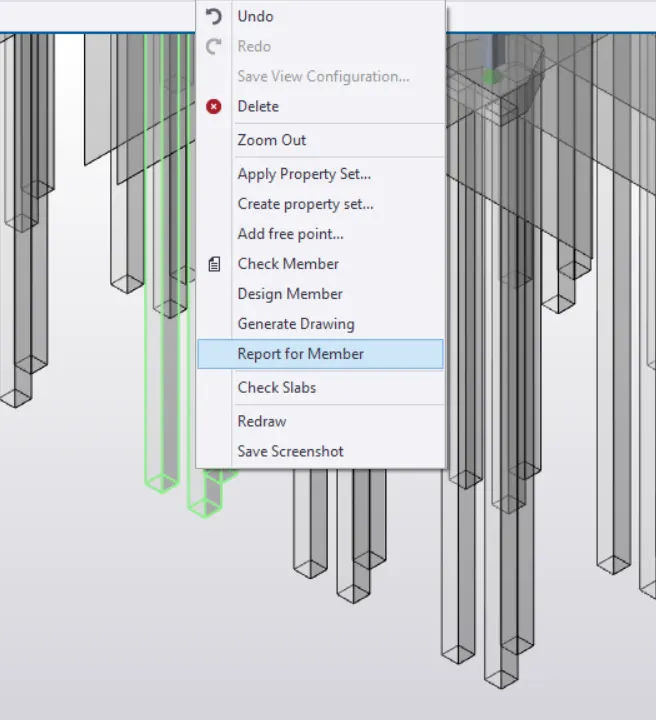
- Now select a member
- Example : pile
- Right click and select report for member
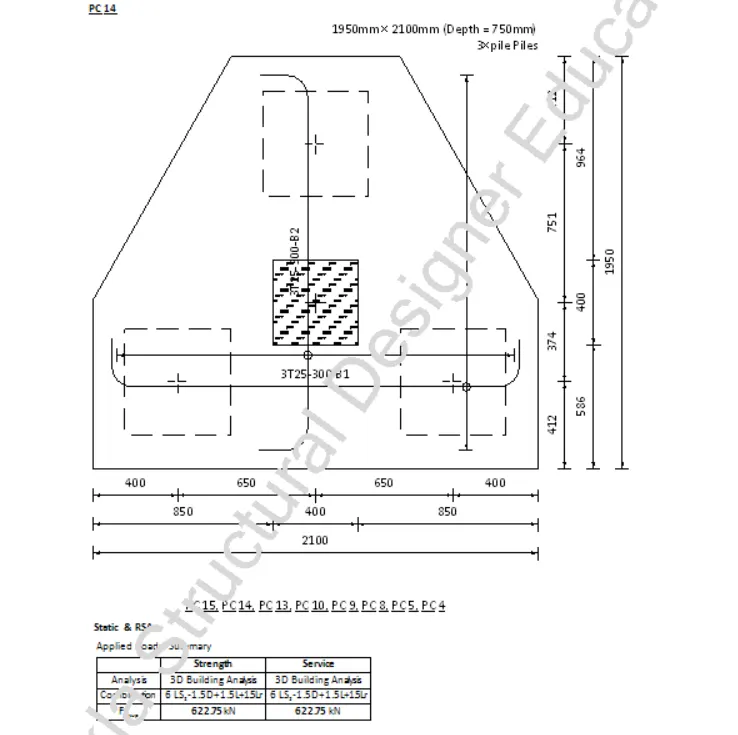
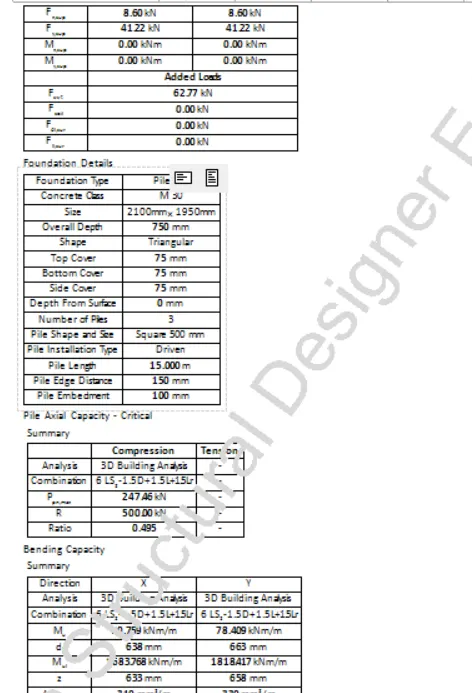
- We get drawing details, force and moment details
RESULTS :
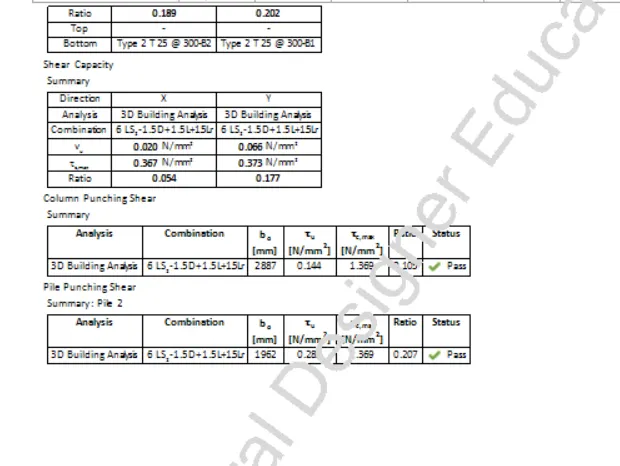
PILE DETAILS and DIAGRAM
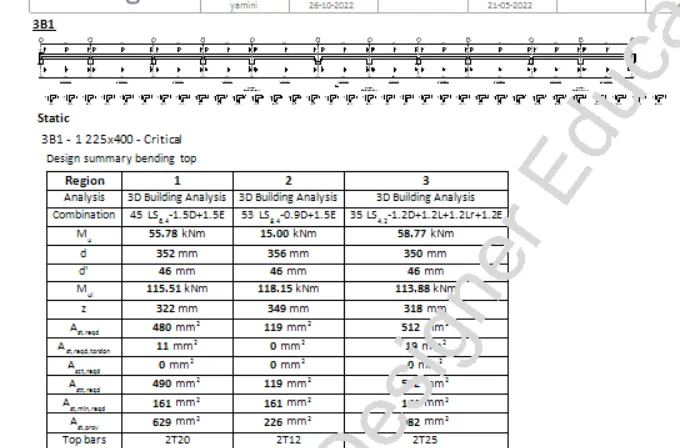
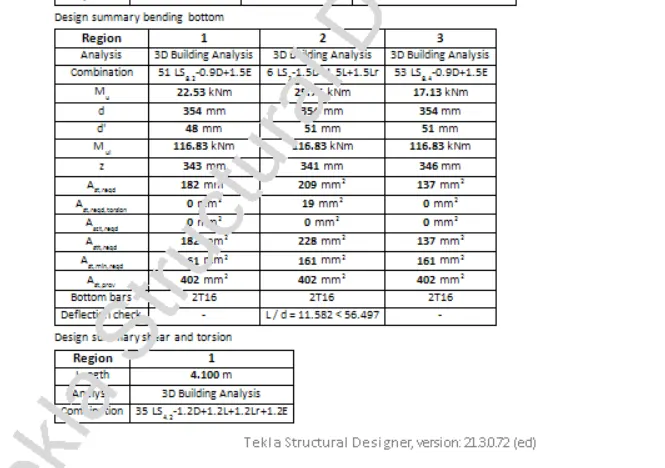
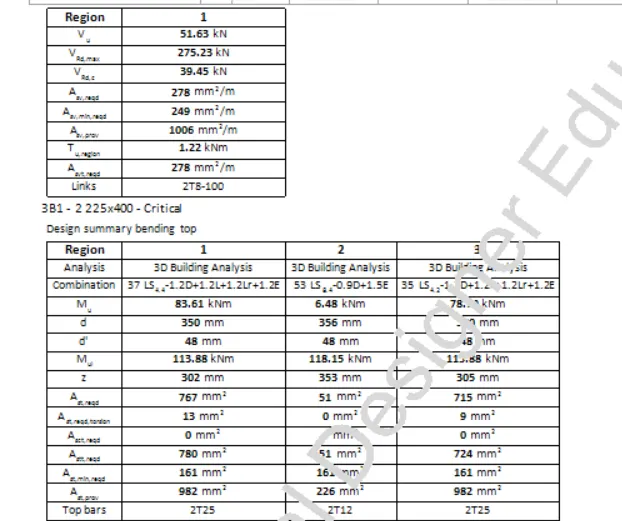
BEAM DETAILS
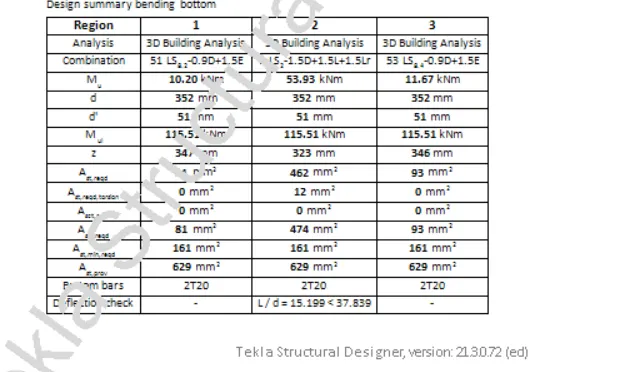
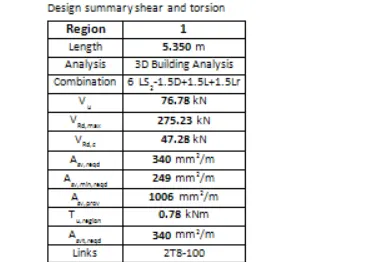
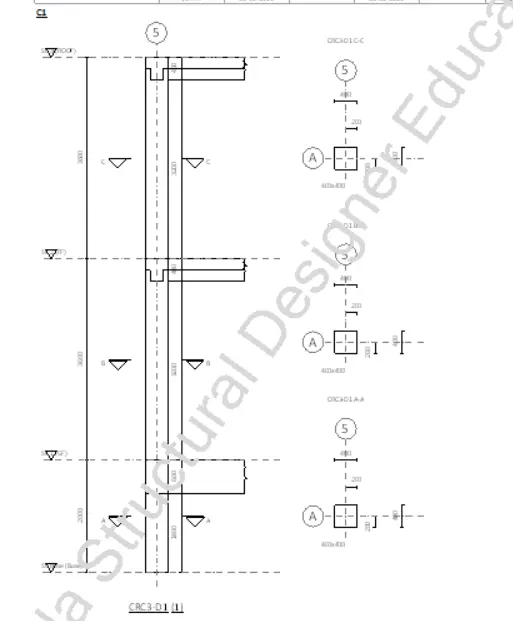
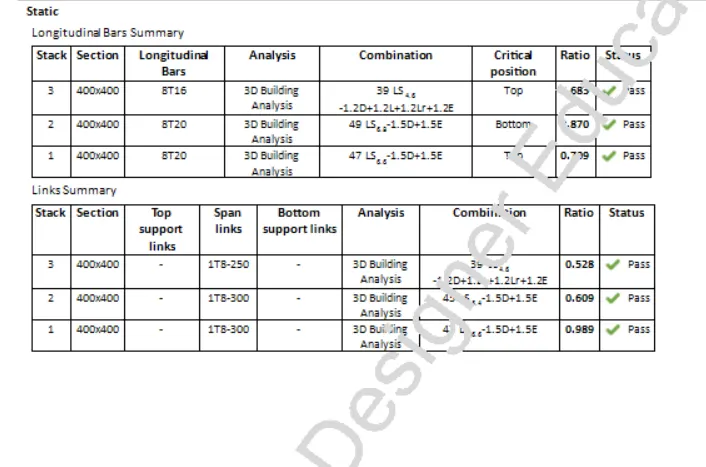
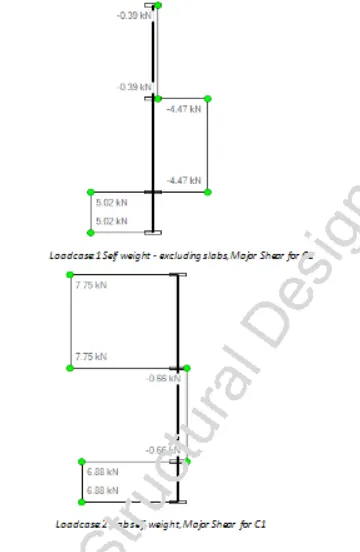
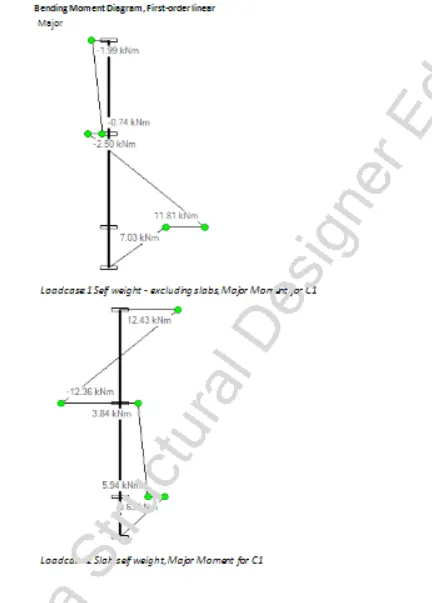
COLUMN DETAILS and DIAGRAMS