Radar Mast & Final Assembly of Yacht
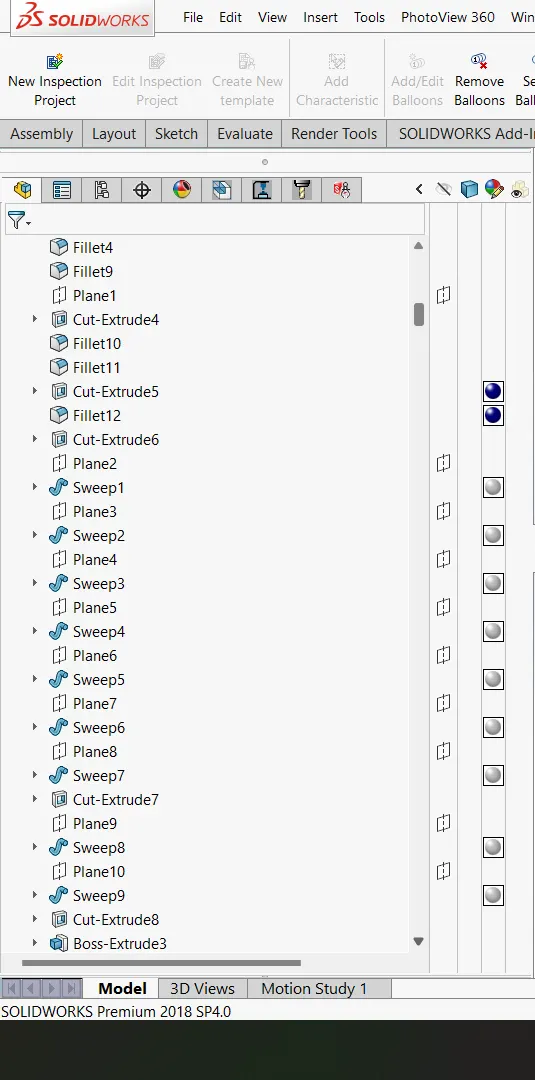
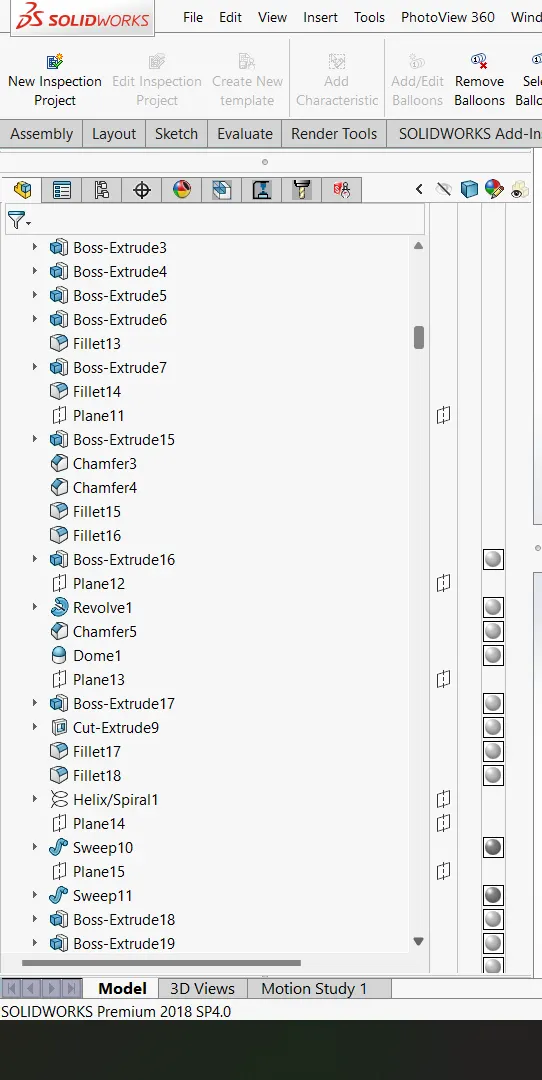
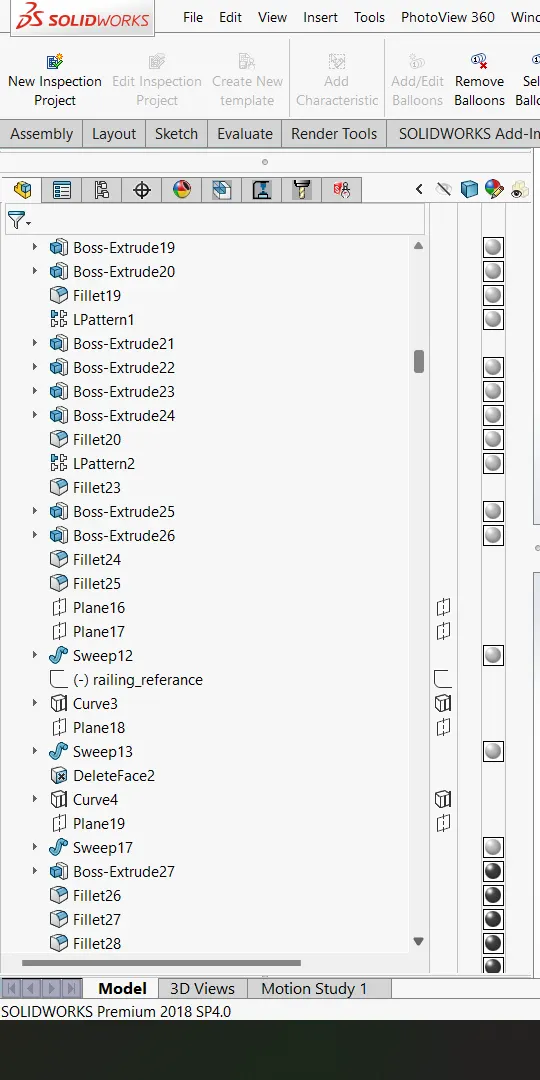
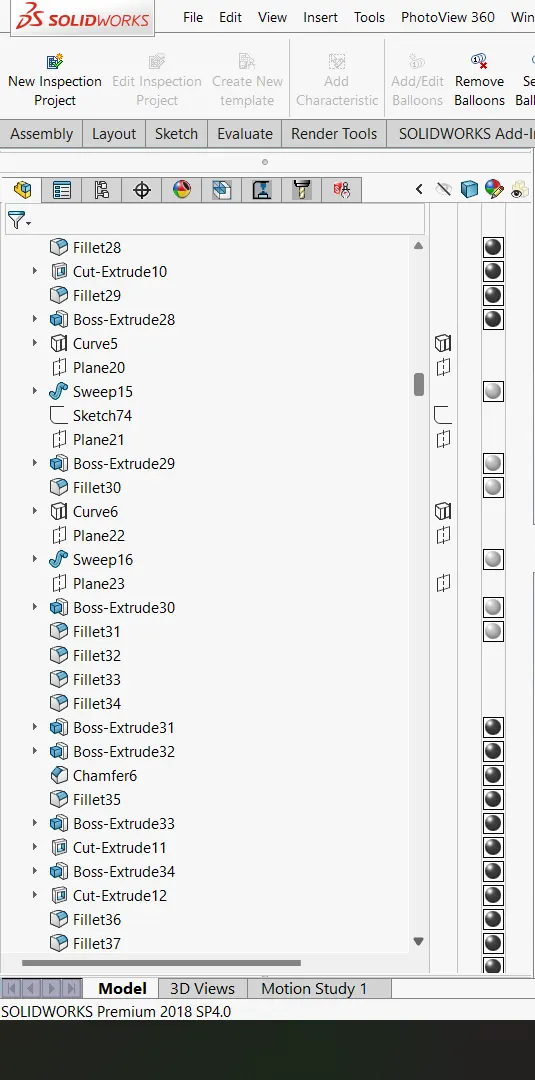
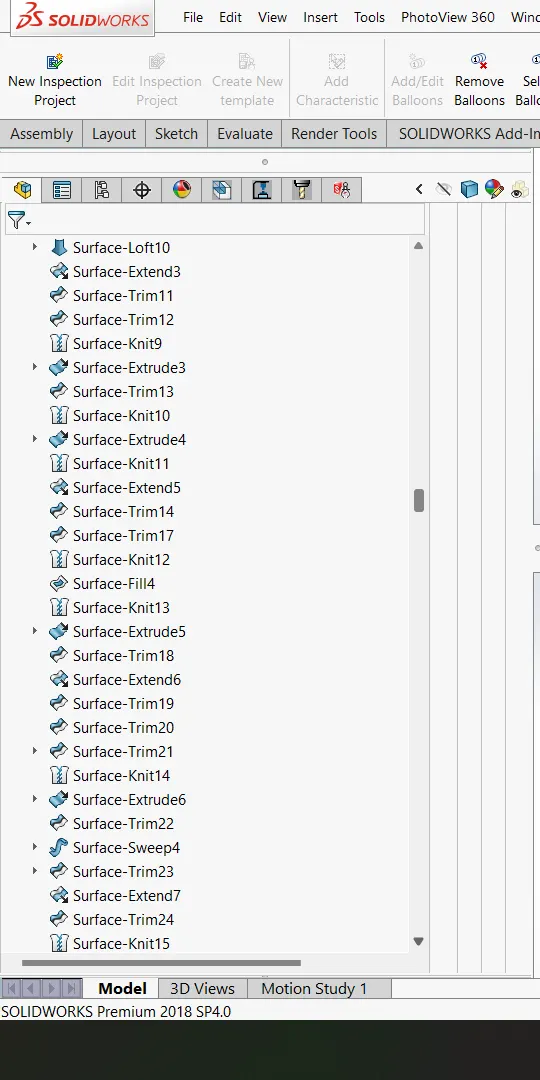
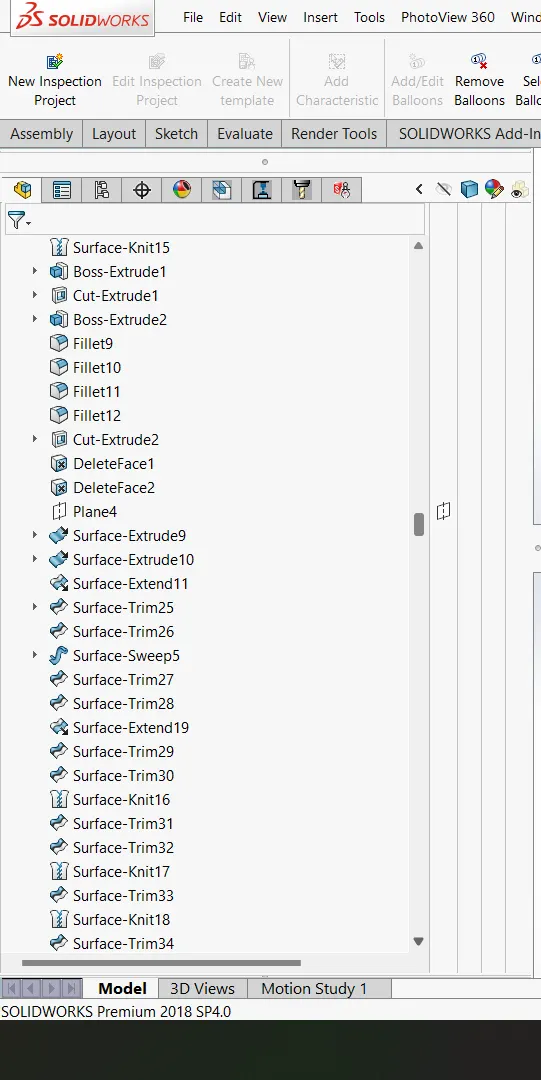
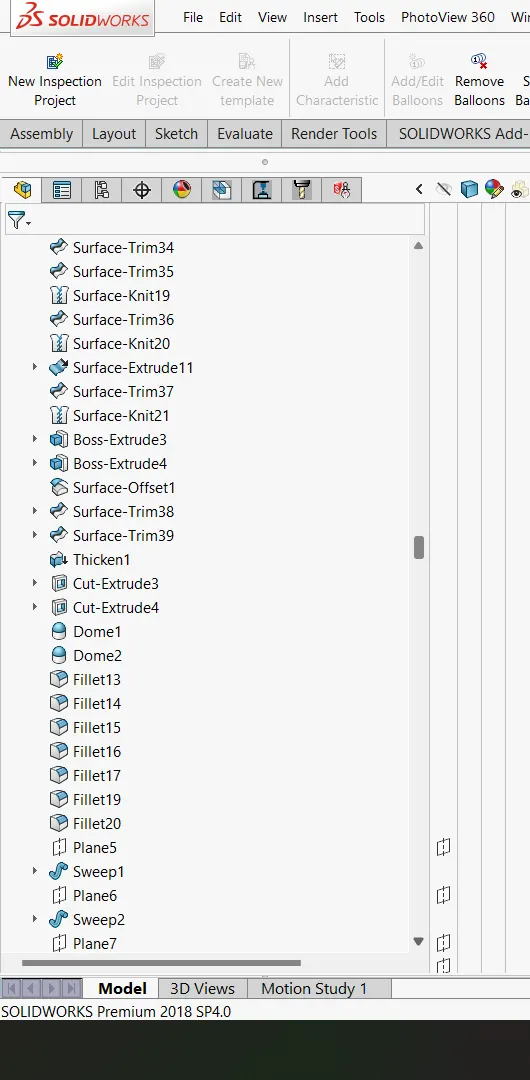
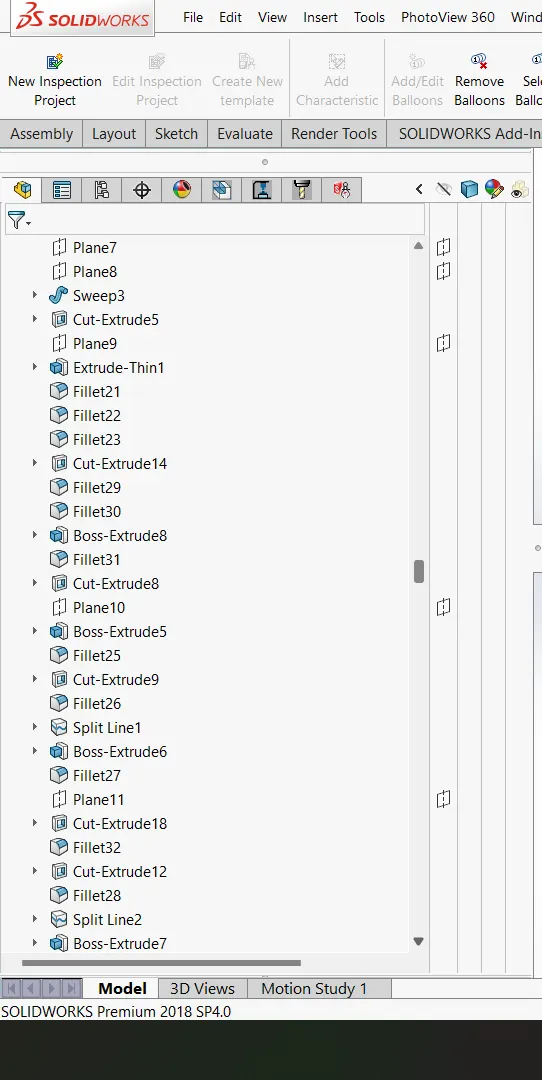
Report on yatch modelling ON SOLIDWORKS
INDEX
|
Sr.no. |
Title |
Page no. |
|
1. |
Introduction |
3 |
|
2. |
Objectives |
3 |
|
3. |
Design methodology/ approach |
4 |
|
4. |
Procedure |
5 |
|
5. |
Features |
6 |
|
6. |
Parts |
19 |
|
7. |
Assembly |
29 |
|
8. |
Appearance |
32 |
|
9. |
Rendering |
32 |
|
10. |
Conclusion |
35 |
INTRODUCTION
In this module, we will discover about how to model entire Yatch in SOLIDWORKS. Before this we learn about how to model American chopper using that knowledge and learning some new commands, we model parts to model Yatch. Then by using those parts we assemble the yatch. After assembly we do rendering of Yatch by using SOLIDWORK visualization software.
Parts which we created
- Propeller
- Radar
- Hull
- Garage door
- Front seat
- Middle seat
- Rear seat
- Superstructure
- Radar mast
OBJECTIVES
- Basic commands of solidworks.
- To learn some advance commands of solidworks.
- Applying appearances & assembling.
- To learn rendering
- To learn Solidworks visualization software.
DESIGN METHODOLOGY/APPROACH
You can create assemblies using bottom-up design, top-down design, or a combination of both methods.
Bottom-up Design
Bottom-up design is the traditional method. You first design and model parts, then insert them into an assembly and use mates to position the parts. To change the parts, you must edit them individually. These changes are then seen in the assembly. In this modelling we are using bottom-up approach.
Top-down Design
In Top-down design, parts' shapes, sizes, and locations can be designed in the assembly. For example: You can model a motor bracket so it is always the correct size to hold a motor, even if you move the motor. This capability is particularly helpful for parts like brackets, fixtures, and housings, whose purpose is largely to hold other parts in their correct positions.
In some cases, we need to use combination of both the methods.
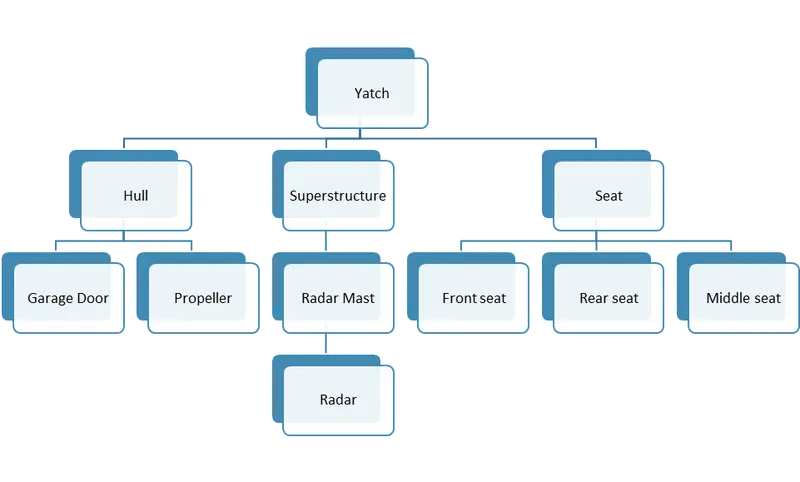
Fig. Flowchart
PROCEDURE
- Open new file.
- Rename the sketch plane with your convenience.
- Select the plane we want to sketch on.
- Use various commands and features according to our requirement.
- Give appearances accordingly.
- Save the file.
Condition of a sketch
Under Defined
There is inadequate definition of the sketch, but the sketch can still be used to create features. This is good because many times in the early stages of the design process, there isn’t sufficient information to fully define the sketch. When more information becomes available, the remaining definition can be added at a later time. Under defined sketch geometry is blue (by default).
Fully Defined
The sketch has complete information. Fully defined geometry is Black (by default). As a general rule, when a model is completed, the sketches within it should be fully defined.
Over Defined
The sketch has duplicate dimensions or conflicting relations and it should not be used until repaired. Unnecessary dimensions and relations should be deleted. Over defined geometry is red (by default).
FEATURES
- Extrude boss
The extrude tool is one tool that I believe every single person who has ever played with or used SOLIDWORKS knows. An Extruded Boss/Base feature will allow you to take a 2D sketch and add thickness to it in the third dimension.
- Extrude cut
You can use the Extrude cut tool to remove material by projecting a sketched section normal to the sketching plane. You can use open or closed sections to create a cut. Removing material using a closed section creates a slot.
- Fillet/Chamfer
Rounding or bevelling of sharp corners is used extensively in part design. And SolidWorks has provided an easy way, an interface, for applying either one. Rounding is called fillets, and bevelling is called chamfers.
- Revolve boss feature
Revolved Boss or Base is a SolidWorks feature tool which is used to create solid 3D model around an axis. You can revolve the sketch around an axis to add materials to it.
- Shell
The shell tool hollows out a part, leaves open the faces you select, and creates thin-walled features on the remaining faces. If you do not select any face on the model, you can shell a solid part, creating a closed, hollow model. You can also shell a model using multiple thicknesses.
- Linear and Circular pattern
Use linear patterns to create multiple instances of one or more features that you can space uniformly along one or two linear paths. Use circular patterns to create multiple instances of one or more features that you can space uniformly around an axis.
- Mirror
Creates a copy of a feature, (or multiple features), mirrored about a face or a plane. You can select the feature or you can select the faces that comprise the feature. Bodies to Mirror. Select a body in a single model or multibody part to create a mirror entity.
- Reference geometry
Reference geometry defines the shape or form of a surface or a solid. Reference geometry includes items such as planes, axes, coordinate systems, and points. You can use reference geometry in the creation of several kinds of features. For example: Planes are used in lofts and sweeps.
- Projected curve
You can project a sketched curve onto a model face to create a 3D curve. You can also create a 3D curve that represents the intersection of two extruded surfaces generated by creating sketches on two intersecting planes. You can create multiple closed or open-contour projected curves from a single sketch. You can also use 3D sketches as input for the Projected Curve tool. The Projected Curve tool does not support projections of intersecting curves.
- Mate
Mates create geometric relationships between assembly components. As you add mates, you define the allowable directions of linear or rotational motion of the components. You can move a component within its degrees of freedom, visualizing the assembly's behaviour.
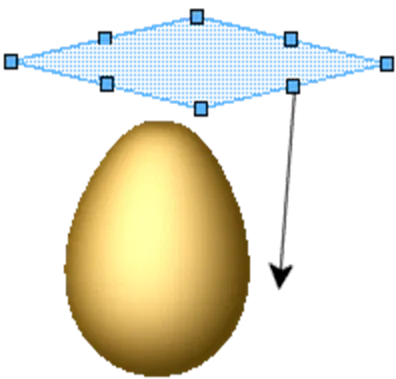
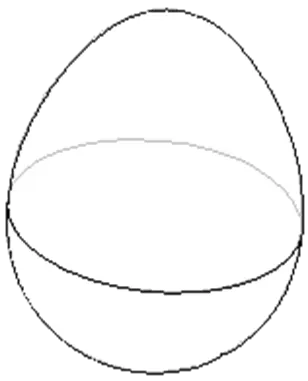
- Split line
Split Line tool projects an entity (sketch, solid, surface, face, plane, or surface spline) to surfaces, or curved or planar faces. It divides a selected face into multiple separate faces. You can split curves on multiple bodies with one command.
- Sweep
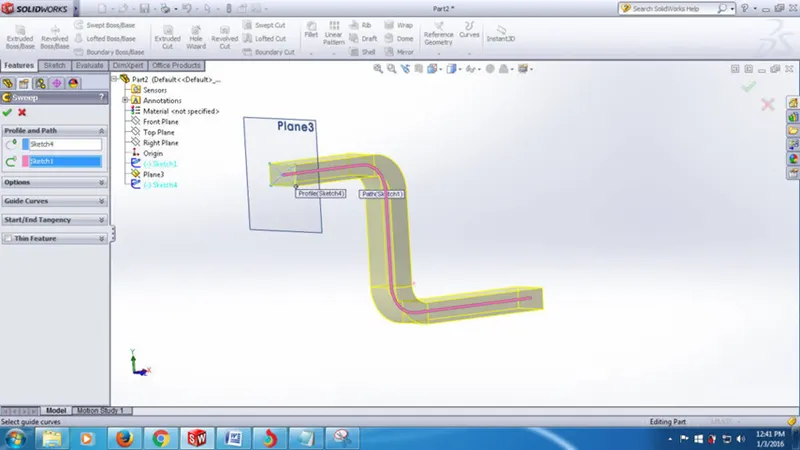
A sweep is a tool that creates a solid, a cut or a surface feature by moving a profile along a path. To create a solid, use the swept boss tool to move a profile along a path. The profile can contain one or more closed contours.
- Dome
The software calculates the distance using the radius of the arc as a basis for the dome. It creates a dome that is tangent to the adjacent cylindrical or conical face. Example: Creating a Dome with Zero Distance. Parent topic features.
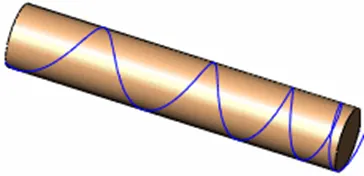
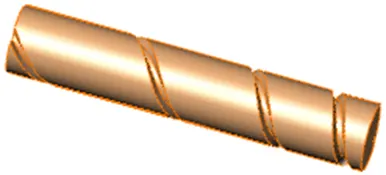
- Helix/Spiral
You can create a helix or spiral curve in a part. The curve can be used as a path or guide curve for a swept feature, or a guide curve for a lofted feature.
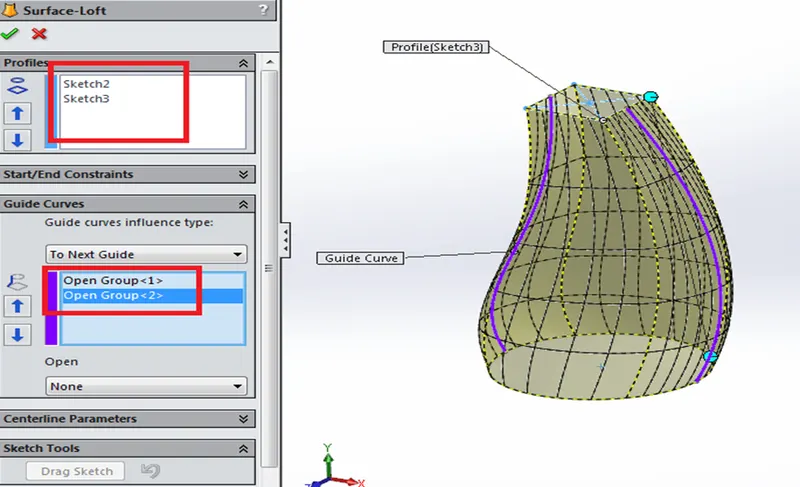
- Surface Loft
The loft feature is an important tool for (surface) modelling in solidworks. The loft feature creates a shape by making transitions between multiple profiles and guide curves. This tool is very valuable for modelling complex surfaces. You can do some really cool stuff when you use this feature properly.
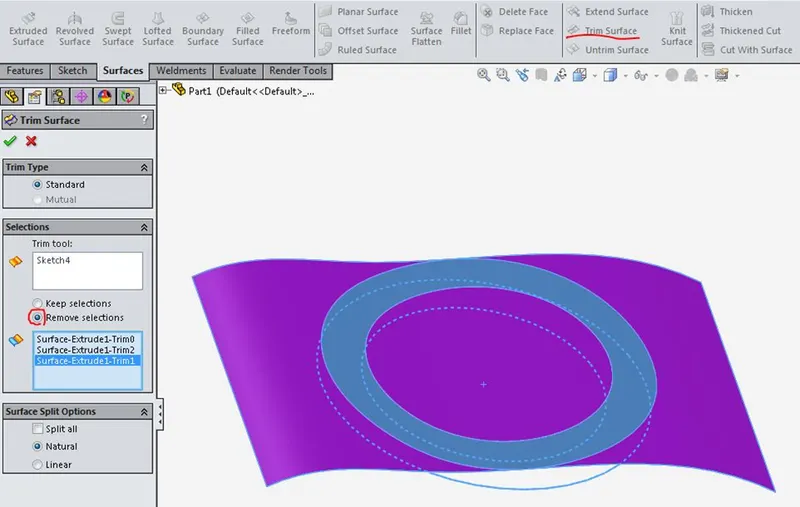
- Surface Trim
You can use a surface, plane, or sketch as a trim tool to trim intersecting surfaces. You can also use a surface in conjunction with additional surfaces, as mutual trim tools.
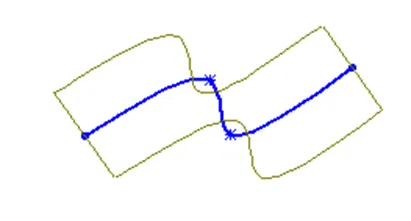
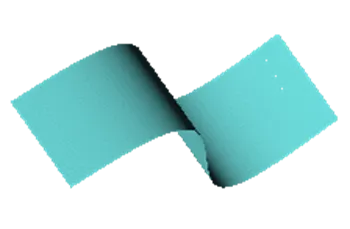
- Surface Extrude
You can create extruded surfaces from models that include 2D or 3D faces and knit the extruded surfaces to surrounding features.
- Surface Knit
Use the Knit Surface tool to combine two or more faces and surfaces into one.
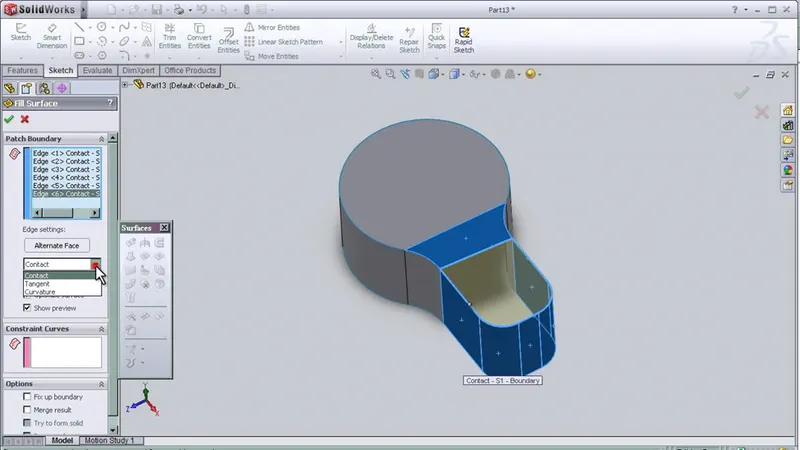
- Surface Fill
The Filled Surface feature constructs a surface patch with any number of sides, within a boundary defined by existing model edges, sketches, or curves, including composite curves.
You can use this feature to construct a surface to fill a gap in a model. You can use the Filled Surface tool in these cases:
- Correct a part that does not import correctly into SOLIDWORKS (where there are missing faces).
- Fill the holes in a part used for core and cavity moulding.
- Construct a surface for industrial design applications.
- Create a solid. Include features as separate entities, or merge those features.
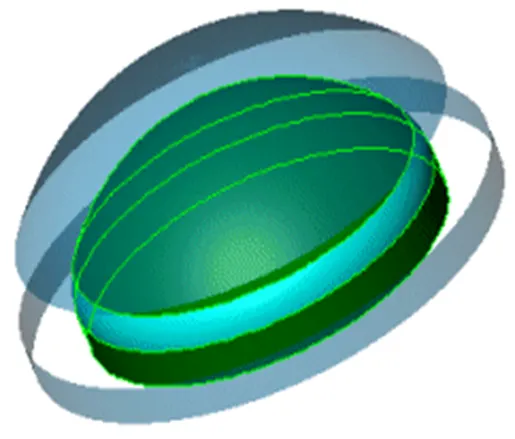
- Surface Offset
The Offset Surface tool creates a new surface body from an existing set of faces. The faces may be solid or surface faces.
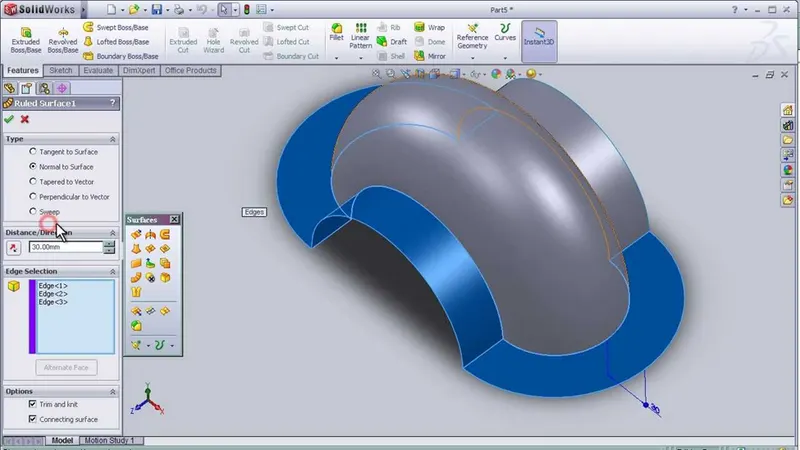
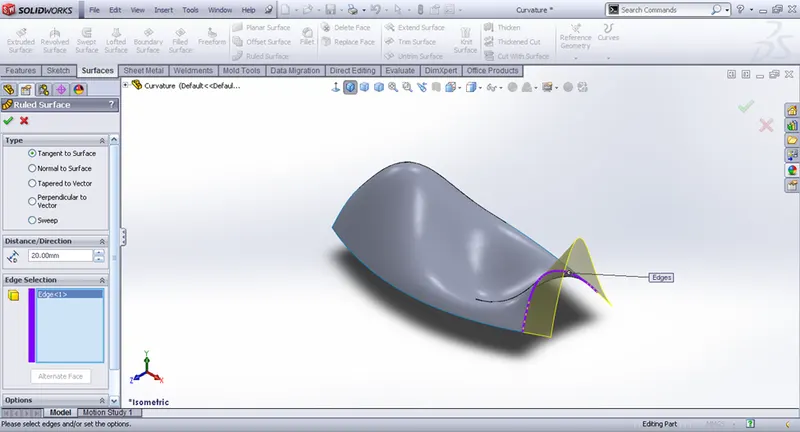
- Ruled Surface
Ruled surface is perpendicular to the specified vector. Ruled surface is built by creating a swept surface using selected edges as guide curves. Under Edge Selection: Select the edges or parting line used as the base for the ruled surfaces.
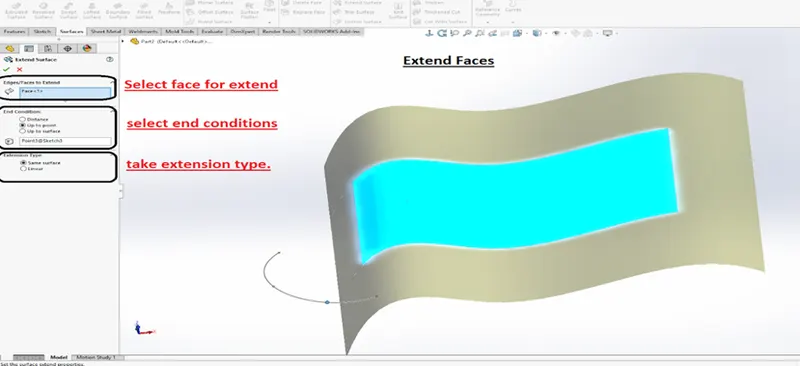
- Surface Extend
You can extend a surface by selecting an edge, multiple edges, or a face.
PARTS
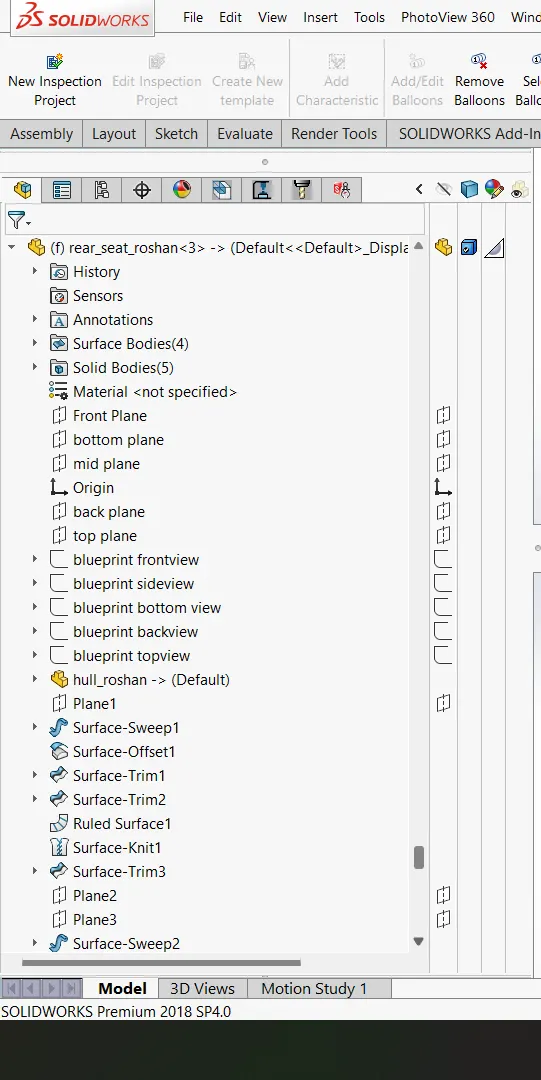
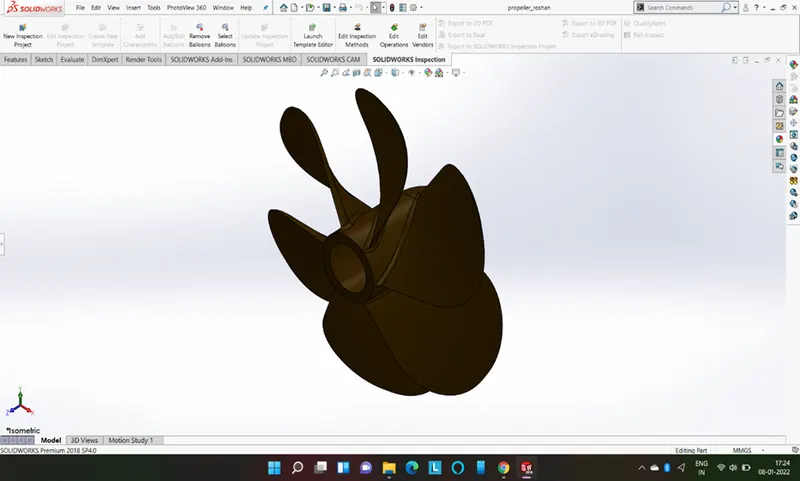
- Propeller
Propellers are used to pump fluid through a pipe or duct, or to create thrust to propel a boat through water or an aircraft through air.
Features used to create Propeller
- Revolve
- Surface loft
- Fillet
- Cut extrude
- Circular pattern
- Appearance
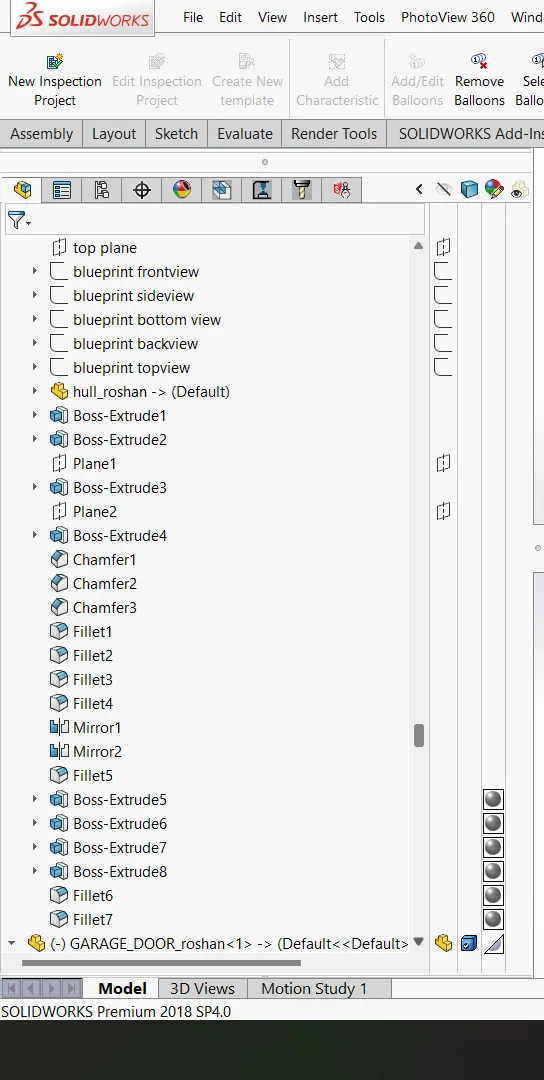
- Radar
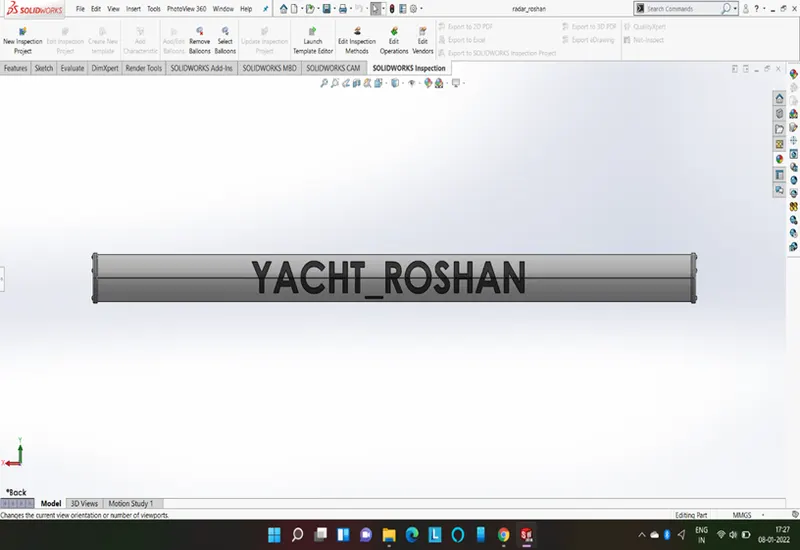
Radars are essential for sailboats, offshore boats (boats that go on seas or oceans), yachts, ships. If you are an offshore boater, then you should have a radar on your boat. While boating in seas, you should know the obstacles before, to prevent boat collisions or accidents. For any offshore boat, radar is essential.
Features used to create Radar
- Boss extrudes
- Cut extrude
- Sketch pattern
- Mirror
- Split line
- Fillet
- Appearance
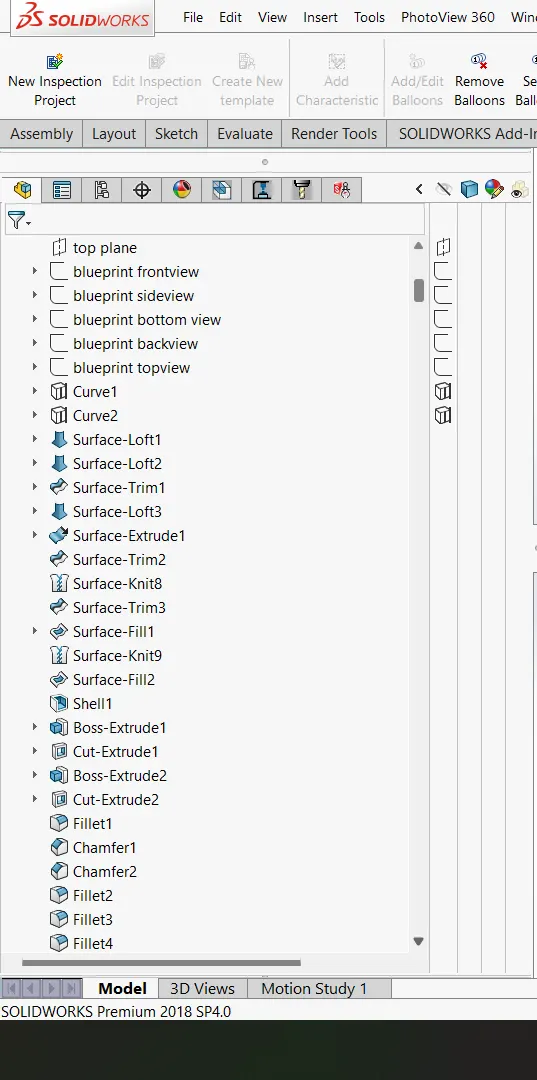
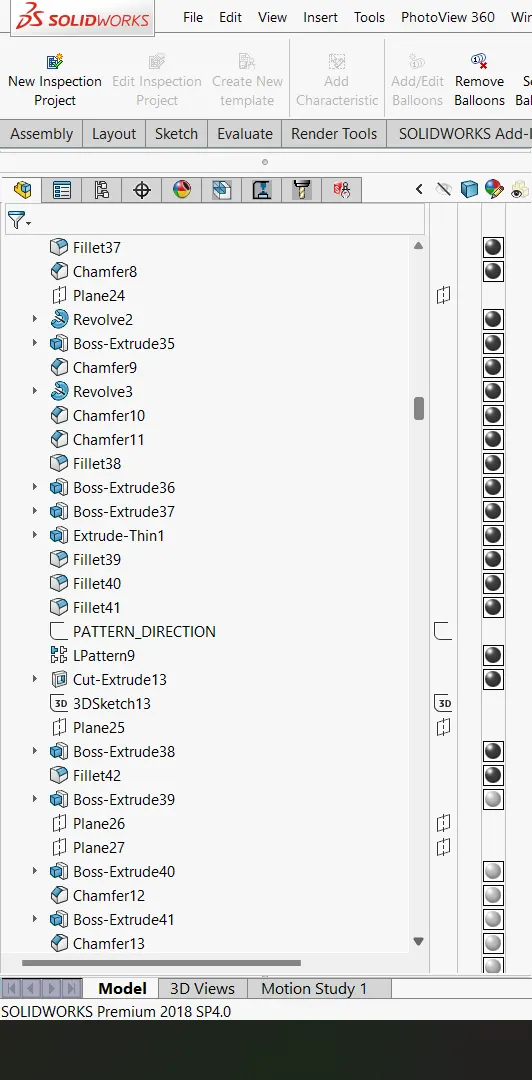
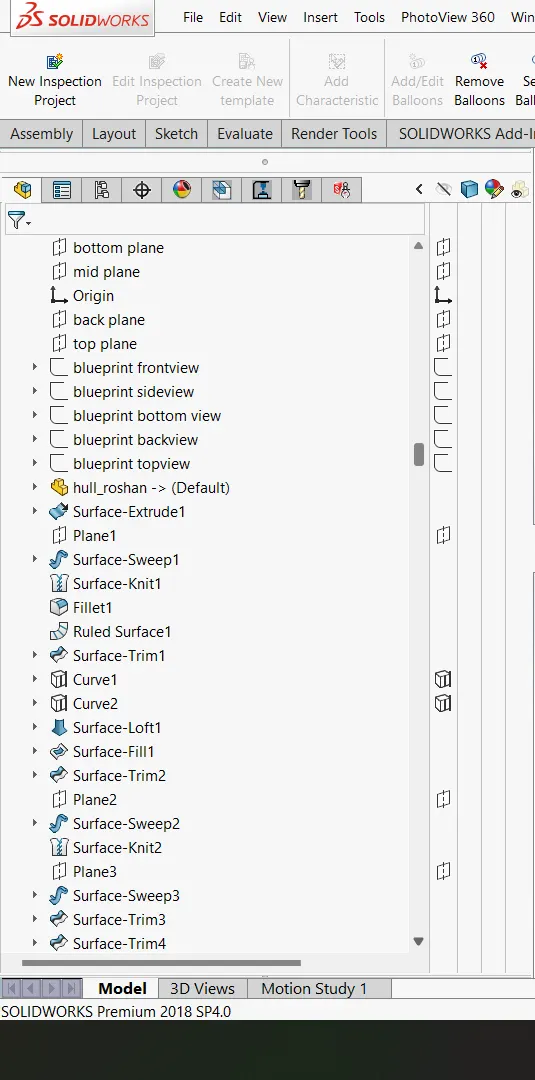
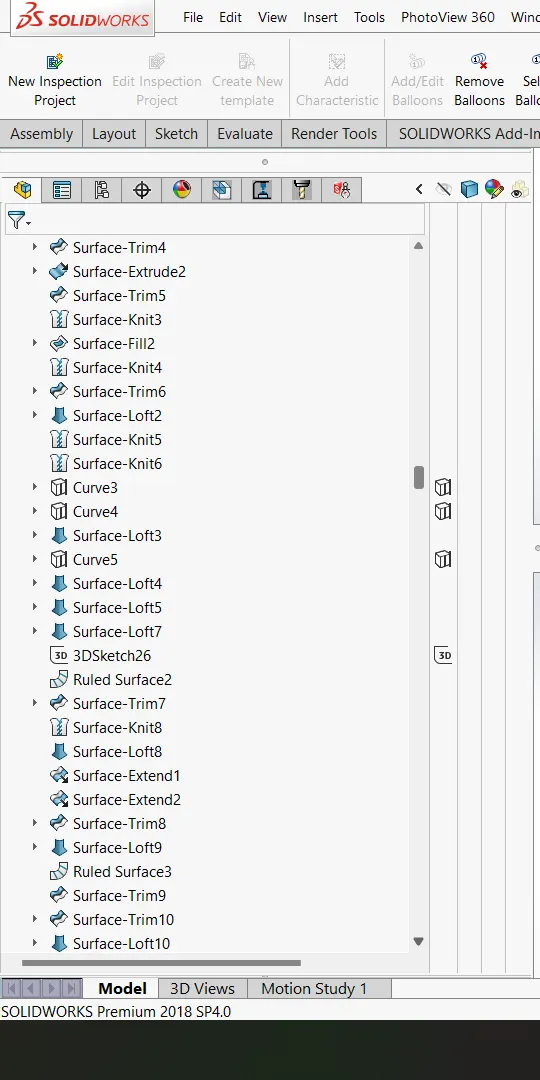
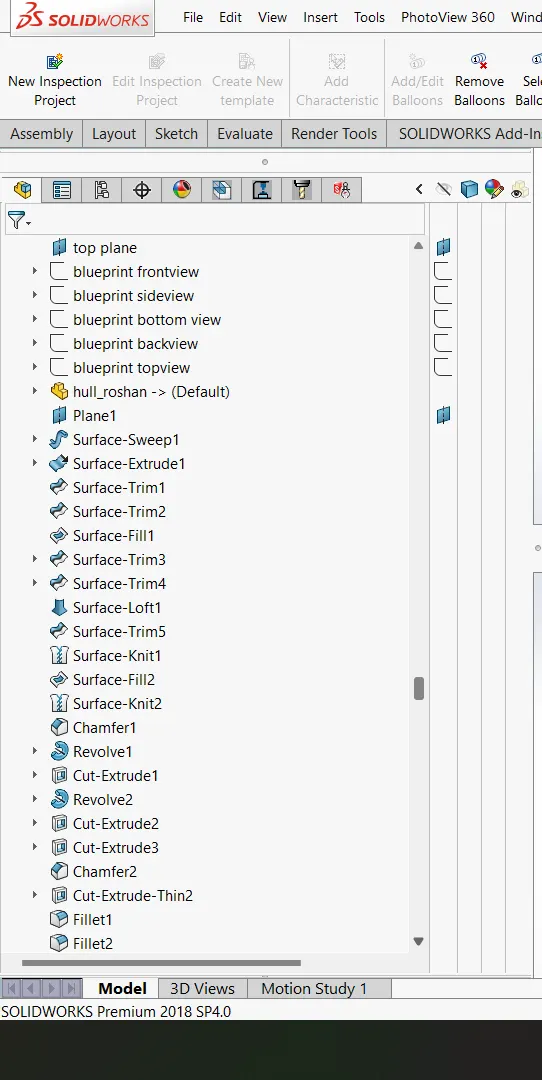
- Hull
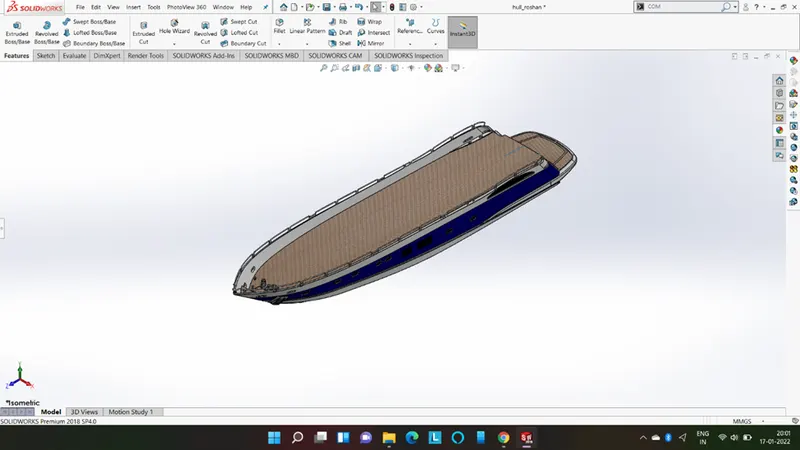
A hull is the watertight body of a ship, boat, or flying boat. The hull may open at the top (such as a dinghy), or it may be fully or partially covered with a deck. Atop the deck may be a deckhouse and other superstructures, such as a funnel, derrick, or mast.
Features used to create the Hull
- Surface loft
- Surface trim
- Surface extrudes
- Surface knit
- Surface fill
- Extrude
- Cut extrude
- Fillet/chamfer
- Sweep
- 3d sketch
- Reference plane
- Revolve
- Dome
- Helix/spial
- Linear pattern
- Curve
- Mirror
- Split line
- Appearance
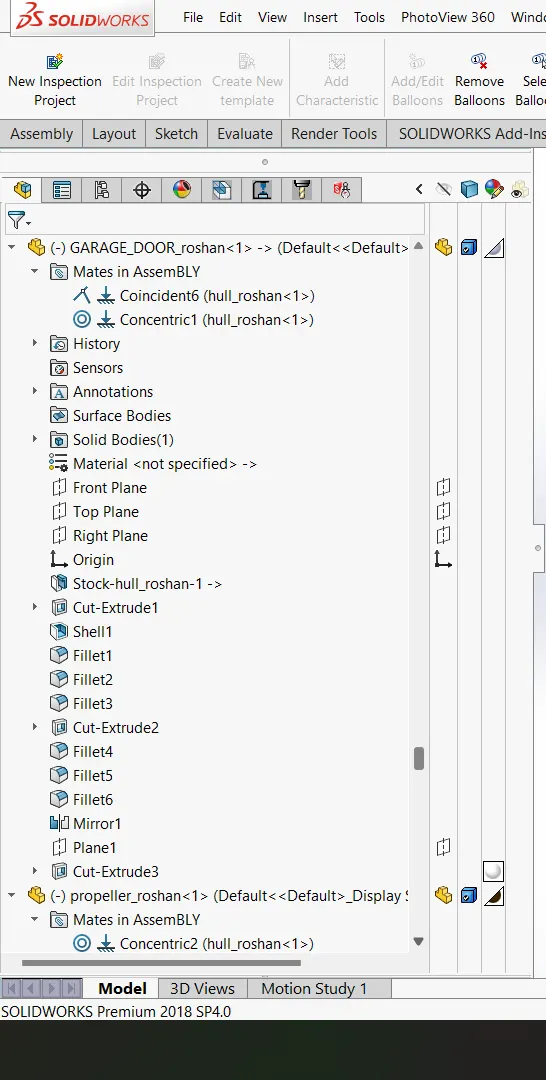
- Garage door
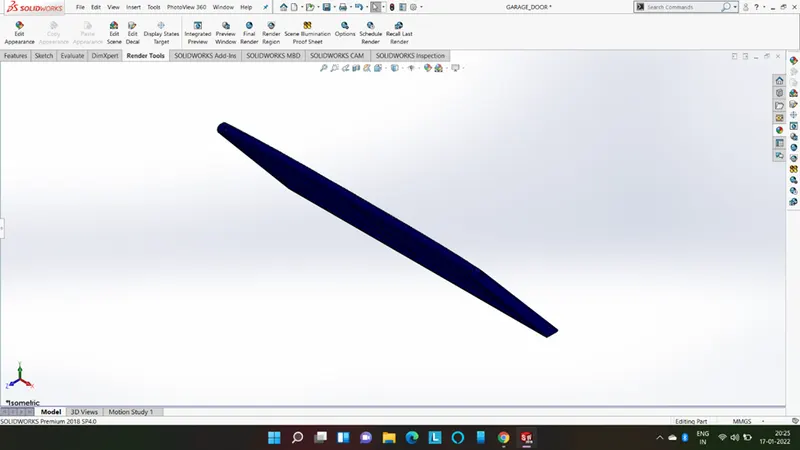
The shell doors give the access to the car's garage and also to the loading and offloading of passengers and crew.
Features used to create the Garage Door
- Cut extrude
- Shell
- Fillet
- Mirror
- Reference plane
- Appearance
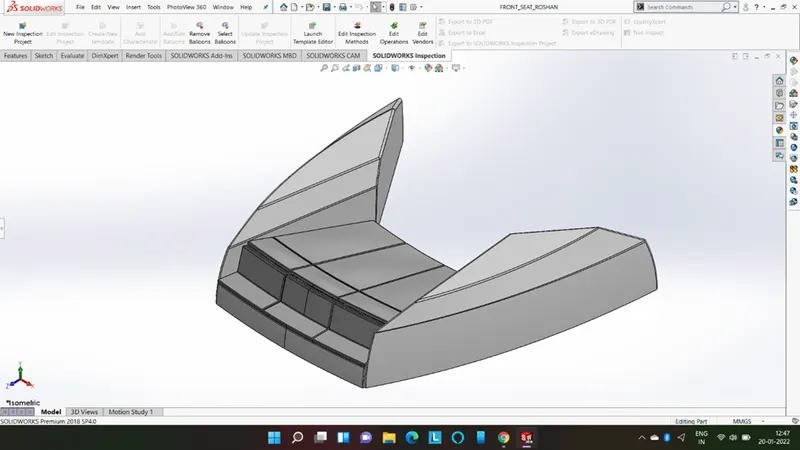
- Front Seat
Features used to create the Front Seat
- Reference plane
- Surface sweep
- Surface extrude
- Surface trim
- Surface fill
- Surface loft
- Surface knit
- Chamfer
- Revolve
- Cut extrude
- Fillet
- Mirror
- Dome
- Appearance
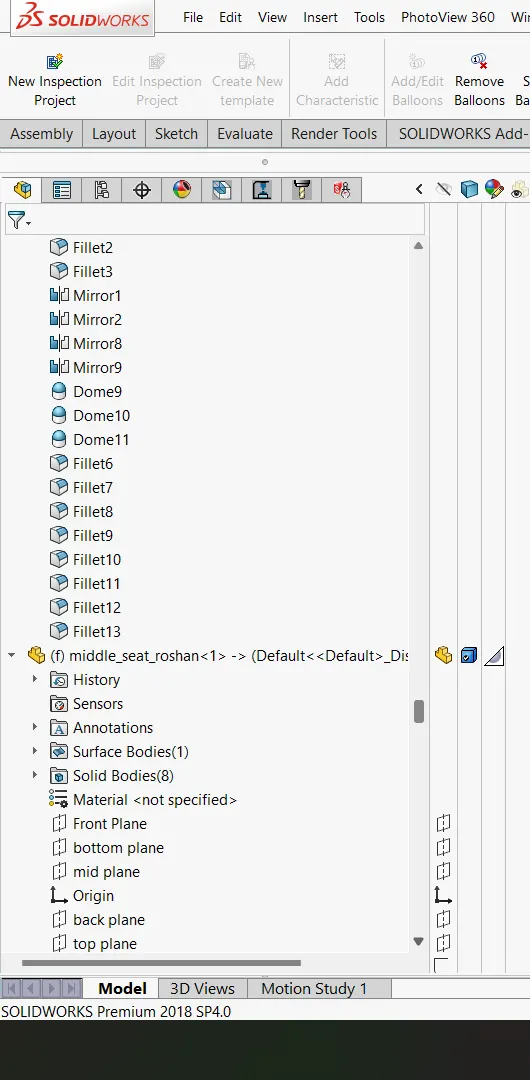
- Middle seat
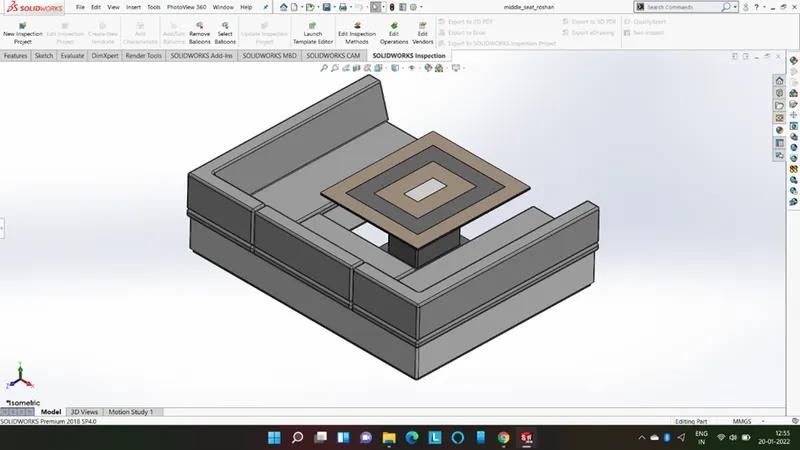
Features used to create the Midle seat
- Extrude
- Reference plane
- Chamfer
- Fillet
- Mirror
- Appearance
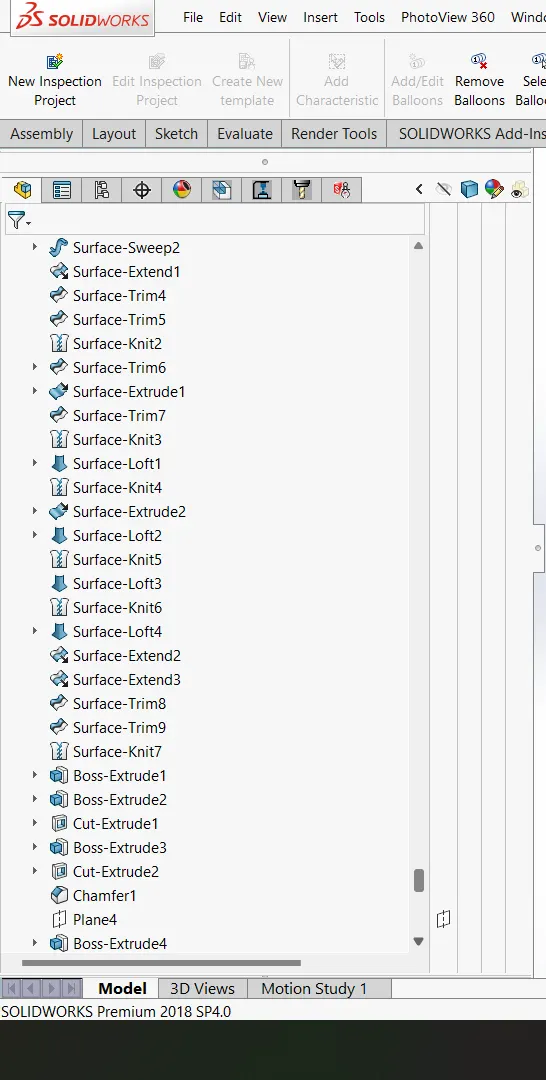
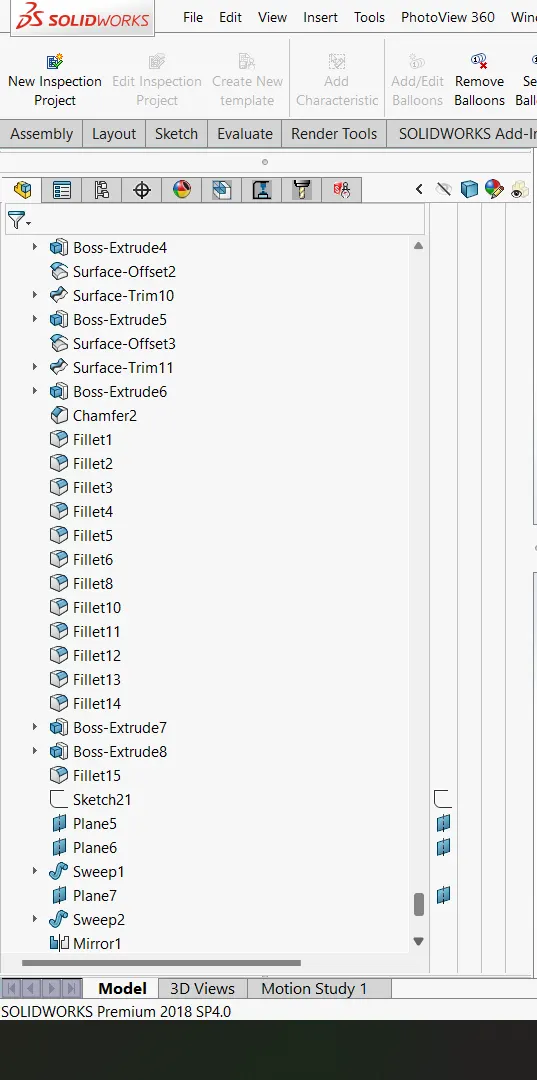
- Rear seat
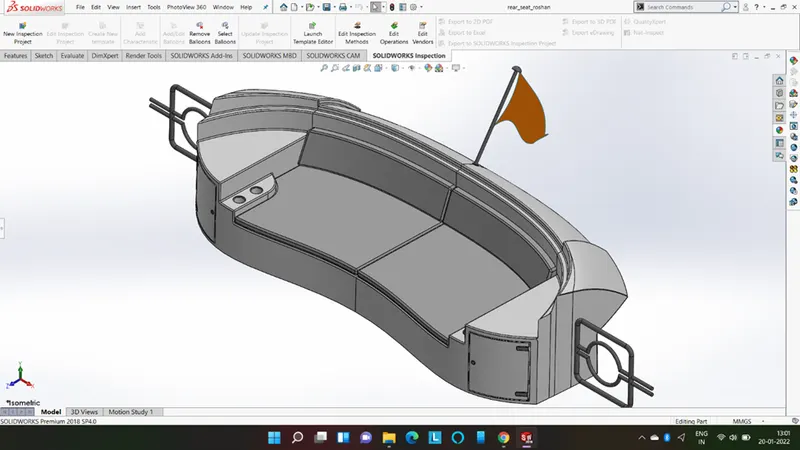
Features used to create the Rear seat
- Reference plane
- Surface sweep
- Surface offset
- Surface trim
- Ruled surface
- Surface knit
- Surface extrude
- Surface extend
- Surface loft
- Extrude
- Cut extrude
- Chamfer
- Mirror
- Revolve
- Appearance
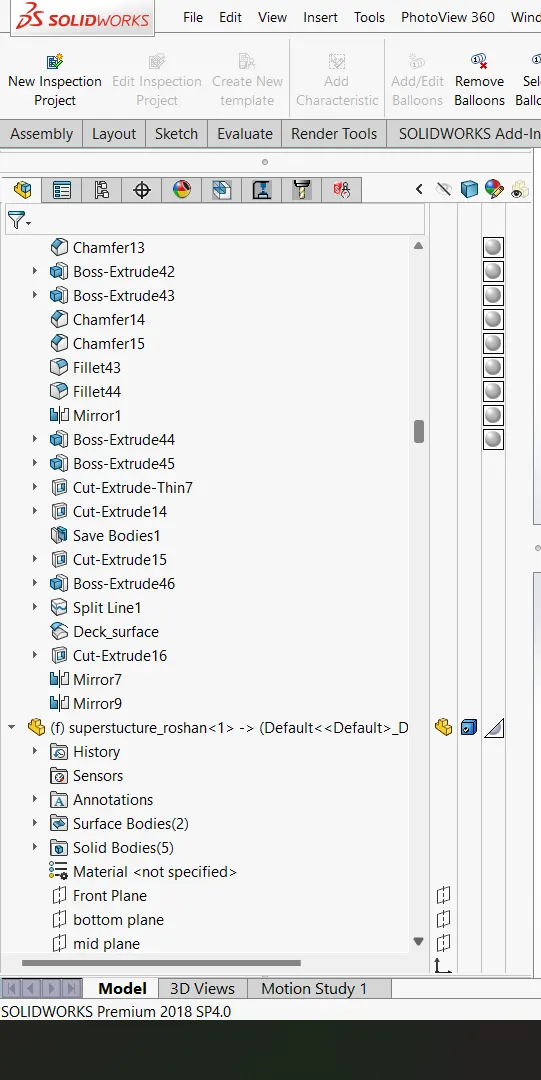
- Superstructure
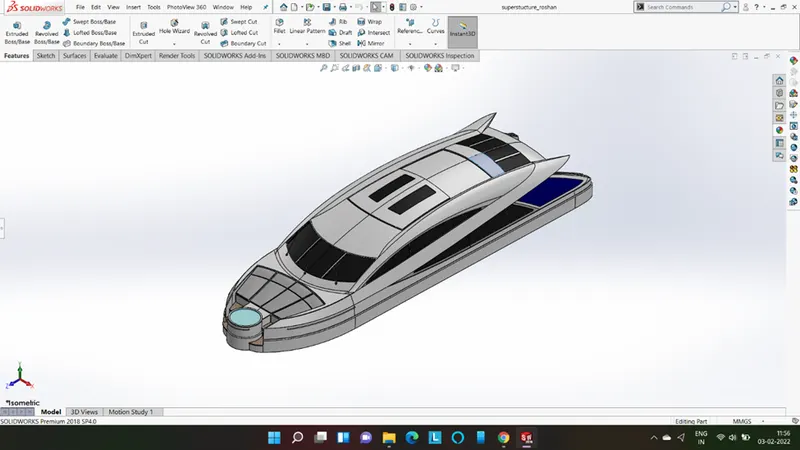
Features used to create the Superstructure
- Surface extrude
- Reference plane
- Surface sweep
- 3d sketch
- Surface knit
- Fillet
- Ruled surface
- Curve
- Surface loft
- Surface fill
- Surface extend
- Extrude
- Cut extrude
- Surface offset
- Thicken
- Dome
- Sweep
- Split line
- Fillet
- Chamfer
- Mirror
- Appearance
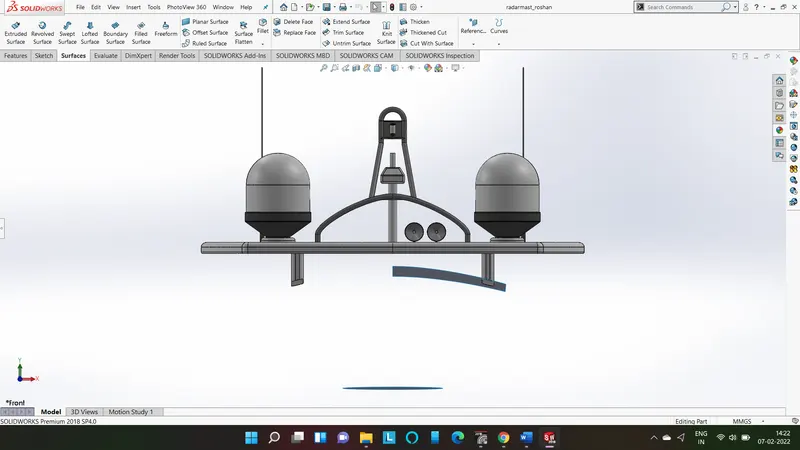
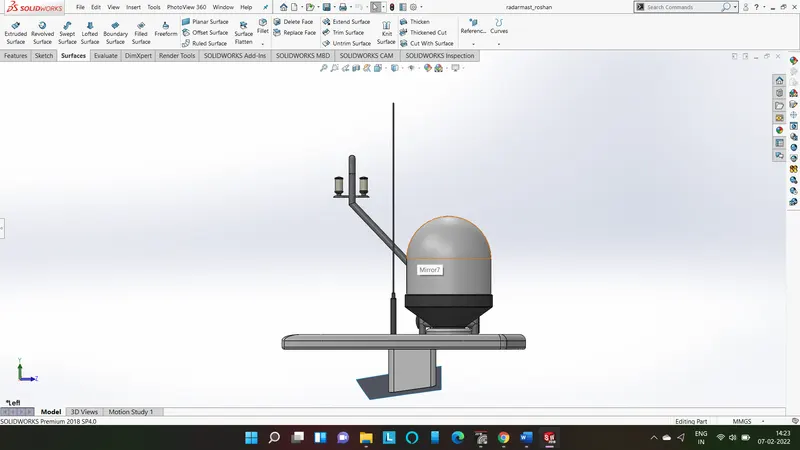
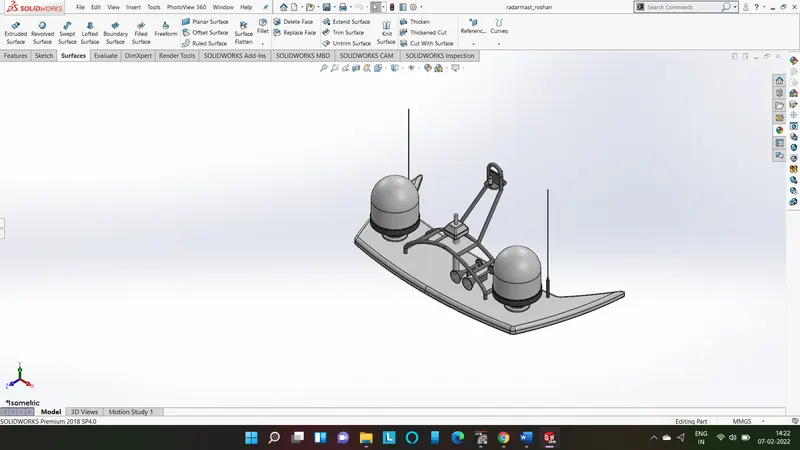
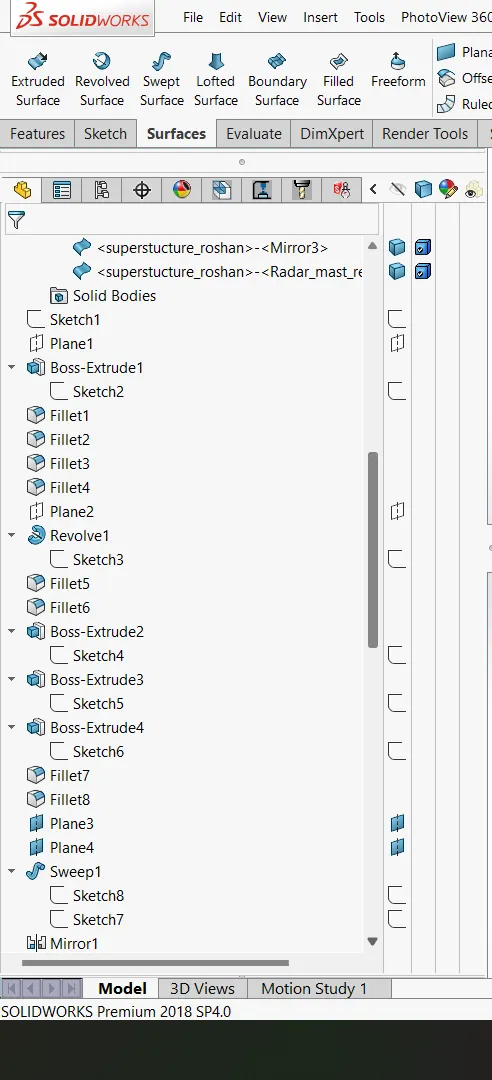
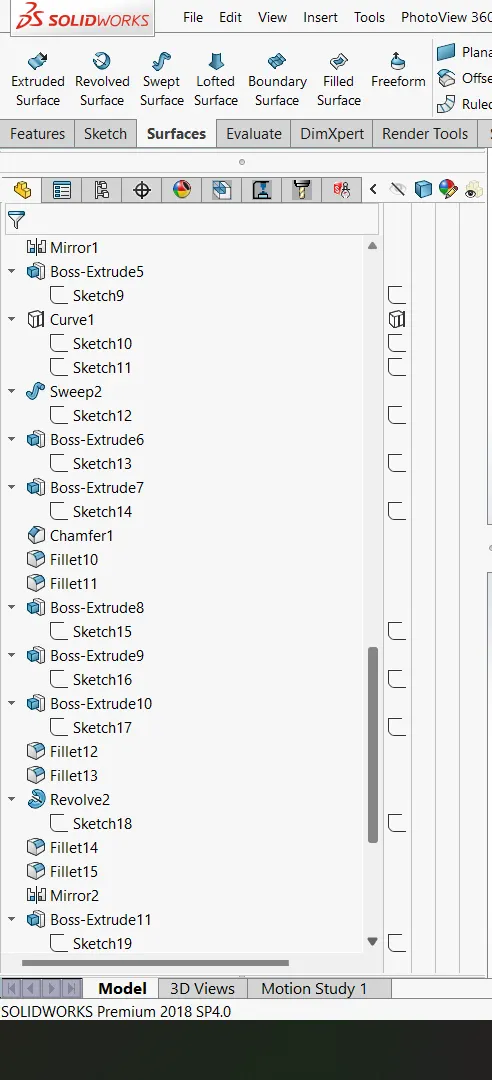
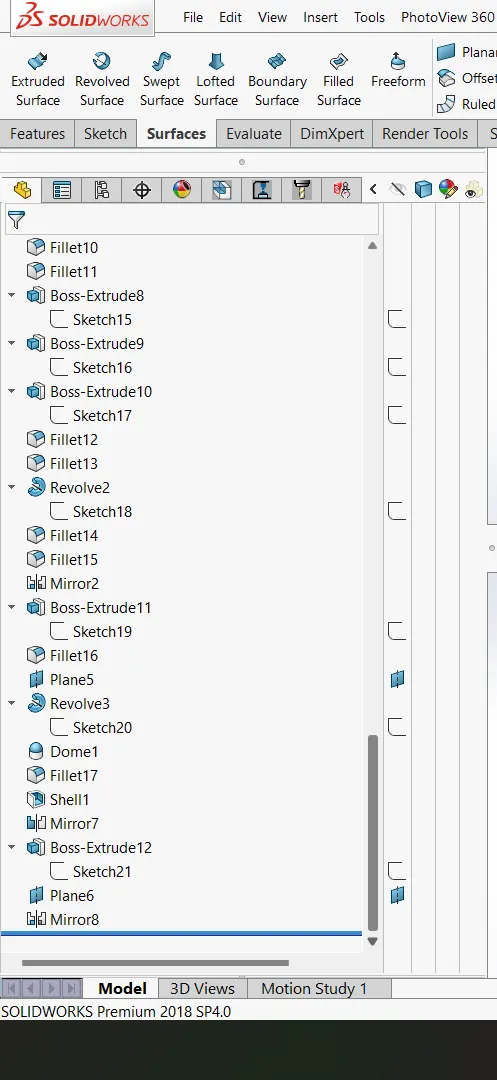
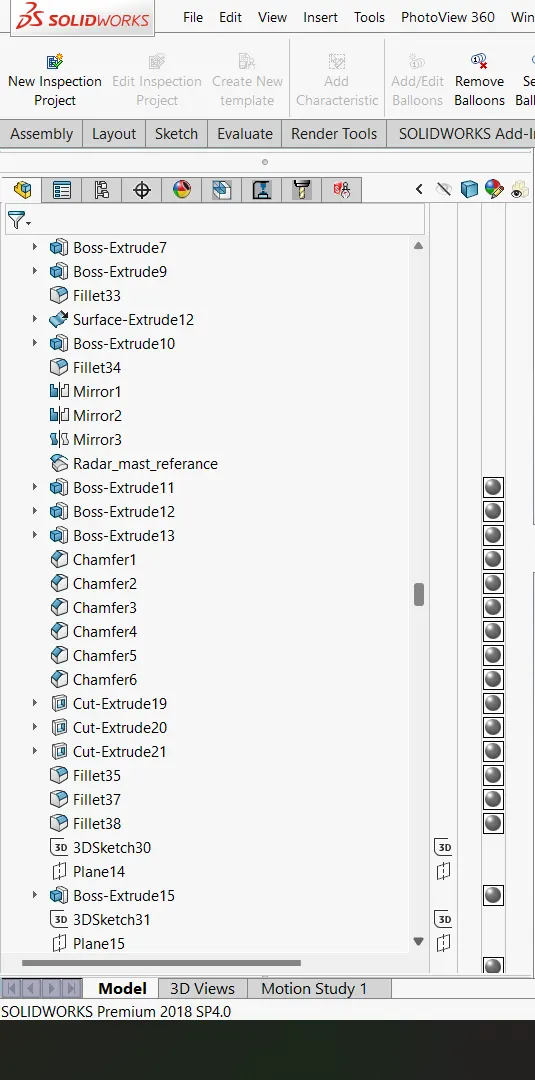
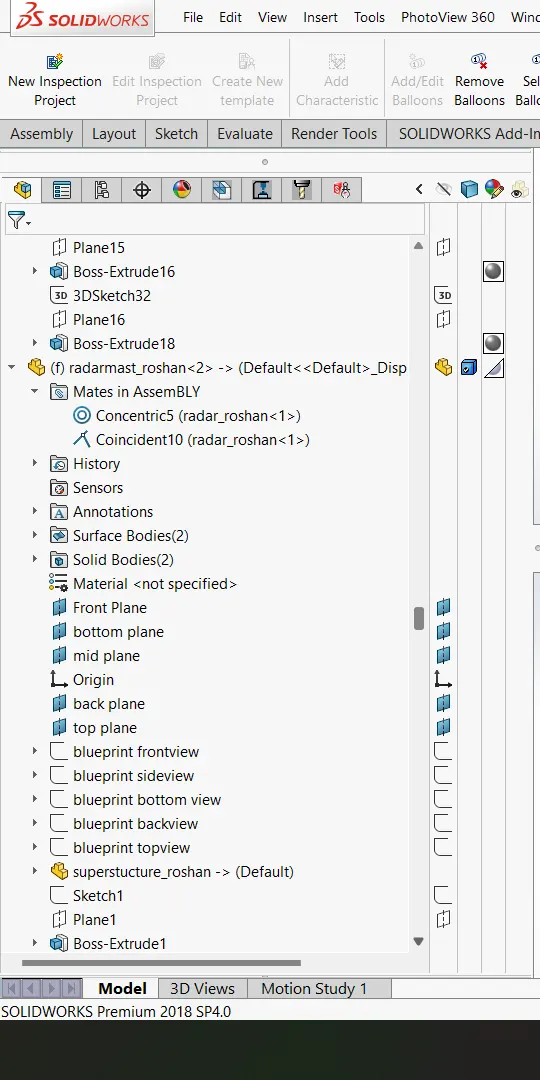
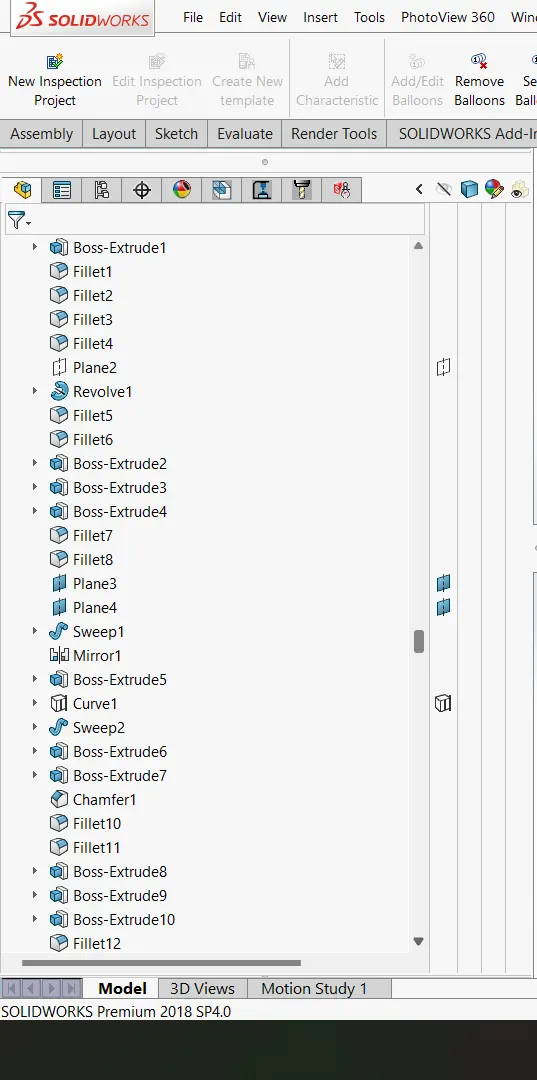
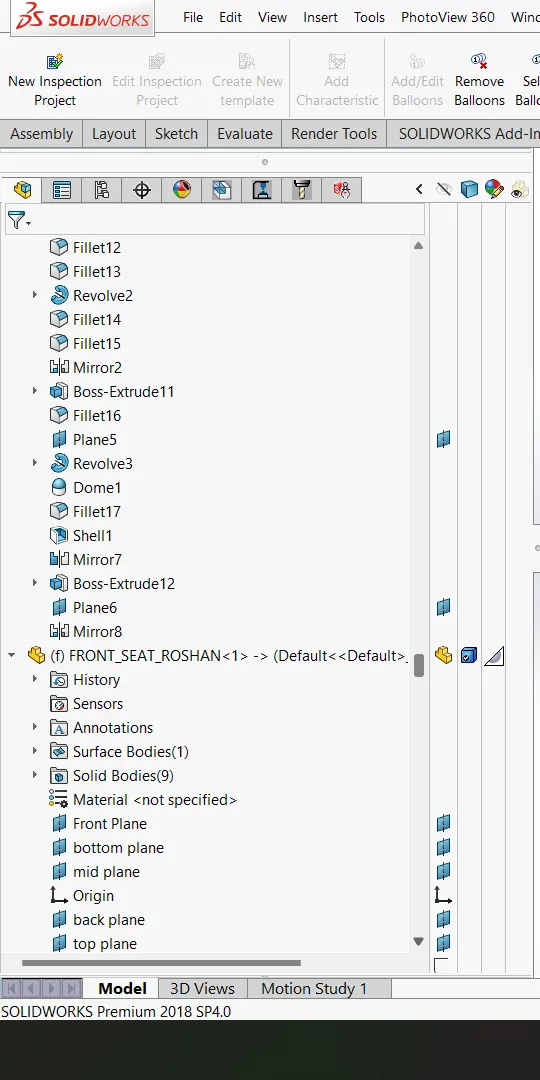
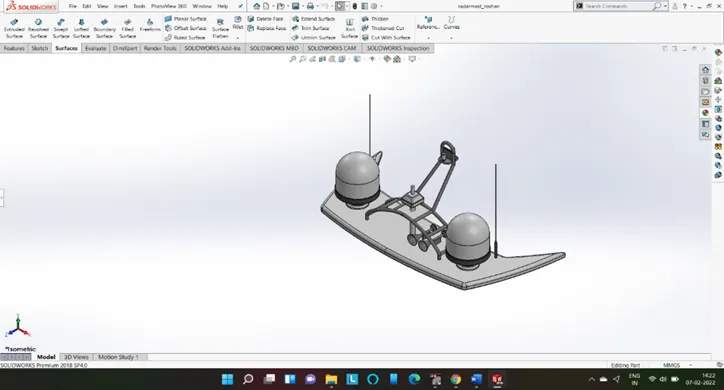
- Radar mast
They are electronic navigation instruments that use a rotating antenna to sweep a narrow beam of microwaves around the water surface surrounding the ship to the horizon, detecting targets by microwaves reflected from them, generating a picture of the ship's surroundings on a display screen.
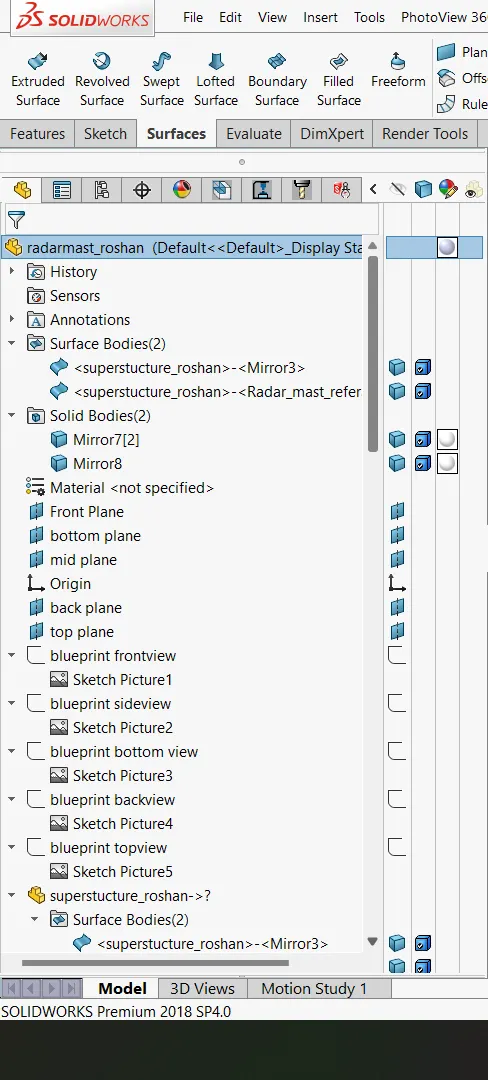
Features used to create the Radar mast
- Reference plane
- Extrude
- Fillet
- Revolve
- Sweep
- Mirror
- Curve
- Chamfer
- Dome
- Shell
- Appearance
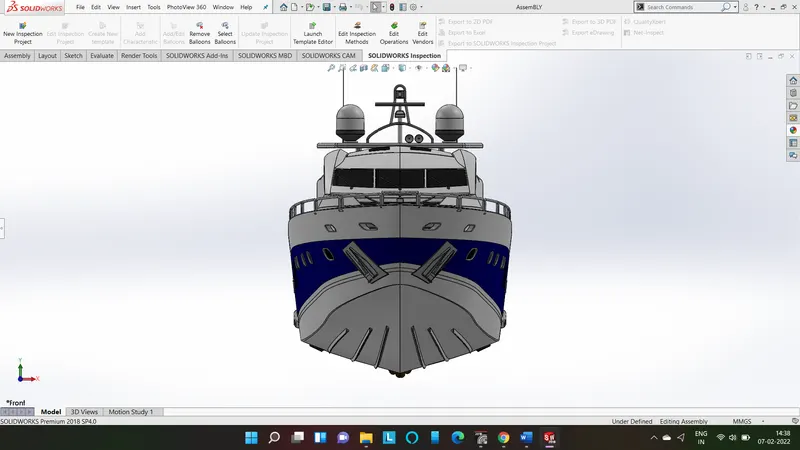
ASSEMBLY OF YATCH
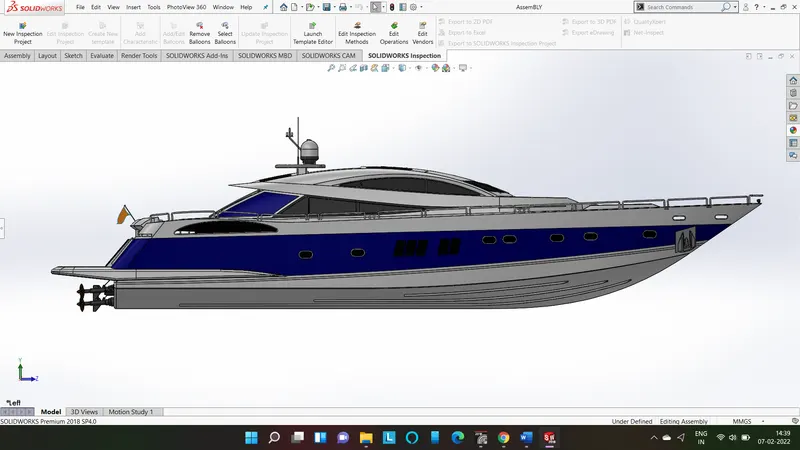
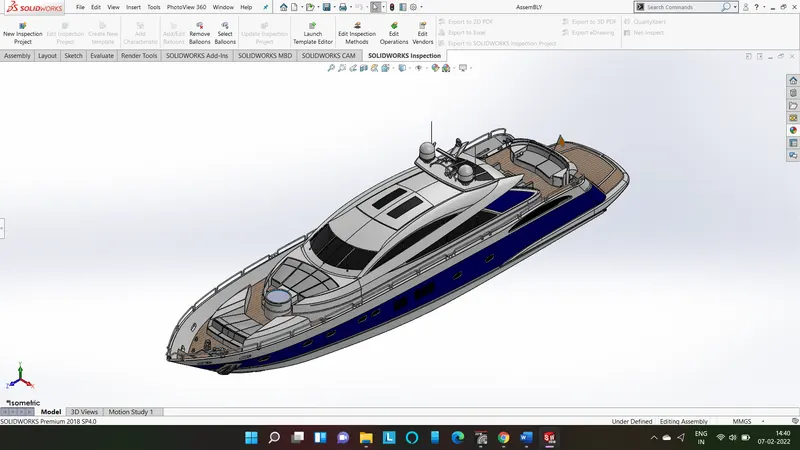
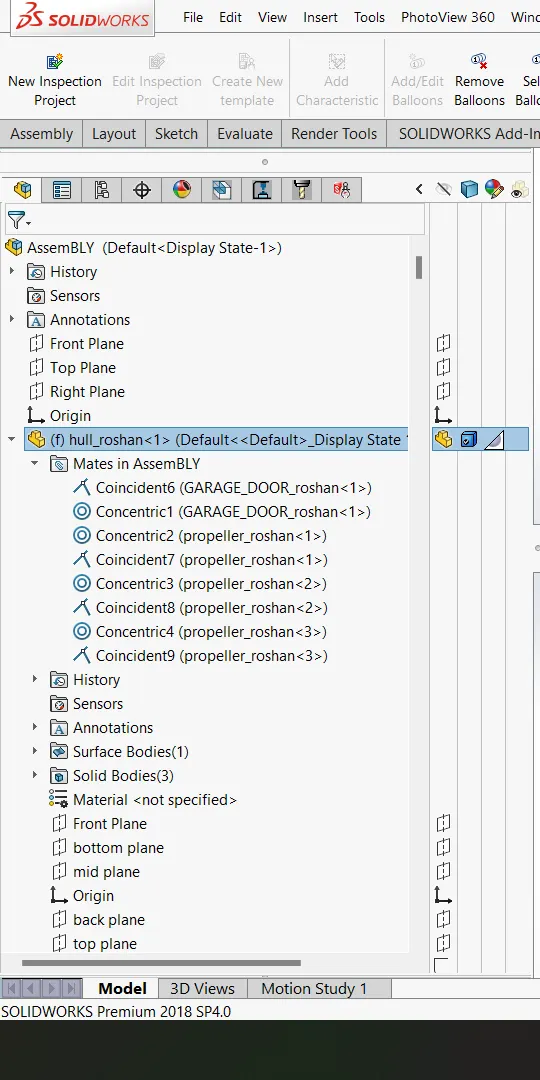
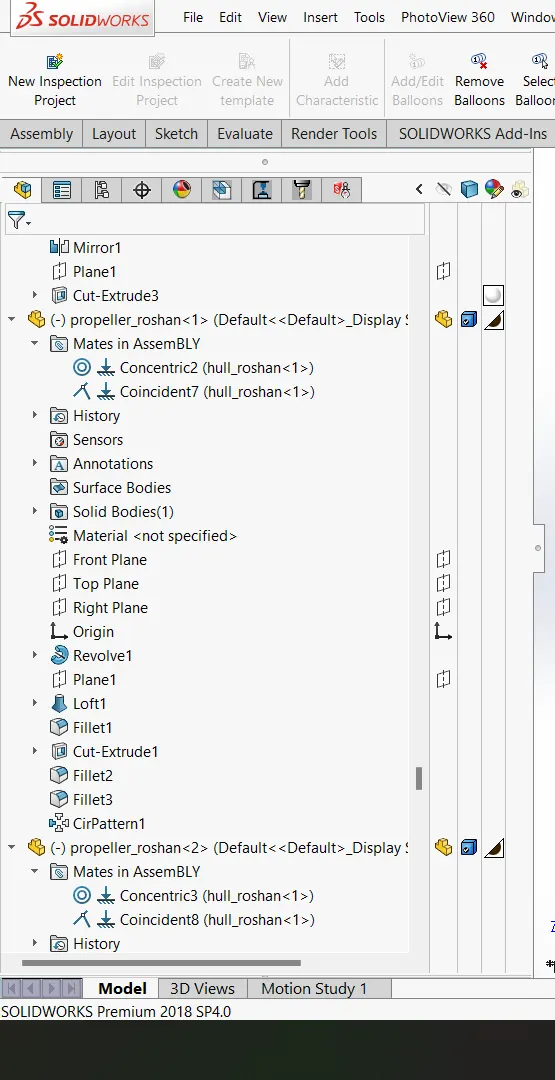
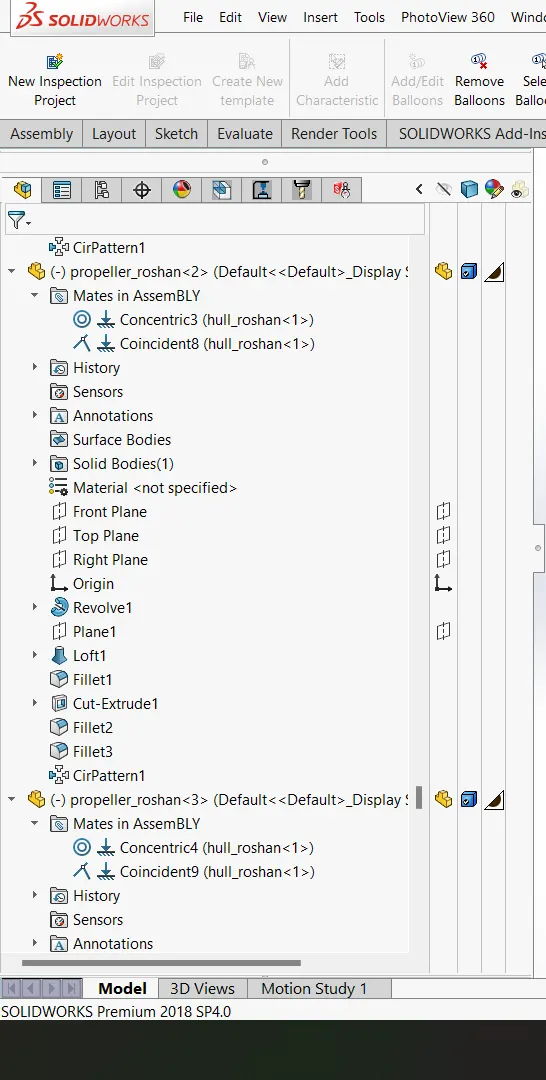
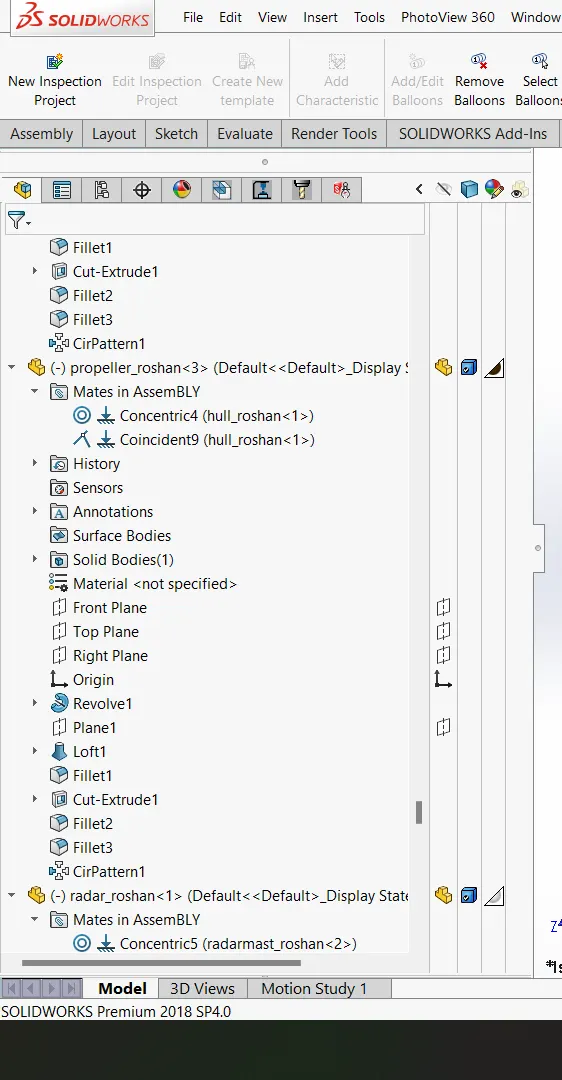
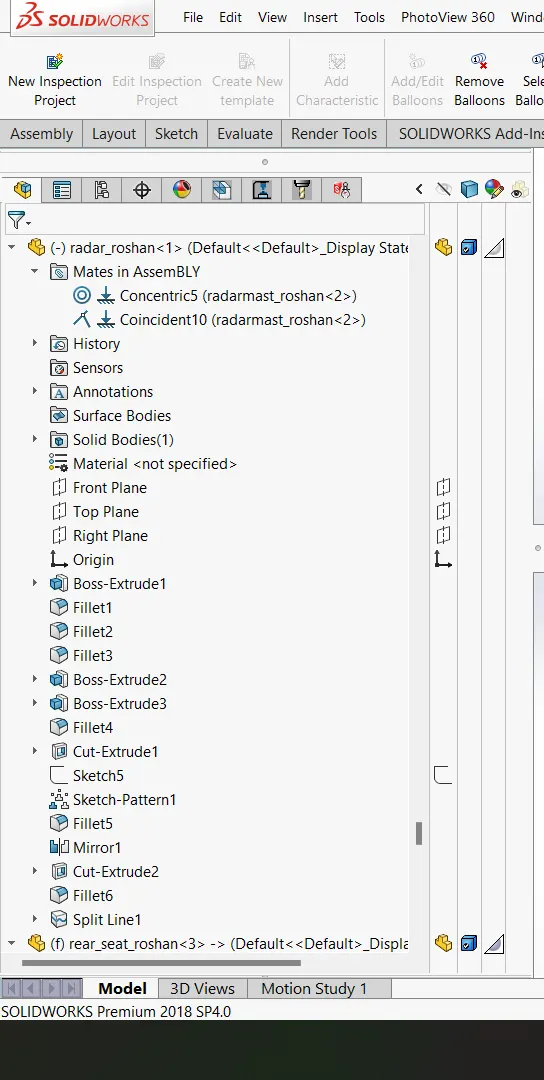
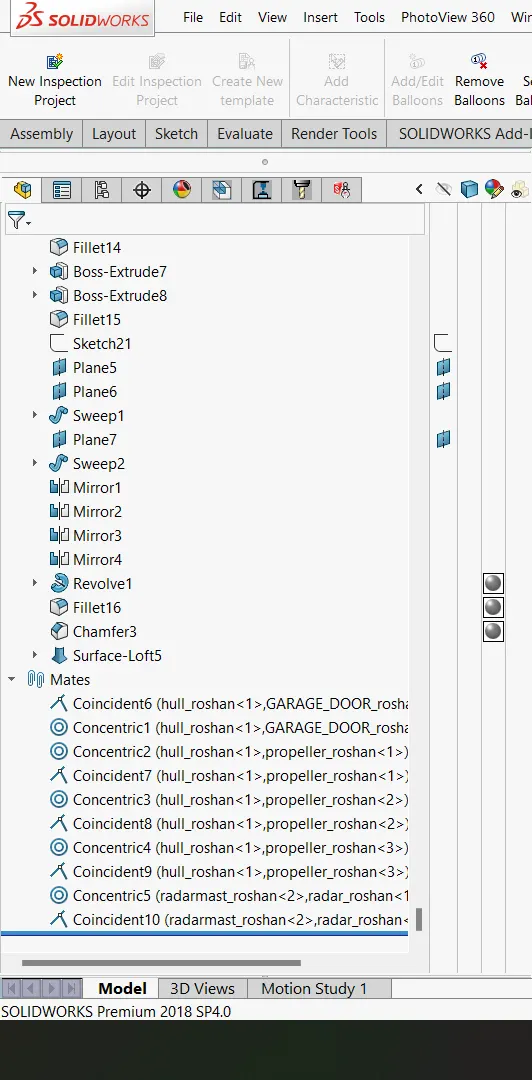
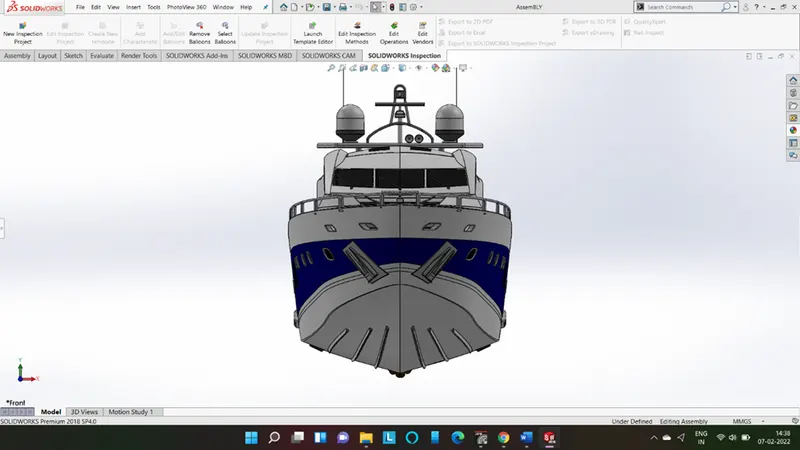
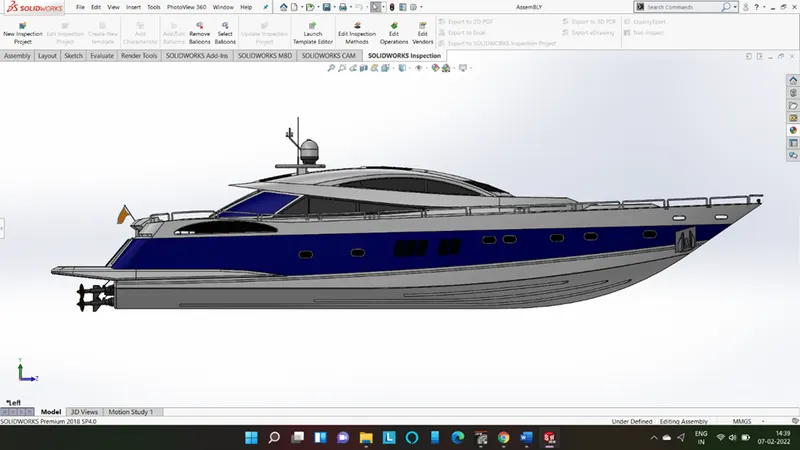
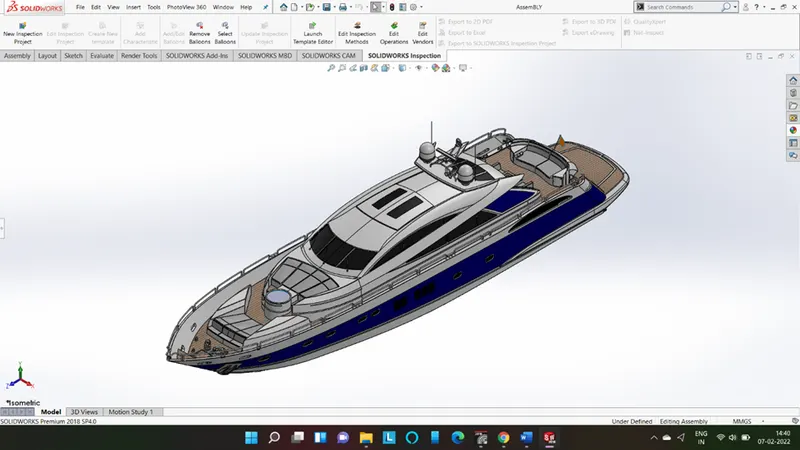
In assembly we open all the parts we modelled. In assembly mate feature is most commonly used to locate and relate the parts with one another. Firstly, we opened hull in assembly and then fix it. Then all other parts are inserted one by one. Some parts were modified during assembly to make it perfect according to requirement.
Front view
Left view
Isomeric view
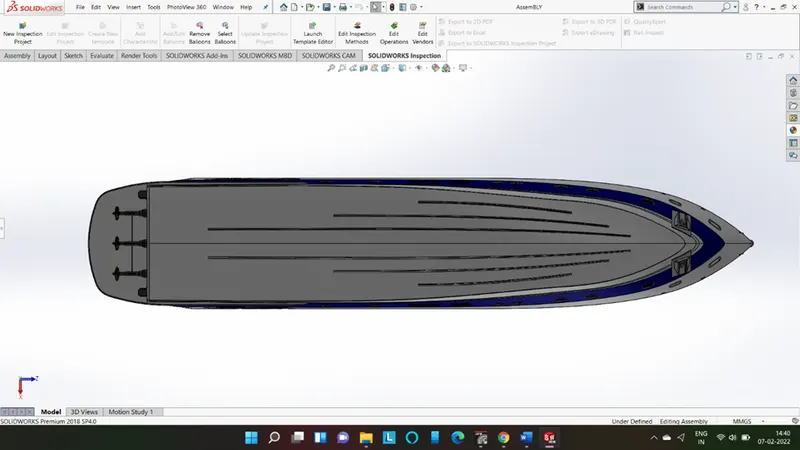
Bottom view
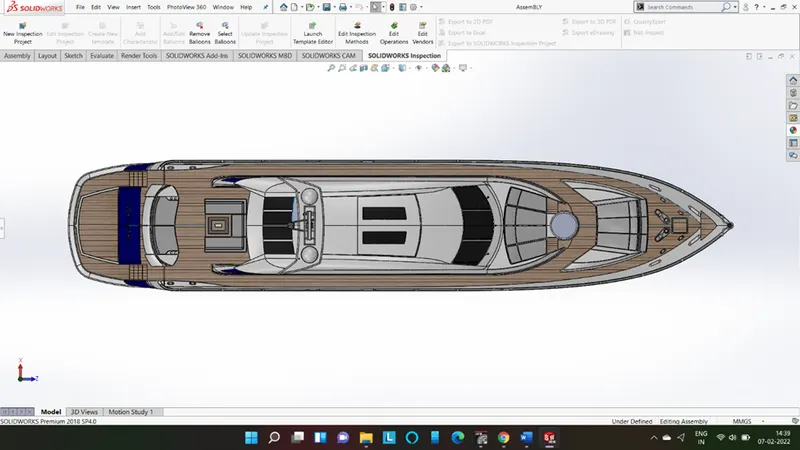
Top view
APPEARANCES
An appearance defines the visual properties of a model, including colour and texture. Appearances do not affect physical properties, which are defined by materials. We can apply appearance to model at any stage i.e., at part level or at assembly level or we can also change appearance in solidworks visualize. We can apply different appearance to face, body, model, etc.
Every material is assigned a default appearance that emulates the look of the material.
RENDERING
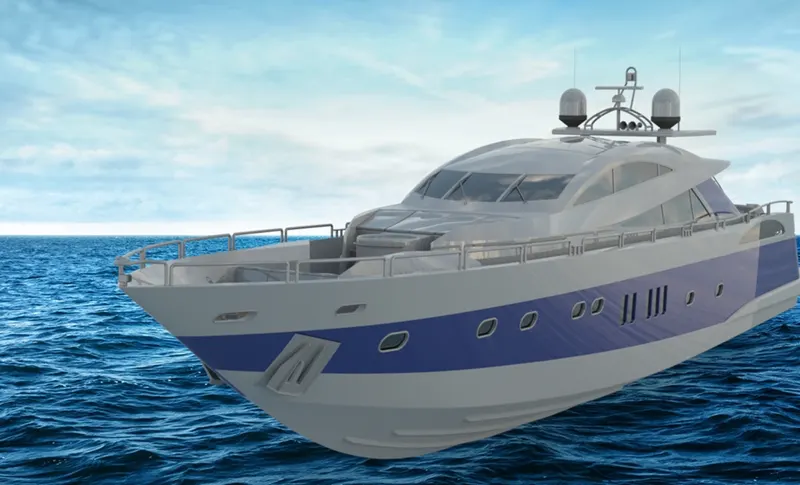
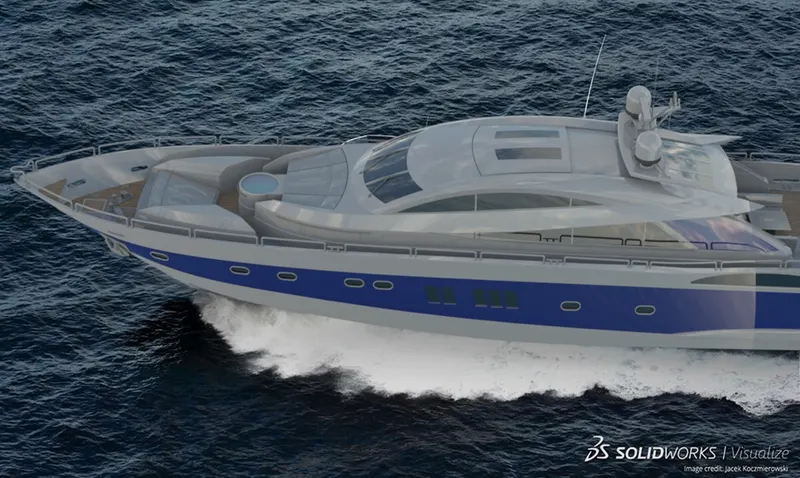
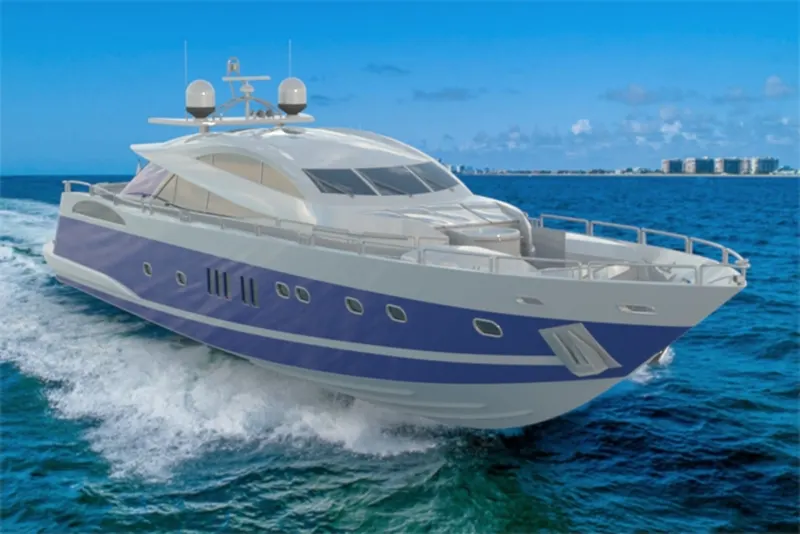
Rendering can be done using solidworks or for better visuals we can use solidworks visualize. The term rendering comes from the graphic world where a rendering is an artistic drawing of what a new structure would look like. In Computer Aided Design (CAD), a rendering is a particular view of a realistic image. By doing rendering of yatch, we get the idea that how it will look into the environment. This rendering is done in the SOLIDWORK Visualize software. By using PHOTOVIEW 360 we can add various camera views to the model, we can set various angles, direction, and can set appropriate distance to get the perfect camera view. In rendering we change colour of yatch parts, background images, brightness, rotation and various setting of yatch. Including the resolution and setting number of passes we get more detail visuals of yatch.
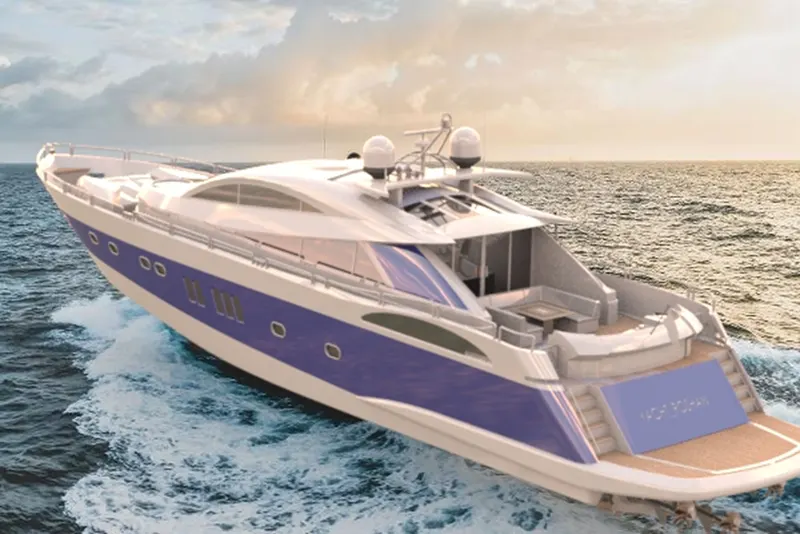
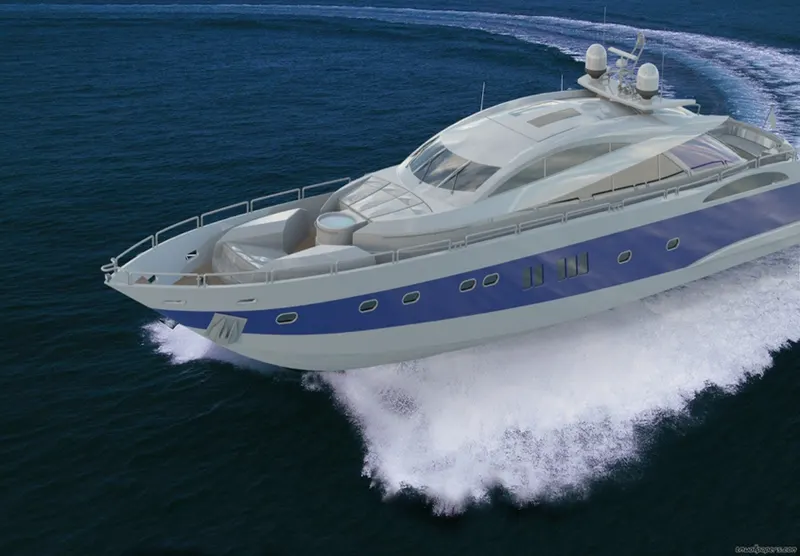
CONCLUSION
- We learnt solidworks user interface and customization according to our need.
- We learnt various basic and advance features and commands in solidworks.
- We learnt modelling and how to apply appearance.
- We learnt assembling.
- We learnt rendering using solidworks visualize software.