Photo Realistic Rendering
MODELING OF AMERICAN CHOPPER ON SOLIDWORKS
INDEX
|
Sr.no. |
Title |
|
1. |
Introduction |
|
2. |
Objectives |
|
3. |
Design methodology/ approach |
|
4. |
Procedure |
|
5. |
Features |
|
6. |
Parts |
|
7. |
Assembly of chopper |
|
8. |
Appearance |
|
9. |
Decals |
|
10. |
Lights |
|
11. |
Scenes |
|
12. |
Cameras |
|
13. |
Rendering |
|
14. |
Conclusion |
INTRODUCTION
In this module, we will discover about how to model entire chopper in SOLIDWORKS. Firstly, we learn about various commands and then by following those commands we draw parts. Then by using those parts we assemble the chopper. After assembly we add decals, lights, camera and do rendering of chopper by using SOLIDWORK visualization.
Parts which we created
- Transmission belt
- Kickstand
- Front and rear fender
- Oil tank and pedal
- Chain
- Front and rear wheel
- Front fork
- Chassis
- Engine
OBJECTIVES
- Get an idea of user interface and customization.
- Basic commands of solidworks.
- Applying appearances & Assembling.
- To learn rendering
- Scene setup and adding decals.
- Adding camera at suitable angle and adding various lights.
- To learn Solidworks visualization software.
DESIGN METHODOLOGY/APPROACH
You can create assemblies using bottom-up design, top-down design, or a combination of both methods.
Bottom-up Design
Bottom-up design is the traditional method. You first design and model parts, then insert them into an assembly and use mates to position the parts. To change the parts, you must edit them individually. These changes are then seen in the assembly.
Top-down Design
In Top-down design, parts' shapes, sizes, and locations can be designed in the assembly. For example: You can model a motor bracket so it is always the correct size to hold a motor, even if you move the motor. This capability is particularly helpful for parts like brackets, fixtures, and housings, whose purpose is largely to hold other parts in their correct positions.
In some cases we need to use combination of both the methods.
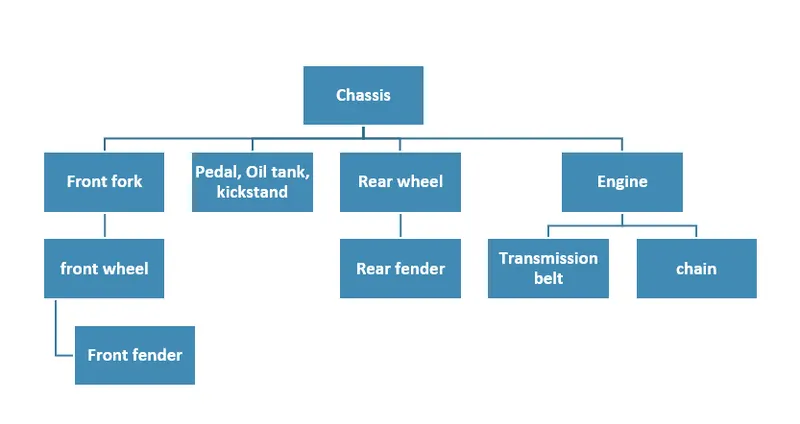
Fig. Flowchart
PROCEDURE
- Open new file
- Rename the sketch plane with your convenience
- Select the plane we want to sketch on
- Use various commands and features according to our requirement.
- Give appearances accordingly
- Save the file
Condition of a sketch
Under Defined
There is inadequate definition of the sketch, but the sketch can still be used to create features. This is good because many times in the early stages of the design process, there isn’t sufficient information to fully define the sketch. When more information becomes available, the remaining definition can be added at a later time. Under defined sketch geometry is blue (by default).
Fully Defined
The sketch has complete information. Fully defined geometry is Black (by default). As a general rule, when a model is completed, the sketches within it should be fully defined.
Over Defined
The sketch has duplicate dimensions or conflicting relations and it should not be used until repaired. Unnecessary dimensions and relations should be deleted. Over defined geometry is red (by default).
FEATURES
- Extrude boss
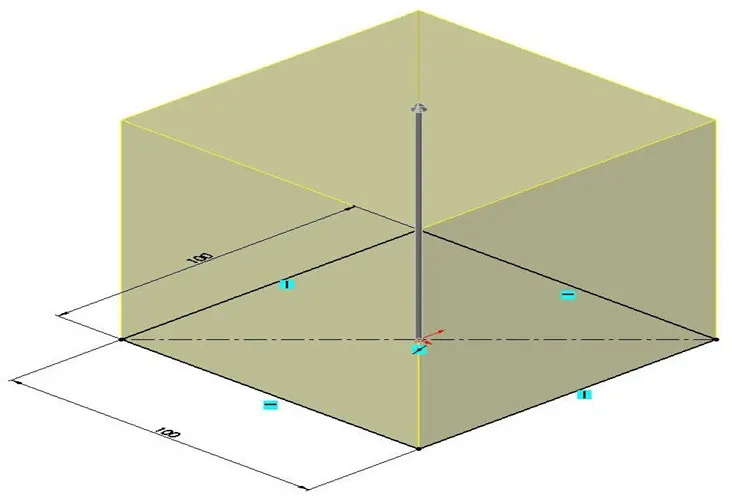
The extrude tool is one tool that I believe every single person who has ever played with or used SOLIDWORKS knows. An Extruded Boss/Base feature will allow you to take a 2D sketch and add thickness to it in the third dimension.
- Extrude cut
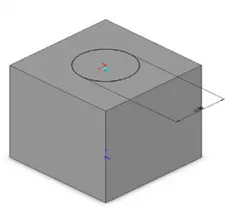
You can use the Extrude cut tool to remove material by projecting a sketched section normal to the sketching plane. You can use open or closed sections to create a cut. Removing material using a closed section creates a slot.
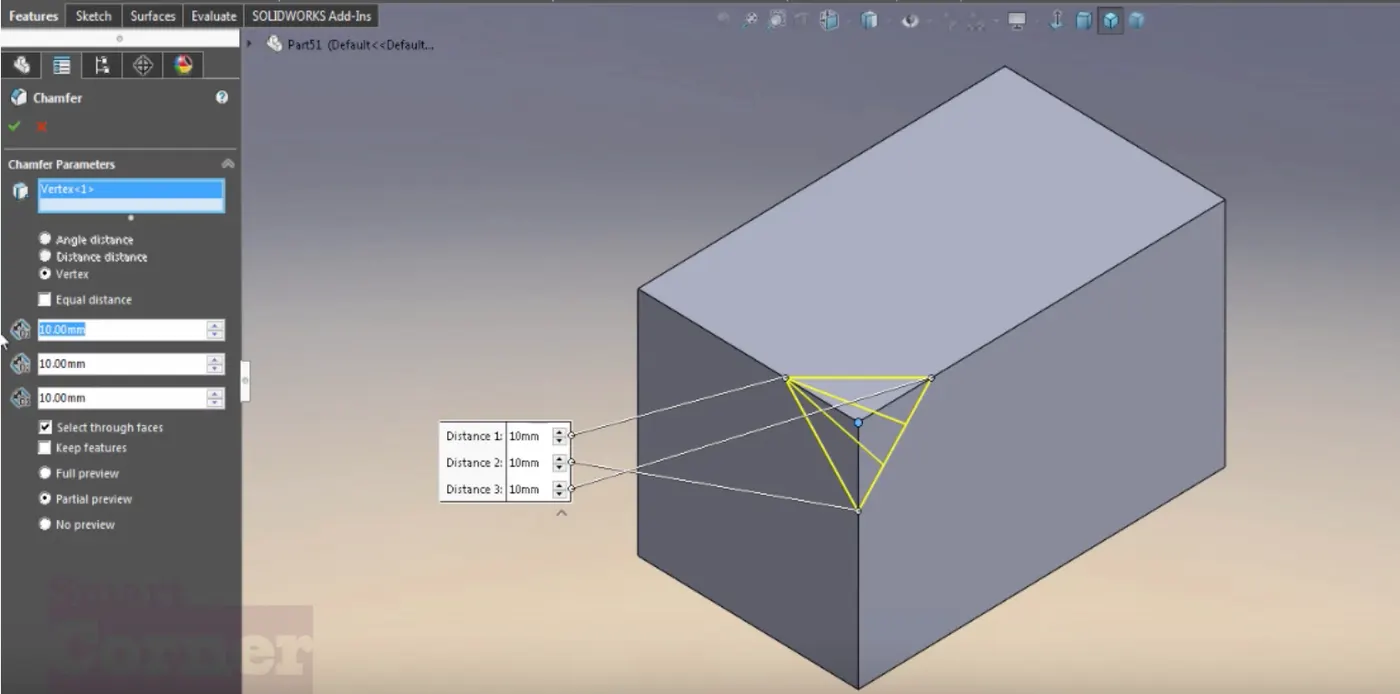
- Fillet/Chamfer
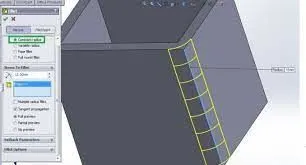
Rounding or bevelling of sharp corners is used extensively in part design. And SolidWorks has provided an easy way, an interface, for applying either one. Rounding is called fillets, and bevelling is called chamfers.
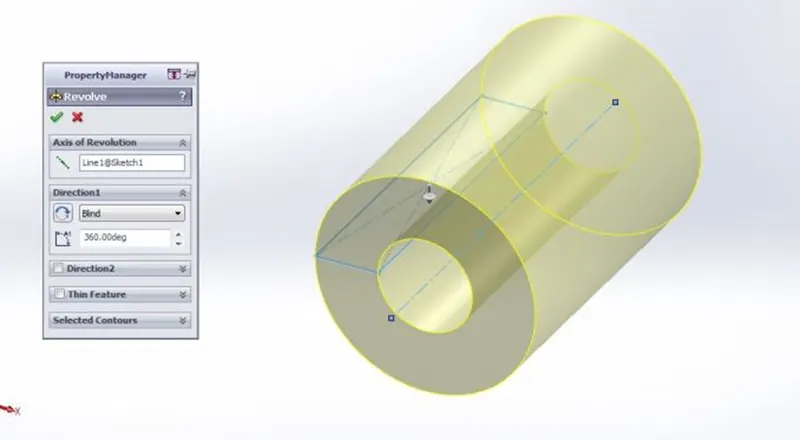
Revolve boss feature
Revolved Boss or Base is a SolidWorks feature tool which is used to create solid 3D model around an axis. You can revolve the sketch around an axis to add materials to it.
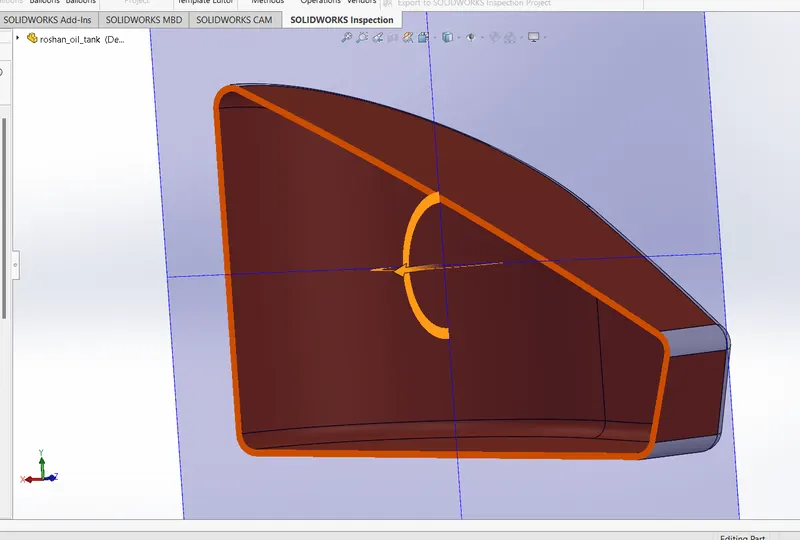
- Shell
The shell tool hollows out a part, leaves open the faces you select, and creates thin-walled features on the remaining faces. If you do not select any face on the model, you can shell a solid part, creating a closed, hollow model. You can also shell a model using multiple thicknesses.
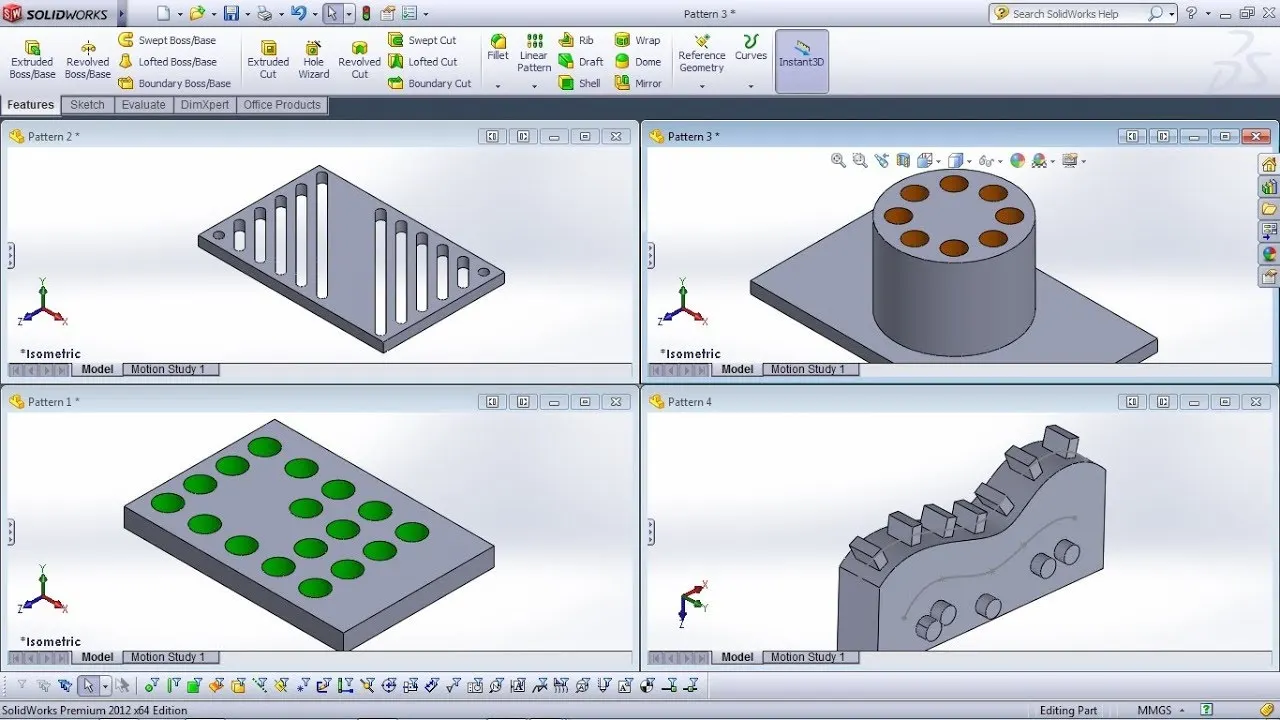
- Linear and Circular pattern
Use linear patterns to create multiple instances of one or more features that you can space uniformly along one or two linear paths. Use circular patterns to create multiple instances of one or more features that you can space uniformly around an axis.
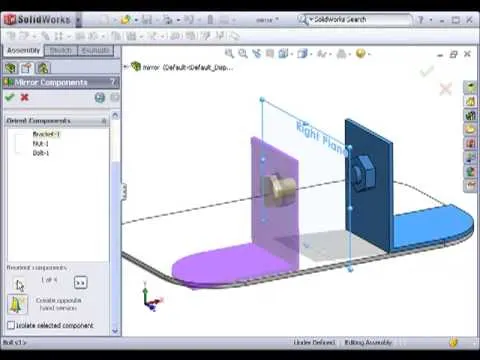
- Mirror
Creates a copy of a feature, (or multiple features), mirrored about a face or a plane. You can select the feature or you can select the faces that comprise the feature. Bodies to Mirror. Select a body in a single model or multibody part to create a mirror entity.
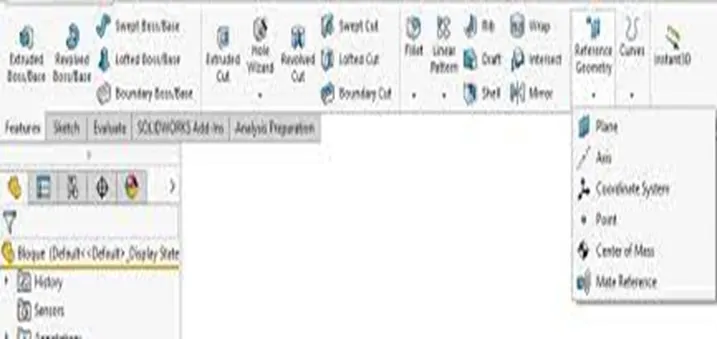
- Reference geometry
Reference geometry defines the shape or form of a surface or a solid. Reference geometry includes items such as planes, axes, coordinate systems, and points. You can use reference geometry in the creation of several kinds of features. For example: Planes are used in lofts and sweeps.
- Projected curve
You can project a sketched curve onto a model face to create a 3D curve. You can also create a 3D curve that represents the intersection of two extruded surfaces generated by creating sketches on two intersecting planes. You can create multiple closed or open-contour projected curves from a single sketch. You can also use 3D sketches as input for the Projected Curve tool. The Projected Curve tool does not support projections of intersecting curves.
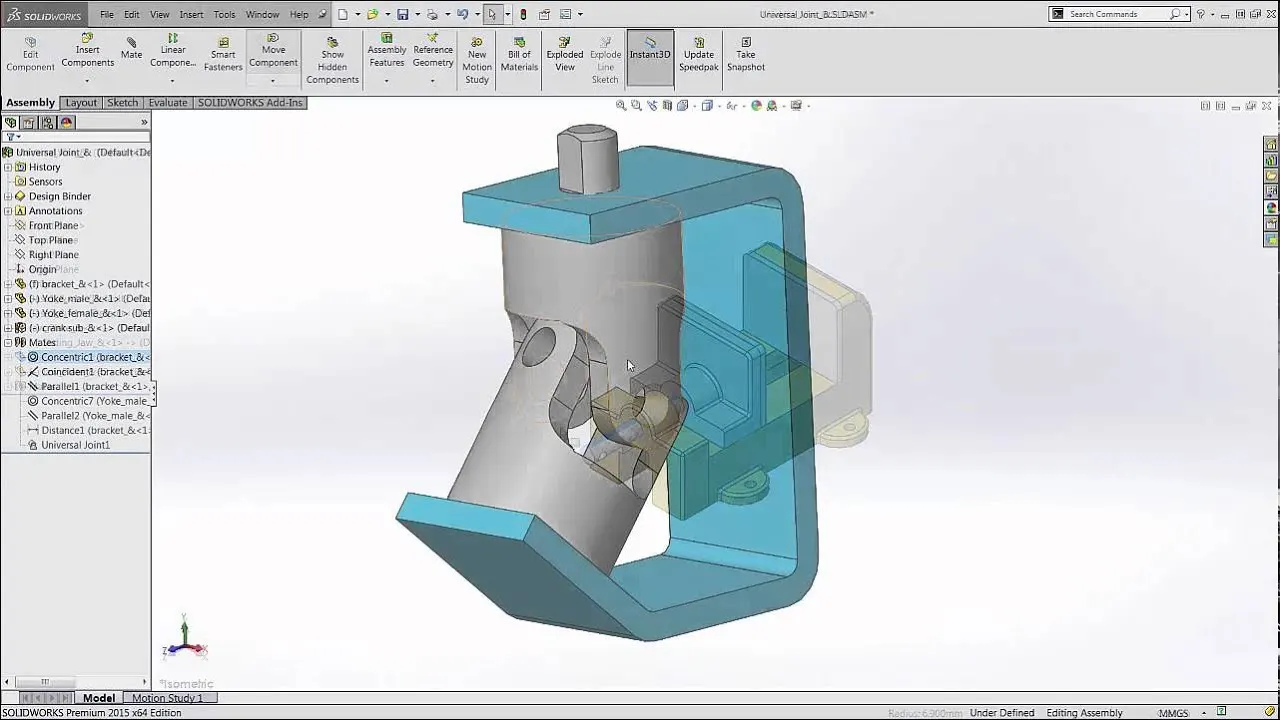
- Mate
Mates create geometric relationships between assembly components. As you add mates, you define the allowable directions of linear or rotational motion of the components. You can move a component within its degrees of freedom, visualizing the assembly's behavior.
PARTS
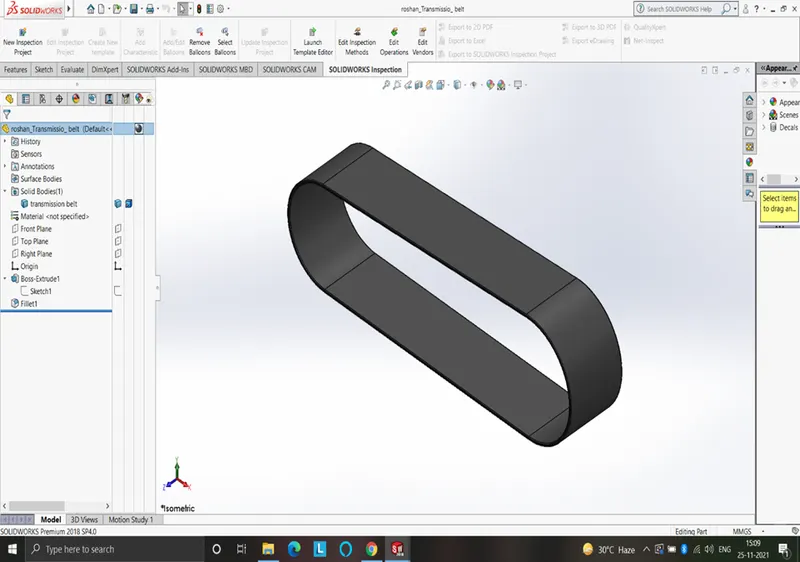
Transmission belt
A belt is a loop of flexible material used to link two or more rotating shafts mechanically, most often parallel. Belts may be used as a source of motion, to transmit power efficiently or to track relative movement. It is located at the round surface of the pulleys.
Features used to create transmission belt
- Sketch
- Extrude
- Offset
- Fillet
- Appearance
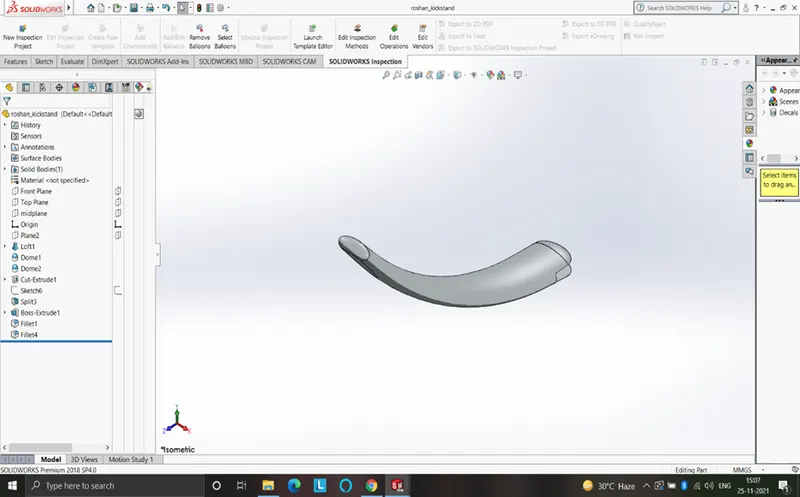
Kickstand
A metal rod attached to a bicycle or motorcycle, lying horizontally when not in use, that may be kicked into a vertical position to support the vehicle when it is stationary.
Features used to create kickstand
- Sketch
- Ellipse
- Splines
- Loft
- Cut extrude
- Extrude
- Split
- Fillet
- Appearance
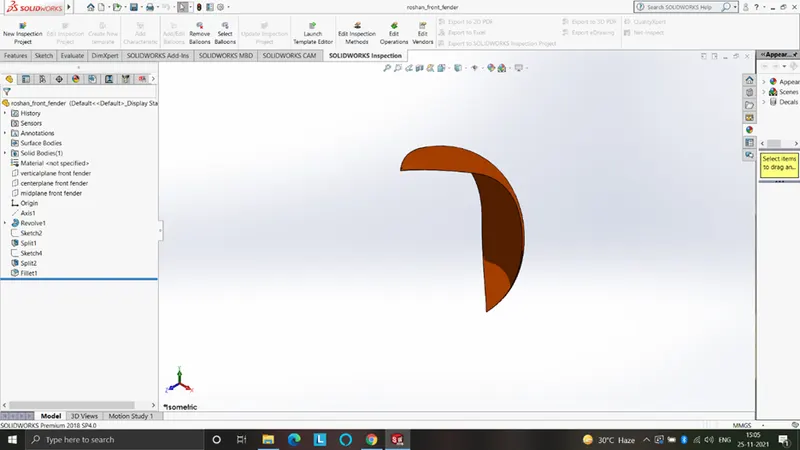
Front fender
Fender is the American English term for the part of an automobile, motorcycle or other vehicle body that frames a wheel well. The pressed and formed sheet-metal part mounted over the road wheels of an automobile, bicycle, etc., to reduce the splashing of mud, water, and the like. Front fender is mounted on front wheel.
Features used to create the Front fender
- Sketch
- 3-point arc
- Trim
- Extend
- Revolve
- Spline
- Fillet
- Appearance
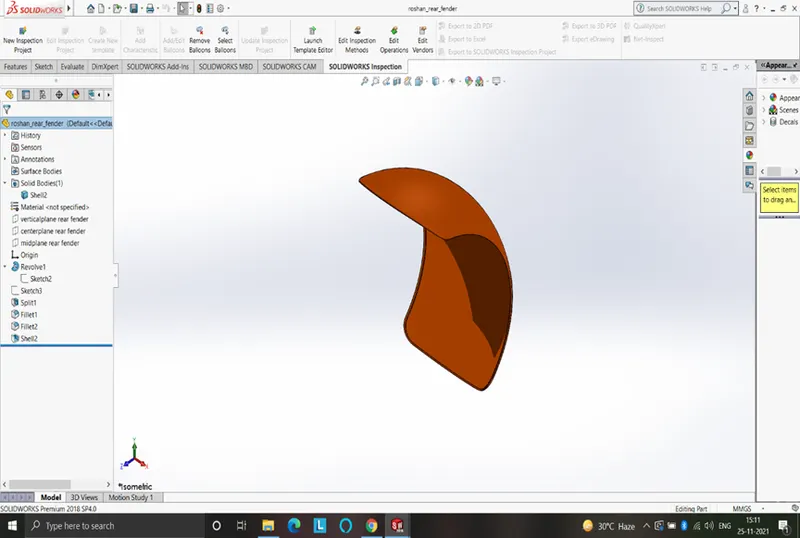
Rear fender
Fender is the American English term for the part of an automobile, motorcycle or other vehicle body that frames a wheel well. The pressed and formed sheet-metal part mounted over the road wheels of an automobile, bicycle, etc., to reduce the splashing of mud, water, and the like. Front fender is mounted on rear wheel.
Features used to create the Rear fender
- Sketch
- 3-point arc
- Extend & trim
- Revolve
- Spline
- Fillet
- Appearance
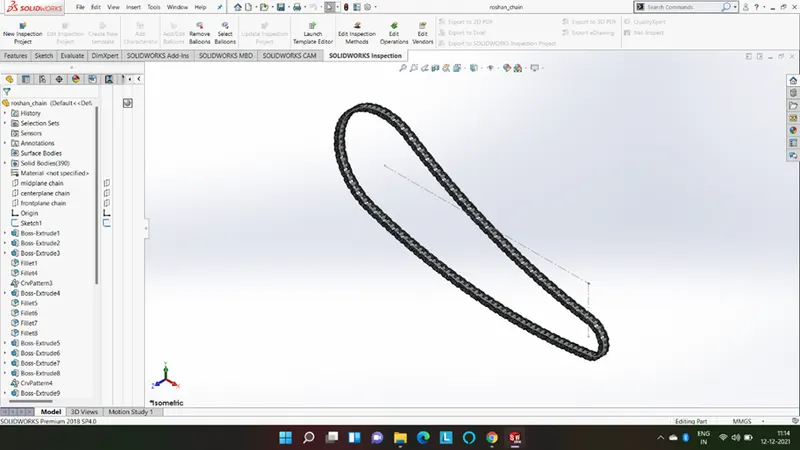
Chain
Chain drive is a way of transmitting mechanical power from one place to another. It is often used to convey power to the wheels of a vehicle, particularly bicycles and motorcycles. A timing chain is a continuous roller chain that drives the camshaft of an engine from the crankshaft.
Features used to create the Chain
- Sketch
- Circles
- 3-point arc
- Slot
- Block
- Fillet
- Curve pattern
- Mirror
- Appearance
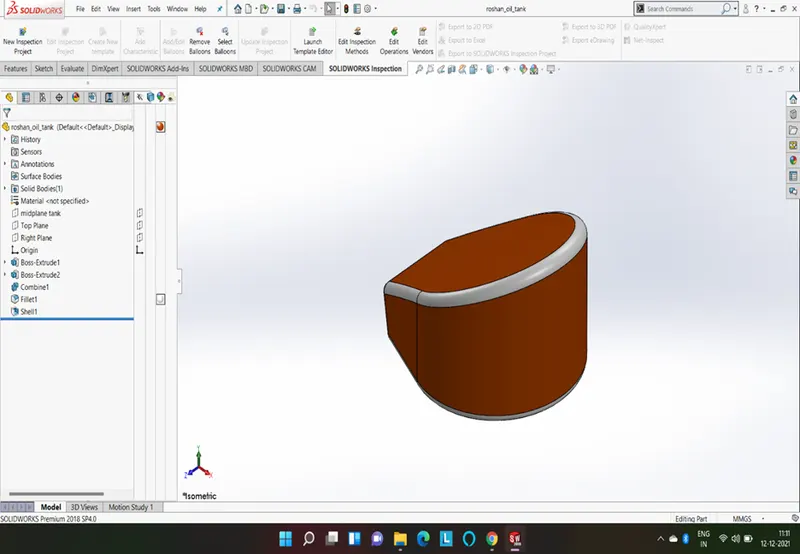
Oil tank
Features used to create the Oil tank
- Sketch
- Lines
- 3-point arc
- Extrude
- Combine
- Fillet
- Shell
- Appearance
Pedal
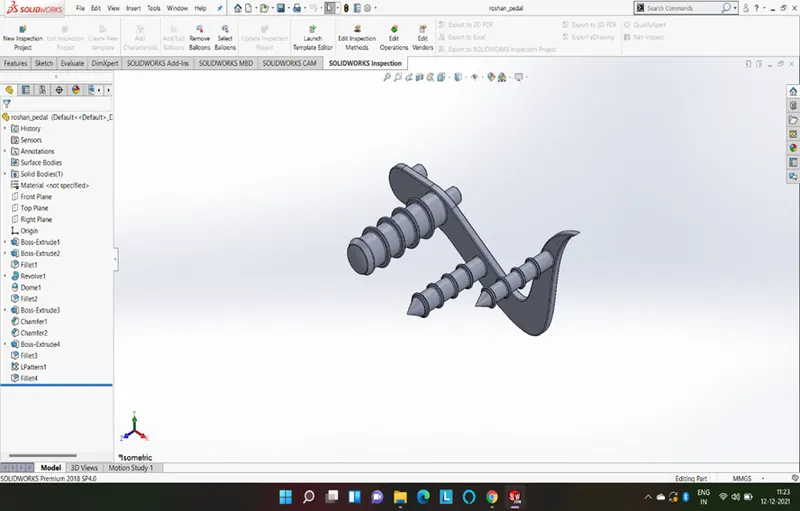
A pedal in a vehicle is a lever that you press with your foot in order to control the vehicle.
Features used to create the Pedal
- Sketch
- Lines
- Circles
- Fillet
- Revolve
- offset
- Dome
- Chamfer
- Linear pattern
- Appearance
Front wheel
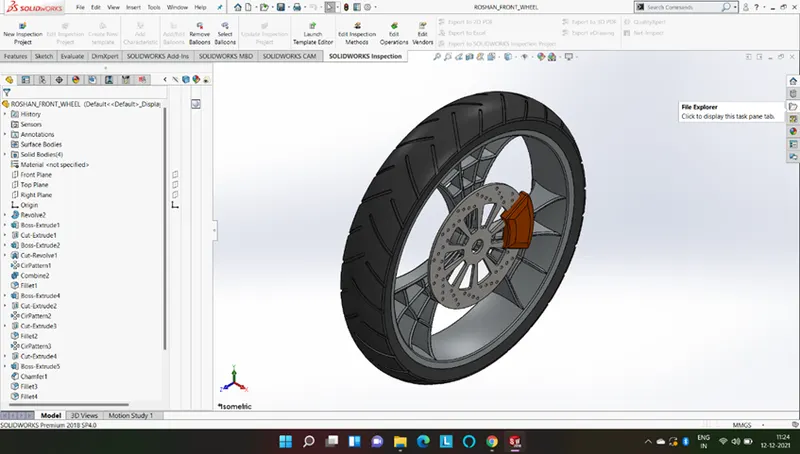
Front wheel is having larger diameter than the rear wheel. To manage impact better than the rear. It contains rim, tyre, brake disc & caliper.
Features used to create the Front wheel
- Sketch
- Lines
- 3-point arc
- Sketch Fillet
- Revolve & revolve cut
- Spline
- Extend & trim
- Cut Extrude
- Offset
- Circular pattern
- Chamfer & fillet
- Appearance
Rear wheel
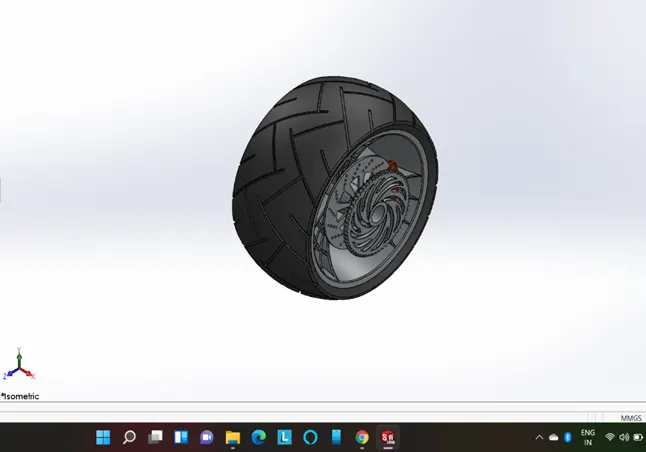
The rear tire is primarily used for accelerating the vehicle and move it forward. It is wider than the front wheel. It gives stability to the vehicle. It contains rim, tyre, brake disc, sprocket & caliper.
Features used to create the Rear wheel
- Sketch
- Lines
- 3-point arc
- Sketch fillet
- Revolve &revolve cut
- Spline
- Extend & Trim
- Extrude & extrude cut
- Offset
- Circular pattern
- Chamfer and fillet
- Appearance
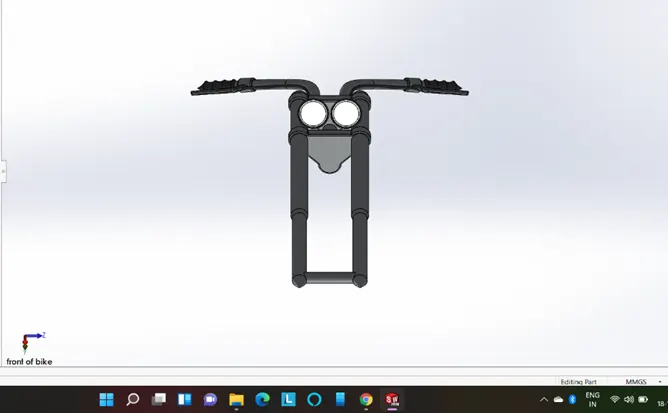
Front fork
Front fork attaches the whole chassis and the front wheel. It is typically made with triple clamps. It is also used to give suspension to the whole bike and front wheel includes parts front fork, handle bars, head lights, break and clutch levers.
Features used to create the Front fork
- Sketch
- Lines and circles
- Revolve
- Fillets
- Linear pattern
- Spline and projected curves
- Cut extrude
- Dome
- Sweep
- Reference plane
- Mirror and combine
- Appearance
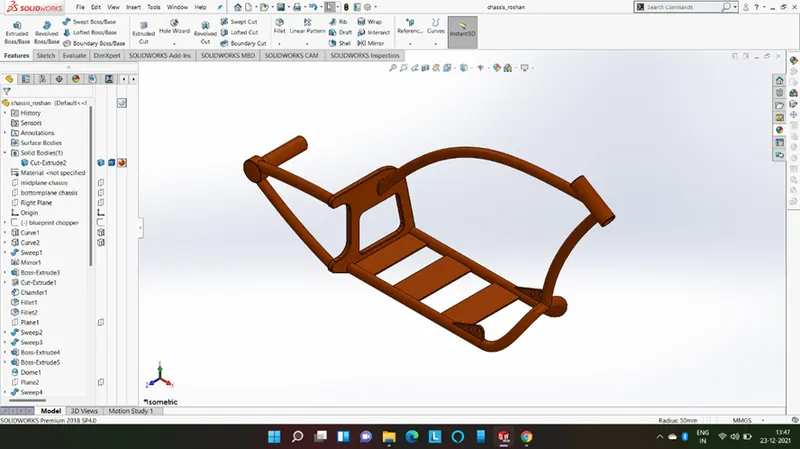
Chassis
In this part we learn how to use blueprint. The chassis is the main frame of the chopper. It holds all the components such as front fork, pedals, kickstand, oil tank, engine, gas tank and rear wheel. It supports all the components and supports to the bike.
Features used to create the Chassis
- Blueprint sketch
- Spline & projected curves
- Mirror
- Extrude & cut extrude
- Chamfer
- Dome
- Split
- Revolve
- Combine
- Appearance
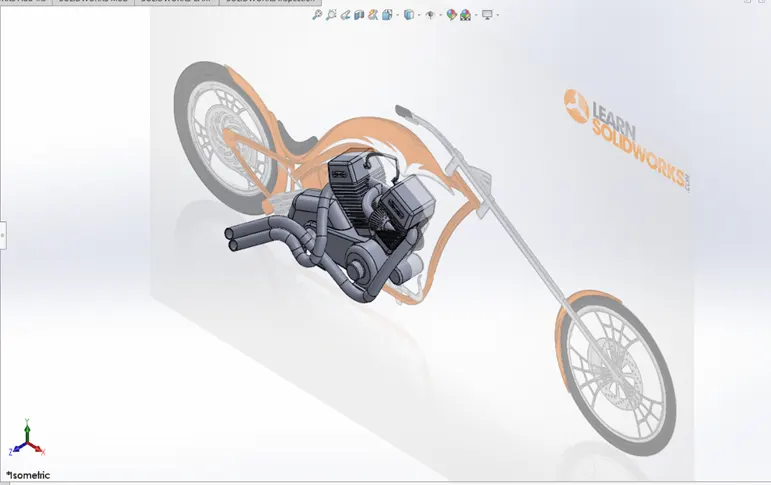
Engine
An engine is machine that converts energy from a fuel to some mechanical energy, creating motion in the process. Engines - such as the ones used to run vehicles - can run on a variety of different fuels.
Features used to create the Engine
- Blueprint Sketch
- Lines & circles
- Extrude & cut extrude
- Fillet & chamfer
- Revolve
- Dome
- Circular and linear pattern
- Mirror
- Projected and composite curves
- Split
- Appearance
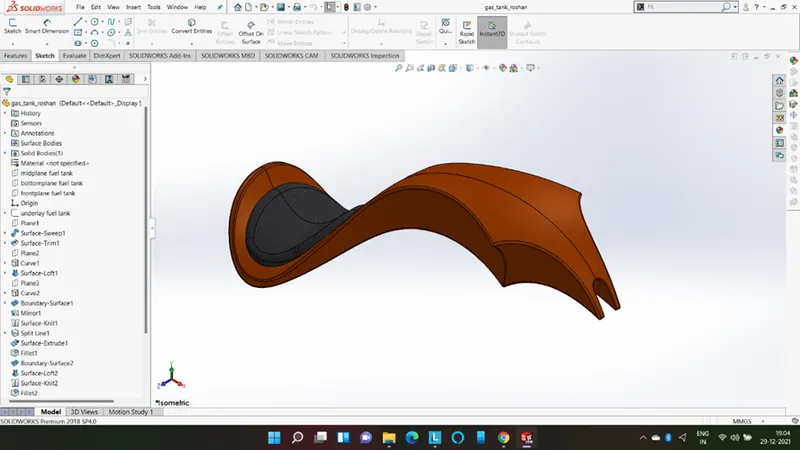
Gas tank
The gas tank in a vehicle is the container for gasoline. Gasoline is drawn off from the gas tank by a fuel pump.
Features used to create the Gas tank
- Blueprint sketch
- Surface sweep
- Surface trim
- Surface boundary
- Surface loft
- Spline & curve
- Mirror
- Surface knit
- Surface extrude
- Shell & fillet
- Extrude cut
- Appearance
ASSEMBLY OF CHOPPER
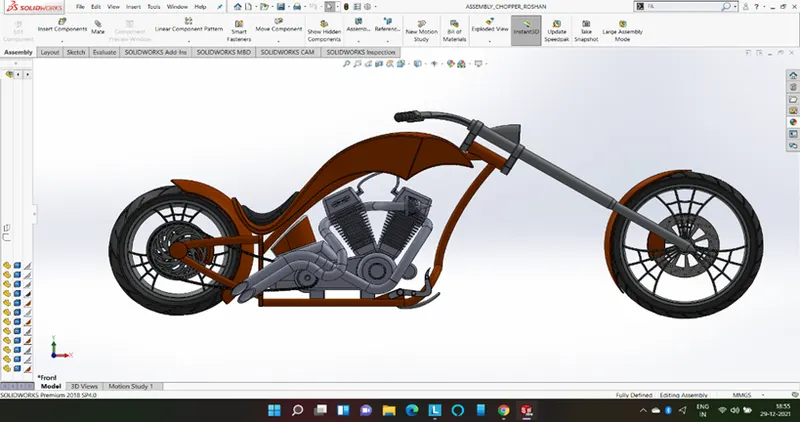
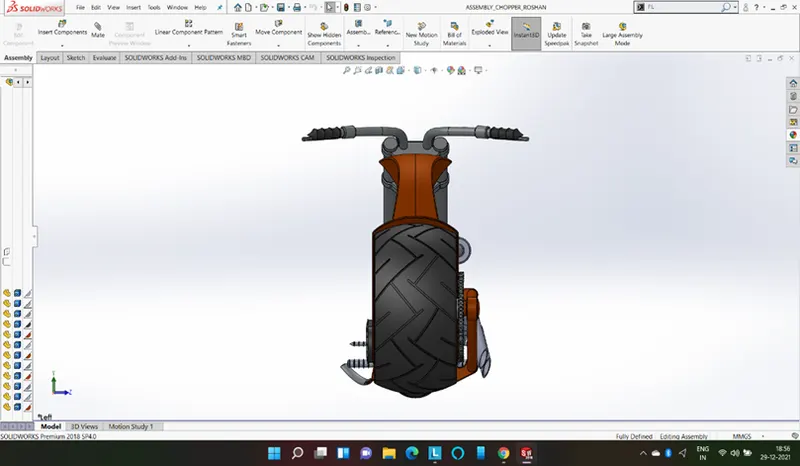
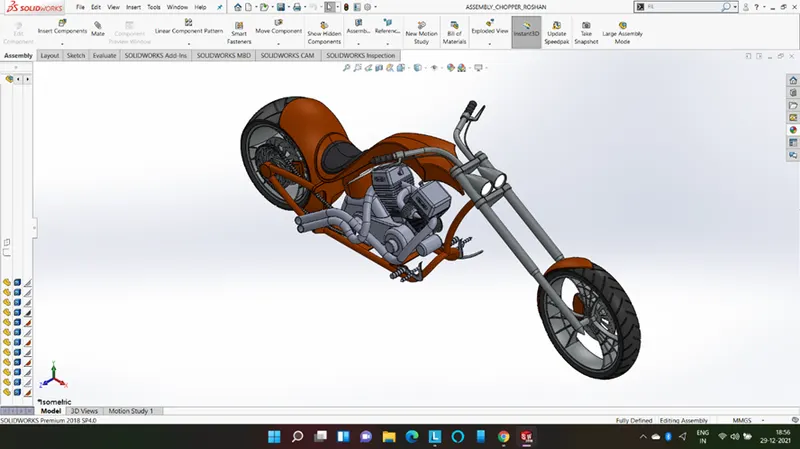
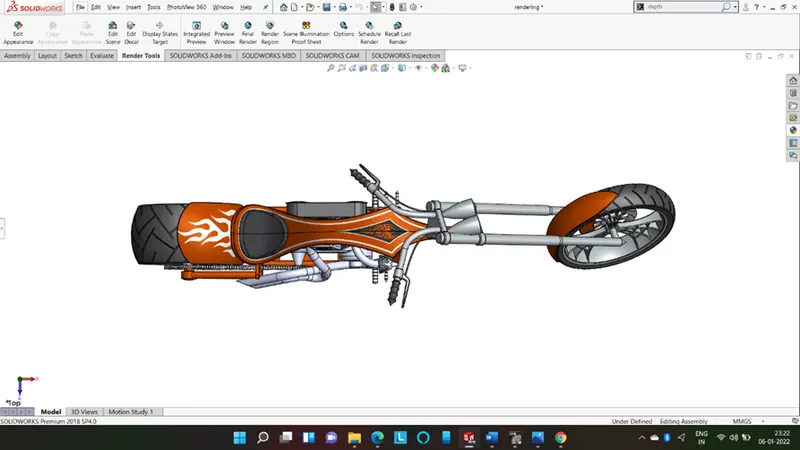
In assembly we open all the parts we modelled. In assembly mate 2 feature is most commonly used to locate and relate the parts with one another. Firstly, we opened chassis in assembly and then fix it. Then all other parts are inserted one by one. All other parts are given a reference of chassis to fix. Some parts were modified during assembly to make it perfect according to requirement.
Front view
Left view
Isomeric view
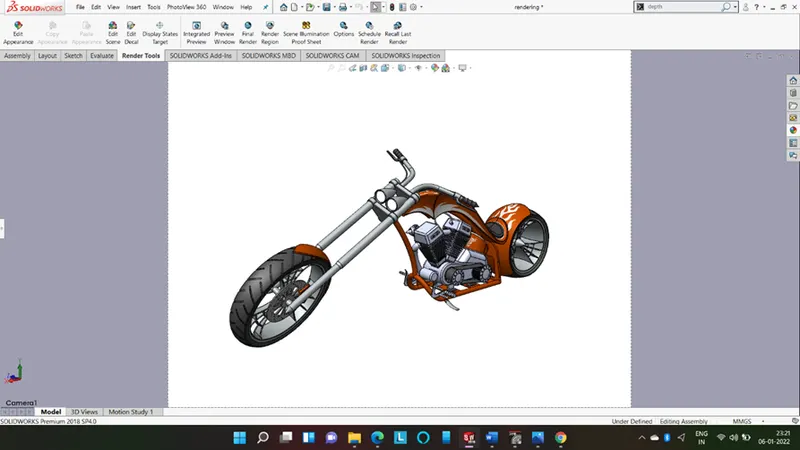
Camera view
Top view
APPEARANCES
An appearance defines the visual properties of a model, including color and texture. Appearances do not affect physical properties, which are defined by materials. We can apply appearance to model at any stage i.e., at part level or at assembly level or we can also change appearance in solidworks visualize. We can apply different appearance to face, body, model, etc.
Every material is assigned a default appearance that emulates the look of the material.
DECALS
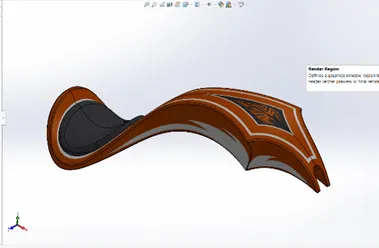
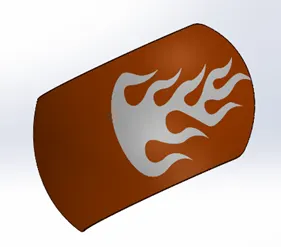
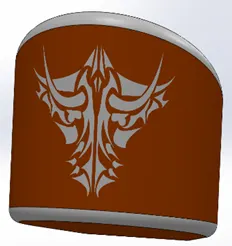
A decal is a 2D image applied to a model. You can use decals to apply warning or instruction labels to models. You can use decals to create model details that you can represent with an image instead of with the model geometry, such as a car grill or a picture frame. You can view and apply decals in SOLIDWORKS. You can view decals in eDrawings and PhotoView 360. By default, decals use an illumination scheme that is distinct from the scheme for the appearance under the decal. To use the appearance illumination scheme, in the Decals Property Manager, on the Illumination tab, select Use Underlying Appearance. We have added decals on Gas tank, Rear fender and Oil tank of chopper. It gives nice appearance to the chopper.
LIGHTS
You can adjust the direction, intensity, and colour of light in the shaded view of a model. You can add light sources of various types, and modify their characteristics to illuminate the model as needed.
You can change the appearance of the model to enhance or reduce the effect of lighting properties.
Light types
- Sunlight
- Directional light
- Spot light
- Point light
SCENES
Scenes provide a visual backdrop behind a model. In SOLIDWORKS, they provide reflections on the model. With PhotoView 360 added in, scenes provide a realistic light source, including illumination and reflections, requiring less manipulation of lighting. The objects and lights in a scene can form reflections on the model and can cast shadows on the floor.
A scene consists of the following:
- A spherical environment based on a pre-set scene or image you select is mapped around the model.
- A 2D background that can be a single colour, a gradient of colour, or an image you select. Although partially obscured by the background, elements of the environment are reflected in the model. You can also turn off the background and show the spherical environment instead.
- A 2D floor on which you can see shadows and reflections. You can change the distance of the model from the floor.
CAMERAS
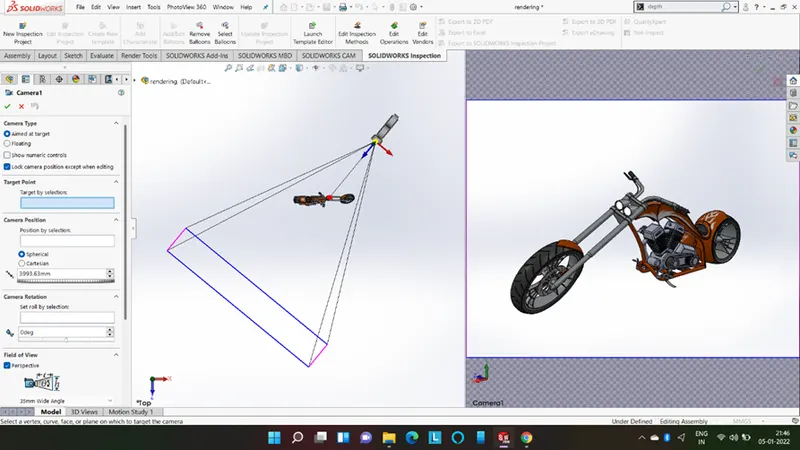
You can add cameras to model documents and view the model from the camera perspective.
You can:
- Specify the positions of targets and cameras.
- Attach cameras to objects and sketch entities. The camera can then show motion or move with the entity.
- Place cameras inside models.
- Roll cameras to specified angles.
- Control properties of field of view and depth of field.
- Use cameras in animations.
RENDERING
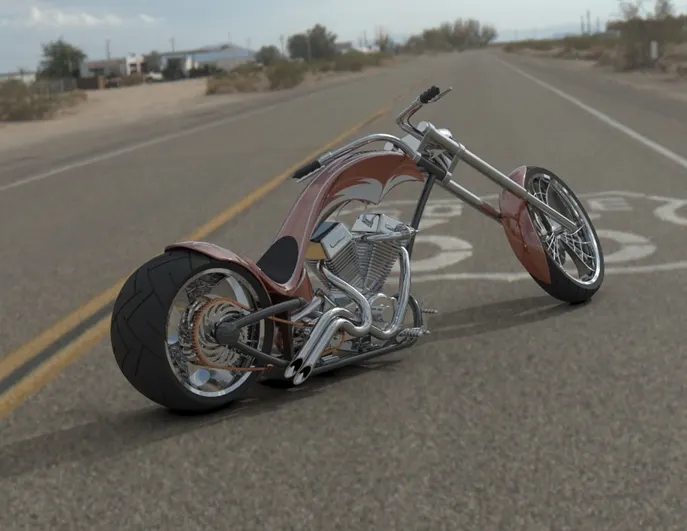
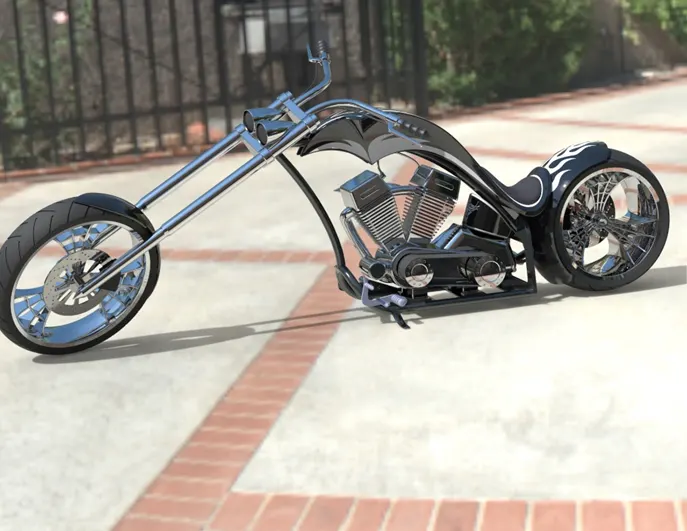
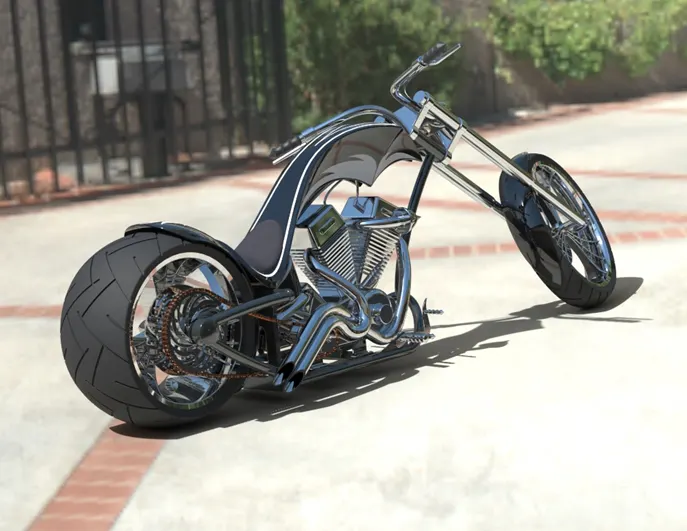
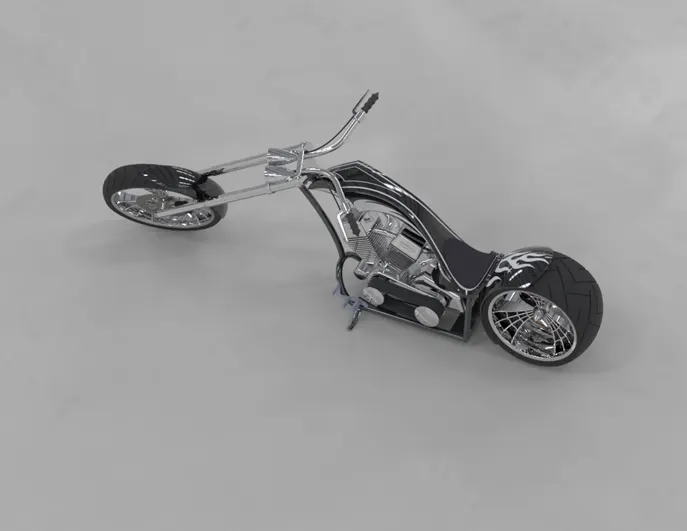
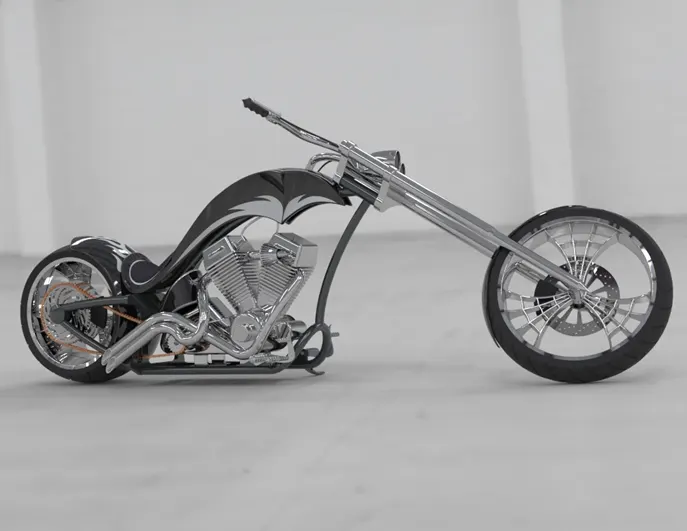
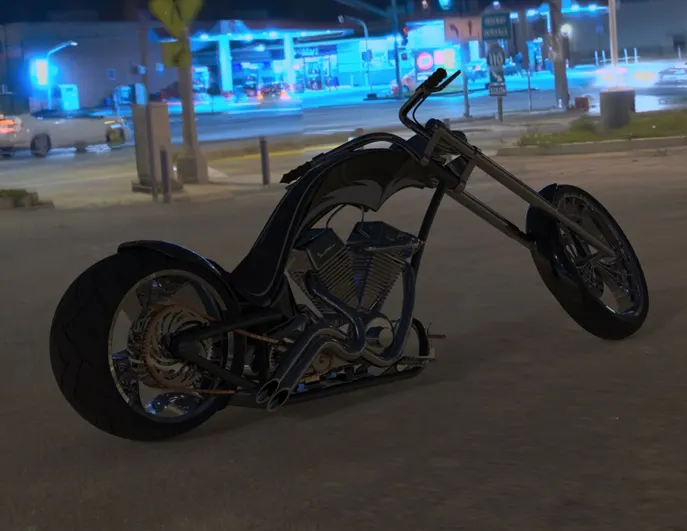
Rendering can be done using solidworks or for better visuals we can use solidworks visualize. The term rendering comes from the graphic world where a rendering is an artistic drawing of what a new structure would look like. In Computer Aided Design (CAD), a rendering is a particular view of a realistic image. By doing rendering of chopper, we get the idea that how it will look into the environment. This rendering is done in the SOLIDWORK Visualize software. By using PHOTOVIEW 360 2 we can add various camera views to the model, we can set various angles, direction, and can set appropriate distance to get the perfect camera view. In rendering we change colour of chopper parts, background images, brightness, rotation and various setting of chopper. Including the resolution and setting number of passes we get more detail visuals of chopper.
Route66
Sunny driveway
Sunny driveway
Warehouse
Warehouse
Industrial lot
CONCLUSION
- We got to know about solidworks user interface and customization according to our need.
- We learnt various features and commands in solidworks.
- We studied modelling, assembling and how to apply appearance.
- We learnt applying decals, adding lights, scene setup & adding camera.
- Also, we studied rendering using solidworks & solidworks visualize software.