Project 2 - V&V SW Analysis II
1 Perform Static Code Review Analysis for “C:\**\LDRA_workarea\Examples\C_Testbed_examples\Testrain\Testrain.c” Generate Code review report and upload them.
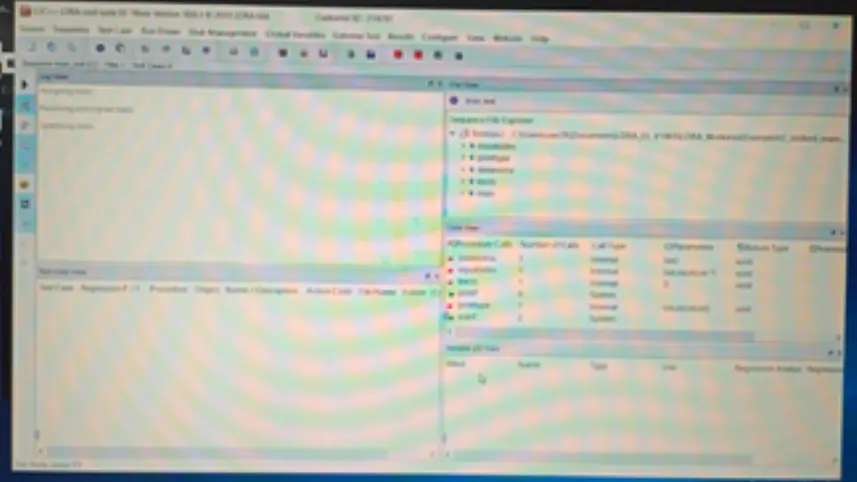
step 1 : start LDRA TBurn.
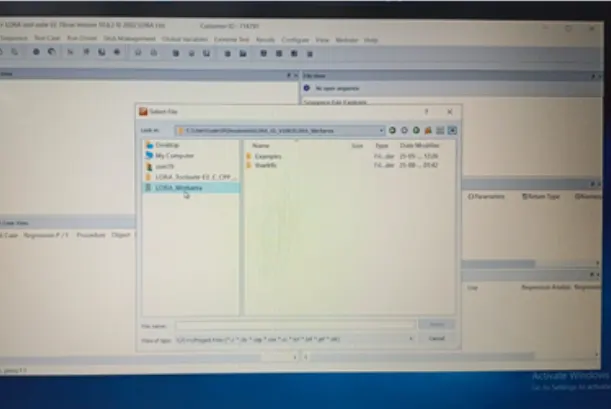
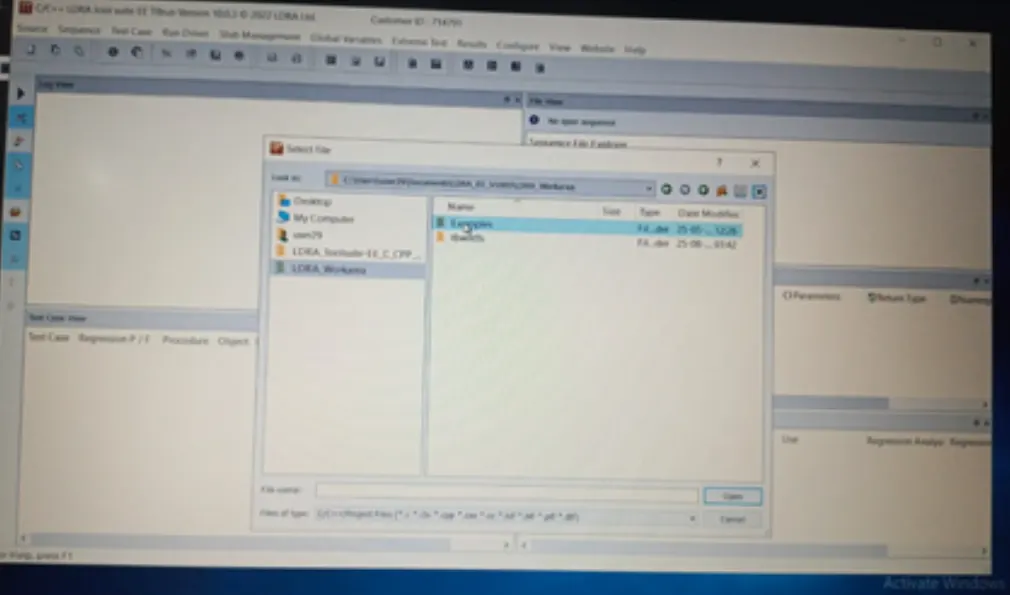
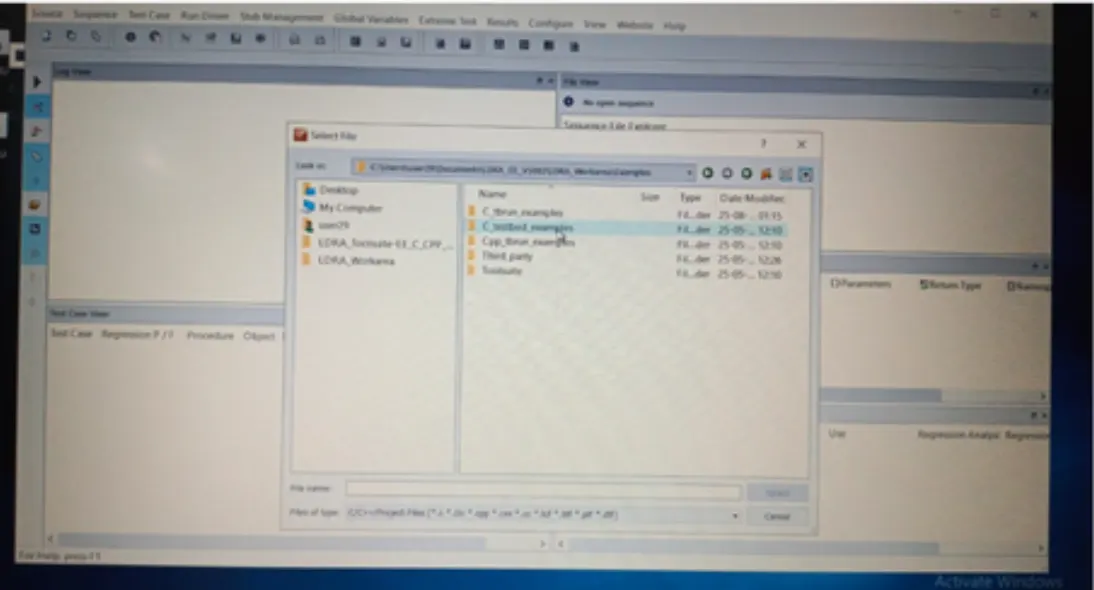
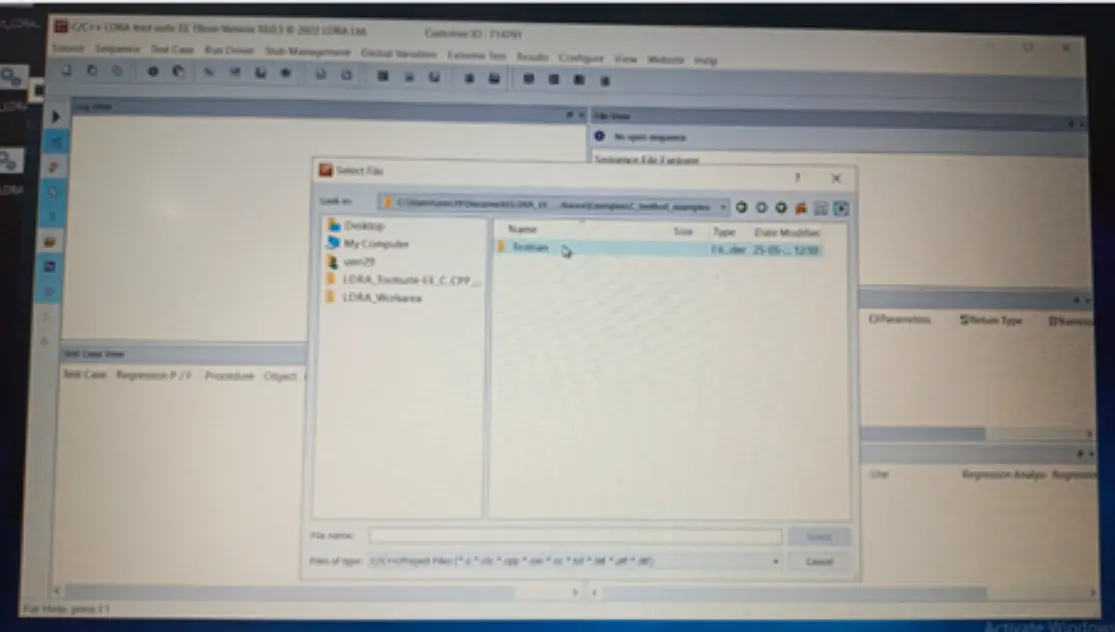
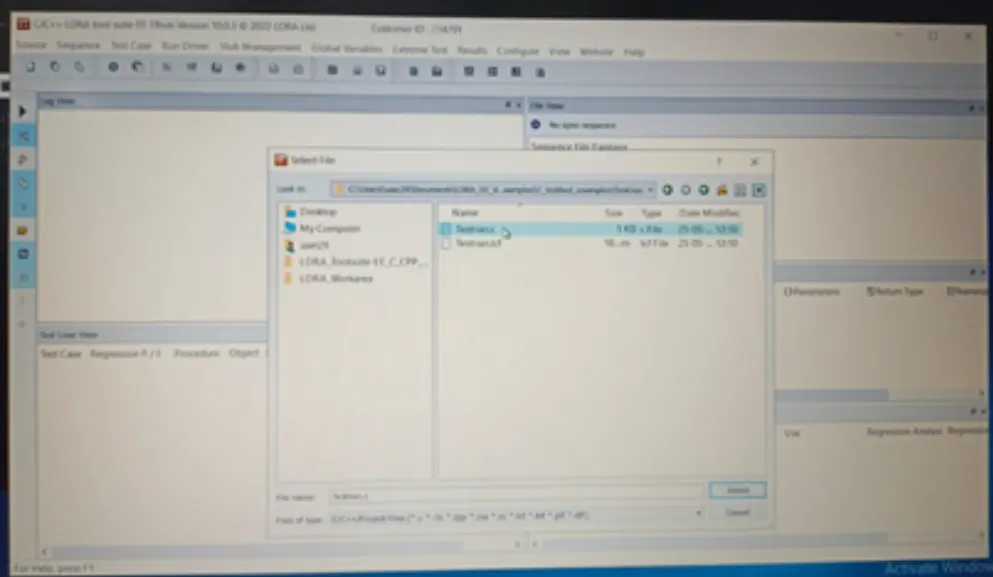
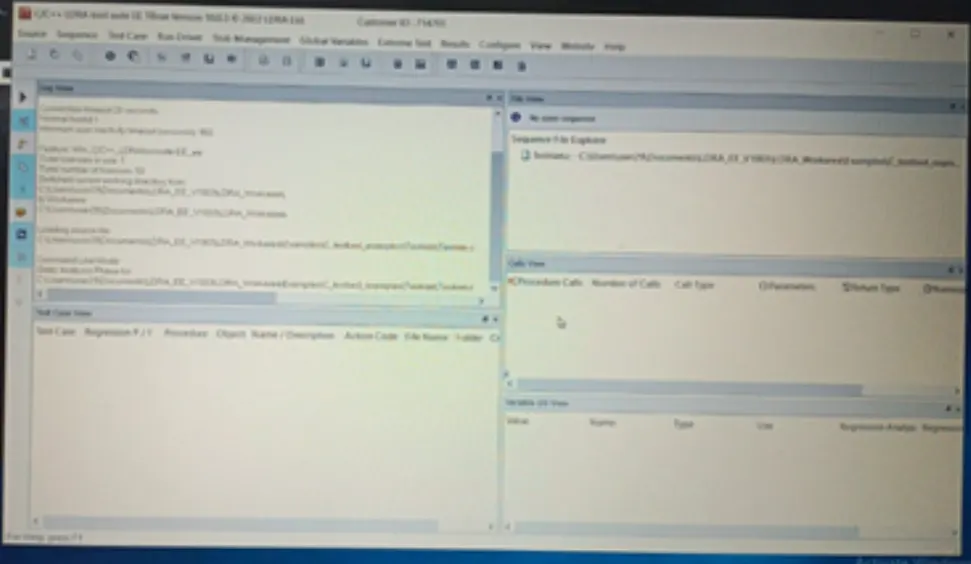
step 2: From the LDRA page select source->single file->LDRA_workarea->examples->C_Testbed_examples->Testrain->Testrain.c->open.(in log view all the files will run)
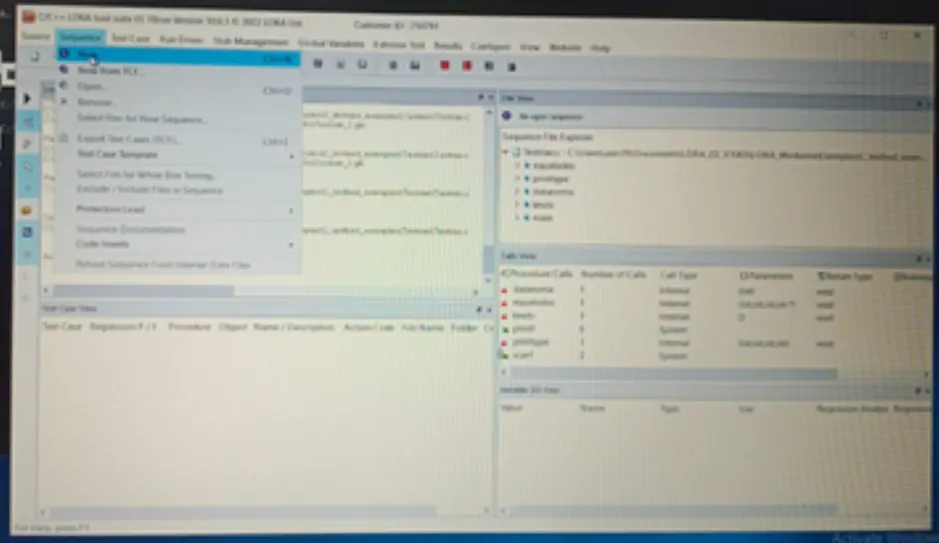
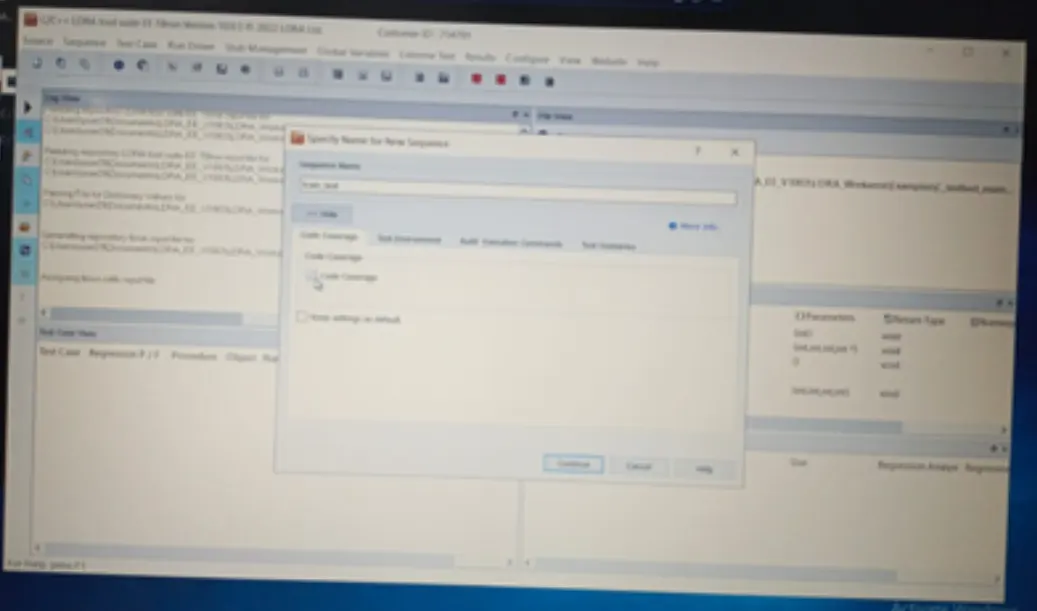
step 3: sequence->new->give any name(---)& select code coverage-> continue.
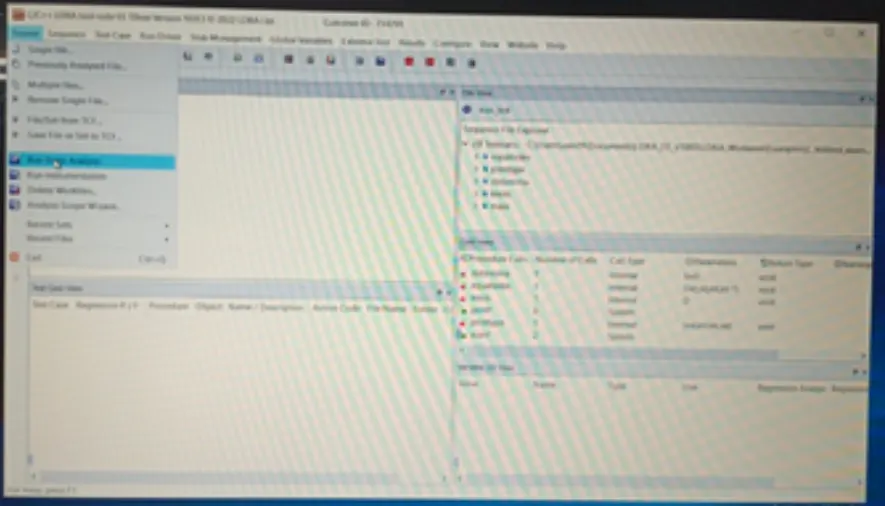
step 4: source->run static analysis
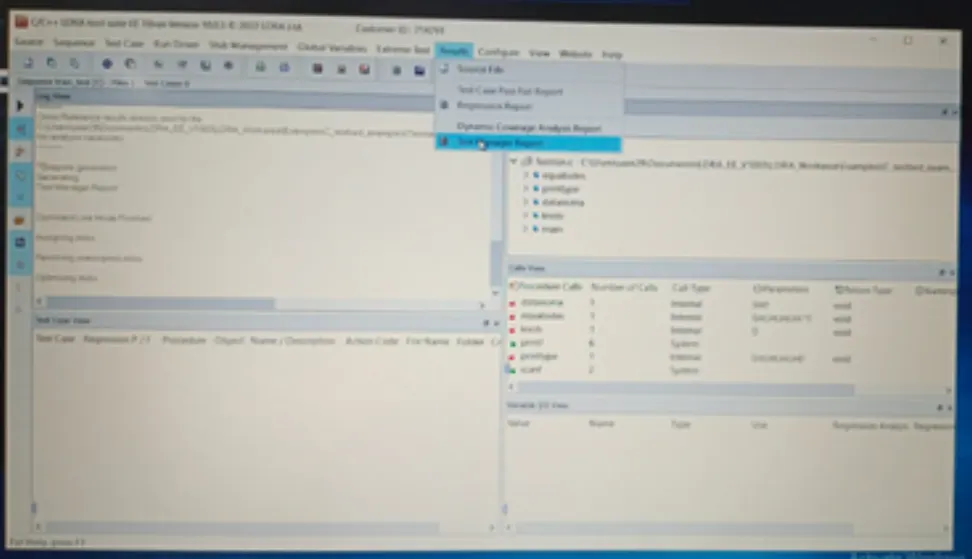
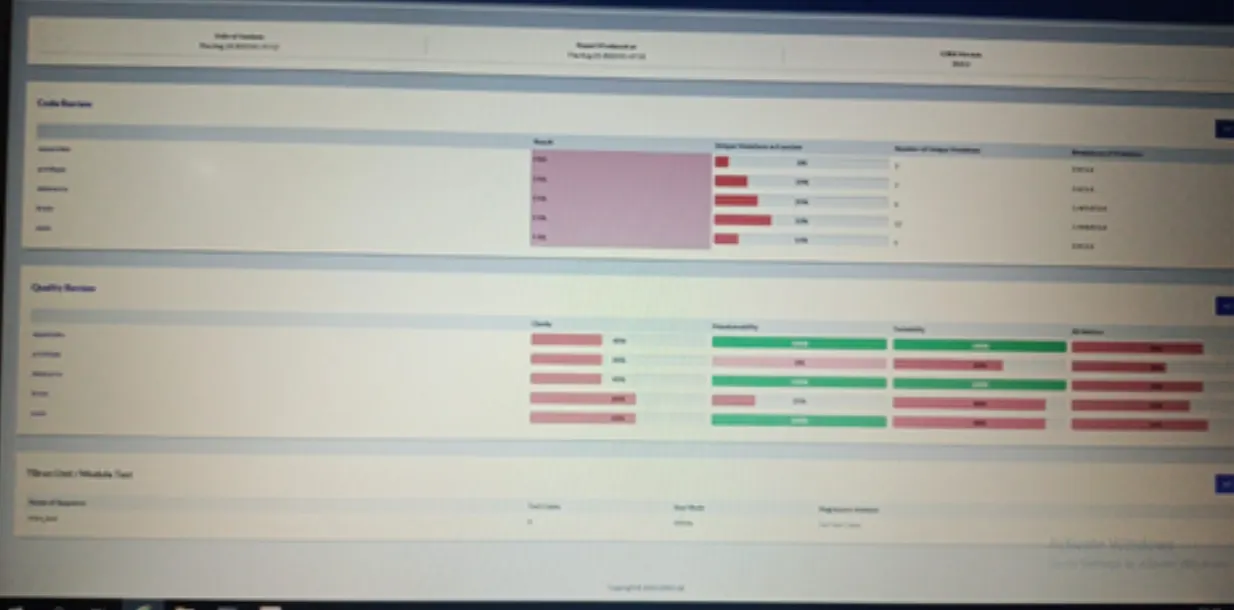
step 5: results->test manager report(report will be opened in Internet like a pdf)(there we can see our sequence name and what type of test we did)
Perform Integration testing by including all the .C files available in the folder location C:\**\LDRA_workarea\Examples\Toolsuite\Cashregister_6.0\ **
A)Create the test cases manually as well as automatically using TBExtreme and upload the reports. B)store the test cases as .tcf file. Upload the location image where the .tcf file is stored.
Aim:
1. To create the test cases manually as well as automatically using TBExtreme.
2. To store the test cases as .tcf file and upload the Location image of the .tcf file where is stored.
Steps:
- As shown in above image, .c file is added to the set.
- For integration testing,we have to create set first.
- Steps:- select source->multiple file->select/create set (create a name)->create->system->add the .c file->click ok it ask run LDRA tested analysis (No)
- For static analysis,we have to give a path of the data file into include files as well as macros.
- Step 2:-configure->analysis configuration options->static options->finc/create->example-
>c_tbrun-examples->again examples->.c files->select - Step 3:-macros->find/create->Examples-
>c_tbrun_examples-examples-> select.(finally give apply and OK)
- Steps for White box testing:-
- For black box and white box testing,first we have to create a sequence from sequence option.
- Sequence -> Create new sequence -> Enable code coverage -> Continue
- As shown in above image,we can see that our sequence is created with the white box means it is white box testing.
- Source -> Run static analysis
- Once it is initiated all the .c files from File view will run, this activity will be appearing in Log view and once it is finished it will able to generate report.
- Results -> Test manager report
- So,we can see the test manager report of White box testing with sequence name Project_2.
A)Create the test cases manually as well as automatically using TBExtreme and upload the reports.
- Steps for automatic testing:-
- Extreme test -> Run tabular extreme test
- When we click on Run Tabluar extreme test,there are around 60 test cases are formed automatically in test case view and also start excuating automatically.
- It will also generate regression and manager report
- Regression report:-
- Test manager report:-
- B)store the test cases as .tcf file. Upload the location image where the .tcf file is stored.
- For saving the test cases into .tcf go to Source->Save file or set to TCF.
- Create a folder of any name and save .tcf file in that folder.