Project 2 - V&V SW Analysis II
LIVE BATCH [PREETI MAM]
- Perform Static Code Review Analysis for “C:\**\LDRA_workarea\Examples\C_Testbed_examples\Testrain\Testrain.c” Generate Code review report and upload them.
Answer: -
Here I used Ggrocres.c file to perform static code analysis the path for same is C:\Users\user10\Documents\LDRAEE\LDRA_Workarea\Examples\C_tbrun_examples/Ggrocer.c
steps to make test are below .
Open LDRA tool
- Click on Source
- Click on Single file
- Select the Ggrocer.c or any .c file
- You can see the uploaded Ggrocer.c file in File view window
- Go to sequenceà newàgive an name àclick on code coverage check box
- Go to sourceàRun static analysis
- Go to resultàTest Manager report
Reoprt :-
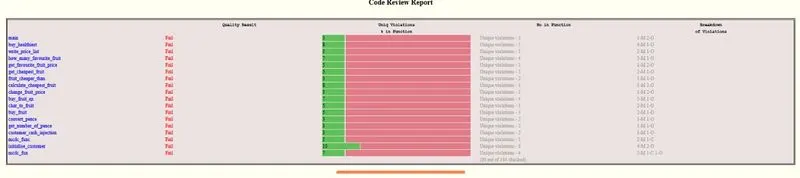
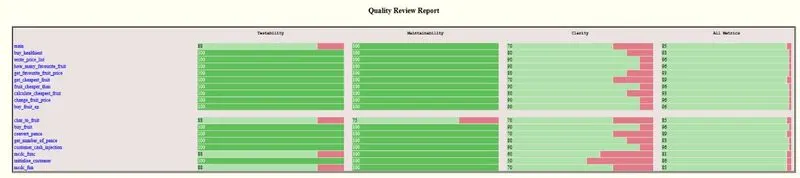
Sequence name is project2.1
As we are not making any test cases hence at last it written 'no Test Cases '.

- Perform Integration testing by including all the .C files available in the folder location C:\**\LDRA_workarea\Examples\Toolsuite\Cashregister_6.0\ **
A)Create the test cases manually as well as automatically using TBExtreme and upload the reports. B)store the test cases as .tcf file. Upload the location image where the .tcf file is stored.
Answer: - A)Create the test cases manually as well as automatically using TBExtreme and upload the reports.
Integration test is done using adding multiple source files.
here I add multiple source file from cashregister_5.0
Steps for performing test
- Open LDRA tool
- Click on Source
- Click on Multiple file
- One window pop up
- Give any name → click on create → click on system→add→C:\Users\user10\Documents\LDRAEE\LDRA_Workarea\Examples\C_tbrun_examples →ok
- Test bed analysis window opens → click NO
- Create sequence
- Keep it in black box mode
- Sourceàrun static analysis
10.Now Go to configure on menu bar → Analysis configure option
11.Static option → window opens
12.Now click on Find/create button example TBrun_example/example → jus click on .dat file → select
13.Go to Macro → Now click on Find/create button/example/TBrun_example/example→ jus click on select
14.Now click on Apply → OK
15.Go to extreme test → run tabular extreme test →all test cases will be created automatically
16.Result → take the report
Continue…..
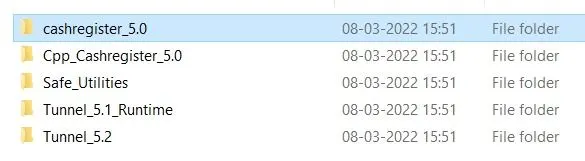
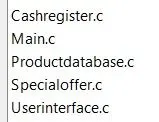
Automation testion report is as follows.
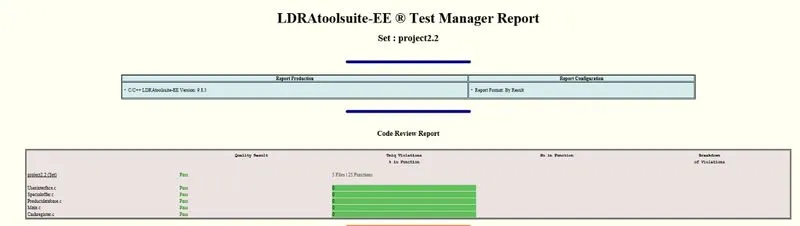


Sequence name is project2.2

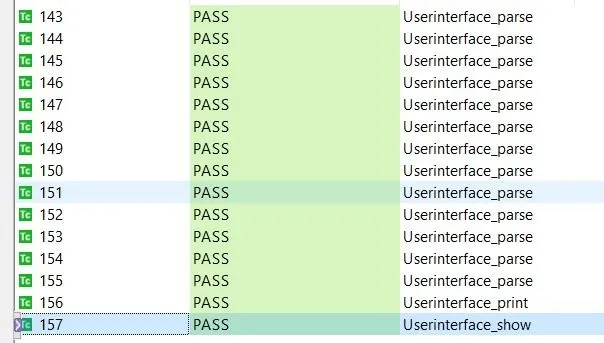
Answer: -
B)store the test cases as .tcf file. Upload the location image where the .tcf file is stored.
The project2.2.tcf file is attached below.
https://drive.google.com/file/d/1j1oAPdTCqdGQFIDtDITmokJxusAWMKVL/view?usp=share_link