Project - 2 - Meshing on the suspension Assembly
Project - 2 - Meshing on the suspension Assembly:
objective: To mesh the given suspension assembly with tetramesh and shell mesh with the given quality criteria and mesh parameters and connect with the connectors.
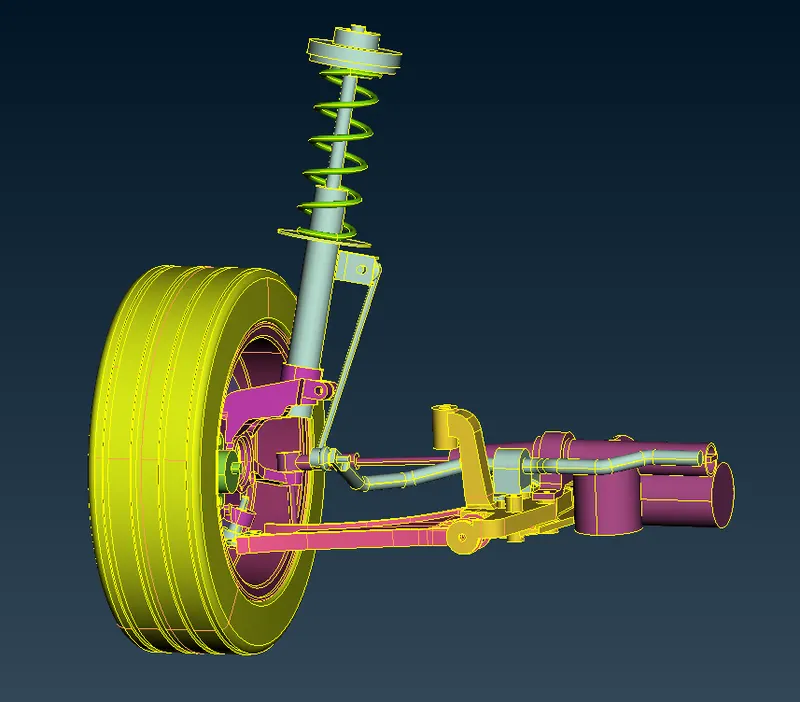
img:original image of suspension assembly
procedure:
- first open the cad model in ansa open⇀choose the folder⇀select the file⇀click"open".
- once the file has been imported check the geometry whether it has error in the surface,search for check option in search bar or go to tool⇀check⇀geometry.
- click the option in check geometry to identify the type of error so check all the boxes in the check option and click"excetute"
- once the error has been identified try to remove the error in the check manager itself by click the error by ctrl+A ,and right click and choose fix option to fix the error ,some error cannot be fixed that we should be fixed manually.
- use the tools from the topo to remove the error in the geometry toolslike,HOT POINTS:insert,delete/CONS:paste,release/FACES:cut,delete,new,datch,extend ,intersect,and cut.
- we will be using the obove commands which will be mostly used to cleanup the geometry,
- go to mesh panel;in mesh panel go to perimeter⇀length⇀select the geometry for perimeter and give the length as same size as element target length.
- do the same this for macros,once we done with that insert the parameter file and quality file. we can find the option in the top side of the GUI .
- for spliting go to the mesh module⇀macros⇀cut⇀and split the surface in regular shape.
- For meshing go to the mesh module⇀mesh generation⇀best⇀click the surface were we want to mesh and middle click on the mouse.
- always recontruct the mesh once the mesh is done for recontrsuct go to the mesh module⇀shell mesh⇀recontruct⇀click the surface we want to reconstruct.
- inorder to create the property card go to the topo module⇀faces⇀set PID⇀select the face ⇀middle click on the mouse button and enter the property card and click OK.
- create the midsurface were ever possible and part is solid mesh the coponent with tria as pee the quality.
- for solid create the shell mesh and define a solid property in a volume mesh panel.
- go to the list in volume mesh and right click on the unmesh property and click remesh by tetrarapid.
- once the meshing is done check for tet collpase if there is any tet collpase we can use fix quality option to solve the problem.
- give appropriate connection were ever neeeded.
- finally give symmmentry for the entire suspension assembly by using three plane option.
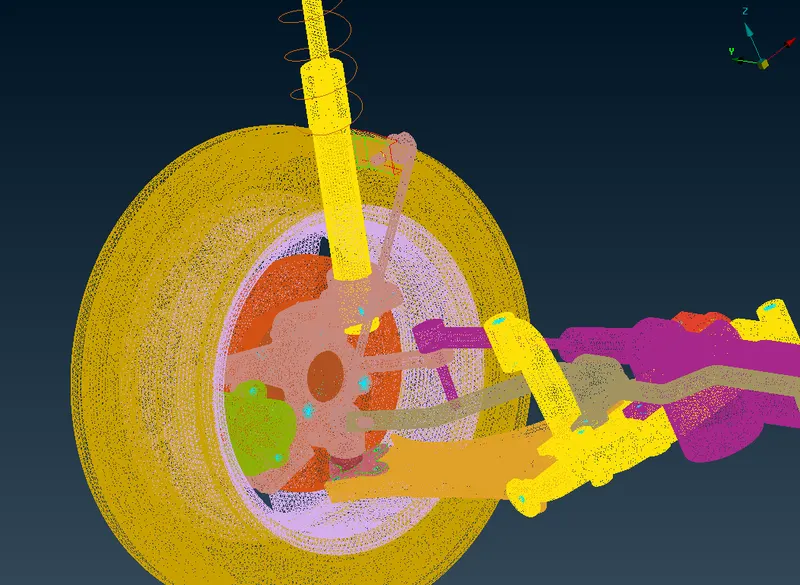
img:half meshed suspension assembly
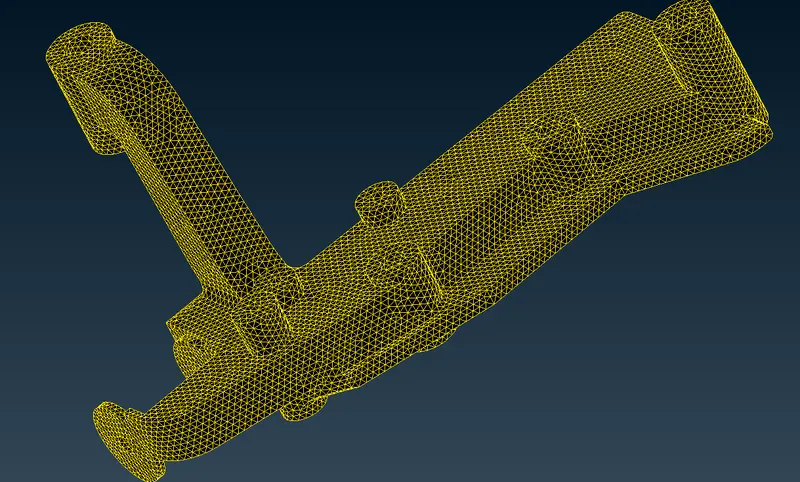
img:tetramesh of subpart of body
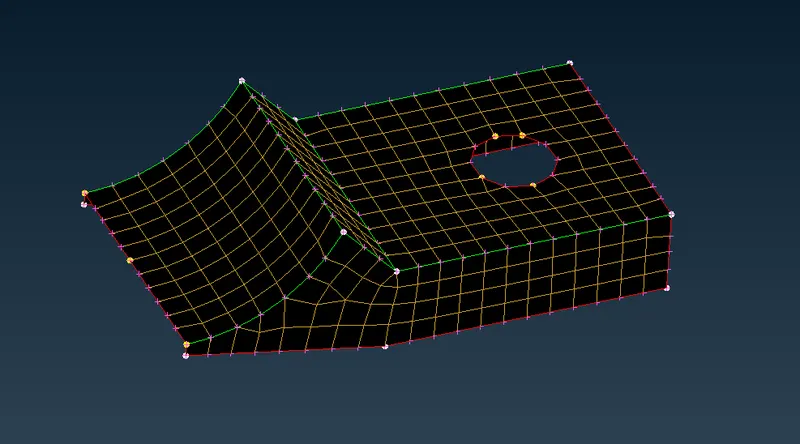
img:shell mesh of mini bracket
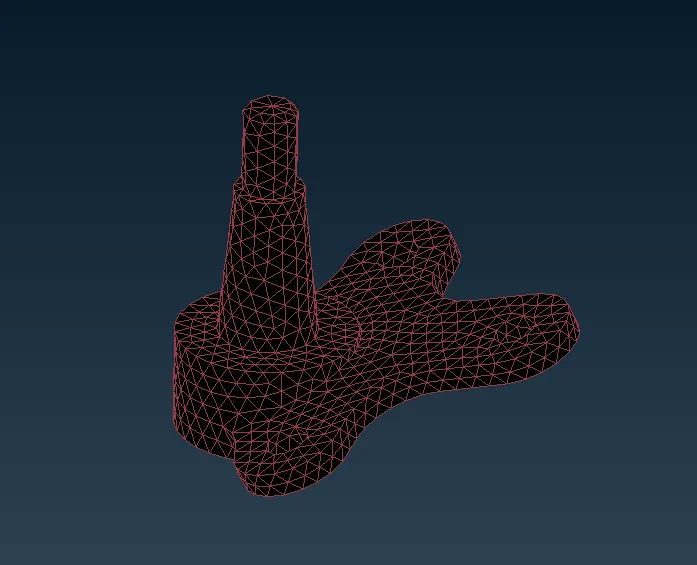
img:tetramesh of ball joint
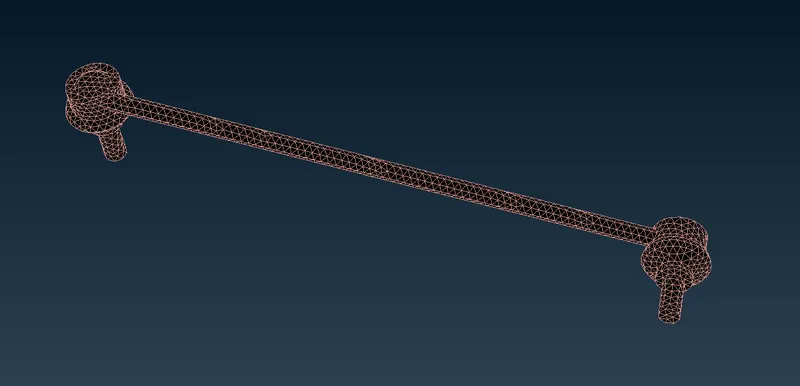
img:tetramesh of antirollbar tierod
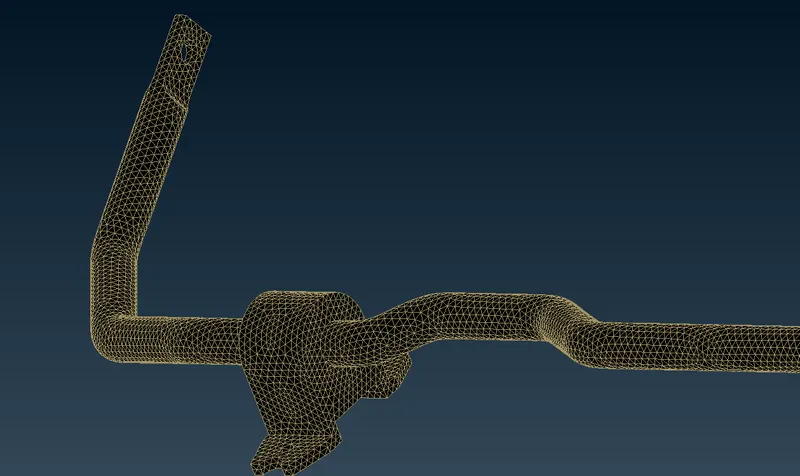
img:tetramesh of antirollbar
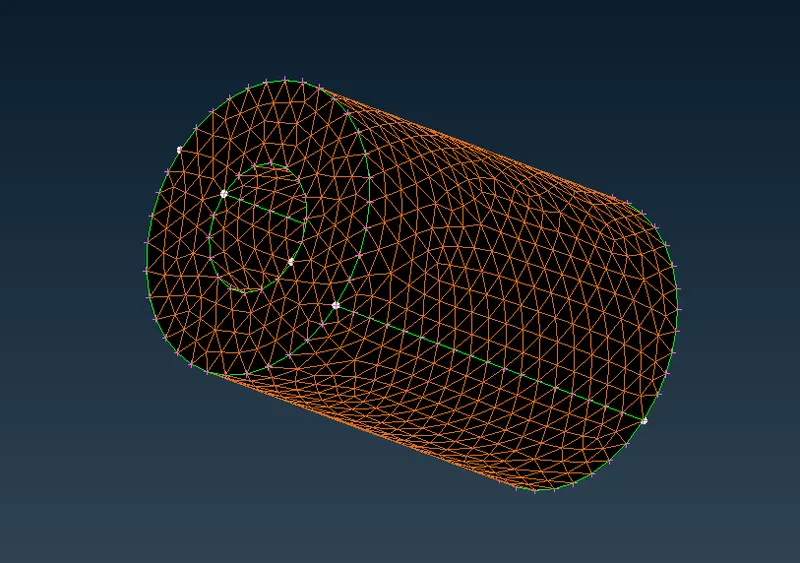
img:tetramesh of strut bushing
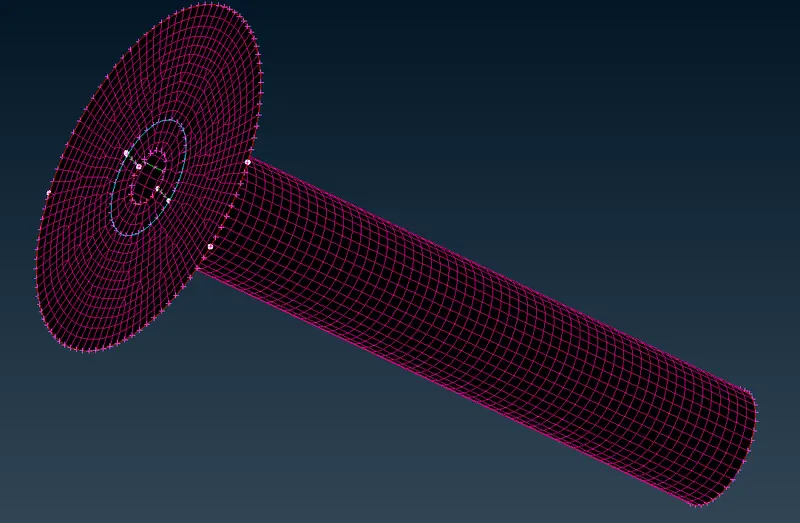
img:shellmesh of the strut outer
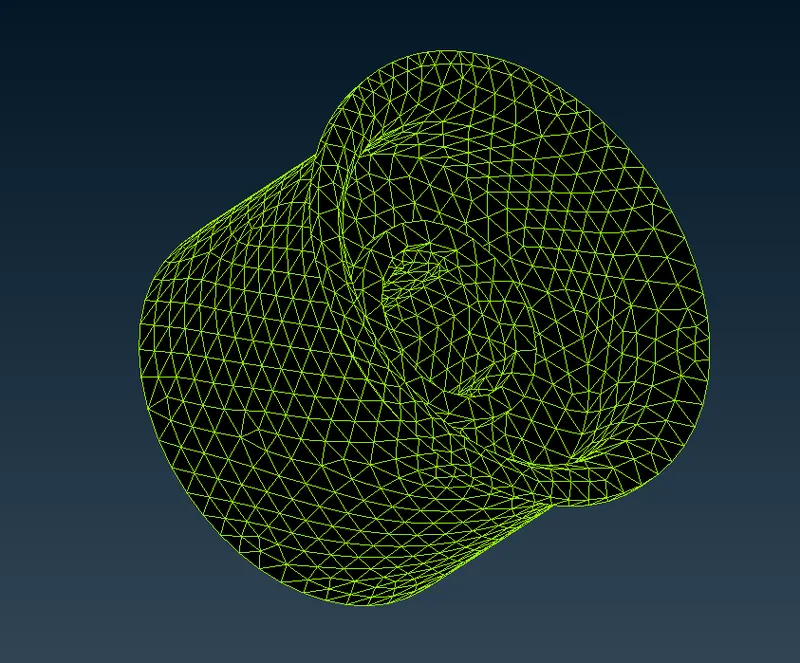
img:tetramesh of bushing
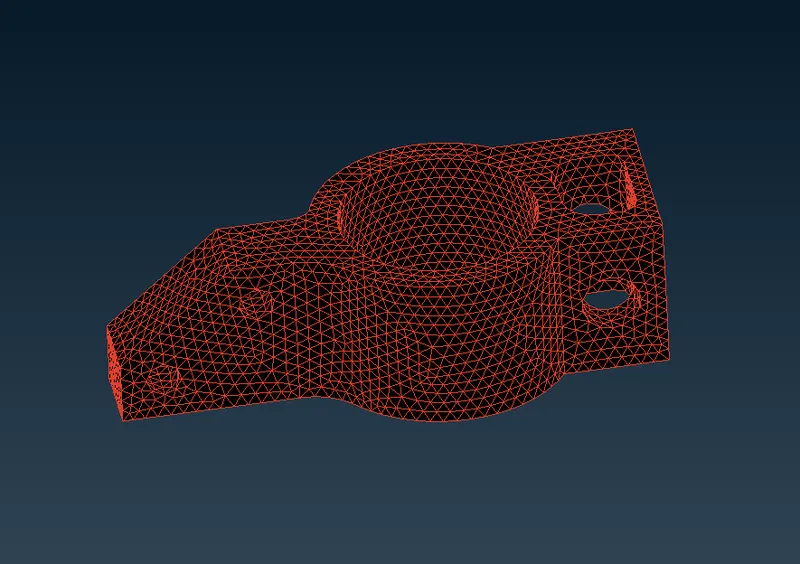
img:tetramesh of controlarm mount
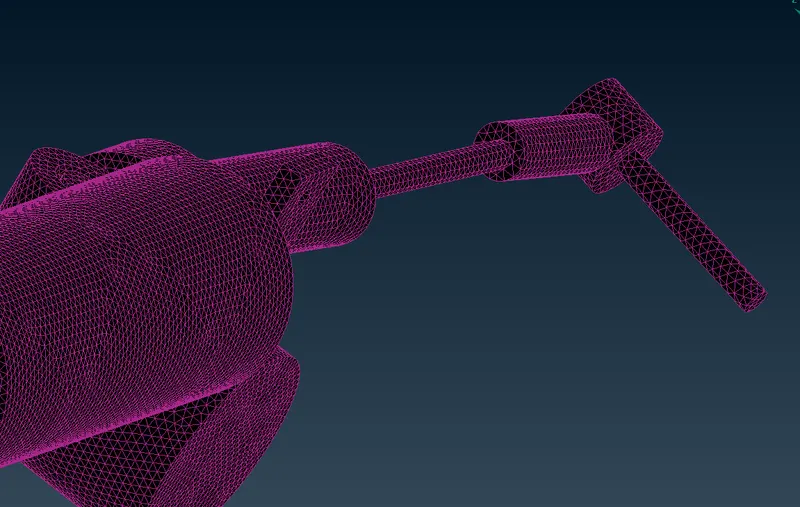
img:tetramesh of steering rack system with tie rod
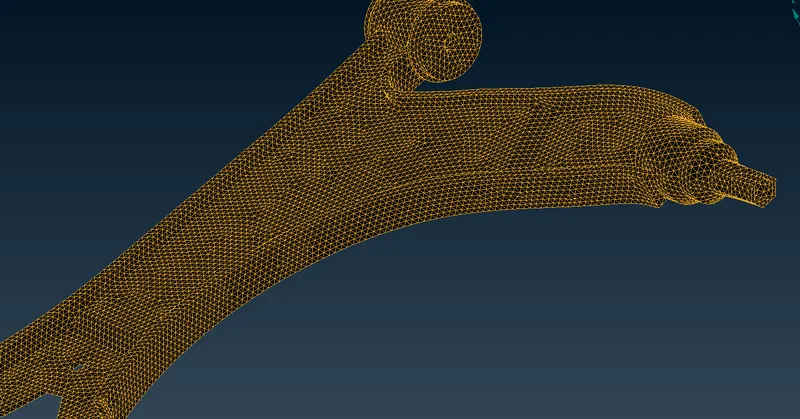
img:tetramesh of control arm
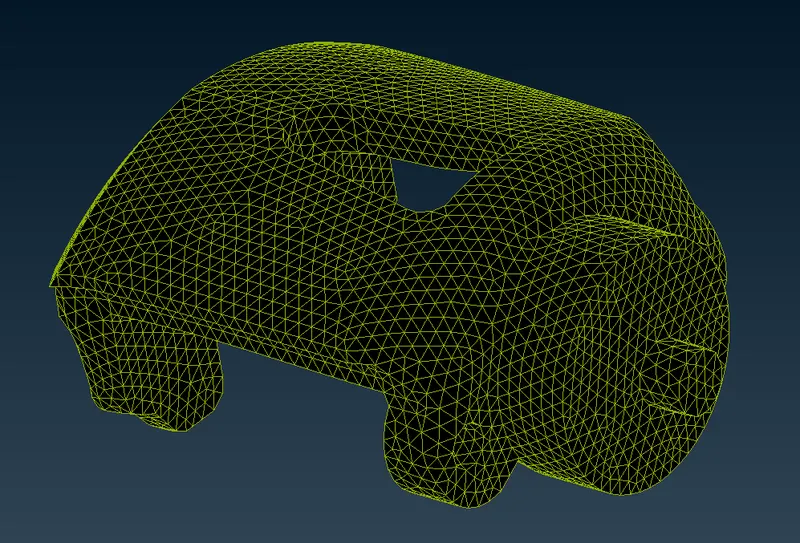
img:tetramesh of brake calliper
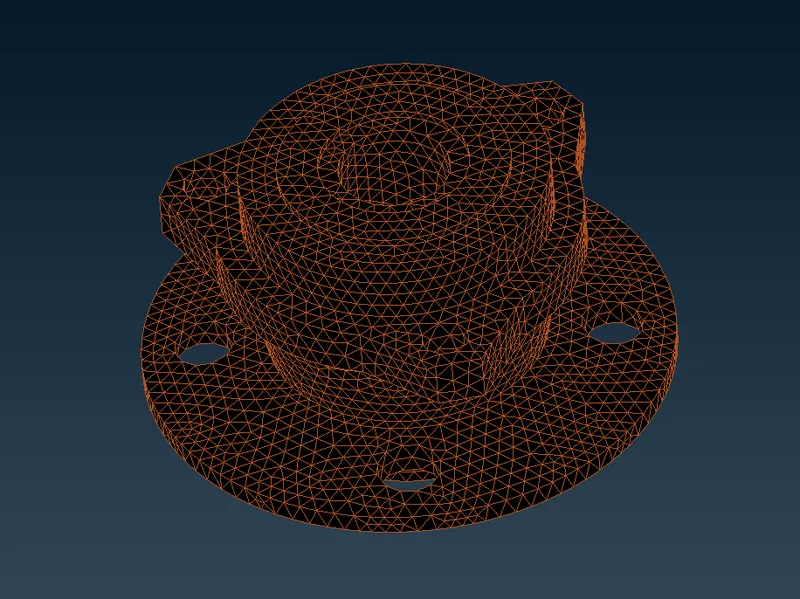
img:tetramesh of hub
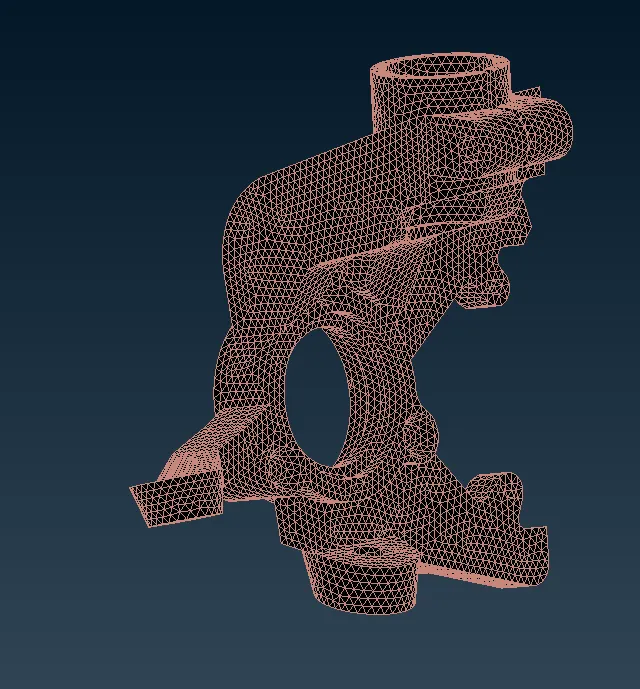
img:tetramesh of knuckle
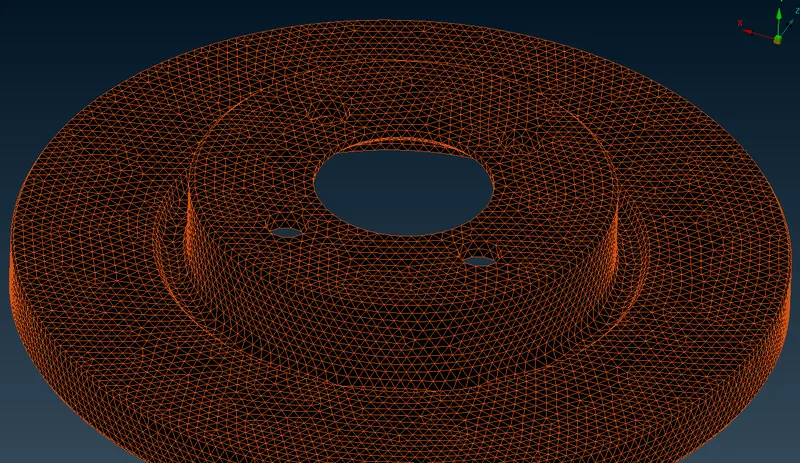
img:tetramesh of brakedisc
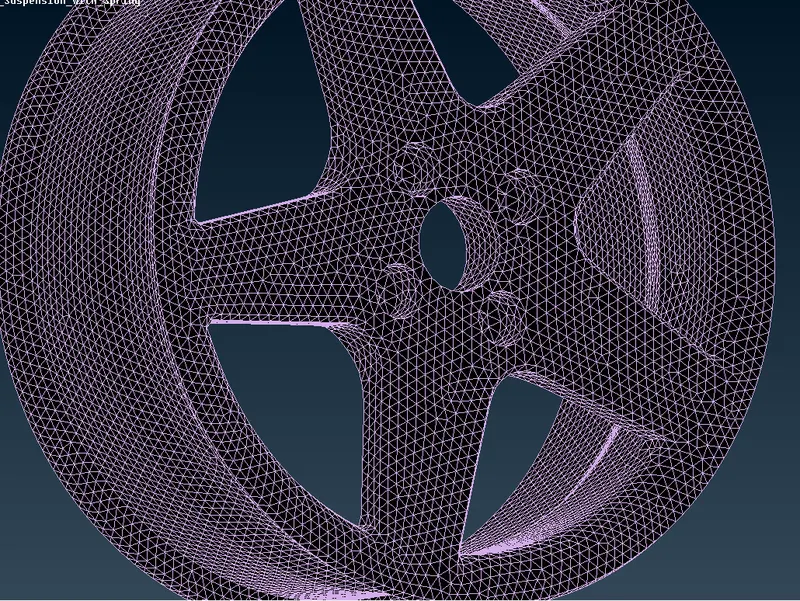
img:tetramesh of rim
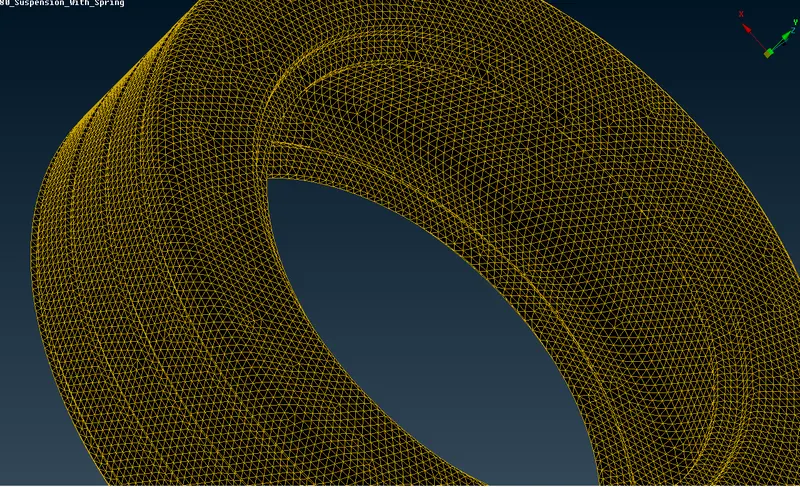
img:tetramesh of tire
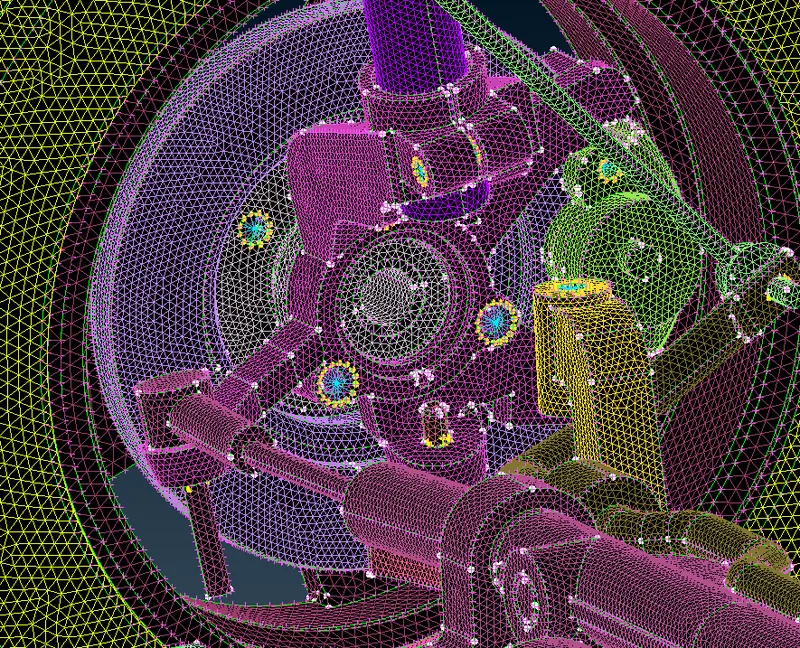
img:RBE2 elements as bolt connection
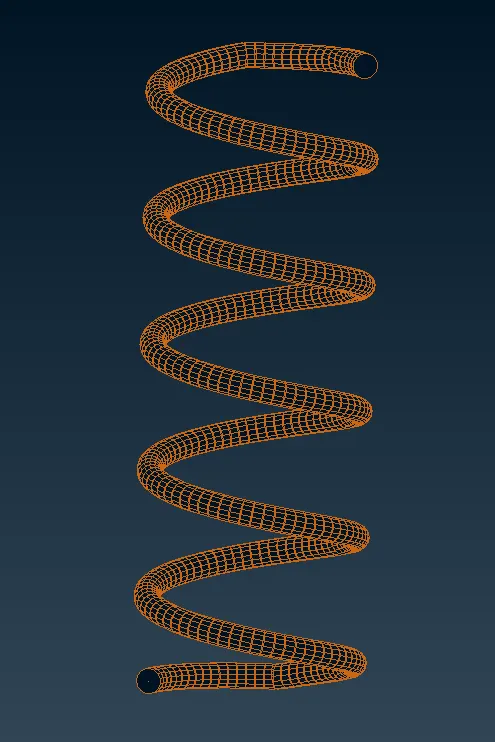
img:cbar of the spring
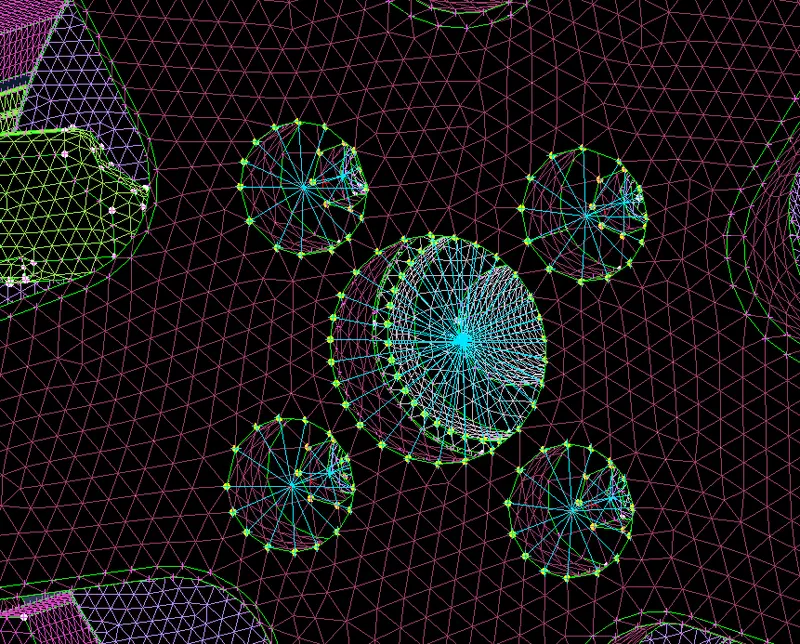
img:RBE2 element as bolt comnection
result:
- geometry cleanup is done before meshing.
- meshed the components ith 2d mesh with the given quality parametrs and criteria and then converted into 3d tetramesh.
- checked for failed elements min/max length for 2d mesh and tet collpase for 3d tetra mesh and repaired it
- given connection were ever needed.
learning objectives:
- learned basic tools in ANSA for geometry cleanup.
- learned how to capture the feature using ortho triangle
- learned how to split a geometry and meshed the surface with good quality and mesh flow
- learned how to reduce the element quality error.
- learned how to convert 2d mesh into 3d tetra mesh.
- learned how to give connection.
file:https://drive.google.com/file/d/1JQfTP_Ss9-ugRi6z4YfTXVzVJe1JpgFn/view?usp=sharing