Project - 2 - Meshing on the suspension Assembly
AIM:
- To do a pre-processing on a given Suspension assembly model using ANSA.
OBJECTIVE:
- To check the geometrical error on the given model.
- To generate 2D mesh on the components based on the quality criteria given.
- To generate volume mesh on the component using tetra elements.
- To make connections in the given model.
PROCEDURE:
IMPORTING THE CAD MODEL:
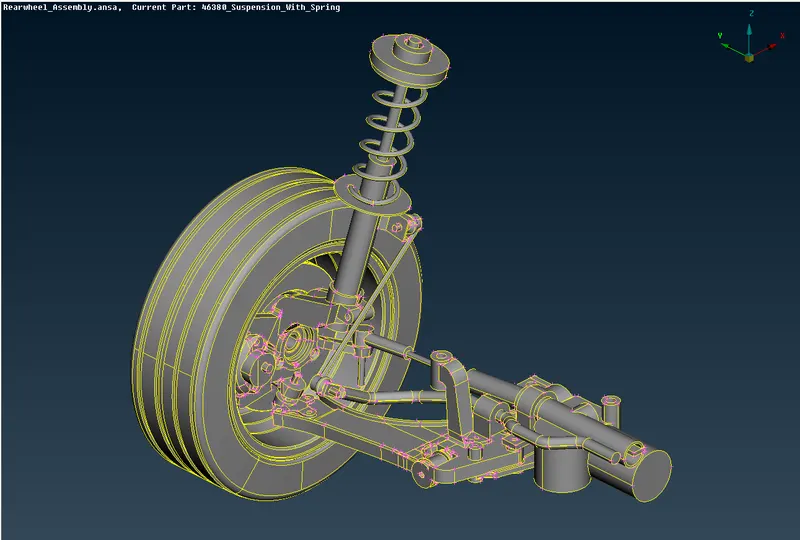
- The CAD model is imported into the workspace by using file > open and select the CAD model.
- The model will be imported into the workspace.
- In ANSA we can import all types of CAD software file formats.
GEOMETRY CLEANUP:
- Before working on the model we need to check whether the model has any geometrical errors.
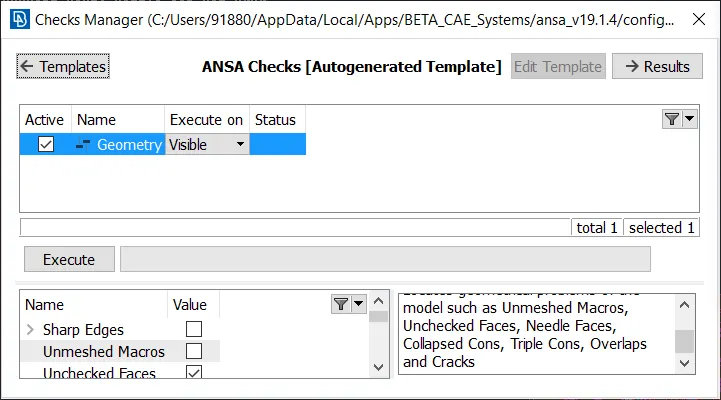
- To check the geometrical errors go to check manager that is available at the tool bar.
- In the check manager select geometry and click execute.
- After clicking on the check geometry the geometrical errors will display.
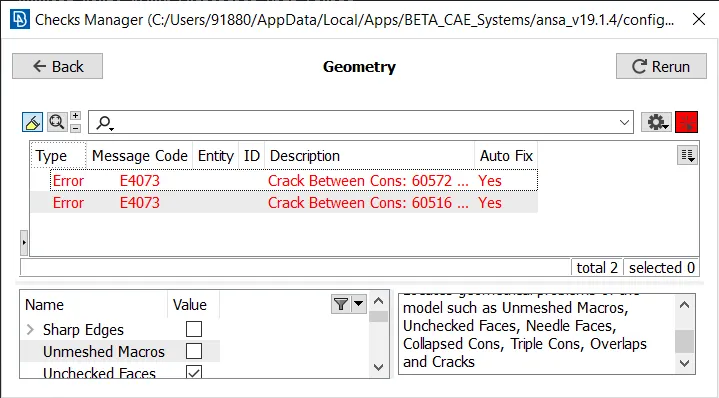
- The geometrical errors can be fixed manually or automatically.
- In our case we fixed the error automatically by right clicking on the error and click fix.
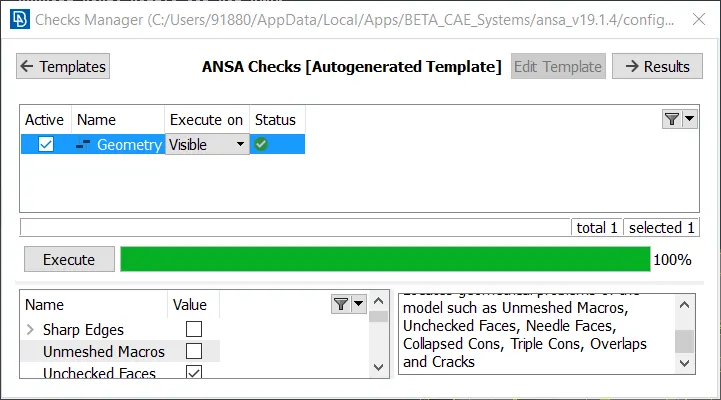
- Once the model has no error it will show green status in the above image and we can proceed further.
PID CREATION:
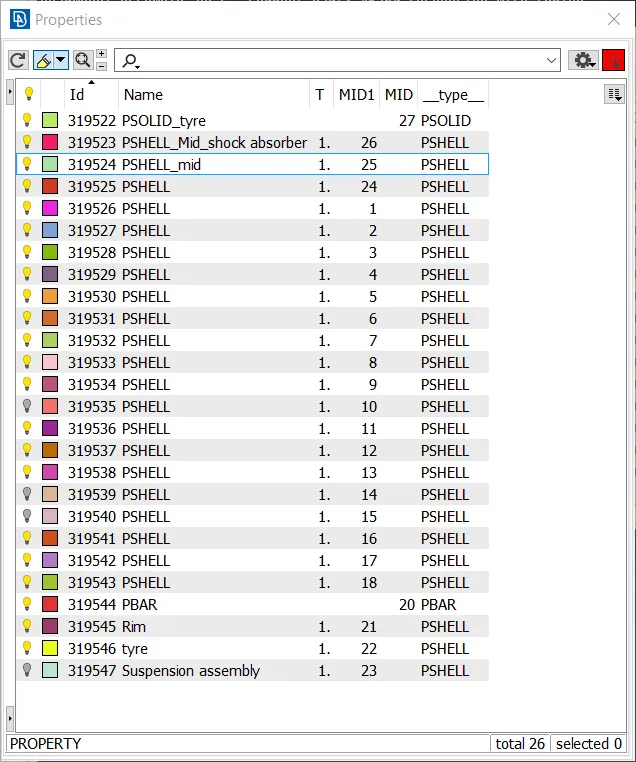
- The PID are created for all the components in the models.
MIDSURFACE GENERATION FOR UNIFORM COMPONENTS:
- For extracting Mid surface various tools like Faces > offset, Faces > middle, Faces > mid surface > casting are used to create mid surface automatically and manually.
- The automatic mid surface extraction is not working in this case due to complex features present in the model.
- So in this case manual mid surface extracting tools like offset and middle is used.
- To extract mid manually go to faces > offset
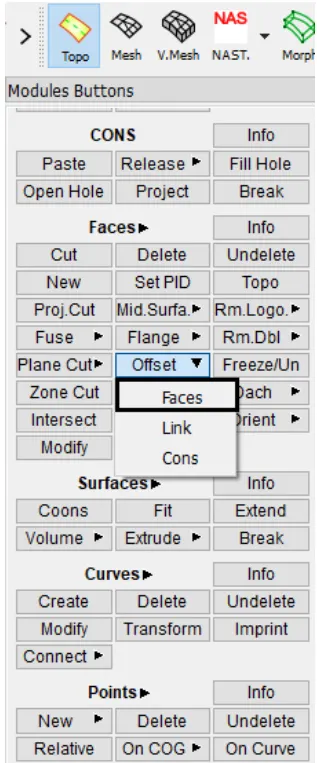
- Select the component faces and give the offset value and click middle mouse button.
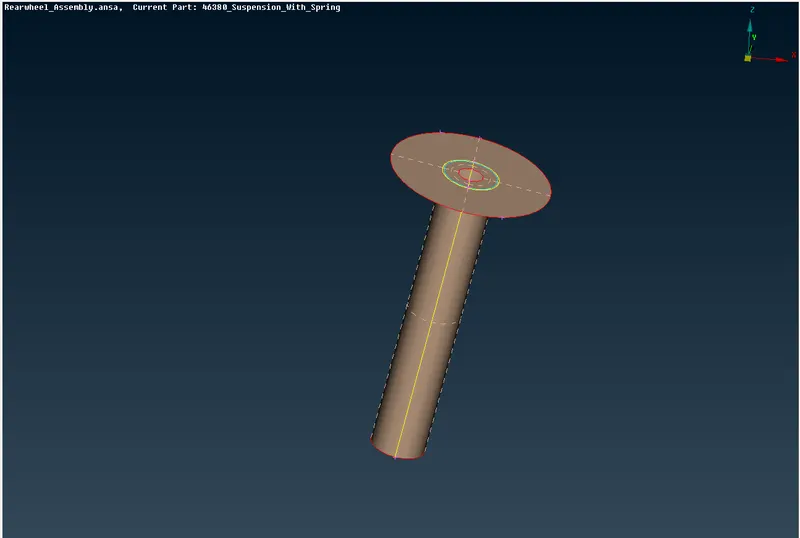
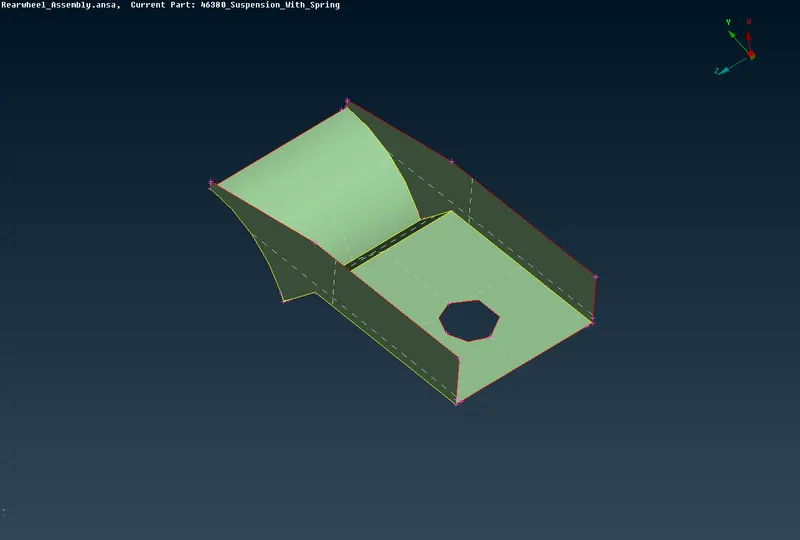
- This will convert the solid model into a thin shell components.
- Then the mid surface is extracted by using AND and INOT tools available in ANSA.
2D MESHING:
QUALITY CRITERIA:
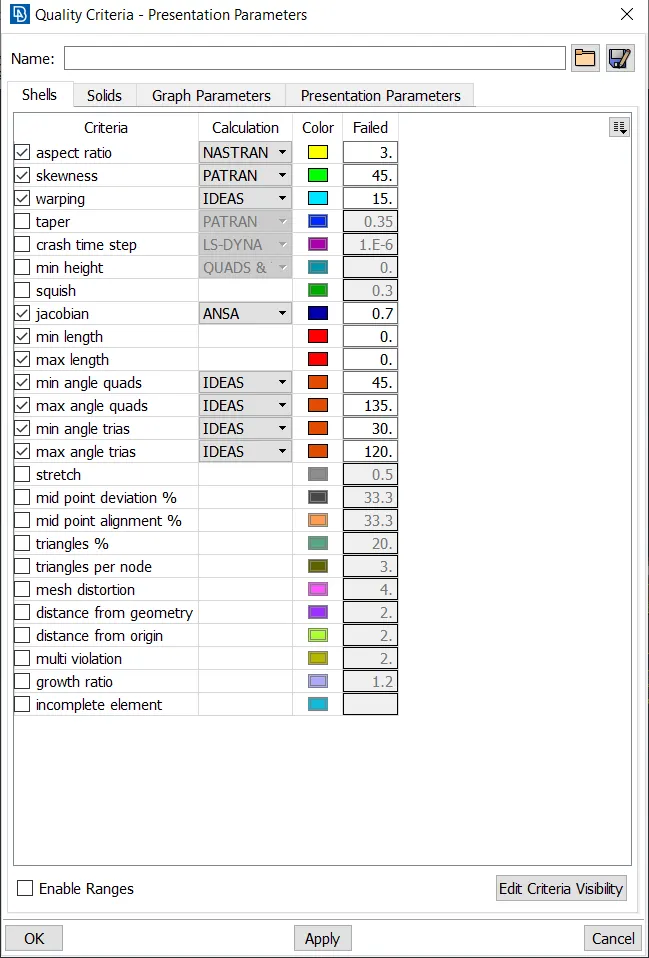
- Go to quality criteria that is available in tool bar.
- The criteria that is given in the question are selected and given the value and clicked apply and ok.
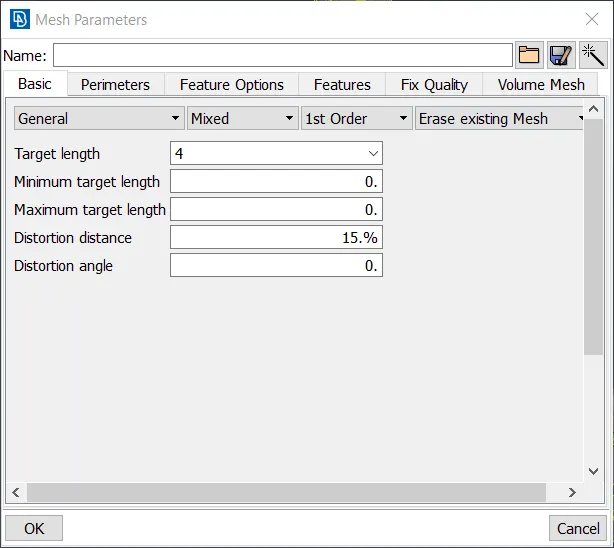
- Then the values of mesh parameters are entered.
- For that go to mesh parameter tool that is available in the tool bar of ANSA.
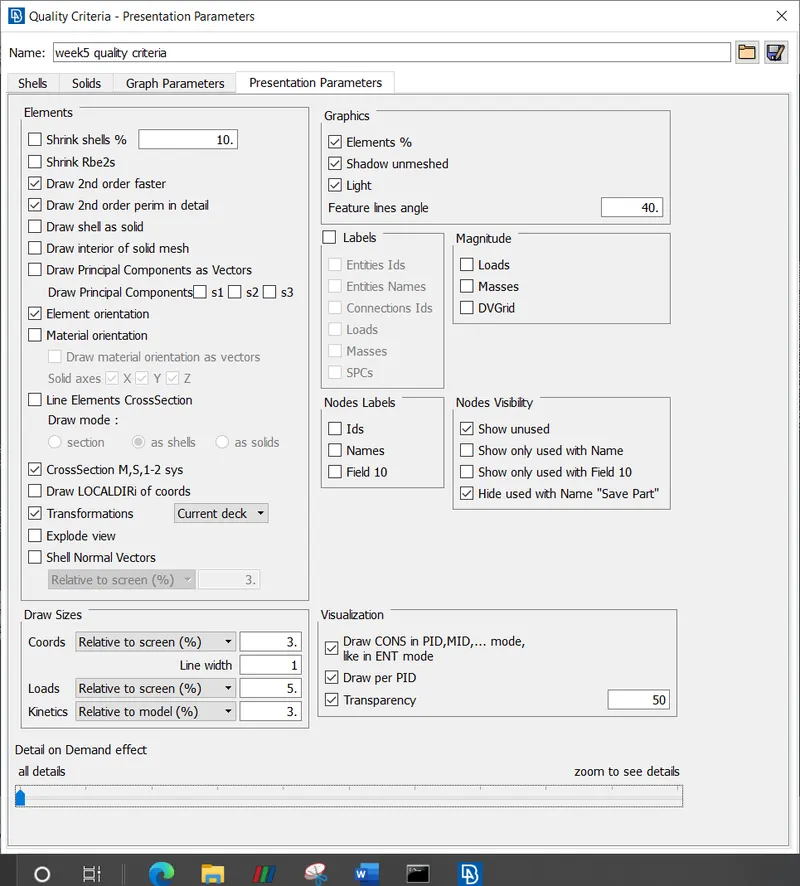
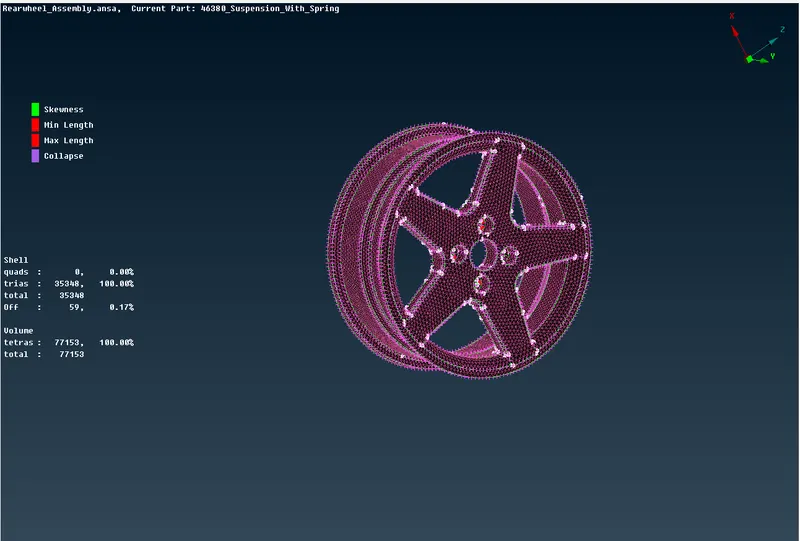
- To enable the total percentage of trias and the quality of the off elements we are selecting element percentage in presentation parameters. After that select all details and click apply to obtain the total values of elements and trias percentage of the total model.
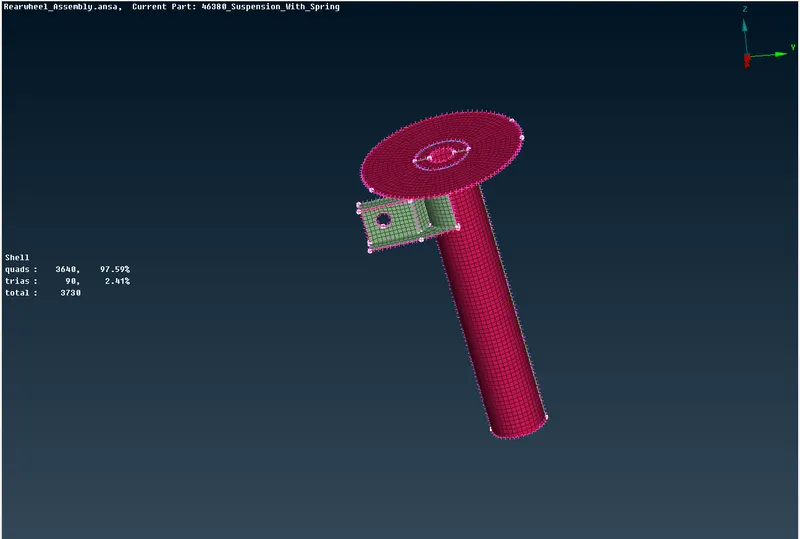
- Then the meshing is done using mesh generation > spot mesh tool. This tool generates the mesh using the element type given.
- The curved faces are given the mesh element type as ortho tria and the flat surfaces are given the mesh element type as tria.
- Then the created mesh is refined using the shell mesh > improve > reconstruct, smooth, reshape tool in mesh module of ANSA.
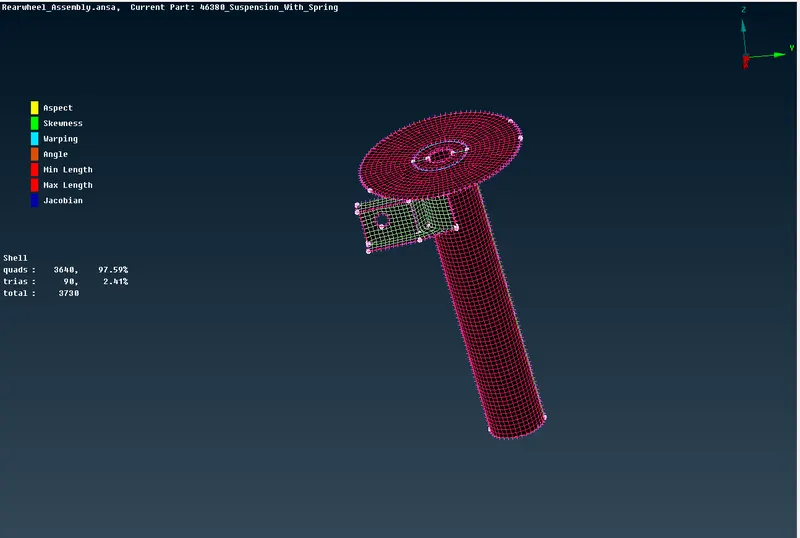
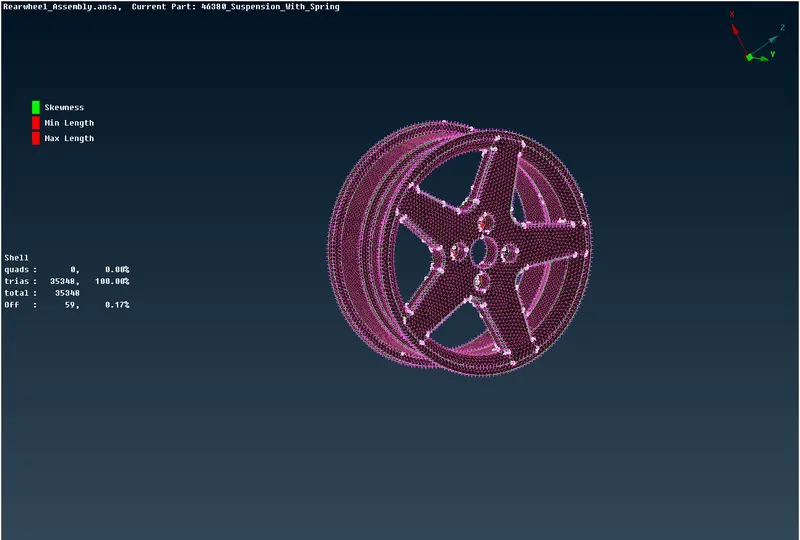
FOR TYRE AND RIM:
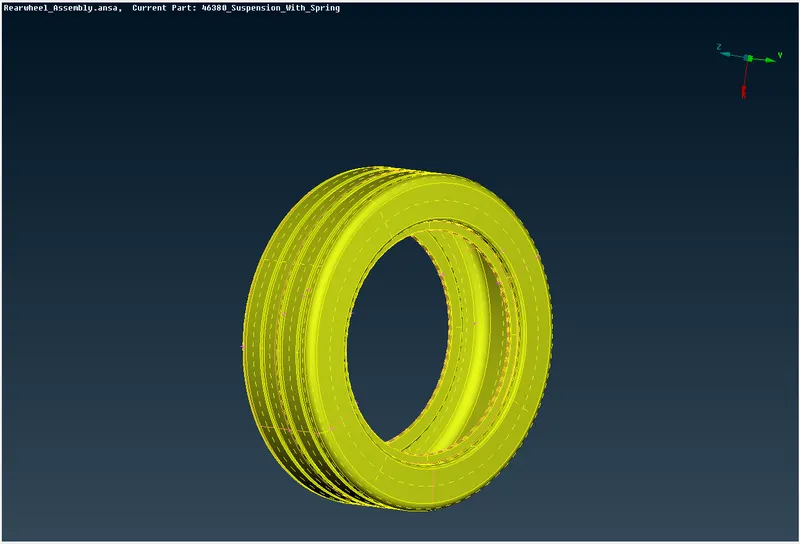
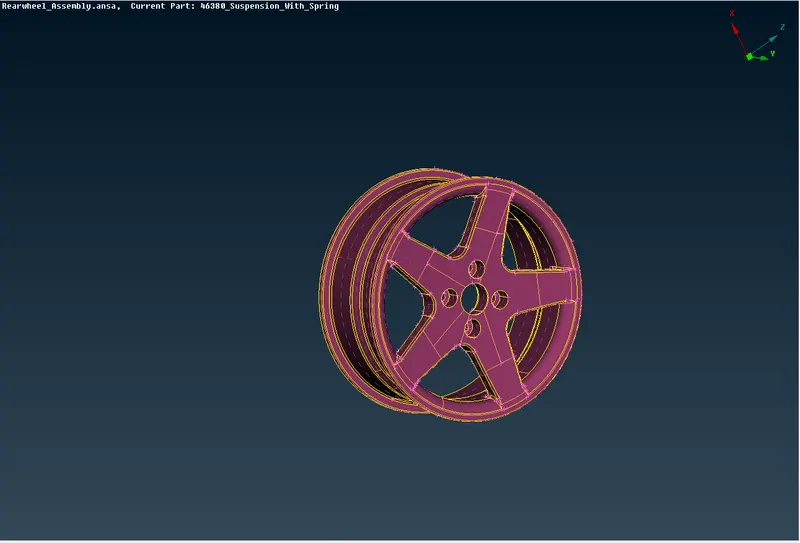
2D MESHING:
QUALITY CRITERIA:
- Go to quality criteria that is available in tool bar.
- The criteria that is given in the question are selected and given the value and clicked apply and ok.
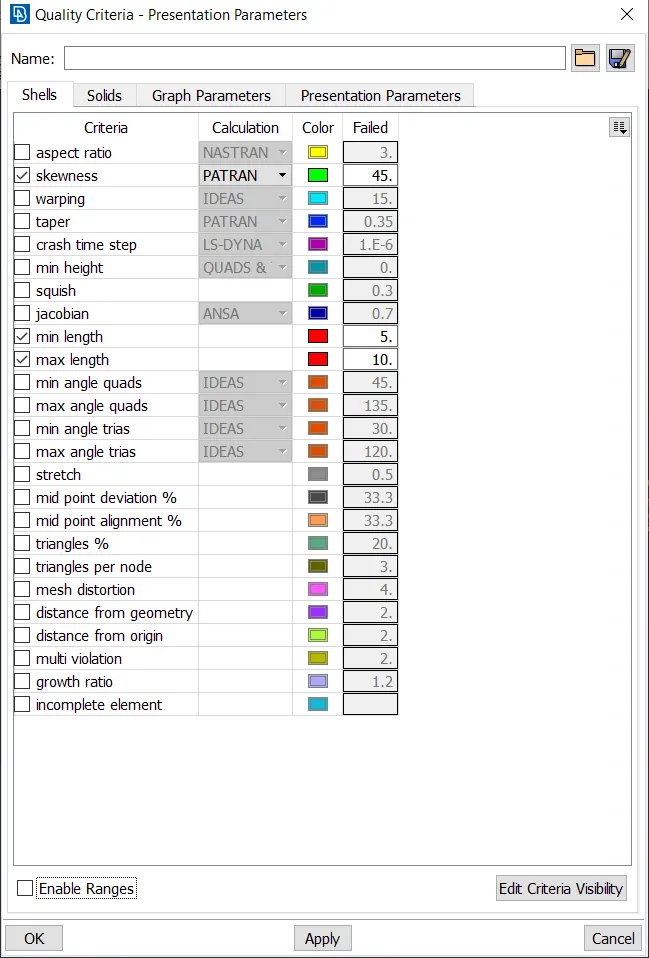
- Then the values of mesh parameters are entered.
- For that go to mesh parameter tool that is available in the tool bar of ANSA.
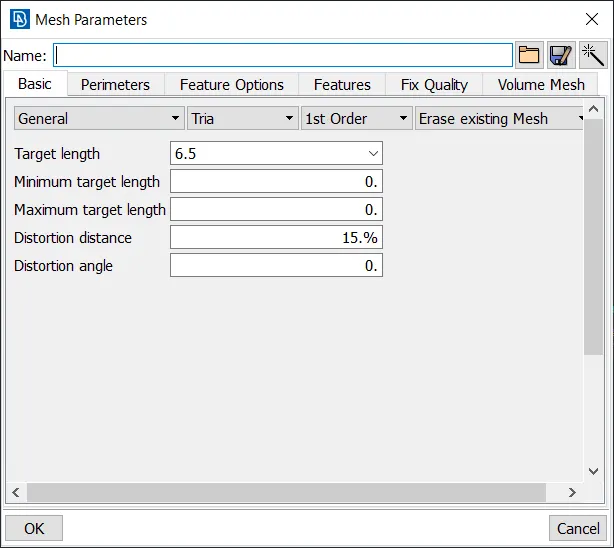
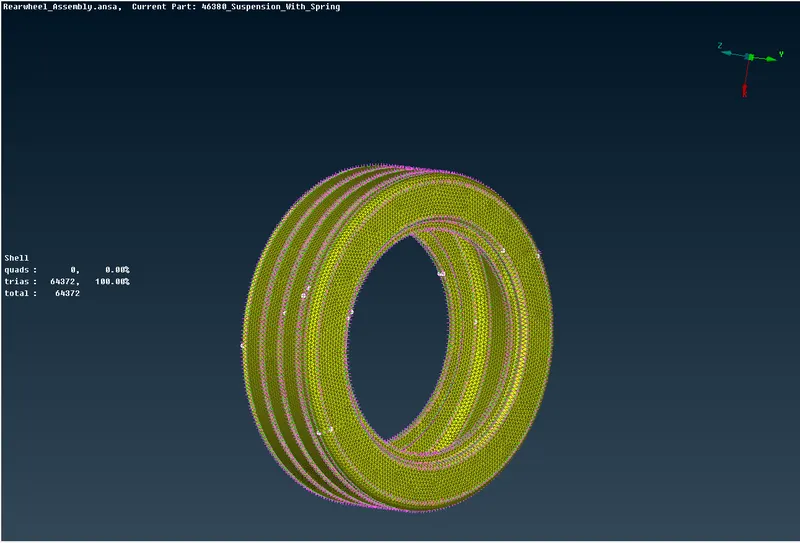
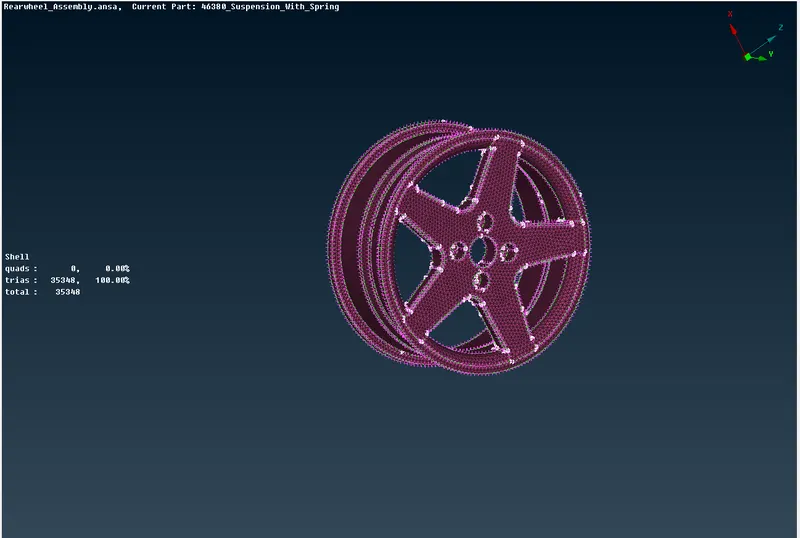
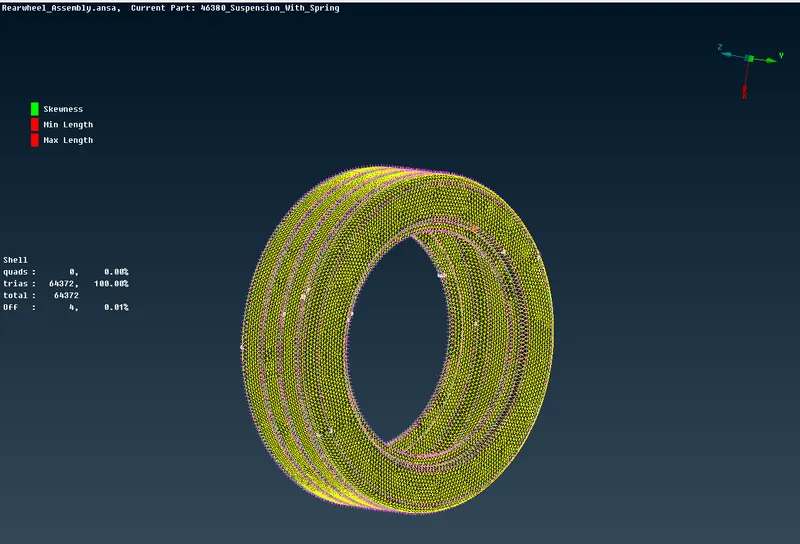
- To enable the total percentage of trias and the quality of the off elements we are selecting element percentage in presentation parameters. After that select all details and click apply to obtain the total values of elements and trias percentage of the total model.
- Then the meshing is done using mesh generation > spot mesh tool. This tool generates the mesh using the element type given.
- The curved faces are given the mesh element type as ortho tria and the flat surfaces are given the mesh element type as tria.
- Then the created mesh is refined using the shell mesh > improve > reconstruct, smooth, reshape tool in mesh module of ANSA.
VOLUME MESH:
- Now, we will provide the solid quality criteria as given in the problem statement.
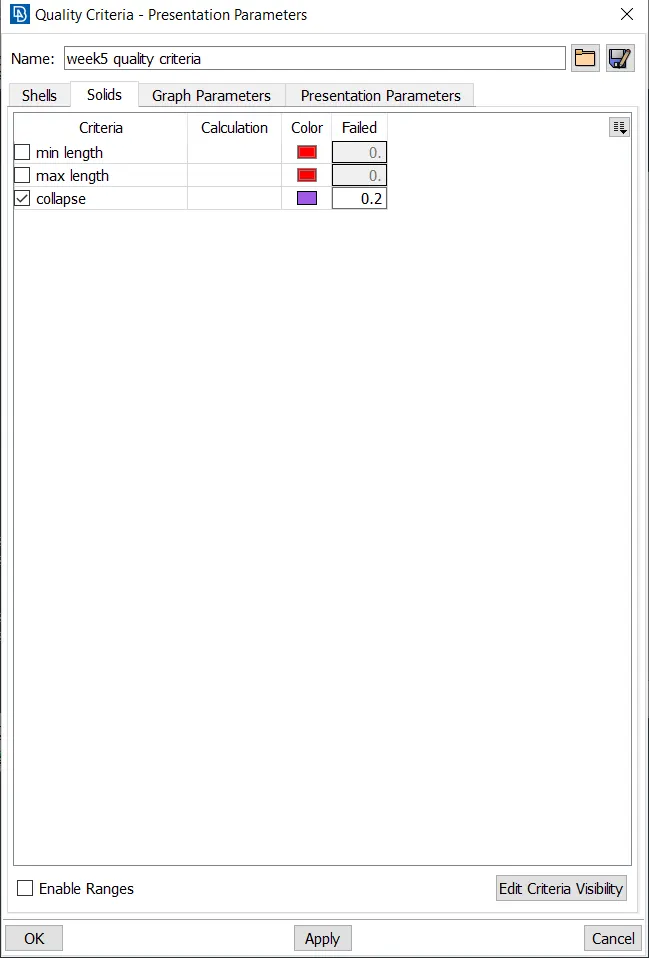
- Then the volume is defined by using the define option in volume mesh module.
- Then the solid property is created.
- Now go to volumes > list option and right click on the solid property and click remesh option and select the volume type as tetra rapid to obtain the volume mesh.
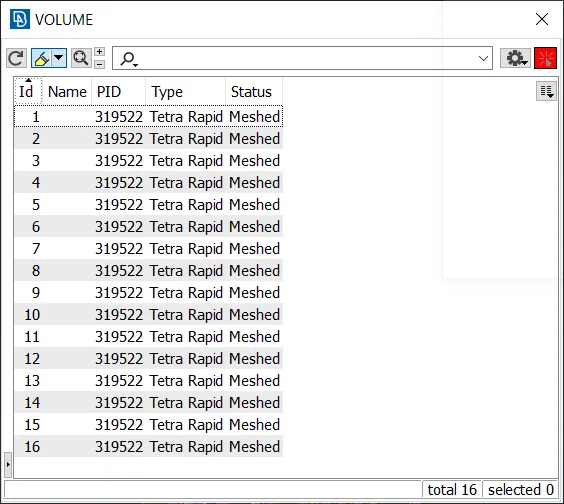
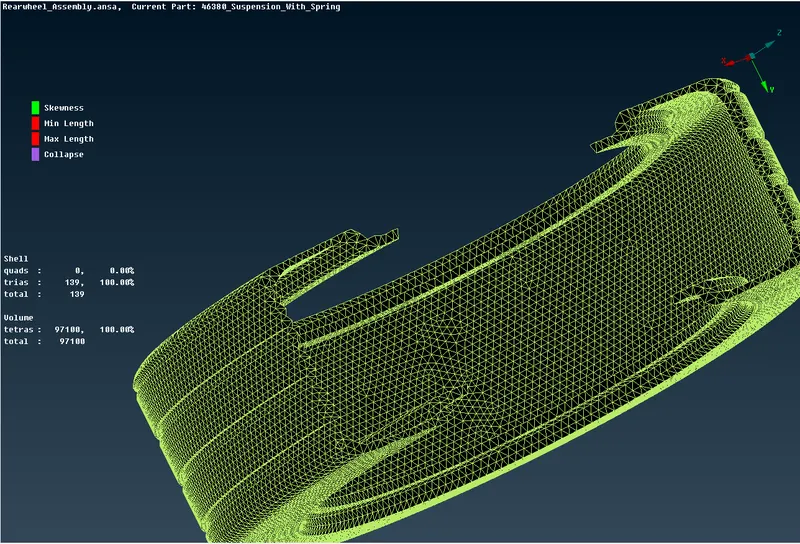
- Once it is done the status on the volume mesh list will show meshed.
- Ensure there is no OFF elements in the quality.
FOR NON UNIFORM COMPONENT:
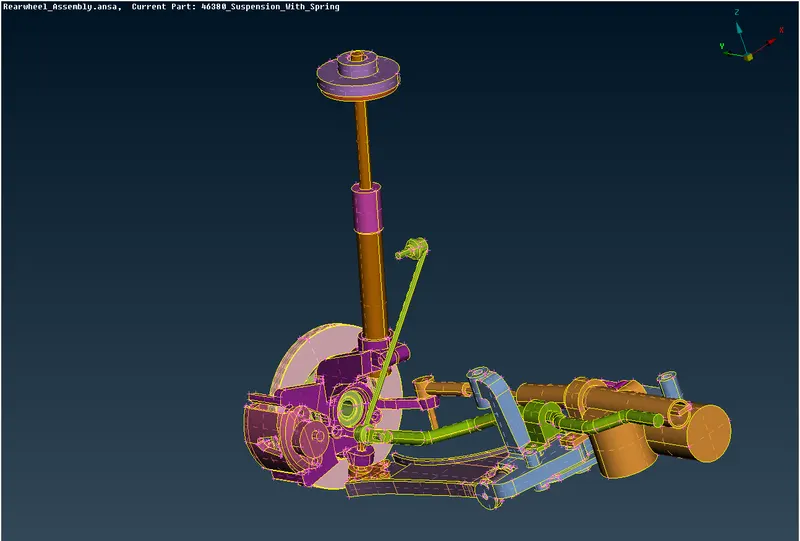
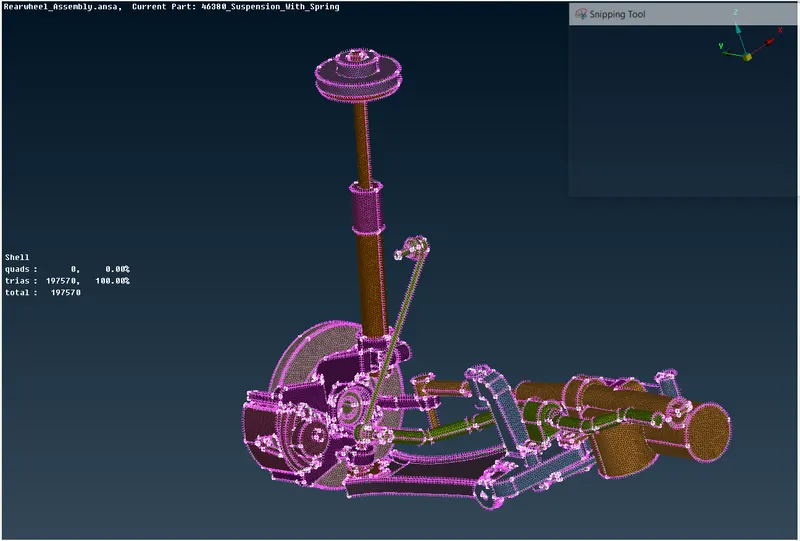
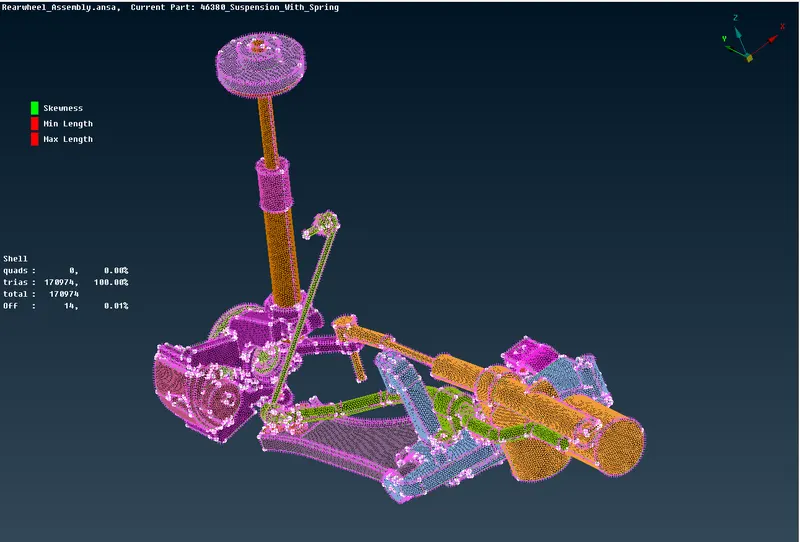
2D MESHING:
QUALITY CRITERIA:
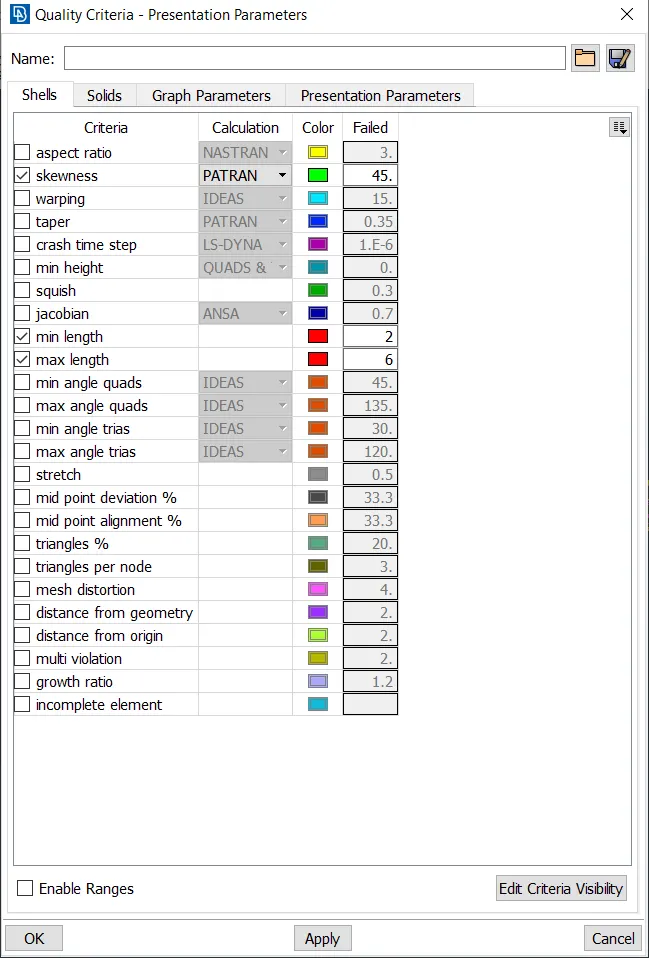
- Go to quality criteria that is available in tool bar.
- The criteria that is given in the question are selected and given the value and clicked apply and ok.
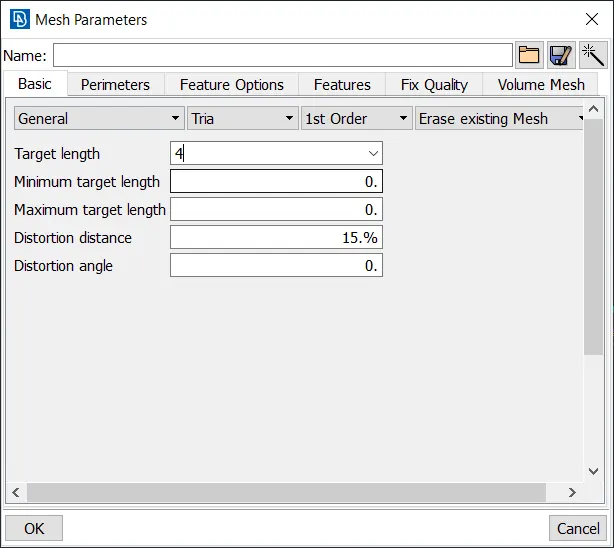
- Then the values of mesh parameters are entered.
- For that go to mesh parameter tool that is available in the tool bar of ANSA.
- To enable the total percentage of trias and the quality of the off elements we are selecting element percentage in presentation parameters. After that select all details and click apply to obtain the total values of elements and trias percentage of the total model.
- Then the meshing is done using mesh generation > spot mesh tool. This tool generates the mesh using the element type given.
- The curved faces are given the mesh element type as ortho tria and the flat surfaces are given the mesh element type as tria.
- Then the created mesh is refined using the shell mesh > improve > reconstruct, smooth, reshape tool in mesh module of ANSA.
VOLUME MESH:
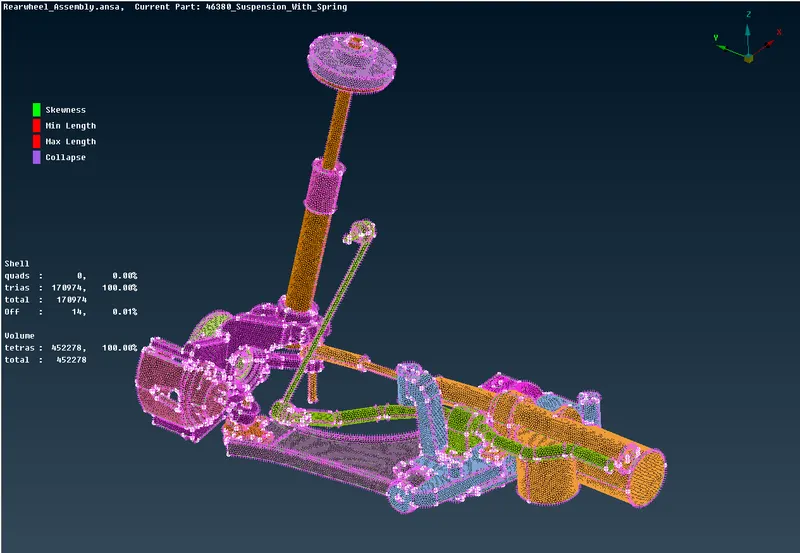
- Now, we will provide the solid quality criteria as given in the problem statement.
- Then the volume is defined by using the define option in volume mesh module.
- Then the solid property is created.
- Now go to volumes > list option and right click on the solid property and click remesh option and select the volume type as tetra rapid to obtain the volume mesh.
- Once it is done the status on the volume mesh list will show meshed.
- Ensure there is no OFF elements in the quality.
FOR SPRING:
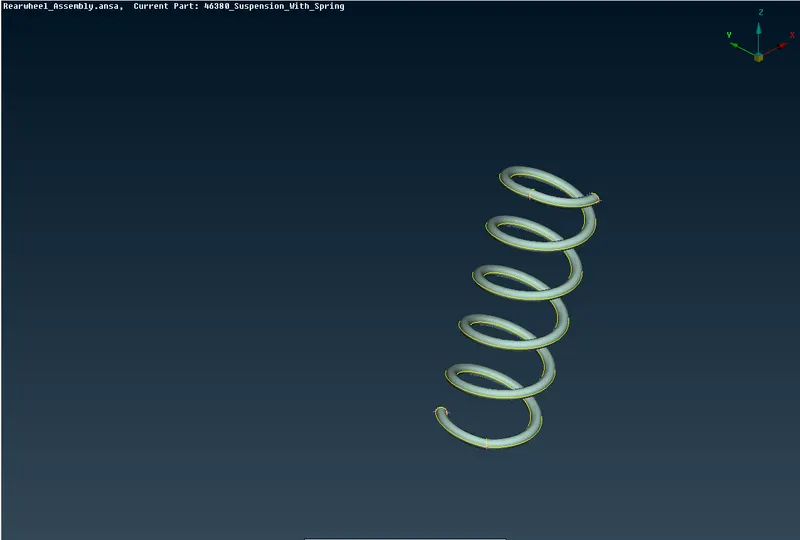
- The spring will be represented as a 1D CBAR element.
- The middle curve is generated for the spring by using middle option in curves.
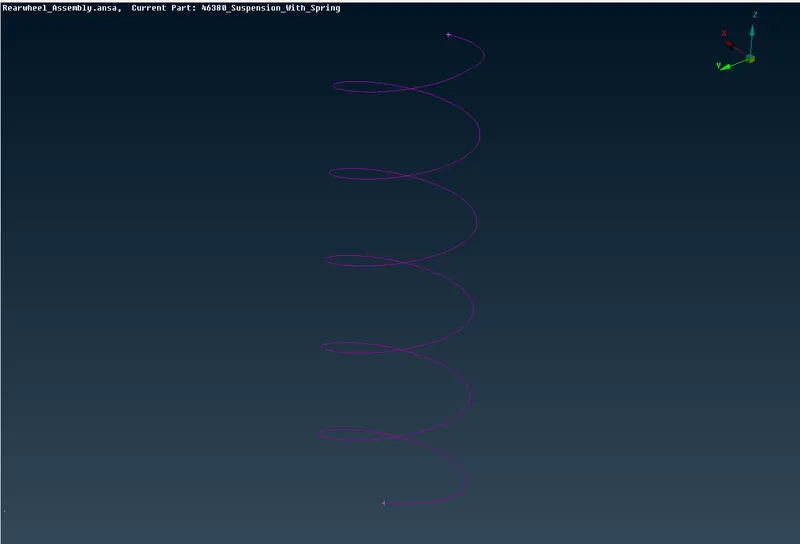
- After that a COG point is created for the curve.
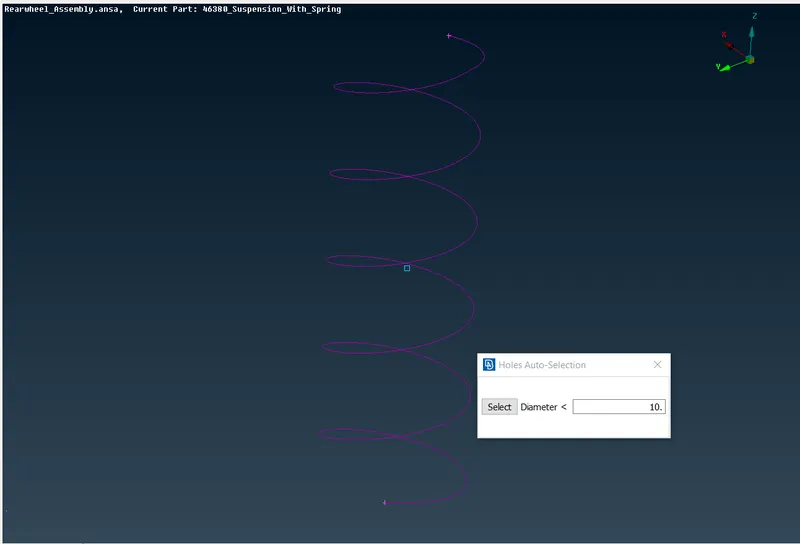
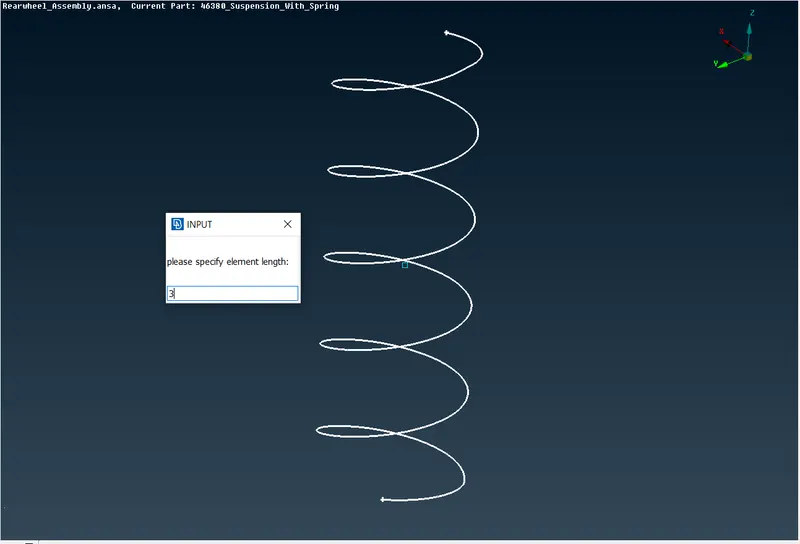
- Then go to Nastran deck the CBAR element is choosed and selected the curve and give the middle mouse click.
- The element length of 3mm is given and do middle mouse click and define a pid.
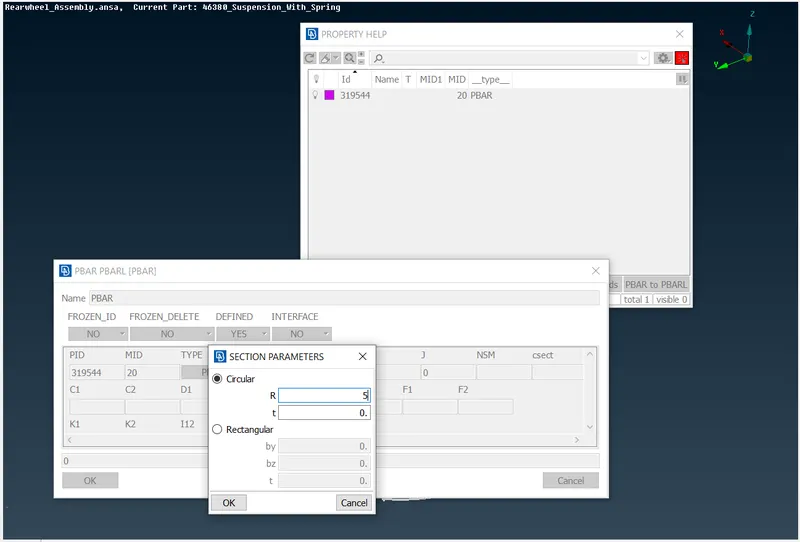
- Then the area is defined by giving the radius of spring. Then the 1D bar element is created.
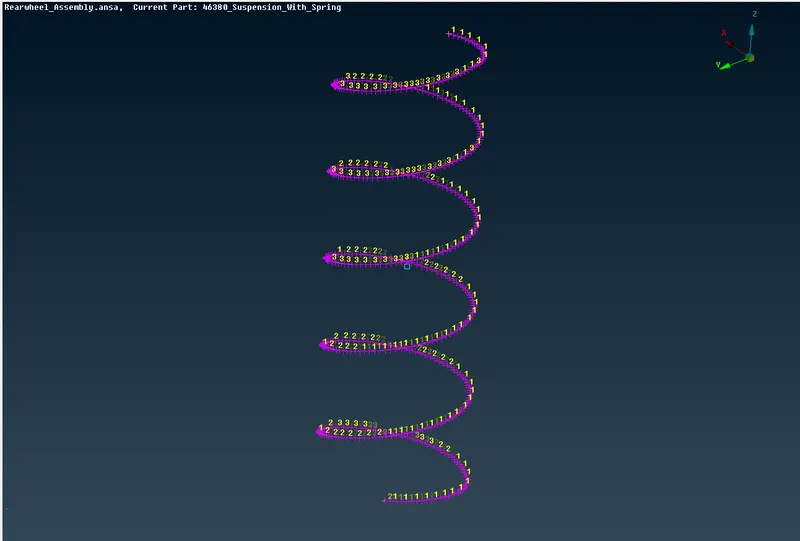
- To see the representation of 1D bar elements as 3D check the box of 1D detailed representation with the solid in quality parameters as shown below.
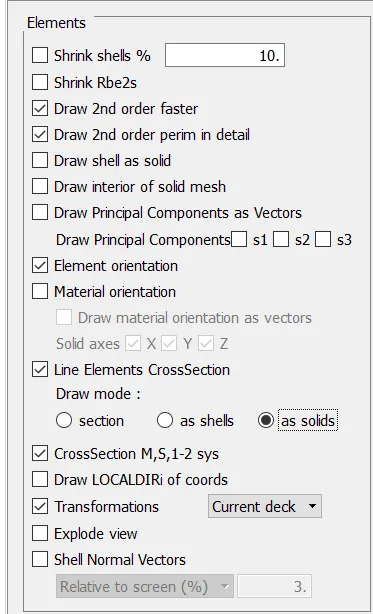
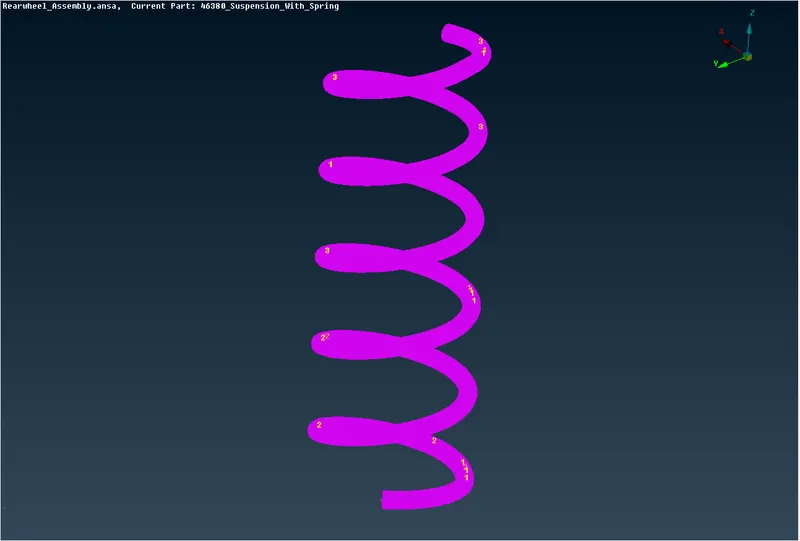
CONNECTIONS:
- The necessary connections are made in the component by going to Nastran deck.
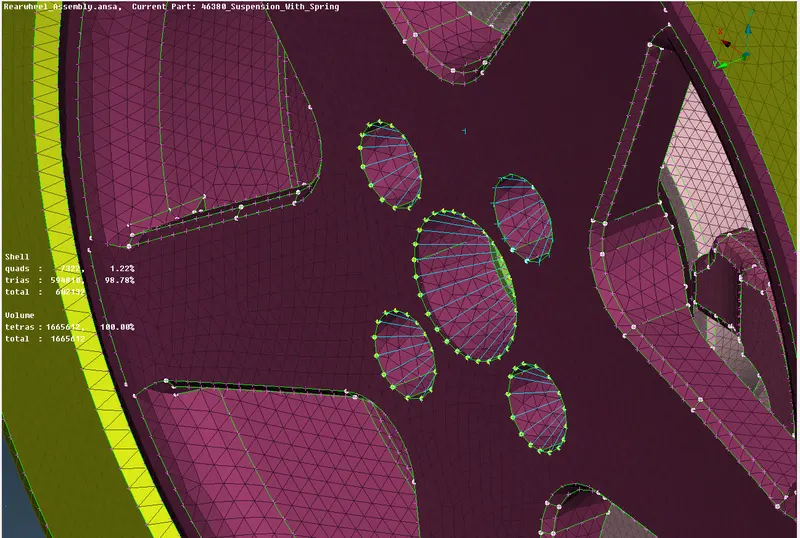
RBE2 CONNECTION:
- The RBE2 connections were made in necessary locations.
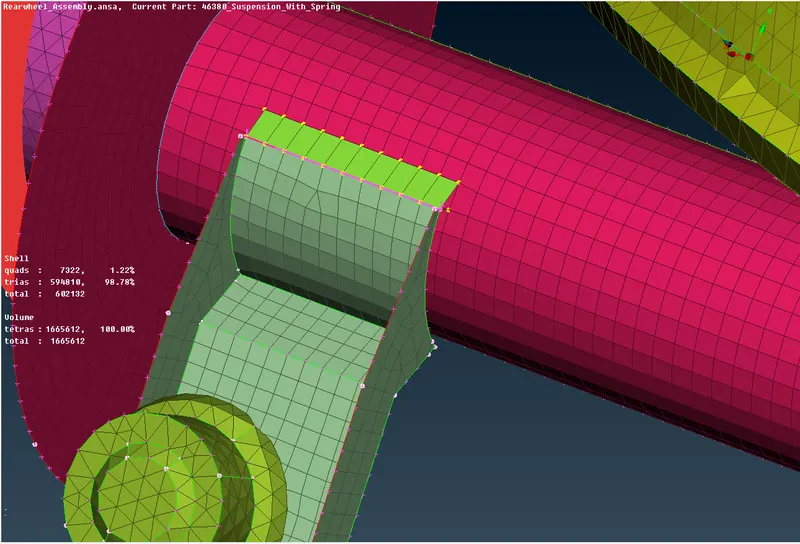
SEAM WELD CONNECTION:
SYMMETRY:
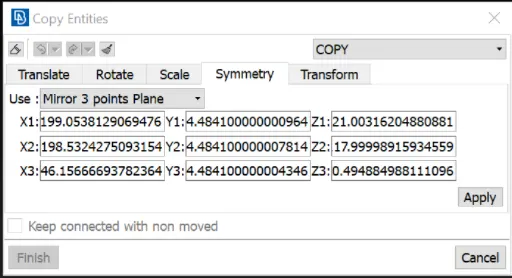
- After completing mesh and connections the transform option is used to create a mirror of the model by going to transform copy > symmetry by selecting three points and click ok.
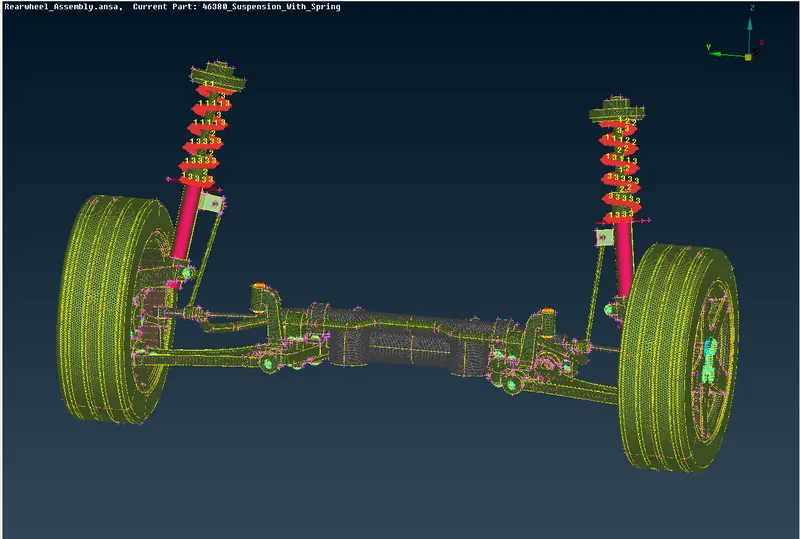
- The final model will look like as shown below.
LEARNING OUTCOMES:
- Learned how to mesh the given component using tria and mixed elements.
- Learned how to define the volume and apply volume meshing.
- Learned how to clear errors such as kink, dip and tet collapse elements.
- Learned how to make connections.
- Learned how to make symmetry operation.
CONCLUSION:
Geometry cleanup, 2D meshing and volume meshing of the given Rear suspension assembly model were successfully done.
MODEL LINK:
https://drive.google.com/file/d/1piDnunpw2rX_AqulNXQ4nJgR4lMHTIcz/view?usp=sharing