Project-2-Meshing of Door Inner Panel Challenge
AIM: In this project, follow the below mentioned quality criteria, mesh the given component and assign thickness.
GIVEN:
S. No. Quality Criteria Value
1 Target/Average Length 4
2 Aspect Ratio 5
3 Skewness 45
4 Warpage 15
5 Taper 0.5
6 Minimum Length 2
7 Maximum Length 6
8 Minimum Quad Angle 45
9 Maximum Quad Angle 135
10 Minimum Tria Angle 20
11 Maximum Tria Angle 120
12 Tria Percentage 10
OBJECTIVE: The objective of this project is to perform the geometric cleanup and extract the mid surface of the given component and then mesh this component following the given Quality Criteria using hypermesh software.
PROCEDURE:
<!-- [if !supportLists]-->1. <!--[endif]-->Firstly import the model in hypermesh software and open it following the given steps: Go to Import geometry and select the file type as ‘iges’. Then choose the file and click on import option. The model gets open in the software.

2. <!--[endif]-->After opening the model, check the model, if any solids present in it. If any solids present in the component, then we have to delete them. For that go to Delete>solids and select the component and click on delete. In this component, there are no solids present. So we proceed for midsurface extraction.
3. Now to perform midsurface extraction, go to Geometry>midsurface option. Choose the auto midsurface option and select all the surfaces. Then click on extract option.
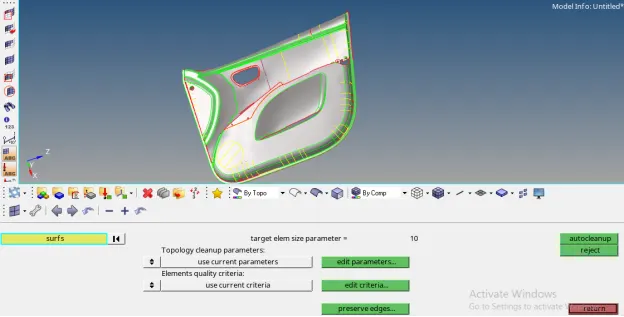
4. <!--[endif]-->After midsurface extraction, go to the Geometry> autocleanup option and select the model and press middle mouse button. Autocleanup option automatically clear geometrical errors present in the model.
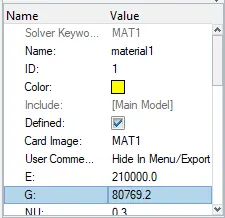
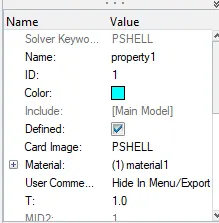
5. <!--[endif]-->Then assign the material and properties to the midsurfaces of the component. Also assign thickness to it.
6. <!--[endif]-->Now proceed for meshing the component. Here meshing will be done by following the steps given below: Go to 2D> automesh option and enter the given element size as 4 units. Then choose the mesh type as ‘mixed’ and select all the surfaces one by one. Then execute the meshing by clicking on mesh option.
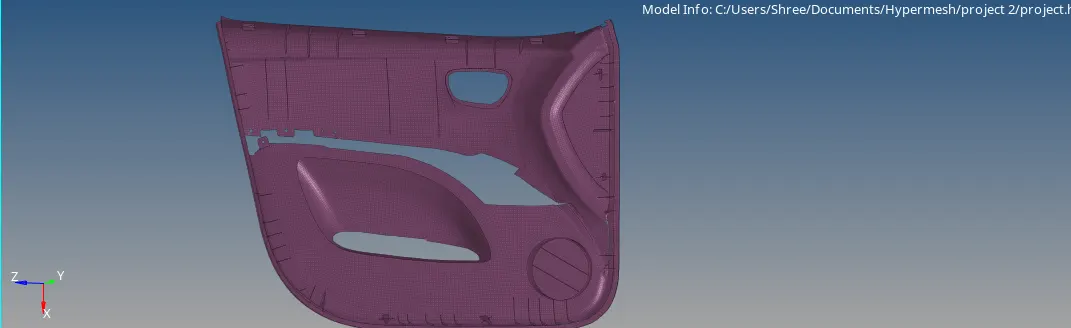
7. <!--[endif]-->After mesh is generated on the component , assign the given quality criteria by going to the Tools>check elems>settings>Criteria editor and enter the given quality criteria and apply.
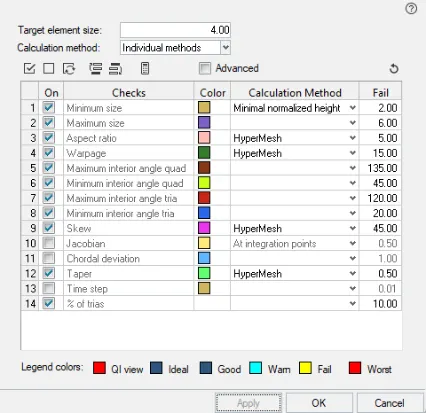
8. <!--[endif]-->Then refine the mesh by using cleanup tools option present in the quality index section.
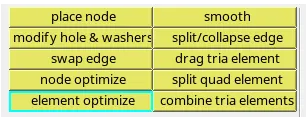
9. <!--[endif]-->After that, smooth option is used to get good quality mesh flow.
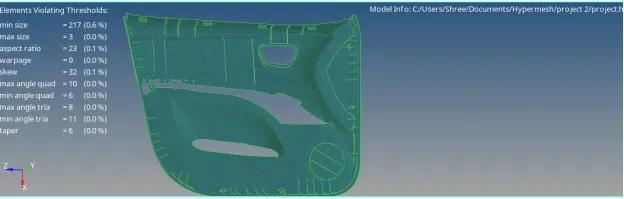
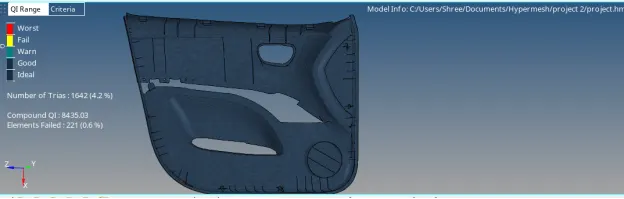
Final model image:
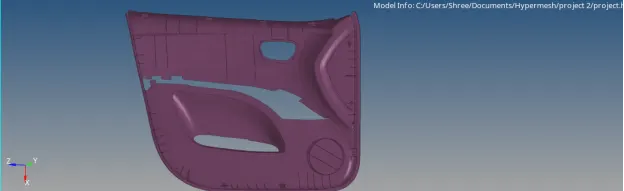
LEARNING OUTCOMES:
1) Performing this challenge enables to use different tools in the software.
2) Learn geometry cleanup technique.
3) Learn to extract the midsurface by auto midsurface technique.
4) Knowing how to use different tools to get good quality mesh.
CONCLUSION: After performing proper geometrical cleanup and extraction of midsurface for the component, the given model is meshed according to the given quality criteria.
Model link: https://drive.google.com/file/d/18AyNjr-kCVY-3z9LYy6U5W1yiHzUjXqj/view?usp=sharing