Project 2 - Development of TFT Cluster Speedometer Software Component
TFT Cluster Speedmeter Display
Introduction
LCD based TFT cluster has become a norm in today's automotive market. Cluster comes with a 7 inch TFT LCD screen & a 32 bit micro controller. The Cluster could process various informations from other ECU's & display it in its large TFT LCD screen
Architecture of the System
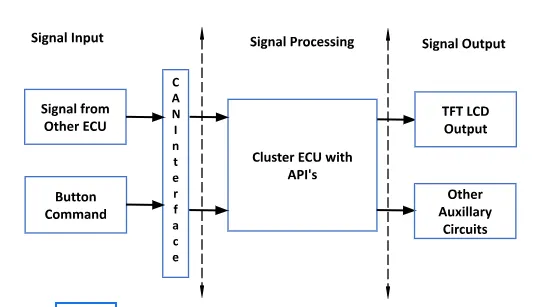
Cluster Instrument receives the signals from other ECU's via CAN bus interface. It also receives commands from the driver via steering wheel buttons The signals are then processed by the Cluster ECU, after which the Cluster ECU may send the vehicle information to the LCD or light the LEDs and so forth, according to the results. Therefore, the Cluster ECU can be viewed as a carrier of the information flow.
Development of TFT Cluster Speedometer Software ComponentDevelopment of TFT Cluster Speedometer Software Component
Cluster Instrument receives the signals from other ECU via CAN bus interface. It also receives commands from the driver via steering wheel buttons. The signals are then processed by the Cluster ECU, after which the Cluster ECU may send the vehicle information to the LCD or light the LEDs and so forth, according to the results. Therefore, the Cluster ECU can be viewed as a carrier of the information flow.
Requirements:
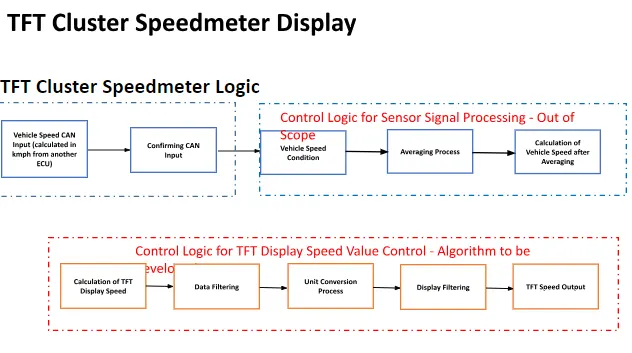
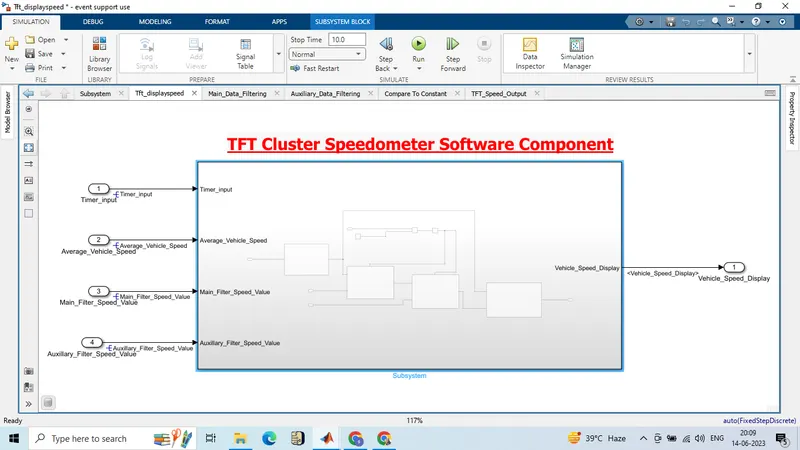
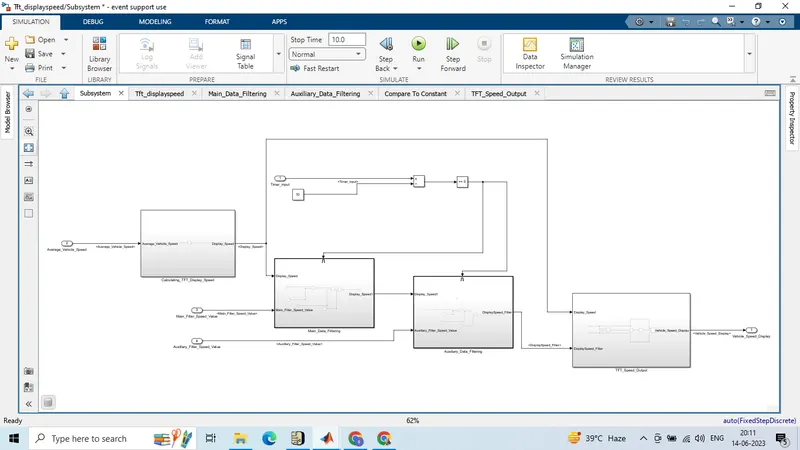
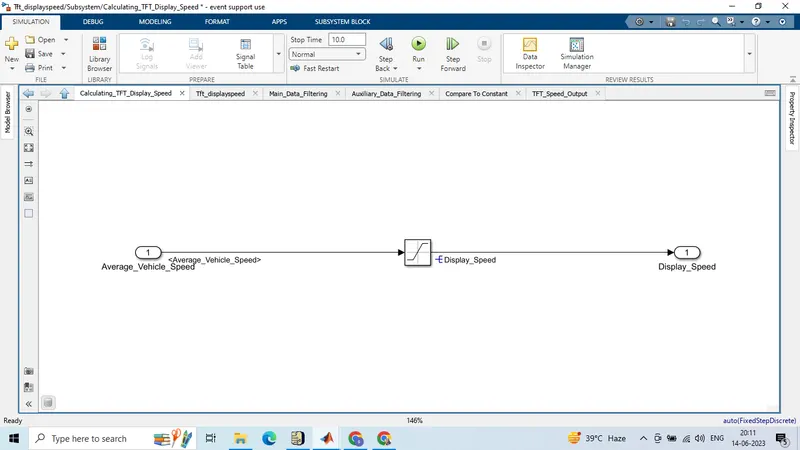
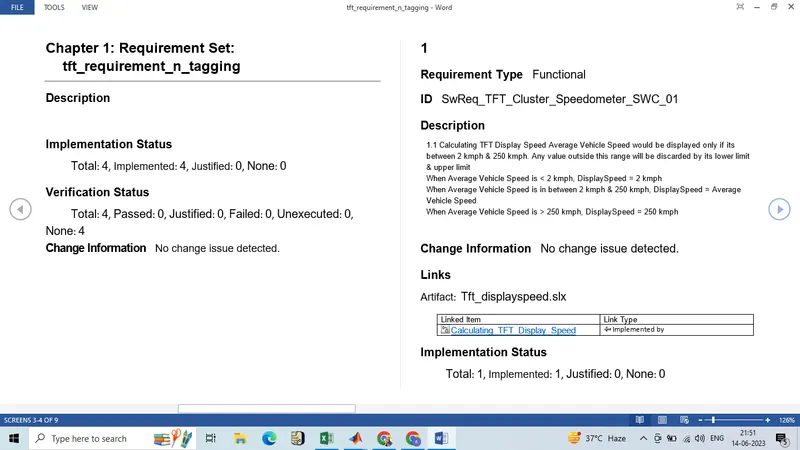
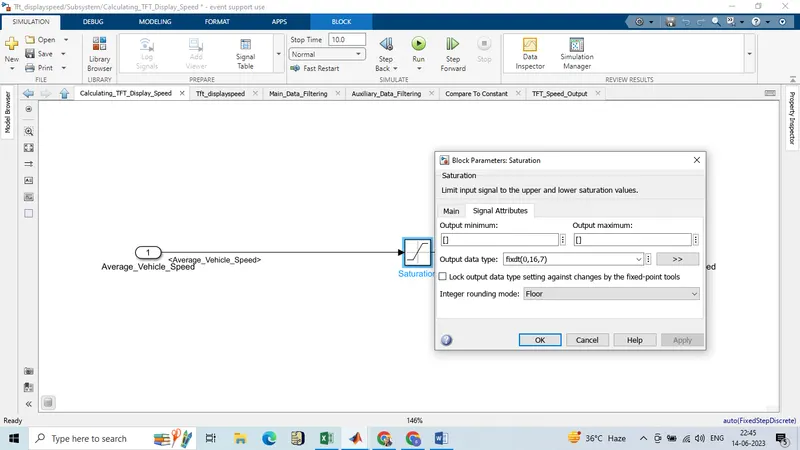
1.1 Calculating TFT Display Speed
|
Average Vehicle Speed would be displayed only if its between 2 kmph & 250 kmph. Any value outside this range will be discarded by its lower limit & upper limit |
|
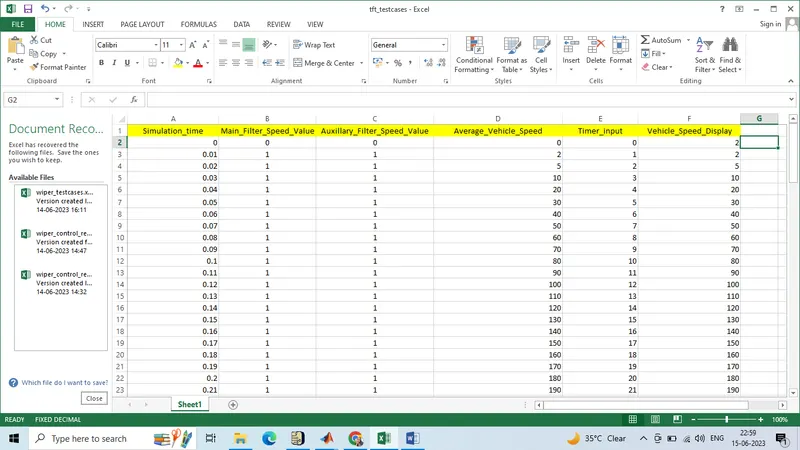
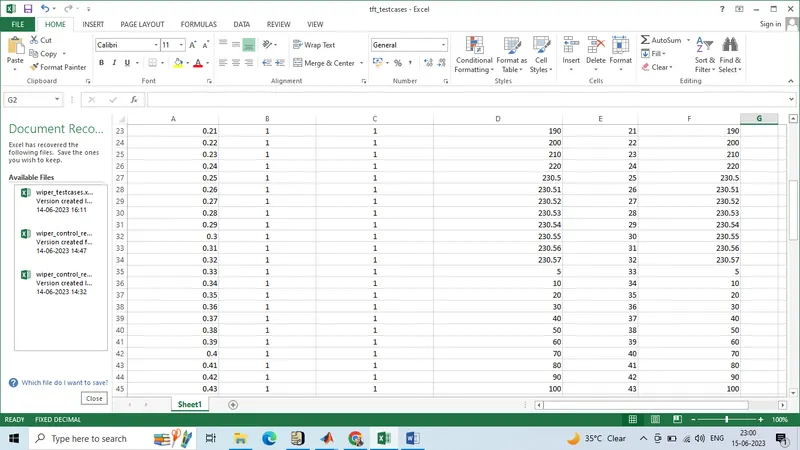
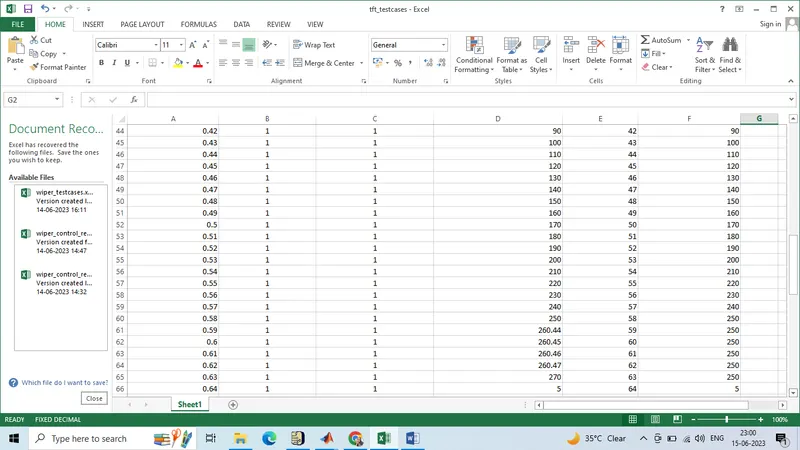
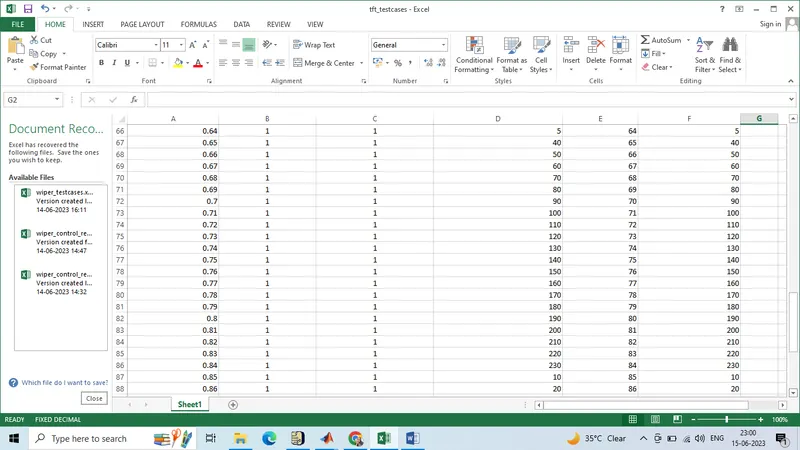
When Average Vehicle Speed is < 2 kmph, DisplaySpeed = 2 kmph |
|
When Average Vehicle Speed is in between 2 kmph & 250 kmph, DisplaySpeed = Average Vehicle Speed |
|
When Average Vehicle Speed is > 250 kmph, DisplaySpeed = 250 kmph |
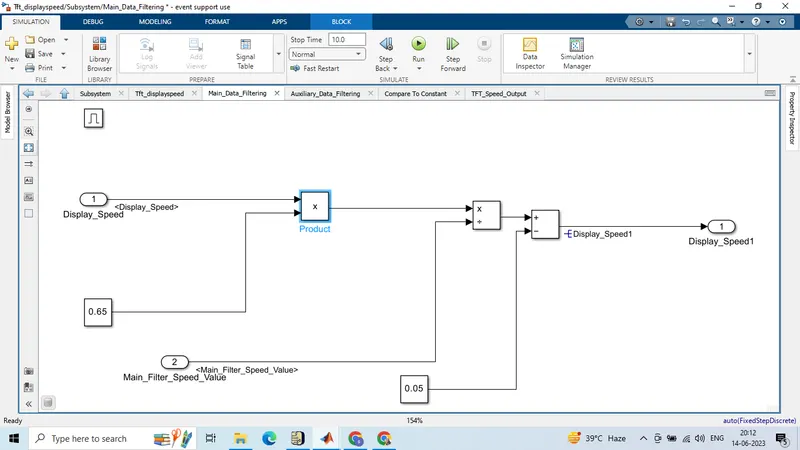
1.2 Main Data Filtering
|
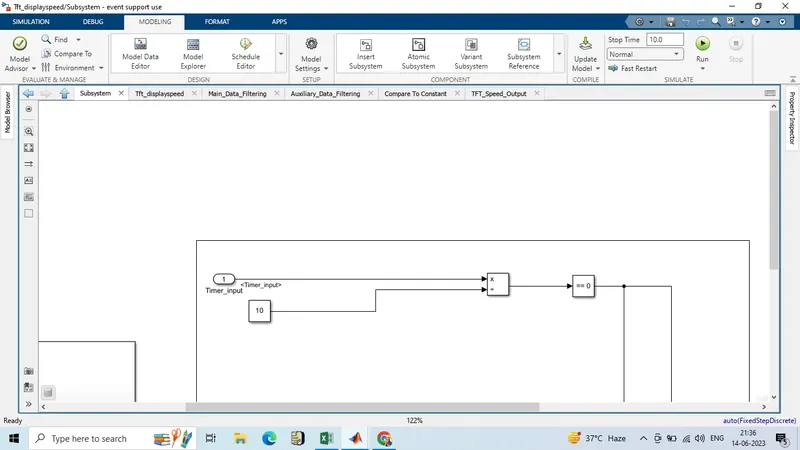
Main Data Filtering subsystem will be activated for every 10th millisecond |
||||||
|
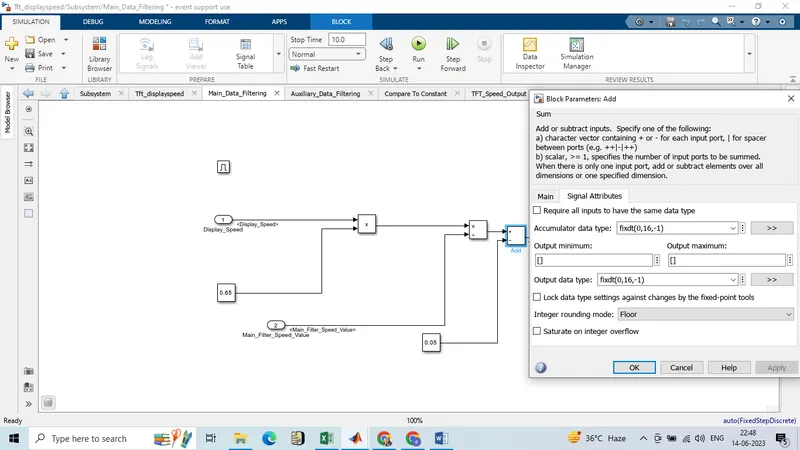
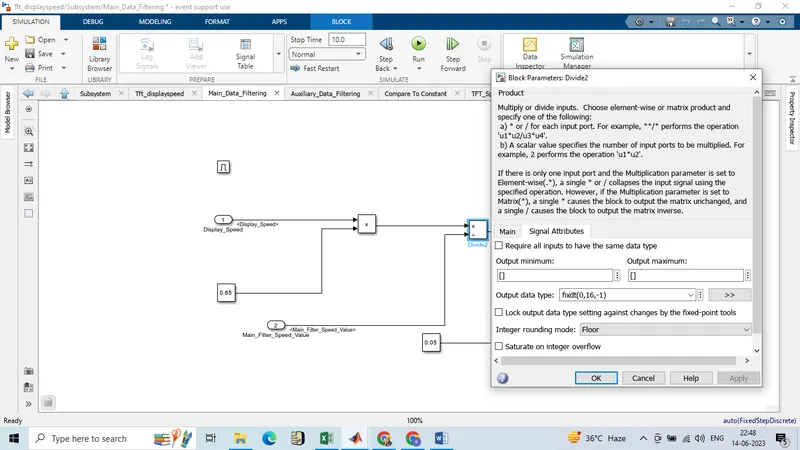
DisplaySpeed1 (t) = ((DisplaySpeed (t) x 0.65)/ Main Filter Speed Value) 0.05 |
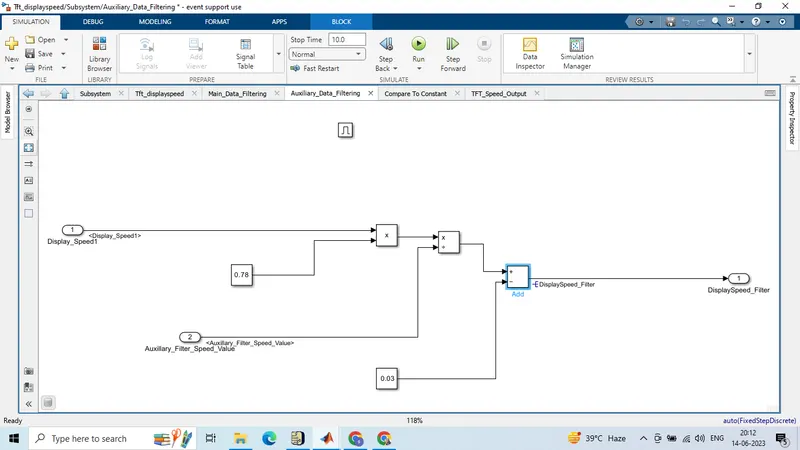
1.3 Auxiliary Data Filtering
|
Auxiliary Data Filtering subsystem will be activated for every 10th millisecond |
|||||||
|
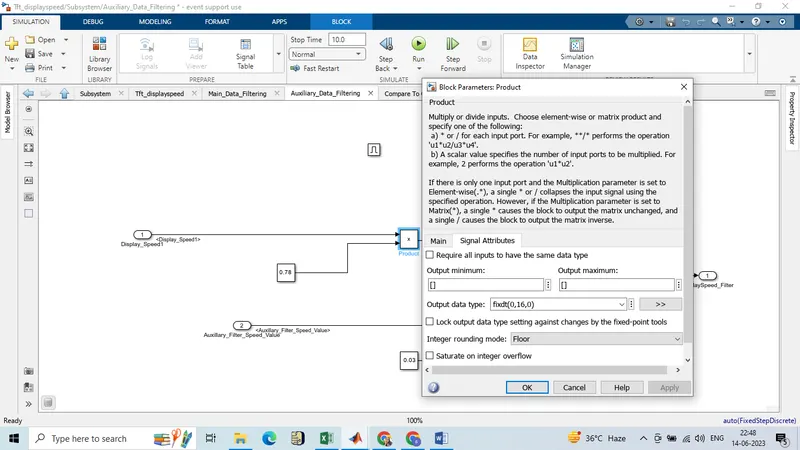
DisplaySpeed_Filter (t) = ((DisplaySpeed1 (t) x 0.78)/ Auxillary Filter Speed Value) - 0.03 |
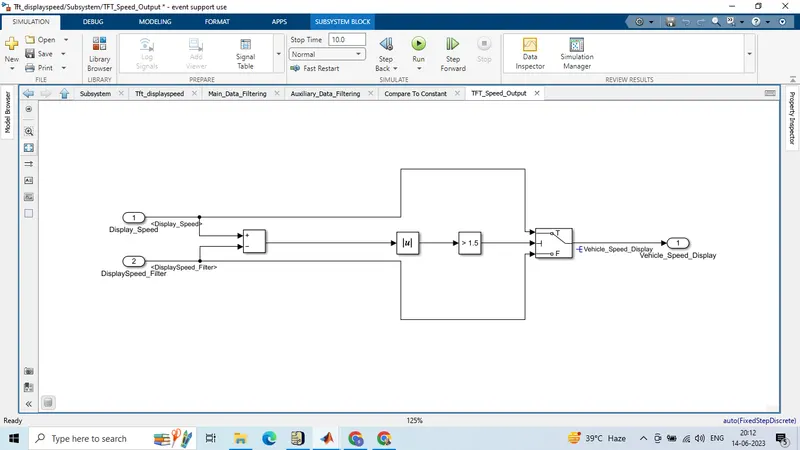
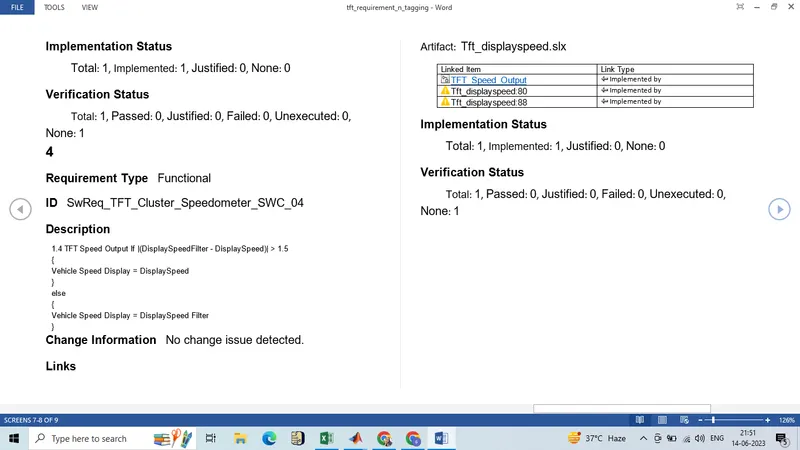
1.4 TFT Speed Output
|
If |(DisplaySpeedFilter - DisplaySpeed)| > 1.5 |
|
{ |
|
Vehicle Speed Display = DisplaySpeed |
|
} |
|
else |
|
{ |
|
Vehicle Speed Display = DisplaySpeed Filter |
|
} |
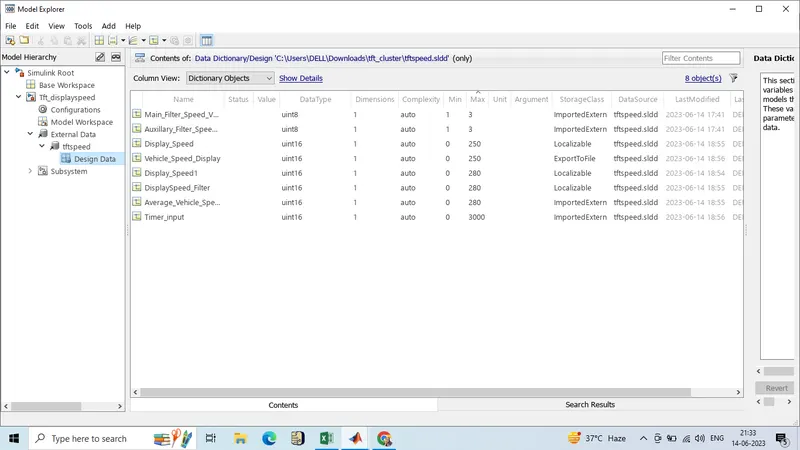
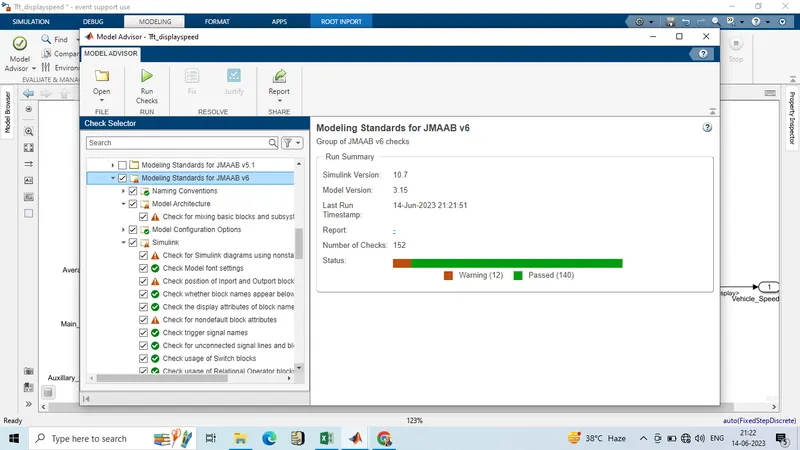
JMAAB guideline check
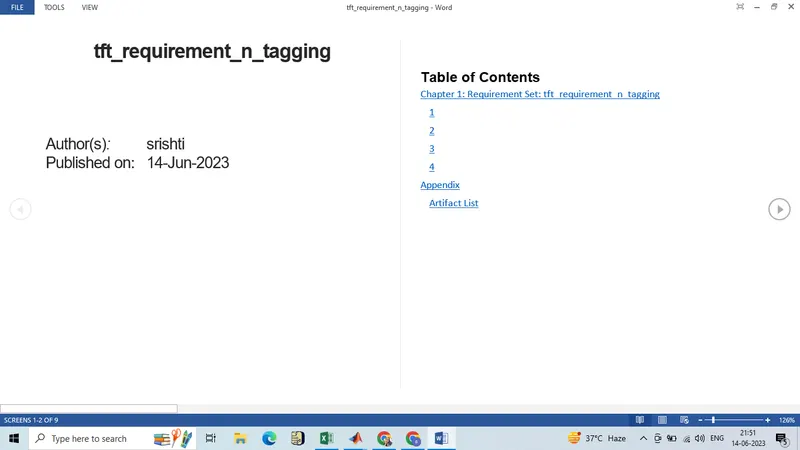
Requirement and tagging and creation of SWReq file into the .xls File
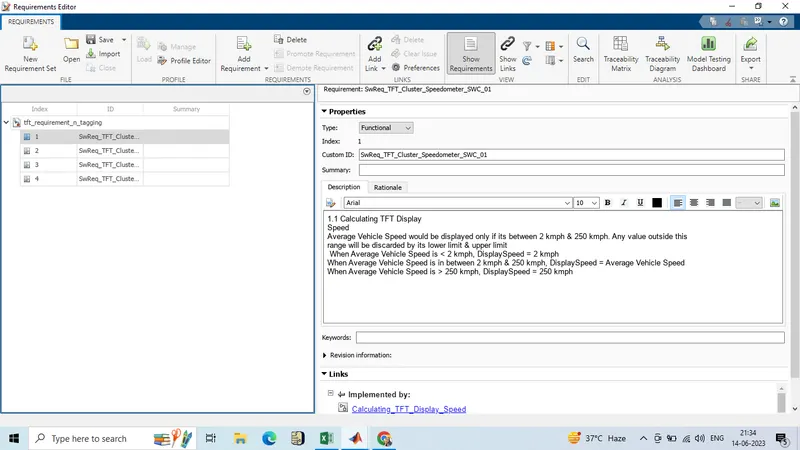
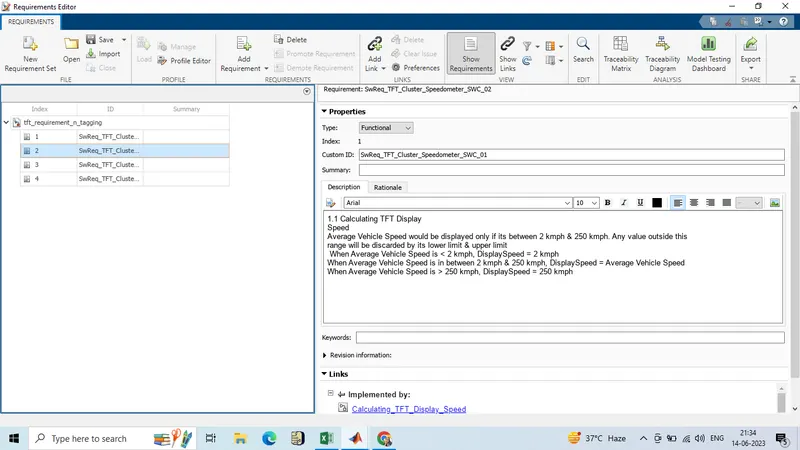
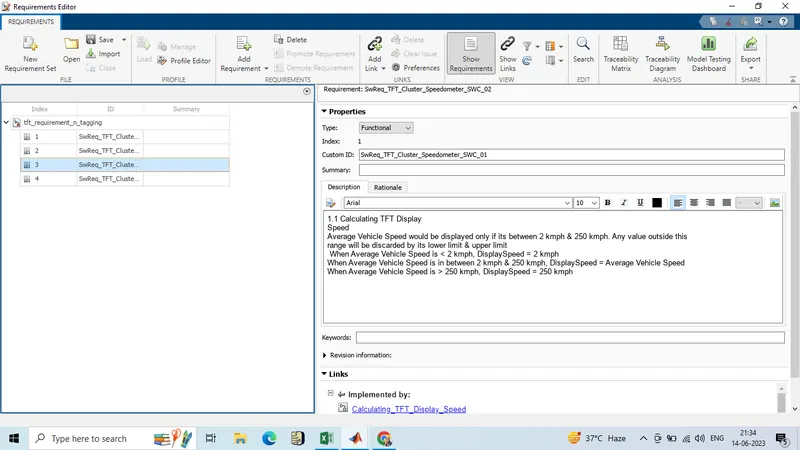
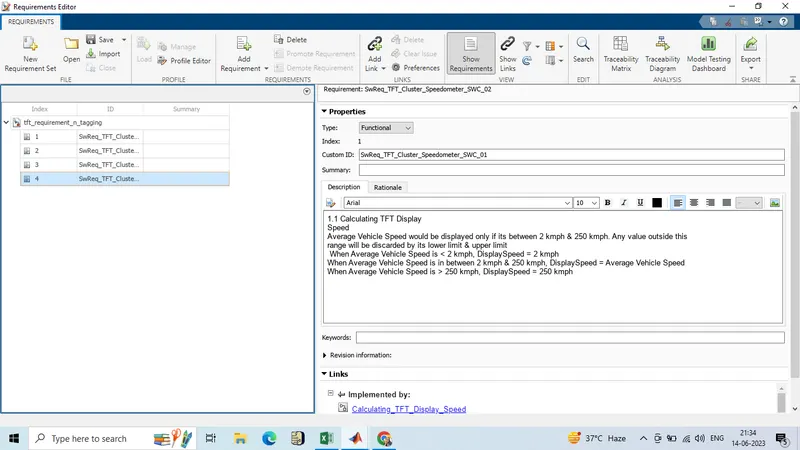
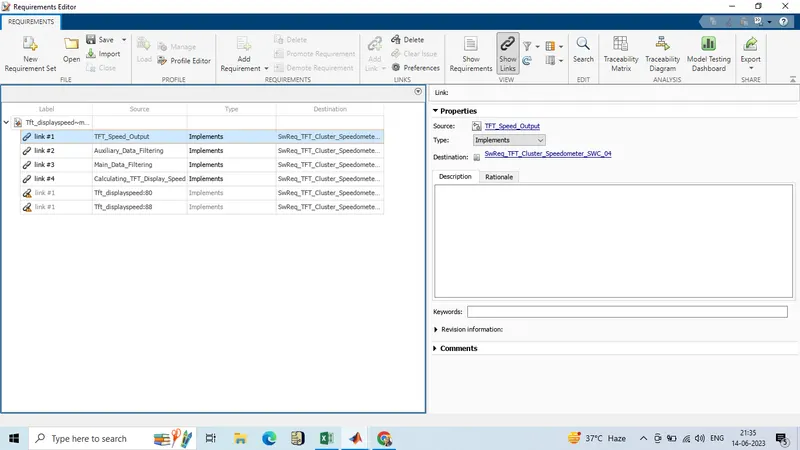
Linking the Requirement to the model using Requirement Editor
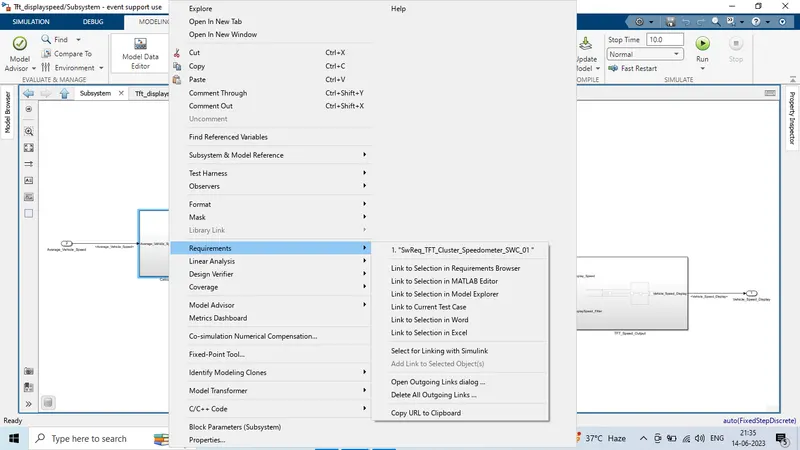
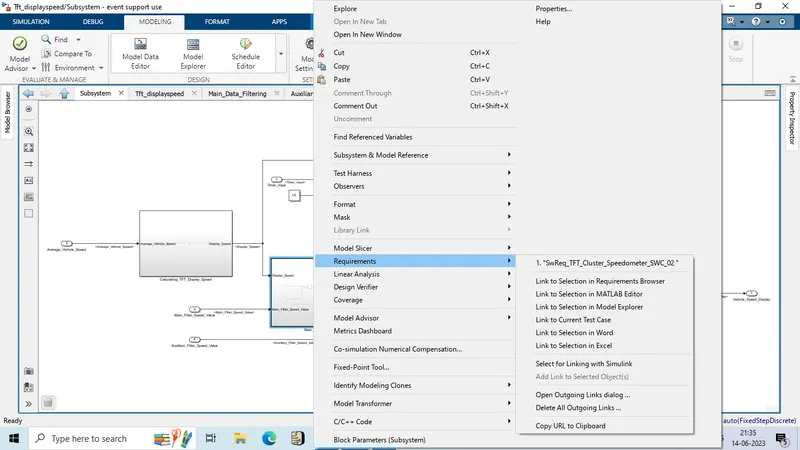
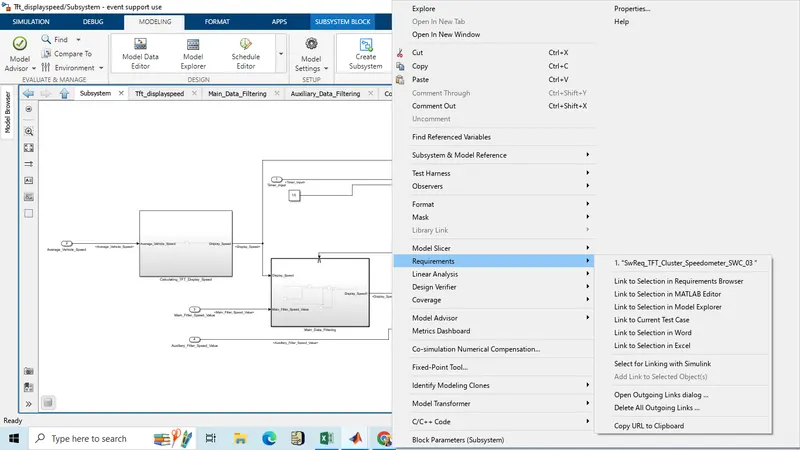
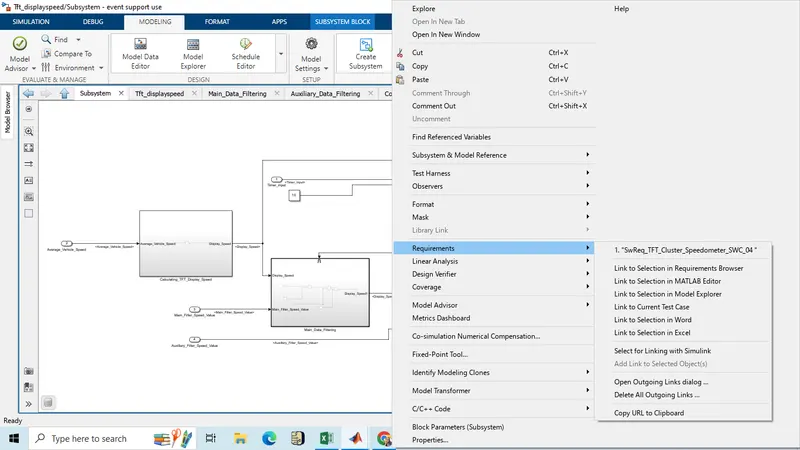
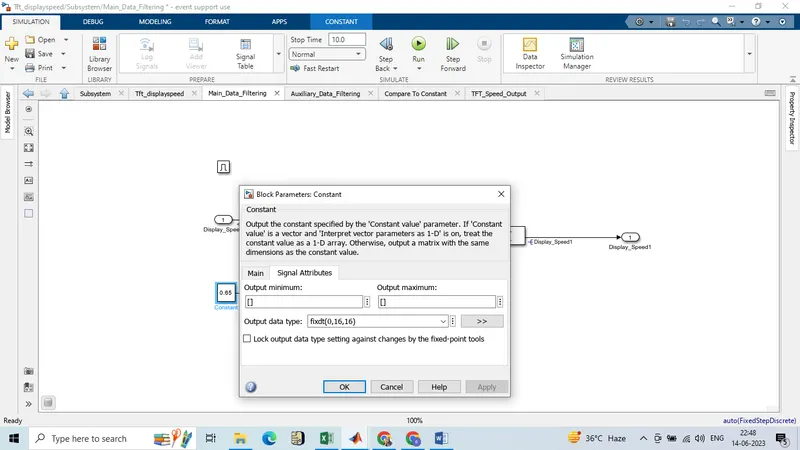
Fixed-point conversion
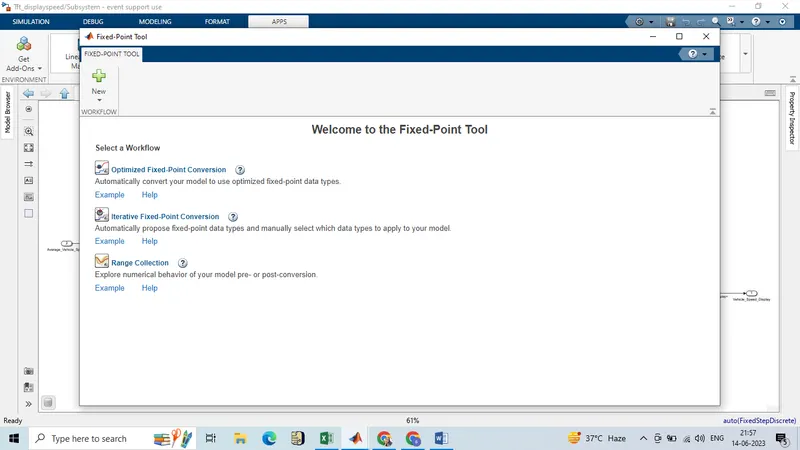
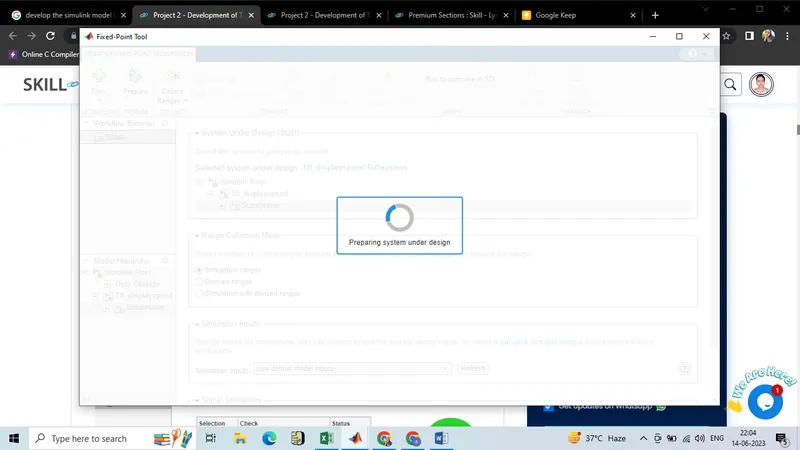
click on 'Prepare' then click on 'collect Ranges'>>then Click on 'Propose Data Type>>click on 'Apply Data Type
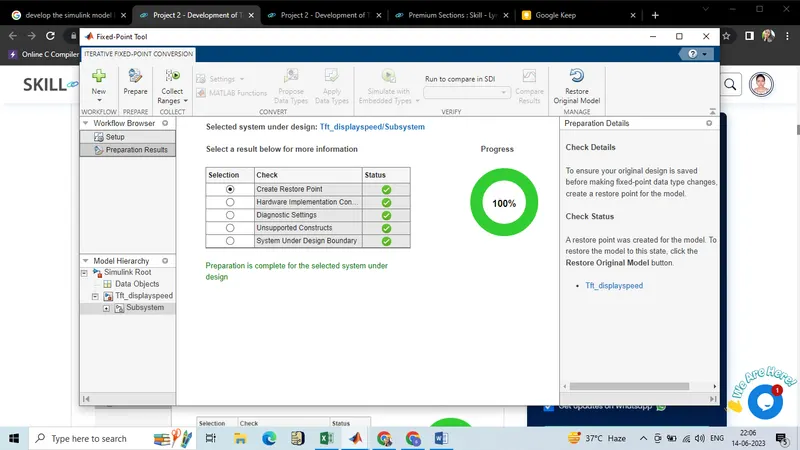
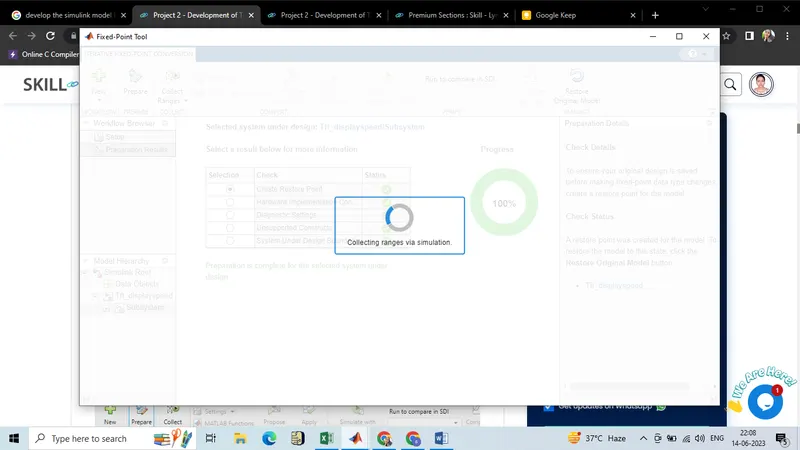
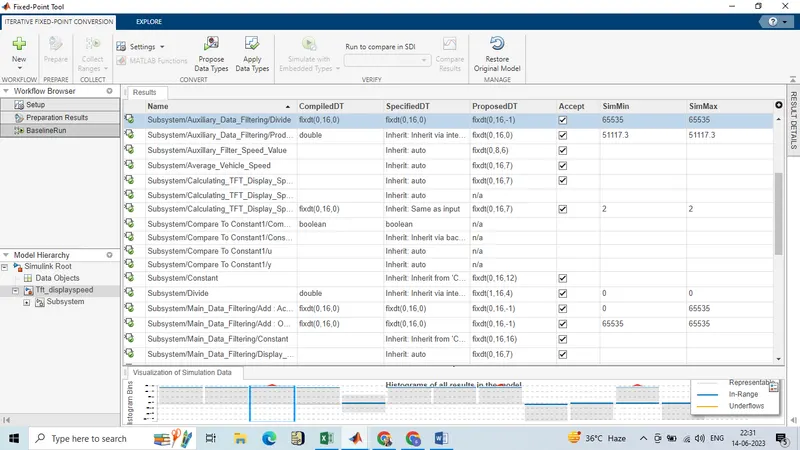
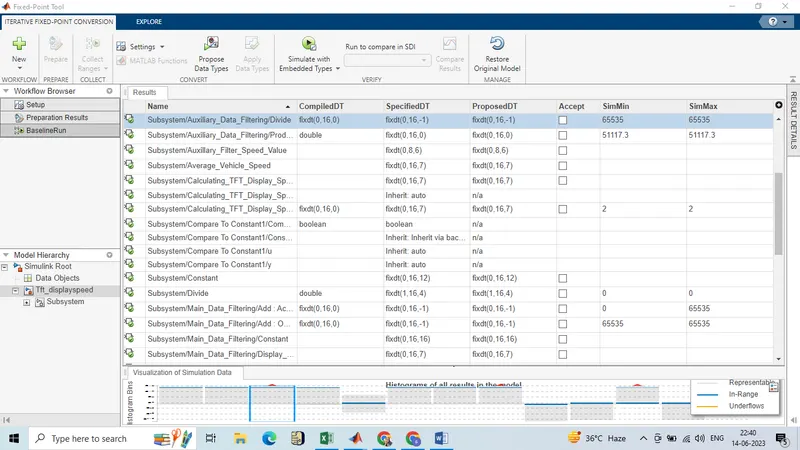
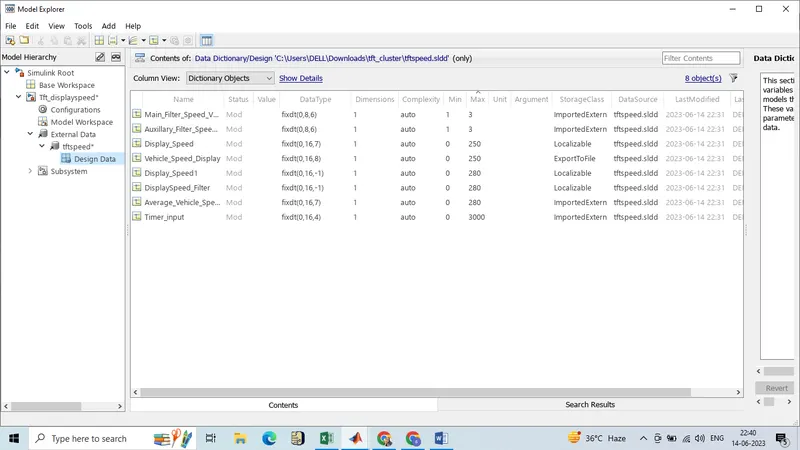
SLDD After Fixed-point Tool Applying
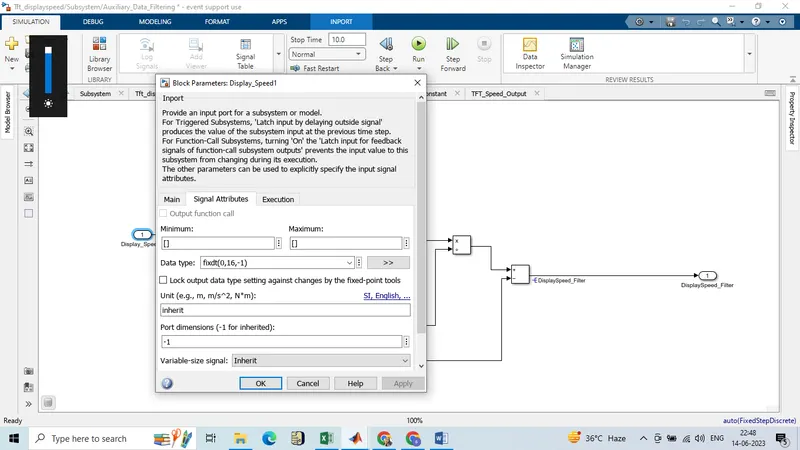
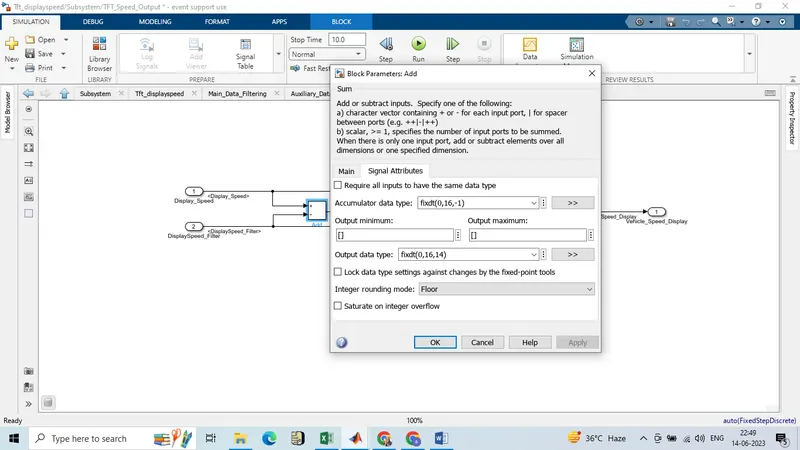
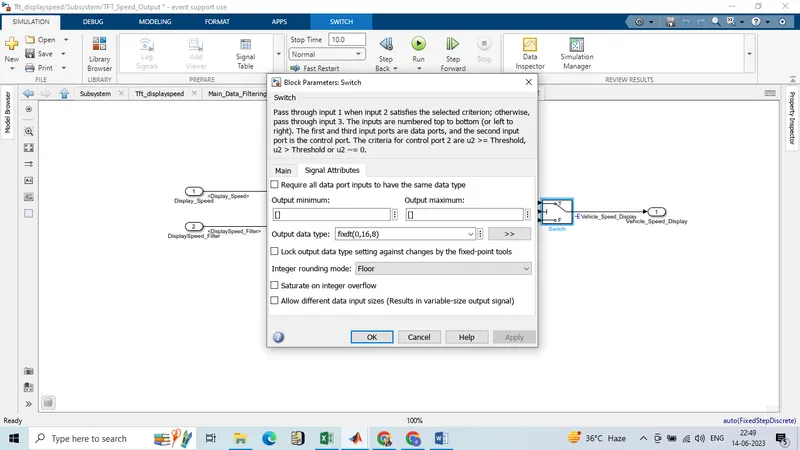
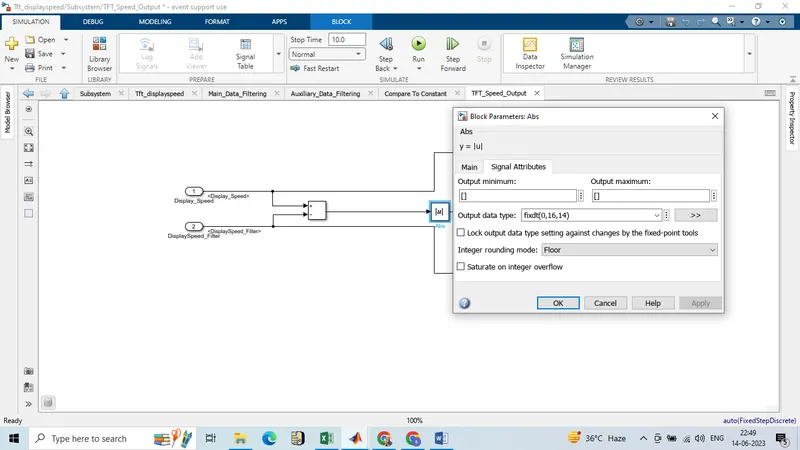
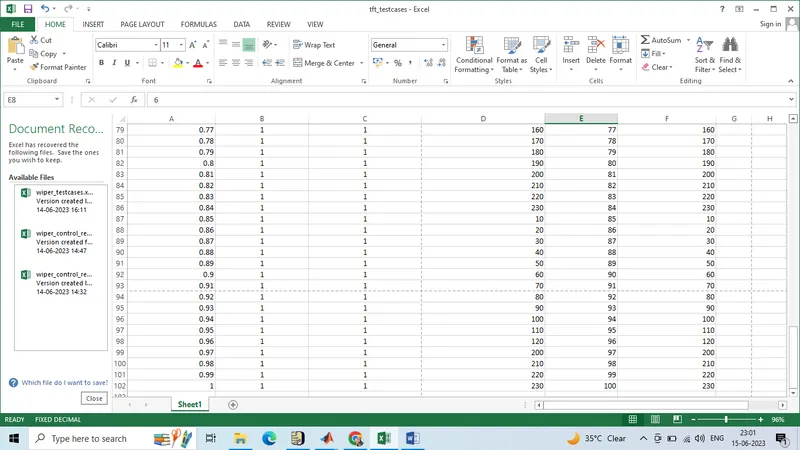
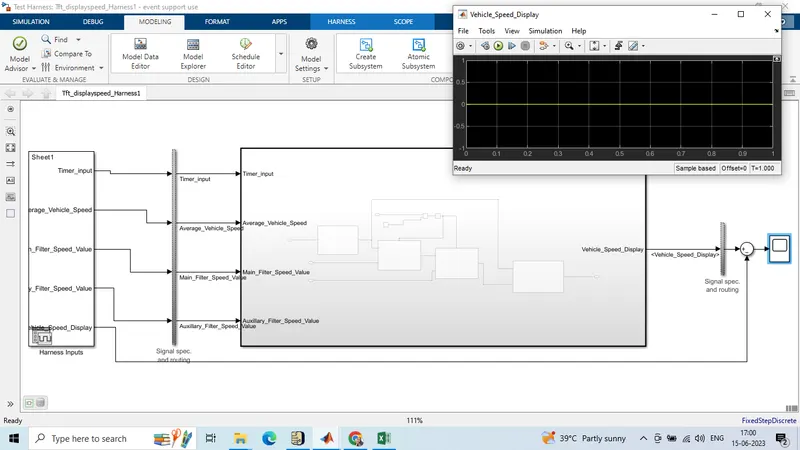
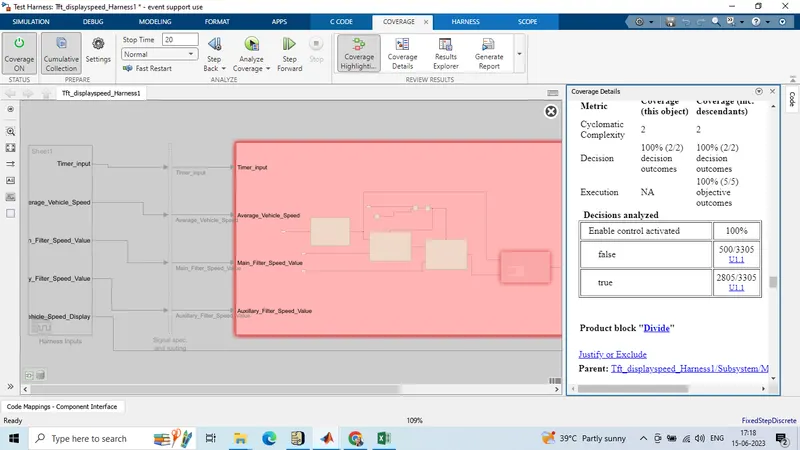
MIL Testing
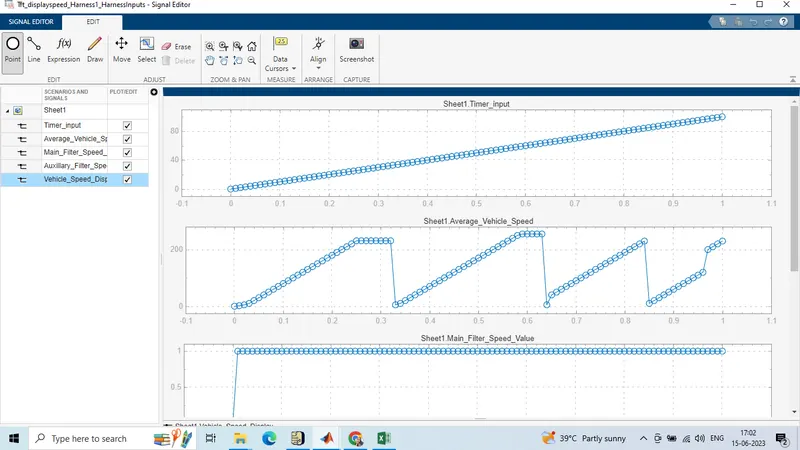
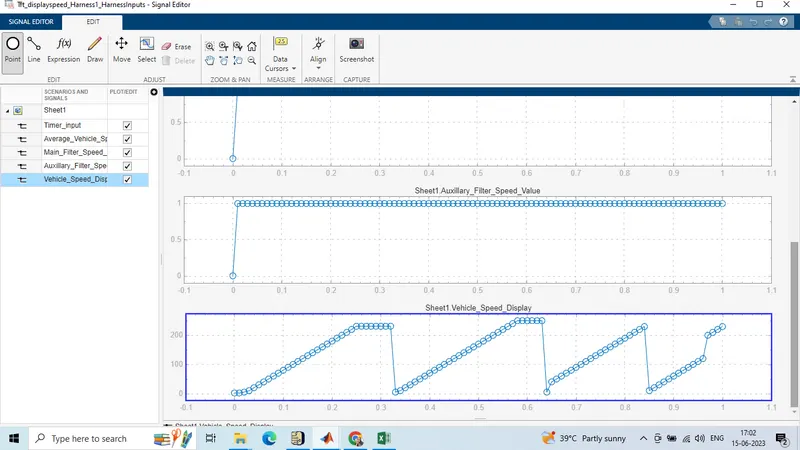
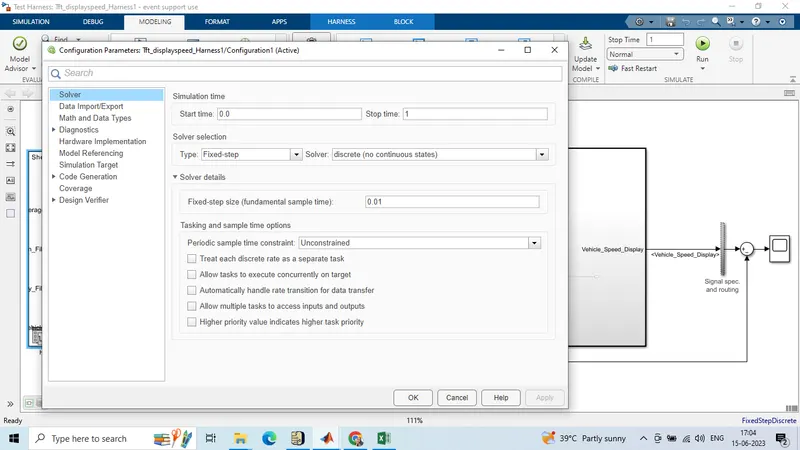
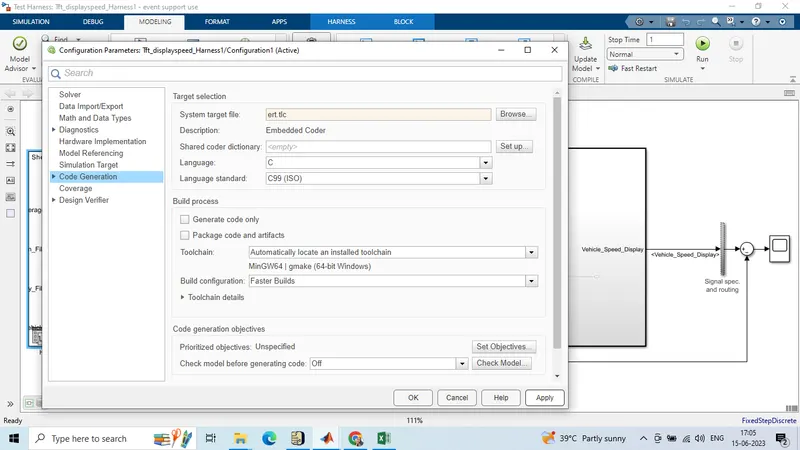
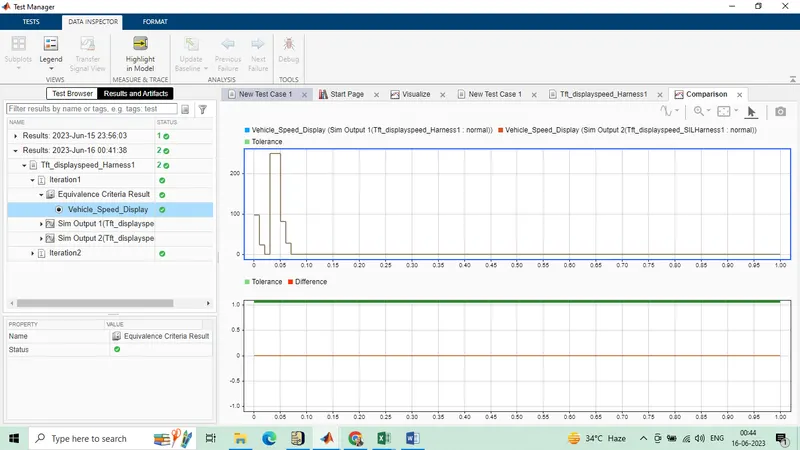
SIL Testing
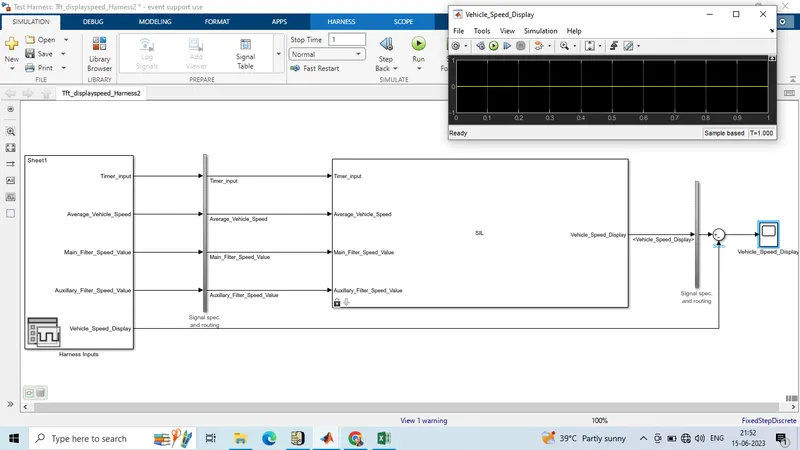
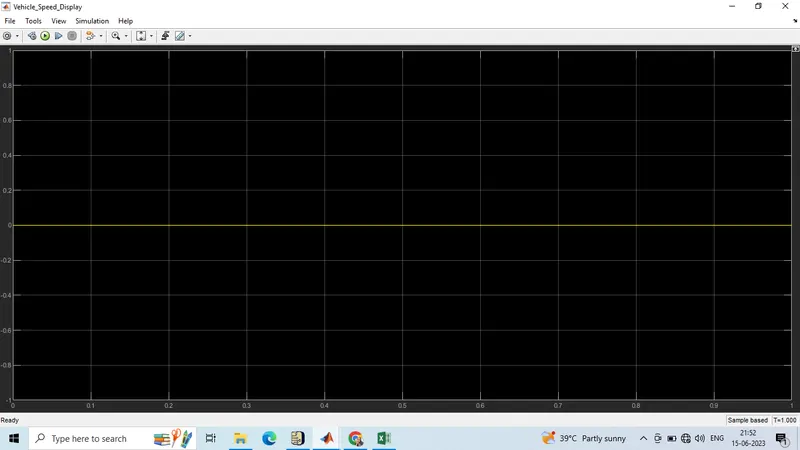
code
/*
* Event Support License -- for demonstration use and event support. Not
* for government, research, commercial, or other organizational use.
*
* File: Tft_displayspeed.c
*
* Code generated for Simulink model 'Tft_displayspeed'.
*
* Model version : 3.4
* Simulink Coder version : 9.9 (R2023a) 19-Nov-2022
* C/C++ source code generated on : Thu Jun 15 21:57:00 2023
*
* Target selection: ert.tlc
* Embedded hardware selection: Intel->x86-64 (Windows64)
* Code generation objectives: Unspecified
* Validation result: Not run
*/
#include "Tft_displayspeed.h"
#include "rtwtypes.h"
#include "Tft_displayspeed_private.h"
/* Exported data definition */
/* Definition for custom storage class: ExportToFile */
uint16_T Vehicle_Speed_Display; /* '/Switch' */
/* Definition for custom storage class: Localizable */
static uint8_T DisplaySpeed_Filter; /* '/Add' */
static uint8_T Display_Speed1; /* '/Add' */
/* Real-time model */
static RT_MODEL_Tft_displayspeed_T Tft_displayspeed_M_;
RT_MODEL_Tft_displayspeed_T *const Tft_displayspeed_M = &Tft_displayspeed_M_;
/* Model step function */
void Tft_displayspeed_step(void)
{
/* local block i/o variables */
uint16_T Display_Speed;
/* Outputs for Atomic SubSystem: '/Subsystem' */
/* Saturate: '/Saturation' incorporates:
* Inport: '/Average_Vehicle_Speed'
*/
if (Average_Vehicle_Speed > 250) {
/* Saturate: '/Saturation' */
Display_Speed = 250U;
} else if (Average_Vehicle_Speed < 2) {
/* Saturate: '/Saturation' */
Display_Speed = 2U;
} else {
/* Saturate: '/Saturation' */
Display_Speed = Average_Vehicle_Speed;
}
/* End of Saturate: '/Saturation' */
/* Outputs for Enabled SubSystem: '/Auxiliary_Data_Filtering' incorporates:
* EnablePort: '/Enable'
*/
/* Outputs for Enabled SubSystem: '/Main_Data_Filtering' incorporates:
* EnablePort: '/Enable'
*/
/* RelationalOperator: '/Compare' incorporates:
* Constant: '/Constant'
* Constant: '/Constant'
* Inport: '/Timer_input'
* Product: '/Divide'
*/
if ((real_T)Timer_input / 10.0 == 0.0) {
/* Product: '/Divide' incorporates:
* Inport: '/Main_Filter_Speed_Value'
*/
if (Main_Filter_Speed_Value == 0U) {
/* Sum: '/Add' */
Display_Speed1 = MAX_uint8_T;
/* Divide by zero handler */
} else {
/* Sum: '/Add' incorporates:
* Product: '/Product'
*/
Display_Speed1 = (uint8_T)((uint32_T)Display_Speed /
Main_Filter_Speed_Value);
}
/* End of Product: '/Divide' */
/* Product: '/Divide' incorporates:
* Inport: '/Auxillary_Filter_Speed_Value'
*/
if (Auxillary_Filter_Speed_Value == 0U) {
/* Sum: '/Add' */
DisplaySpeed_Filter = MAX_uint8_T;
/* Divide by zero handler */
} else {
/* Sum: '/Add' incorporates:
* Product: '/Product'
*/
DisplaySpeed_Filter = (uint8_T)((uint32_T)Display_Speed1 /
Auxillary_Filter_Speed_Value);
}
/* End of Product: '/Divide' */
}
/* End of RelationalOperator: '/Compare' */
/* End of Outputs for SubSystem: '/Main_Data_Filtering' */
/* End of Outputs for SubSystem: '/Auxiliary_Data_Filtering' */
/* Switch: '/Switch' incorporates:
* Constant: '/Constant'
* RelationalOperator: '/Compare'
* Sum: '/Add'
*/
if ((uint16_T)(Display_Speed - DisplaySpeed_Filter) > 2) {
/* Switch: '/Switch' */
Vehicle_Speed_Display = Display_Speed;
} else {
/* Switch: '/Switch' */
Vehicle_Speed_Display = DisplaySpeed_Filter;
}
/* End of Switch: '/Switch' */
/* End of Outputs for SubSystem: '/Subsystem' */
}
/* Model initialize function */
void Tft_displayspeed_initialize(void)
{
/* (no initialization code required) */
}
/* Model terminate function */
void Tft_displayspeed_terminate(void)
{
/* (no terminate code required) */
}
/*
* File trailer for generated code.
*
* [EOF]
*/
sldv
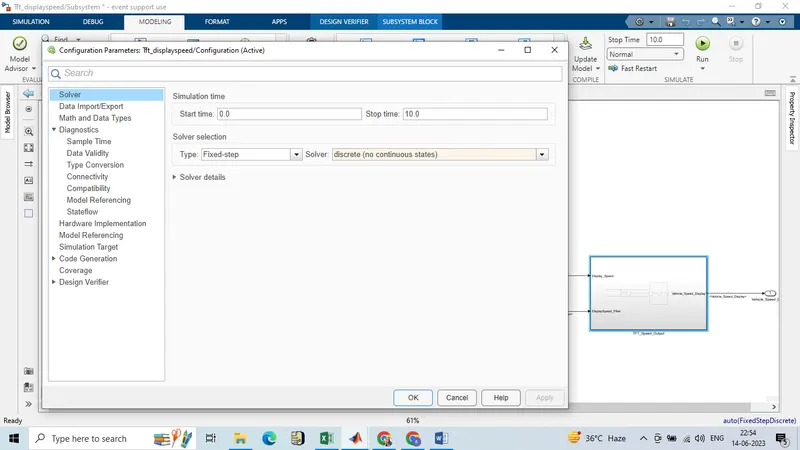
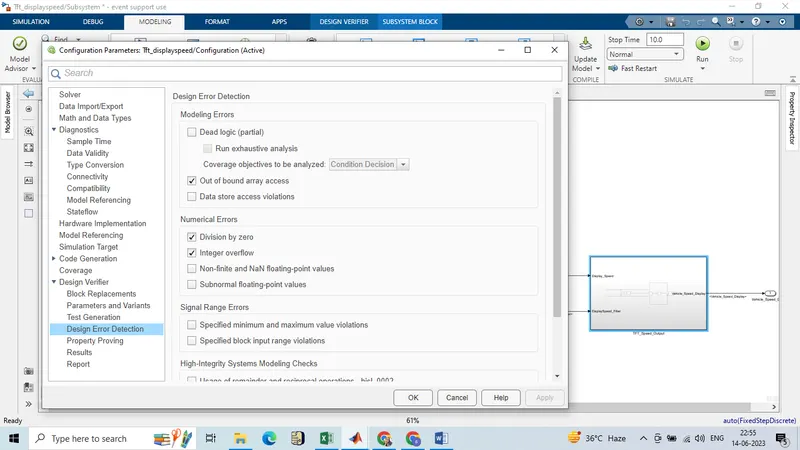
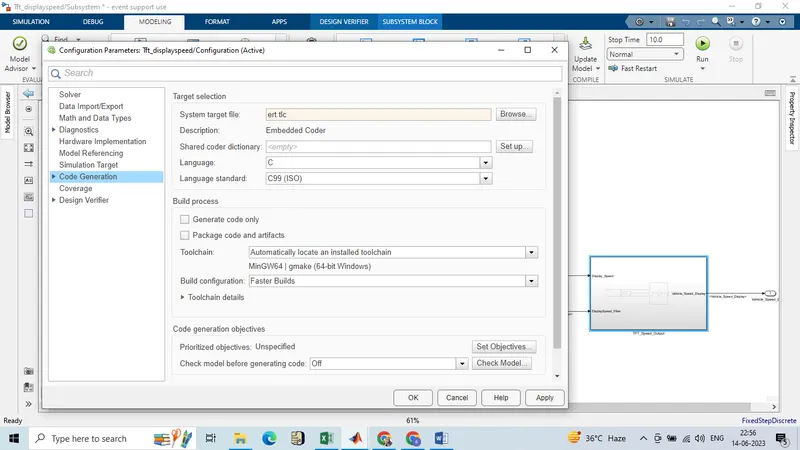
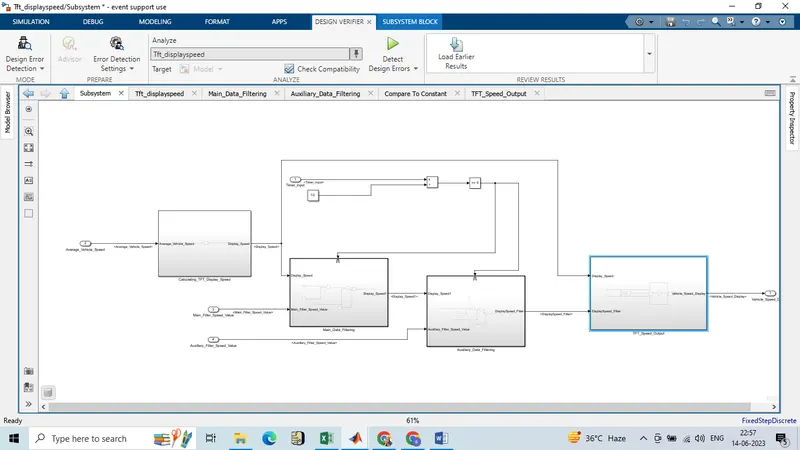
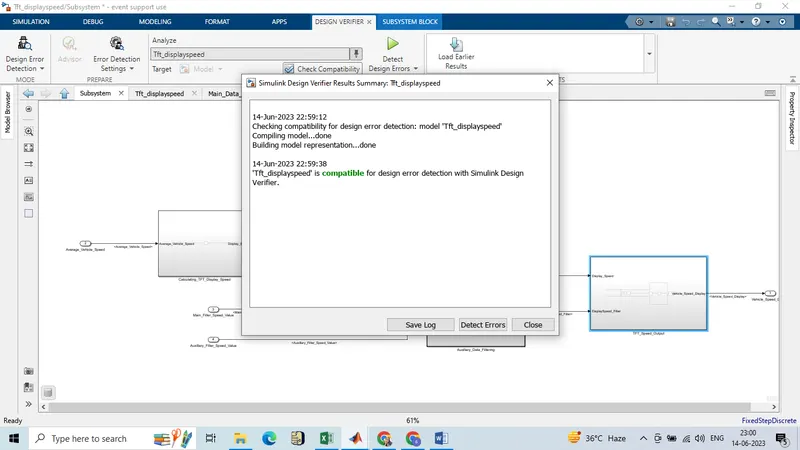
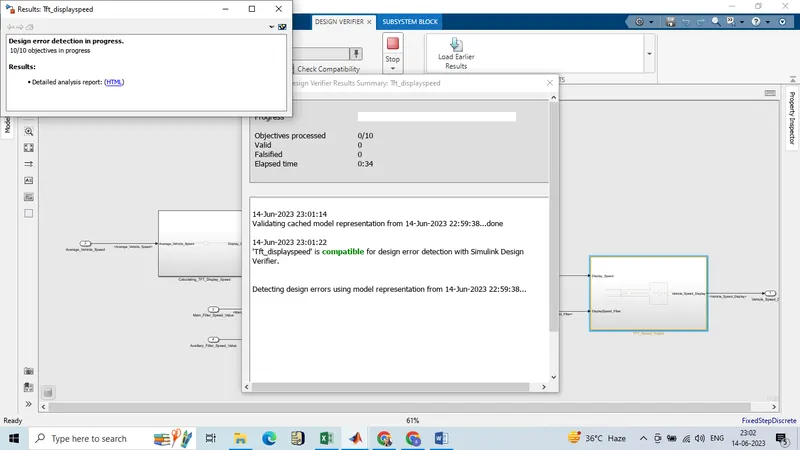
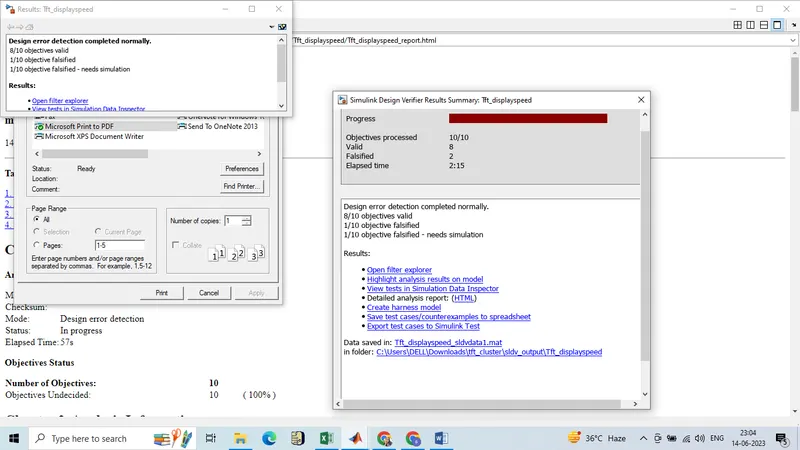
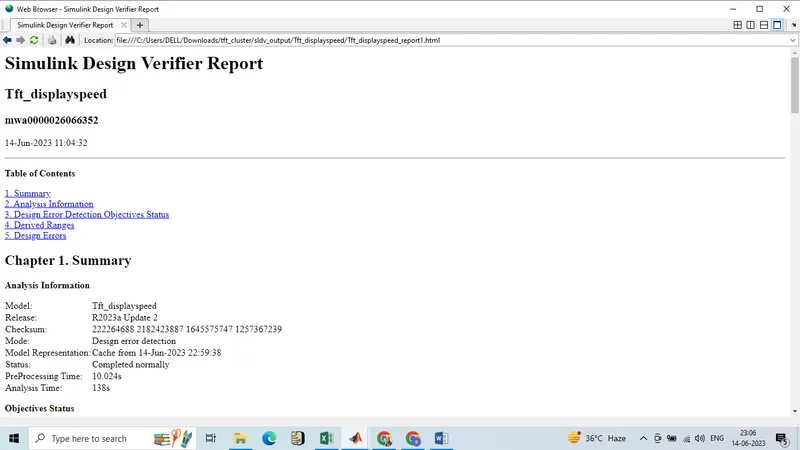
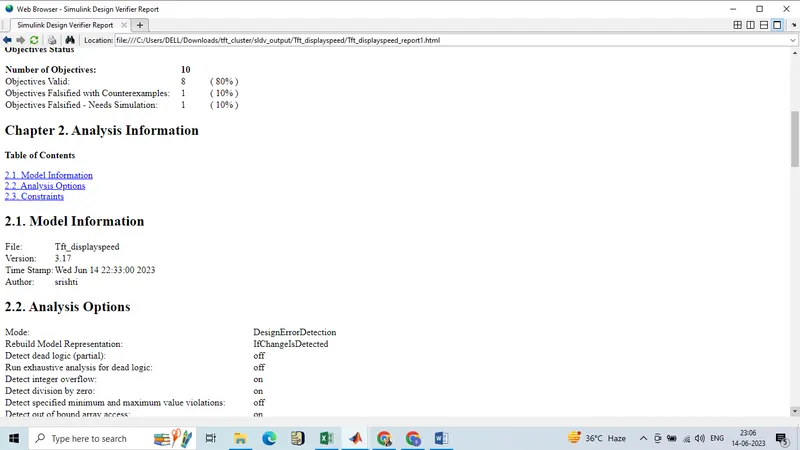
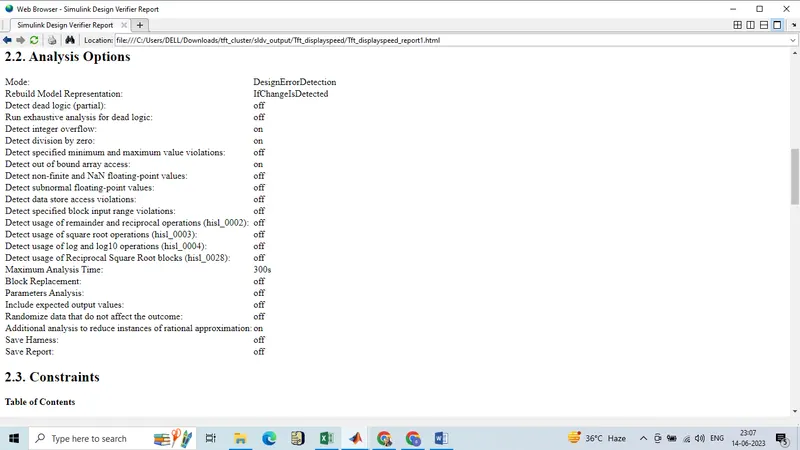
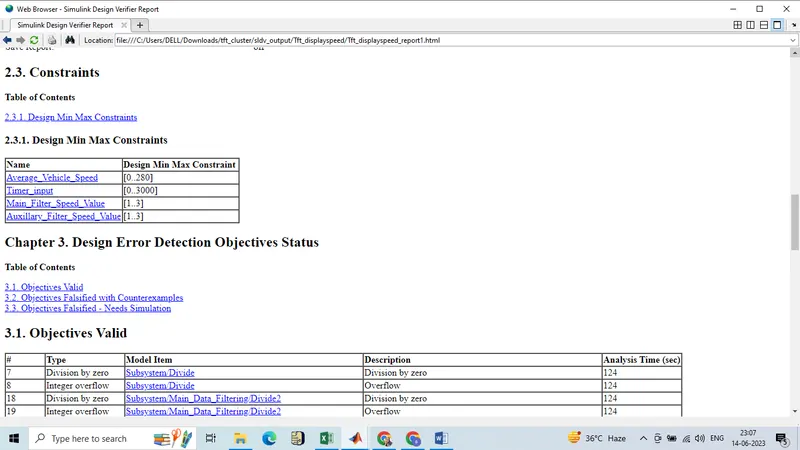
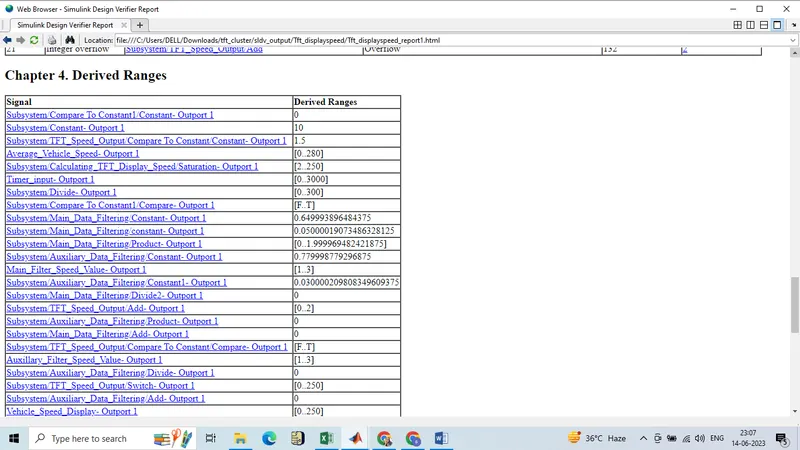
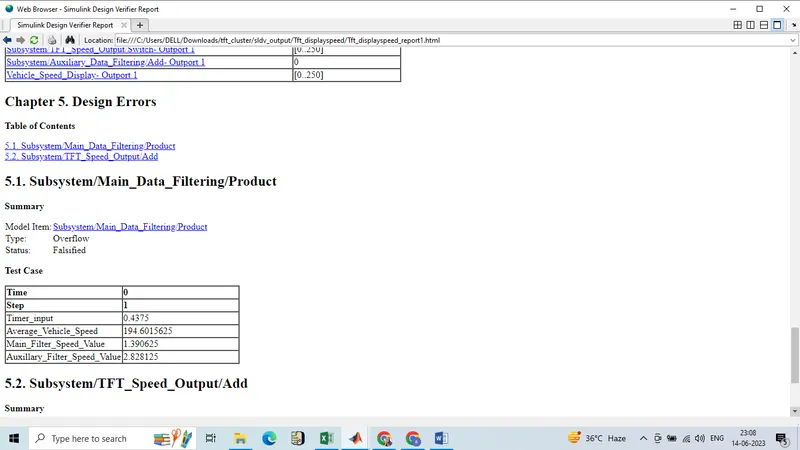
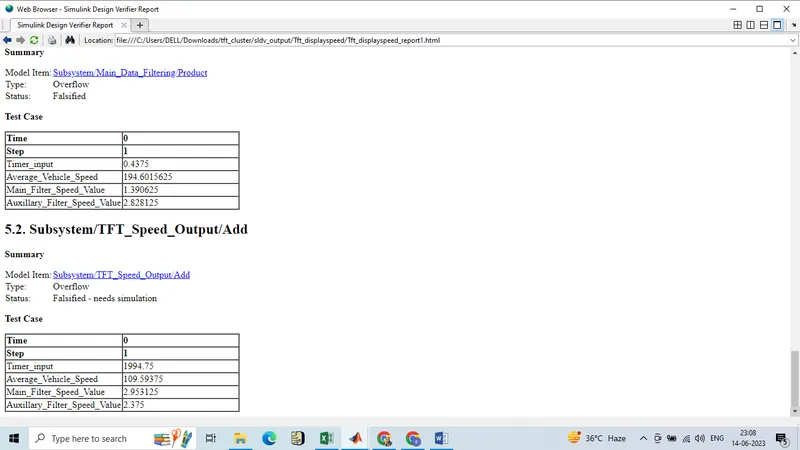
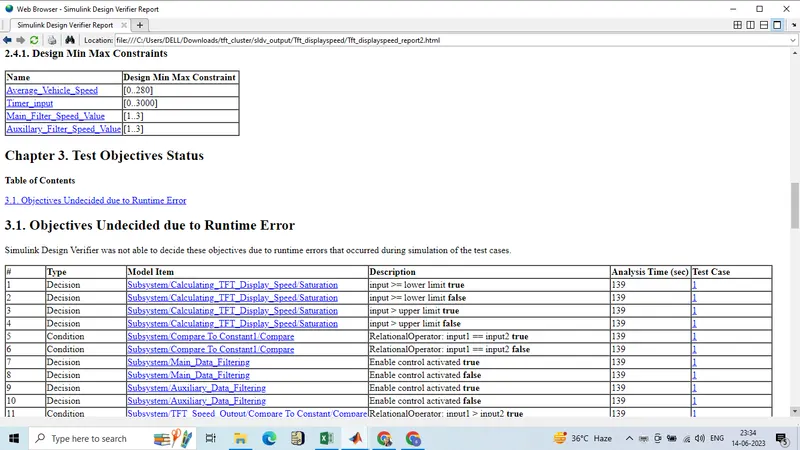
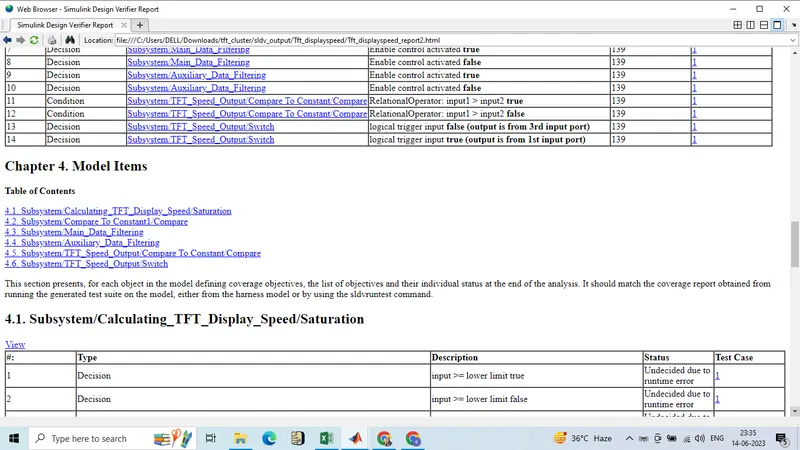
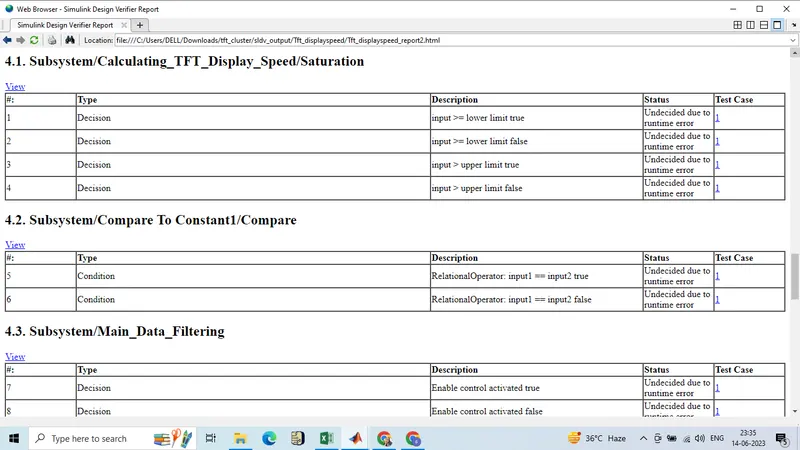
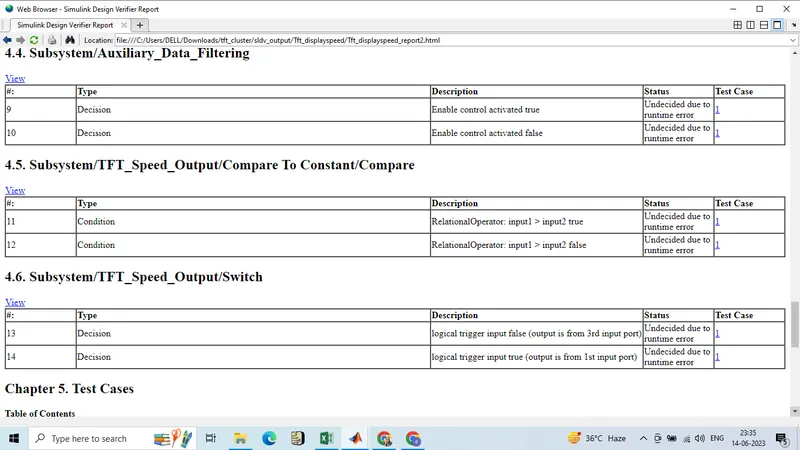
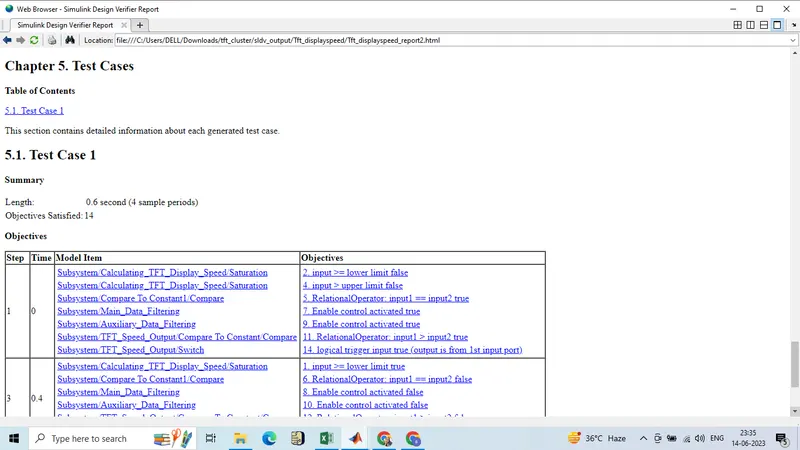
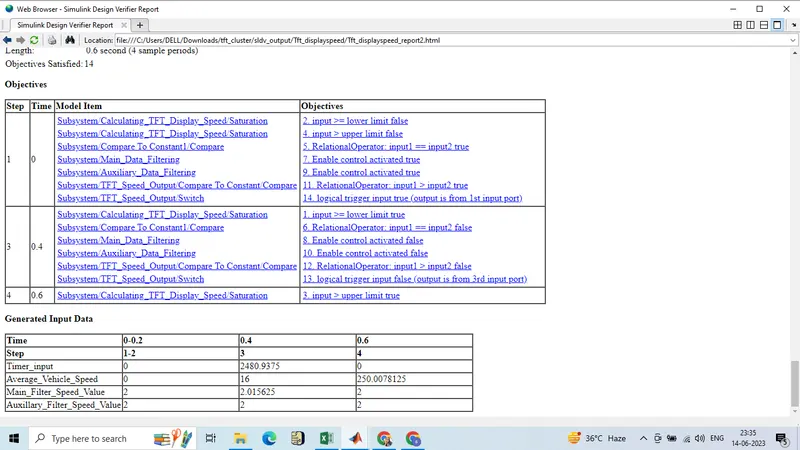
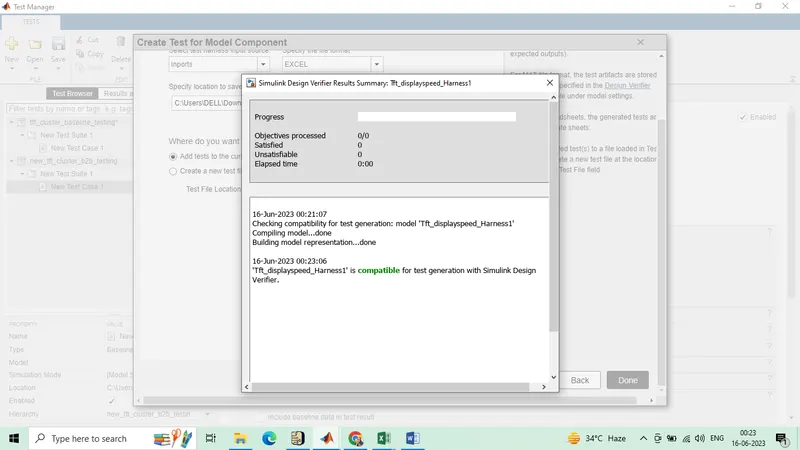
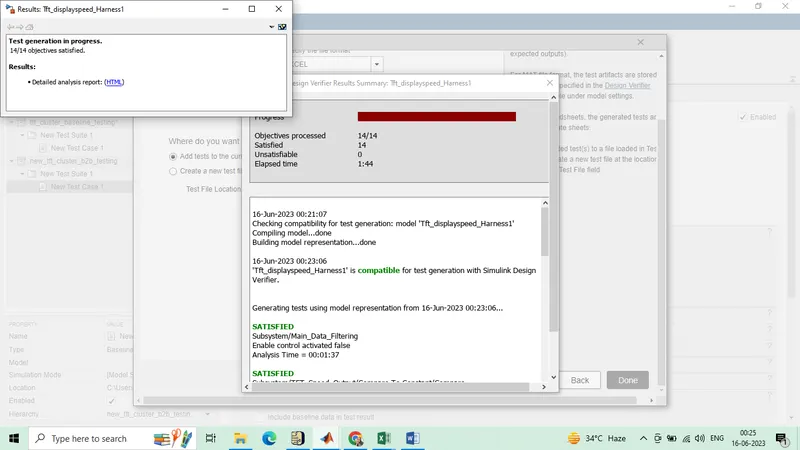
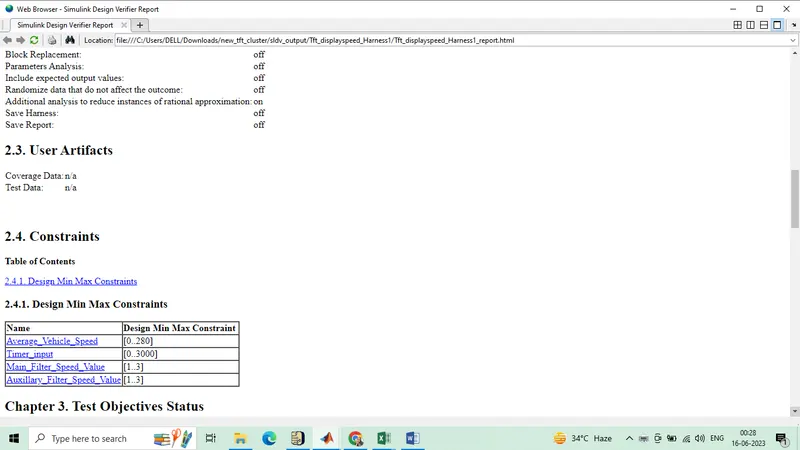
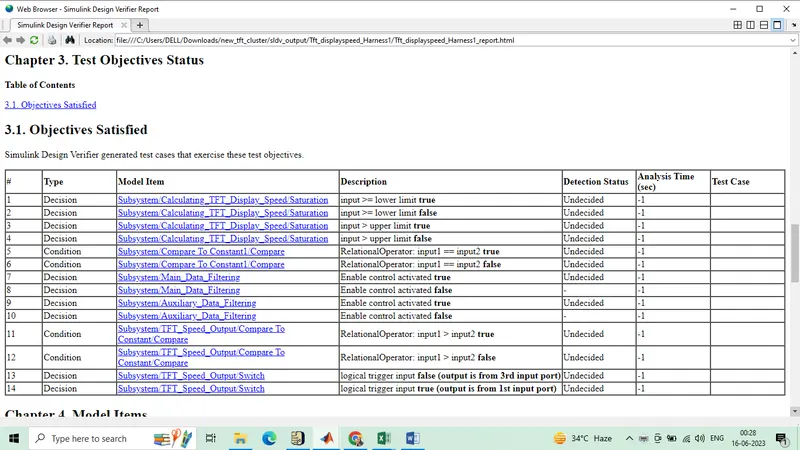
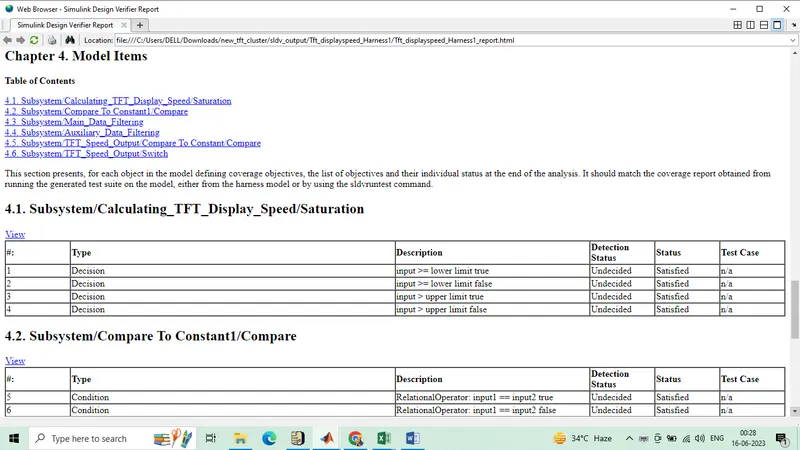
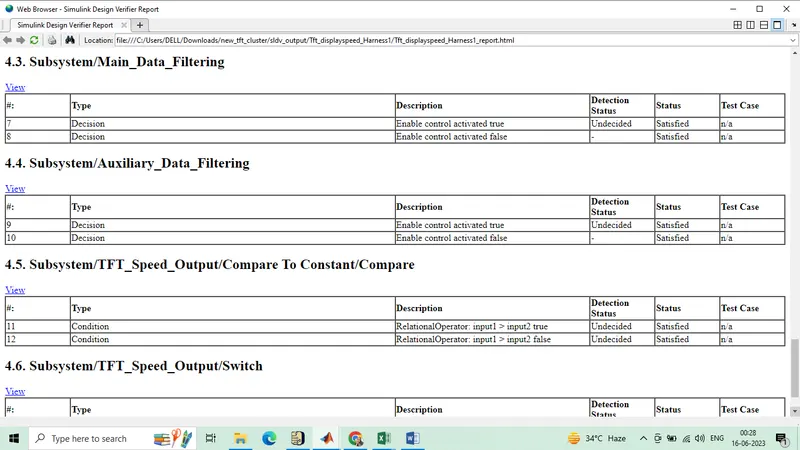
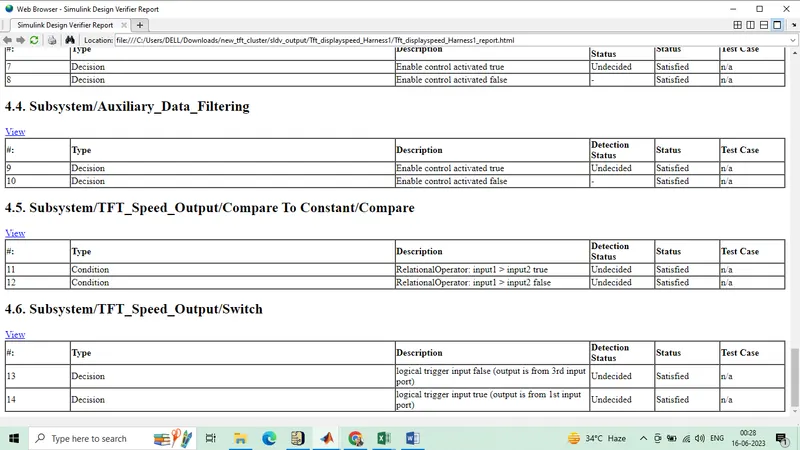
Go to the model>>open the 'Design verifier' app>>Select 'design error Detection'>>'then Error detection setting'
Design error detection mode
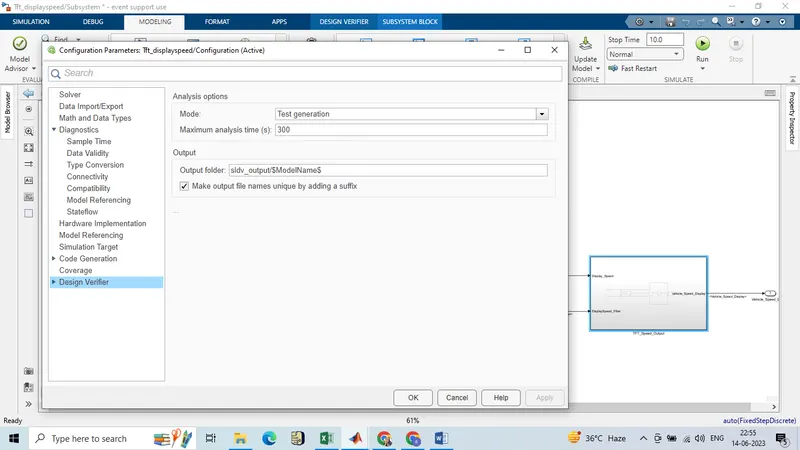
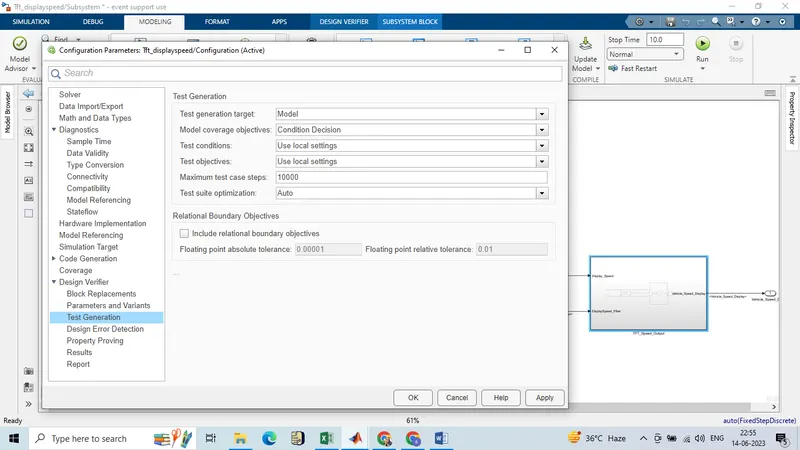
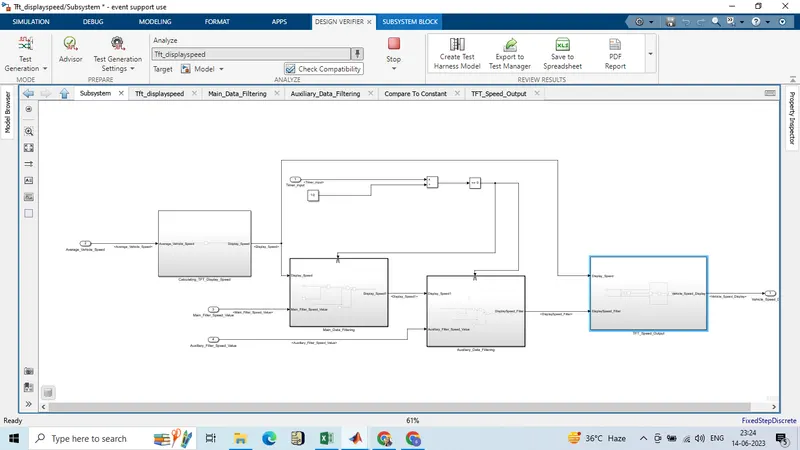
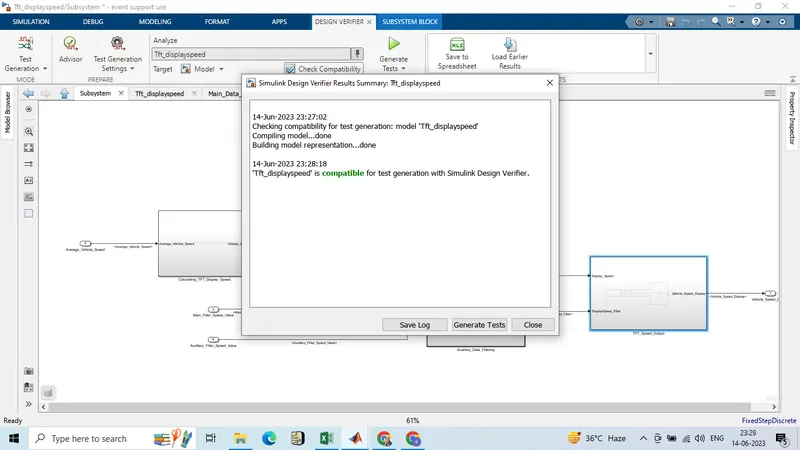
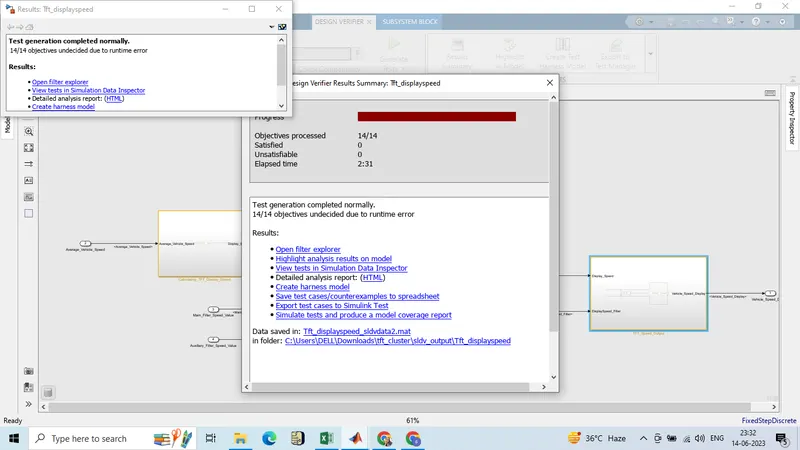
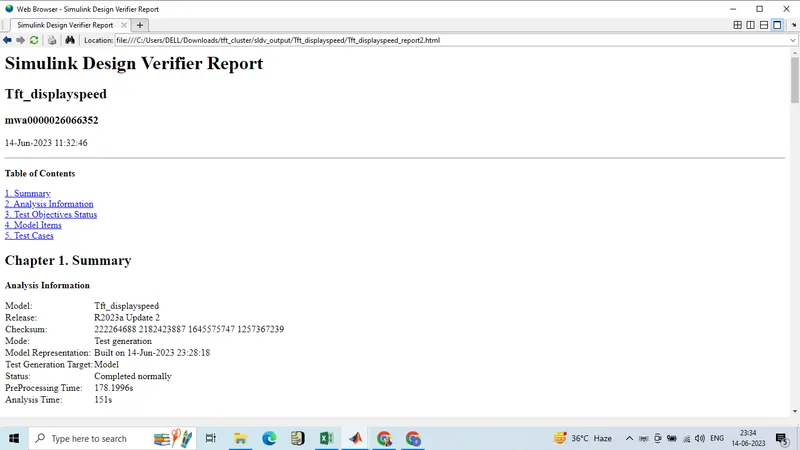
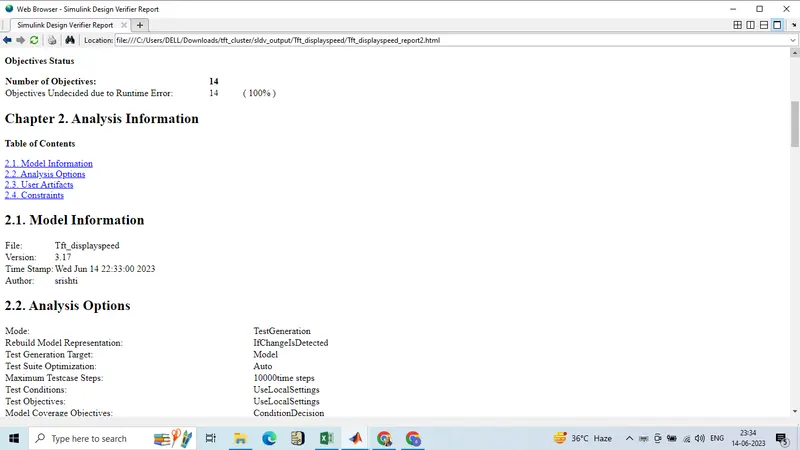
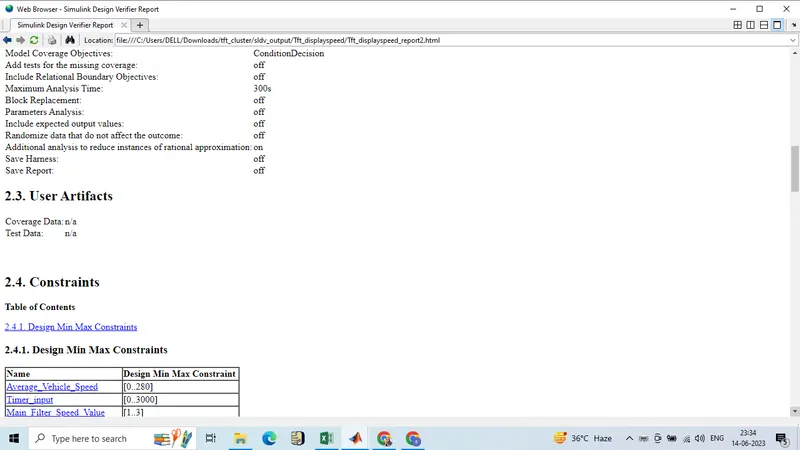
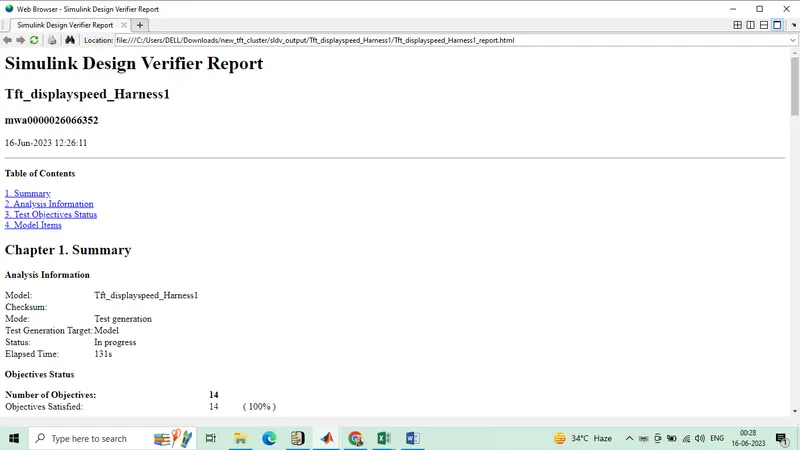
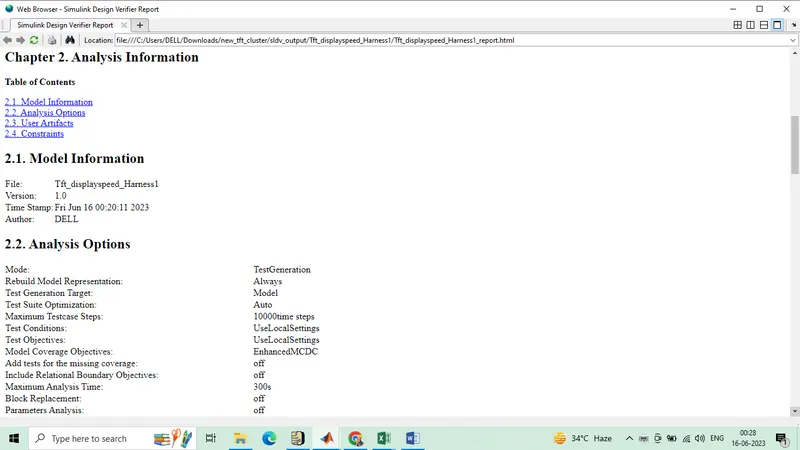
Test generation mode
Polyspace:-
Polyspace Bug Finder and Code Prover:
Polyspace Bug Finder and Polyspace Code Prover are both software testing tools developed by MathWorks for detecting and analyzing software defects.
Polyspace Bug Finder is primarily used for identifying coding errors and security vulnerabilities in software code. It uses advanced static analysis techniques to detect potential run-time errors, such as buffer overflows, null pointer dereferencing, and division by zero. It also performs data flow analysis to detect issues such as uninitialized variables and dead code.
Polyspace Code Prover, on the other hand, is designed to provide formal verification of software code. It uses mathematical methods to prove that the code satisfies certain correctness properties, such as absence of run-time errors, functional correctness, and compliance with coding standards. It can analyze both control flow and data flow to prove program correctness, and generates a mathematical proof of the absence of run-time errors.
Polyspace Bug Finder:
First we need to generate the code by using Embedded C tool which is the inbuild part of the MATLAB.
Go to Polyspace and click on 'start a new project' and give a project name.
Check the option 'Use default location'. If you want to save in different location, uncheck the box and select the location from configuration option.
You will be redirected to the new window which will be divided into two part. One is for Project Browser and another one is for Configuration.
First go to configuration and do some required changes.
Under the Target & Compiler,
source Code language: C
C standard version: defined by compiler
compiler: Generic
Target Processor type: x86_64
uncheck the 'Division Round Down'
Pack alignment value:defined by compiler
uncheck the box for 'Ignore pragma pack directives'
7. Coding standard and coding metrics,
Check MISRA C:2004 (You can check any other option as per requirement)
check the box of 'Calculate Code Metrics'
8. Bug Finder Analysis,
Make sure the default check box in=s enabled for Find defectes
9. Reporting,
Check for Generate Report
Code Prover report: Developer
Bug Finder report: Bug Finder Summary
Output Format: PDF
10. Save and Run Bug Finder(Make sure the option Bug Finder from the drop down menu)
11. Result list and details both will be appeared in the next window and from there you can verify all the results.
Polyspace Code Prover:
Now to run the Code prover, few configuration settings should be introduced.
Beside the result details, Configuration option will be there. Go there.
Environment Settings,
Check the 'Code from DOS or window file system'
Check the 'Stop Analysis if a file does not compile' (Note: You have to uncheck if tool is not run)
4. Code prover Verification,
In Check behaviour: Check the 'allow negative operand for left shifts' and 'consider non filite float'
Precision: Choose the level: 2
Verification level: software safety analysis level 2
5. Save and Run Code Prover. (Select 'Code Prover' from drop down menu)
6. In the left window, Result coulmn will be appeared and Here click into the Result Details. A graph will come along with all other details.
7. Here a color coding is used to determine the result:
Green: Codes are checked and it is valid
Grey: Parts of the code is checked but can not be executed.
Black: Part of the code is not chekced. This will be checked by correcting the tool level analysis settings.
Baseline testing:-
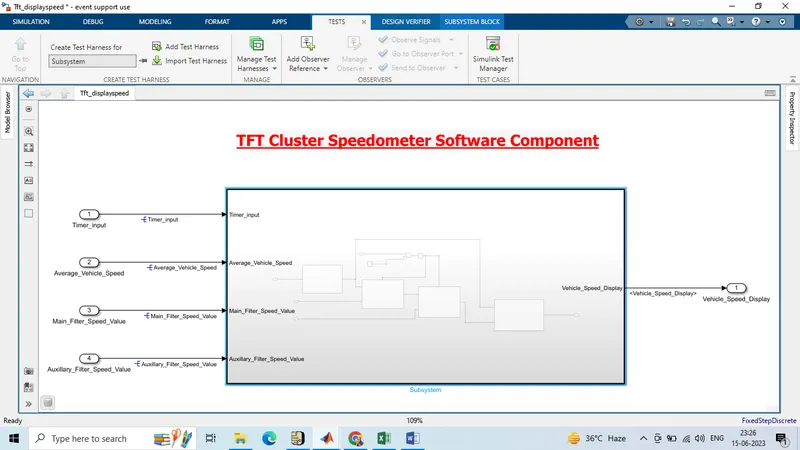
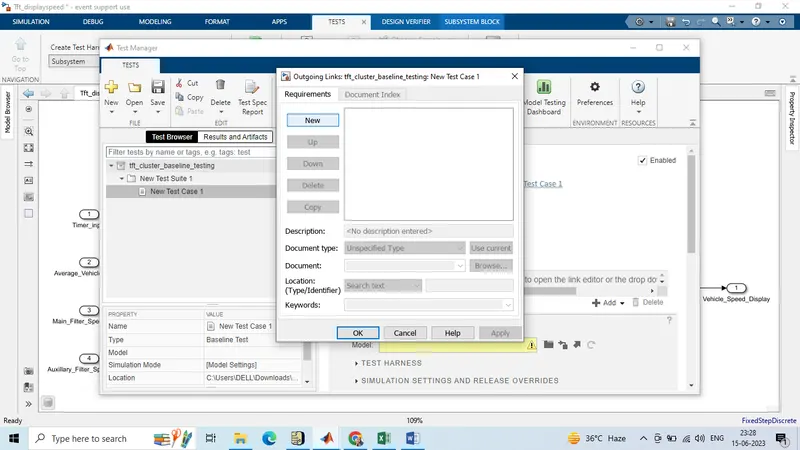
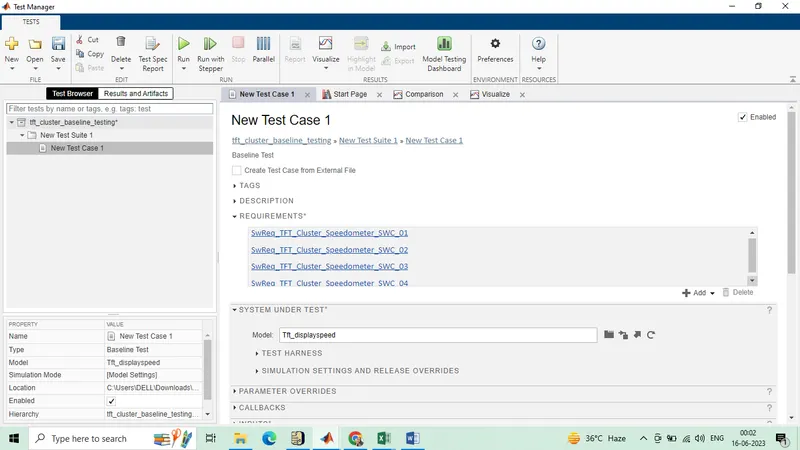
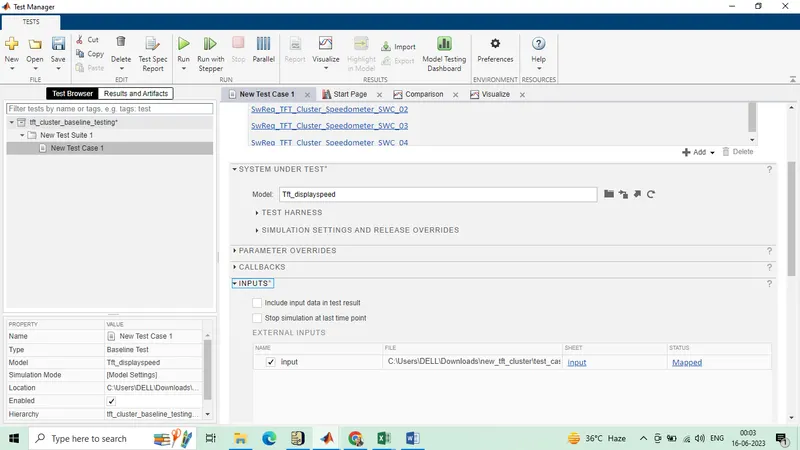
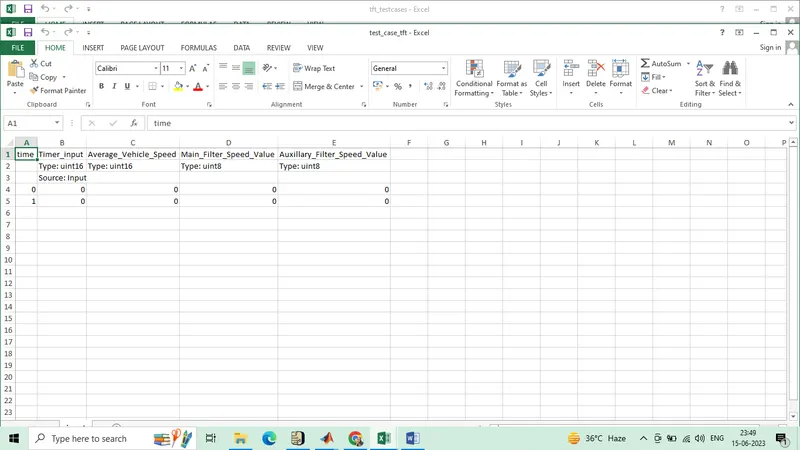
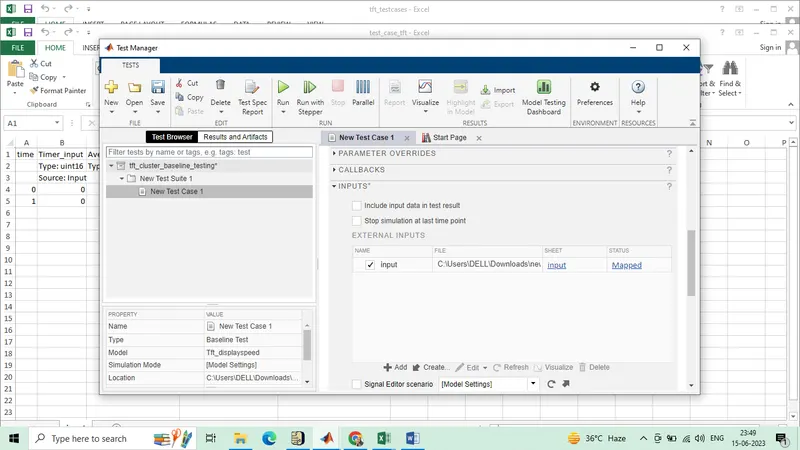
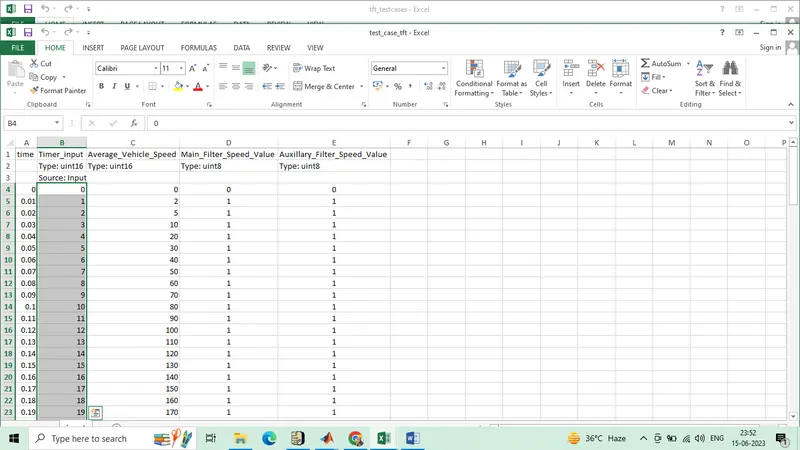
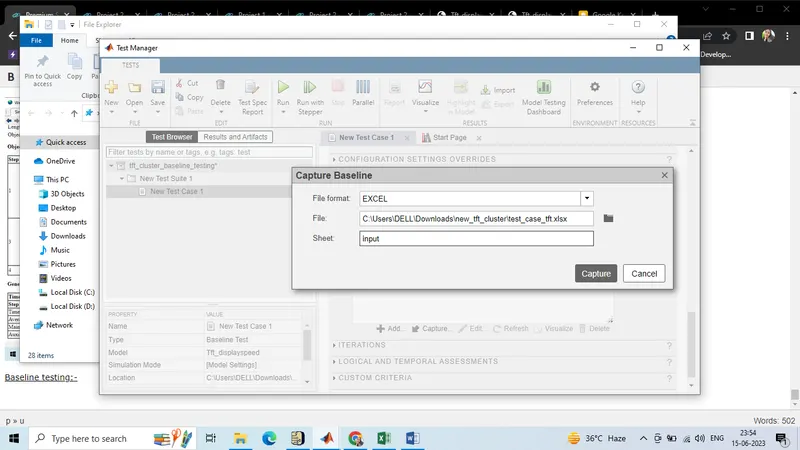
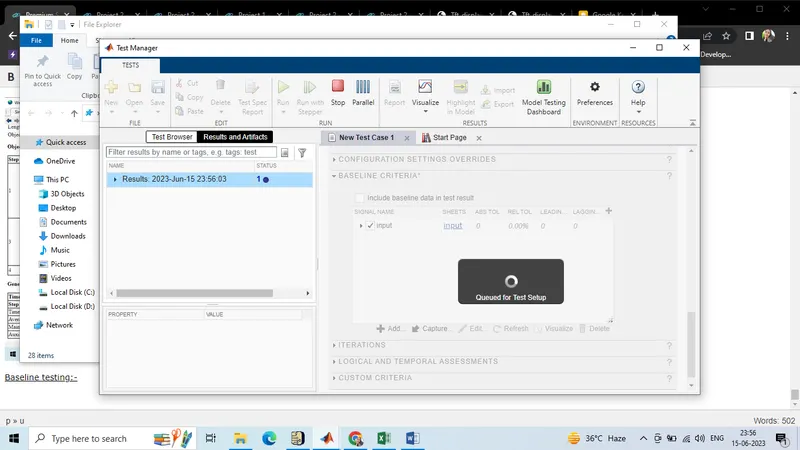
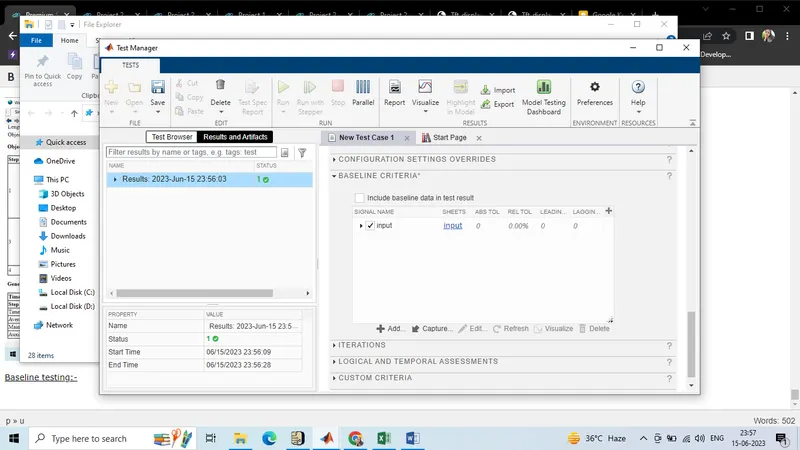
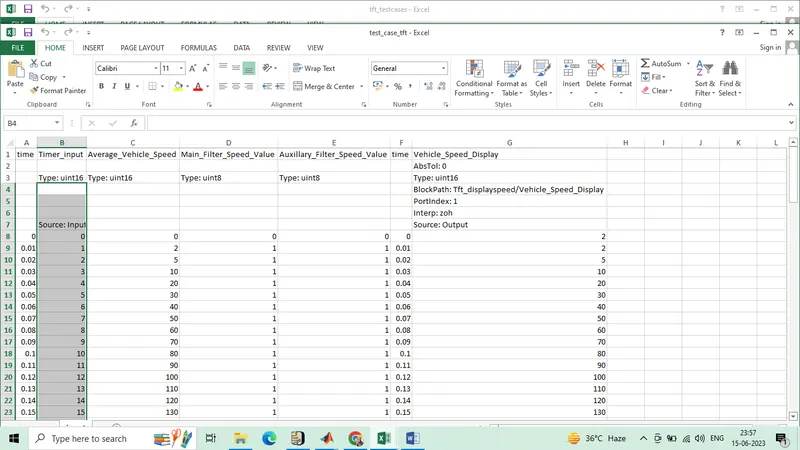
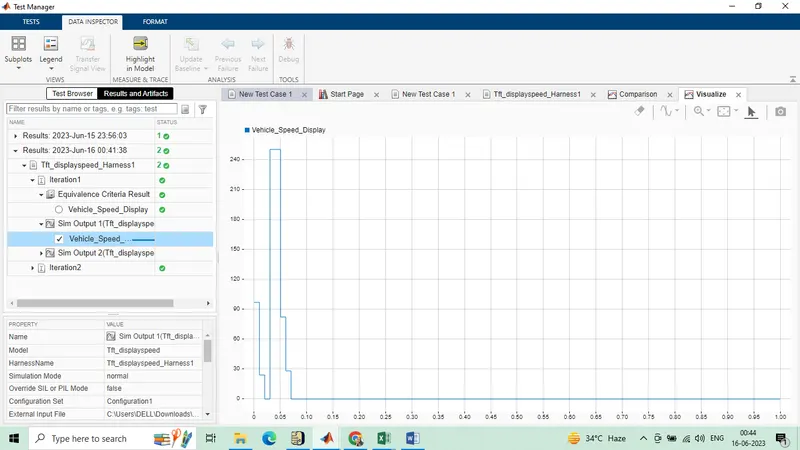
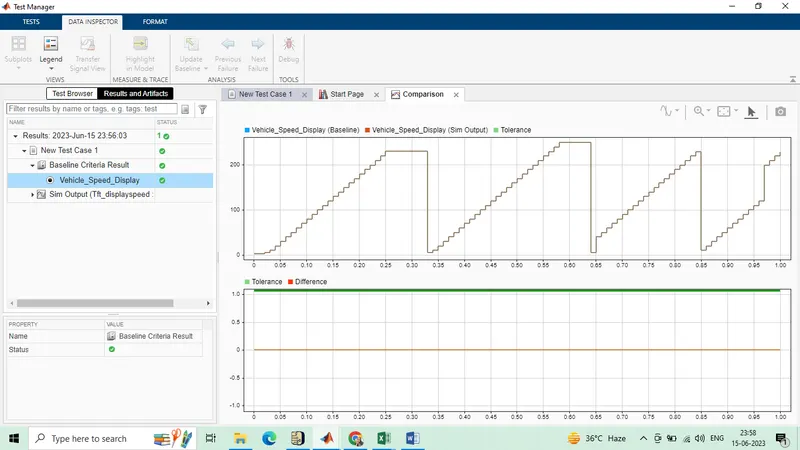
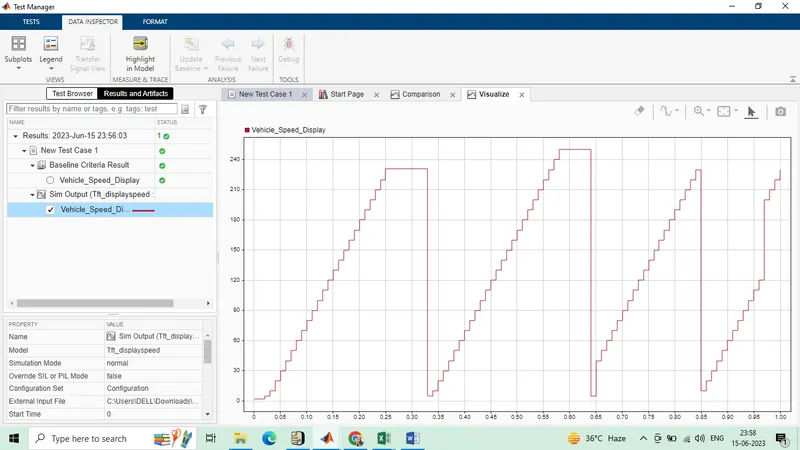
Baseline testing result
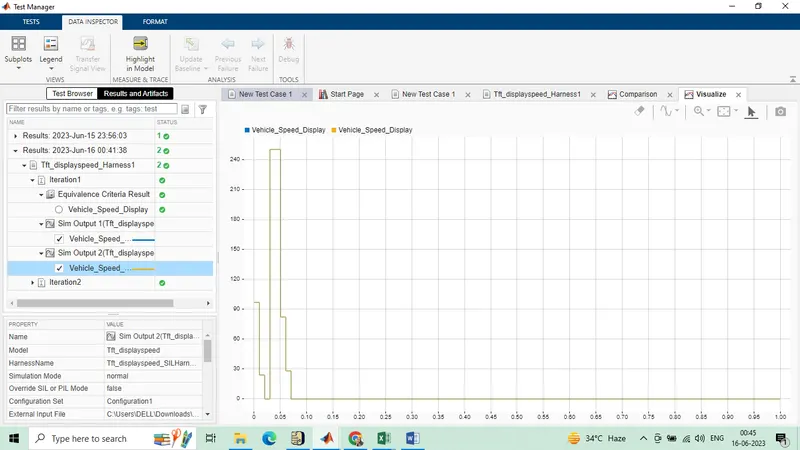
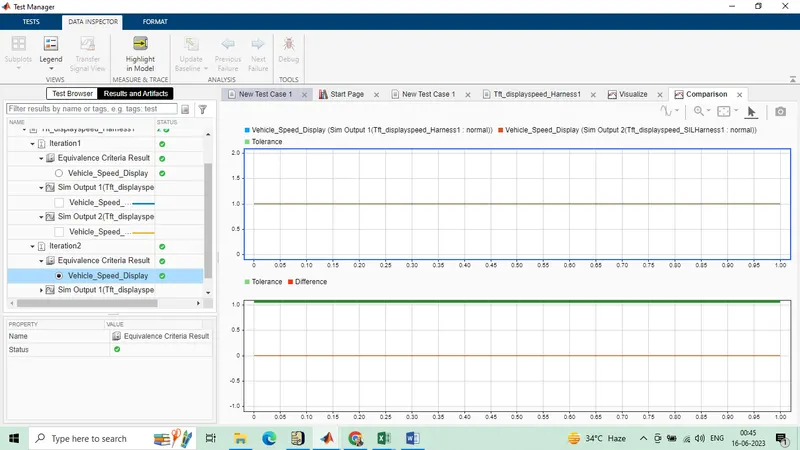
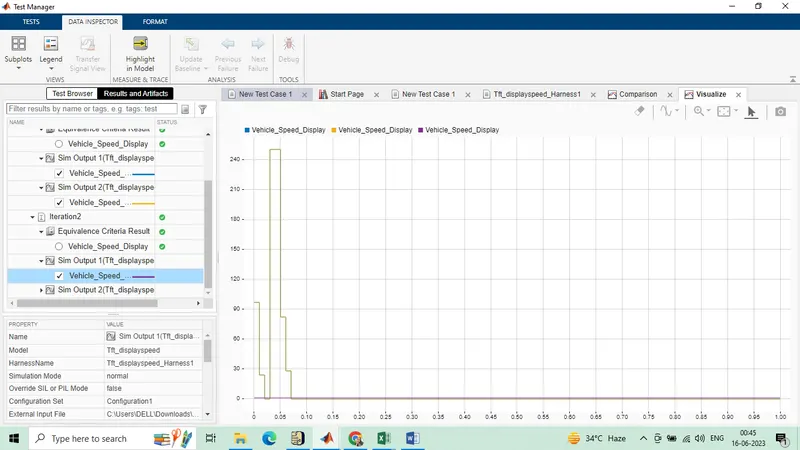
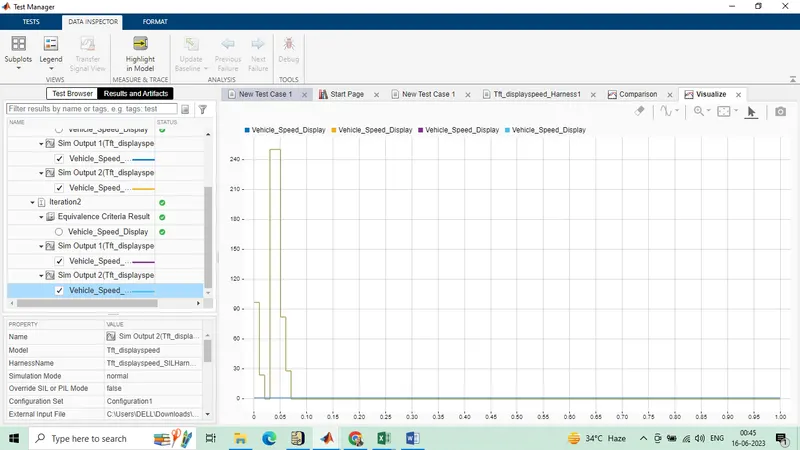
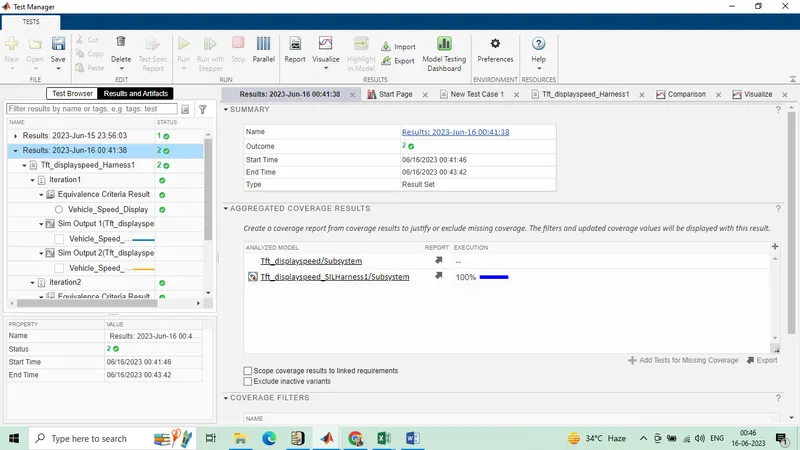
Back_to back testing
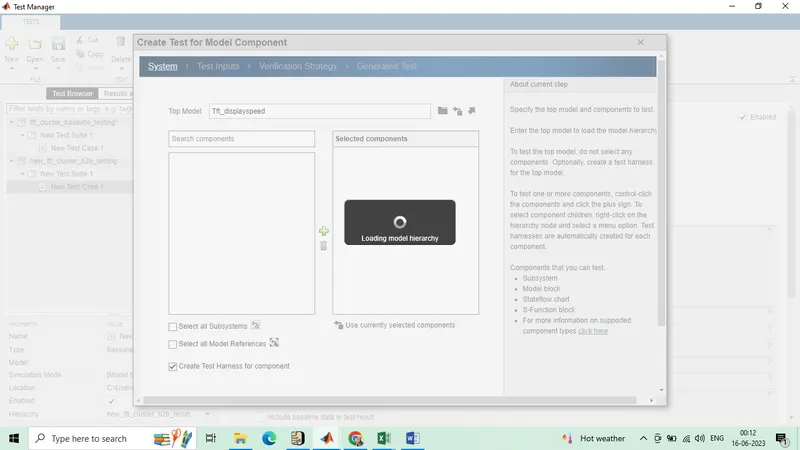
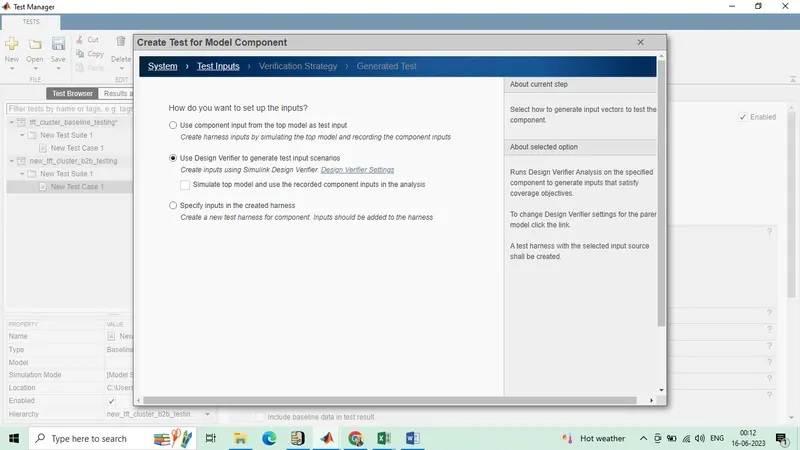
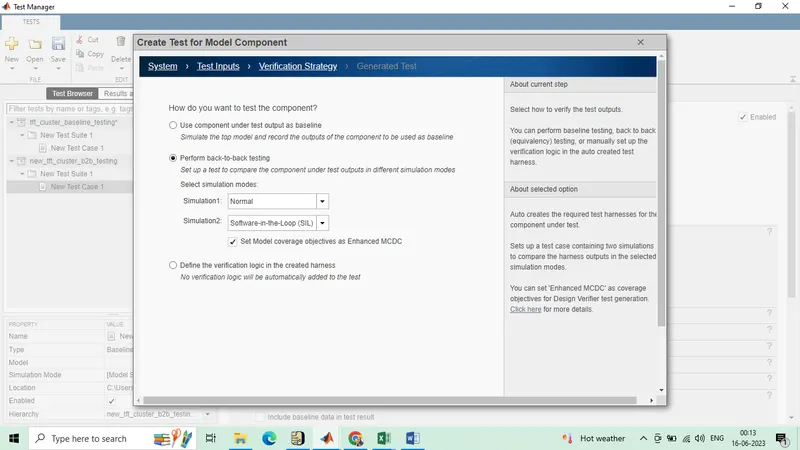
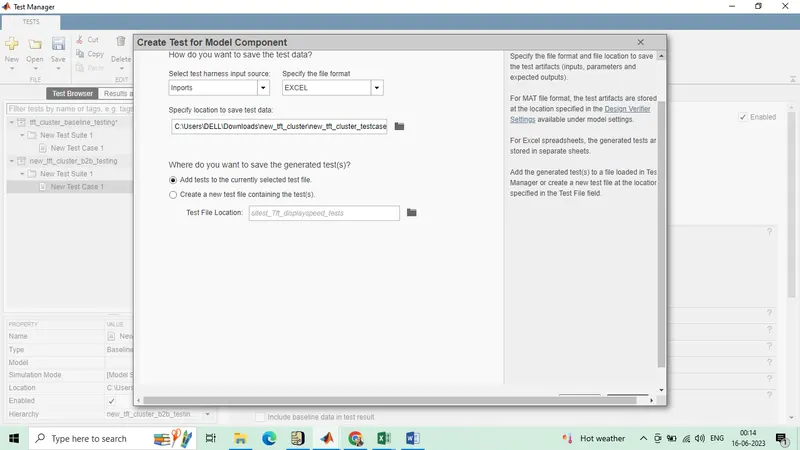
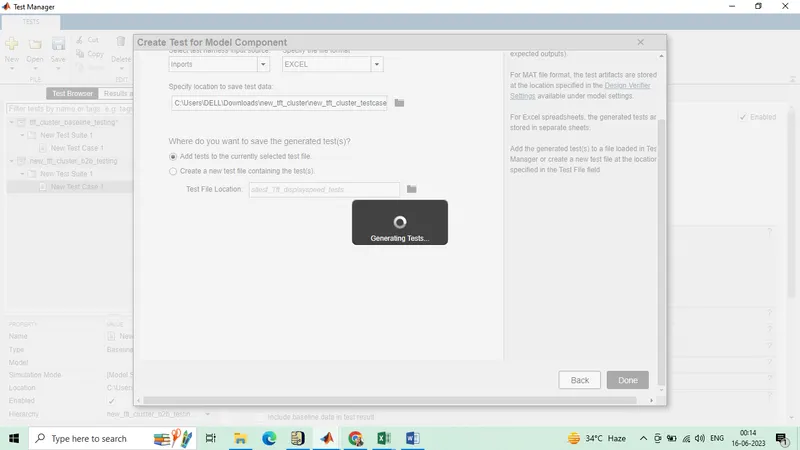
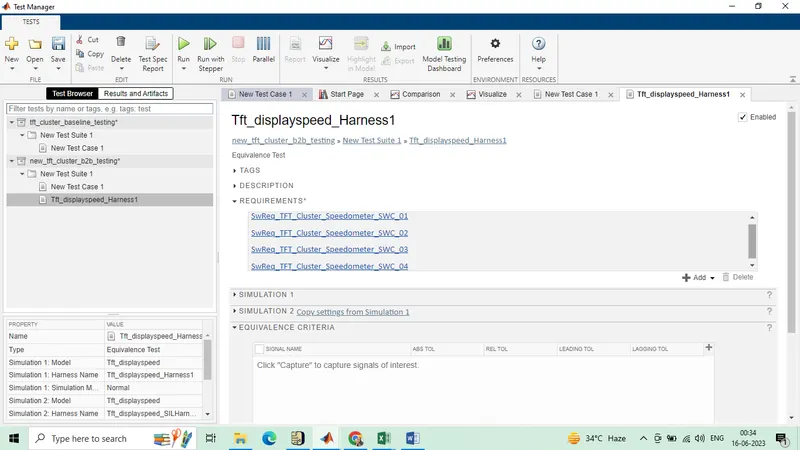
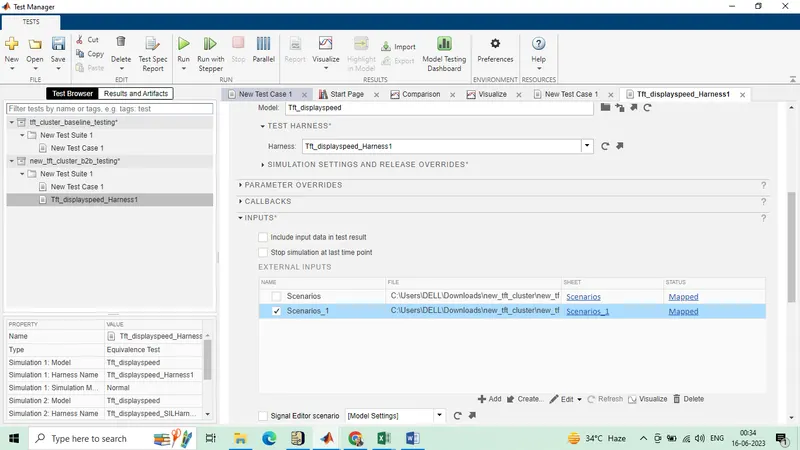
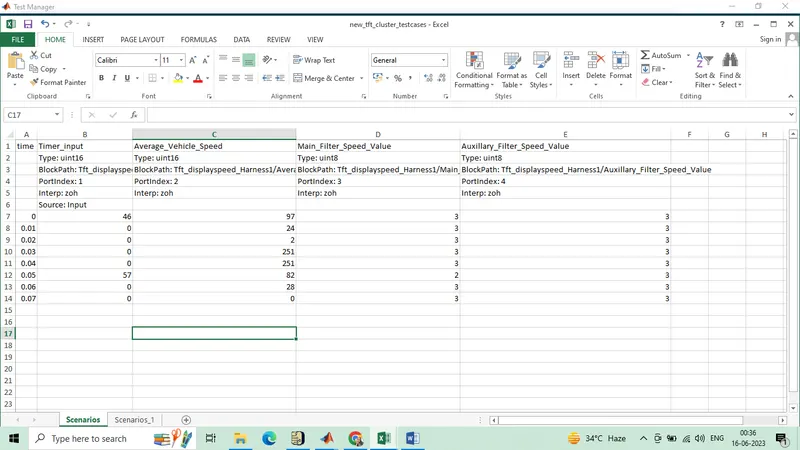
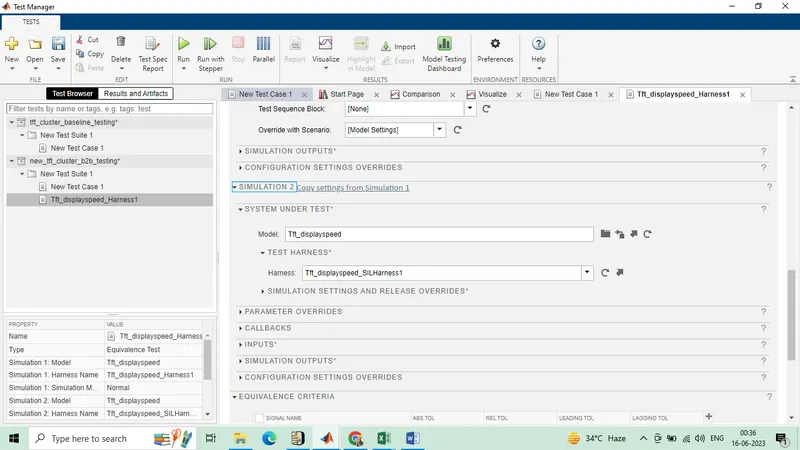
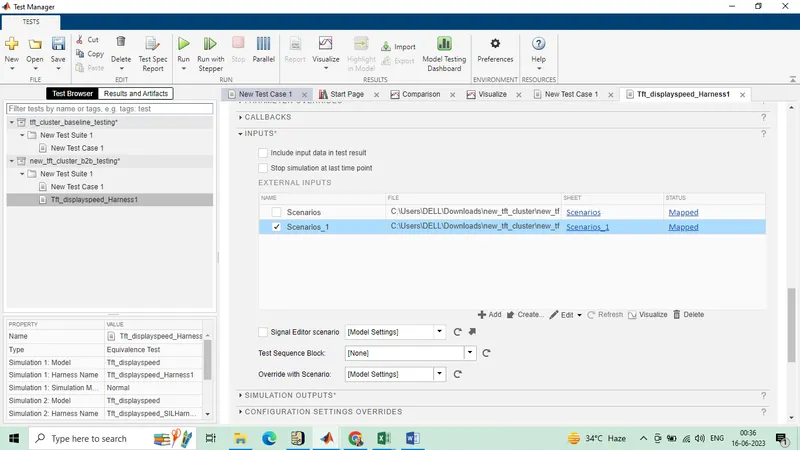
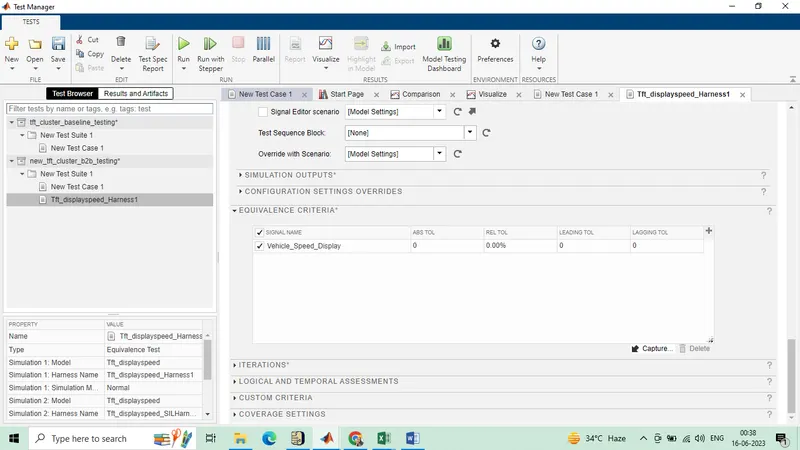
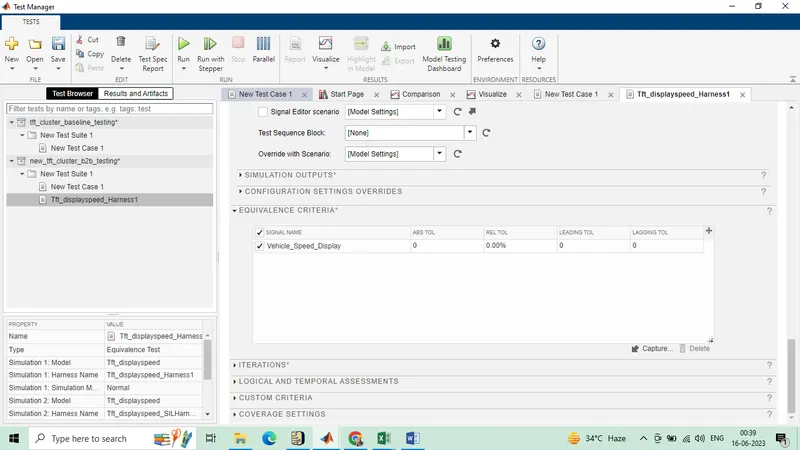
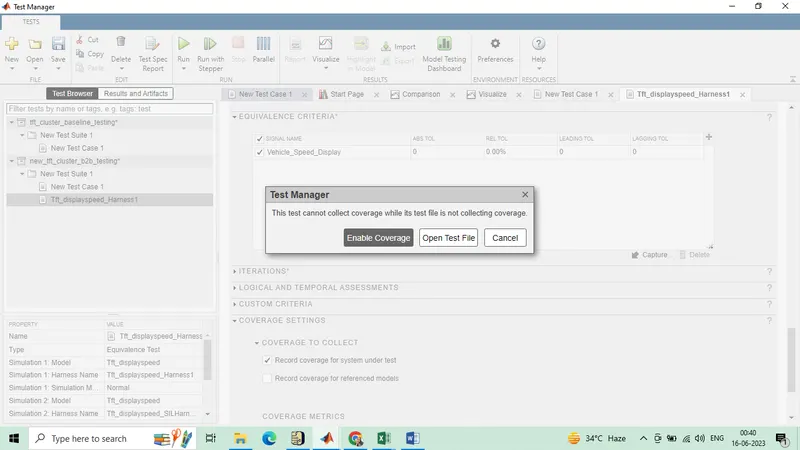
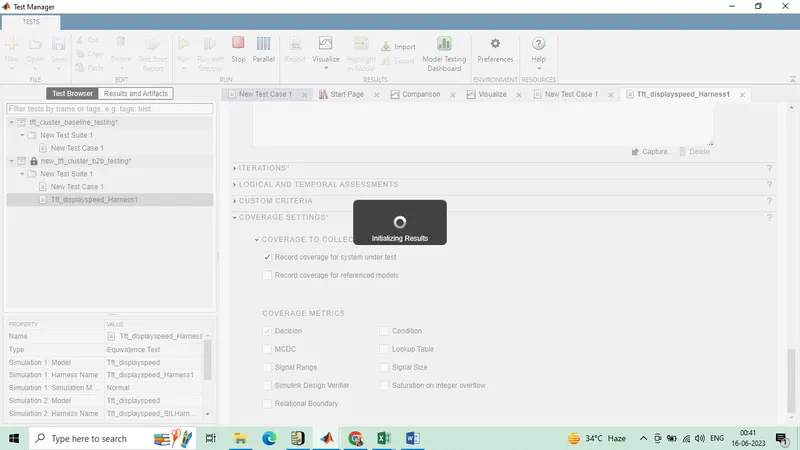
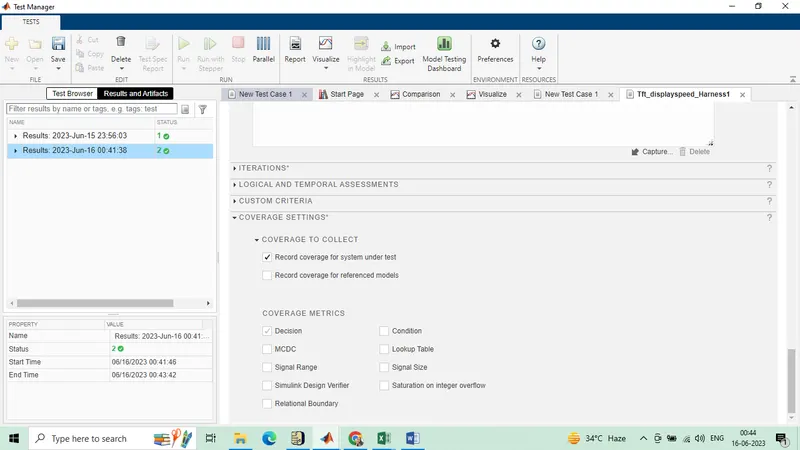
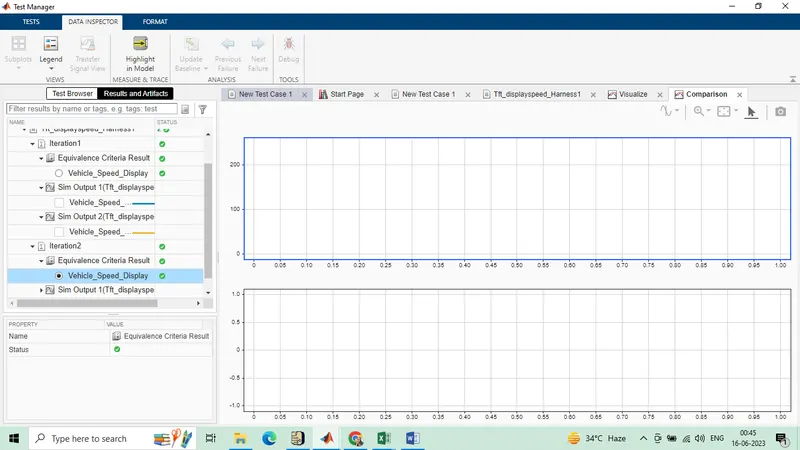
Back to back testing result