Project 2 - Create a report using PowerQuery, Macro VBA, List Functions and Data Validation functions for Data Reporting of Supply Chain Management companies
Project 2
i) Features of Dashboard
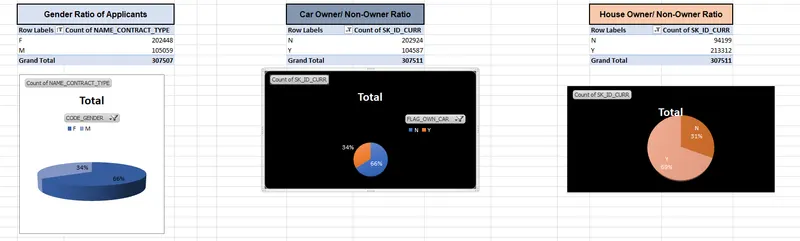
- First, I selected the entire dataset and then, from the "Insert" option, I chose the "Pivot Chart."
- Next, to analyze the Gender Ratio of Applicants, I added the "Gender" column to the Row Labels section.
- For a comprehensive view, I included the "Applicants" in the Values section.
- The same process was followed for the remaining questions.
- All charts are now displayed in the "Pivot Chart" worksheet, providing a clear and organized representation of the data.
ii) Data Summary:
- Created a comprehensive summary encompassing various financial aspects, including Income and Loan Amount, for the female client.
- To achieve this, I harnessed the power of several Excel functions.
- Firstly, I used the Dsum function to obtain the total value of both Income and Loan Amount.
- Then, I employed the Dmin function to extract the minimum value and the Dmax function to derive the maximum value for both parameters.
- Additionally, I calculated the average value using the DAVERAGE function, while the Dvar function provided the Variance value for Income and Loan Amount.
- Furthermore, I utilized the Dstdev function to calculate the Standard deviation value, and lastly, the DcountA function helped me determine the count deviation value for Income and Loan Amount. This comprehensive approach ensures a holistic and accurate understanding of the client's financial situation.
- I followed the same meticulous process to obtain the rest of the summary, all neatly presented in the "Data summary" worksheet. This ensures a clear and organized representation of the financial data for easy analysis and decision-making.
iii) Other Deliverables:
Create a macro for conditional formatting.
- Navigated to the "View" tab and selected "Record Macro" from the macro options.
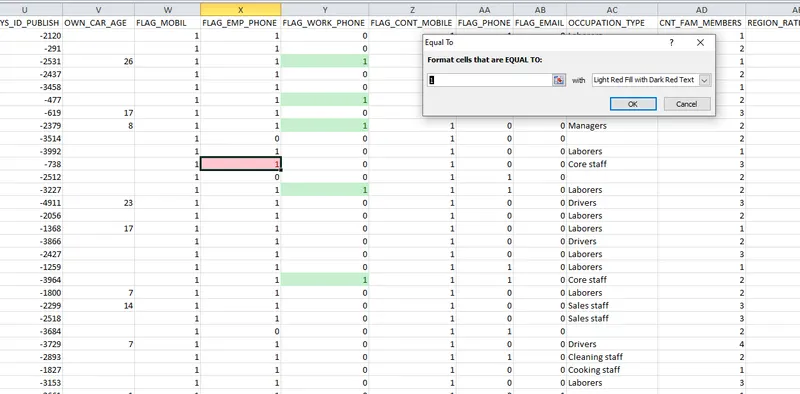
- Next, I went to the "Home" tab to apply conditional formatting.
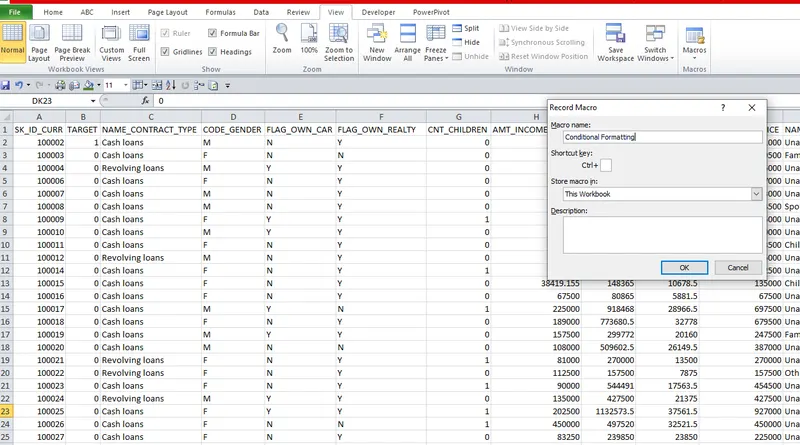
- I chose the "Flag_work_Phone" column to highlight cells with the value of 1.
- Using the "Highlight" option, I selected "Equal to" as the condition and set the value to 1.
- The highlighted cells were filled with a light green fill and dark green text.
- Lastly, I stopped recording the macro.
Create a macro for freezing panes.
- Navigated to the "View" tab and selected "Record Macro" from the macro options.
- Next, on the same tab choose Freeze option

- From freeze option froze the first Row
- Stopped the macro recording.

Create VBA Code to convert selected data into pdf from applicant data
Sub ExportSelectedDataToPDF()
Dim exportRange As Range
Dim saveFilePath As String
Dim fileName As String
' Check if any cells are selected
If Selection.Cells.Count = 1 Then
MsgBox "Please select the range of data to export.", vbExclamation
Exit Sub
End If
' Set the range to be exported to PDF (the selected range)
Set exportRange = Selection
' Create a PDF file with a unique name
fileName = "Applicant_Data_" & Format(Now(), "yyyy-mm-dd_hhmmss")
saveFilePath = Application.GetSaveAsFilename(fileName, "PDF Files (*.pdf), *.pdf")
If saveFilePath <> "False" Then
' Export the selected range to the PDF file
exportRange.ExportAsFixedFormat Type:=xlTypePDF, Filename:=saveFilePath, Quality:=xlQualityStandard
MsgBox "Selected data has been exported to PDF successfully!", vbInformation
End If
End Sub
Check Spelling mistakes in the workbook using VBA Code
Sub CheckSpellingMistakes()
Dim ws As Worksheet
Dim rng As Range
Dim cell As Range
' Loop through all worksheets in the workbook
For Each ws In ThisWorkbook.Worksheets
' Set the range to the used range of the worksheet
Set rng = ws.UsedRange
' Loop through each cell in the range
For Each cell In rng
' Check if the cell contains text
If cell.HasFormula = False And Not IsEmpty(cell.Value) Then
' Ignore cells with formulas and blank cells
If Not Application.CheckSpelling(cell.Value) Then
' If spelling mistake found, highlight the cell
cell.Interior.Color = RGB(255, 0, 0) ' Change the color as desired
End If
End If
Next cell
Next ws
End Sub
Link for the attachment : https://drive.google.com/drive/folders/1ueYyhZCgswM1j8-OO_1DIpoaVV7n_H2b?usp=drive_link