Project 1 - Wiper control system and Vehicle speed calculation for ABS using Wheel Speed sensor
Question1:
Develop the Simulink model based on the given descriptions for the below challenges and also create SLDD file and link the same to the model. Perform the complete V and V workflow for the obtained models.
- Wiper control system
Develop Simulink/state flow model for wiper control system based on the given conditions.
Description of Challenge:
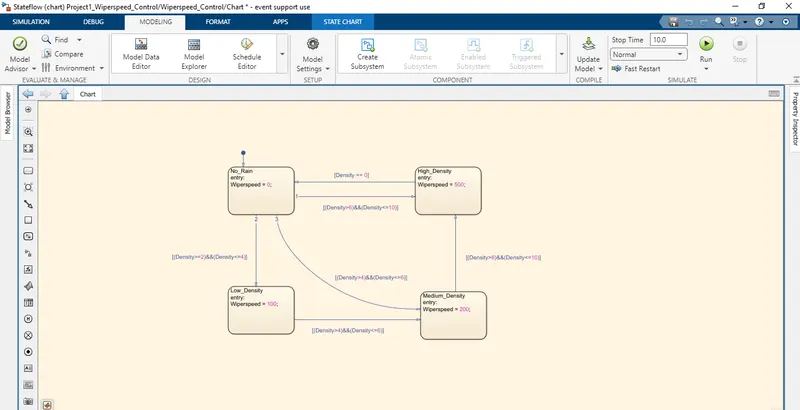
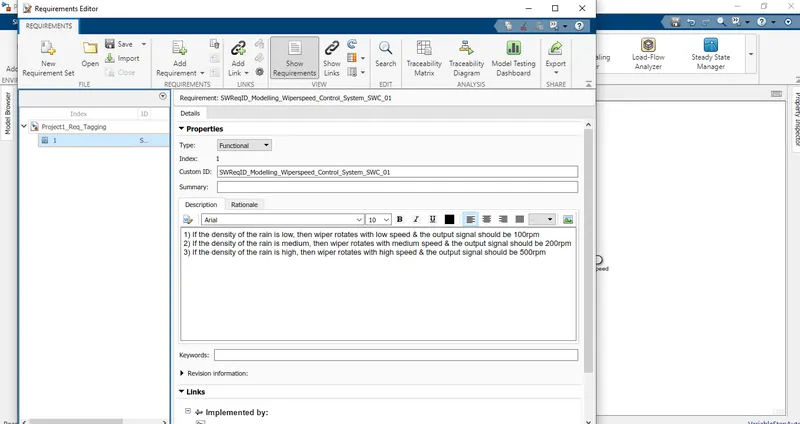
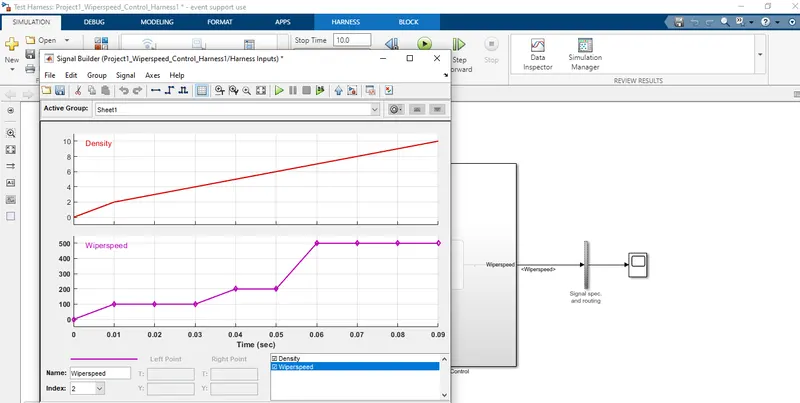
- If the density of the rain is low, then wiper rotates with low speed & the output signal should be 100rpm
- If the density of the rain is medium, then wiper rotates with medium speed & the output signal should be 200rpm
- If the density of the rain is high, then wiper rotates with high speed & the output signal should be 500rpm
Note: Rain density input comes from the external sensor, for the simulation purpose constant block with knob can be taken.
Solution:
Wiper Speed Control System:
A wiper speed control system for an automotive wiper controls the operational speed of a wiper in accordance with rain conditions. The control system includes a rain sensor (30) detecting rain conditions to produce . an analog signal having an amplitude depending upon the detected rain conditions. The analog sensor signal is converted into a digital pulse signal by a converter (12) for application to a digital circuit system. A control signal is produced by digitally processing the pulse signal. The control signal is applied to a wiper driver circuit to adjust the operational speed or timing in accordance with the control signal.
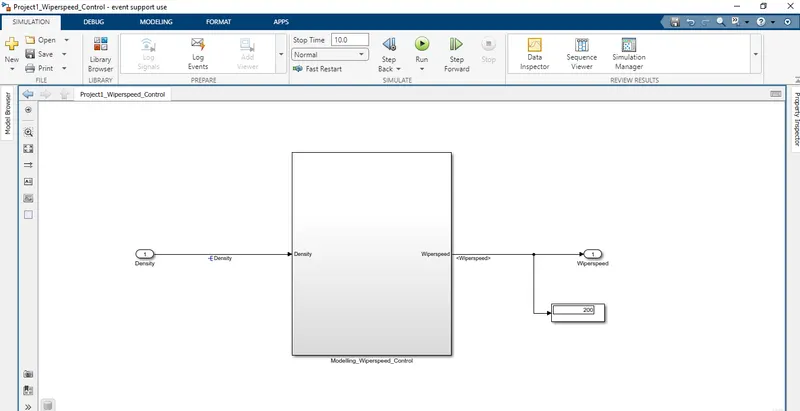
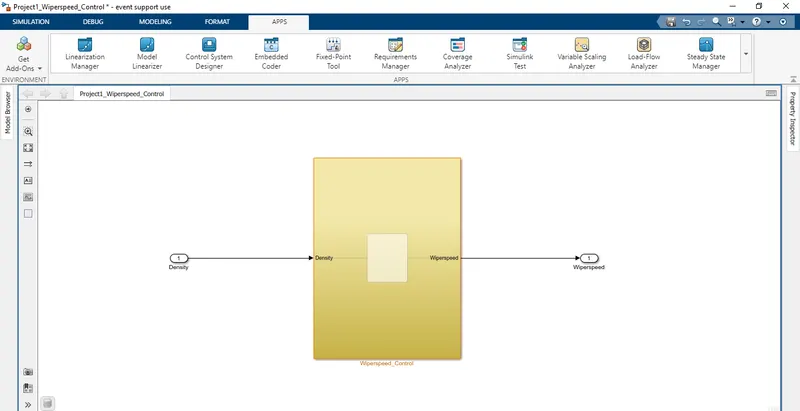
- Simulink Model:
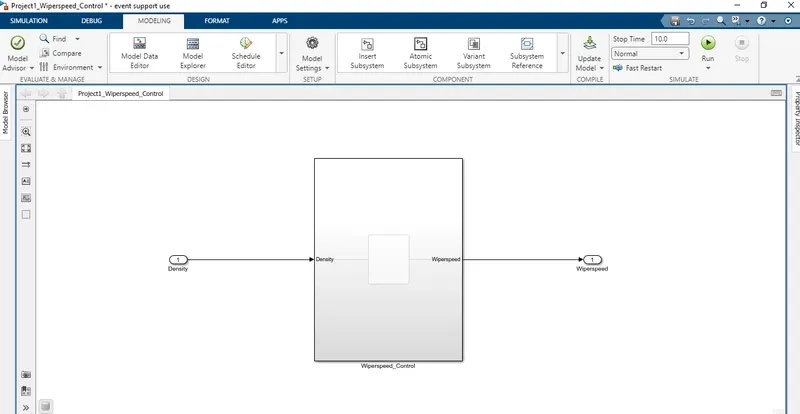
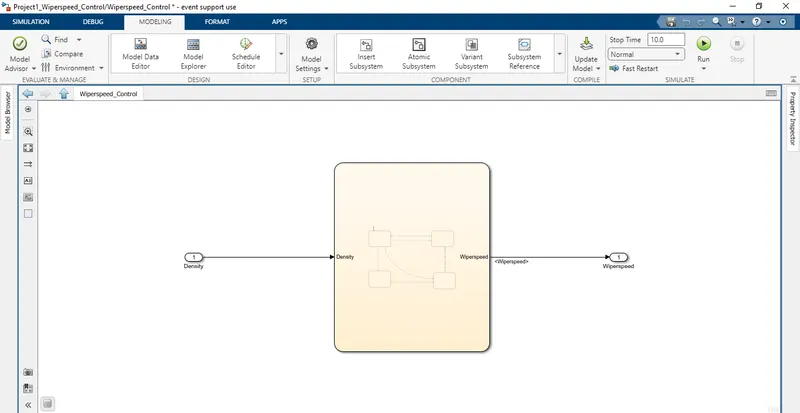
Result:
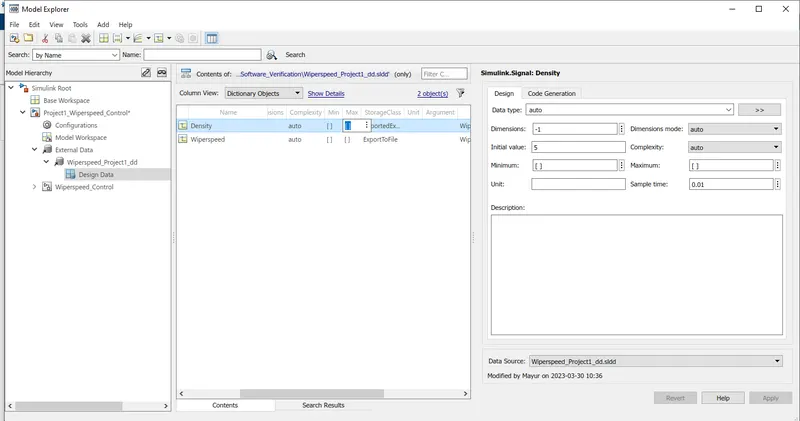
- SLDD:
- Requirement Tagging:
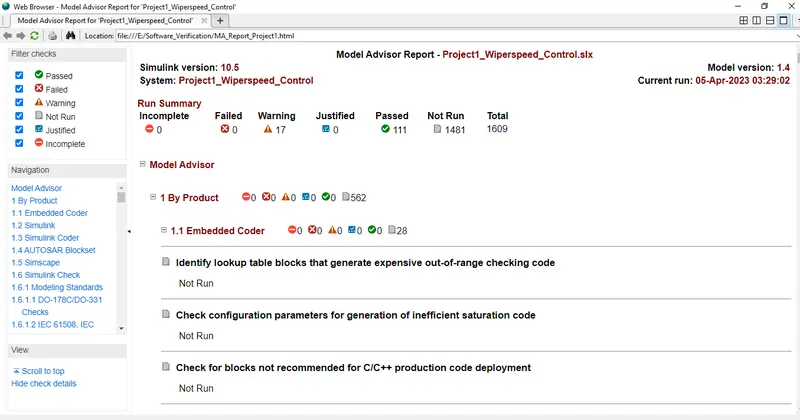
- Model Advisor Report:
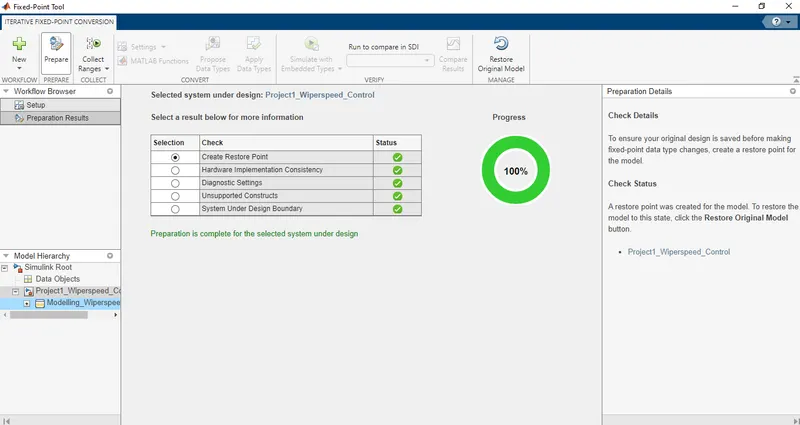
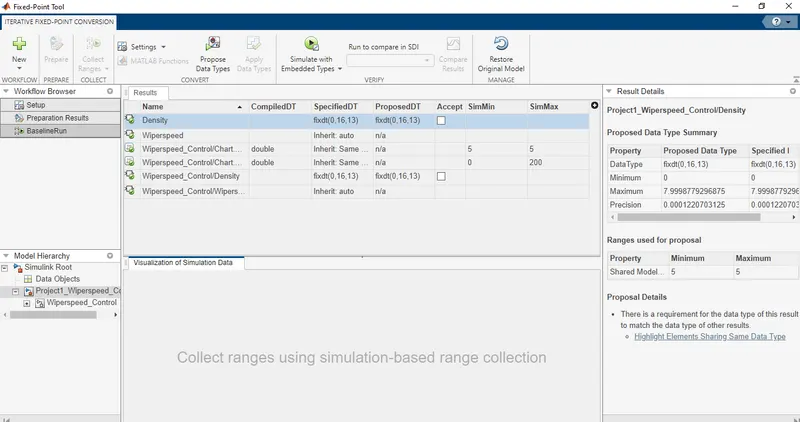
- Fixed-Point Tool:
- SLDV Design Error Detection:
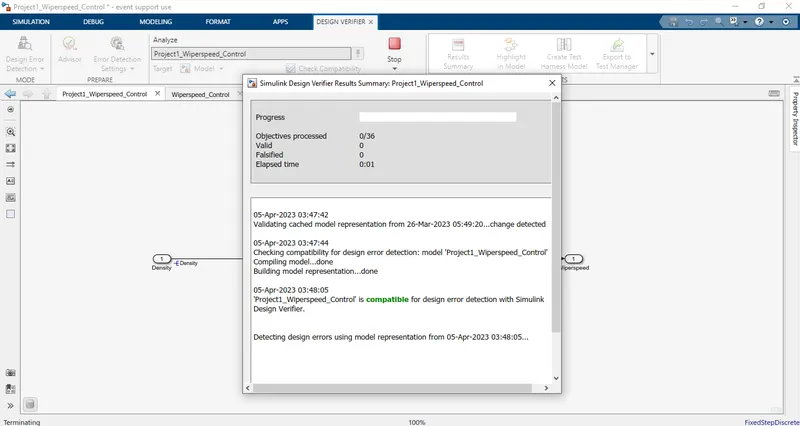
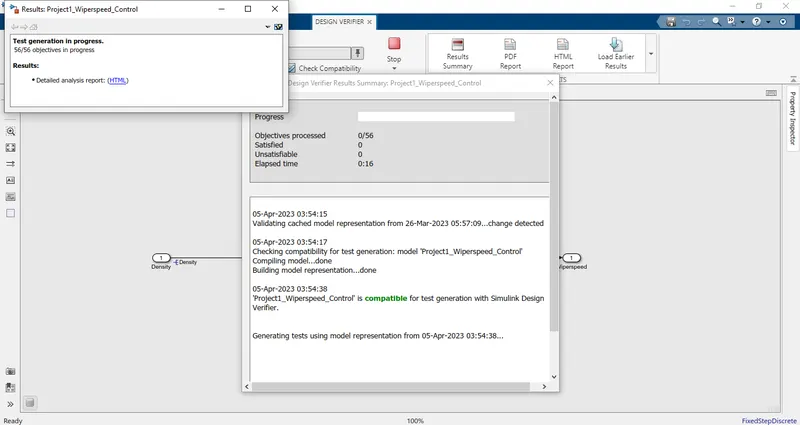
- SLDV Test Generation:
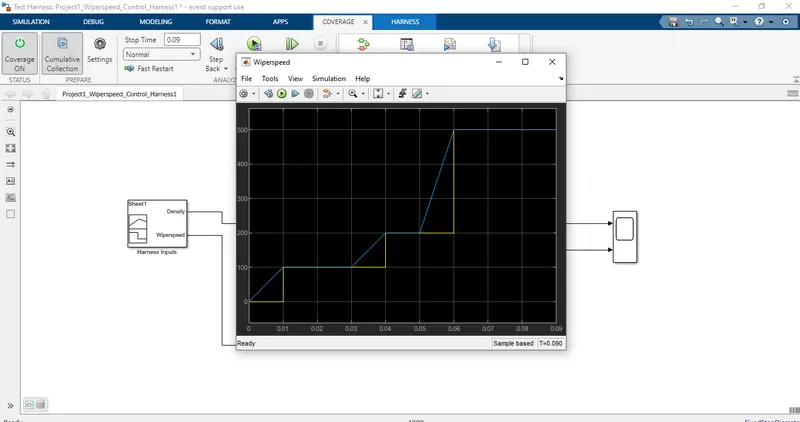
- MIL:
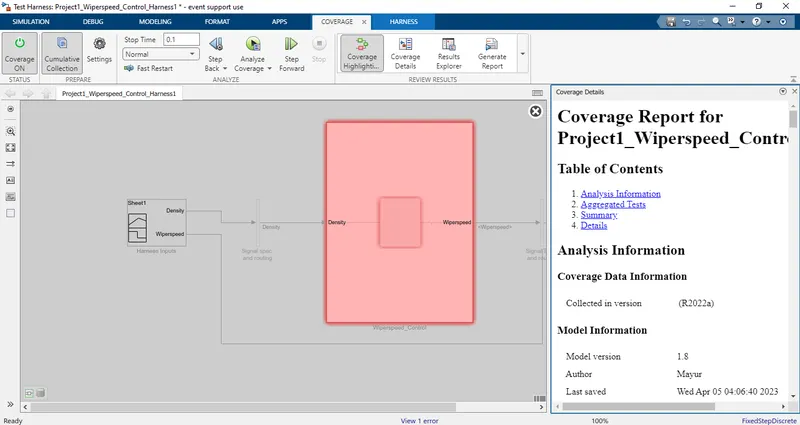
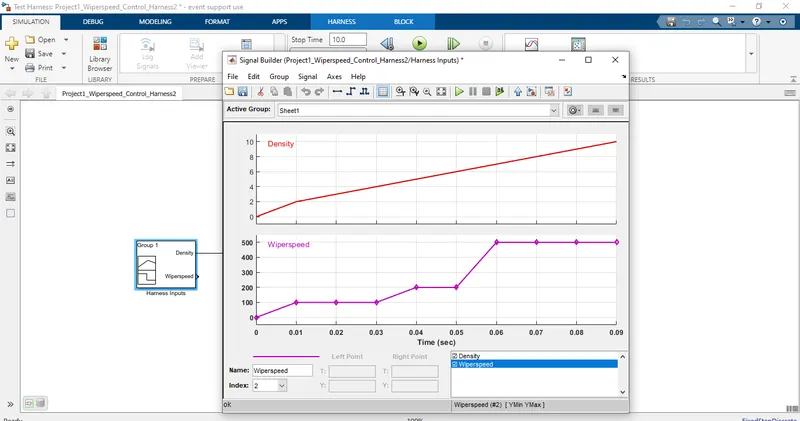
Signal Builder:
Scope:
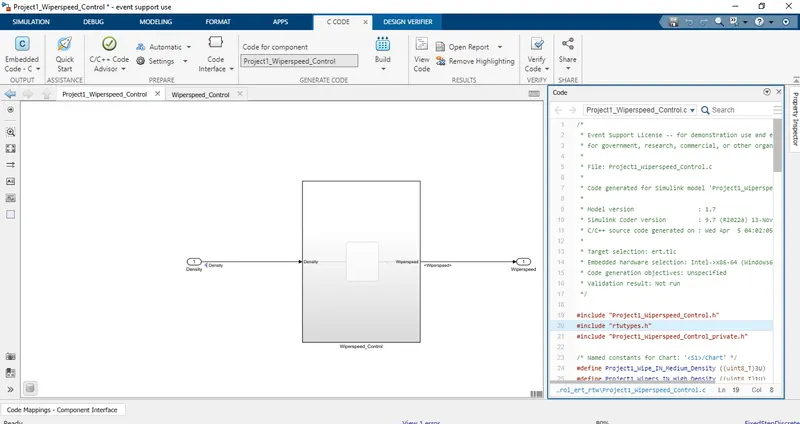
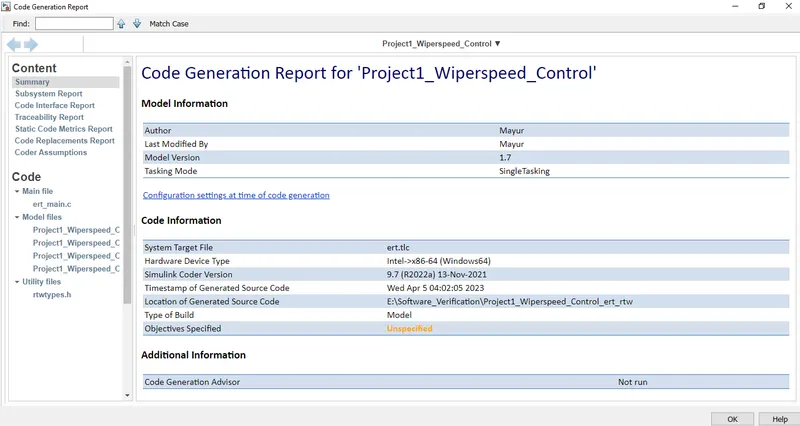
- Code Generation:
- SIL:
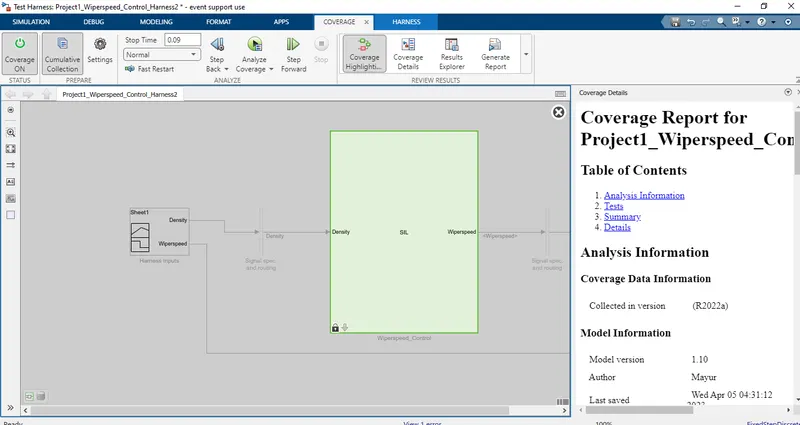
Signal Builder:
- Polyspace Analysis Report:
Steps to create a Polyspace Report:
- Initially, open the Polyspace in that new project click on start new project.
- The Project Properties dialogue box will open in that give the project name as we saved in the MATLAB,then select the location where it we need to save after that click Next or use the default location.
- Then ,it asks for the Projrct source,click on browserand select the folder where th .c file are generated then optionally we can add the include folder then clock on finish,the polyspace environment will open.
- In the configuraton settings option called Target & compiler select the source code language as c,change the target processor as X86_64.
- In the coding standards & code Metrics in that enable the check MISRA C:2004 also select the calculate the code metrics option
- After that go to bug finder analysis under that select the default one.
- Go to reporting enable the generate report option and ouput formet as PDF or any file we need
- Finally save the polyspace and run the Bug Finder.
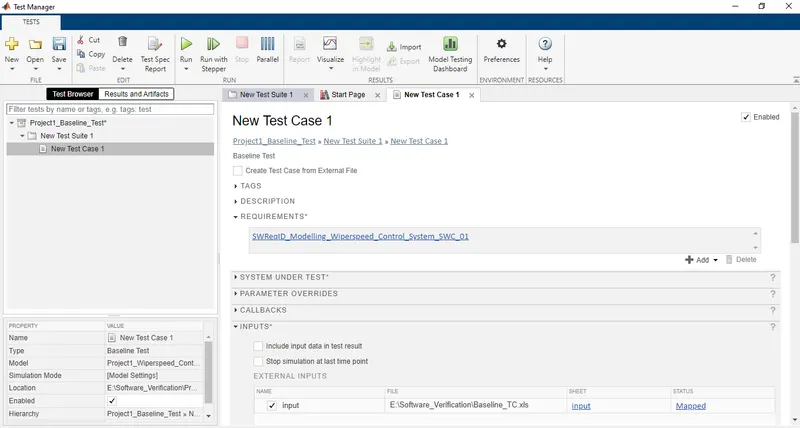
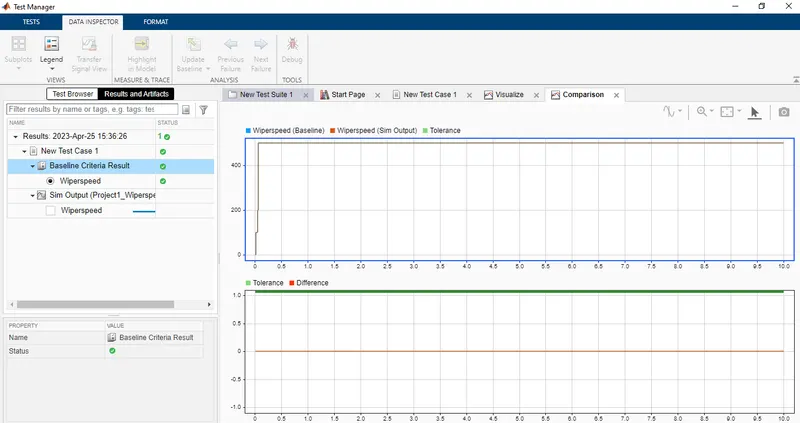
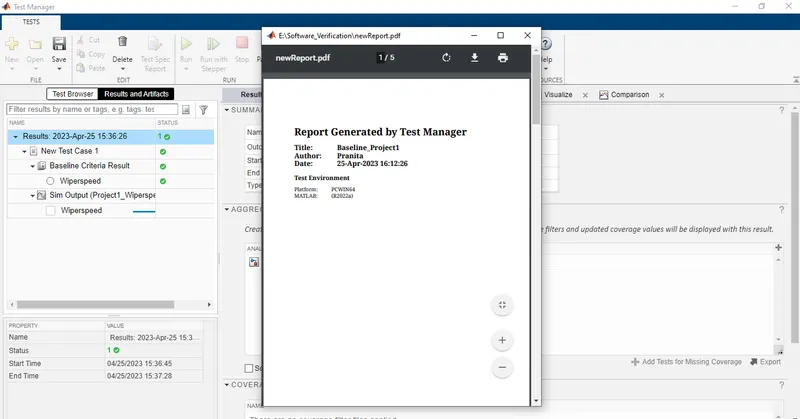
- Baseline Test :
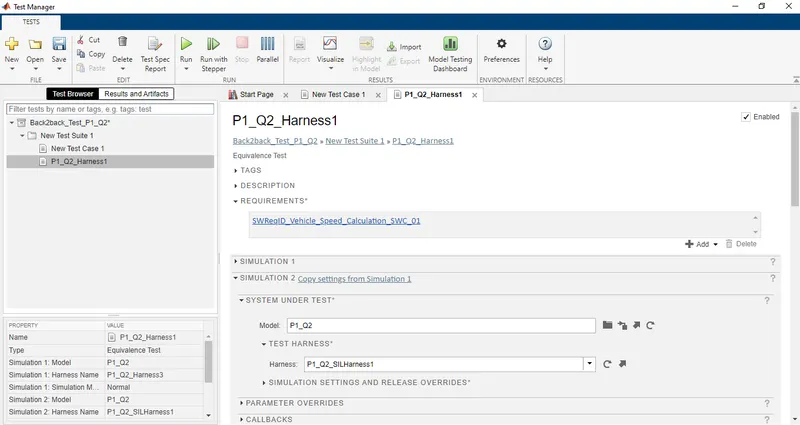
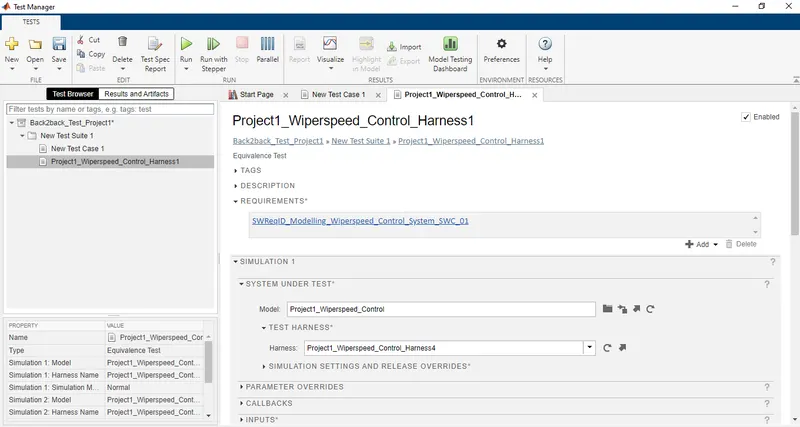
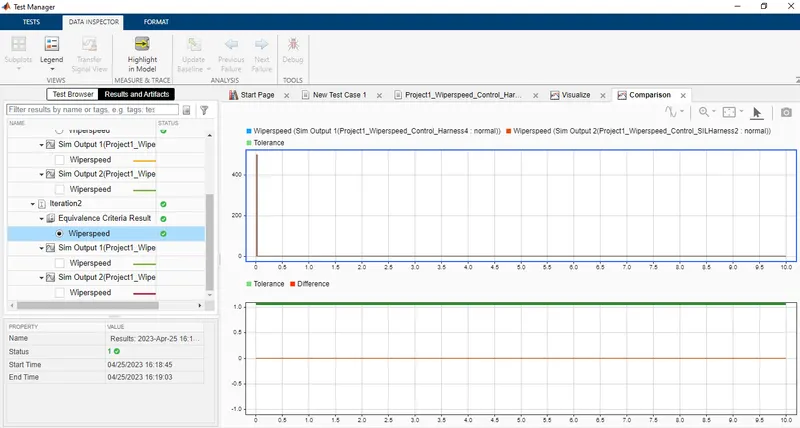
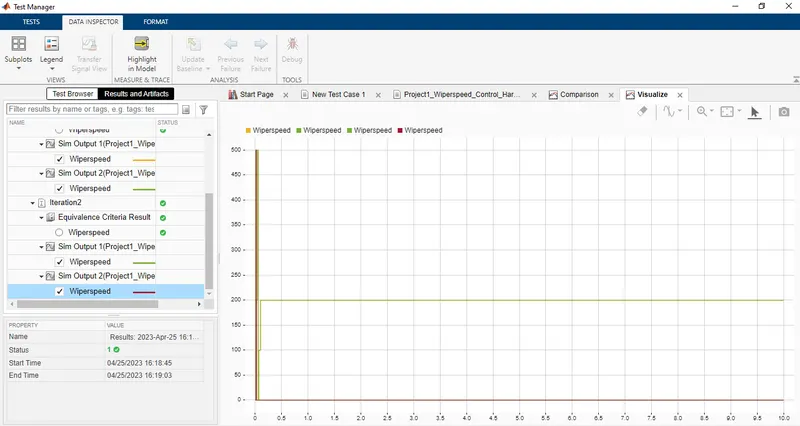
- Back to Back Test:
Question2:
2.Vehicle speed calculation for ABS using Wheel Speed sensor
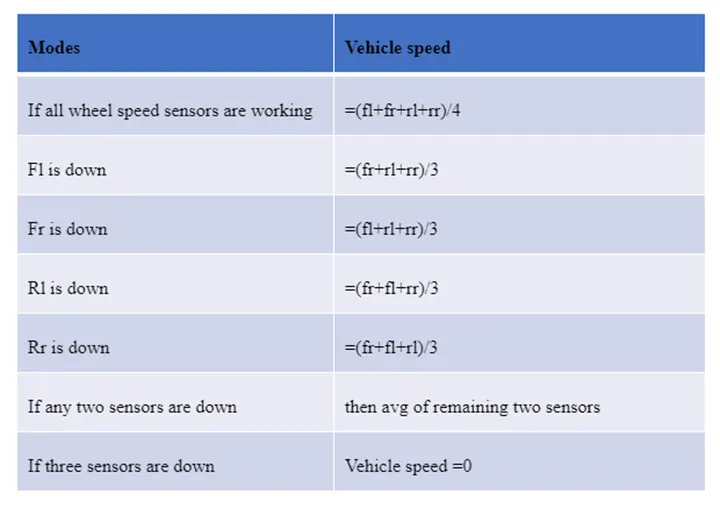
Develop Simulink/state flow model for the vehicle speed calculation unit inside the ABS system for the below conditions.
Description of Challenge:
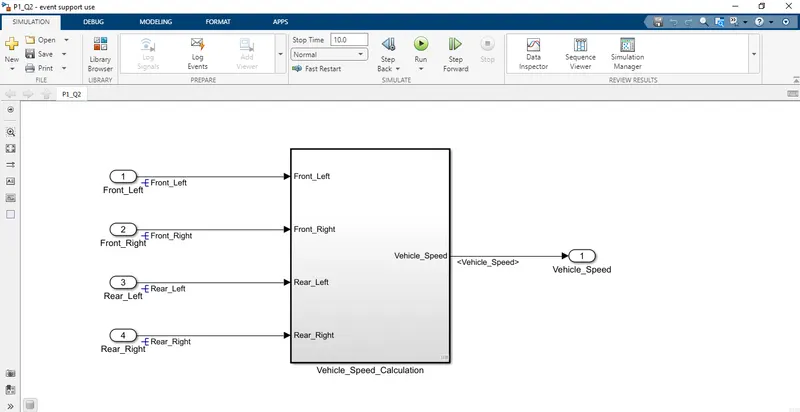
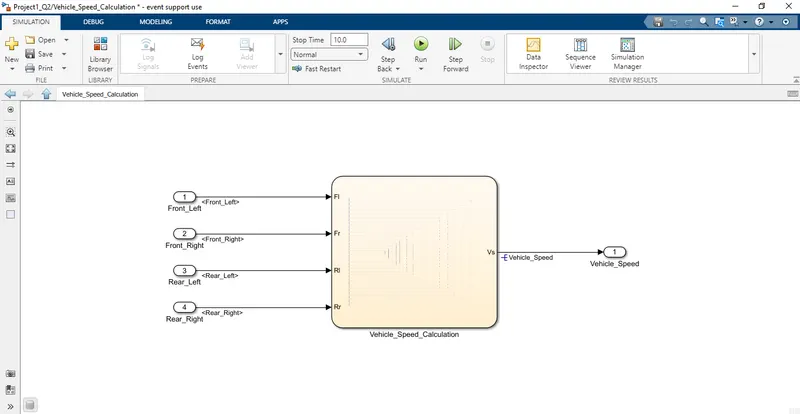
fl, fr, rl and rr are the wheel speeds of front left, front right, rear left and rear right respectively.
Solution:
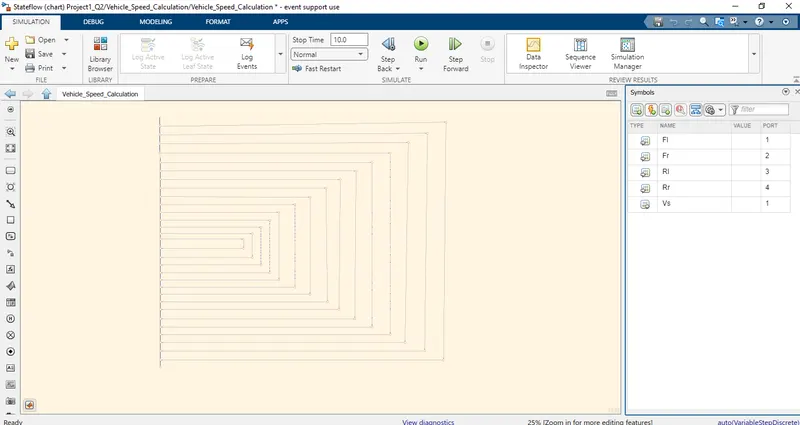
- Simulink Model:
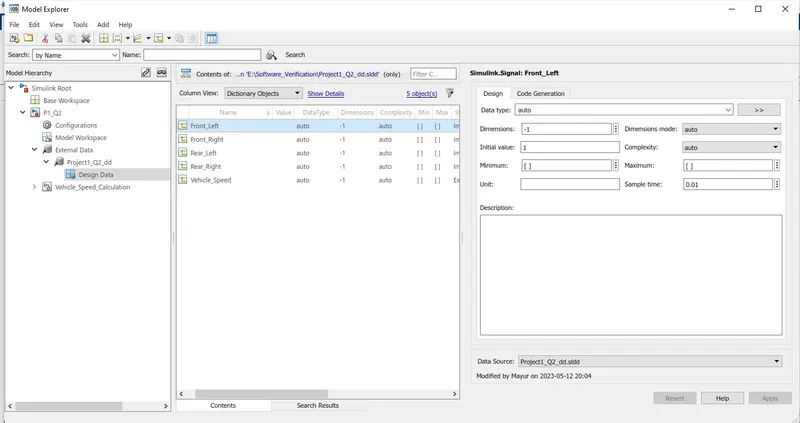
- SLDD:
- Requirement Tagging:
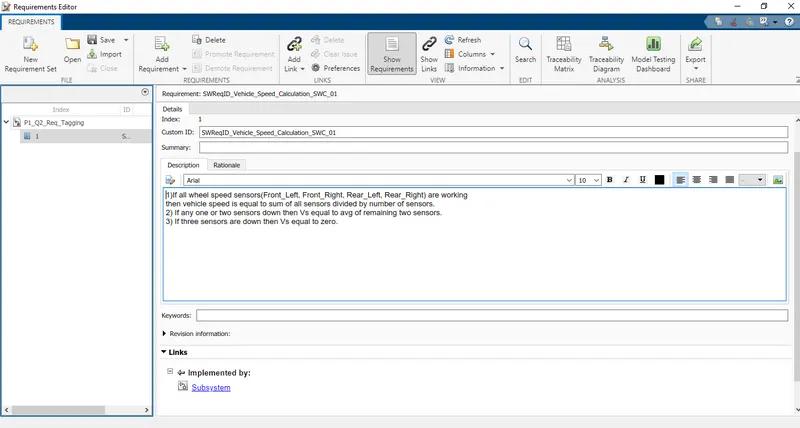
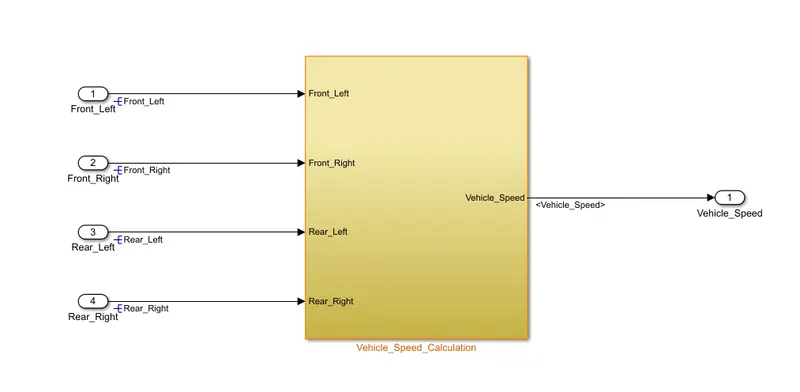
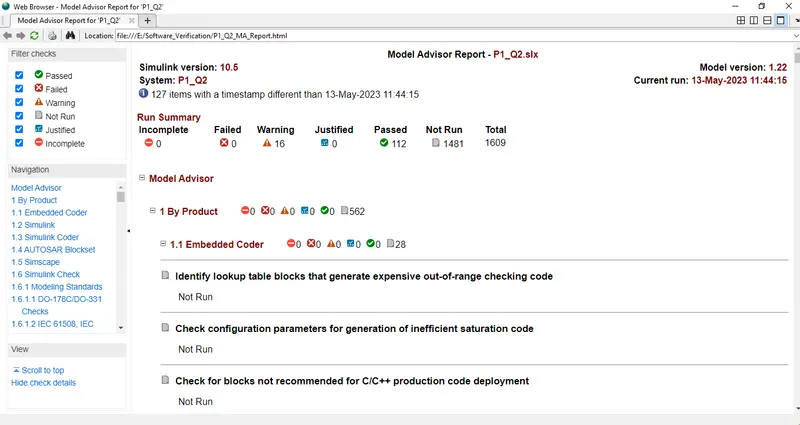
- Model Advisor Report:
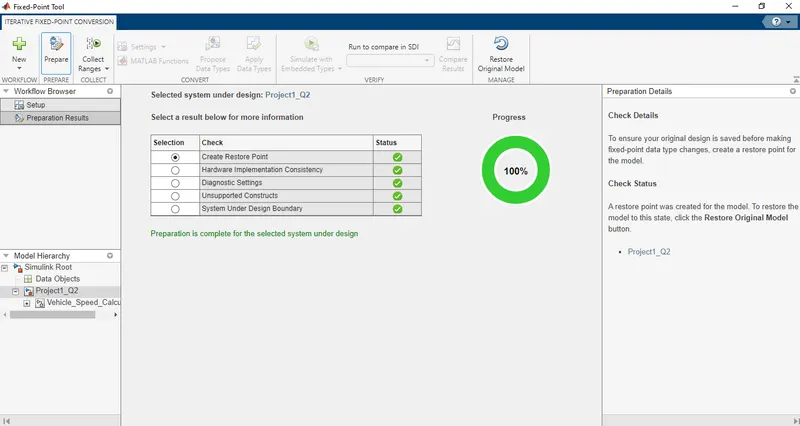
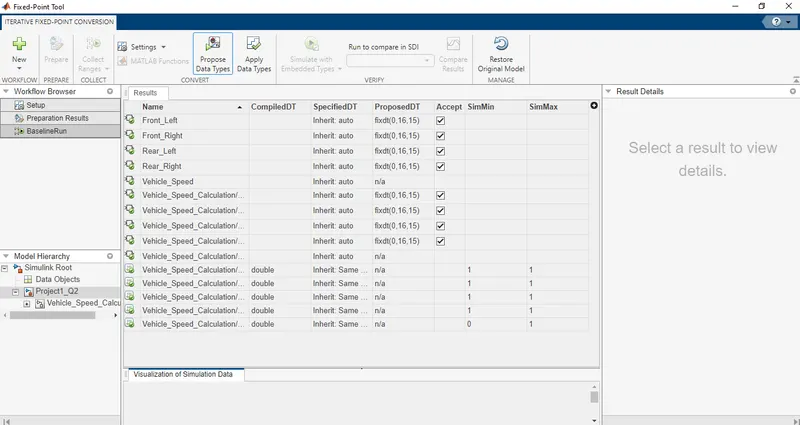
- Fixed-Point Tool:
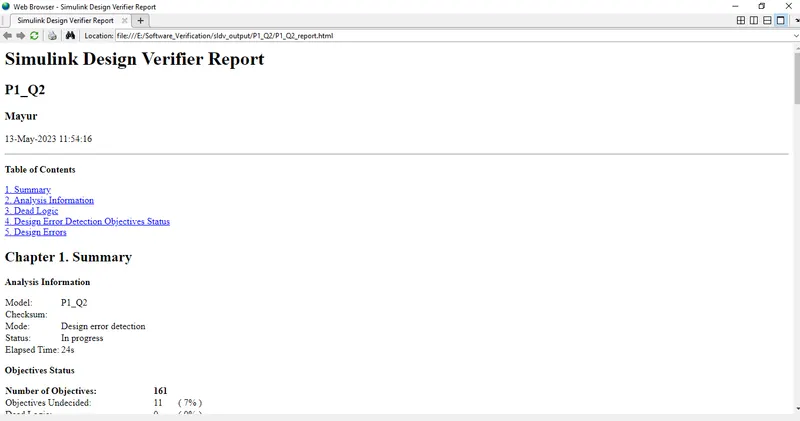
- SLDV Design Error Detection:
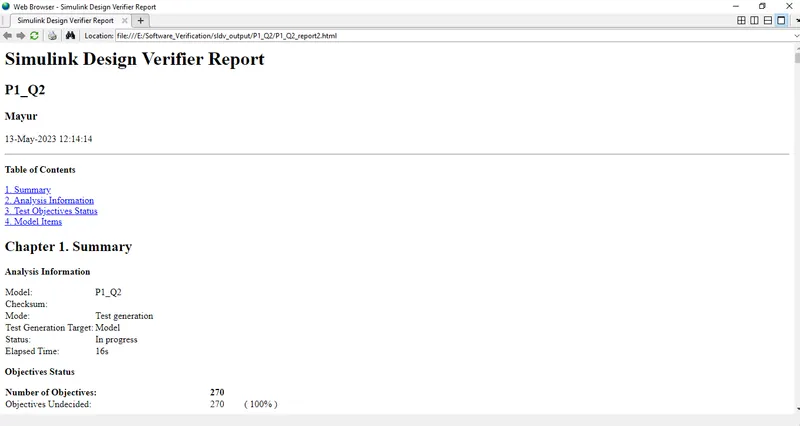
- SLDV Test Generation:
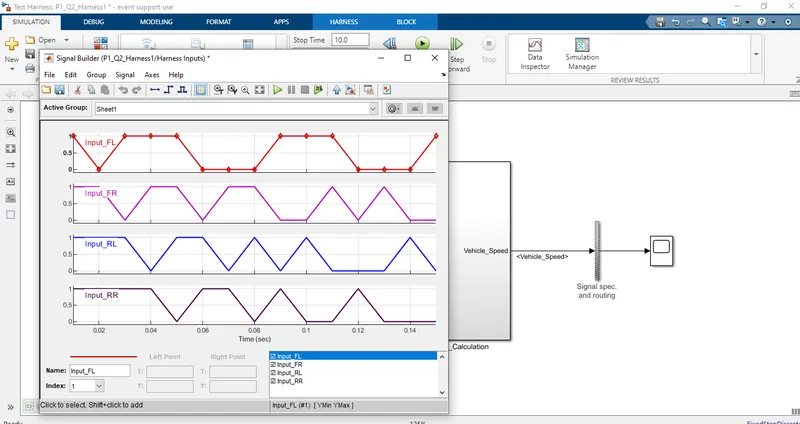
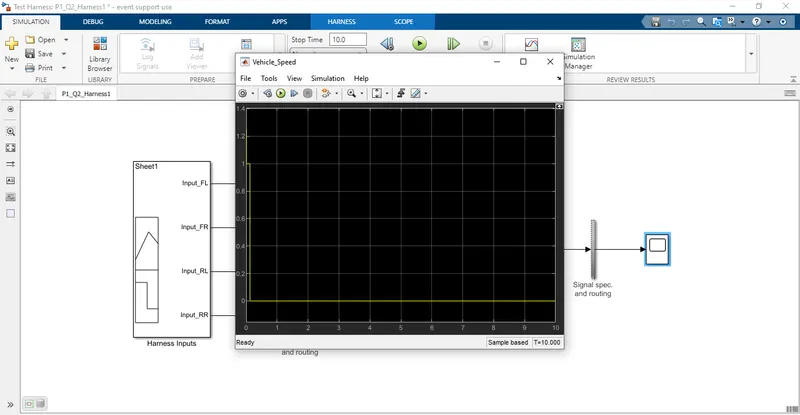
- MIL:
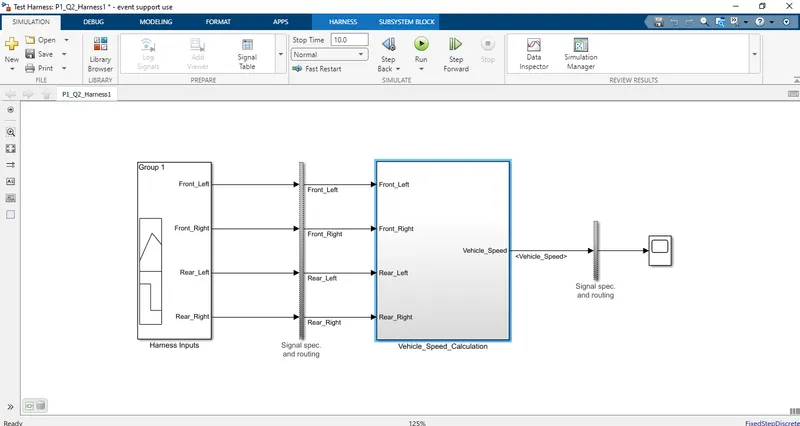
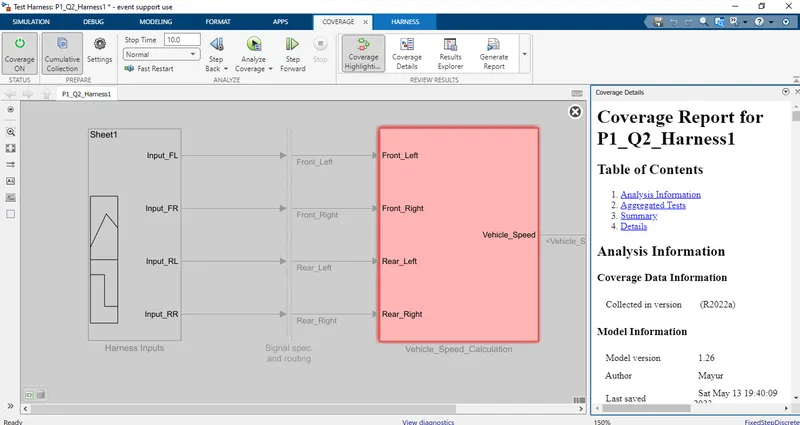
Signal Builder:
Scope:
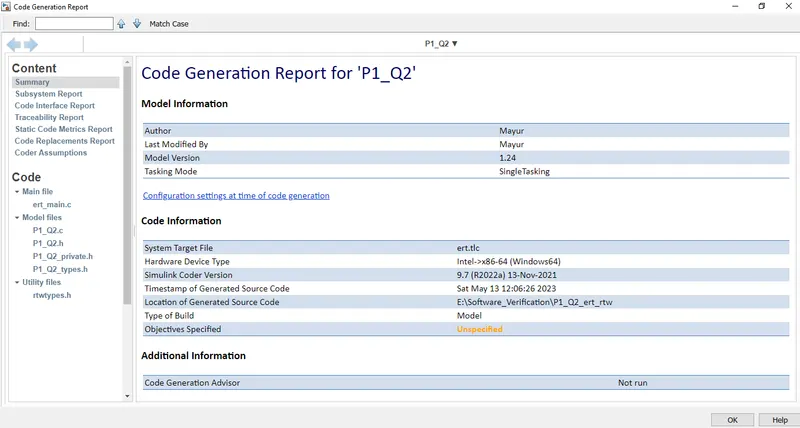
- Code Generation:
- SIL:
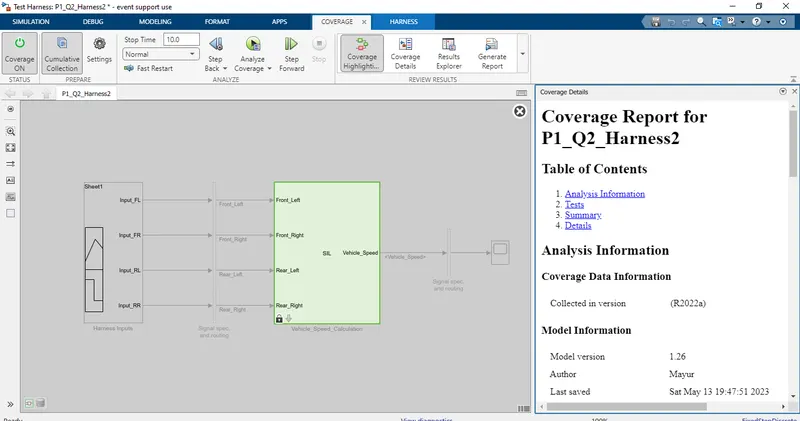
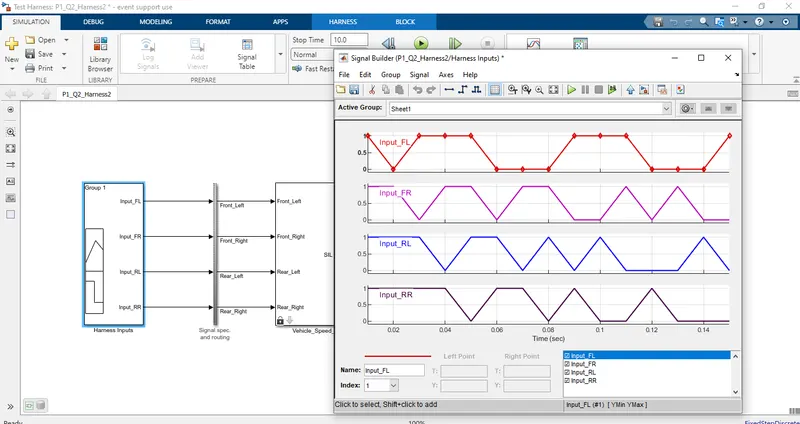
Signal Builder:
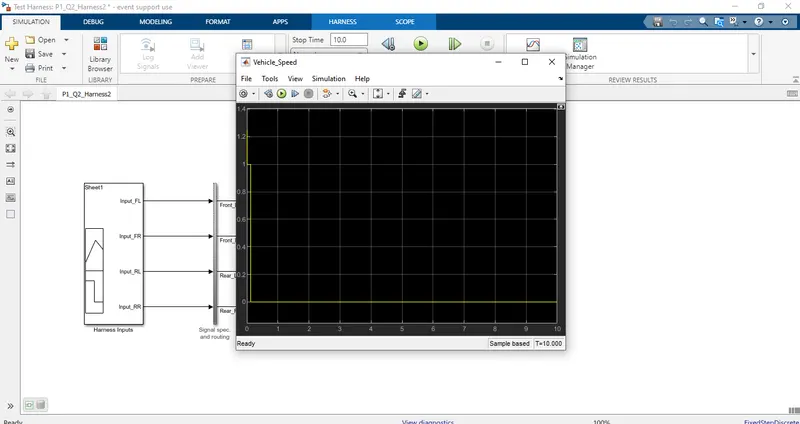
Scope:
- Polyspace Analysis Report:
Steps to create a Polyspace Report:
- Initially, open the Polyspace in that new project click on start new project.
- The Project Properties dialogue box will open in that give the project name as we saved in the MATLAB,then select the location where it we need to save after that click Next or use the default location.
- Then ,it asks for the Projrct source,click on browserand select the folder where th .c file are generated then optionally we can add the include folder then clock on finish,the polyspace environment will open.
- In the configuraton settings option called Target & compiler select the source code language as c,change the target processor as X86_64.
- In the coding standards & code Metrics in that enable the check MISRA C:2004 also select the calculate the code metrics option
- After that go to bug finder analysis under that select the default one.
- Go to reporting enable the generate report option and ouput formet as PDF or any file we need
- Finally save the polyspace and run the Bug Finder.
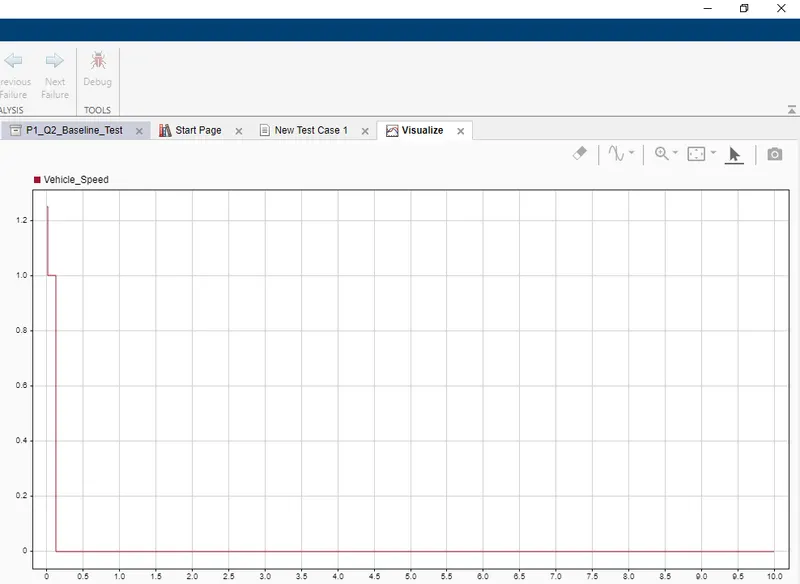
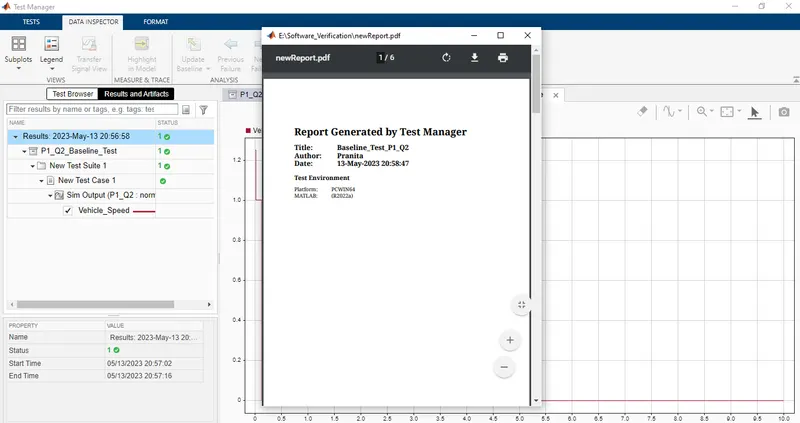
- Baseline Test :
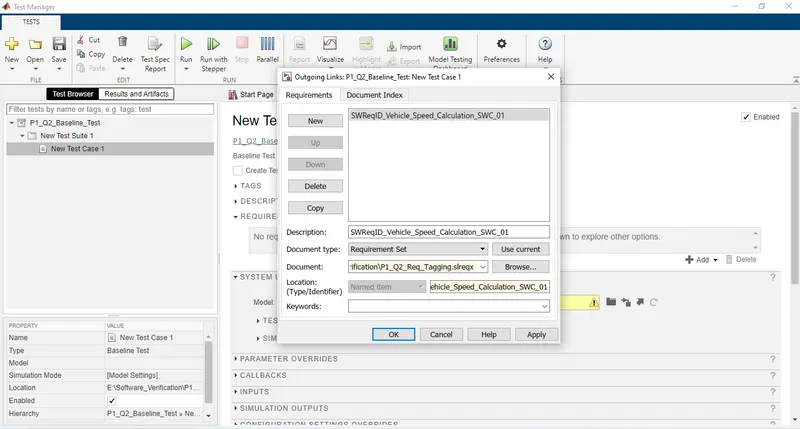
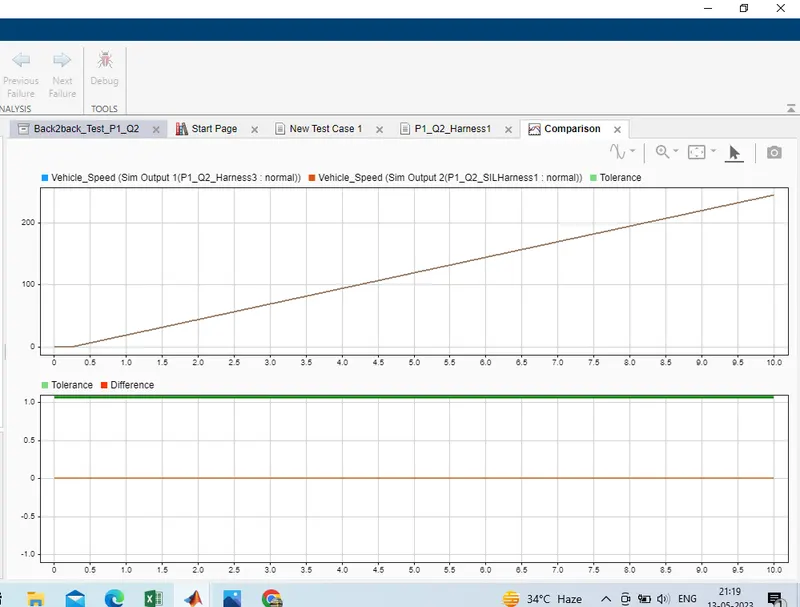
- Back to Back Test: