Project 1 - Interfacing a 16*2 LCD with Arduino using I2C protocol
Ans) 16*2 LCD CODE :
Object :
* Firstly , We see how to interface LCD 16×2 to Arduino Uno, but there are very complicated circuits, so in this tutorial, I'll show you how to reduce circuitry by using I2C module which is very compact & easy to connection.
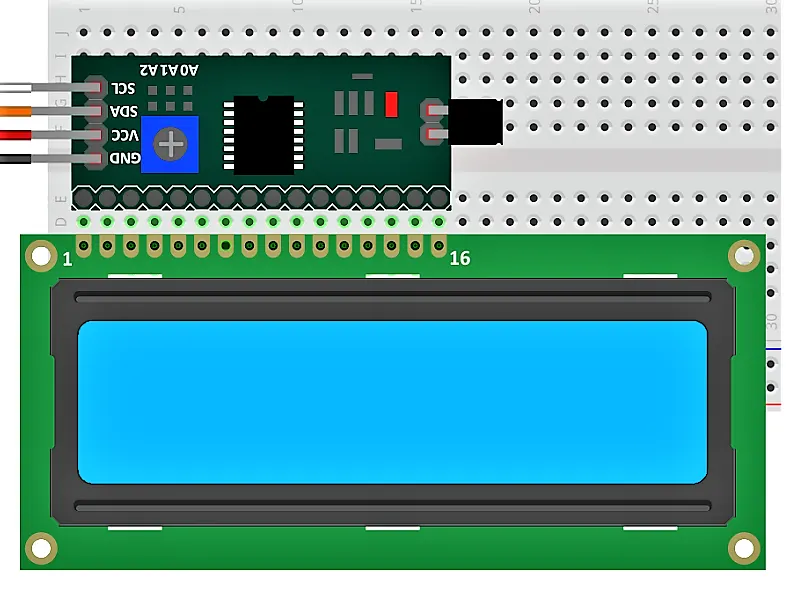
* Simply connect I2C module with LCD parallel & connect I2C modules 4 pins to Arduino. I2C module has 4 output pins which contains VCC, GND, SDA, SCL where 5V supply gives to I2C module through VCC & GND to GND of Arduino.
* SDA is a data pin & SCL is clock pin of I2C module. To interface LCD and I2C with Arduino we need Liquid Crystal I2C Library in Arduino IDE software.Circuit Diagram
2. DFRobot 12C 16*2 Arduino LCD Display Module
3. Gemper wires (generic) - 1
4. Bread Board (Generic) - 1
5. Soldering gun - 1
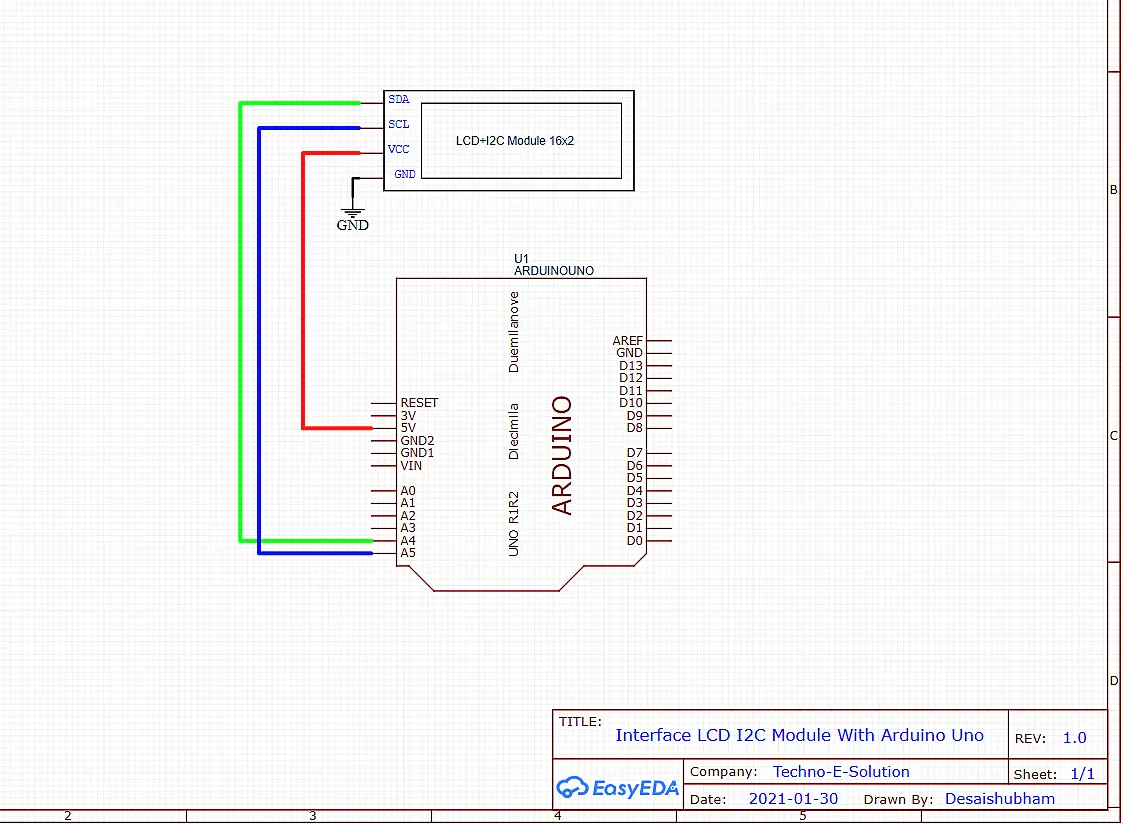
* Connect I2C Module with LCD display parallel. As shown in circuit.
* Arduino To I2C Module Connection :-
* 5V - VCC
* GND - GND
* A4 - SDA
Master code:
1. #include<LiquidCrystal.h> //Library for LCD display function
2. LiquidCrystal lcd(12, 11, 5, 4, 3, 2); //Define LCD Module Pins (RS,EN,D4,D5,D6,D7)
3. int val1=A4;
4. int val2=A5;
5. void setup()
6. {
7. lccd.begin(16,2);
8. }
9. void loop()
10. {
11. lcd.setCursor(0,0); //Sets Cursor at line one of LCD
12. lcd.print(">> Master <<"); //Prints >> Master << at LCD
13. lcd.setCursor(0,1); //Sets Cursor at line two of LCD
14. lcd.Print("SlaveVal: 99"); //Prints SlaveVal: in LCD
15. LCD
16. delay(1000);
17. }
Slave Code:
1. #include <LiquidCrystal.h> //Library for LCD Display Function
2. LiquidCrystal lcd(12, 11, 5, 4, 3, 2); //Define LCD
3. Module Pins(RS,EN,D4,D5,D6,D7)
4. int val1=A4;
5. int val2=A5;
6. void setup()
7. {
8. lcd.begin(16,2);
9. }
10. void loop()
11. {
12. lcd.setCursor(0,0); //Sets Cursor at line one of LCD
13. lcd.print(">> Slave <<"); //Prints >> Slave << at LCD
14. lcd.setCursor?(0,1); // Sets Cursor ar line two of LCD
15. lcd.print("MasterVal: 100"); //Prints MasterVal: in LCD
16. delay(1000);
17. }