Project 1
Aim:
To perform geometry cleanup, extract the midsurface and mesh the extracted midsurface as per prescribed quality criteria and enable thickness as per given geometry specifications.
Procedure:
- First step is to open the model using File > open. Then the given model will be opened, which needs to be refined for geometric errors. Use Fine option in Auxiliaries tab to better understand the various features of the model. Otherwise use Length option in Perimeters tab in Mesh module. Set the length to 1 for refining features.
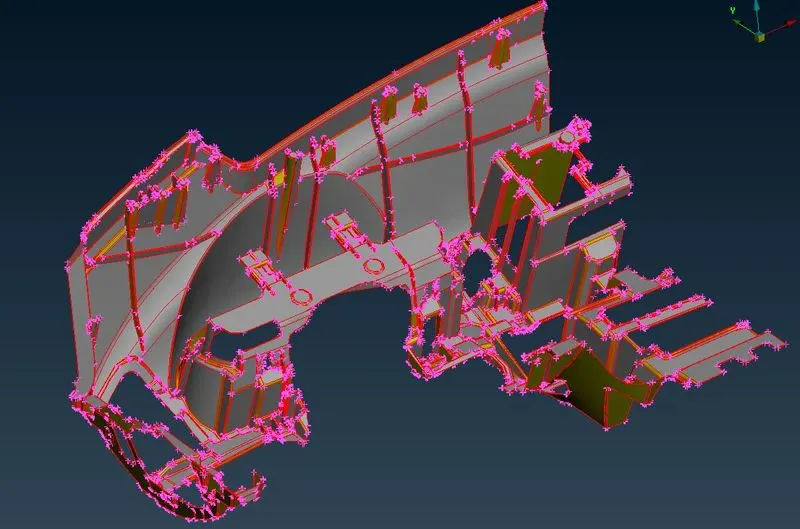
Fig :1 Showing initial Geometry (without cleanup)
- Now the model is opened and use Topo option in Faces tab for performing Topo operation. This will make conversion of single cons to double and triple cons based on the number of shared edges.
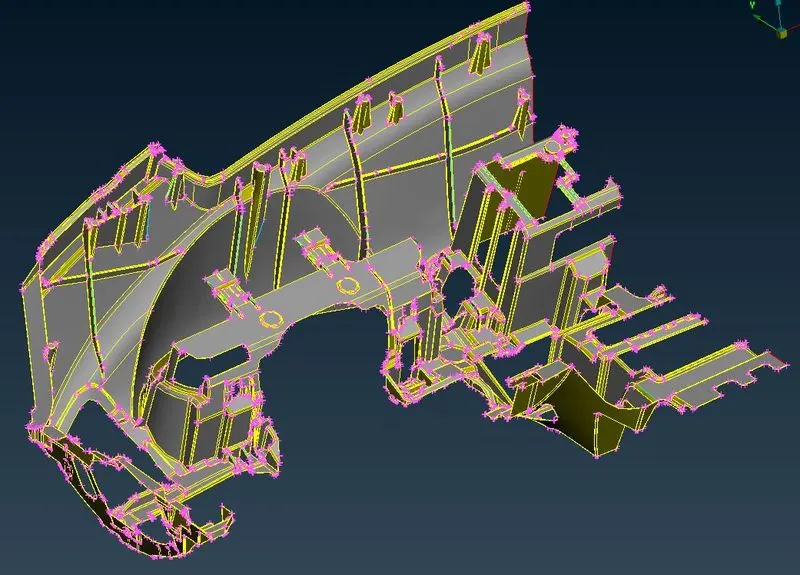
Fig :2 Showing Model after Topo is performed
- After this operation, Check for any geomteric errors like Unchecked faces, collapsed cons , convex cons, concave cons and mixed cons etc.This can be done using Clicking on Tools > Checks > Geometry. Then a window will pop up in that check all the options and press on execute. This will show all the errors in the geometry which needs to be resolved before proceeding for midsurface extraction.
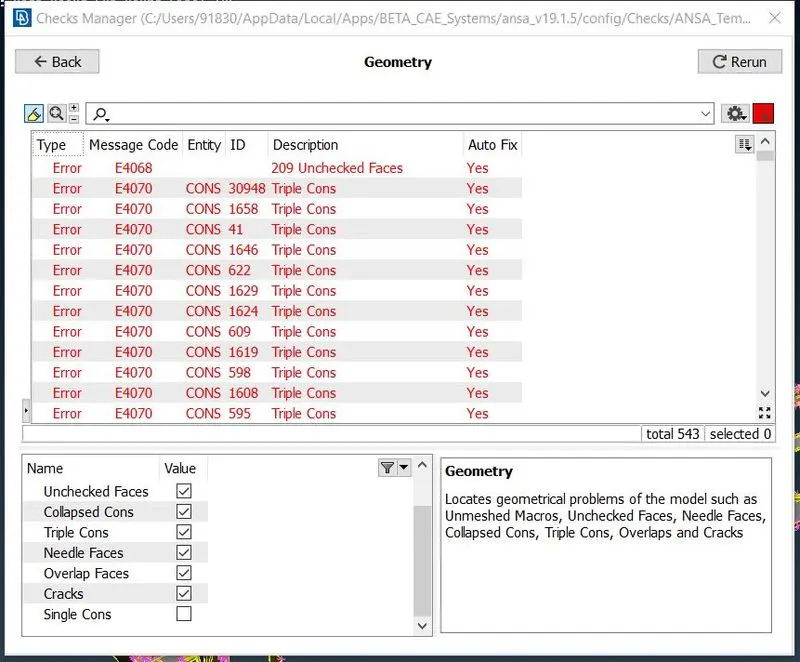
Fig :3 Showing the error window
- Somes errors can be solved automatically by ANSA as per its own understanding and remaining errors needs to be solved manually.
- For automatic errors solving, Right click on that particular issue and then click on fix option. This will solve the particular issue. For manual error solving use various options in Hot points , Cons and Faces tab.
- After the geometry is free from all possible geometric errors, proceed further by extracting the midsurface of the geometry. Midsurface can be extracted manually or automatically.
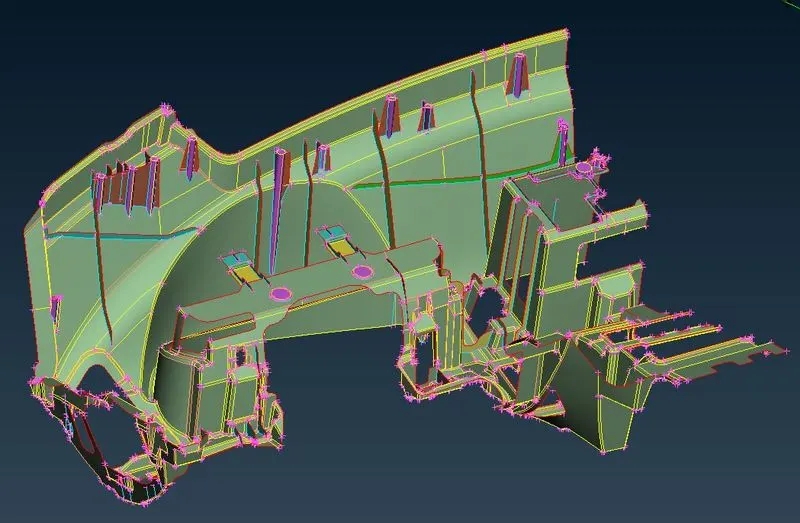
Fig :4 Showing the Midsurface for the given geometry
- Midsurface can be extracted automatically by clicking on Midsurf option in Faces tab. In that Midsurf > skin option is used to extract the midsurf of the geometry.Then a surface at exactly half the thickness of faces will be generated.
- Anotherway of extracting midsurface is by manually. This is done with the help of Offset option in Faces tab. In that select the faces for which the midsurface needs to be generated will be selected and specify the distance ( half the thickness) and direction of offset. Then a midsurface is generated for the particular feature. Otherway is by using middle option in faces tab for extraction of midsurface.
- After the midsurface extraction, next step is to key in the quality criteria parameters and mesh parameters. This can be done by clicking on F11 or click on Utilities > Quality. Now key in all the prescribed quality parameters and then click on Apply and ok.
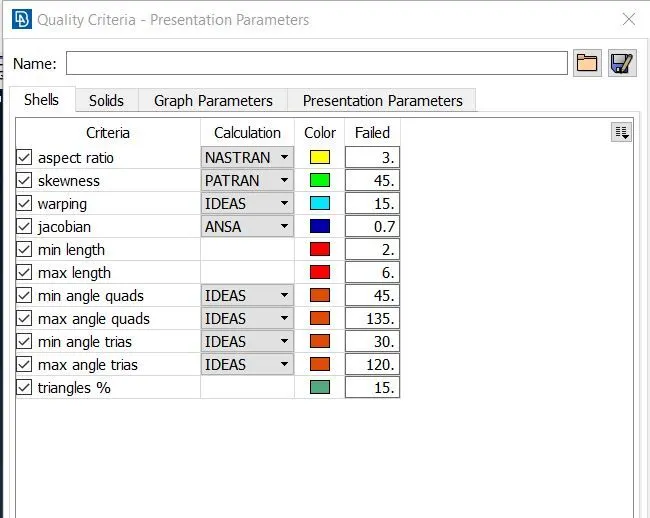
Fig :5 Showing the Quality criteria parameters
- Now proceed further by mesh the extracted midsurface. This can be done with help of Mesh module.
- Mesh can be generated automatically with the help of Midsurf> Casting option in faces tab in Topo module. This will generate the mesh as per ANSA understanding.
- For manual mesh generation, Click on the Best or Spot Mesh option in Mesh generation tab in Mesh module. Click on either of the options and select the faces for which the mesh needs to be generated.
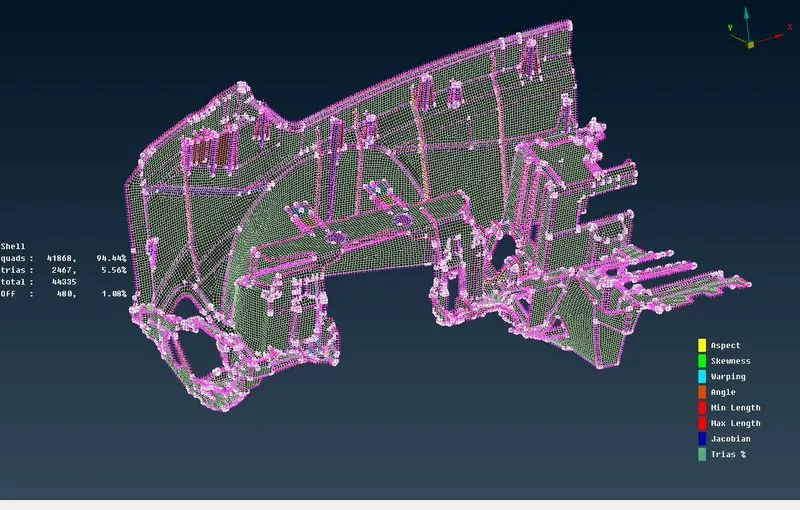
Fig : 6 Showing the Meshed model
- The generated mesh can be altered and refined with the help of Reconstruct and Smooth options in Shell mesh tab. For better mesh flow, Use various options like Split, Swap and join etc in Elements tab in mesh module.
- The generated mesh should be in proper flow with zero OFF elements.
- After the mesh generation, Thickness needs to be shown which can be done by clicking on Draw shell as solids option in presentation parameters in Quality criteria.
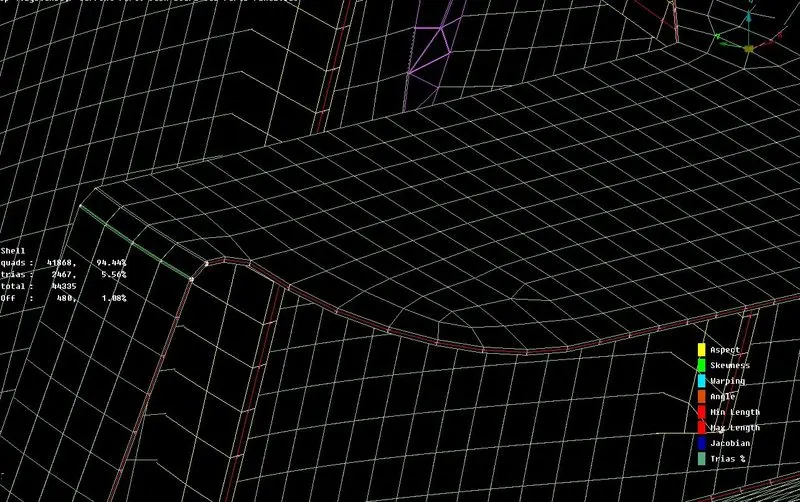
Fig : 7 Showing meshed model with Thickness
Conclucion:
Fig :8 Showing initial model Fig :9 Showing final meshed model
Learning Outcomes:
- Geometry cleanup
- Midsurface extraction
- Manual meshing
- Refining the mesh for prescribed quality.
Link for Model : https://drive.google.com/file/d/1P0P7eLhgpvezkveMDy7jtA3Kt_8NXW1x/view?usp=sharing