Project 1
AIM OF THE PROJECT
Skill-Lync wants to construct a school as a part of its corporate social objective. You are the project manager. Develop a realistic schedule to construct a main school building (G+2). It will have a parking facility with internal roads and main building complete with architectural, furniture and electrical fittings. You are required to plan the Design and Construction of the project. Also include basic electrical and plumbing activities. Project will start on 1st October 2020 and end by 30th April 2023. Work hours will be 24 hours and 6 days a week. Complete Design in 8 months.
PROCEDURE
Step 1:
1) Open Enterprise tab
2) Select OBS
3) Click add and add the new obs as Project Manager
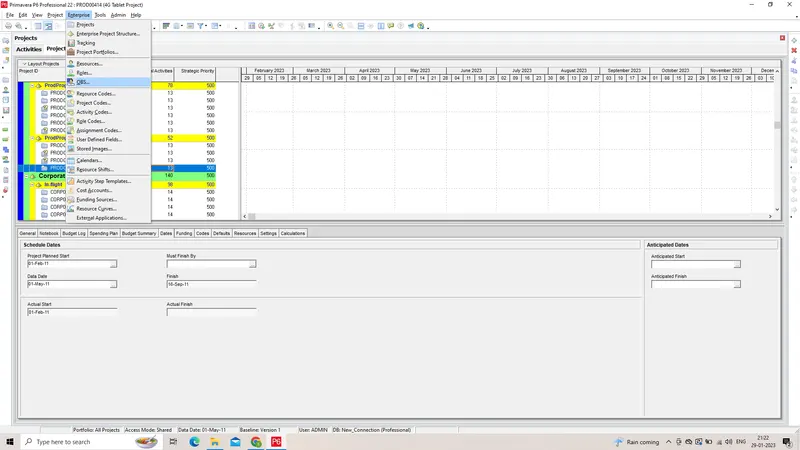
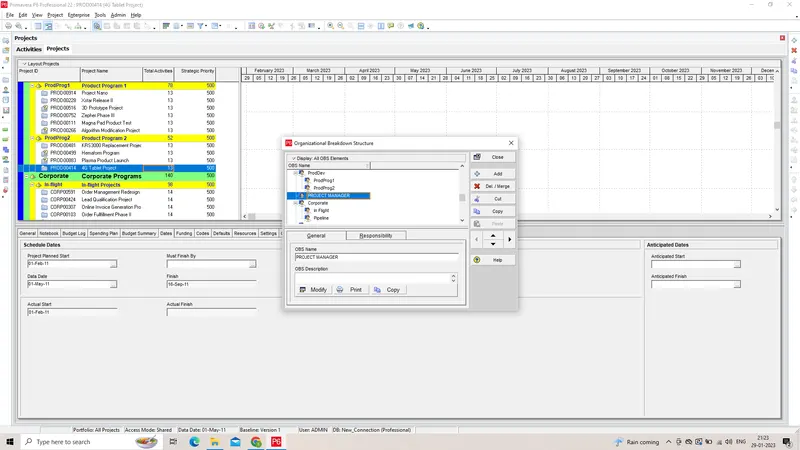
Step 2:
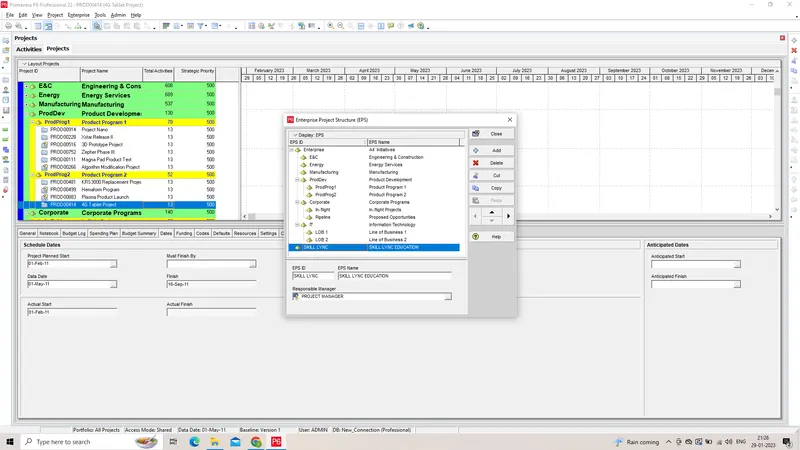
1) Click Enterprise tab
2) Choose EPS and click add
3) Rename the eps as Skill lync education
4) Assign OBS as Project manager
5) Click ok
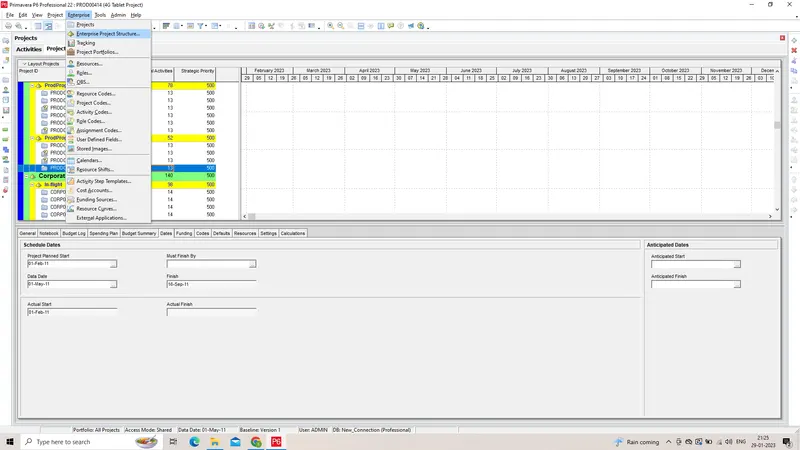
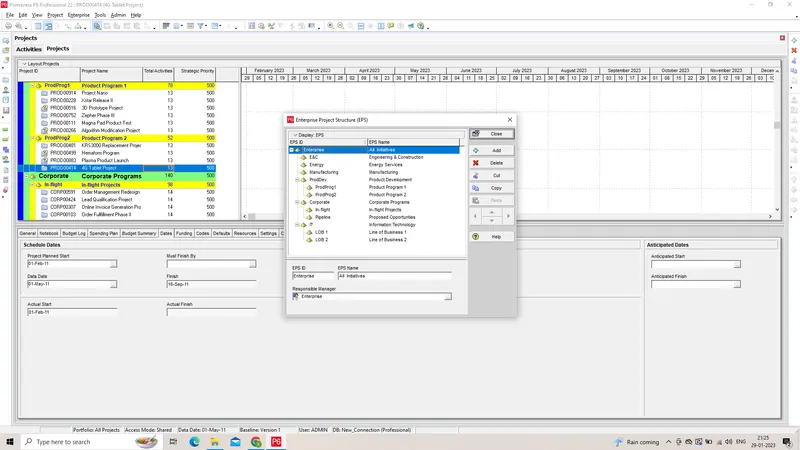
Step 3:
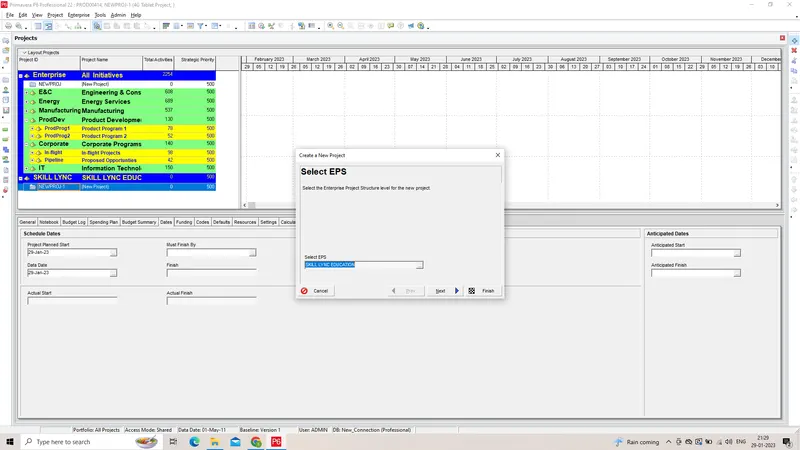
1) click + button on right side of the screen
2) Select eps as Skill lync Education
3) Assign all the values to the EPS
4) click finish
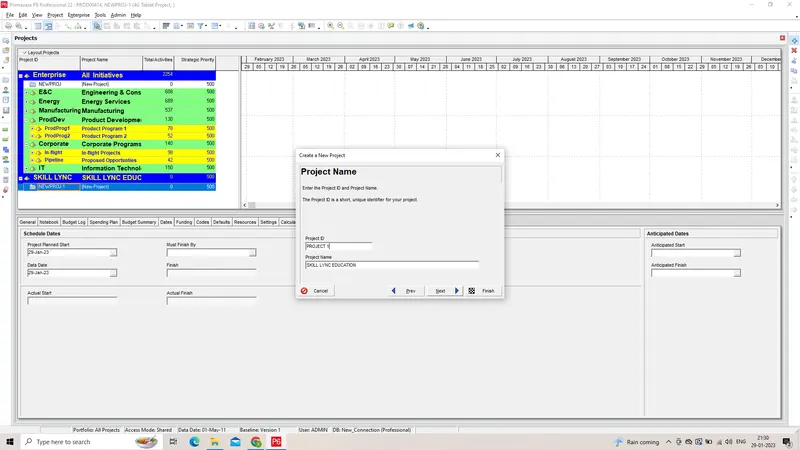
> ASSIGN PROJECT NAME
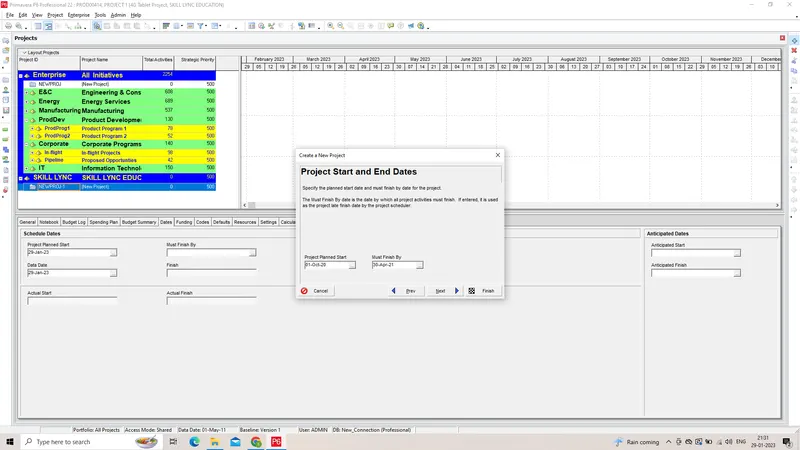
>ASSIGN PROJECT DATES
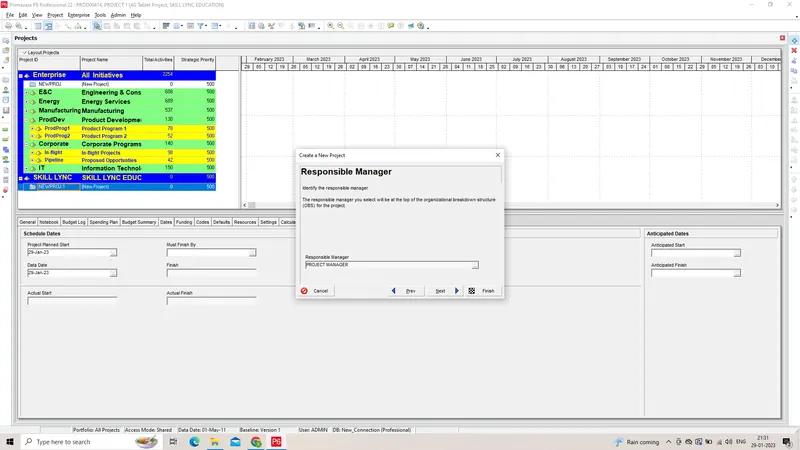
ASSIGN RESPONSIBLE MANAGER
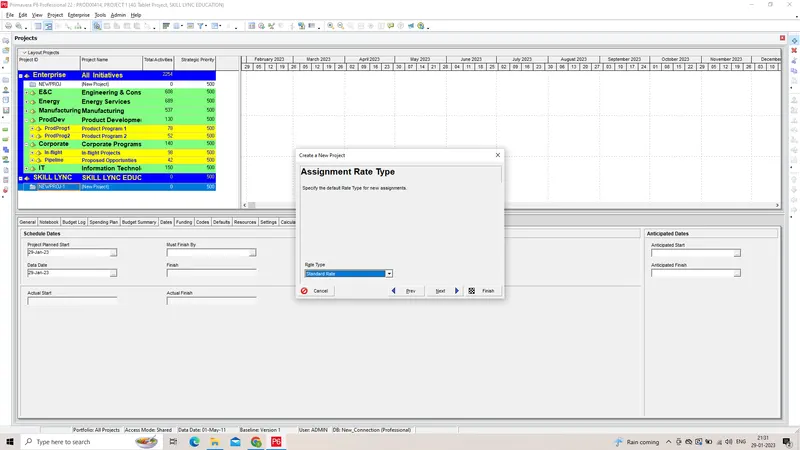
>ASSIGN RATE TYPE
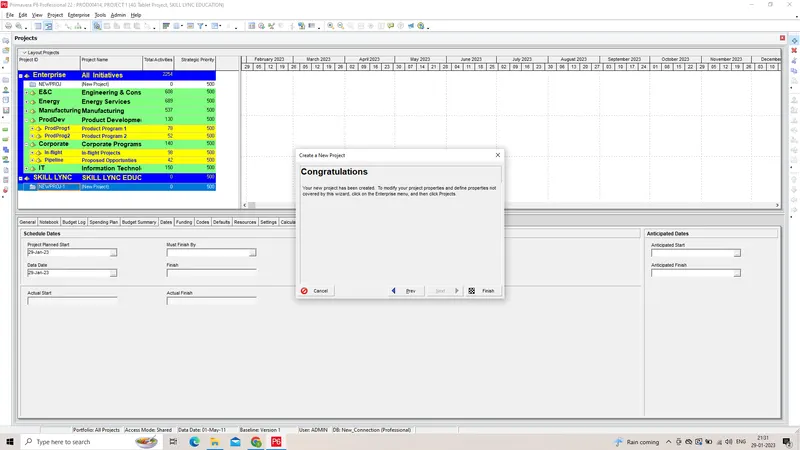
> PROJECT ADDED SUCCESSFULLY
Step 8:
1) Click the new project and right click
2) Choose new project
3) Click WBS and add suitable wbs as mentioned in the question
4) Click Ok
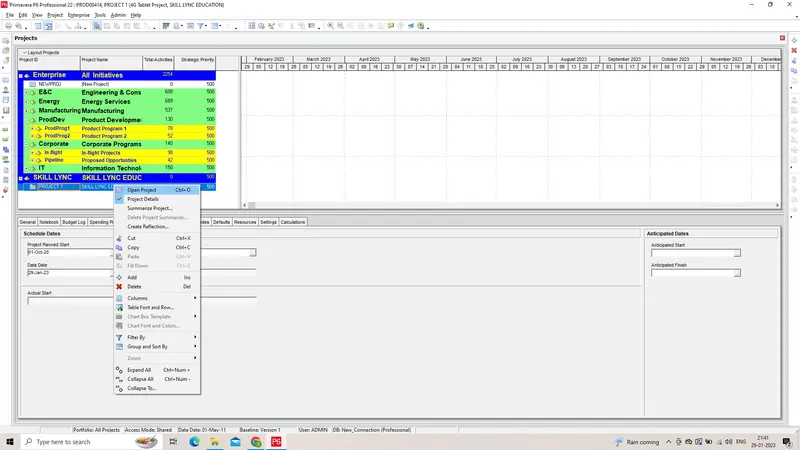
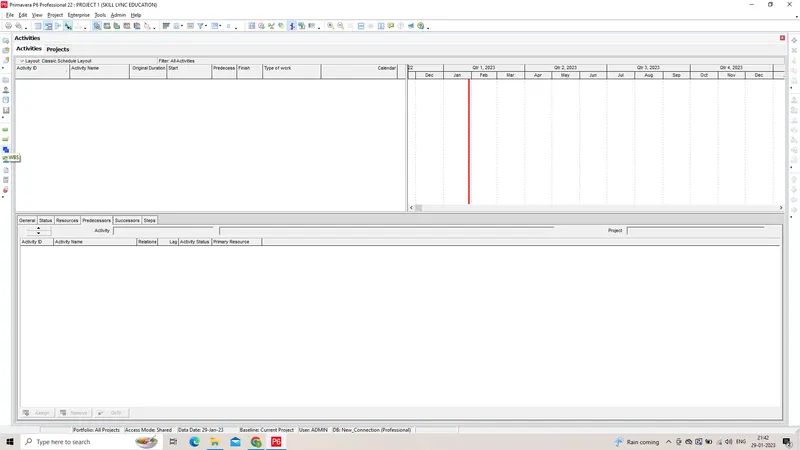
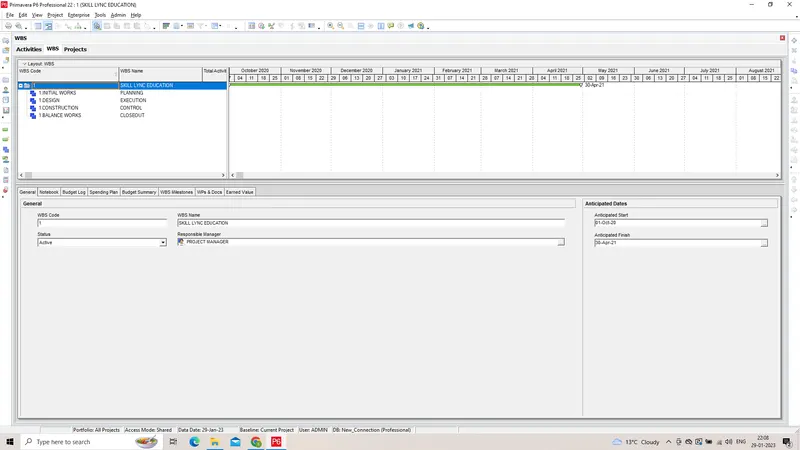
WBS SUCCESSFULLY CREATED
> FURTHER BREAKDOWN OF WBS
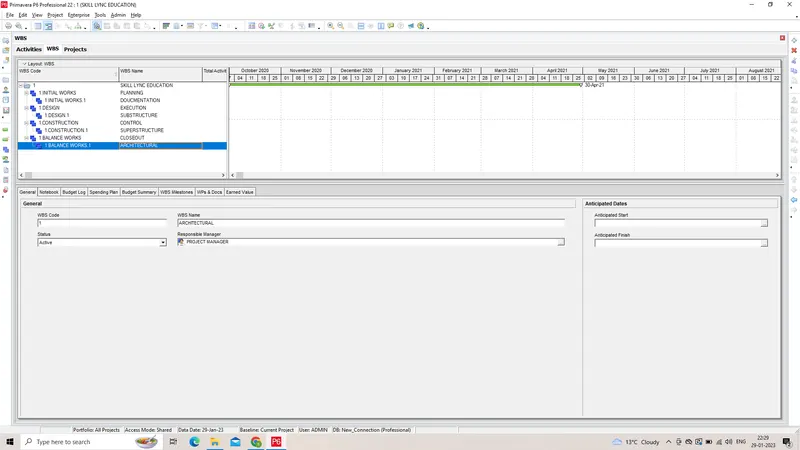
Step 9:
1) Choose the calender from tools tab
2) Set the work hours will be 24x6
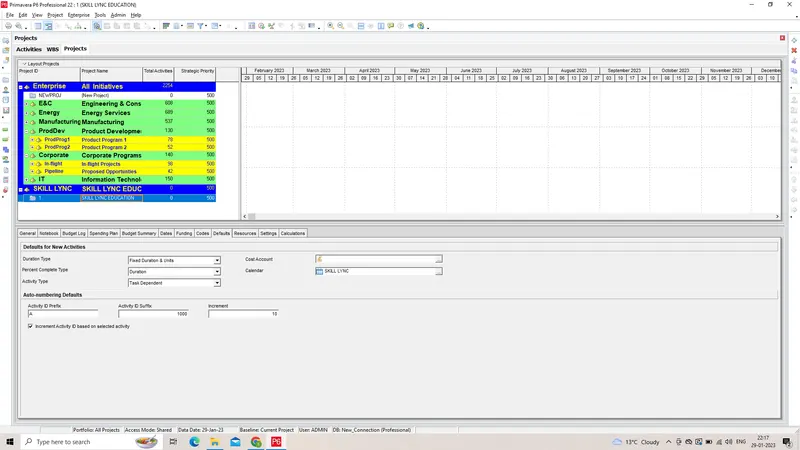
CALENDER FOR 24 X 6 IS ASSIGNED NAMED IN SKILL LYNC
Step 10:
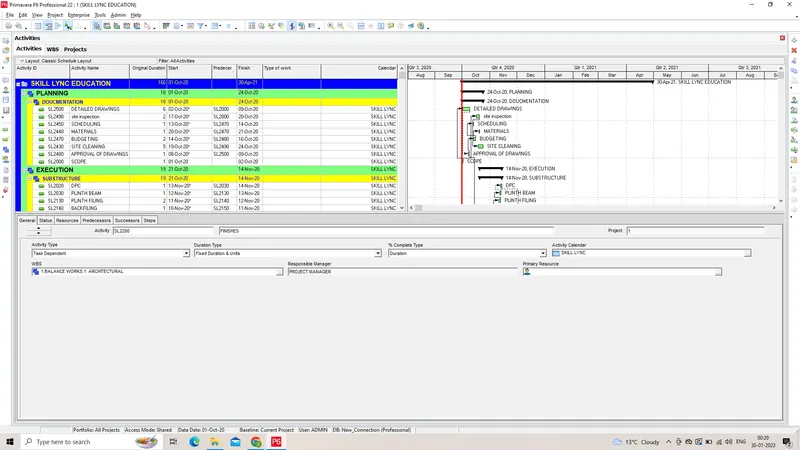
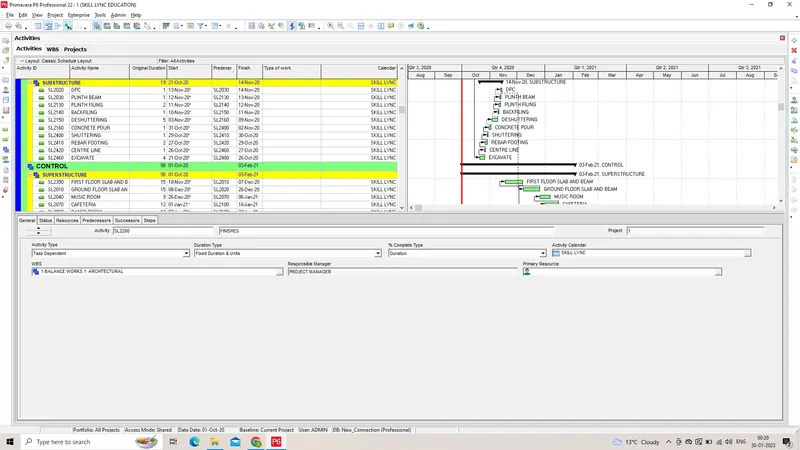
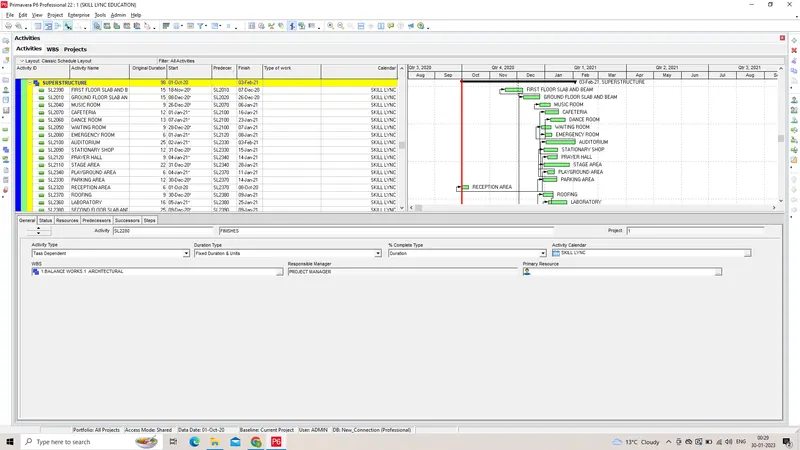
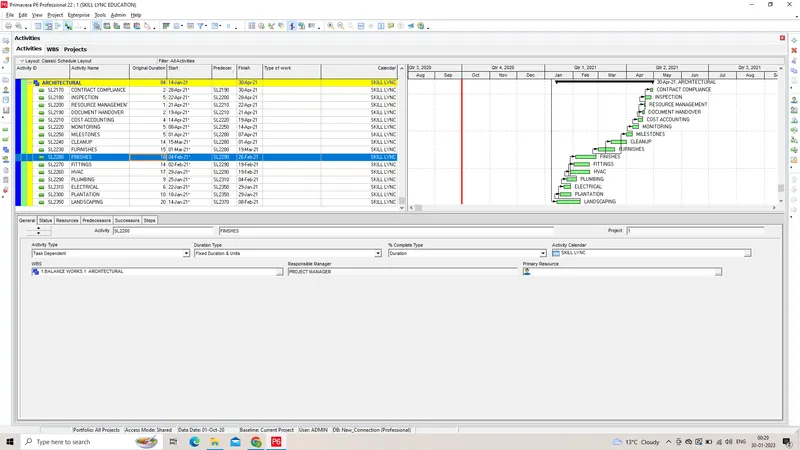
1) Click the activity tab
2) Click + button on right side of the screen
3) Provide the activity name and its code
4) click next
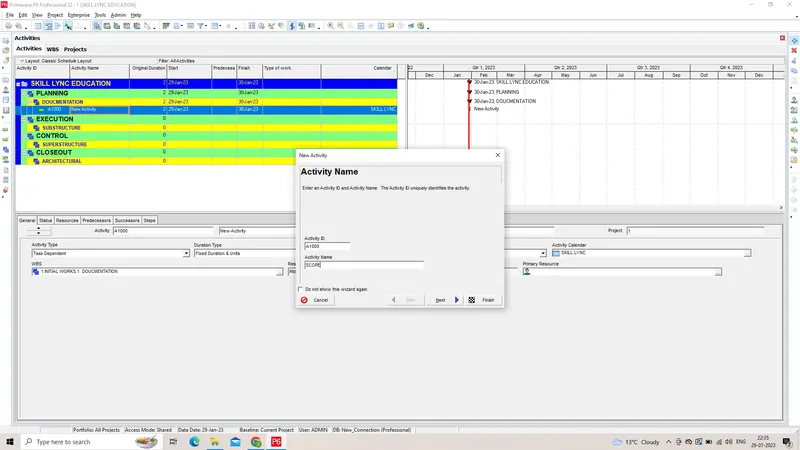
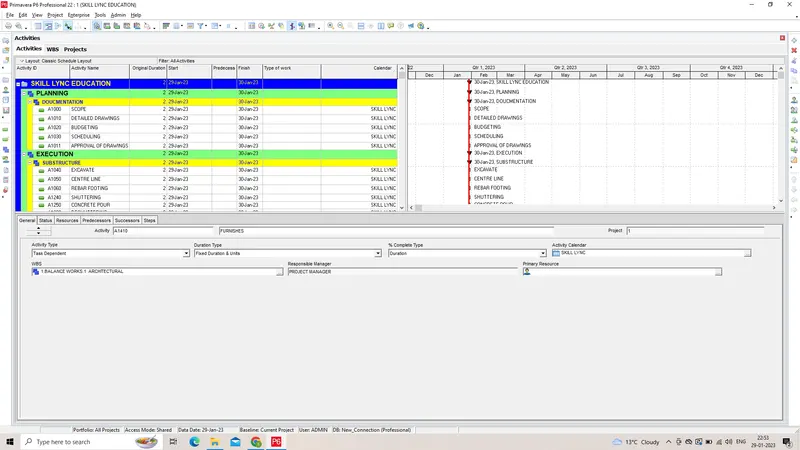
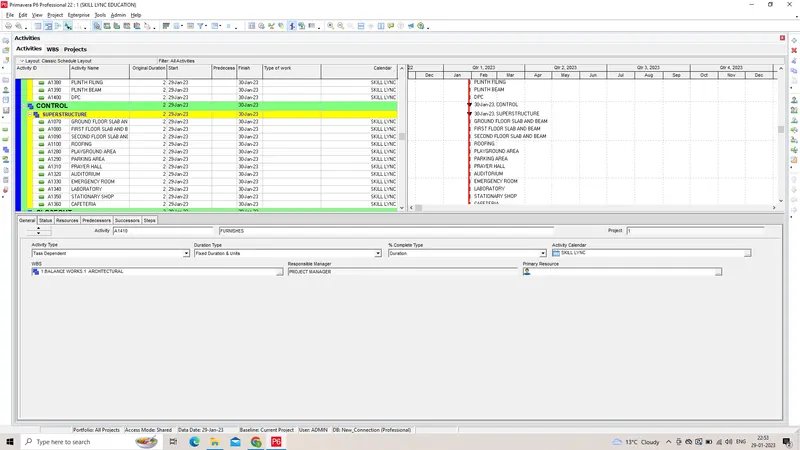
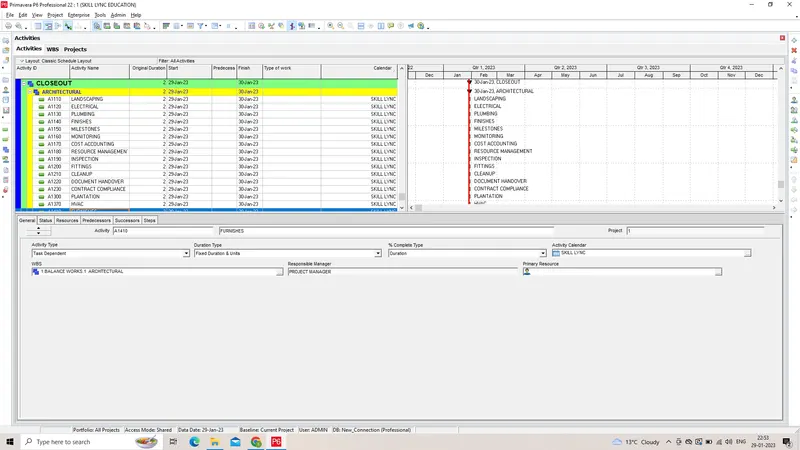
>ACTIVITIES ADDED SUCCESSFULLY
Step 11:
1) click each of the activity
2) Under the predeccesor/successor choose suitable relationshiop of each activity
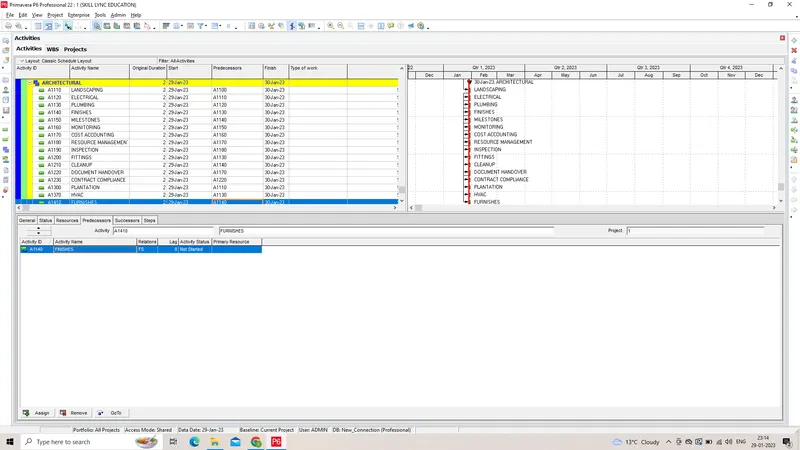
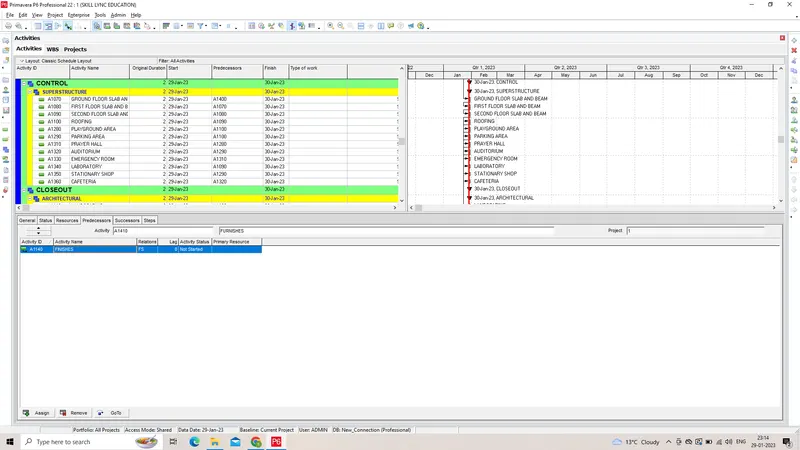
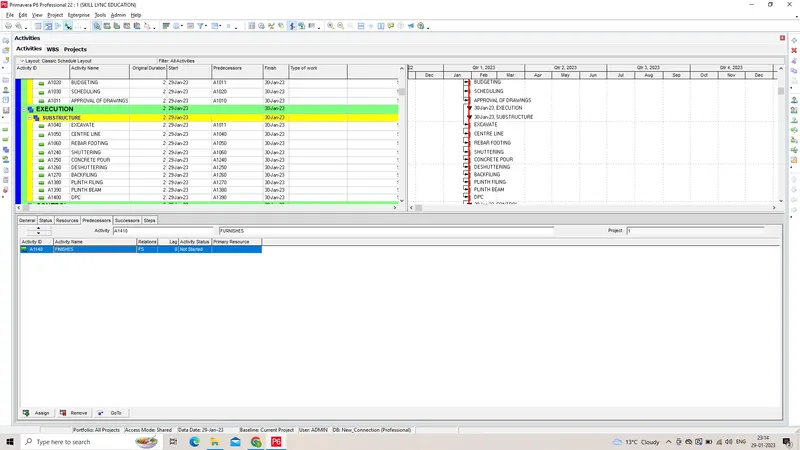
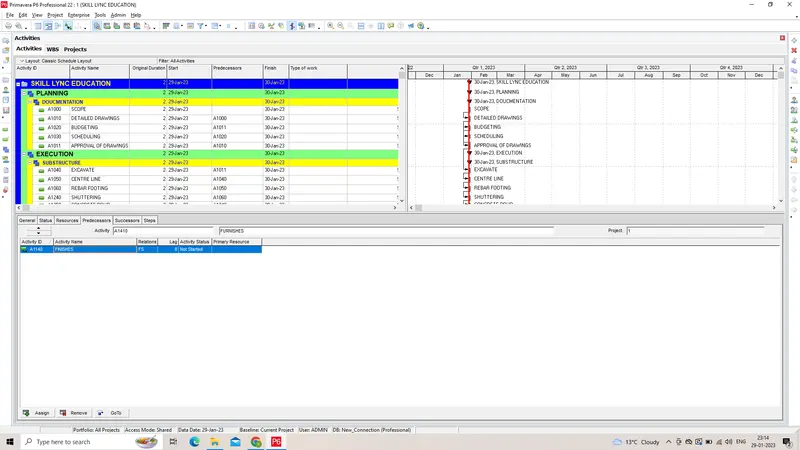
>Assigning of Predeccessor/Successor has been done successfully
Step 12:
Start and end date of the project has been added successfully
Step 13:
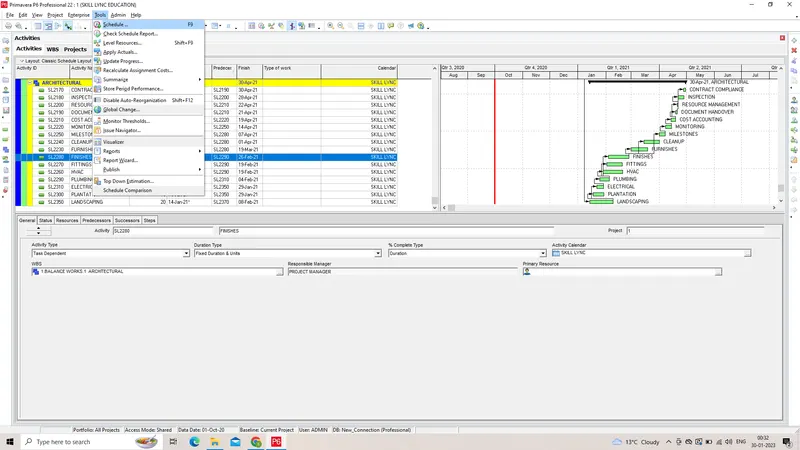
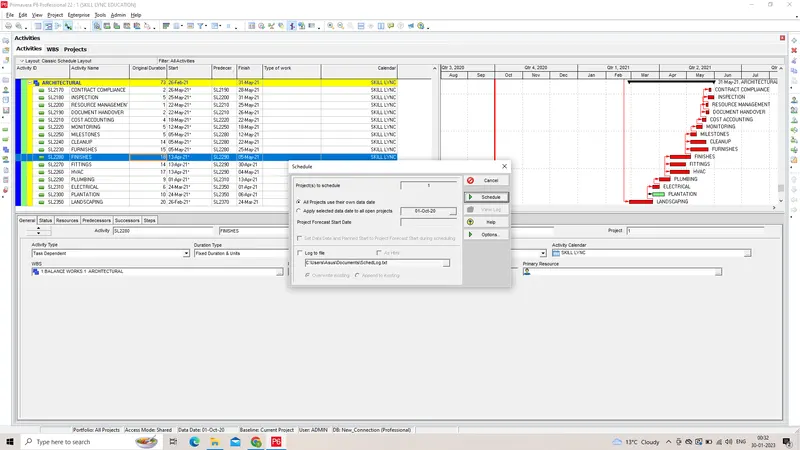
1) Click Schedule tool on top of the tool bar
2) Select schedule option
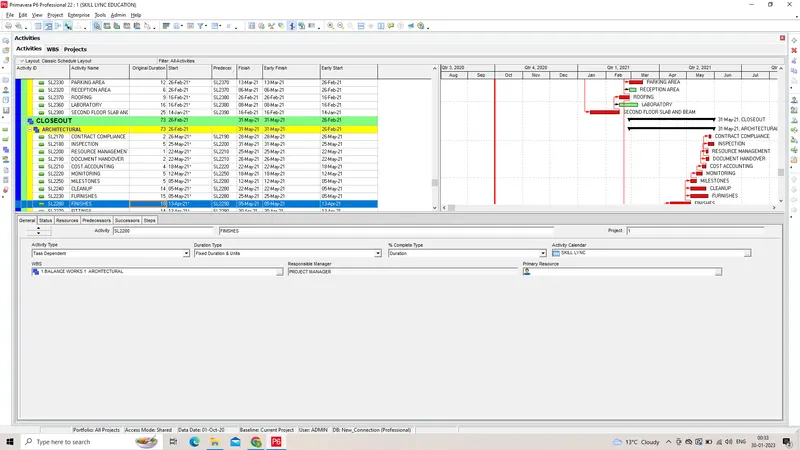
3) Hence Early/Late start and finish has been determined successfully
Step 14:
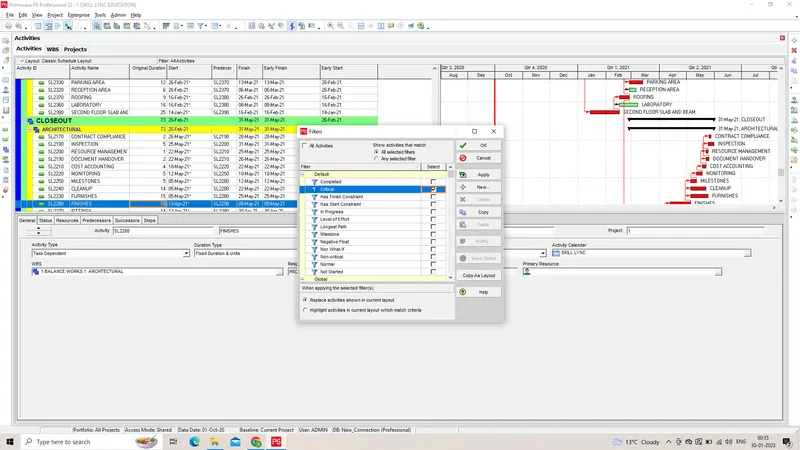
1) Click filter option
2) Choose Critical activity
3) And see the list of critical activity from the project
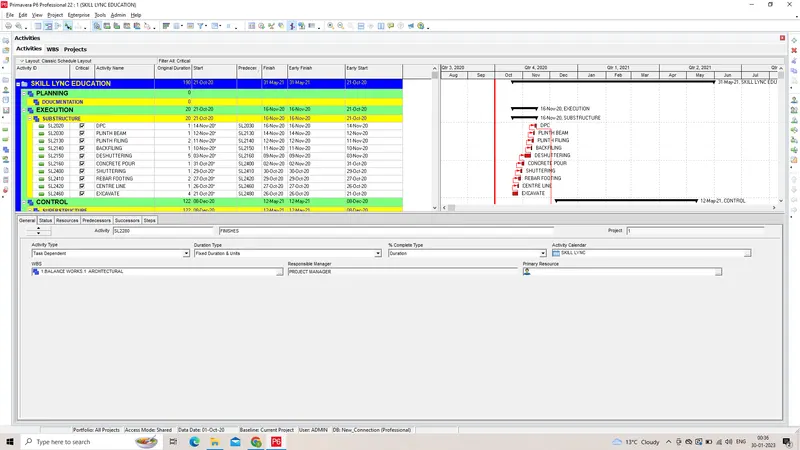
Step 15:
Constraints has been added using bottom tool for activities
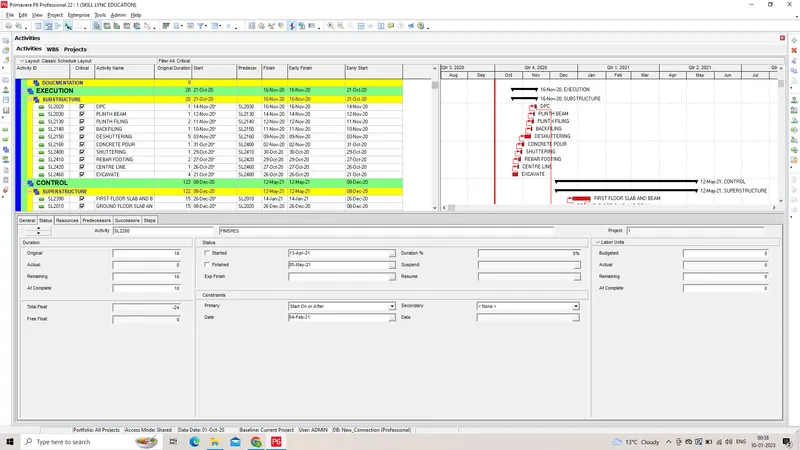
Step 16:
1) Click filter option
2) Choose new and select list of float should not less than 35 days
3) Select ok
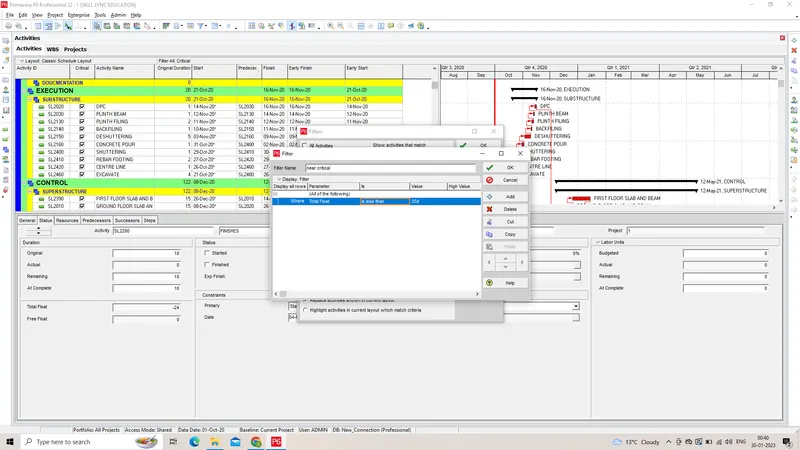
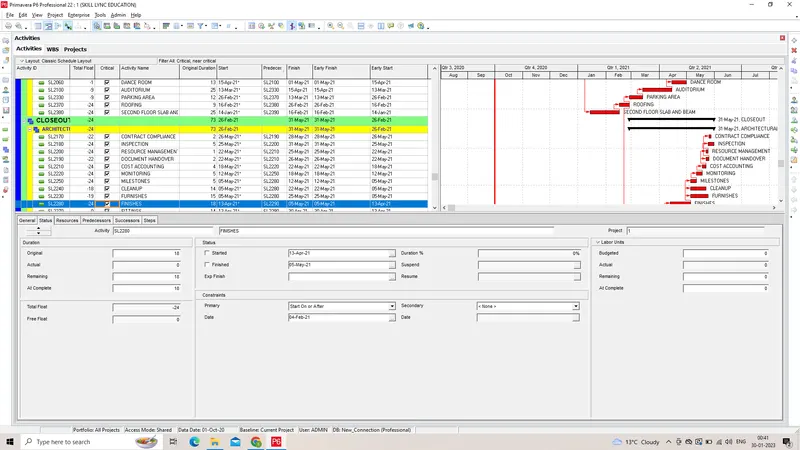
Step 17:
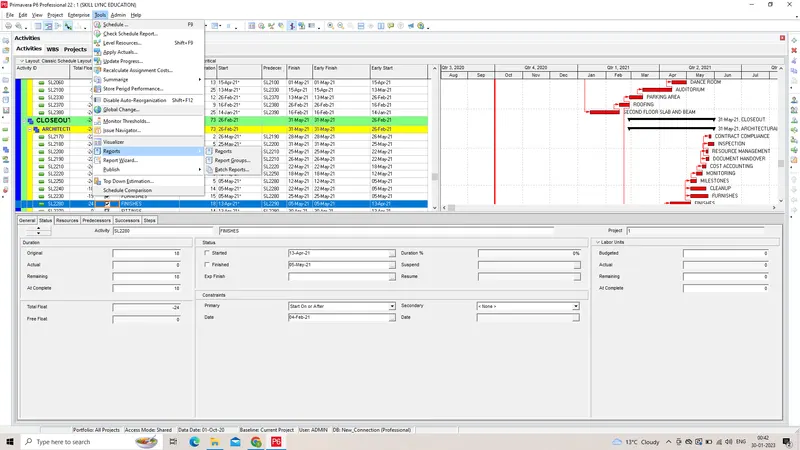
1) Go to tools tab and select reports
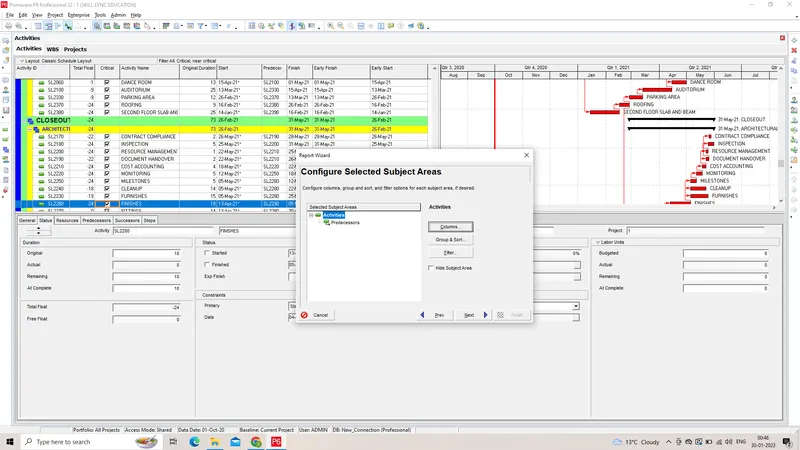
2) Choose the columns and modify it
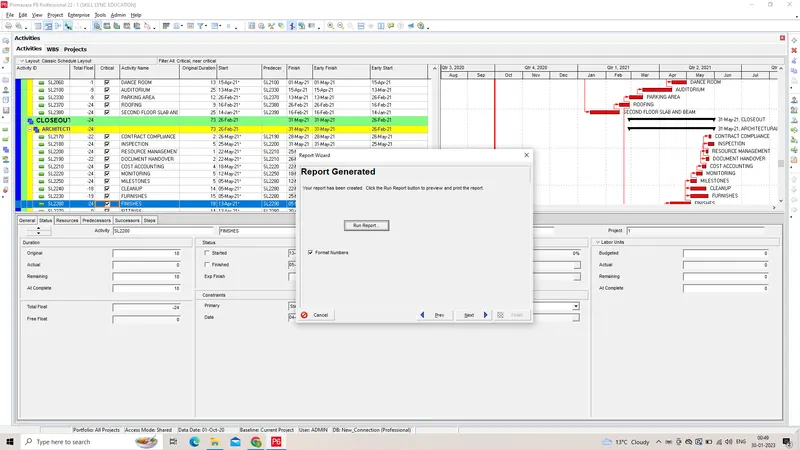
3) Generate the report of the project
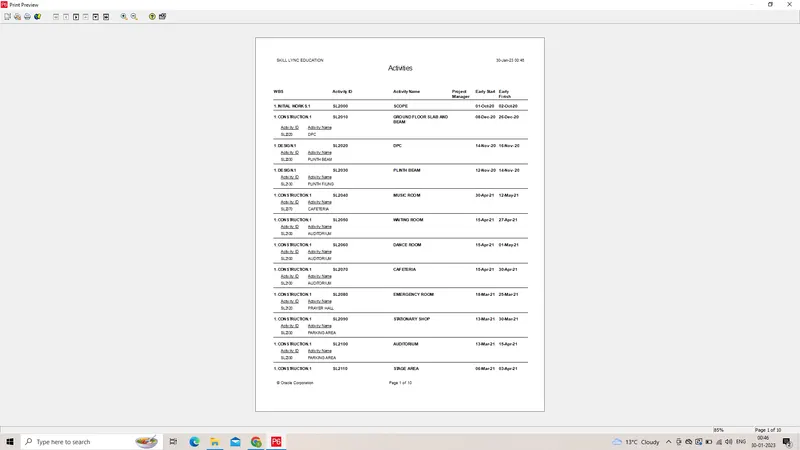
REPORT ATTACHED BELOW FOR REFERENCE