Preparing Schedule & Cost Estimation for a building using REVIT
1 aim :- By using short cut keys in revit complete the tasks
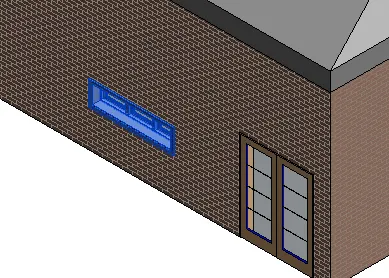
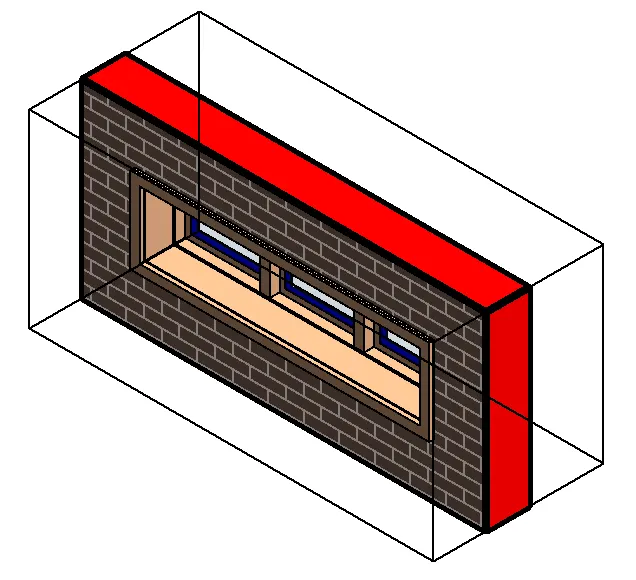
1. section box - BX
To make the section box click the component and type BX
section box is created
for ex-
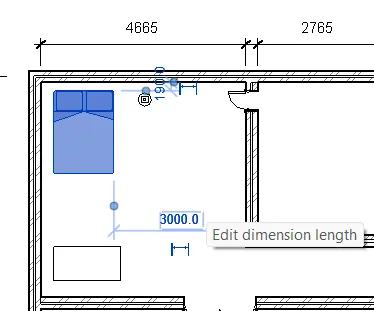
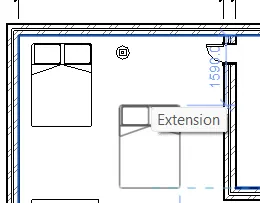
2. create similar - CS
select component> type CS> similar component is crteated and can be inserted anywhere
ex-
3 . reduce thickness of lines - TL
click on lines ( created walls ex)
type TL thin lines are created , if needed the thickness of original of before then type TL again
ex-


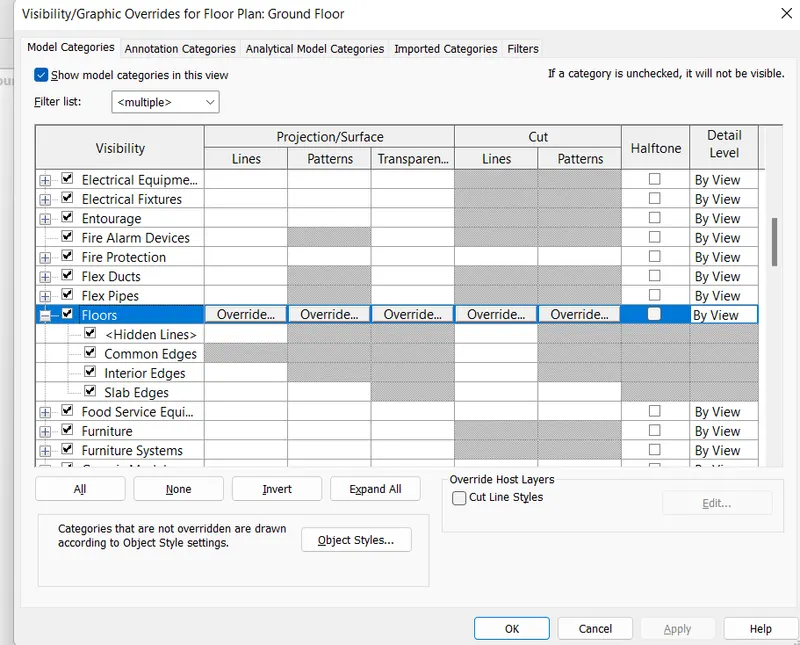
4. for override setting to floor - VG
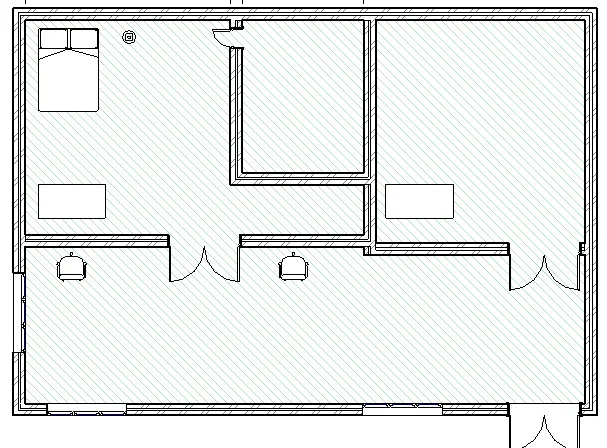
type VG for visibility graphics in which select floor under pattern > click override the tab fill pattern graphics arrises
in fore ground if needed select pattern or colour changes can be made
this is how u can override floor component .
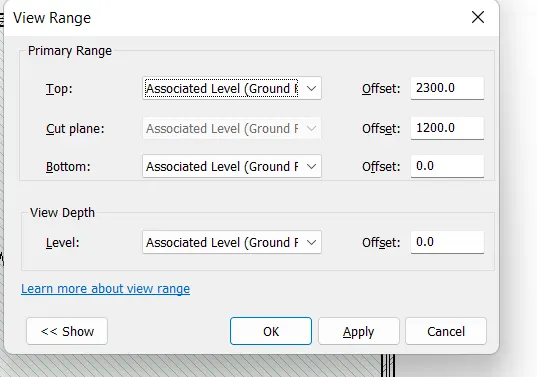
5. view range - VR
type VR and change view ranges needed then click ok
6. reselect - ctrl<
after typing ctrl < it shows the previously selected objects
7. annotations - DI
it changes to ribbon for assining the dimensions

8. rotate - RO
select the component then type RO to rotate
9. align -AL
for eample create the small floor by using rectangle and i wanted to align with some wall
so select wall type AL and select the floor created
the wall attaches to floor created .
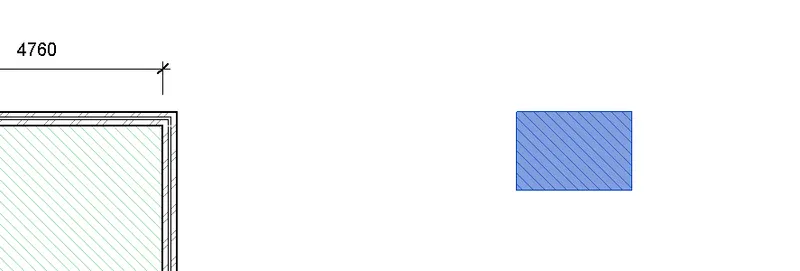
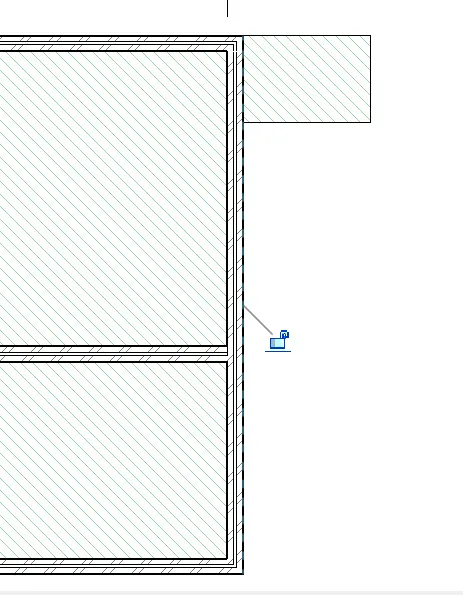
10. copy -co
select them component type co to copy the object or component
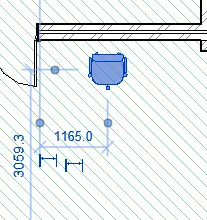
11. move - MV
select component type MV and move selected component
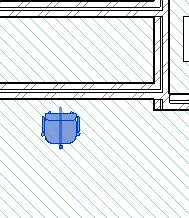
12. mirror - MM
select component or object typeMM to mirror using the intersection level
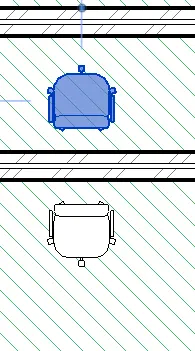
13. array - AR
by array we can make copies by giving proper distance
choose number of arrays needed and dist between each object in ribbon tab to make arrays
2 ans :- AIM using revit prepare schedules of walls , doors , windows, material -concrete /wood
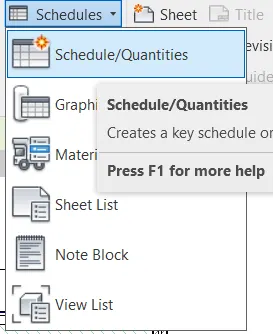
a) walls - go to view tab > select schedule option > click on schedule / quantities
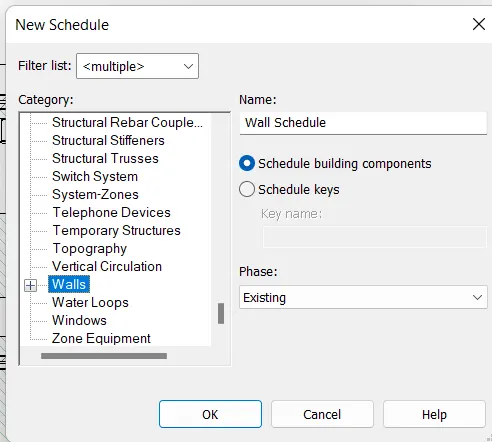
a new schedule tab appears click on wall > give ok
again a schedule properties tab appears in which select parameters which u want to show in schedule
like count , family, type , length, area etc then give ok
now wall schedule is created u can also go to property browser and in that go to schedule > wall schedule
and can view the schedule created.
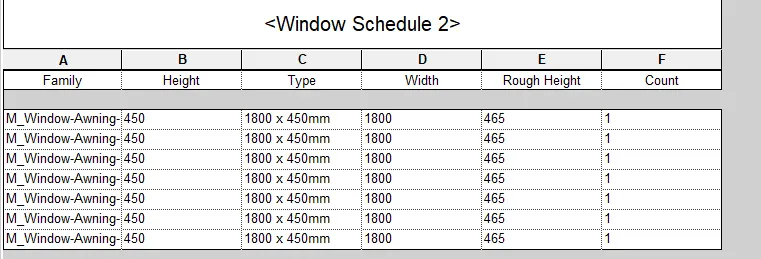
similarly for b) doors and c) windows the same procedure is followed
but for d) material -concrete / wood
go to view tab > schedule > here select the material take off then the remaning procedure is followed same.
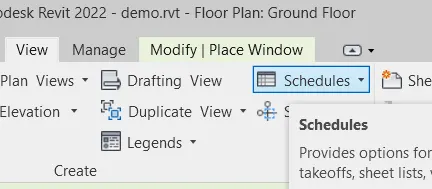
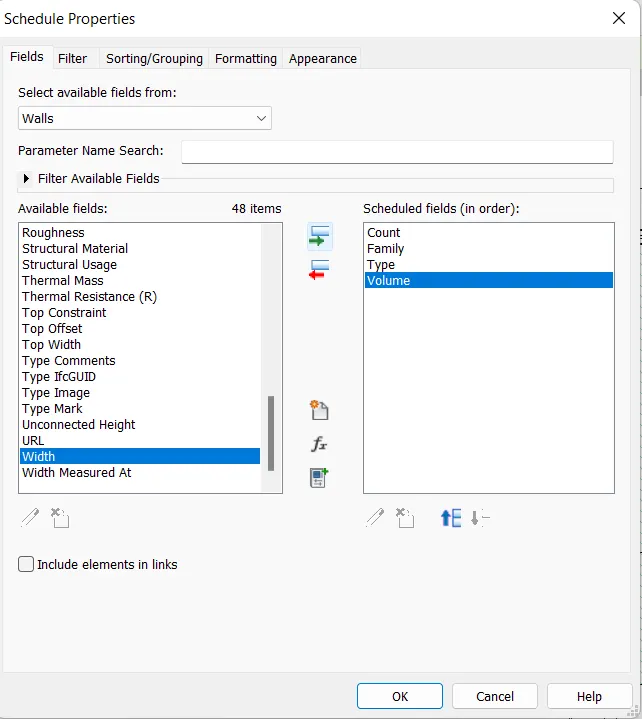
wall schedule-
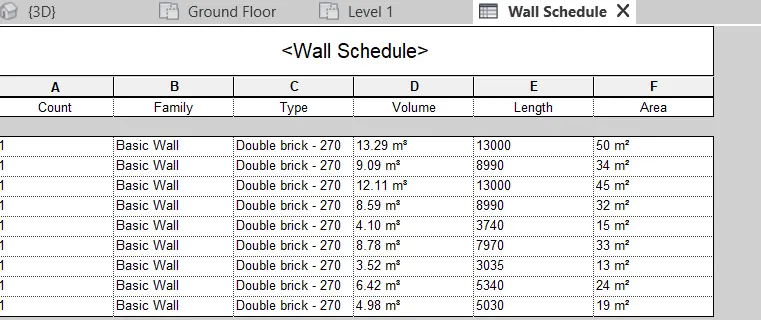
door schedule -
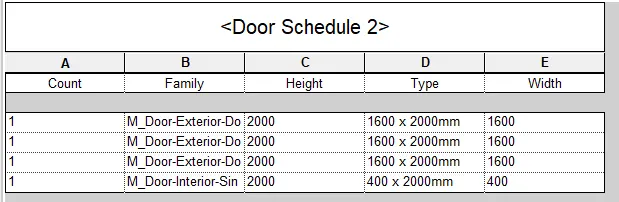
window schedule -
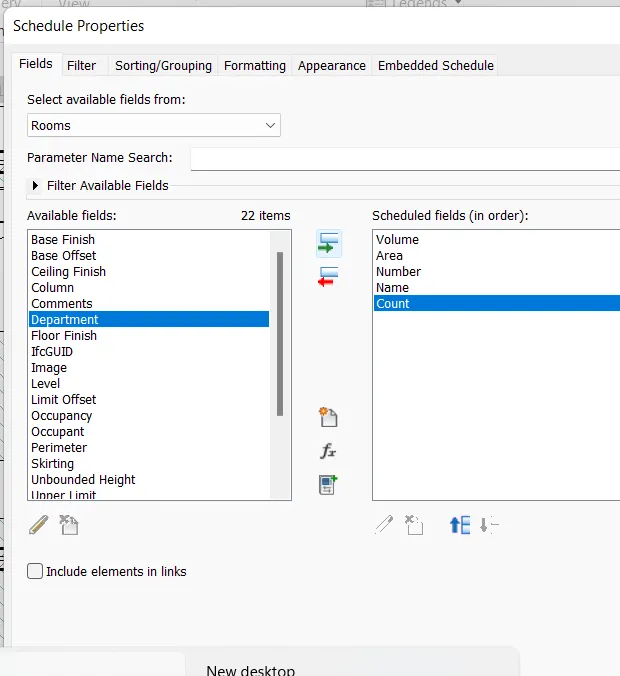
3. aim to calculate the area and volume of each room in model using room tags and preparing a schedule report of volume of each room
go to schedule under view tab
in new schedule select the room >ok
then in the schedule properties select the area and volume >ok
room tags apllied to each room
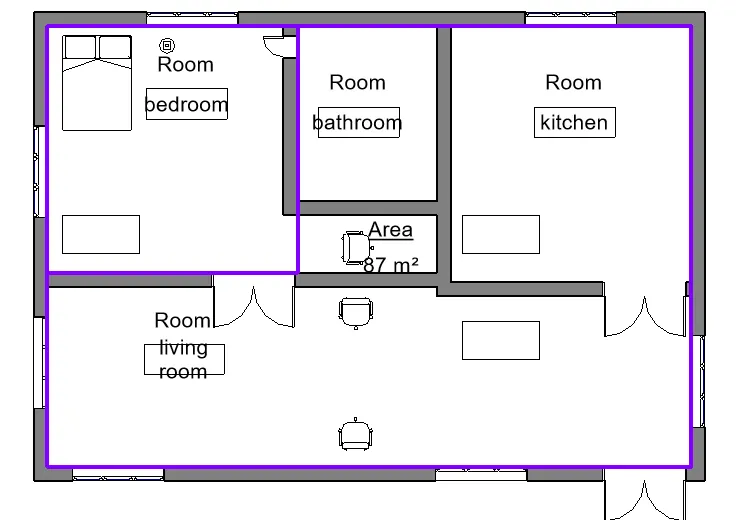
finally the room schedule with area of each rooms

4ans :-
preparing total cost of the materials used in project
a. total cost of materials
for ex
select wall > go to edit type in pp > give cost as 100 for ex
now go to schedule under view tab > material takeoff
in new material take off tab select walls then in the material take off properties select cost , count , material name > ok
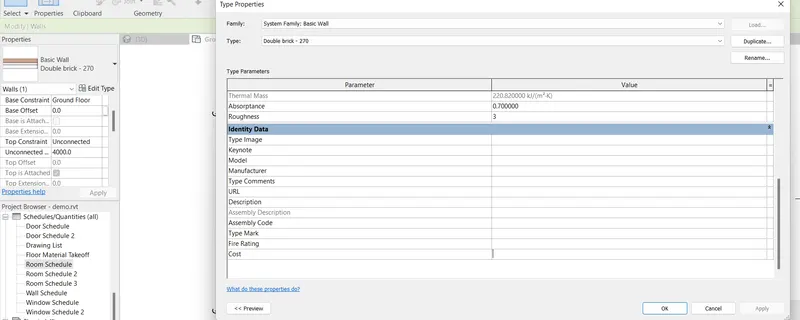
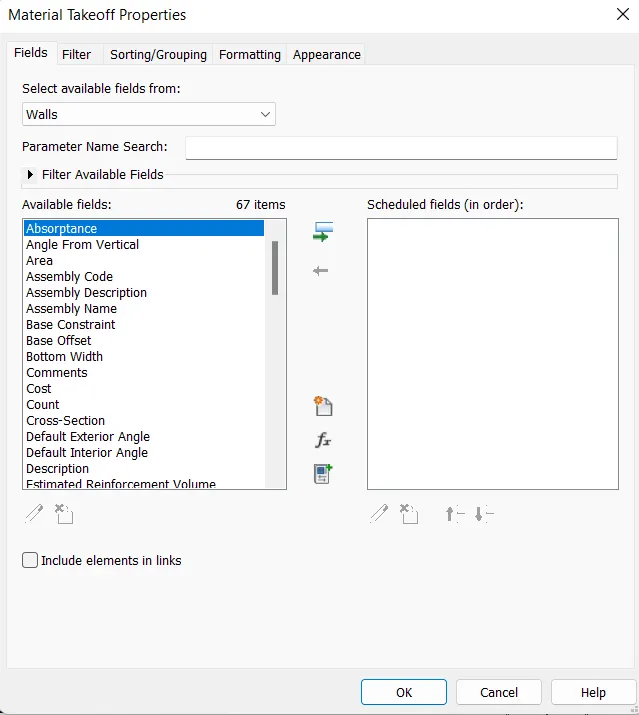
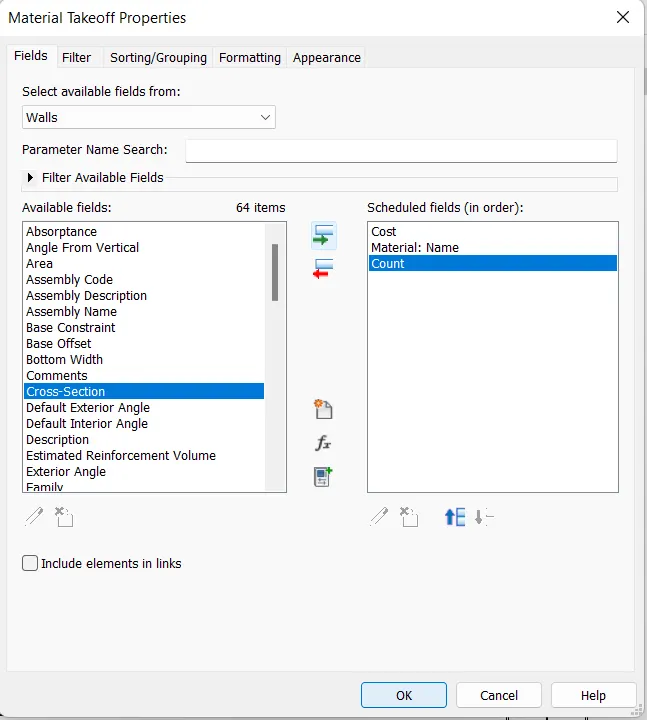
then in wall material take off appears on revit screen
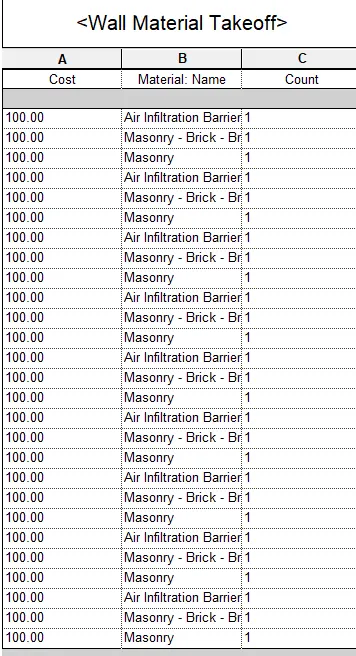
now to calculate the total cost right click on c column and select insert column create the dummy column of any(assembly code done here)
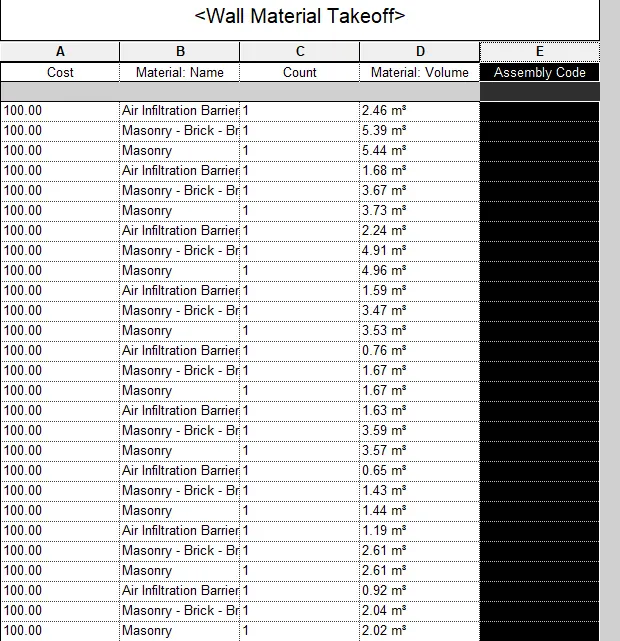
then go to calculatedfx in tab menu
a tab appears in which give name total cost
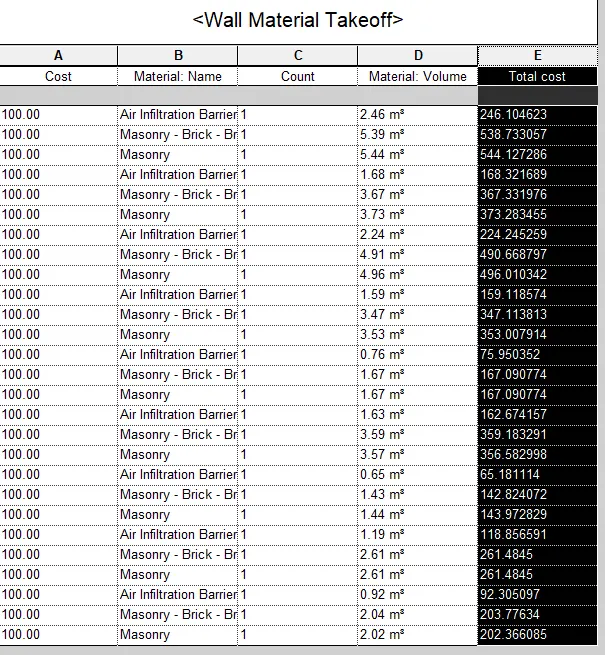
give formula to calculate toatl cost of material -(material volume/1cf) * cost
then the dummy column is chnged to tatal cost and total cost is calculated
b . for individual material take off
view > schedule> material takeoff > choose material takeoff of individual ( for ex wall door )
and remaing same procedure followed as a
5. ans :- list of flow chart
a) to decide the framings for a structure using dynamo
* > preparation of formwork
> assembling the formwork
> placement of reinforcement
> concrete placing
> compacting
> curing
> completed
b) if there is no water coming from pipe
* > check the pipe connection
> check the water supply
> check for any leaks
> fix the problem
c) request money from client has been declined for project
* > explain the project to client
> provide time for client to decide
* if he accepts to pay continue *if he denies/refuses to pay
with the project decline the project
6.ans :- aim show parameters associated with the model element
wall
floor
door
window
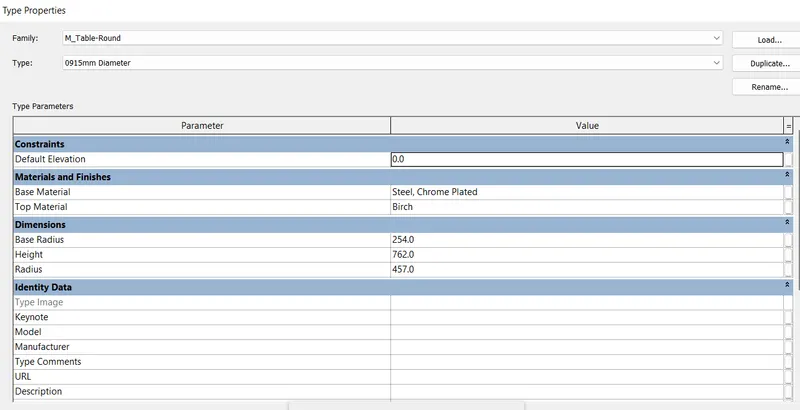
table
building
for the parameters view select the model element or component
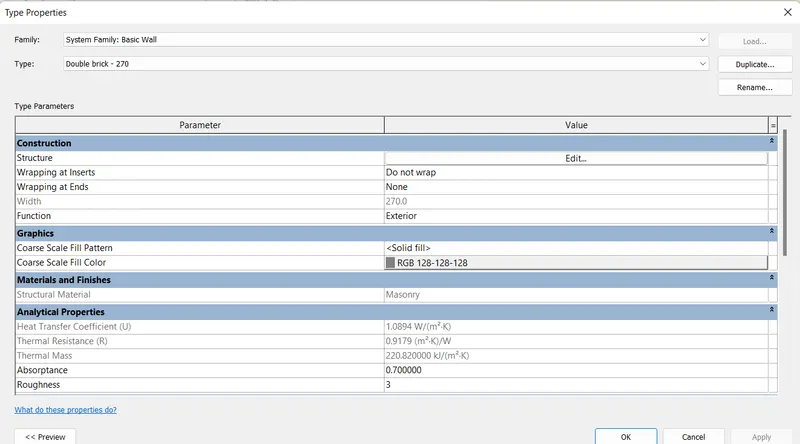
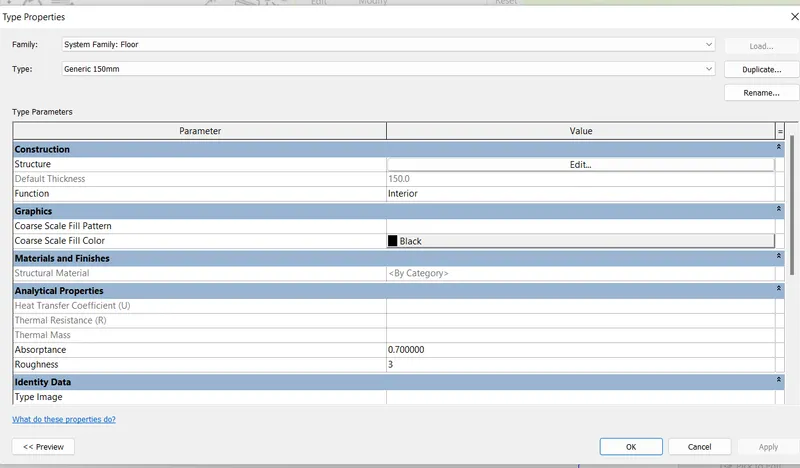
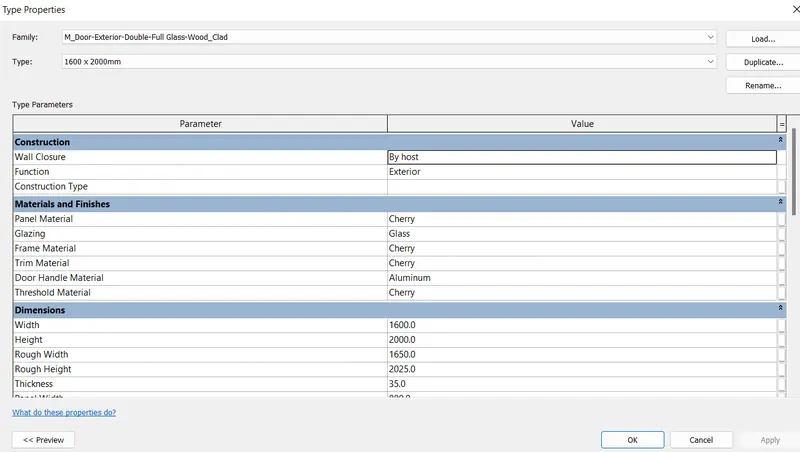
then go to edit type in the property browser and parameters are listed.
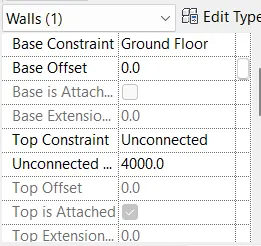
similary for others the listed parameters as below
walls-
floor-
doors-
window-
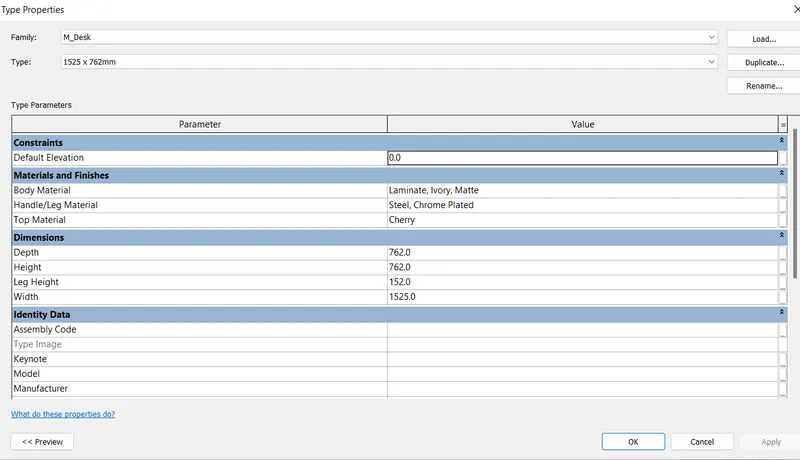
TABLE-