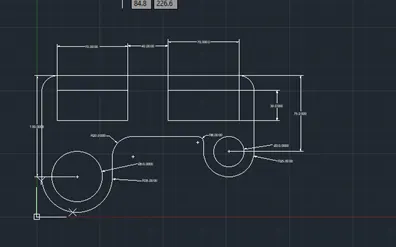
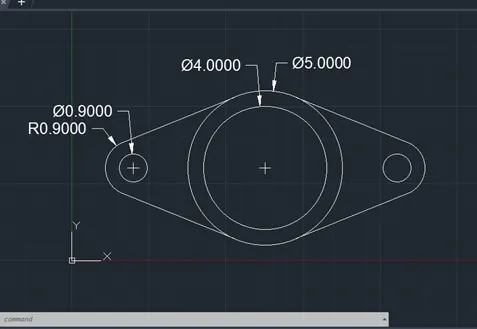
Drafting of various geometries using Chamfer, Fillet tool in AutoCad
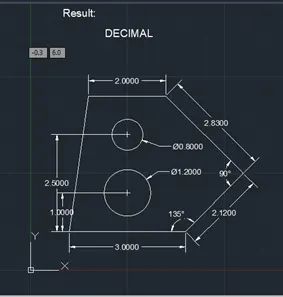
Aim: 1
To draw the given drawing using. AutoCAD software
Procedure:
Step: 1
- In the command prompt type units and select decimal unit
- In the command prompt type limits
- In the command prompt type (0,0)
- In the command prompt type(10,10)
Step: 2
- In the command prompt type C (circle)
- In the command prompt specify start point 2.5,2
- In the command prompt type 20
- In the command prompt click Enter
- In the command prompt type C (circle)
- In the command prompt specify start point 2.5,3.5
- In the command prompt type 08
- In the command prompt click Enter
Result:
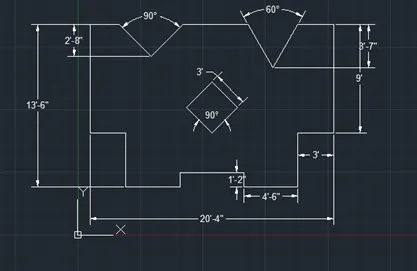
Aim: 2
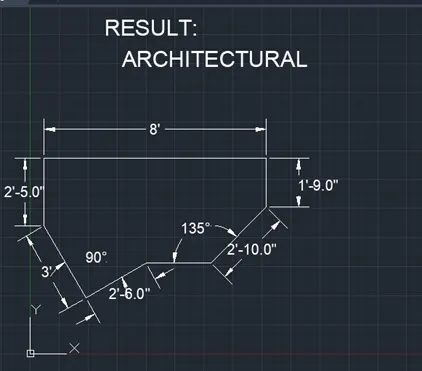
To draw the given drawing using. AutoCAD software
Procedure:
Step: 1
- In the command prompt type units and select architectural unit
- In the command prompt type limits
- In the command prompt type (0’,0’)
- In the command prompt type (10’,10’)
Step:2
- In the command prompt type L (line)
- In the command prompt specify start point 2’,2’
- In the command prompt type @3’ <135
- In the command prompt type @2’5” <90
- In the command prompt type @8’<0
- In the command prompt type @1’9” <270
- In the command prompt type @2’10” <225
- In the command prompt type @0.383’2” <180
- In the command prompt type @2’6” <225
- In the command prompt click close
Result:
Aim: 3
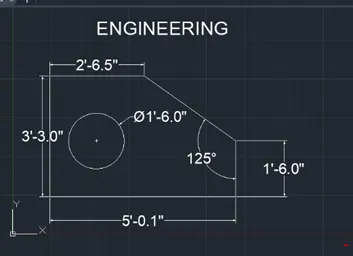
To draw the given drawing using. AutoCAD software
Procedure:
Step: 1
- In the command prompt type units and select engineering unit
- In the command prompt type limits
- In the command prompt type (0’,0’)
- In the command prompt type (10’,10’)
Step: 2
- In the command prompt type L (line)
- In the command prompt specify start point 1’,1’
- In the command prompt type @3’3.0” <90
- In the command prompt type @2’6.5” <0
- In the command prompt type @3’<315
- In the command prompt type @1’6.0”<270
- In the command prompt type @5’1.0”<180
- In the command prompt click close
Step:
- In the command prompt type C (circle)
- In the command prompt specify start point 2’3.0”,2’6.0”
- In the command prompt type 6.0
- In the command prompt click Enter
Result:
Aim: 4
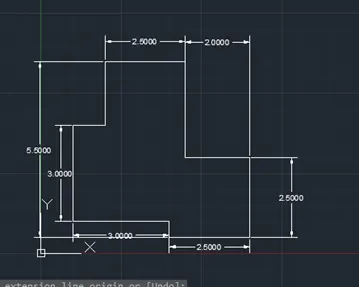
To draw the given drawing using. AutoCAD software
Procedure:
Step: 1
- In the command prompt type units and select architectural unit
- In the command prompt type limits
- In the command prompt type (0,0)
- In the command prompt type(10,10)
Step: 2
- In the command prompt type REC (rectangle)
- In the command prompt specify start point 1,1
- In the command prompt type 0.90,0.45
- In the command prompt click close
Step: 3
- In the command prompt type L (line)
- In the command prompt specify start point 2,2
- In the command prompt type @3 <90
- In the command prompt type @1 <0
- In the command prompt type @2 <90
- In the command prompt type @2.50 <0
- In the command prompt type @2.50<270
- In the command prompt type @2<0
- In the command prompt type @2.50<270
- In the command prompt type @2.50<180
- In the command prompt type @0.5 <90
- In the command prompt type @3<180
- In the command prompt click close
Result:
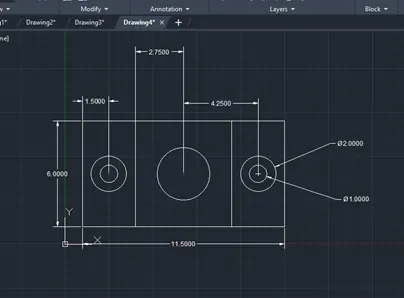
Aim: 1
To draw the given drawing using. AutoCAD software
Procedure:
Step: 1
- In the command prompt type units and select decimal unit
- In the command prompt type limits
- In the command prompt type (0,0)
- In the command prompt type(10,10)
Step: 2
- In the command prompt type C (circle)
- In the command prompt specify start point 2.50,4
- In the command prompt type 2
- In the command prompt click Enter
- In the command prompt type C (circle)
- In the command prompt specify start point 2.50,4
- In the command prompt type 1
- In the command prompt click Enter
- In the command prompt type C (circle)
- In the command prompt specify start point 6.75,4
- In the command prompt type 3
- In the command prompt click Enter
Step: 3
- In the command prompt type mirror
- In the select object enter
- In the select mirror point
- In the command prompt type y
- In the command prompt click Enter
Step: 4
- In the command prompt type rec
- In the command prompt specify start point 1,1
- In the command prompt type D and enter
- In the command prompt 11.50 and Enter
- In the command prompt type 6 and Enter
- In the command prompt type L
- In the command prompt specify select start point and @6<90
- In the command prompt click Enter
- In the command prompt type L
- In the command prompt specify select start point and @6<90
- In the command prompt click Enter
Result: