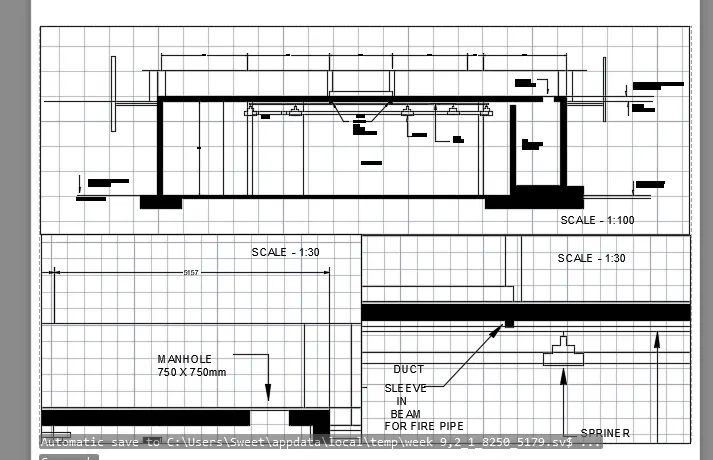
Creation of Multiple viewports, Scaling the drawing and setting in Template in AutoCad
1.
Aim:
To draw the create layout and section
Procedure:
Step 1
Go to the plan diagram
select the layout
Step 2
use command PS page setup
go to new option
enter the name at plan
select the page size at A1(840 x 500)
select monochromic
select the window option
Step 3
use command DI distance
select the line at distance
Step 4
use command MV mview
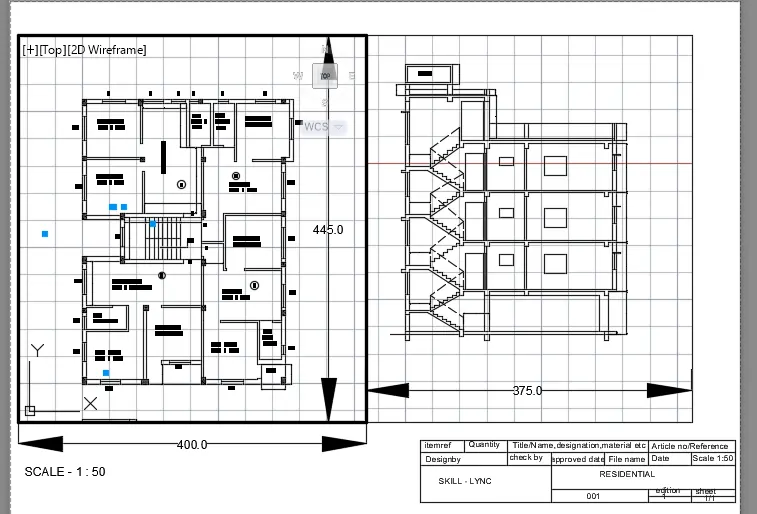
drop the line at @400,445
select the object
PAN command
drop the certain layer
Step 5
select the layout
use command MO
go to the misc
change the scale at 1:50
display object locked : yes
Step 6
use command MV mview
drop the line at @375,445
select the object
pan layer
drop the certain layer
Step 7
select the layout
use command MO
go to the misc
change the scale at 1:50
display object locked :yes
Step 8
use command table
set the row at 2
set the column 7
Step 9
select the layer at merge
DTEXT command will be use
set the text height 5
set the angle 0
Step 10
Take the plot
2.
Aim:
To draw the create layout and section
Procedure:
Step 1
Go to the plan diagram
select the layout
Step 2
use command PS page setup
go to new option
enter the name at plan
select the page size at A4
select monochromic
select the window option
Step 3
use command DI distance
select the line at distance
Step 4
use command MV mview
drop the line
select the object
PAN command
drop the certain layer
Step 5
select the layout
use command MO
go to the misc
change the scale at 1:1
display object locked : yes
Step 6
use command MV mview
drop the line
select the object
pan layer
drop the certain layer
Step 7
select the layout
use command MO
go to the misc
change the scale at 1:1
display object locked :yes
Step 8
use command MV mview
drop the line
select the object
PAN command
drop the certain layer
Step 9
select the layout
use command MO
go to the misc
change the scale at 1:1
display object locked : yes
Step 10
use command MV mview
drop the line
select the object
pan layer
drop the certain layer
Step 11
select the layout
use command MO
go to the misc
change the scale at 1:1
display object locked :yes
Step 12
use command table
set the row at 2
set the column 7
Step 13
select the layer at merge
DTEXT command will be use
set the text height 5
set the angle 0
Step 14
Take the plot
3.
Aim:
To draw the create layout and section
Procedure:
Step 1
Go to the plan diagram
select the layout
Step 2
use command PS page setup
go to new option
enter the name at plan
select the page size at A4
select monochromic
select the window option
Step 3
use command DI distance
select the line at distance
Step 4
use command MV mview
drop the line
select the object
PAN command
drop the certain layer
Step 5
select the layout
use command MO
go to the misc
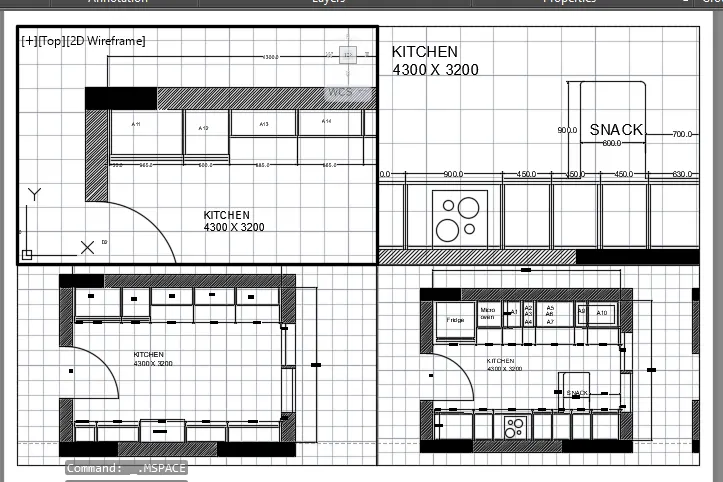
change the scale at 1:30
display object locked : yes
Step 6
use command MV mview
drop the line
select the object
pan layer
drop the certain layer
Step 7
select the layout
use command MO
go to the misc
change the scale at 1:30
display object locked :yes
Step 8
use command MV mview
drop the line
select the object
PAN command
drop the certain layer
Step 9
select the layout
use command MO
go to the misc
change the scale at 1:30
display object locked : yes
Step 10
use command table
set the row at 2
set the column 7
Step 11
select the layer at merge
DTEXT command will be use
set the text height 5
set the angle 0
Step 12
Take the plot