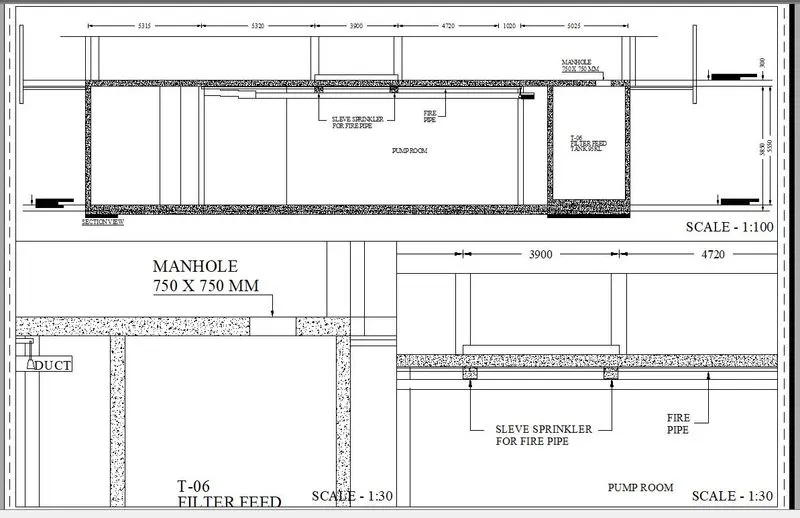
Creation of Multiple viewports, Scaling the drawing and setting in Template in AutoCad
Creation of Multiple viewports, Scaling the drawing and setting in Template in AutoCad
Ans:
1. Create a layout of the Plan and Section A of the project in Challenges 7, using the template Tutorial-mArch.dwt in a scale as given in the Figure. Use the MV command to create the viewport of the size as shown in Figure. Also, use ATTEDIT command to edit the information in the title block. Use A1 size for the layout. Take a plot.
Procedure:
- First open autocad File of Challenge 7 for set Different Viewports as show in attachments
- Open autocad file and open layout set multiple view ports with different scales.
- use MV Command for Viewport Creation.
- Finally Edit the information using ATTEDIT Command
Commands Used:
| COMMANDS | COMMAND SHORTCUT | COMMAND USE |
| Units | UN | To change Dimensions Units of above Drawing. |
| Viewport | MV | To create new Viewpport in Layout sheet. |
| Edit | ATTEDIT | To Edit the Title Block |
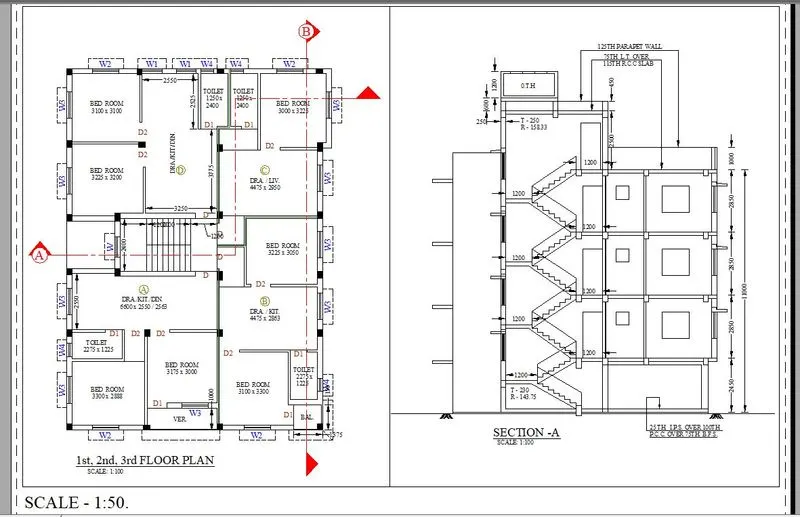
2. Create a layout of the Kitchen drawn in Challenge 10 as shown in Figure. Use the scale as shown in the Figure. Use A4 Size page for the layout. Take a plot.
Procedure:
- First open autocad File of Challenge 10 for set Different Viewports as show in attachments
- Open autocad file and open layout set multiple view ports with different scales.
- use MV Command for Viewport Creation.
- Finally Edit the information using ATTEDIT Command
Commands Used:
| COMMANDS | COMMAND SHORTCUT | COMMAND USE |
| Units | UN | To change Dimensions Units of above Drawing. |
| Viewport | MV | To create new Viewpport in Layout sheet. |
| Edit | ATTEDIT | To Edit the Title Block |
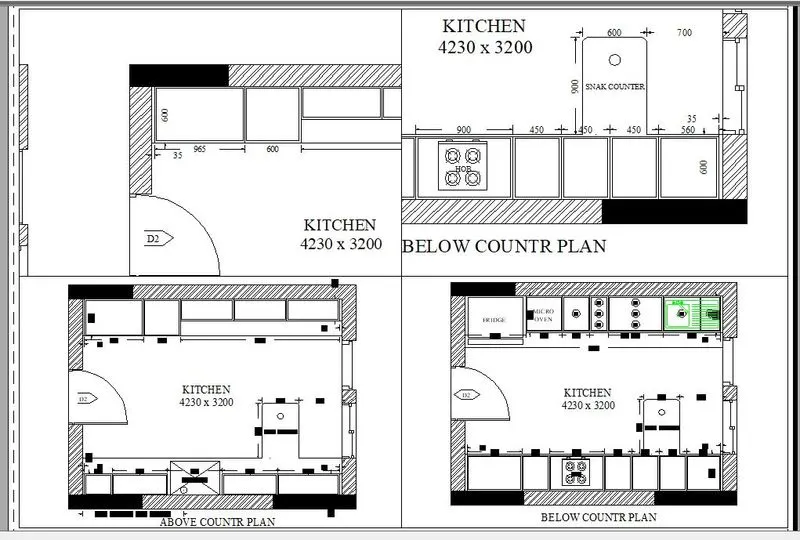
3. Create a layout of the section created in Challenges 10.
Use scale as mentioned in the Figure. Use MV command create multiple viewports. Take a plot.
Procedure:
- First open autocad File of Challenge 10 for set Different Viewports as show in attachments
- Open autocad file and open layout set multiple view ports with different scales.
- use MV Command for Viewport Creation.
- Finally Edit the information using ATTEDIT Command
Commands Used:
| COMMANDS | COMMAND SHORTCUT | COMMAND USE |
| Units | UN | To change Dimensions Units of above Drawing. |
| Viewport | MV | To create new Viewpport in Layout sheet. |
| Edit | ATTEDIT | To Edit the Title Block |