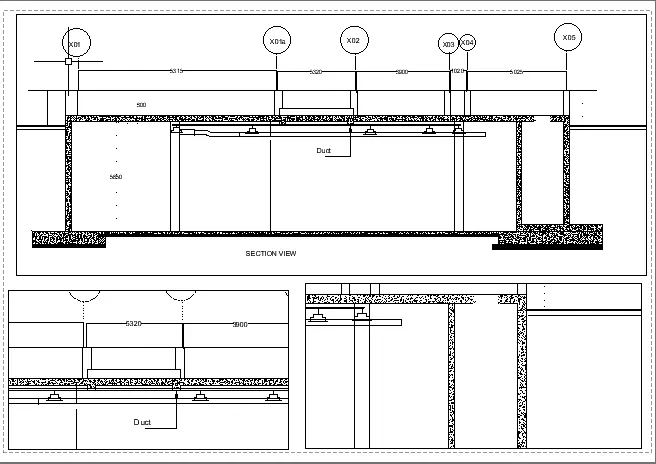
Creation of Multiple viewports, Scaling the drawing and setting in Template in AutoCad
AIM:
To Create a layout of the plan and section A of the project in challenges 7 .
PROCEDURE:
- In the command prompt type units > mm> decimal
- In the command prompt type limax >100,100
- In the command prompt type limits>0,0
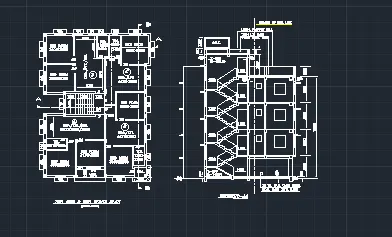
- In the command prompt type layout > template>Tutorial arch .m
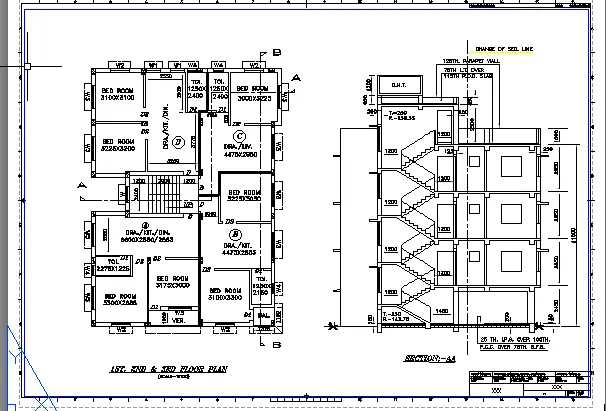
- In the command prompt type Ms to specify the centre of the plot
- Then click on the tittle box to edit the tiitle
- In the command prompt type Mv to add the view
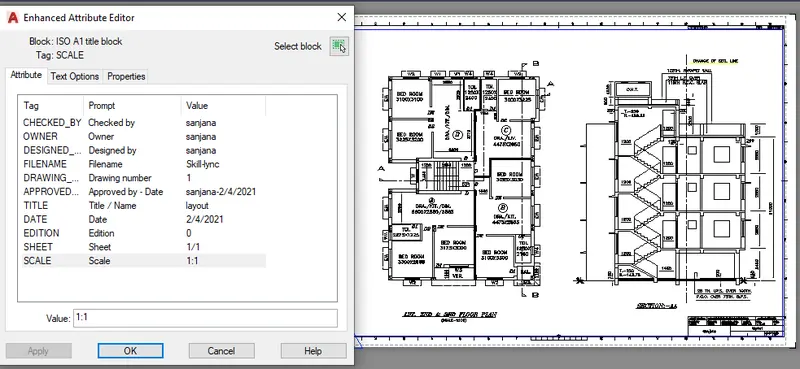
- In the command prompt type ctrl +p to plot it
- In the command prompt type pagesetup
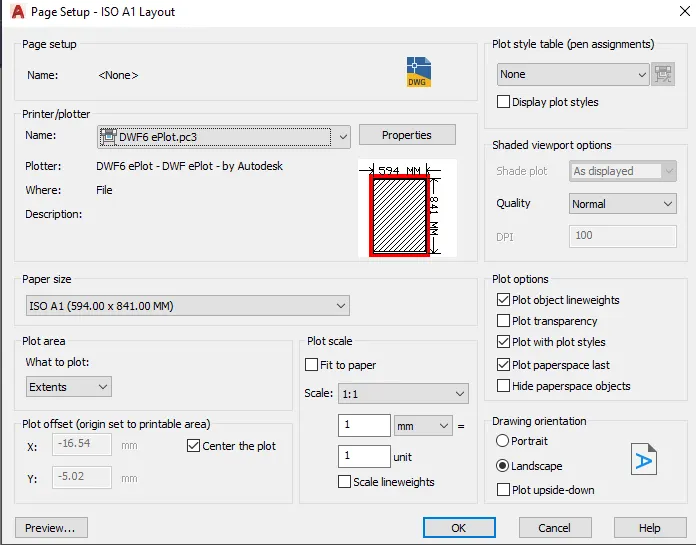
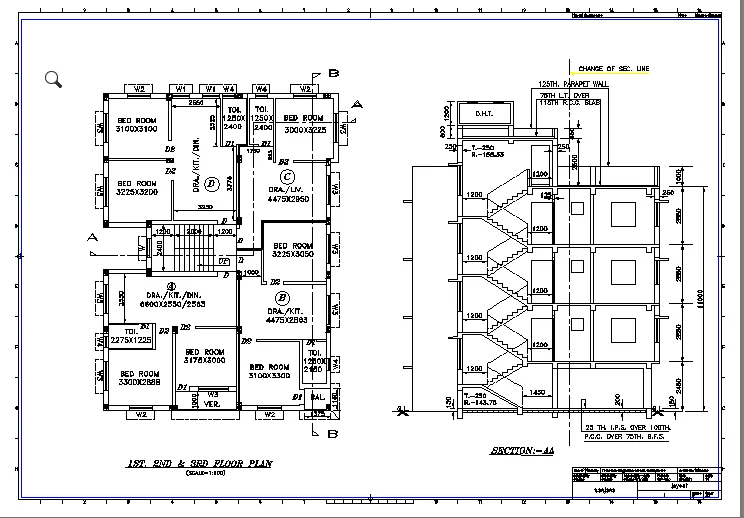
Final result :
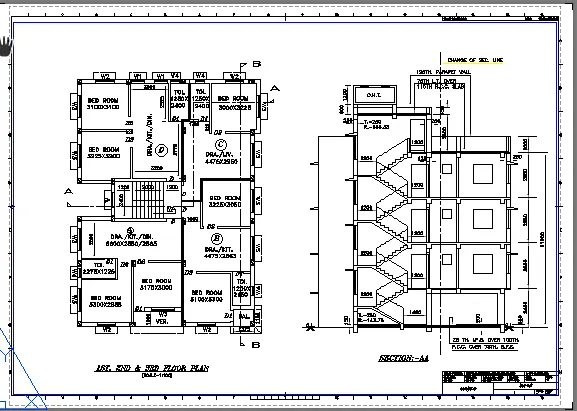
2) Create a layout of the Kitchen drawn in Challenge 9 as shown in Figure. Use the scale as shown in the
Figure. Use A4 Size page for the layout. Take a plot.
AIM:
To create layout of the kitchen drawn in challenge 9 . Use A4 size page for the layout and take a plot
PROCEDURE:
- In the command prompt type ps and ms to adjust the view
- In the command prompt type pagesetup to make the size to A4 change
- Click on the arrow mark to change the view
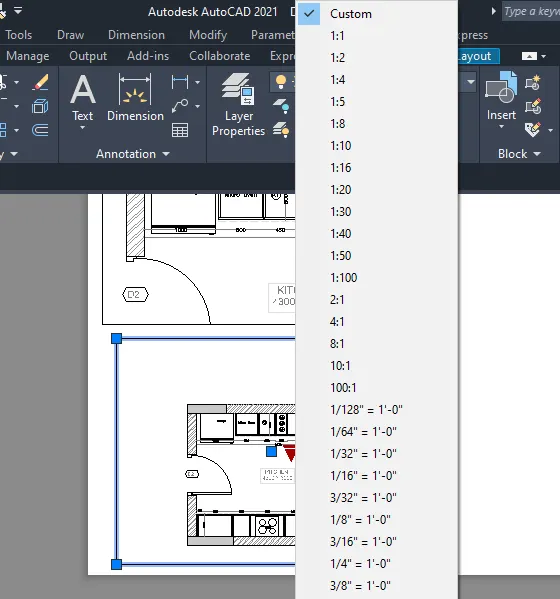
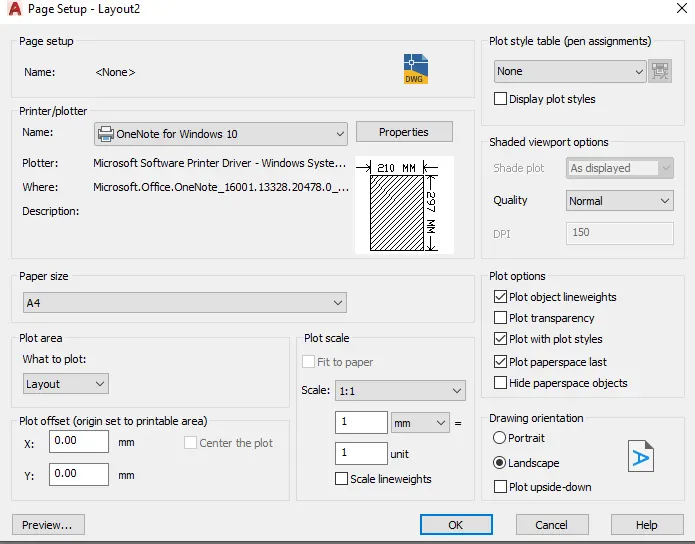
FINAL RESULT:
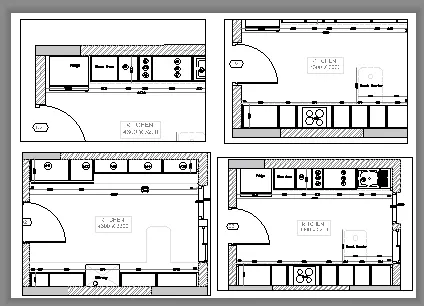
3. Create a layout of the section created in Challenges 9.Use scale as mentioned in the Figure. Use MV command create multiple viewports. Take a plot.
AIM:
To Create layout of the section created in challenges 9
PROCEDURE:
- Open the file in which challenge 9 is created
- go to layout in the command prompt type MV
- change the scale accordingly scale
- in the command prompt using Ms and ps adjust the view accordingly
RESULT: