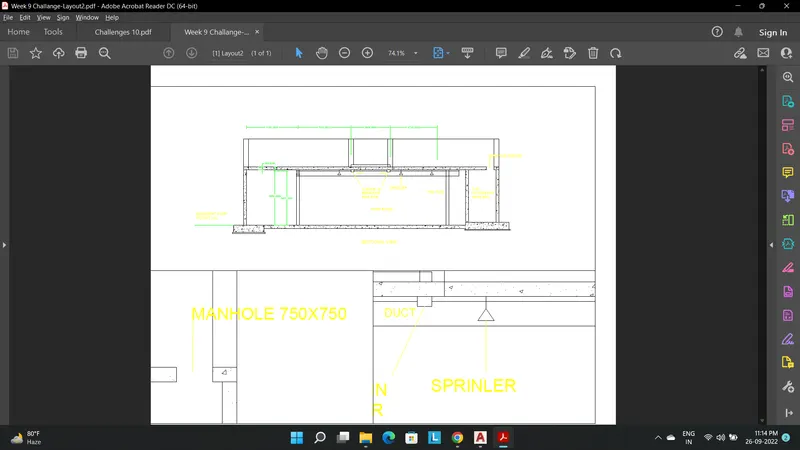
Creation of Multiple viewports, Scaling the drawing and setting in Template in AutoCad
Answer 1
Aim- Create a layout of the Plan and Section A of the project in Challenges 7, using the template Tutorial-mArch.dwt in a scale as given in the Figure. Use the MV command to create the viewport of the size as shown in Figure. Also, use ATTEDIT command to edit the information in the title block. Use A1 size for the layout. Take a plot.
Step 1- Selecting the templete Tutorial-mArch.dwt and setting the scale as given in the drawing i.e. 1:50
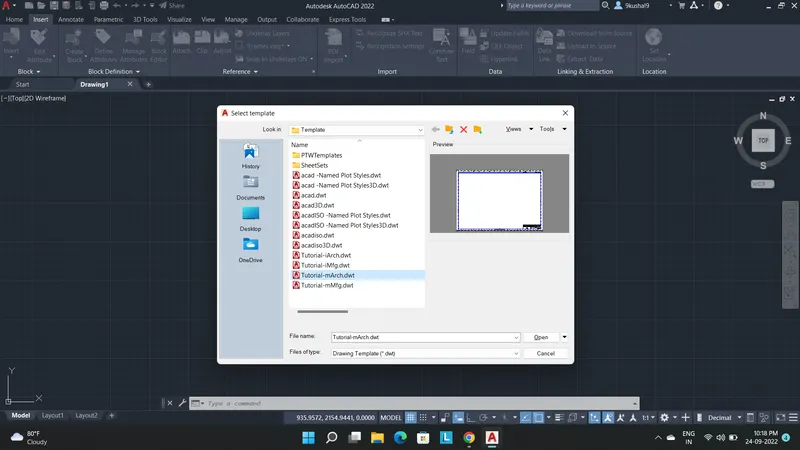
Step 2- Inserting the drawing of week 7 challange
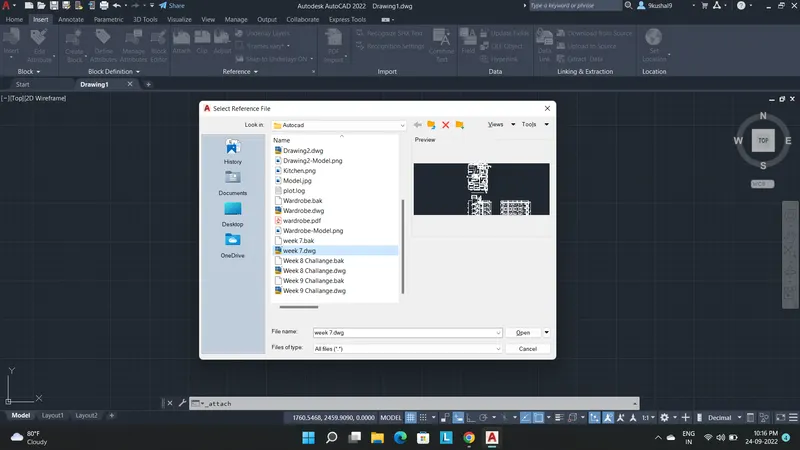
Step 3- Adjusting it as per the layout.
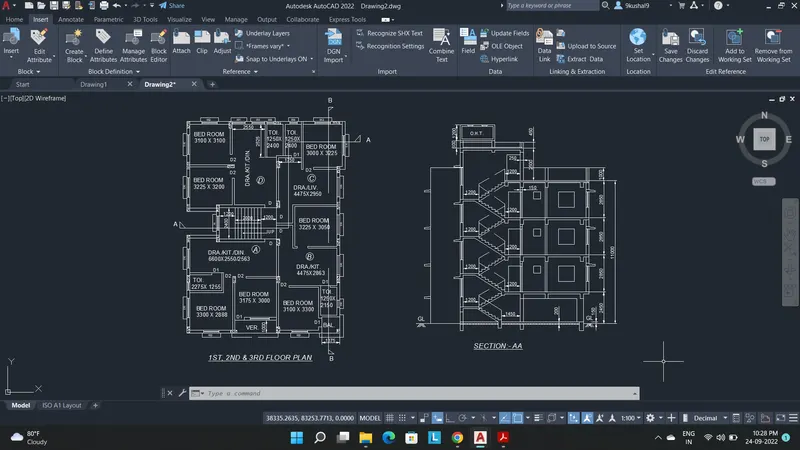
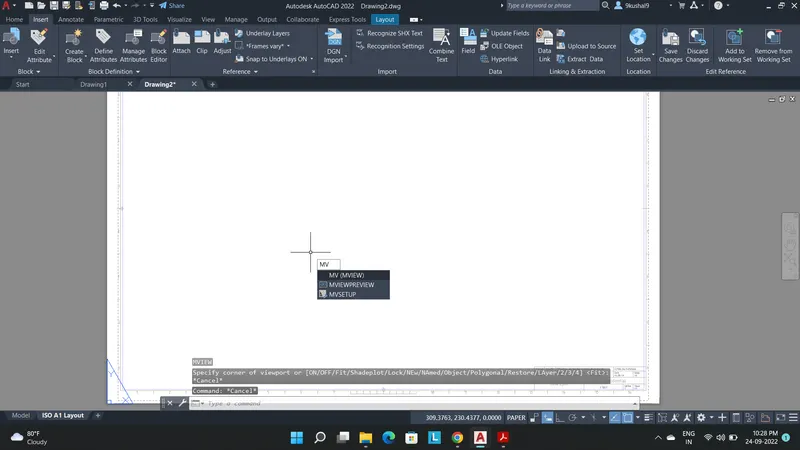
Step 4- Switching the tab by opening the layout tab and by using MV command setting up the viewport as per given dimensions in the drawing.
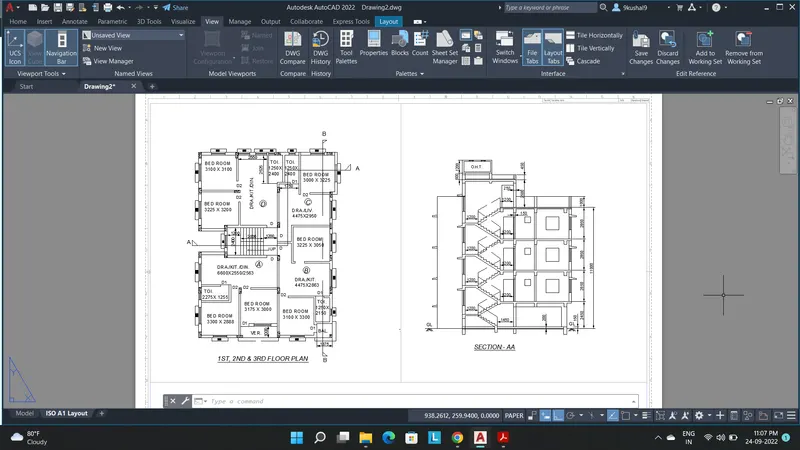
Step 5- Adjusting both the drawings by zooming and using palm command.
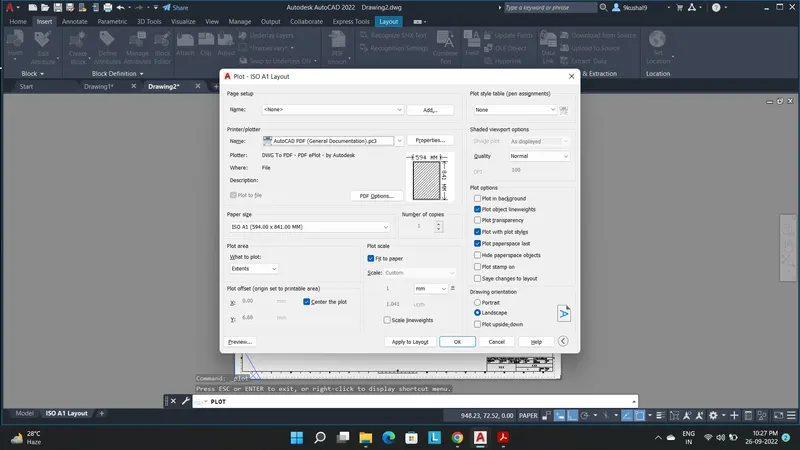
Step 6- Using the plot command setting up A1 page we can plot the drawing.
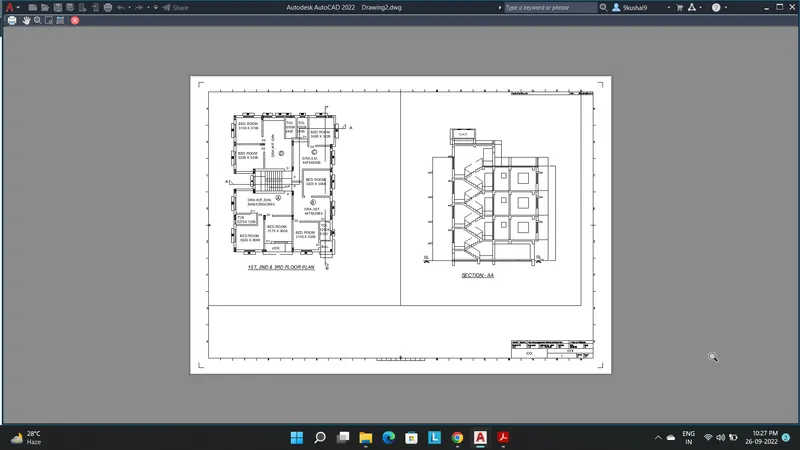
Final Result- We can get printout as well as we can convert the drawing into PDF files using Plot command.
Answer 2-
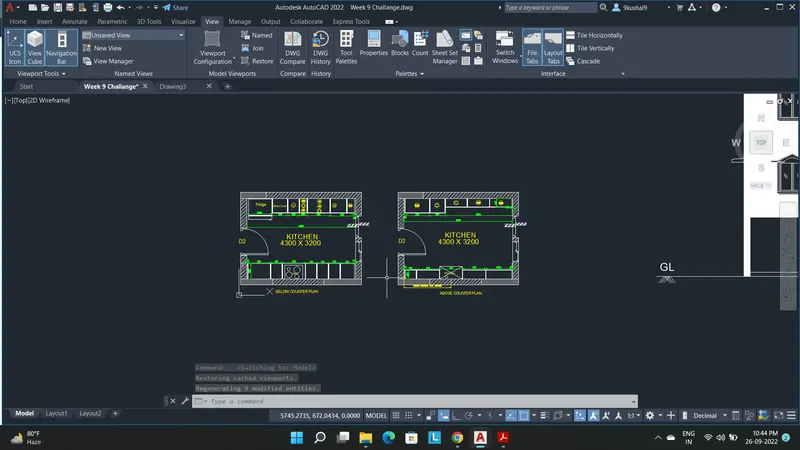
Aim- Create a layout of the Kitchen drawn in Challenge 9. Use the scale as shown in the Figure. Use A4 Size page for the layout and take a plot.
Step 1- Using the drawing of Kitchen Layout of week 9 challange.
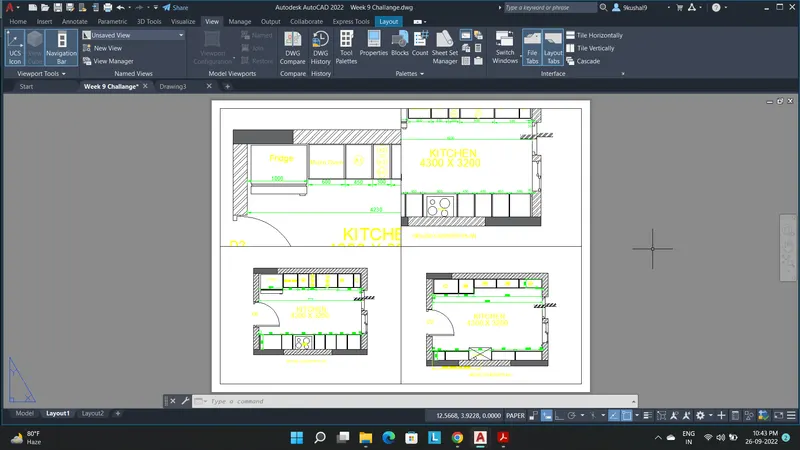
Step 2- Using MV command setting up 4 equal sizes viewports and adjusting it accordingly.
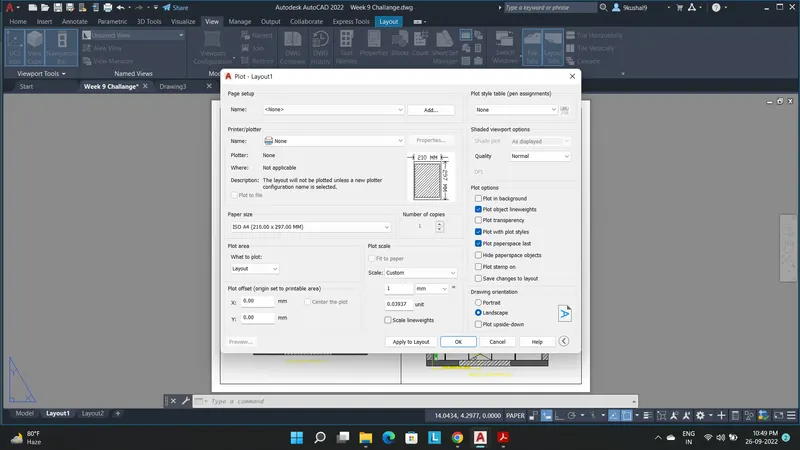
Step 3- setting up the ploting page as A4.
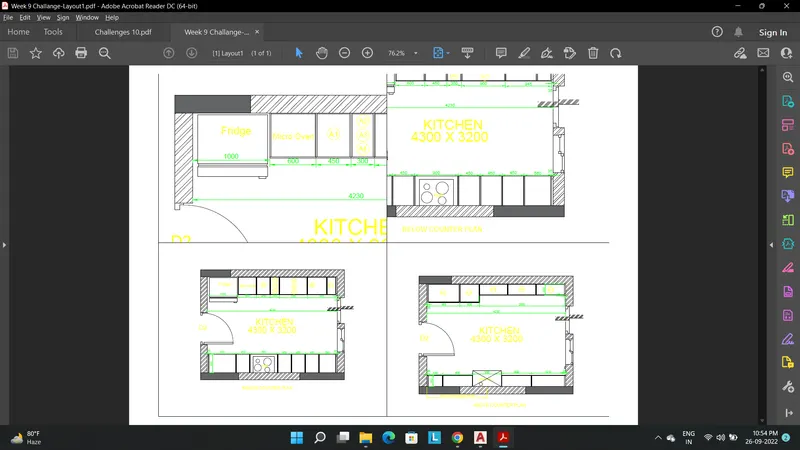
Final result- We can plot the drawing successfully and save it as PDF file and take a printout on A4 page.
Answer 3-
Aim- Create a layout of the section created in Challenges 9. Use scale as mentioned in the Figure. Use MV command create multiple viewports. Take a plot.
Step 1- Using the drawing of Pumproom drawing of week 9 challange.
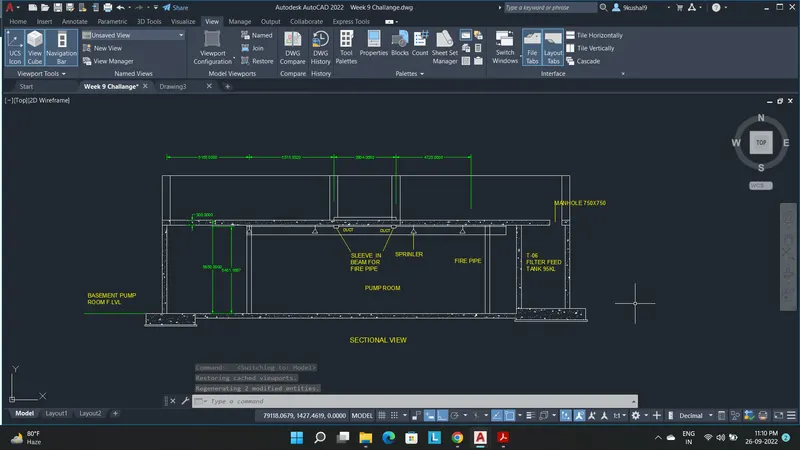
Step 2- Using MV command setting up different viewports and adjusting it accordingly.
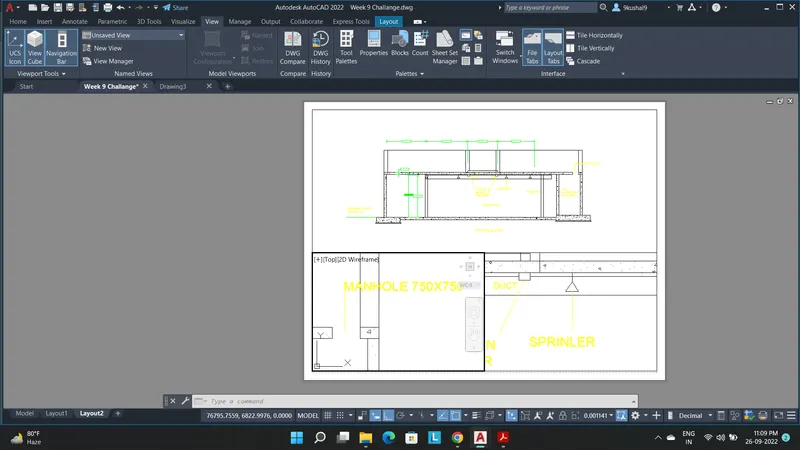
Step 3- Setting up the ploting page as A3
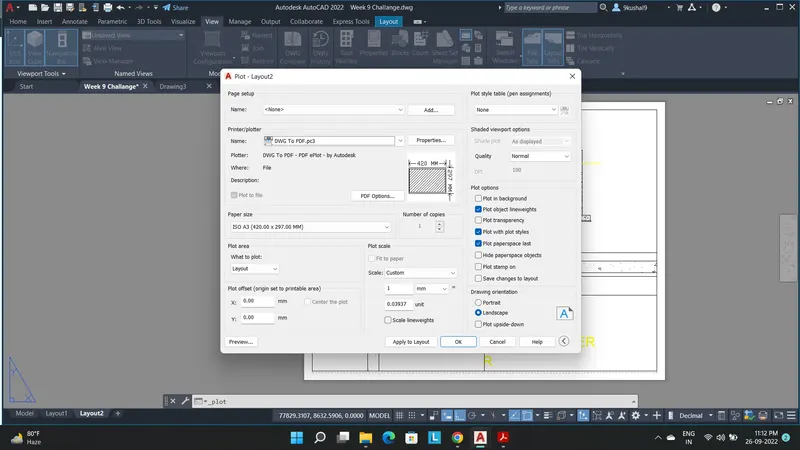
Final Result- Plotting the drawing in PDF file.