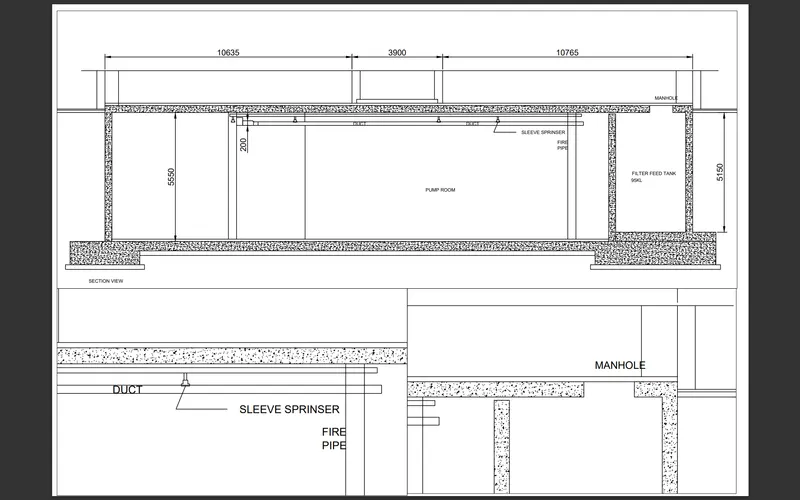
Creation of Multiple viewports, Scaling the drawing and setting in Template in AutoCad
Q.1
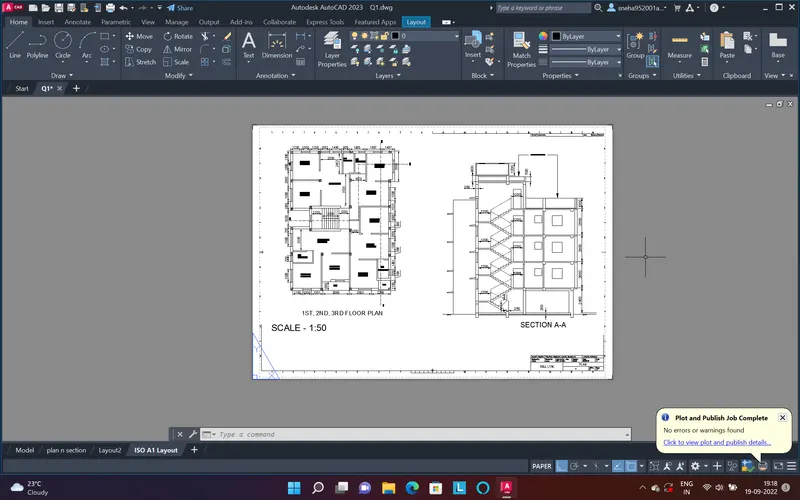
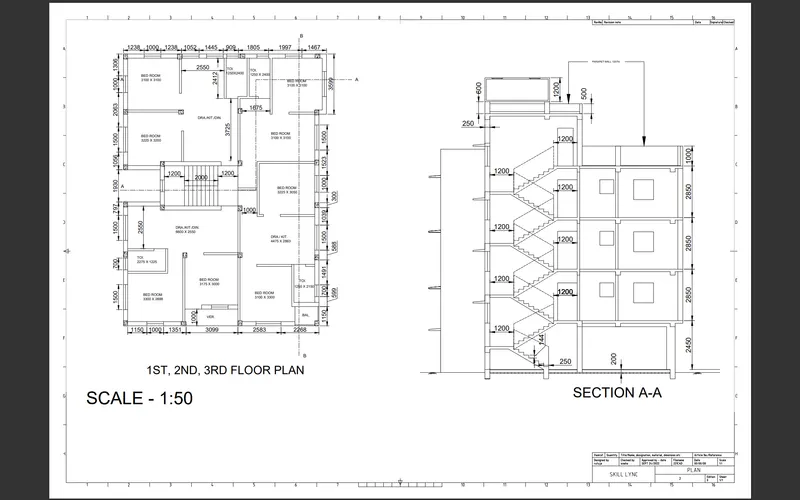
Aim - Creation of Multiple viewports, Scaling the drawing and setting in Template in AutoCad
Introduction - create the layout of drawings using multiple view ports and template
Procedure -
1. open the drawing of which u want to create the layout
2. then set the page through page setup manager
3. then add the template Tutorial-mArch.dwt
4. then by using mv multiple view ports add the drawings
5. set the drawings to the reuquired scale
6.then edit the ettributes in the template
7. then create the plot of the layout conert in to the pdf and save it
Result -
Q.2
Aim - Creation of Multiple viewports, Scaling the drawing and setting in Template in AutoCad
Introduction - create the layout of drawings using multiple view ports.
Procedure -
1. open the drawing of which u want to create the layout
2. then set the page through page setup manager
3. use A4 size paper
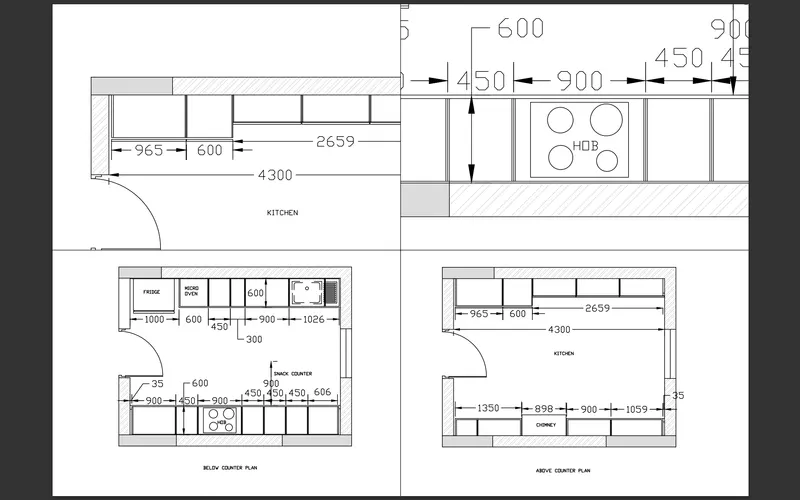
4. then by using mv multiple view ports add the drawings
5. set the drawings to the reuquired scale
6.prepare the layout as shown in fig
7. then create the plot of the layout conert in to the pdf and save it
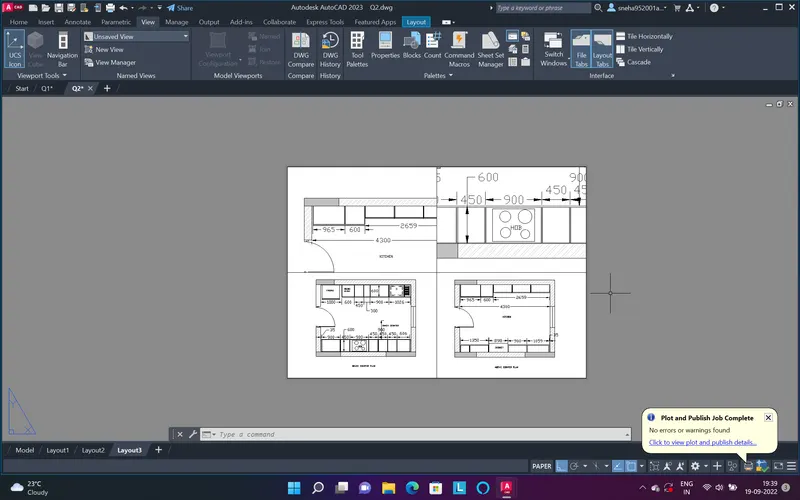
Result -
Q.3
Aim - Creation of Multiple viewports, Scaling the drawing and setting in Template in AutoCad
Introduction - create the layout of drawings using multiple view ports.
Procedure -
1. open the drawing of which u want to create the layout
2. then set the page through page setup manager
3. use A4 size paper
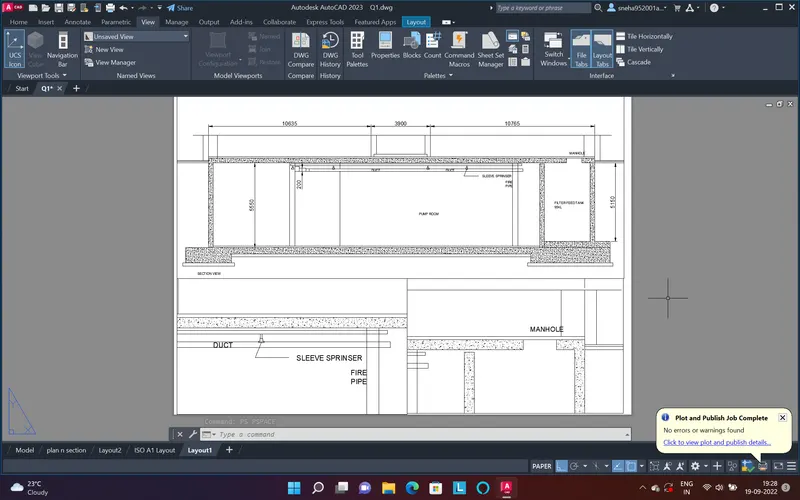
4. then by using mv multiple view ports add the drawings
5. set the drawings to the reuquired scale
6.prepare the layout as shown in fig
7. then create the plot of the layout conert in to the pdf and save it
Result -