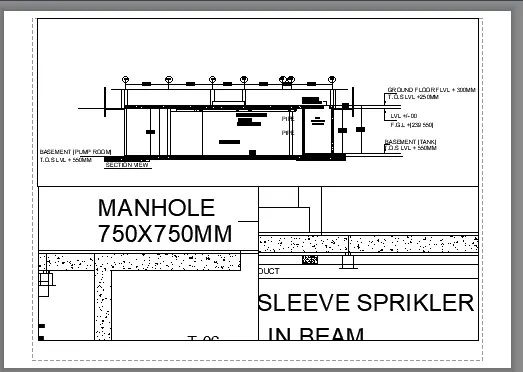
Creation of Multiple viewports, Scaling the drawing and setting in Template in AutoCad
AIM :-Creation of Multiple viewports, Scaling the drawing and setting in Template in AutoCad
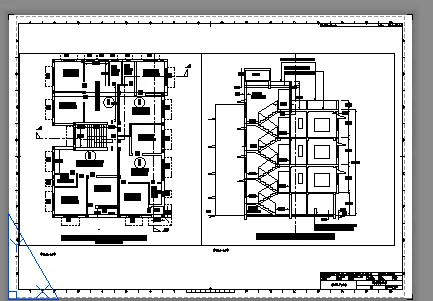
1:- Create a layout of the Plan and Section A of the project in Challenges 7, using the template Tutorial-mArch.dwt in a scale as given in the Figure. Use the MV command to create the viewport of the size as shown in Figure. Also, use ATTEDIT command to edit the information in the title block. Use A1 size for the layout. Take a plot.
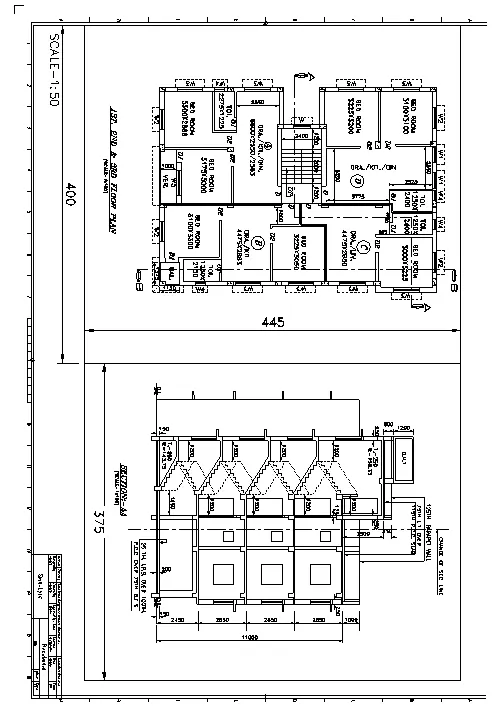
PROCEDURE:
STEPS:-
- Open AutoCAD application
- open the file that are save AutoCAD {Drawed inchallenge No. 7]
- go to layout
- Rename it by Right click as Floor plan,elevation
- Go to model space
- here Type v for view command
- dialoge box will be open
- let say NEW
- give the name as Floor plan
- click on window creation
- create the window for the floor plan view
- press OK
- again do same for the ELEVATION
- Go to layout
- Right click- click on template -select the M.arch template - press ok
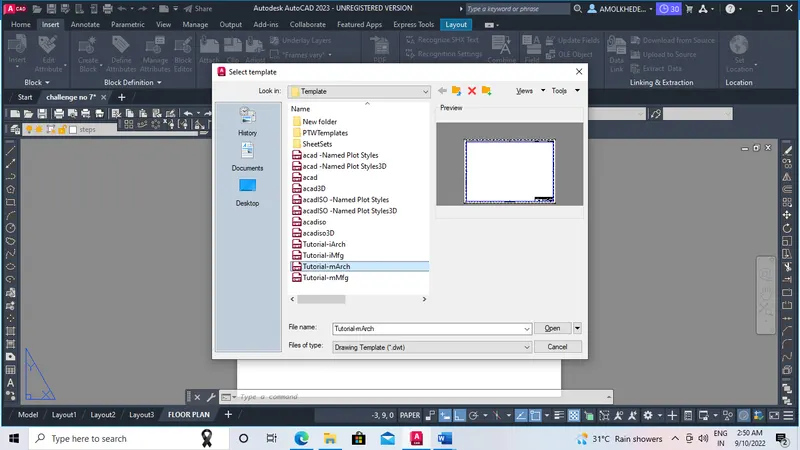
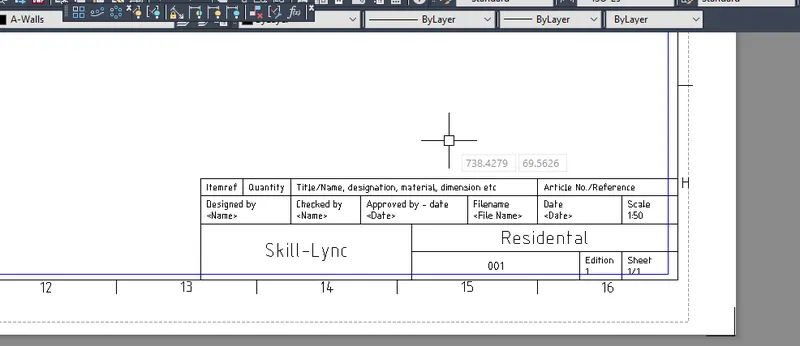
- In the template double click on the on the names that are already given and make the changes that are need too.
- type mv command
- go to named
- type name as Floor plan
- press enter
- draw one rectangle
- mannage the scale that are given let say 1:50
- simmilary create the Elevation also.
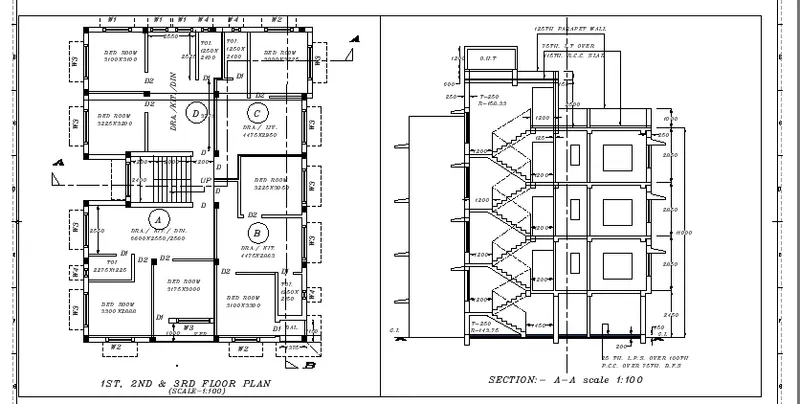
RESULT:-
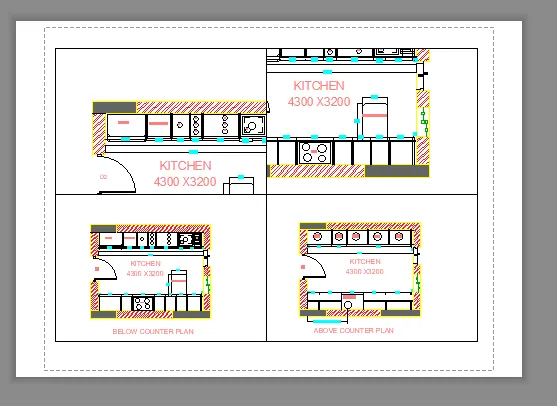
2. Create a layout of the Kitchen drawn in Challenge 9 as shown in Figure. Use the scale as shown in the Figure. Use A4 Size page for the layout. Take a plot.
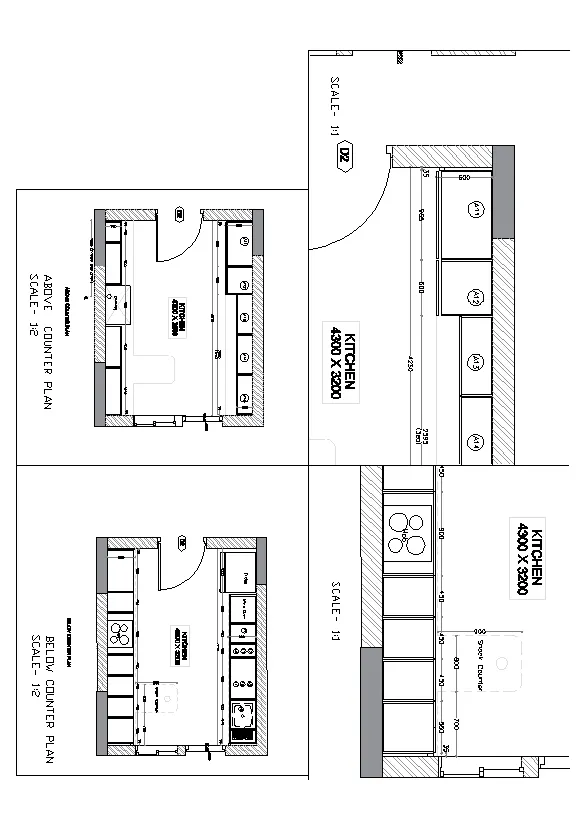
procedure:
steps:-
- Open the AutoCAD application
- open the file that are already draft in the challenge no 6 and 10
- type layout - press ente
- create the layout and rename it let say as kitchen layout
- Right click on that name
- click on page setup manager
- select the data as in pic below
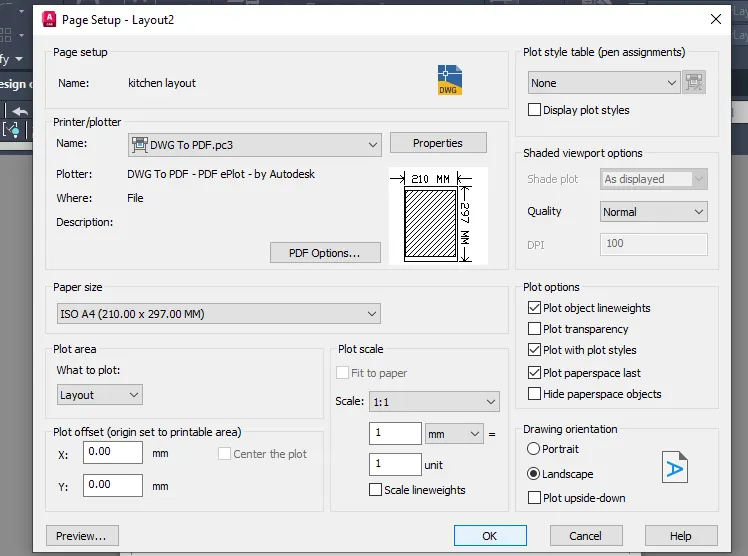
- press ok
- go to the model space
- type V for view command
- NEW
- give the Name-kitchen below counter plan
- click on window creation
- create the window for that
- click on OK
- set it current
- gain do the same for the above counter plan
- go to the MV command in layout
- select 4
- create the boxes
- pess enter it will shows like 4 blank rectangles
- then manage the scale for the particular viewports that are given in the problem figures
RESULT:-
3. Create a layout of the section created in Challenges 9.
Use scale as mentioned in the Figure. Use MV command create multiple viewports. Take a plot.
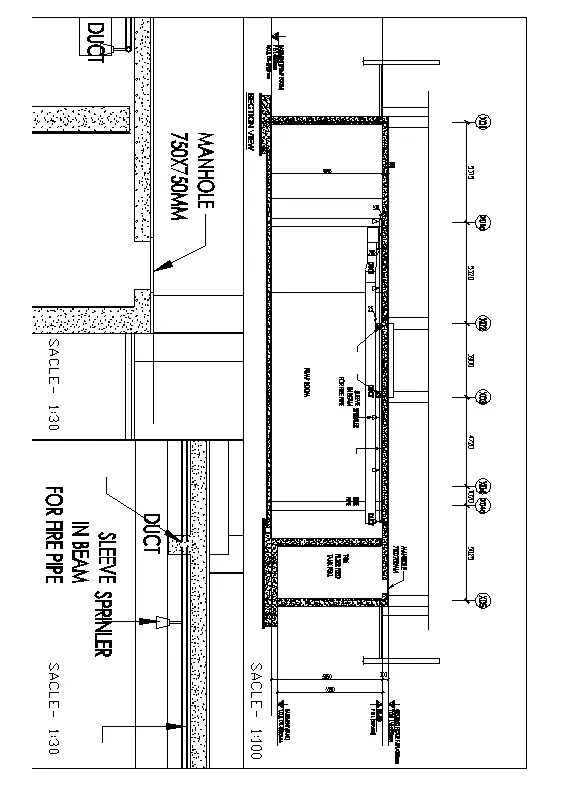
PROCEDURE:
STEPS:-
- open the AutoCAD application
- Open the drawing file in the challenge no 10
- open the new layout
- Rename it as u have let say structural layout
- Right click go to page set up manager- set the page A4 size and
- printer- DWG To PDF pc3
- press OK.
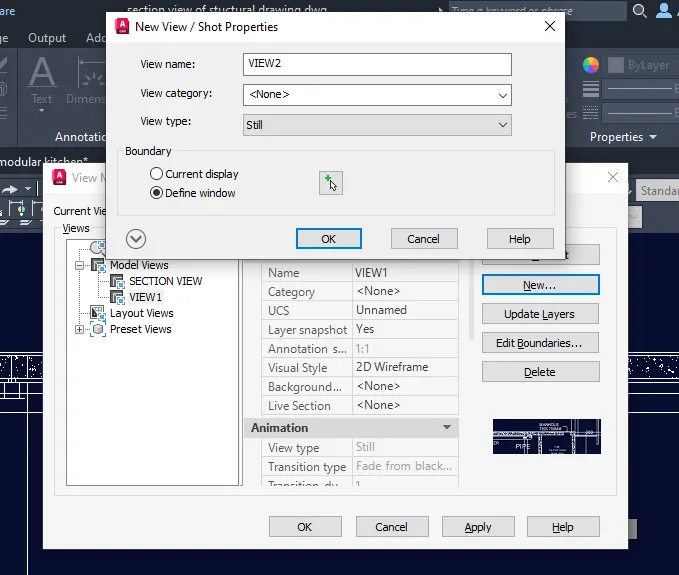
- go to the model
- V press enter
- Click on NEW
- Name - setction
- click on window creation
- create the window for that in the drawing
- click Ok
- similary do same for the next views let say view 1 and view 2
- Go to the layout
- give the MV command
- click on named
- create the rec.
- give the scale as given in the drawing of question file
- simmilary do it for the another viesw
- save it
RESULT :-