Creation of Multiple viewports, Scaling the drawing and setting in Template in AutoCad
CHALLENGE 11
AIM: To create an output view for represent the drawing or print the drawing.
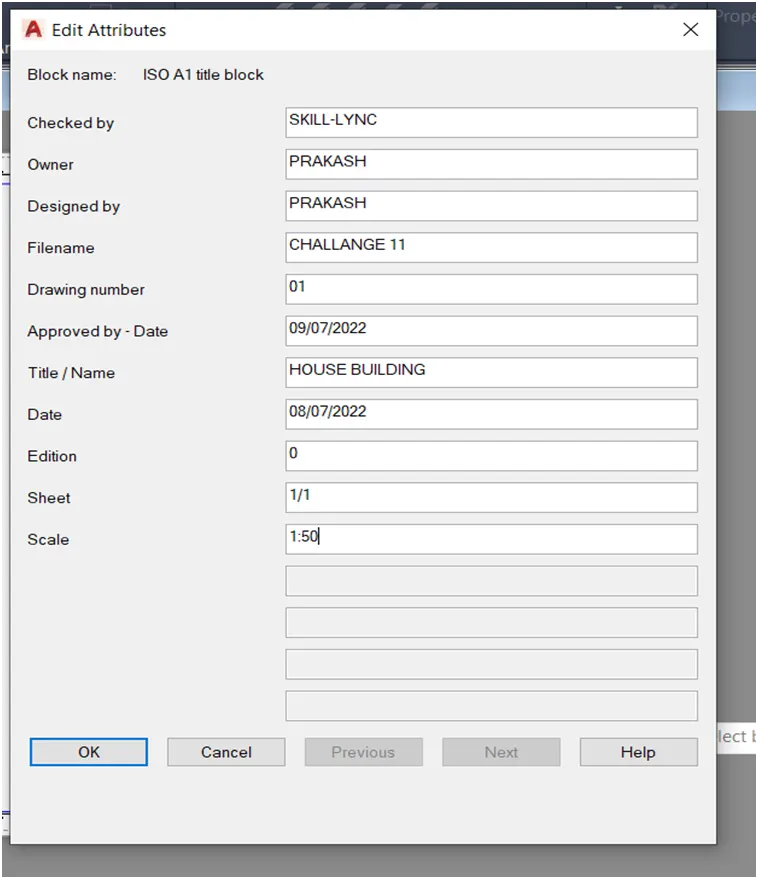
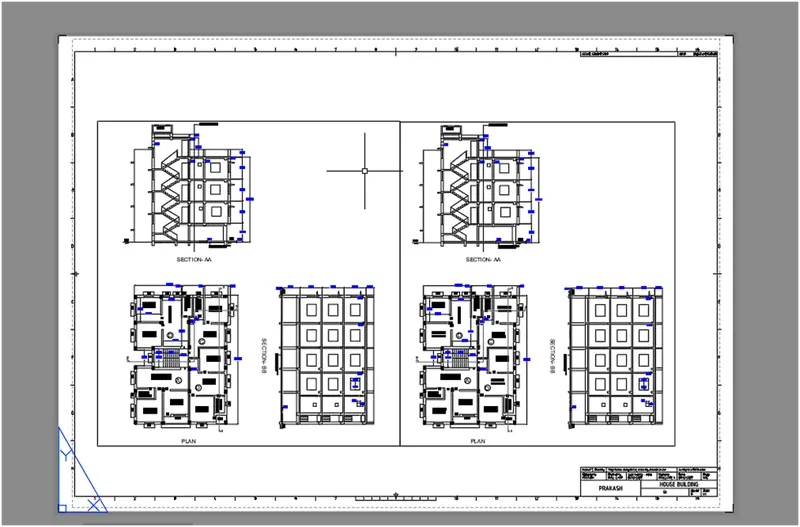
INTRODUCTION: Create a layout of the Plan and Section of the project, using the template Tutorial[1]mArch.dwt in a scale as given. Use the MV command to create the viewport of the size as shown in Figure. Also, use ATTEDIT command to edit the information in the title block. Use A1 size for the layout. Use the MS command for zoom out and zoom in command and also use PS command for fix the picture.
PROCEDURE:
1.Open challenge 7 drawing change the baground graphics off the grid
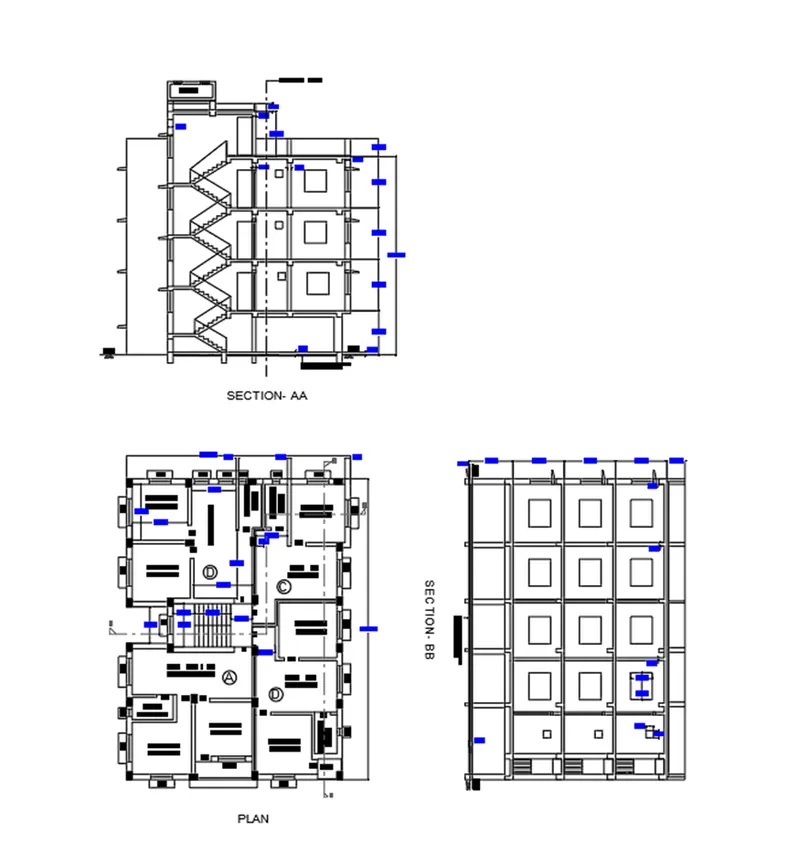
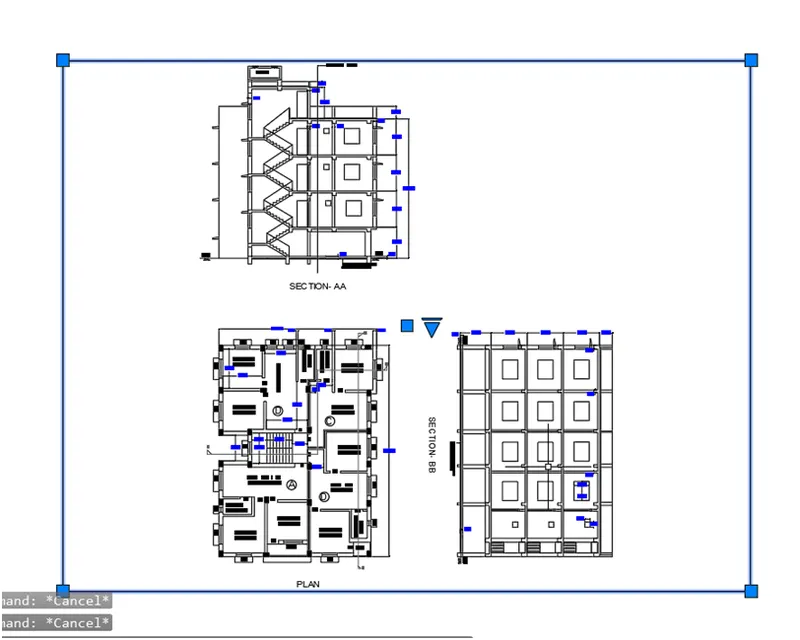
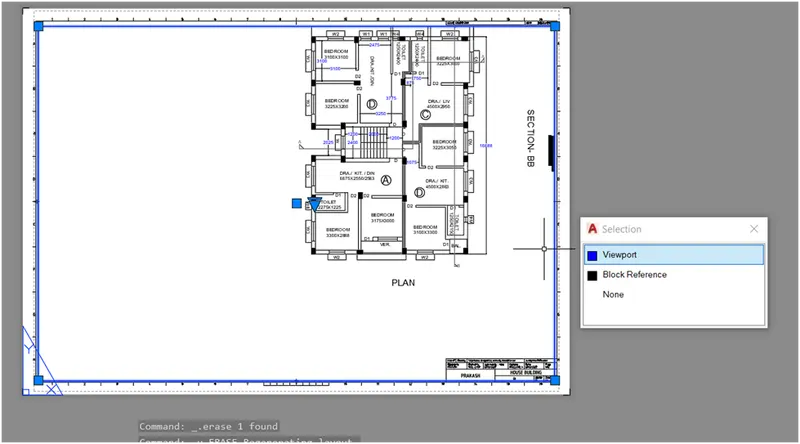
2.Go to the layout 1 or layout 2 and delete the window as shown in figure.
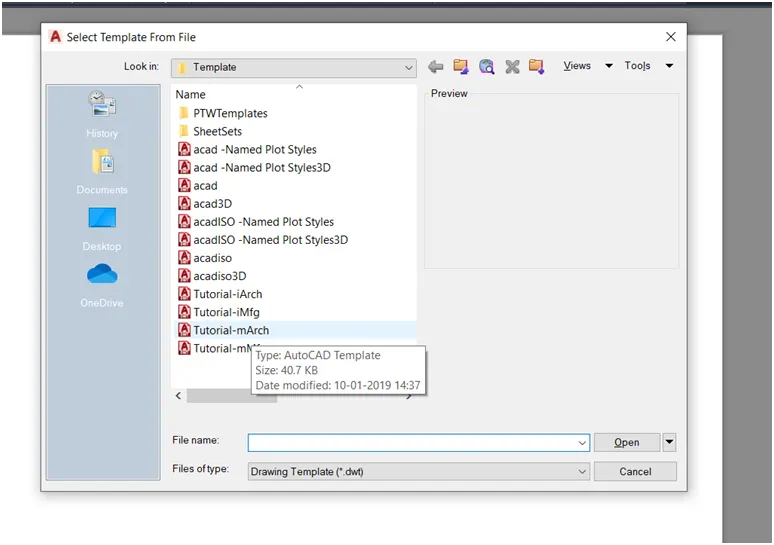
3.Go to the new layout command and select the template and select the Tutorial-mArch templete
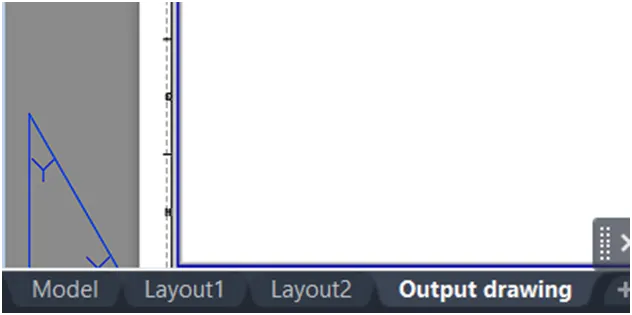
4.Rename the layout
5.Go ATTEIDT command and edit the text as given in figure.
6.Delete the selected window
7.Go to the MV command and create the two window
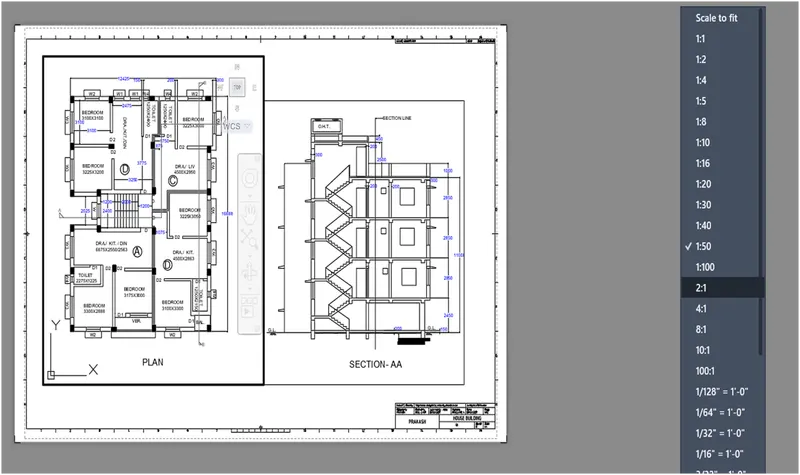
8.Go to the MS command for zoom the layout and set the scale as given 1:50 at both drawing
9.Create a new layer for window hidden
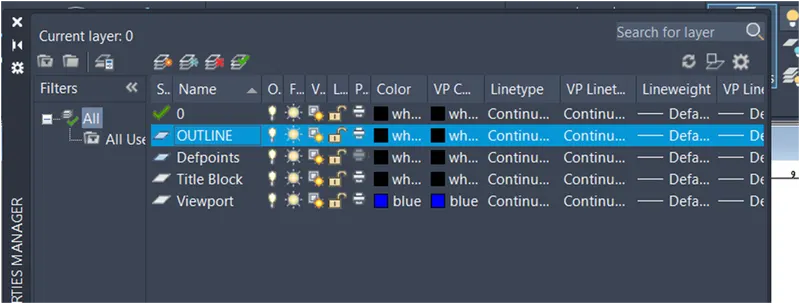
10.Select the layer and assign Outline of the drawing
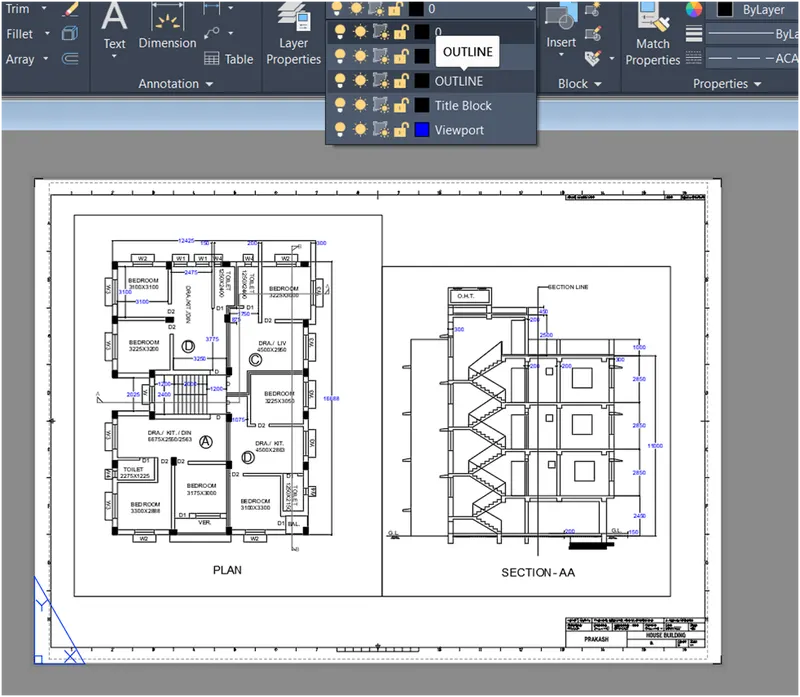
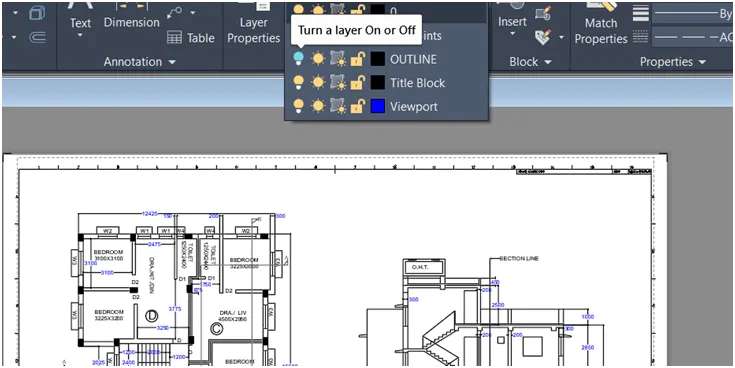
11.Hidden the line for layer command as shown in figure
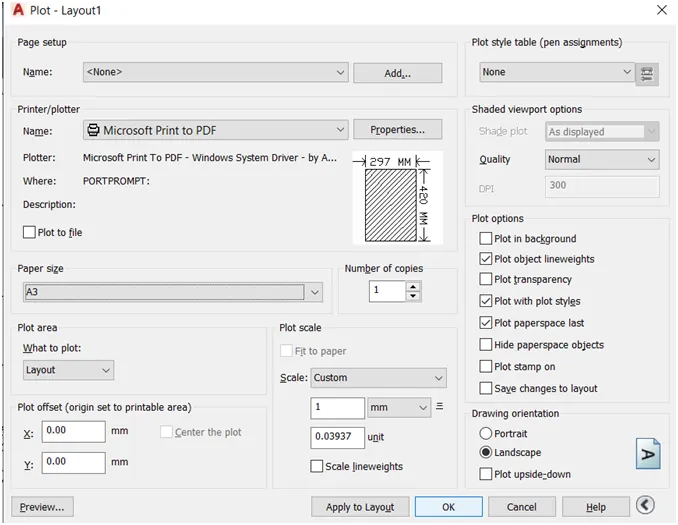
12.Go for the print command and select the properties and print the layout.
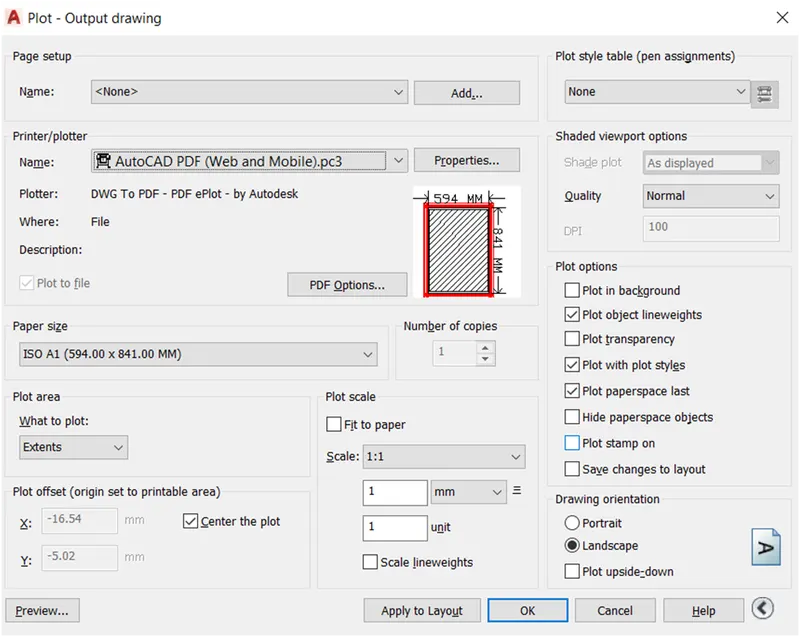
RESULT: To print out the layout drawing as same as shown in figure.
KITCHEN
AIM: To create an output view for represent the drawing or printing the drawing or layout.
INTRODUCTION: Create a layout of the kitchen Plan and using the template Tutorial in a scale as given A4 size. Use the MV command to create the viewport of the size as shown in Figure. Use A4 size for the layout. Use the MS command for zoom out and zoom in command and also use PS command for fix the picture.
PROCEDURE:
1.Open the drawing of Challenge 9 create kitchen layout change the bag round and grid off as shown in figure.
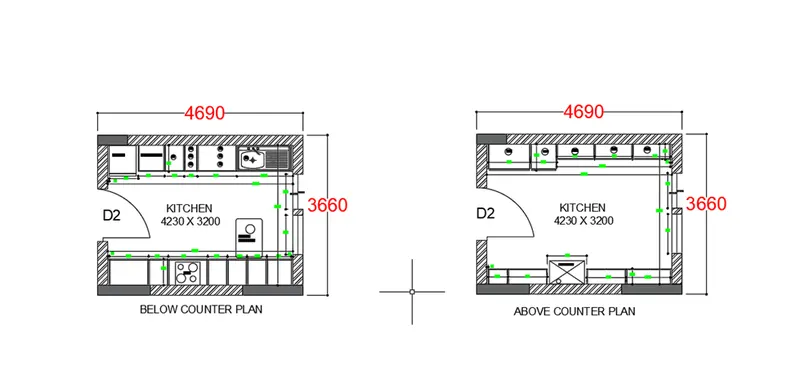
2.To use the viewport to create a four window.
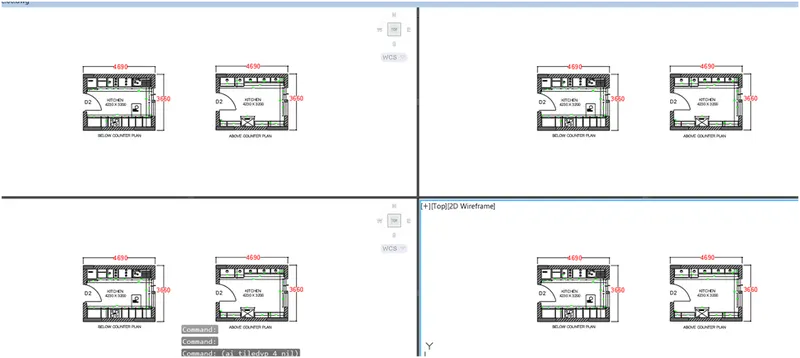
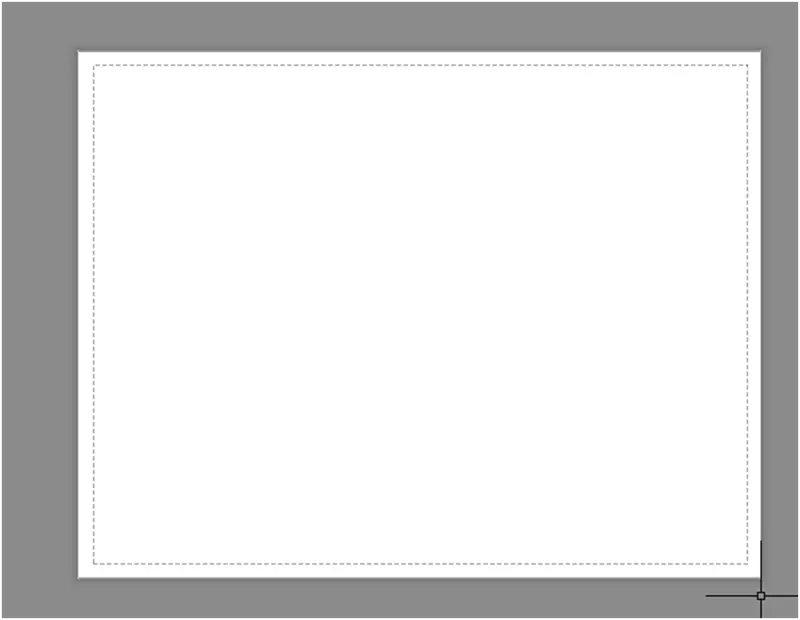
3.Go for the layout-1 and delete the window
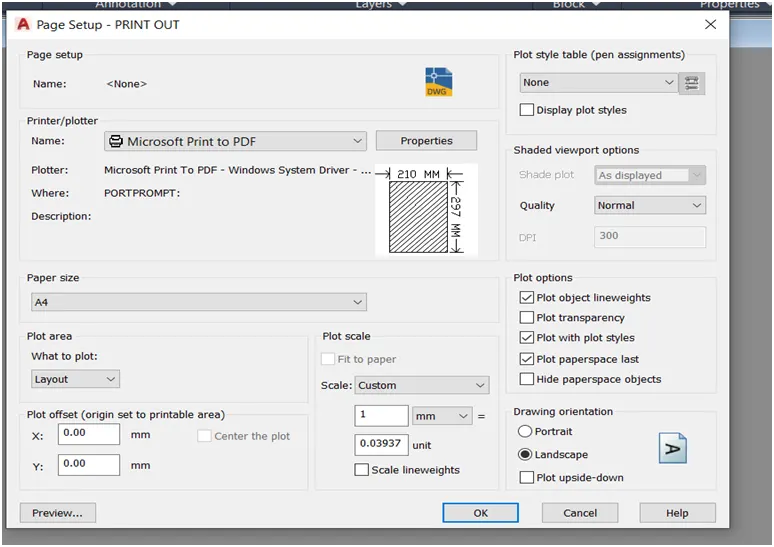
4.Set the paper size go for the page setup command and set the page
5.Go to the MV command and create a 4 window
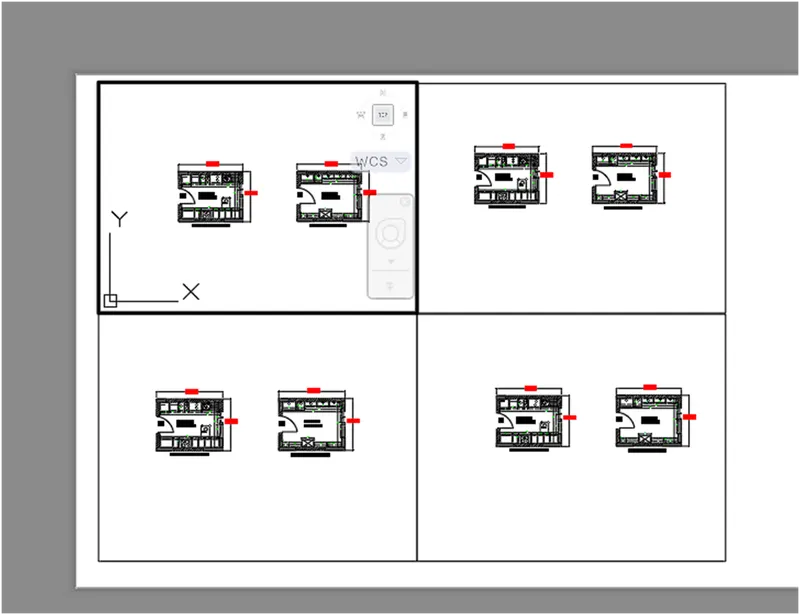
6.Set the drawing as shown in figure for ms command and fix the PS command
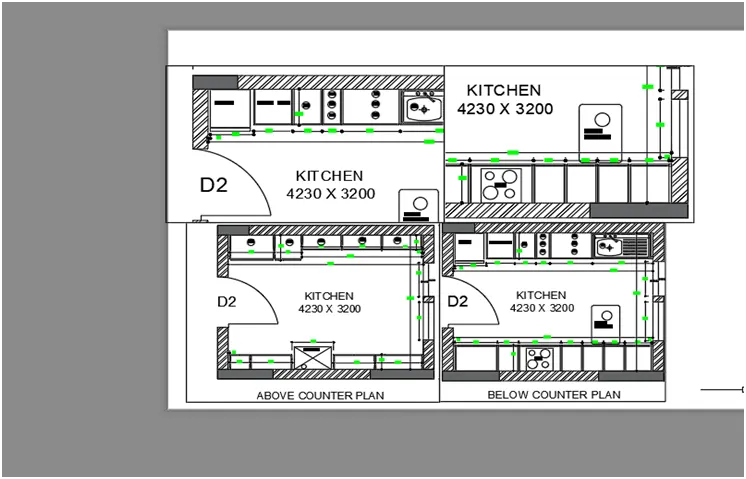
7.Then print the layout
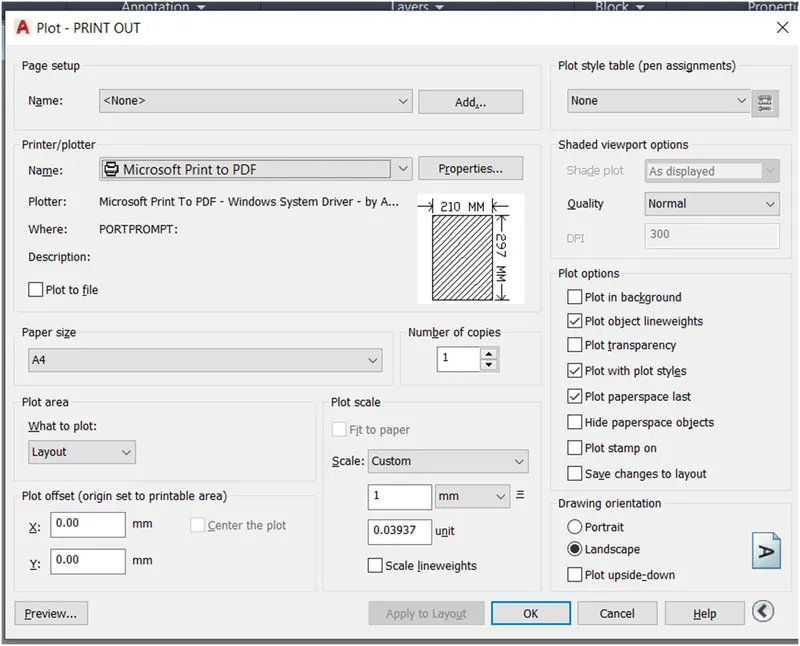
RESULT: To print out the layout drawing as same as shown in figure.
SECTION
AIM: To create an output view for represent the drawing or print the drawing.
INTRODUCTION: Create a layout of the Section of the project. Use the MV command to create the viewport of the size as shown in Figure. Use A1 size for the layout. Use the MS command for zoom out and zoom in command and also use PS command for fix the picture.
PROCEDURE:
1.Open challenge 9 section drawing change the bag round graphics and off the grid
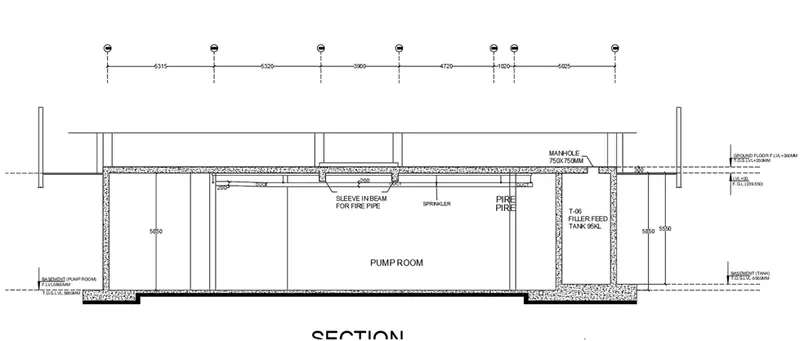
2.Go To the layout-1 and delete the window
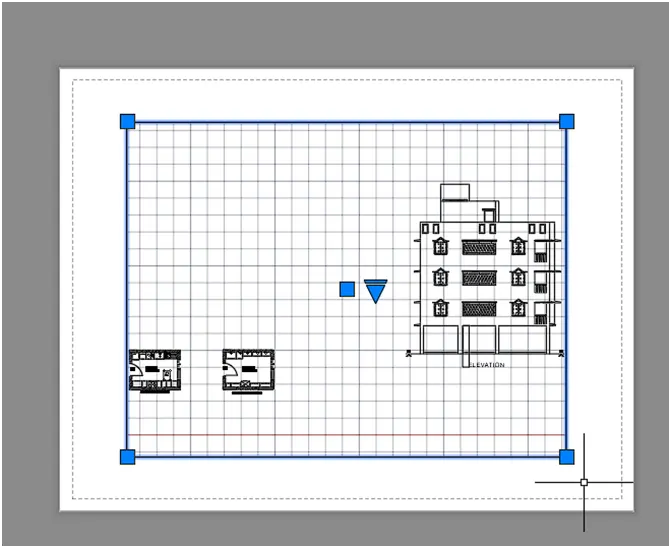
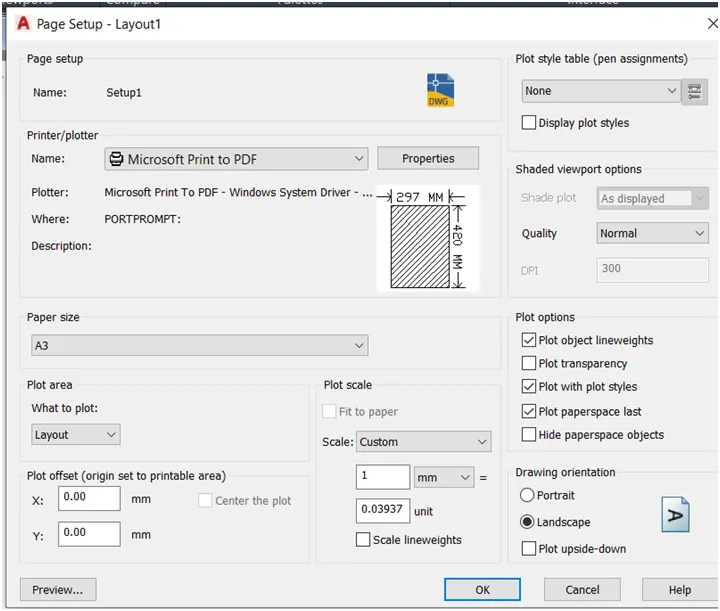
3.Set the page for pare setup command
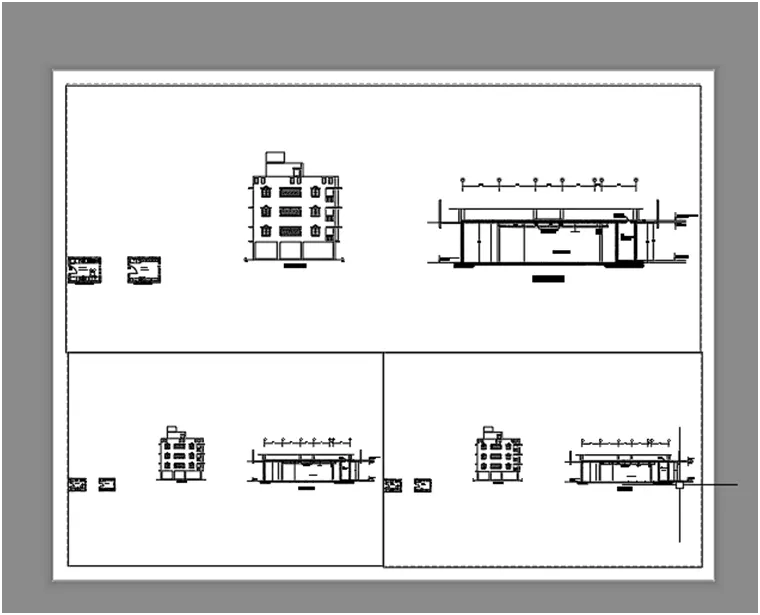
4.Create a 3 window for mv command
5.Set the drawing use of the ms command and fix the ps command
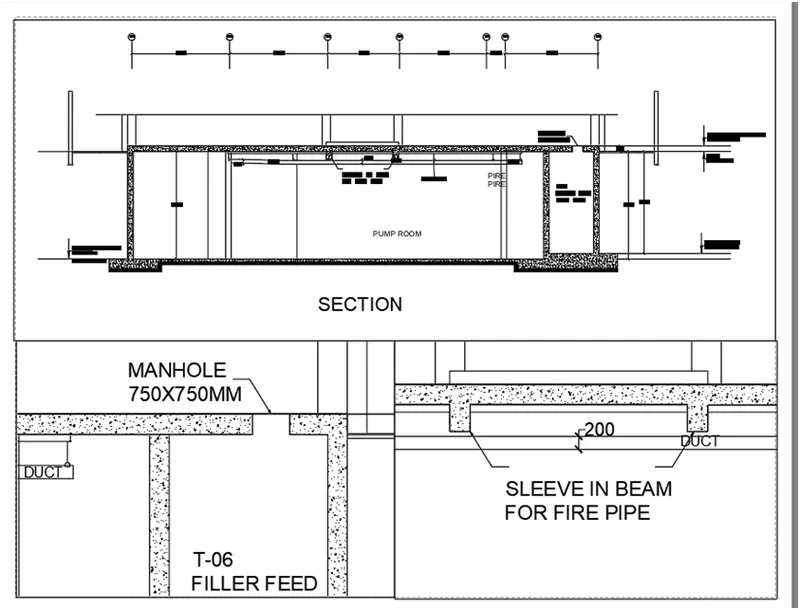
6.Then print the layout
RESLUT: To print out the layout drawing as same as shown in figure.