Creation of geometries by Coordinate system methods using AutoCad
Project 1st : Creation of geometries by Coordinate system methods using AutoCad
Aim: Create the geometries from P1 to P2 using all the coordinates system methods
Introduction: we Use the Imperial Template and the Decimal Units to draft the features, we use auto cad auto cad 2021, for drafting the drawings, and Draw the profile and the trusses using any coordinate system methods. by using following coordinate systems
1) Absolute coordinate
2) Relative Coordinate
a) relative rectangular coordinate
b) relative polar coordinate
3) Direct distance entry
procedure to draft the image/drawing
1) Absolute coordinate system:
absolute coordinate system is a command for auto cad software that uses the certesion coordinate system to specify a position in the X and Y direction to locate a point on respective direction for. ex, if you put in command the value of (X,Y) so you got that point
lets disccus procedure:
2) relative coordinate system: we draw the point or line with respective the last point or line
a) Relative rerctangular coordinate: in that we locate point with respects to last point ex ( @2,3) for x and y axis
b) relative polar coordinate method: in that we also locate or draw angle with respective degree ex. (@25<90) here 25 is distance with 90degree angle
3) direct entery: here we use cursor direction for locate point and directly take respective distance
*draw sketch with procedure
1) P1
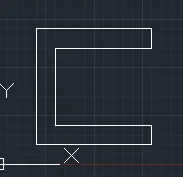
procedure with
#)Absolute Coordinate system
1) choose the line tool
2) LINE Specify first point= (2,1)
3) next point= 8,1
4) next point= 8,2
5) next point= 3,2
6) next point= 3,6
7) next point= 8,6
8) next point= 8,7
9) next point= 2,7
10) next point= 2,1 or closed
#) relative rectangular coordinate:
1) choose the line tool
2) line specify first point = 2,1 (start point)
3) next point= @6,0
4) next point= @0,1
5) next point= @-5,0
6) next point= @0,4
7) next point= @4,0
8) next point= @0,1
9) next point= @-6,0
10) next point= @0,-6 or closed
#) Relatively Polar Coordinates( considering N=00 and E90)
1) choose the Line tool
2) specify first point 2,1
3) next point = @6<90
4) next point = @1<00
5) next point = @5<270
6) next point = @4<00
7) next point = @5<90
8) next point = @1<00
9) next point = @6<270
10) next point = @6<180 or closed
#) direct distance entry
1) choose the line tool
2) line specify first point = 2,1
3) next point, position the cursor and then enter distance= ( right side and distance 6)
4) next point, position the cursor and then enter distance= ( upper side and distance 1)
5) next point, position the cursor and then enter distance= ( upper side and distance 6)
6) next point, position the cursor and then enter distance= ( right side and distance 4)
7) next point, position the cursor and then enter distance= ( right side and distance 5)
8) next point, position the cursor and then enter distance= ( upper side and distance 1)
9) next point, position the cursor and then enter distance= ( left side and distance 6)
10) next point, position the cursor and then enter distance= ( bottom side and distance 6) or closed
2) P2
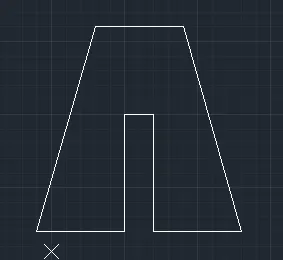
#)Absolute Coordinate system
1) choose the line tool
2) LINE Specify first point= (2,1)
3) next point= 4,8
4) next point= 7,8
5) next point= 9,1
6) next point= 6,1
7) next point= 6,4
8) next point= 5,4
9) next point= 5,1
10) next point= 2,1 or closed
#) relative rectangular coordinate:
1) choose the line tool
2) line specify first point = 2,1 (start point)
3) next point= @2,7
4) next point= @3,0
5) next point= @2,-7
6) next point= @-3,0
7) next point= @0,4
8) next point= @-1,0
9) next point= @0,-4
10) next point= @-3,0 or closed
#) Relatively Polar Coordinates( considering N=00 and E90)
1) choose the Line tool
2) specify first point 2,1
3) next point = @7<30
4) next point = @3<90
5) next point = @7<110
6) next point = @3<270
7) next point = @4<00
8) next point = @1<270
9) next point = @4<180
10) next point = @3<270 or closed
#) direct distance entry
1) choose the line tool
2) line specify first point = 2,1
3) next point, position the cursor and then enter distance= ( cross right with angle of 110degree side and distance 7)
4) next point, position the cursor and then enter distance= ( right side and distance 3)
5) next point, position the cursor and then enter distance= ( bottom left side with angle of 30degree side and distance 7)
6) next point, position the cursor and then enter distance= ( left side and distance 3)
7) next point, position the cursor and then enter distance= ( top side and distance 4)
8) next point, position the cursor and then enter distance= ( left side and distance 1)
9) next point, position the cursor and then enter distance= ( bottom side and distance 4)
10) next point, position the cursor and then enter distance= ( left side and distance 3) or closed
3) P4

procedure with direct distance entry
1) choose the line tool
2) line specify first point = 2,1
3) next point, position the cursor and then enter distance
4) next point, position the cursor and then enter distance
5) next point, position the cursor and then enter distance
6) next point, position the cursor and then enter distance
7) next point, position the cursor and then enter distance
8) next point, position the cursor and then enter distance= ( left side and distance 1)
9) next point, position the cursor and then enter distance= ( bottom side and distance 4)
10) next point, position the cursor and then enter distance= ( left side and distance 3) or closed
4) P5
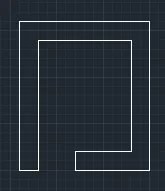
procedure with direct distance entry
1) choose the line tool
2) line specify first point = 2,1
3) next point, position the cursor and then enter distance
4) next point, position the cursor and then enter distance
5) next point, position the cursor and then enter distance
6) next point, position the cursor and then enter distance= ( left side and distance 3)
7) next point, position the cursor and then enter distance= ( top side and distance 4)
8) next point, position the cursor and then enter distance= ( left side and distance 1)
9) next point, position the cursor and then enter distance= ( bottom side and distance 4)
10) next point, position the cursor and then enter distance= ( left side and distance 3) or closed
5) P7
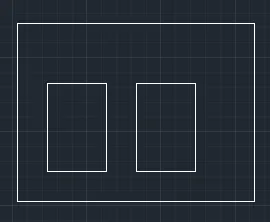
procedure with direct distance entry
1) choose the line tool
2) line specify first point = 2,1
3) next point, position the cursor and then enter distance
4) next point, position the cursor and then enter distance
5) next point, position the cursor and then enter distance
6) next point, position the cursor and then enter distance= ( left side and distance 3)
7) next point, position the cursor and then enter distance= ( top side and distance 4)
8) next point, position the cursor and then enter distance= ( left side and distance 1)
9) next point, position the cursor and then enter distance= ( bottom side and distance 4)
10) next point, position the cursor and then enter distance= ( left side and distance 3) or closed
6) P8
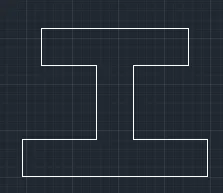
procedure with direct distance entry
1) choose the line tool
2) line specify first point = 2,1
3) next point, position the cursor and then enter distance
4) next point, position the cursor and then enter distance
5) next point, position the cursor and then enter distance
6) next point, position the cursor and then enter distance= ( left side and distance 3)
7) next point, position the cursor and then enter distance= ( top side and distance 4)
8) next point, position the cursor and then enter distance= ( left side and distance 1)
9) next point, position the cursor and then enter distance= ( bottom side and distance 4)
10) next point, position the cursor and then enter distance= ( left side and distance 3) or closed
7) P9
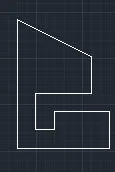
procedure with direct distance entry
1) choose the line tool
2) line specify first point = 2,1
3) next point, position the cursor and then enter distance
4) next point, position the cursor and then enter distance
5) next point, position the cursor and then enter distance
6) next point, position the cursor and then enter distance= ( left side and distance 3)
7) next point, position the cursor and then enter distance= ( top side and distance 4)
8) next point, position the cursor and then enter distance= ( left side and distance 1)
9) next point, position the cursor and then enter distance= ( bottom side and distance 4)
10) next point, position the cursor and then enter distance= ( left side and distance 3) or closed
8)P10
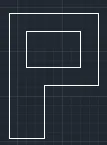
procedure with direct distance entry
1) choose the line tool
2) line specify first point = 2,1
3) next point, position the cursor and then enter distance
4) next point, position the cursor and then enter distance
5) next point, position the cursor and then enter distance
6) next point, position the cursor and then enter distance= ( left side and distance 3)
7) next point, position the cursor and then enter distance= ( top side and distance 4)
8) next point, position the cursor and then enter distance= ( left side and distance 1)
9) next point, position the cursor and then enter distance= ( bottom side and distance 4)
10) next point, position the cursor and then enter distance= ( left side and distance 3) or closed
9) profile wood
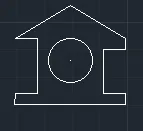
procedure with direct distance entry
1) choose the line tool
2) line specify first point = 0,0
3) next point, position the cursor and then enter distance= top,1
4) next point, position the cursor and then enter distance= right,1
5) next point, position the cursor and then enter distance= top,5
6) next point, position the cursor and then enter distance= left,2
7) next point, position the cursor and then enter distance= @4,3
8) next point, position the cursor and then enter distance= @4,-3
9) next point, position the cursor and then enter distance= bottom,1
10) next point, position the cursor and then enter distance= left,2
11) next point, position the cursor and then enter distance= bottom4
12) next point, position the cursor and then enter distance= right 2
13) next point, position the cursor and then enter distance= bottom 1 and closed
10) Queen Post Truss
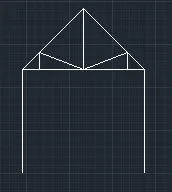
direct distance entry
1) choose the line tool
2) line specify first point = 1,1
3) next point, position the cursor and then enter distance= ( top 6)
4) next point, position the cursor and then enter distance= ( right side 8.12)
5) next point, position the cursor and then enter distance= ( @-3.5,3.5)
6) next point, position the cursor and then enter distance= ( @-3.5,-3.5)
7) next point, position the cursor and then enter distance= ( right side 1)
8) next point, position the cursor and then enter distance= ( top side 1)
9) next point, position the cursor and then enter distance= ( cross joint with bottom mid cord )
10) next point, position the cursor and then enter distance= ( same on next side) or closed
11) Mono Pitch
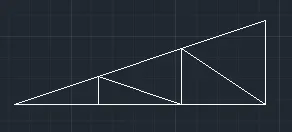
direct distance entry
1) choose the line tool
2) line specify first point = 1,1
3) next point, position the cursor and then enter distance= ( right side and distance 6)
4) next point, position the cursor and then enter distance= ( top side and distance 2)
5) next point, position the cursor and then enter distance= ( bottom left side with angle of 30degree side and distance 6)
6) next point, position the cursor and then enter distance= ( right side and distance 2)
7) next point, position the cursor and then enter distance= ( top side and distance 1)
8) next point, position the cursor and then enter distance= ( top side and distance 2)
9) next point, position the cursor and then enter distance= ( cross right @2,2 )
Result:
1) Absolute Coordinate:
this method streight forward than other method and its is coordinate method from origine meanse X and Y (x,y) are always starting from start
2) Relative Coordinate:
this method base on last refrence point, meance according to last refrence point
(x,y) are from last refrence point
a) Relative rerctangular coordinate: in that we locate point with respects to last point ex ( @2,3) for x and y axis
b) relative polar coordinate method: in that we also locate or draw angle with respective degree ex. (@25<90) here 25 is distance with 90degree angle
3) Direct distance entry:
it is a simplest method other than two method, it is cursor based method, there we draw the point give directon on cursor and put distance on it