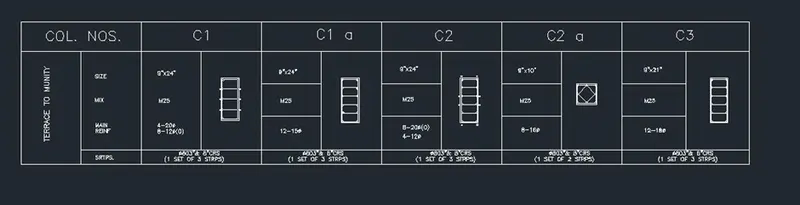
Creation of Column Schedule and Drawing Template using AutoCad
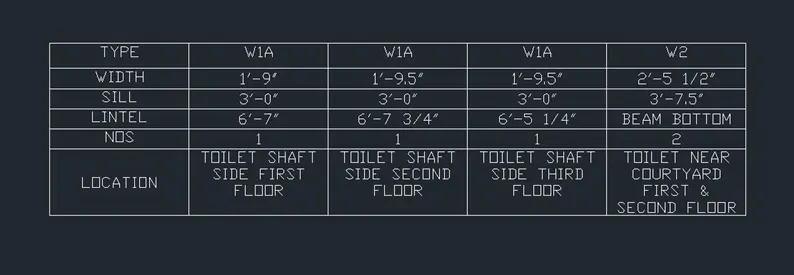
2.) AIM: To create a window schedule.
PROCEDURE:
- Open a new AutoCad file with imperial system.
- Select architectural and give precision 0'0 1/256"
- Now, use command "TABLE" without title and header, with 5 columns and 6 rows.
- Finally type TEXT and enter the given texts on the columns and rows.
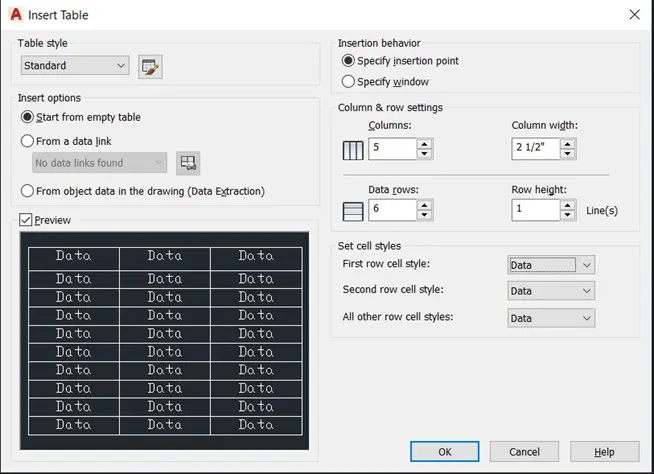
RESULT:
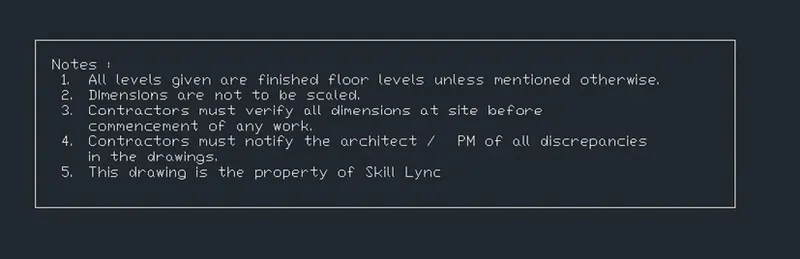
3.) AIM: To create a drawing template.
PROCEDURE:
- Open a new AutoCad file with imperial system.
- Open the annotate tab and choose standard.
- Now type TEXT and select multiline text with a height of 8".
- Finally type the given information in the template.
RESULT:
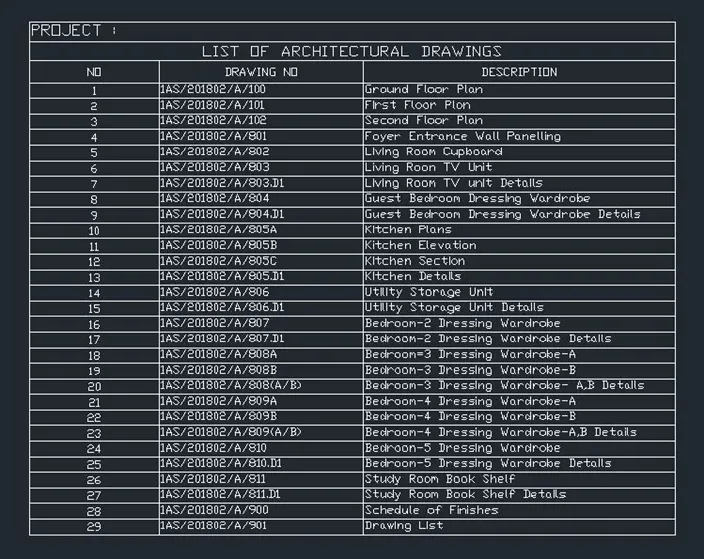
4.) AIM: To create the list of drawing schedule as shown in the figure.
PROCEDURE:
- Open a new AutoCad file with imperial system.
- Now type Command TABLE with 2 title and header with 3 columns, 30 rows.
- Type PROJECT in text and justify left.
- Now, type LIST OF ARCHITECTURAL DRAWINGS in text and justify center.
- Finally enter the given texts on the relevent columns and rows.
RESULT:
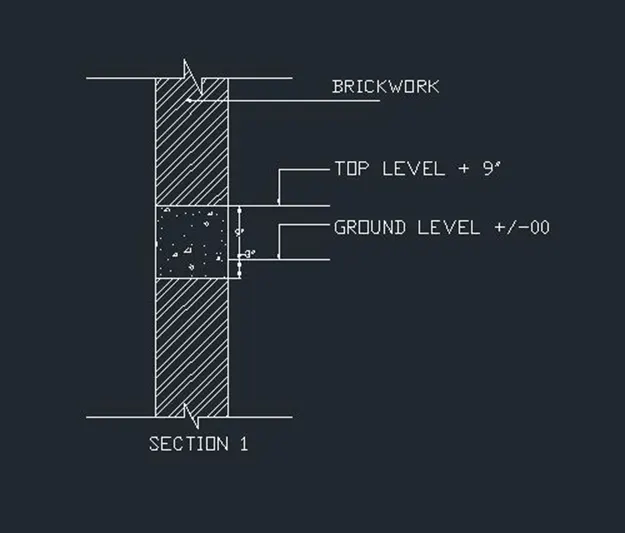
5.) AIM: To create a Beam detail.
PROCEDURE:
- Open a new AutoCad template with imperial system.
- Select engineering with a precission of 0'0".
- In the command prompt type Line to create the column with specified dimensions.
- Type the text to the given drawings.
- Finally in the command prompt type HATCH to hatch the given drawings. The various hatch used here are ANS132 and AR-CONC.
RESULT:
1.) AIM: To create a column schedule as shown in the figure.
RESULT: