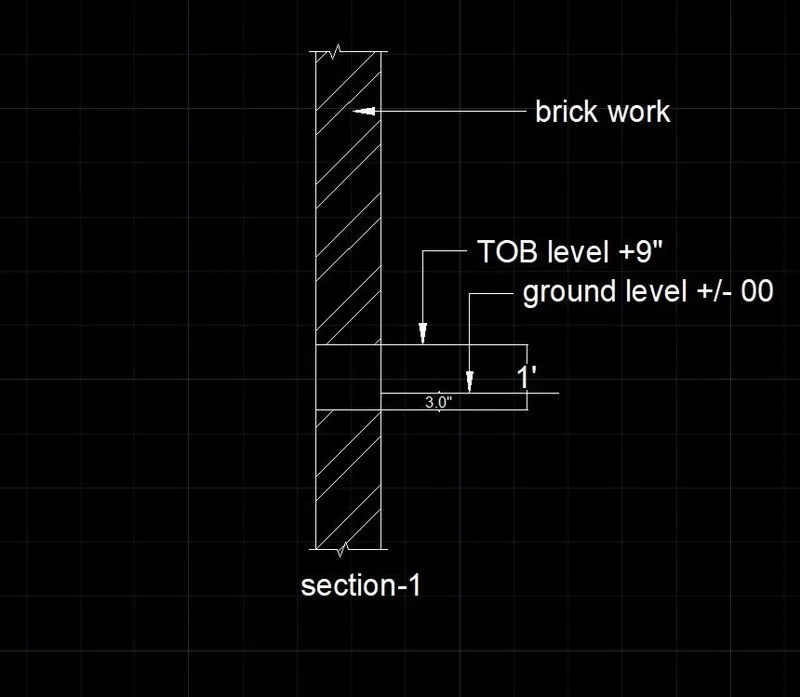
Creation of Column Schedule and Drawing Template using AutoCad
Aim- To create a column schedule as shown in figure: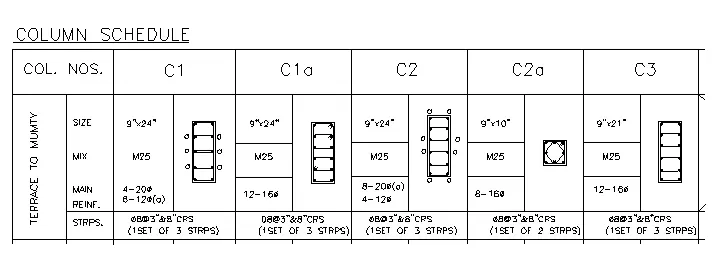
Procedure-
- Select line command to create table.
- In command prompt type ST (Text Style)>romans.shx(font name)>8" (text height)>left(justify)
- select text to text the given data.
- to get diameter symbol type-%%c
- using line command draw the diagram as shown in drawing.
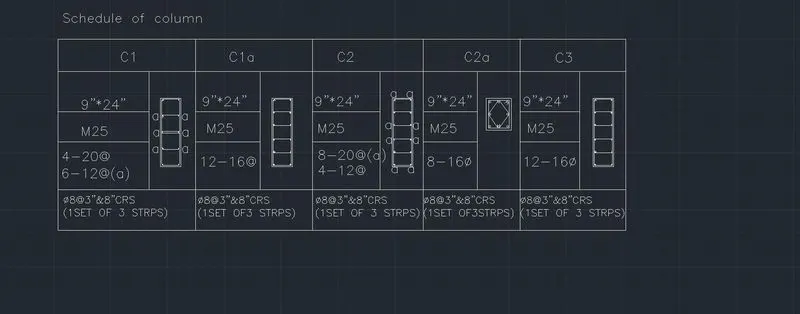
Result-
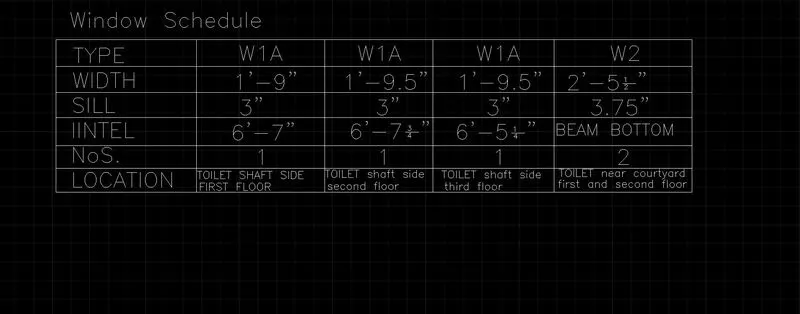
Aim- To create window schedule as show in figure.
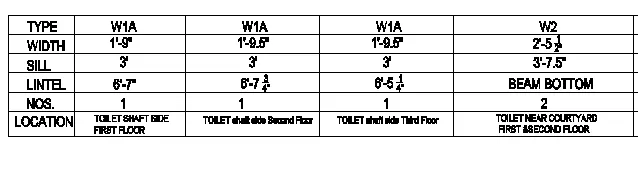
Procedure-
- Select line command to create table.
- In command prompt type ST (Text Style)>romans.shx(font name)>8" (text height)>left(justify)
- select text to text the given data.
Result-
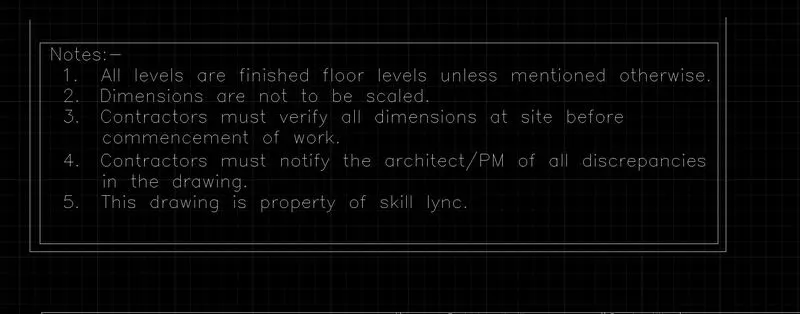
Aim- To create drawing templet as shown in figure:
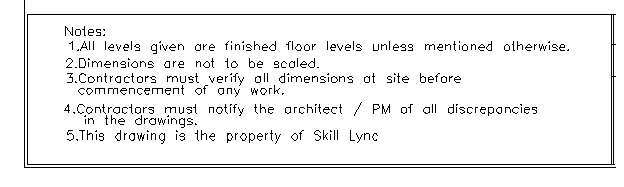

Procedure-
- Select line command to create table.
- In command prompt type ST (Text Style)>romans.shx(font name)>8" (text height)>left(justify)
- select text to text the given data.
Result-
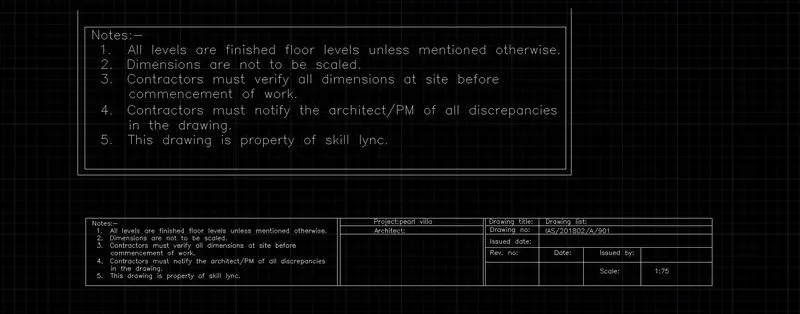
Aim- To create list of drawing schedule as shown in figure:
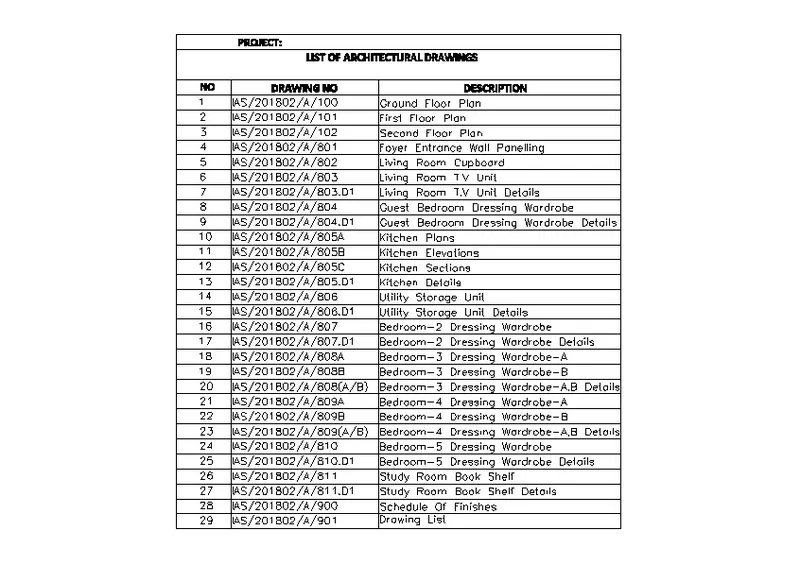
Procedure-
- Select line command to create table.
- In command prompt type ST (Text Style)>romans.shx(font name)>8" (text height)>left(justify)
- select text to text the given data.
Result-
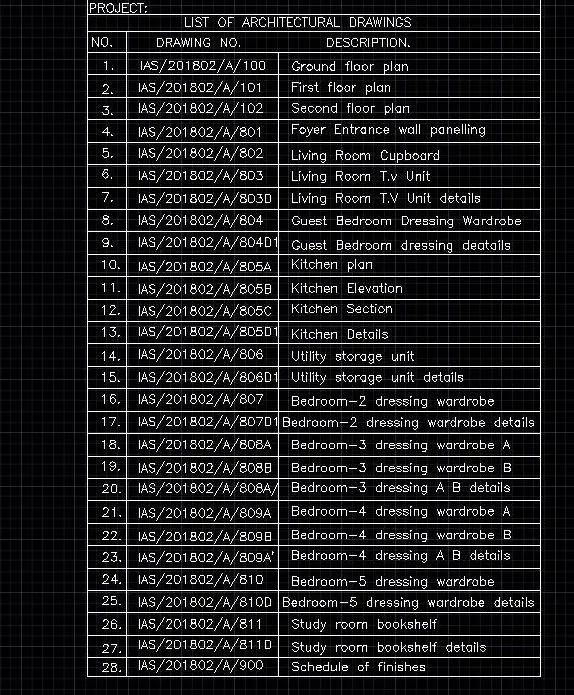
Aim- To draw section as shown in figure:
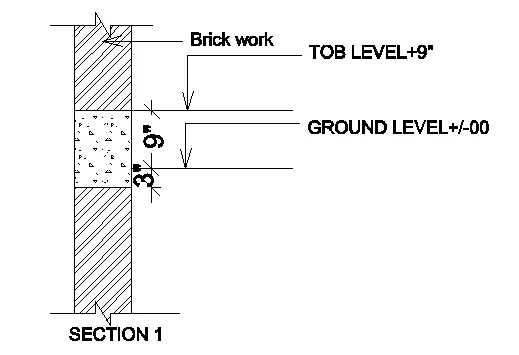
Procedure-
- Select line command to create table.
- In command prompt type ST (Text Style)>romans.shx(font name)>8" (text height)>left(justify)
- select text to text the given data.
Result-