Creation of Column Schedule and Drawing Template using AutoCad
ANS 1]
AIM - create a column schdule with the help of line also inserted text with the help of d text command or single line text
INTRODUCTOIN - 1] to create a column schedule by using a dtext
2] now we see the step prodicre to create a text
PRODUCRE -
column schedule
1] we create a column schedule with the help of line
2] also insert text with help pof dtext command or single line text
3] use the fornt name romns height 8" and judstify left
4] first create a tabular colume to type the name
5] click DTEXT command to create the text
6] and type the text as per dimension
7] then drow the column circle command used to create
8] then drow the stripus line and fillet command used to drow
9]then HATCH command used to hatch the ciecle
10] and click save commad to save the text
11] finally we snipping tool to screenshot the drawing
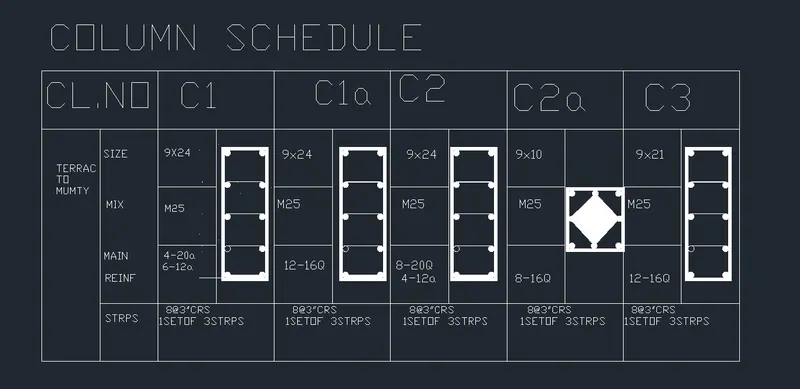
RESULT - in this challenge we learn to create a colimn schedule with the help using varius command
ANS 2 ]
AIM- to create a window schedule in autocad
INREODUCTION - to create a window by using a dtext
now we see the step by step producre to create a text
PRODUCRE
1] we create a window schedule with the help of line
2] also insert text with help of dtext command or single line text
3] use the fort name romans height 8" and judtify left
4] first create a tabular column to type the name
5] click dtext command to create the text
6] and type text ad per dimision
7] and click save command to save the text
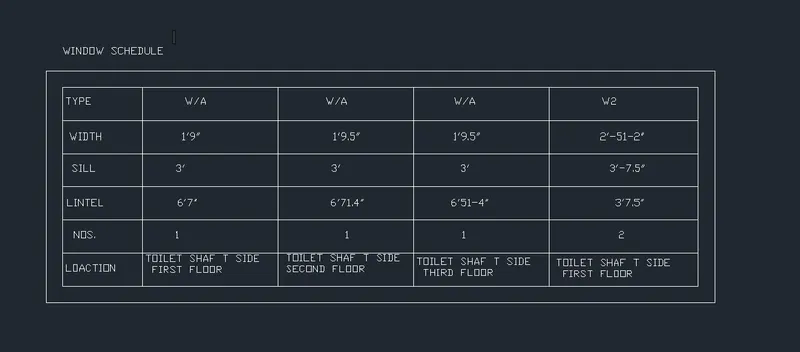
RESULT - in this challenge we learn to create a window schedule with the help using various command
ANS 3]
AIM- to drow tepmplate byy using atocad
INTRODUCTION - to create a drowing template using a dtext
now we see the stepe by stepe producre to create a text
PRODUCRE -
1] we create a drawing templaate with the help of line
2] also insert text with help of dtext command or single line text
3] use the fornt name romans height 5" and justify left
4] first create tabular column to type the name
5] click dtext command to create the text
6] and type the text as per dimesion
7] and click save command
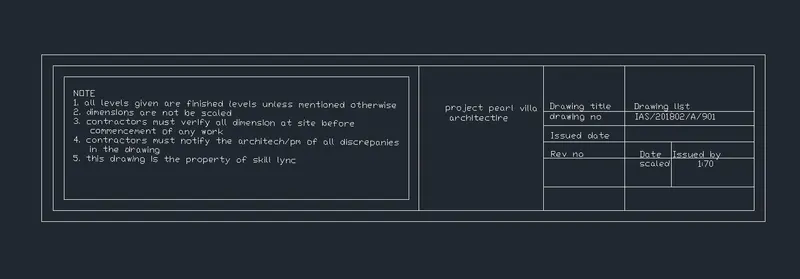
RESULT -
in this challange we learn to create a drawing templete with the help using varius command
ANS 4]
AIM ]- to create list of drawing schedule in atocad
INRRODUCTION - to create a list of drawing schedule by using dtext
now we see the step by step producreto create a text
PRODUCRE-
1] we create a drawing templaate with the help of line
2] also insert text with help of dtext command or single line text
3] use the fornt name romans height 5" and justify left
4] first create tabular column to type the name
5] click dtext command to create the text
6] click array command to drag the line up to 25 easy to drow
7] and type the text as per dimesion
8] and click save command
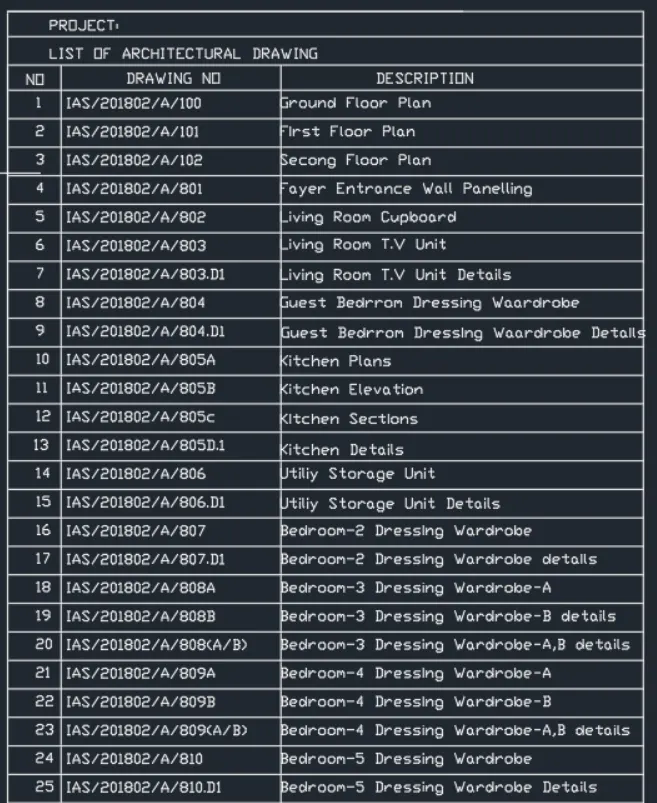
RESULT -
in this challange we learn to create a drawing templete with the help using varius command
ANS 5]
AIM ]- to create beam detail in atocad
INRRODUCTION - to create a beam detail by using dtext
now we see the step by step producreto create a text
PRODUCRE-
1] we create a drawing templaate with the help of line
2] also insert text with help of dtext command or single line text
3] use the fornt name romans height 5" and justify left
4] first create tabular column to type the name
5] click dtext command to create the text
6]click dtext command to create the text
7] hen HATCH command used to hatch the ciecle
8] click LEADEAR command for type for top level and ground level
9] and click save command
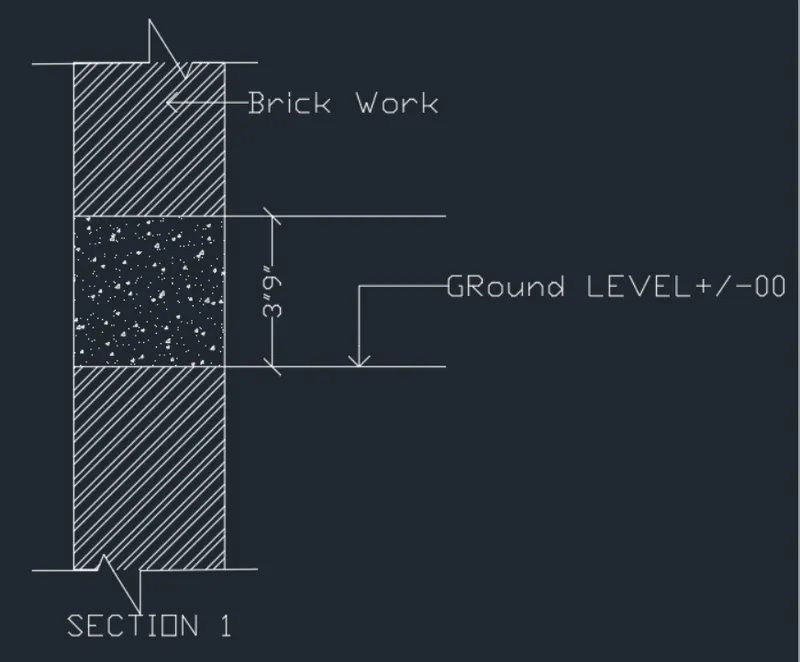
RESULT -
in this challange we learn to create a beam detail with the help using varius command