Creating Kitchen layout, Hatching of Architectural elements and sectional view of an Industrial Building in AutoCad
Answer - 1 :- Creation of the layout of the kitchen and provide hatches pattern -
Step - 1 Saving of previous drawing as a Write block and insert the same -
Step - 2
Step - 3
Step - 4
Step - 5
Step - 6
Step - 7
Step - 8
Step - 9
Step - 10
Step - 11
Step - 12
Step - 13
Step - 14
Step - 15
Step - 16
Step - 17
Step - 18
Step - 19
Step - 20
Step - 21
Step - 22
Step - 23
Step - 24
Step - 25
Step - 26
Step - 27
Step - 28
Step - 29
Step - 30
Step - 31 Final drawing is attached below as DWG.
Answer - 2 :- Creation of elevation of the plan created in the challanges 7 And hatching of walls, doors,windows and other architectural elements -
Step - 1 Unit set up -
Step - 2
Step - 3
Step - 4
Step - 5
Step - 6
Step - 7
Step - 8
Step - 9
Step - 10
Step - 11
Step - 12
Step - 13
Step - 14
Step - 15
Step - 16
Step - 17
Step - 18
Step - 19
Step - 20
Step - 21
Step - 22
Step - 23
Step - 24
Step - 25
Step - 26
Step - 27
Step - 28
Step - 29
Step - 30
Step - 31
Step - 32
Step - 33
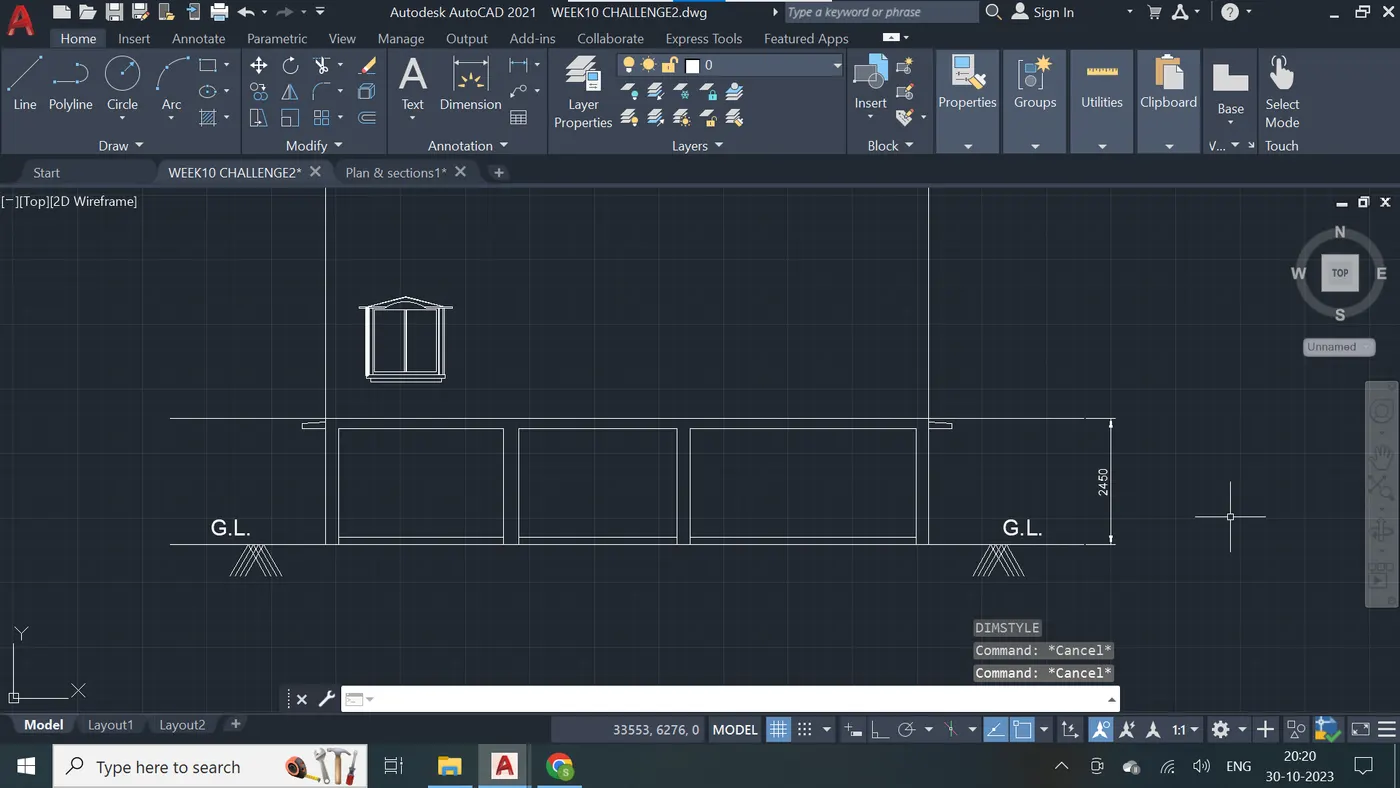
Step - 34
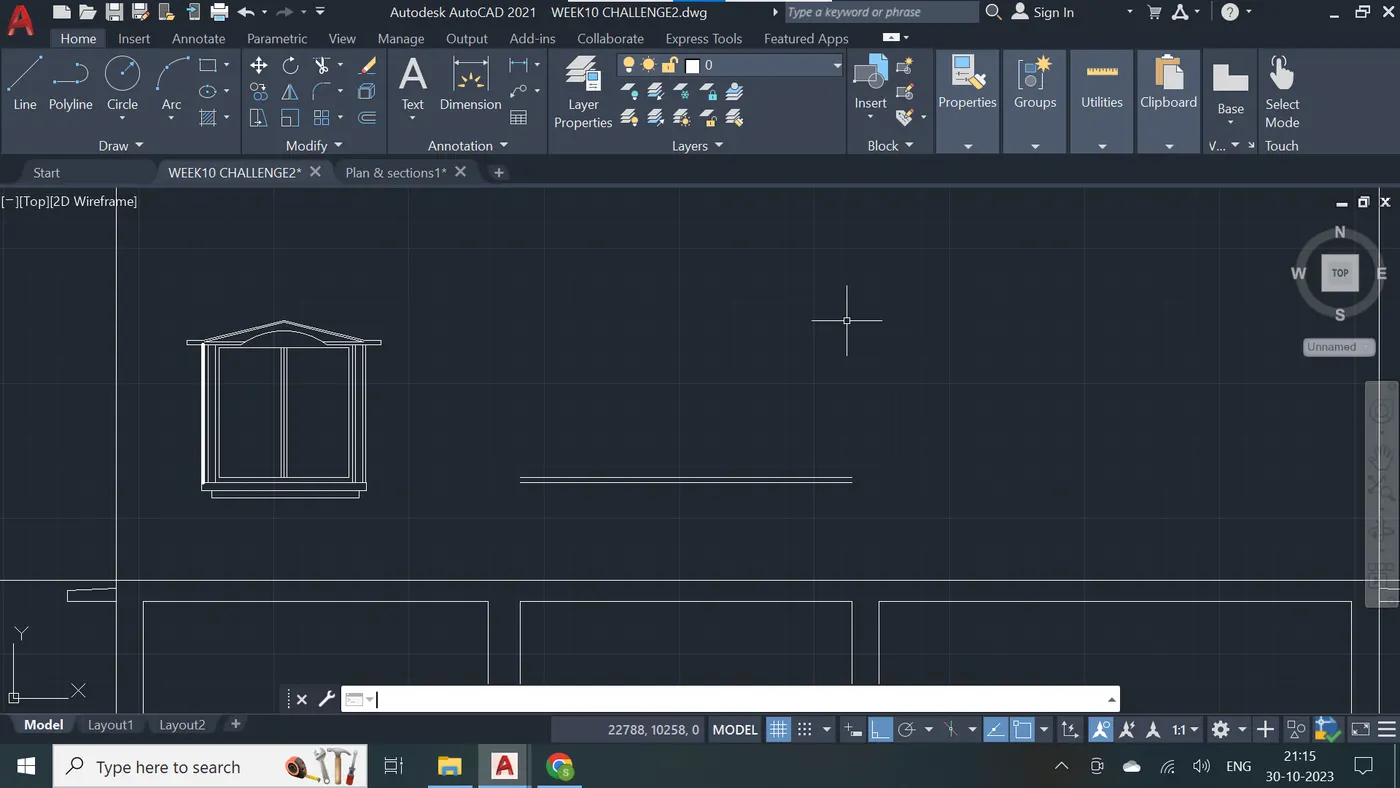
Step - 35
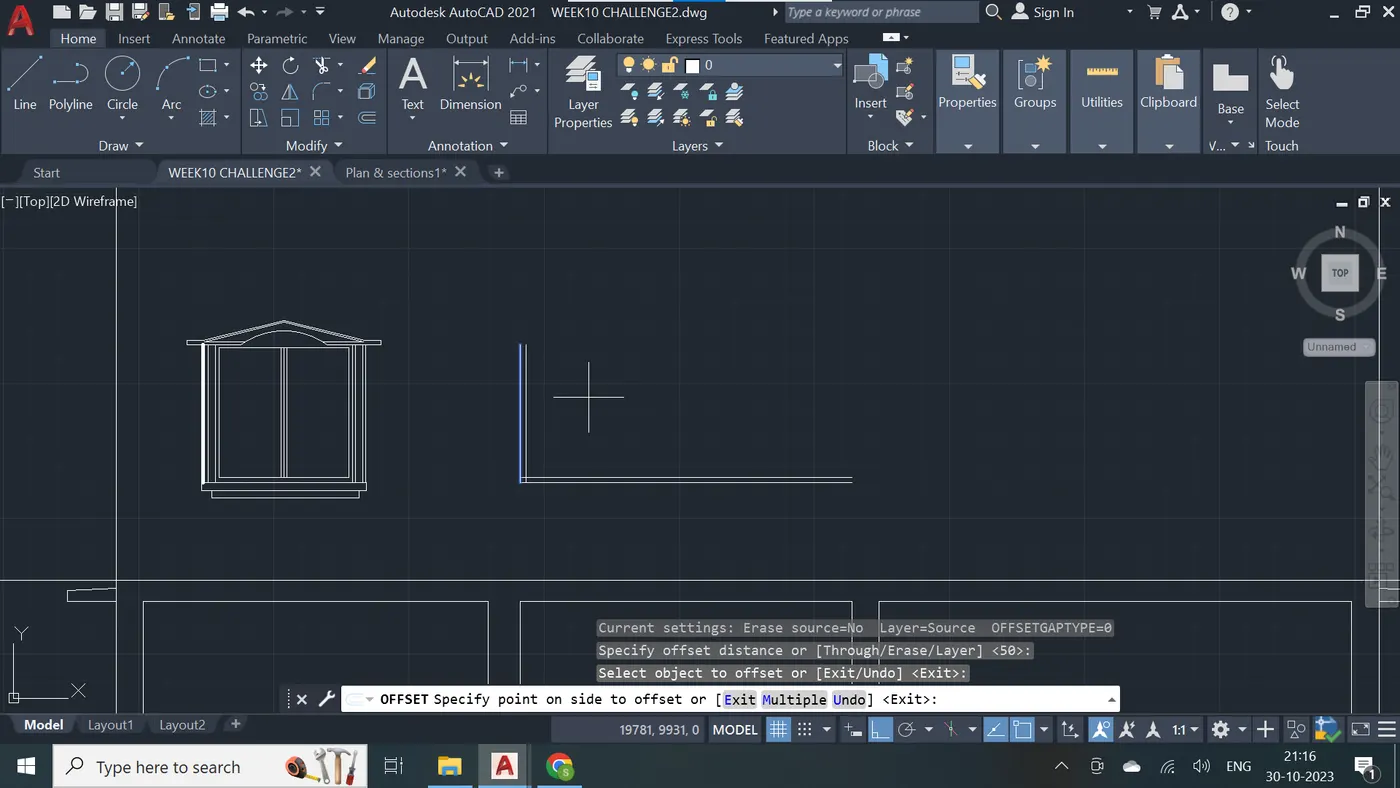
Step - 36
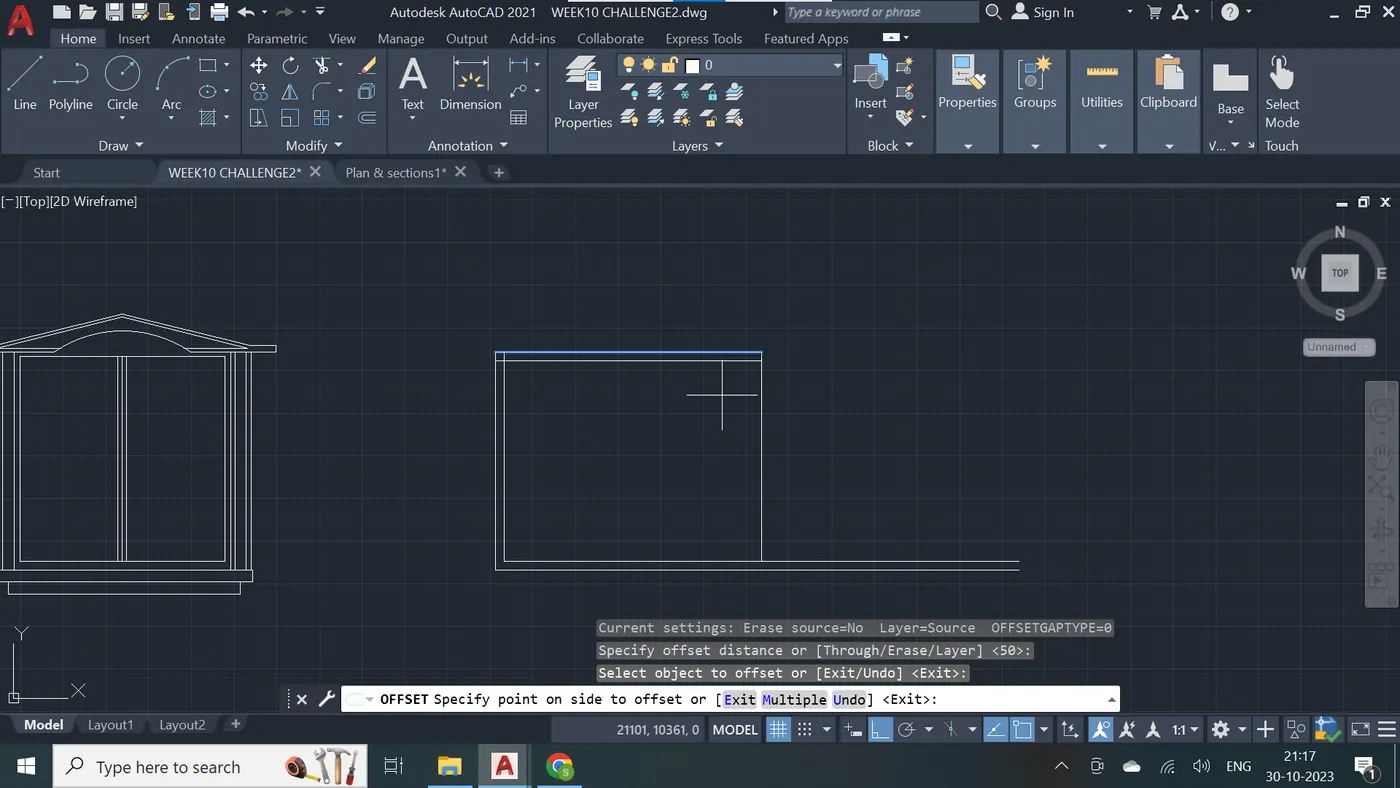
Step - 37
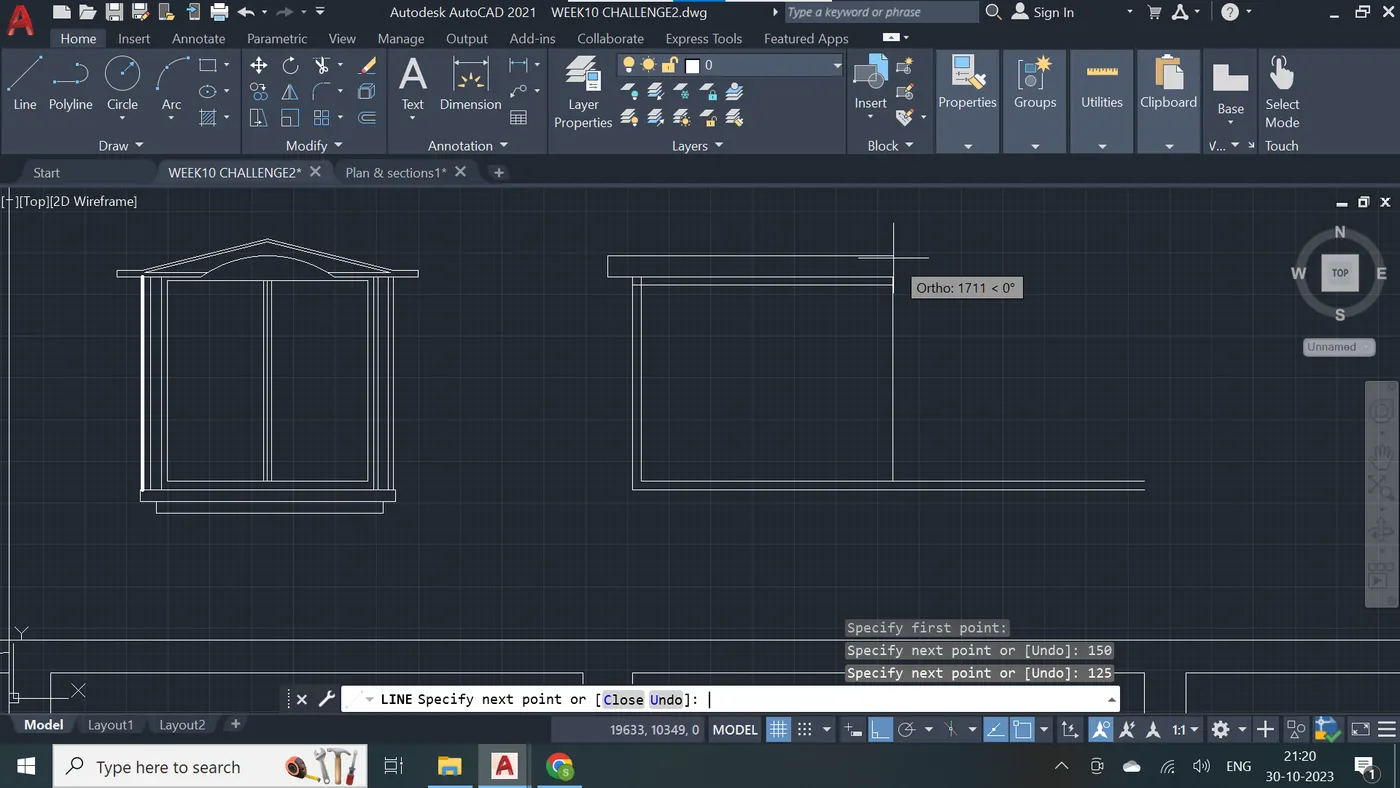
Step - 38
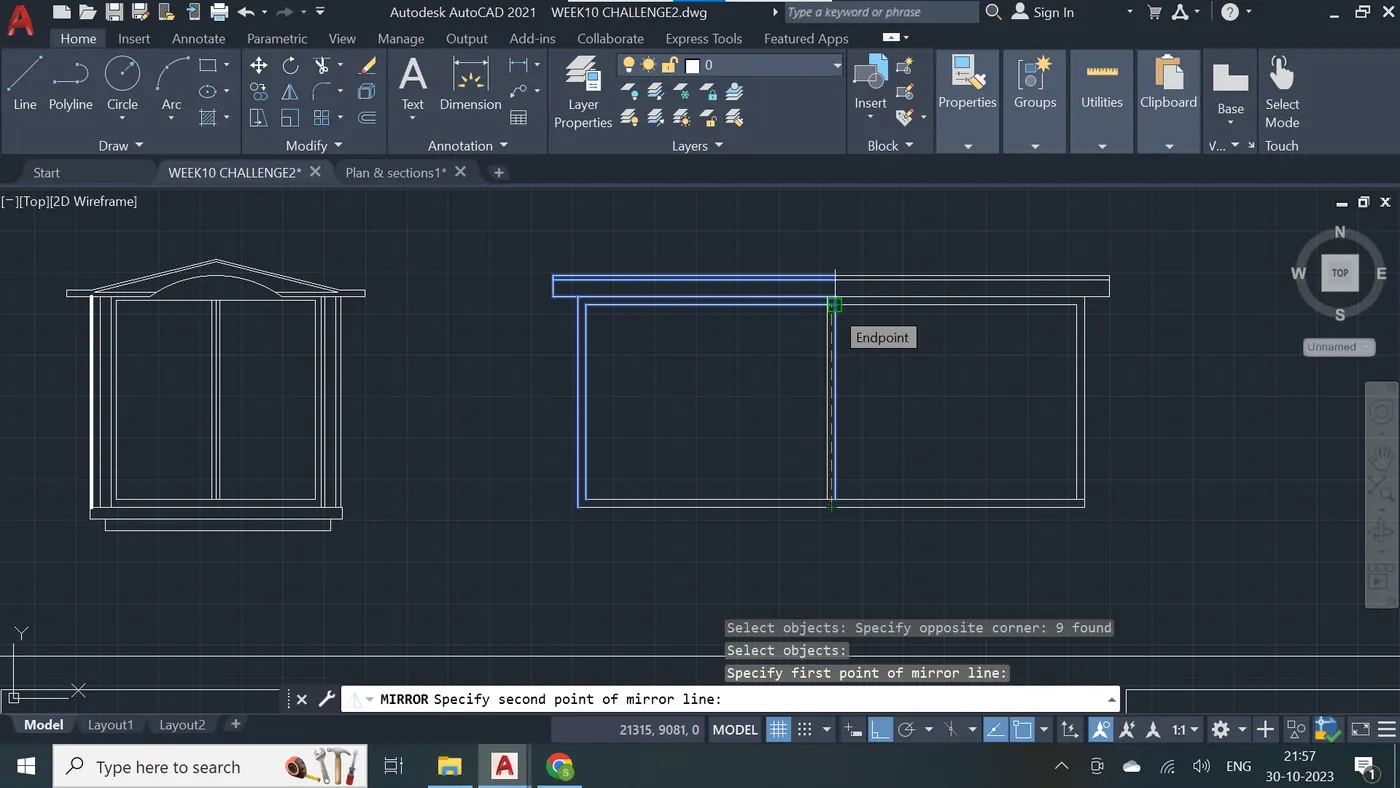
Step - 39
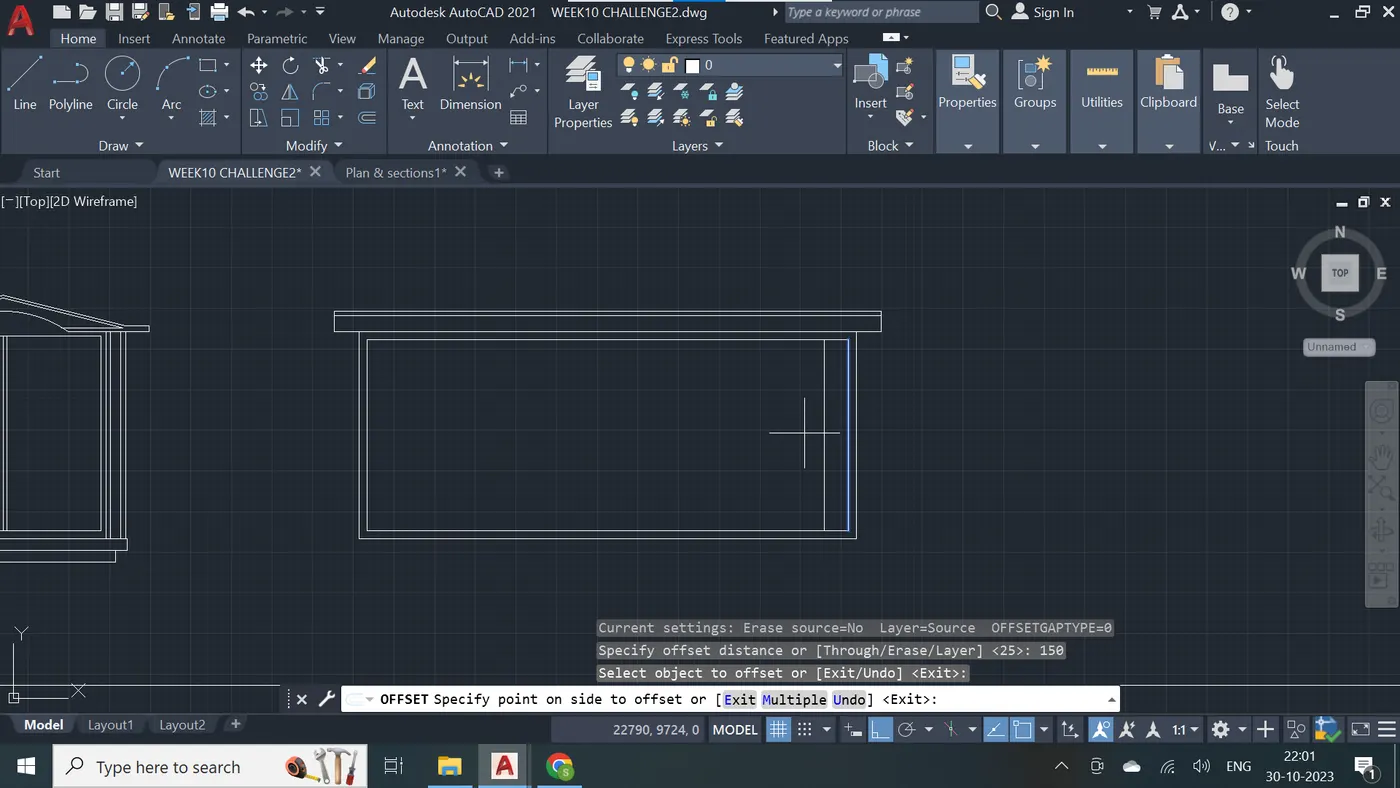
Step - 40
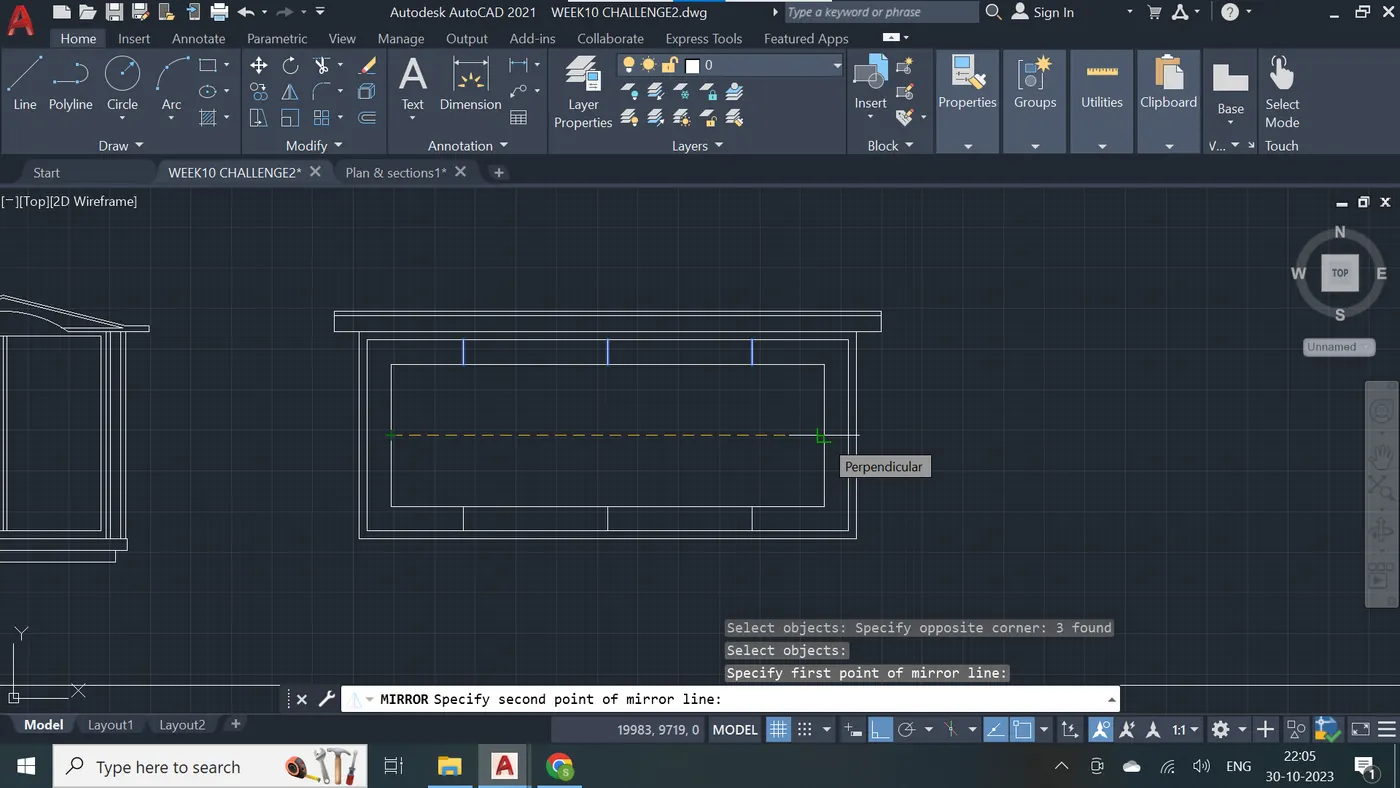
Step - 41
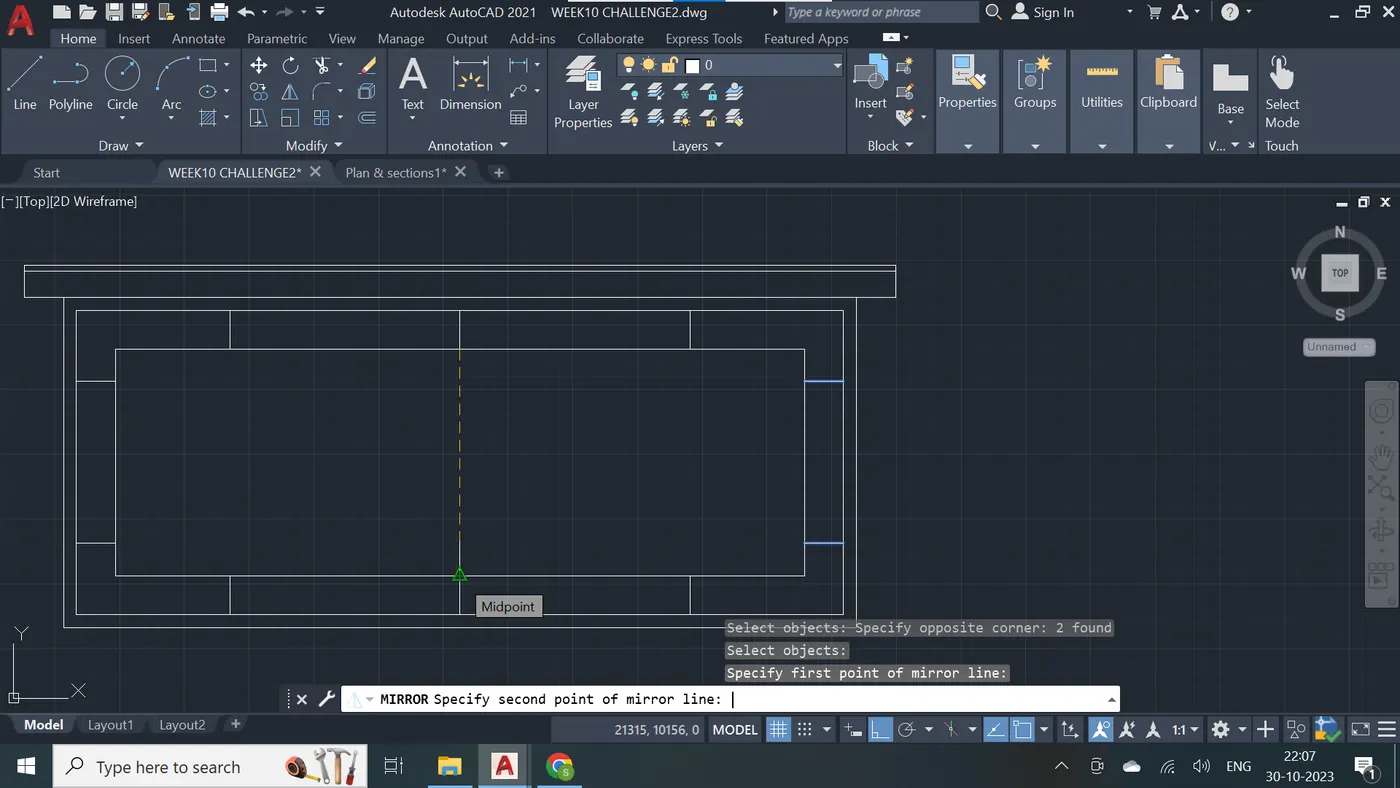
Step - 42
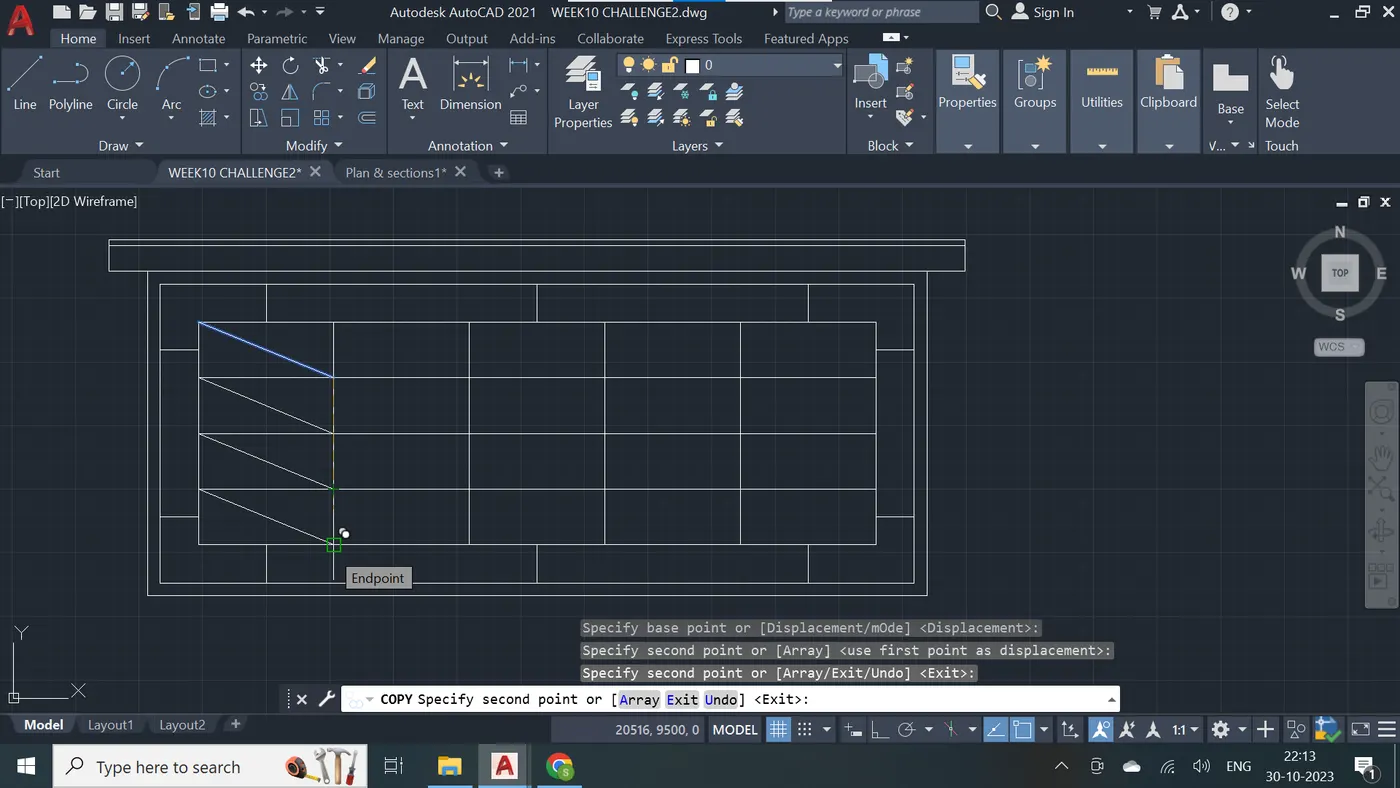
Step - 43
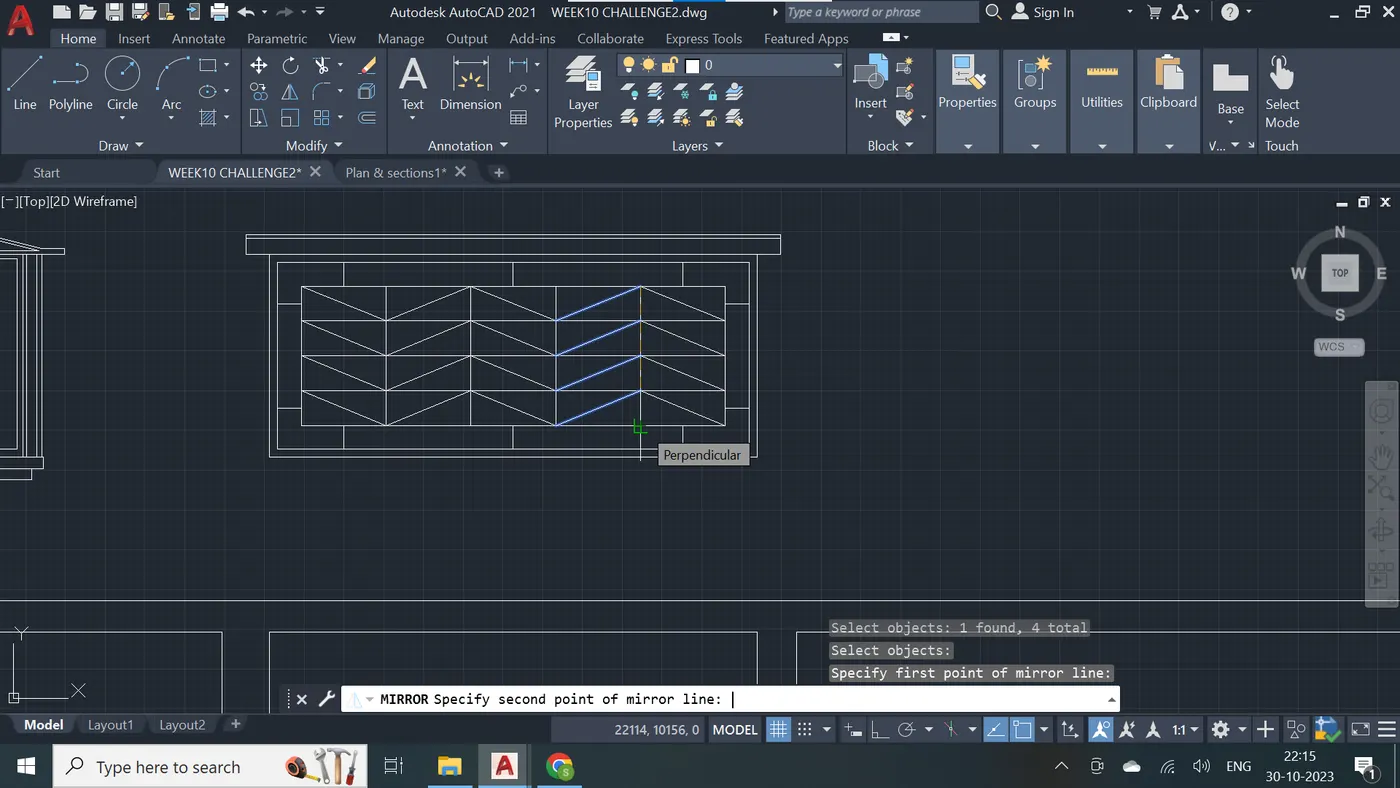
Step - 44
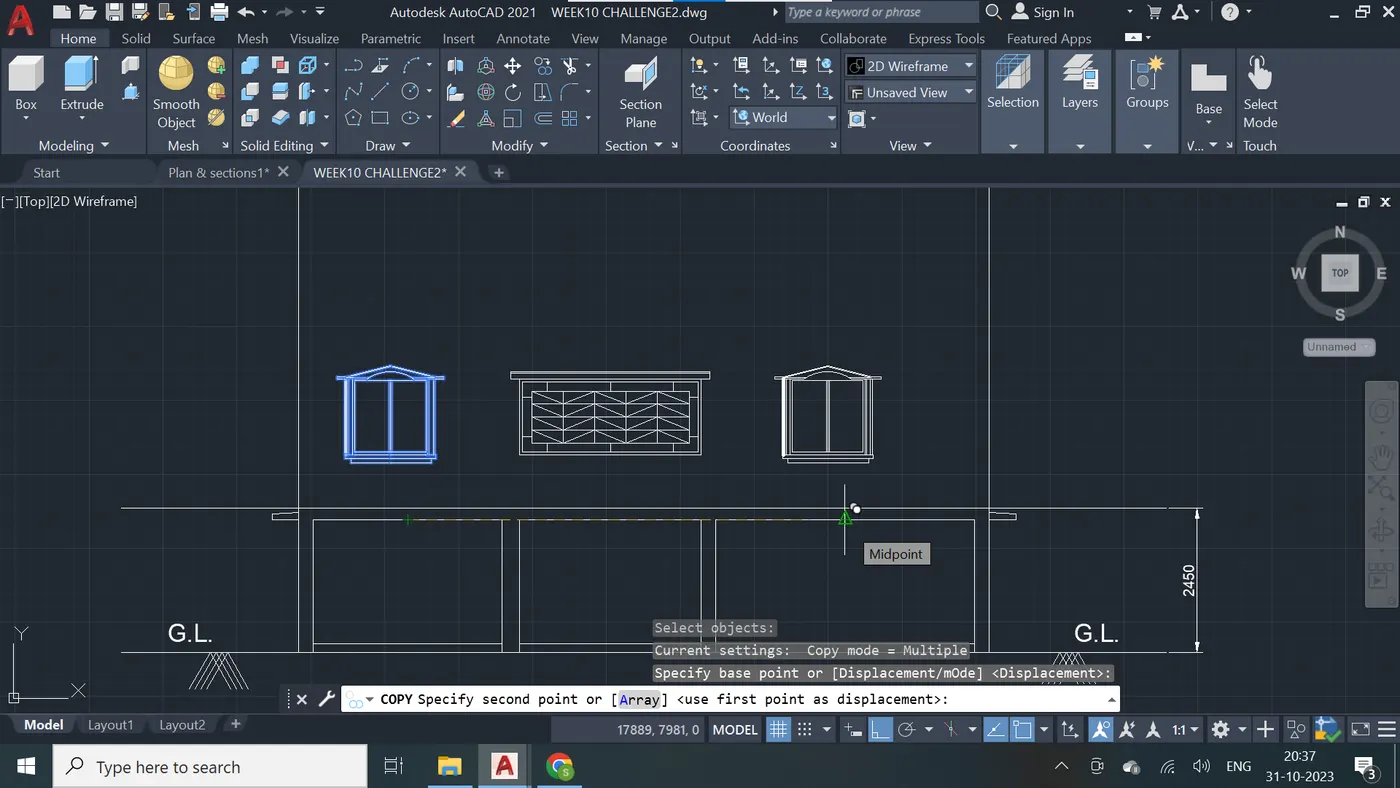
Step - 45
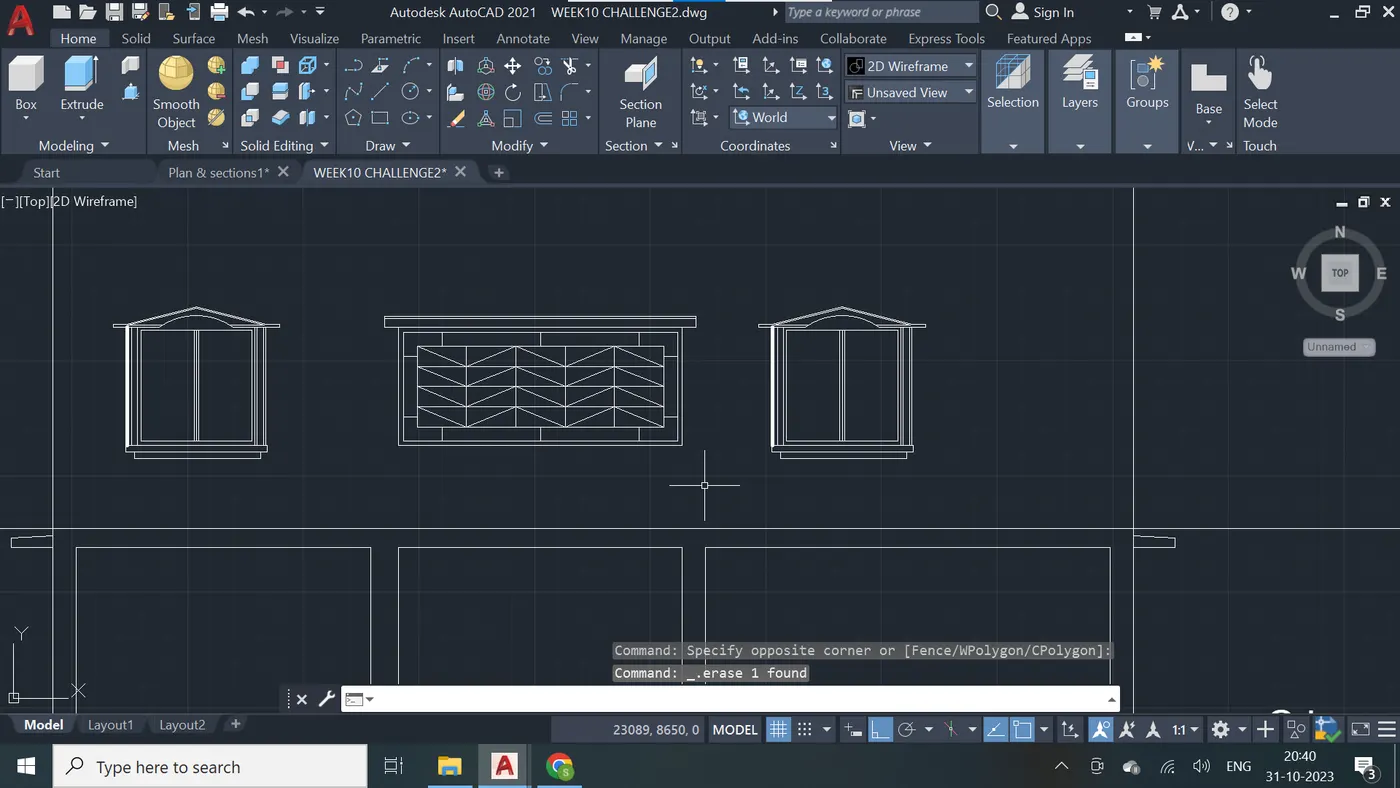
Step - 46 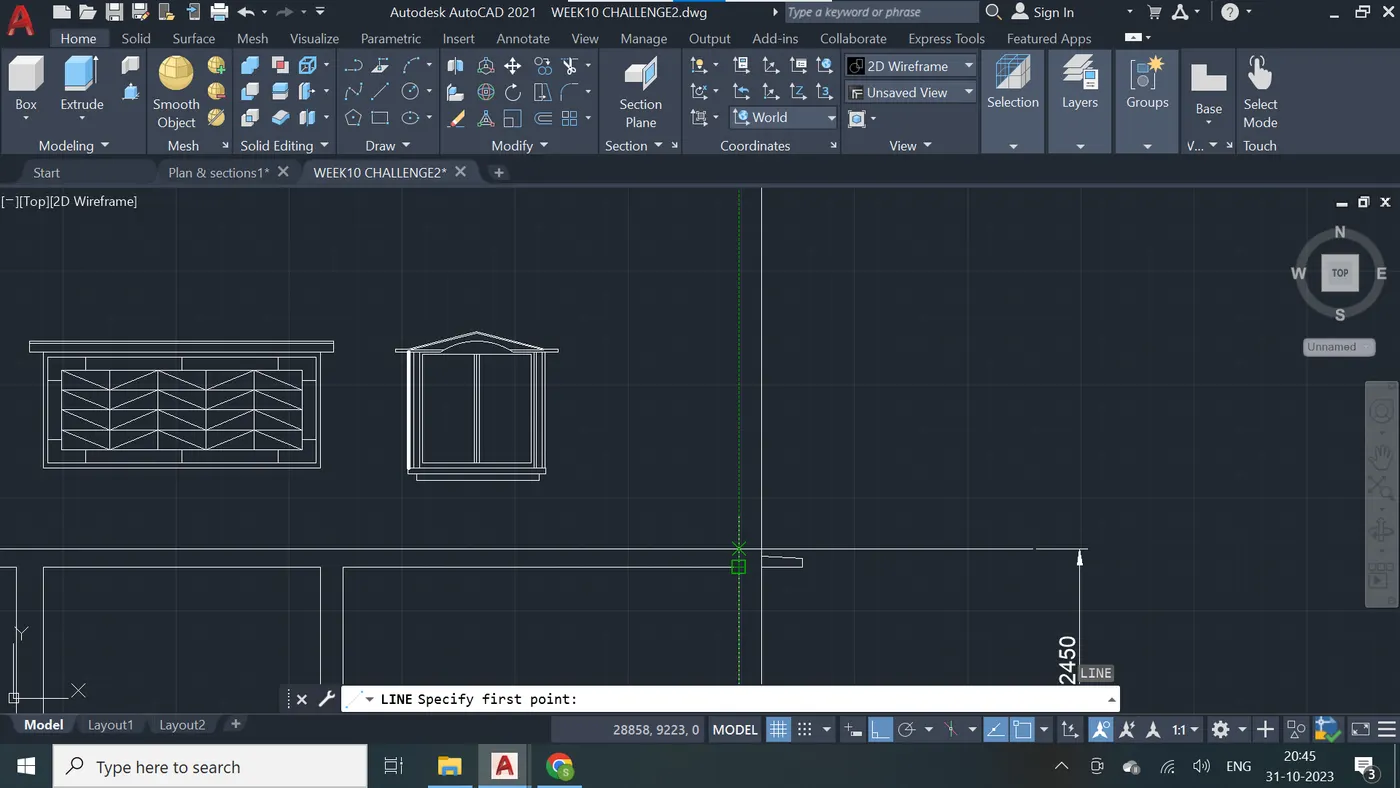
Step - 47
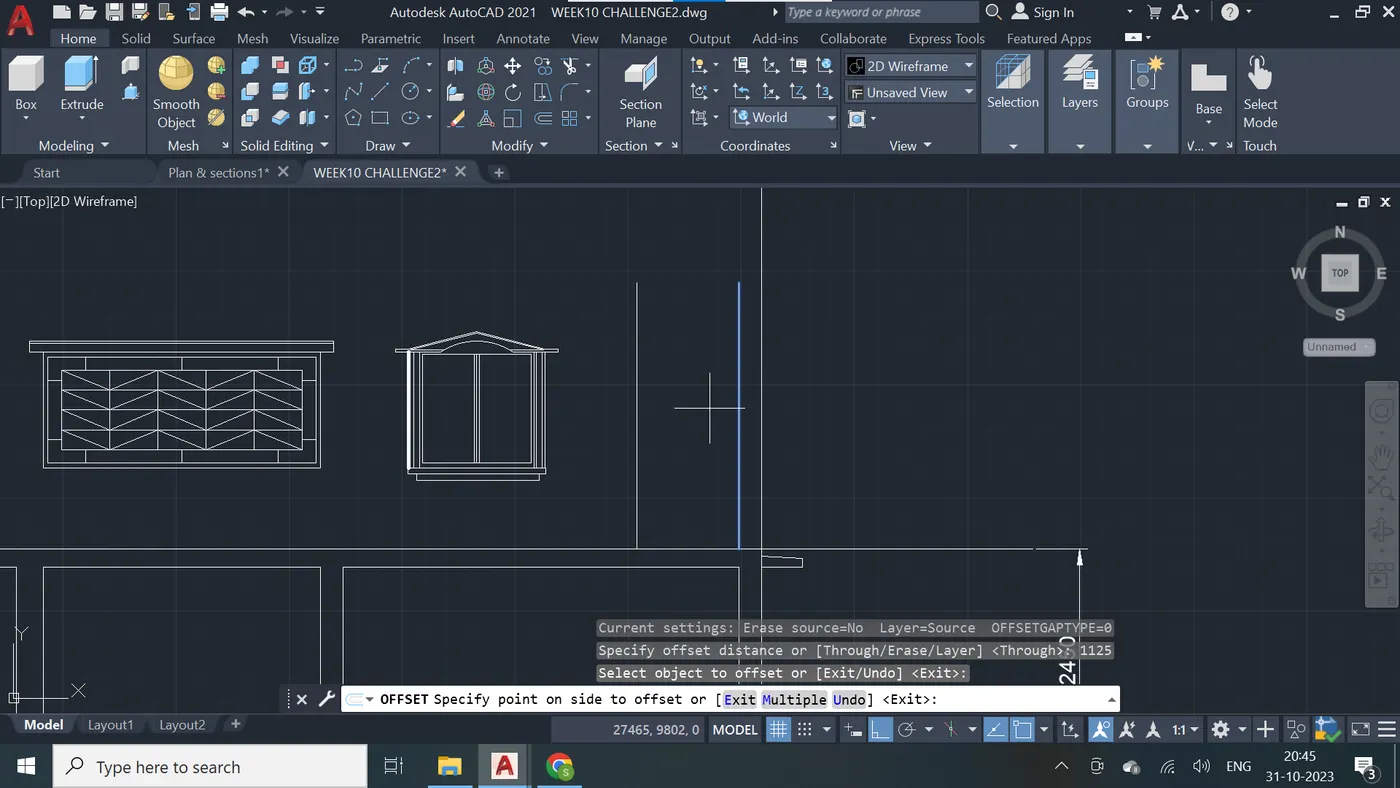
Step - 48
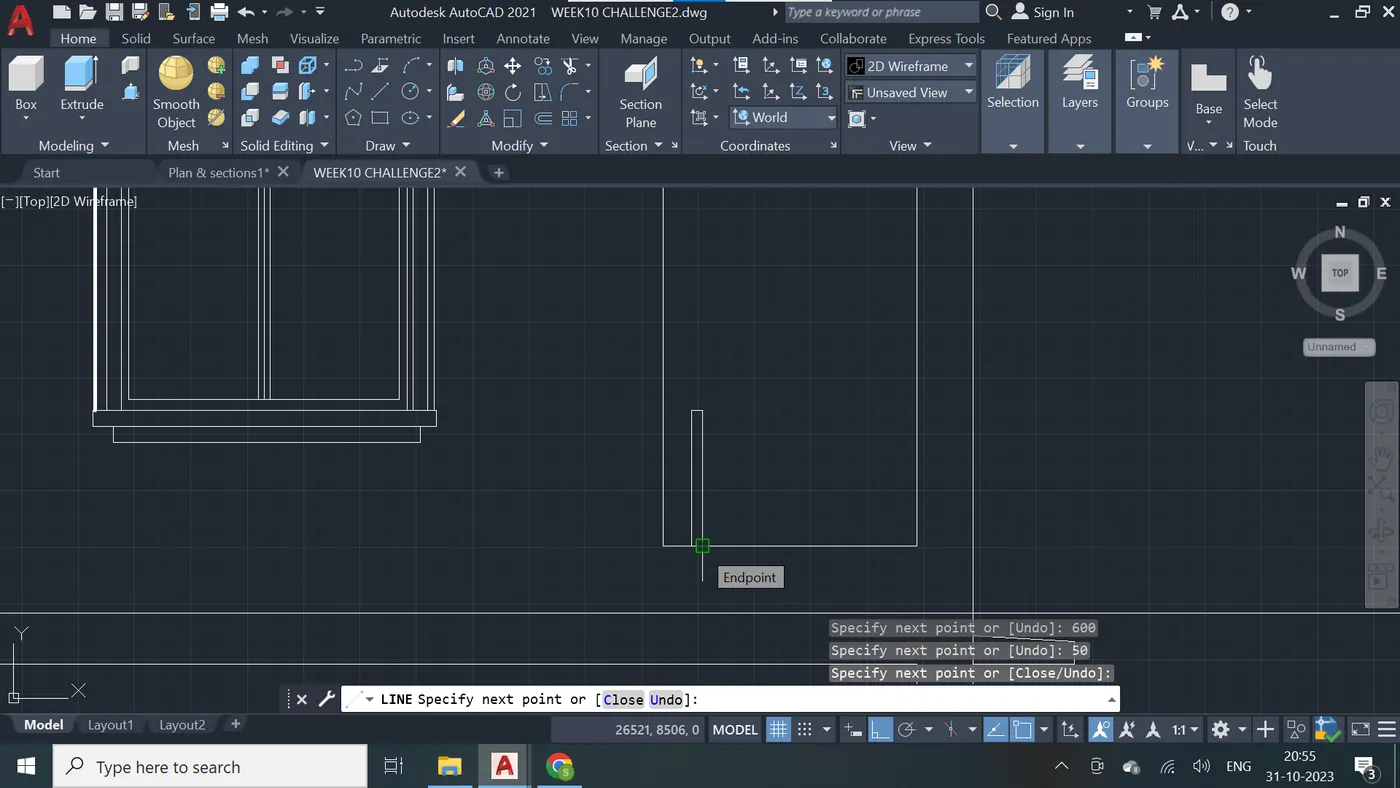
Step - 49
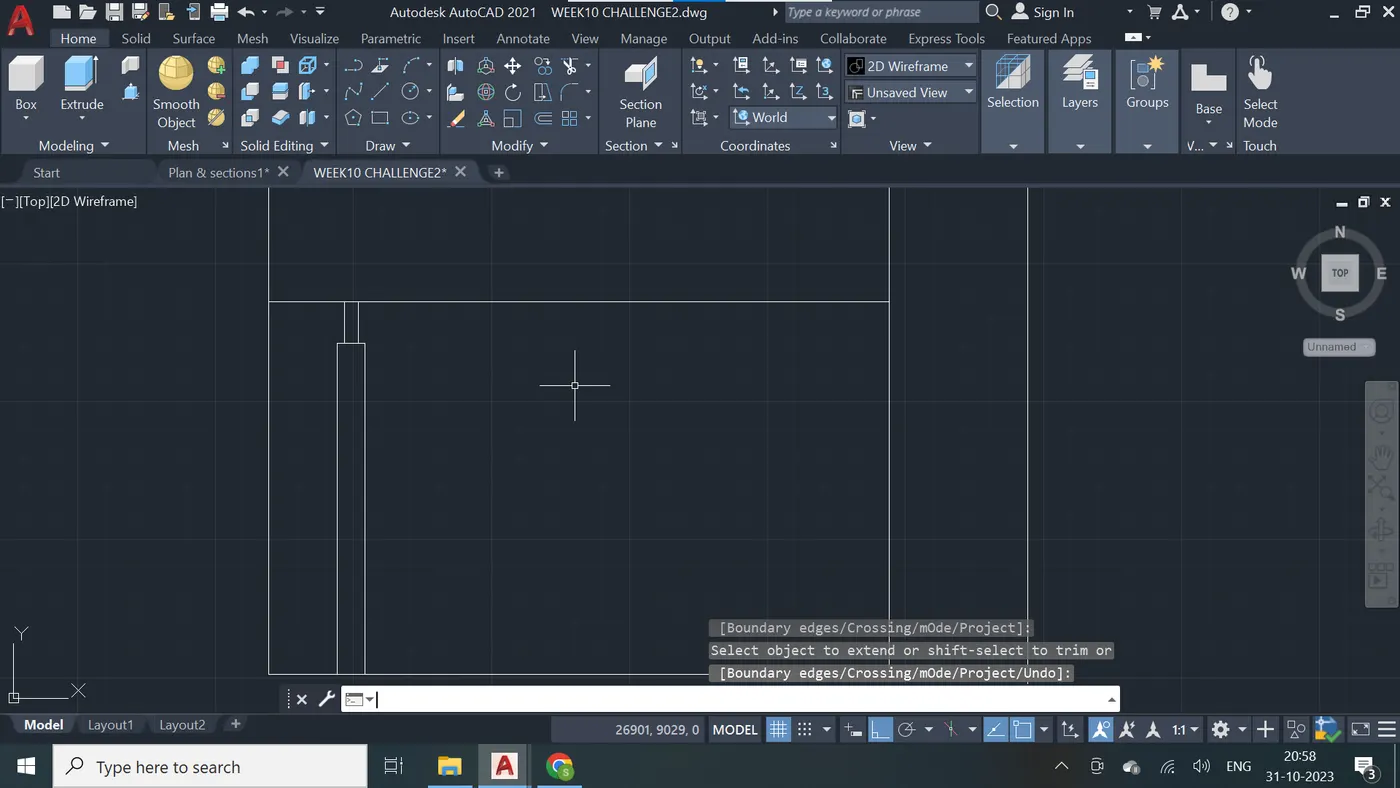
Step - 50
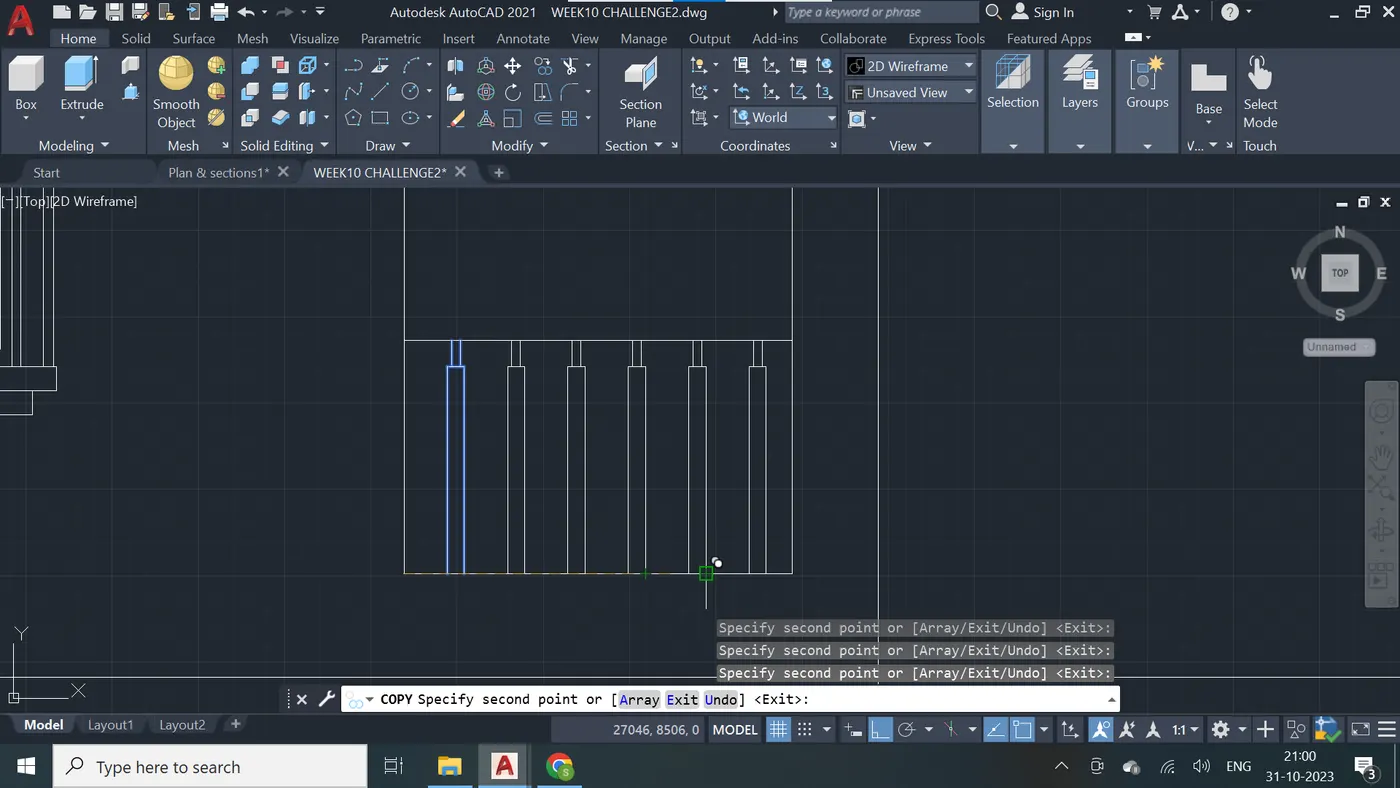
Step - 51
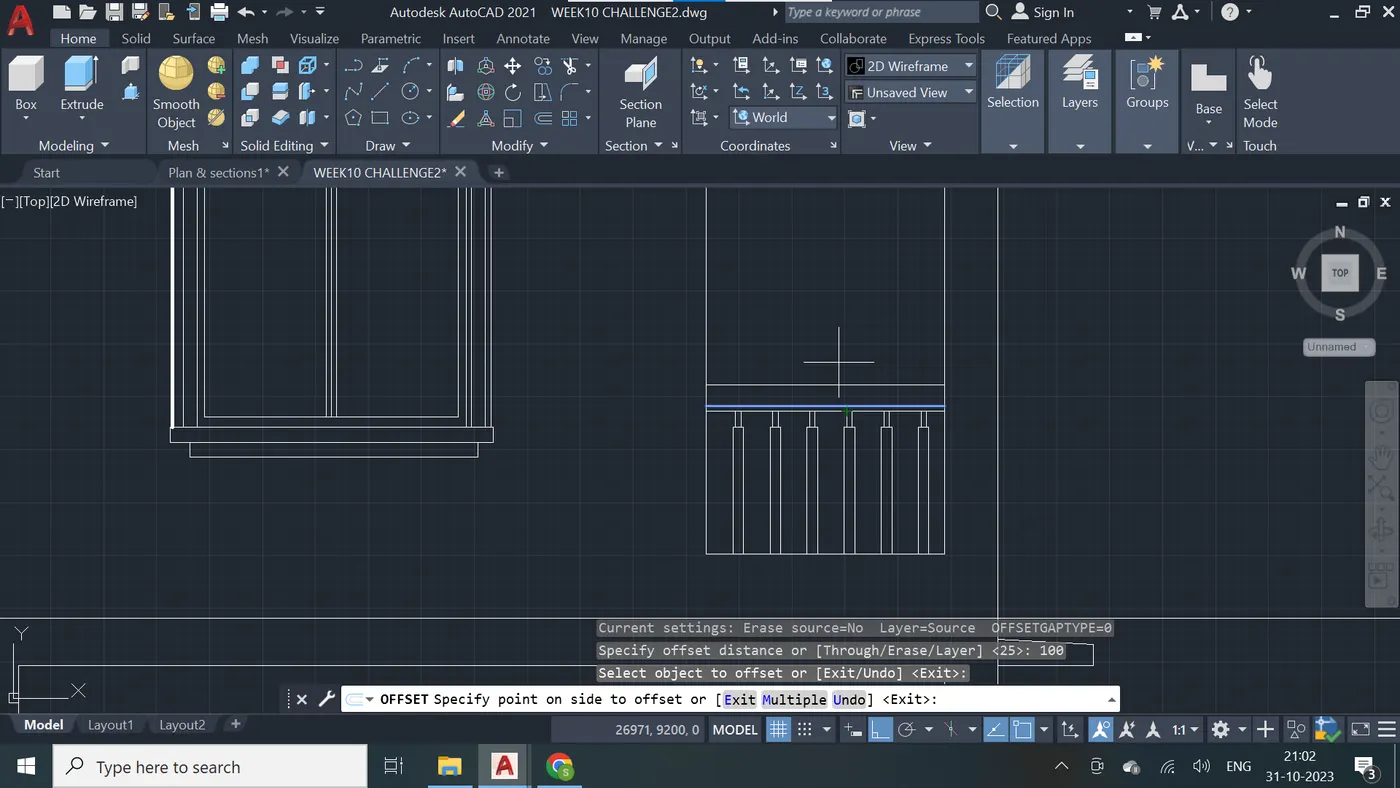
Step - 52
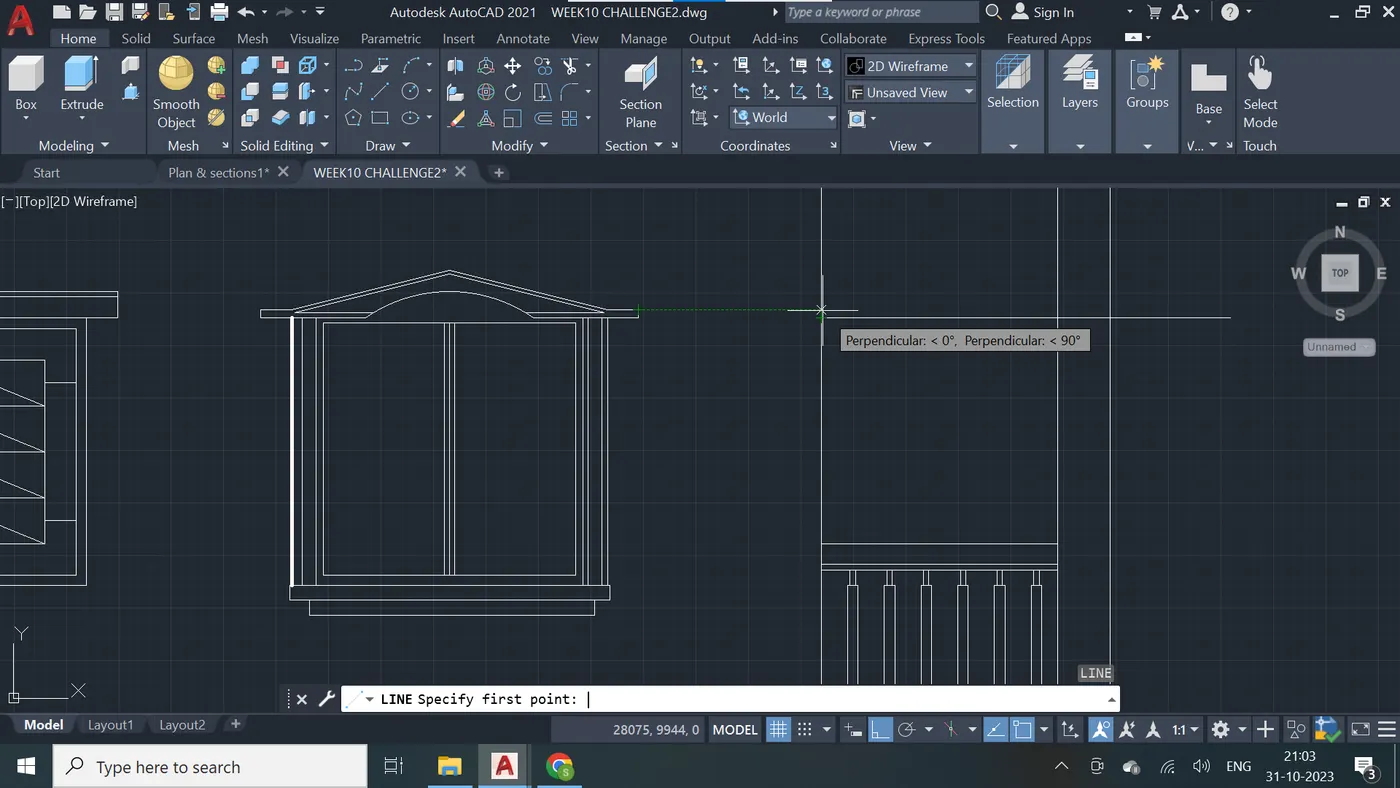
Step - 53
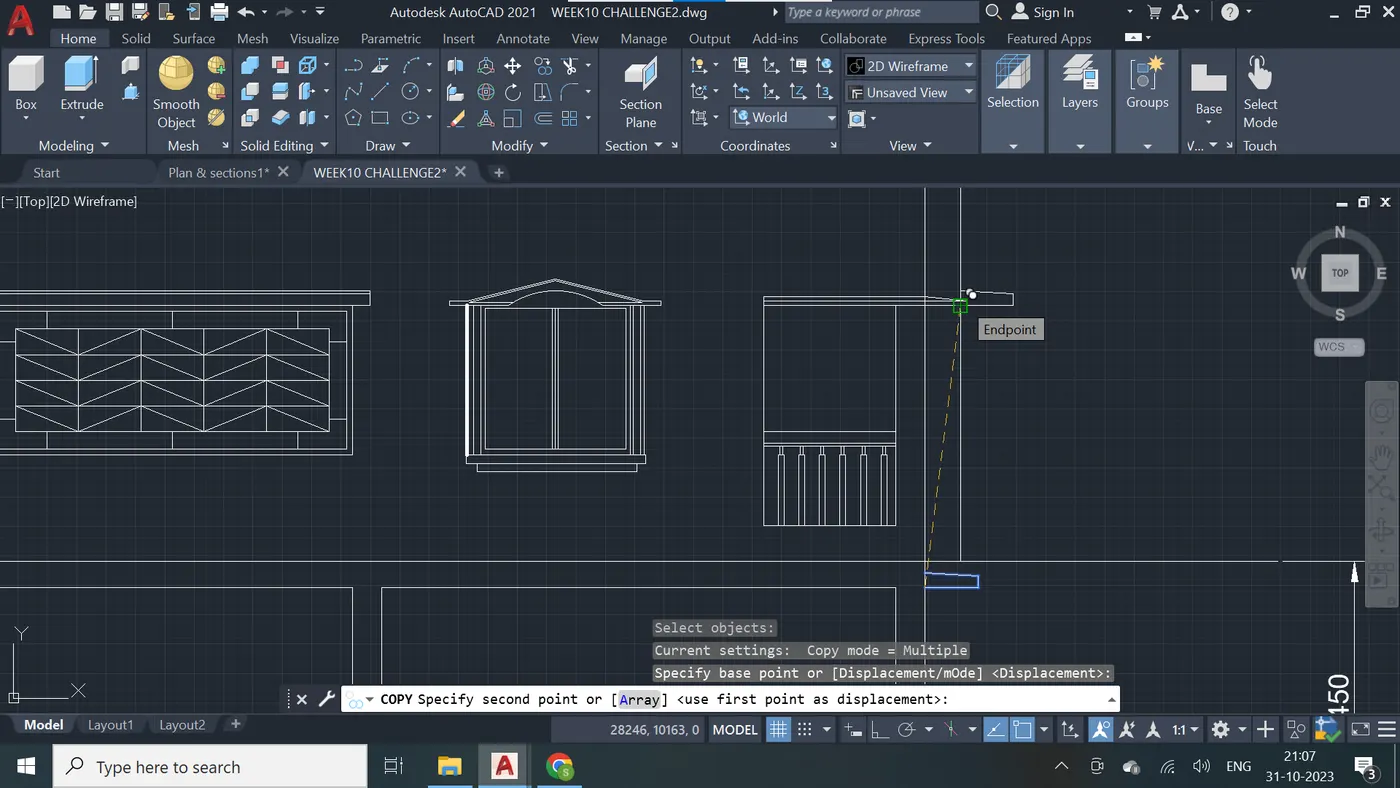
Step - 54
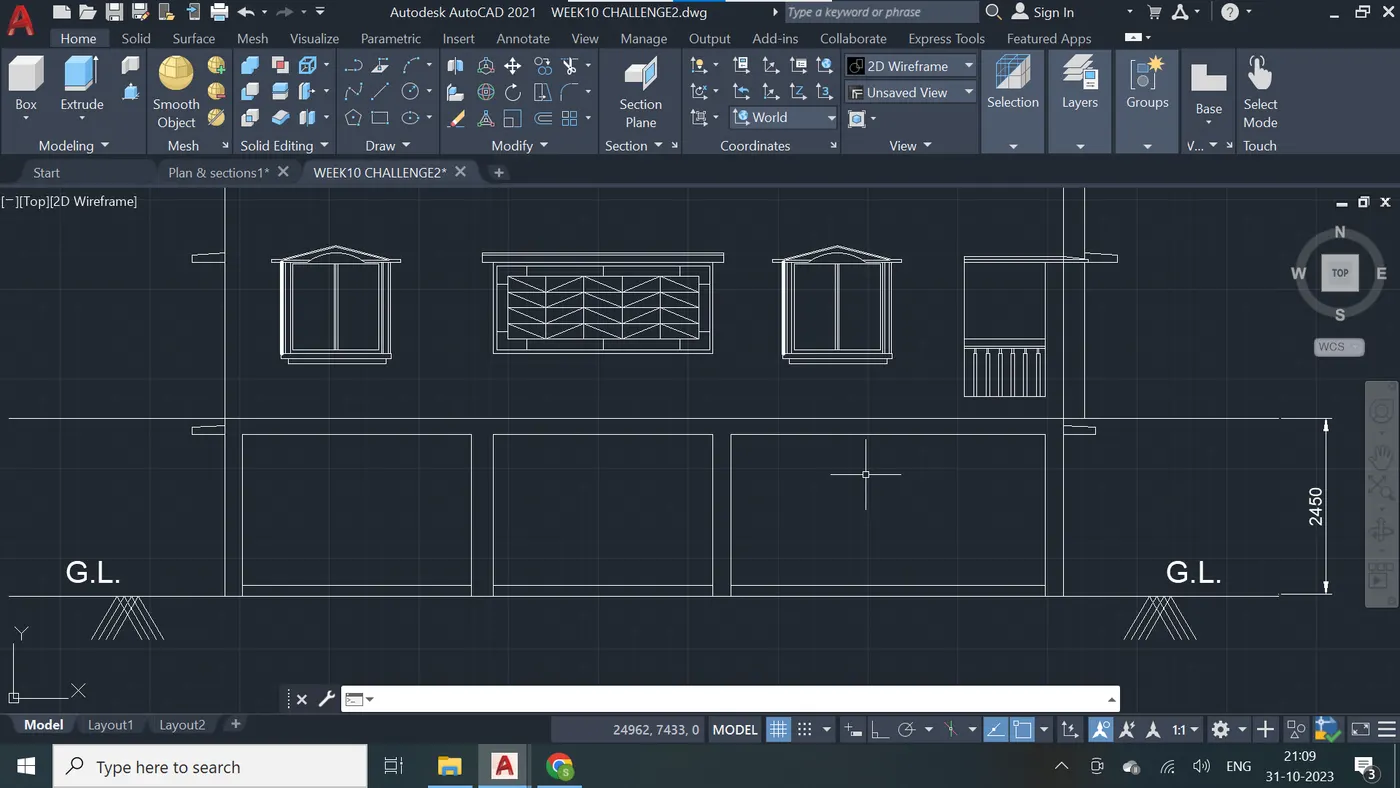
Step - 55
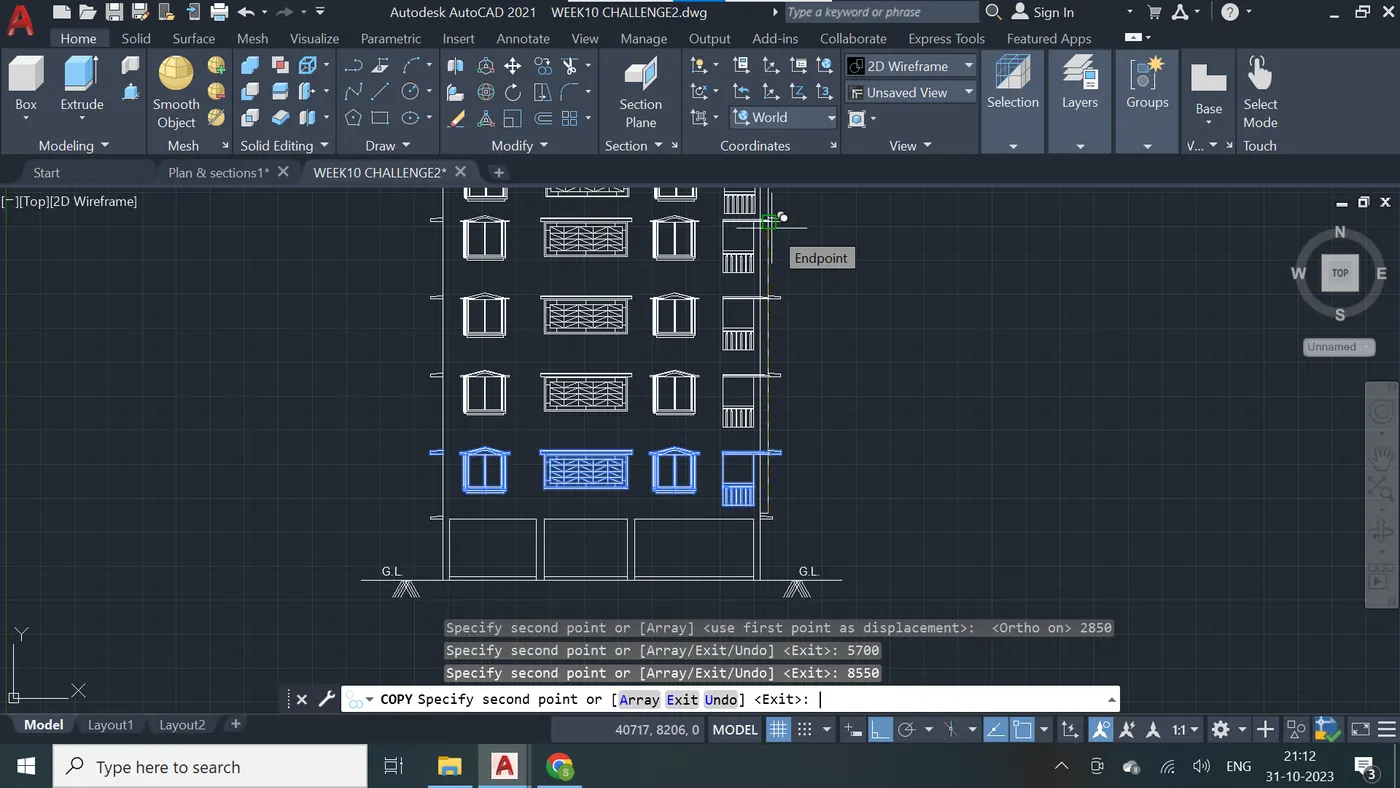
Step - 56
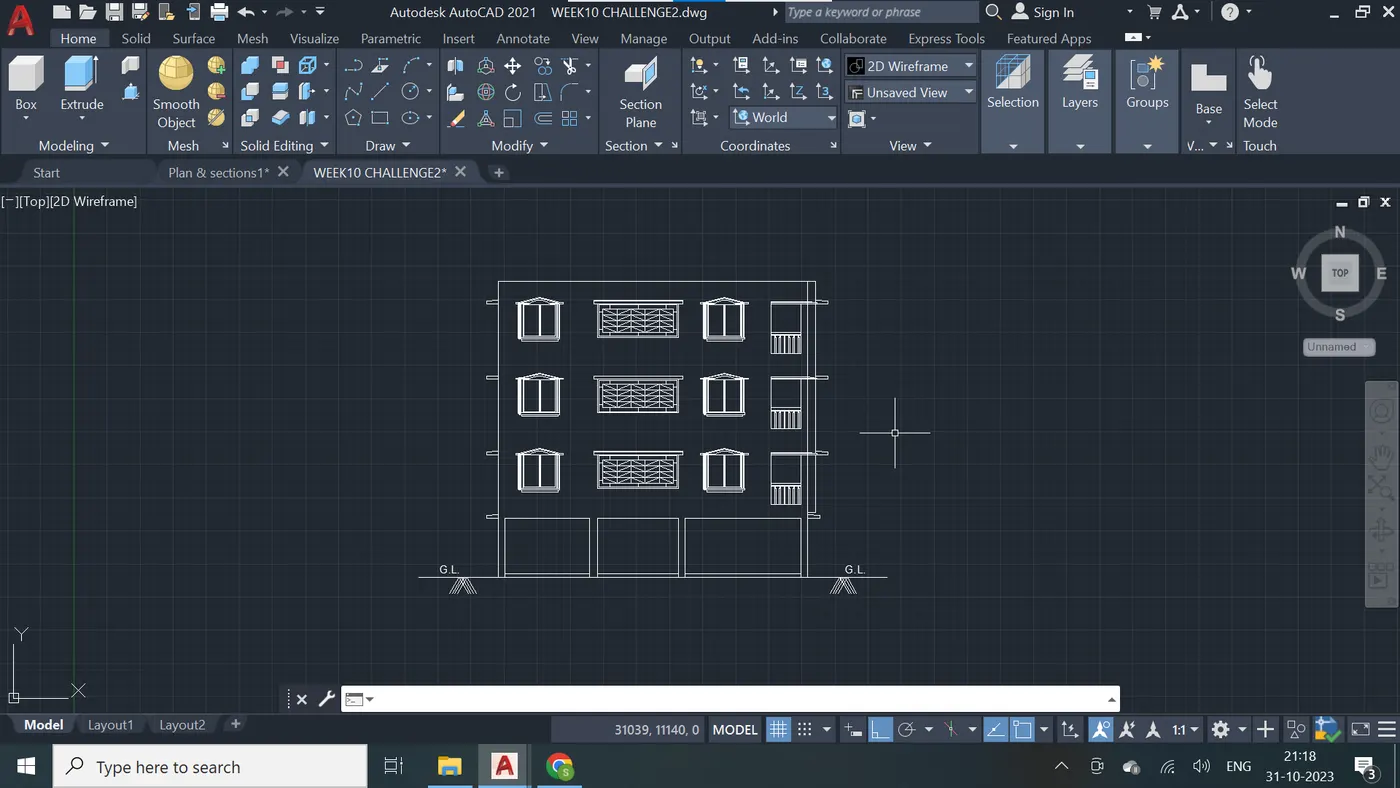
Step - 57
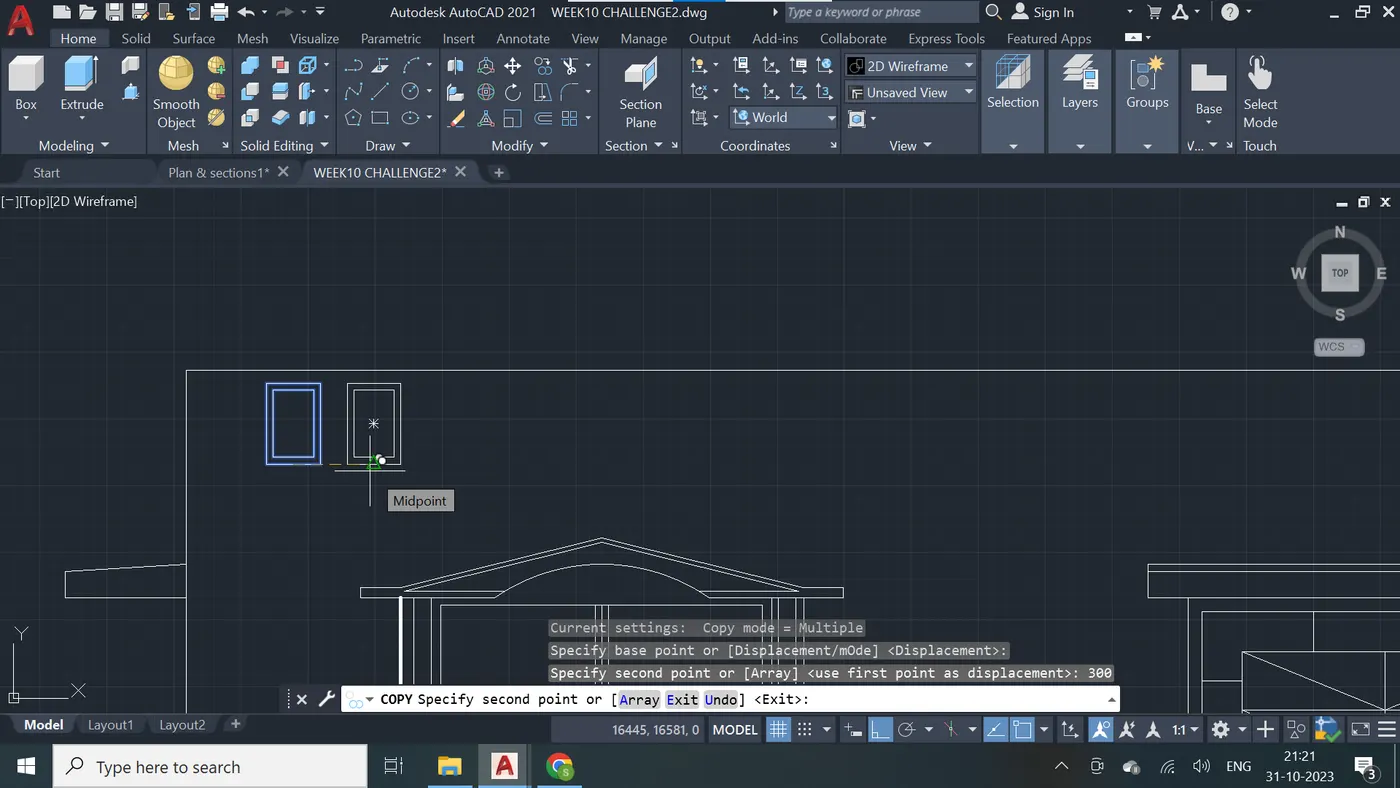
Step - 58
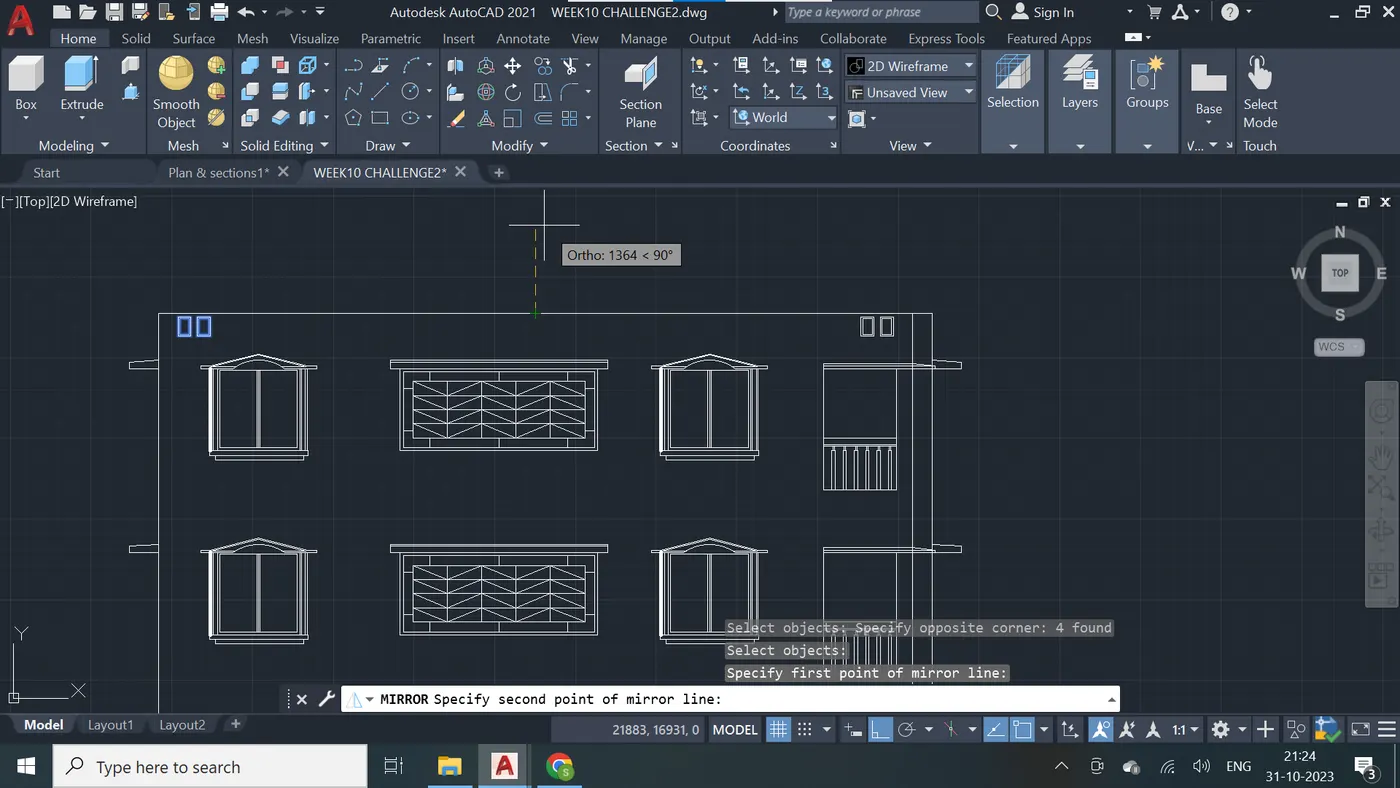
Step - 59
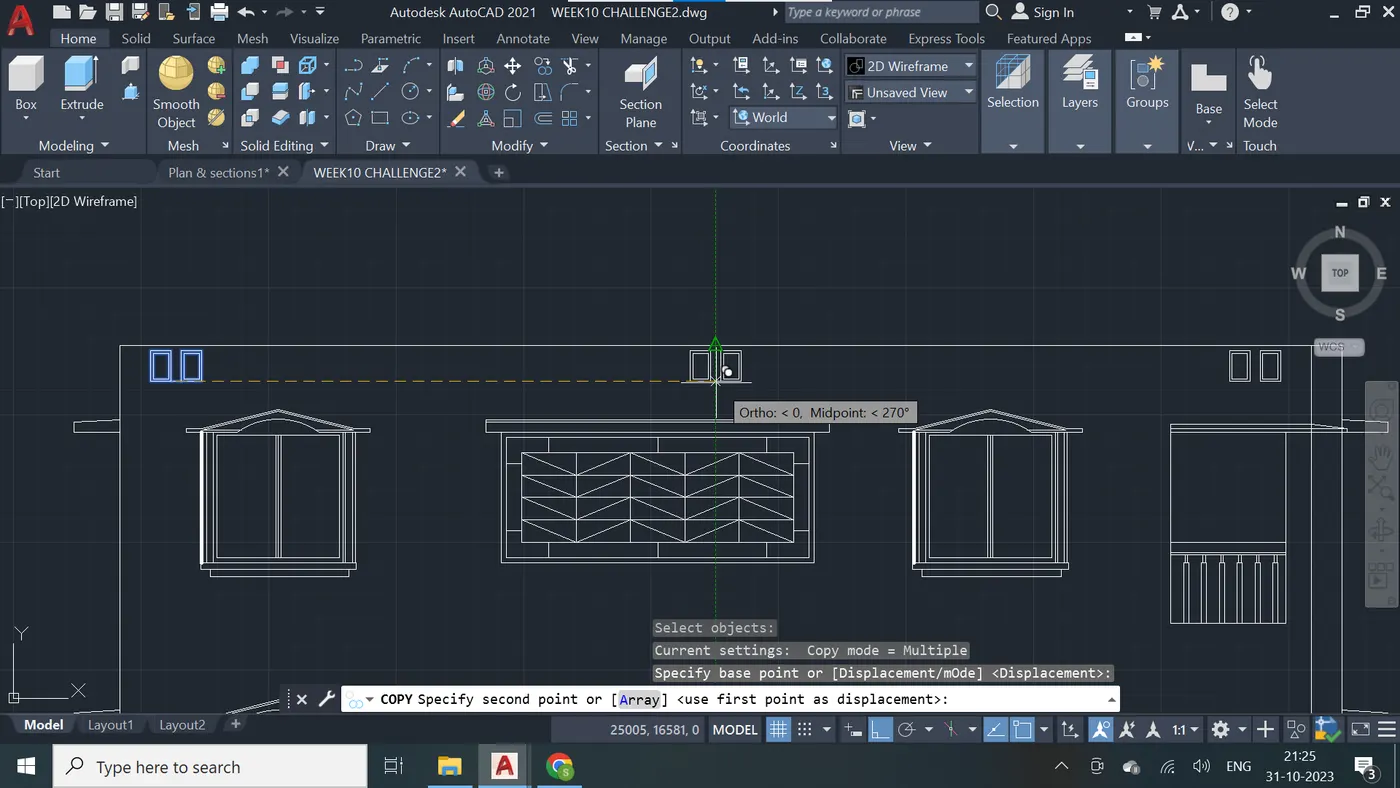
Step - 60 Final drawing is attached below as DWG.
Answer - 3 :- Creation of section view of an industrial building, providing dimensions And Hatching wherever required -
Step - 1 Unit set up
Step - 2
Step - 3
Step - 4
Step - 5
Step - 6
Step - 7
Step - 8
Step - 9
Step - 10
Step - 11
Step - 12
Step - 13
Step - 14
Step - 15
Step - 16
Step - 17
Step - 18
Step - 19
Step - 20
Step - 21
Step - 22
Step - 23
Step - 24
Step - 25
Step - 26
Step - 27
Step - 28
Step - 29
Step - 30
Step - 31
Step - 32
Step - 33
Step - 34
Step - 35
Step - 36
Step - 37
Step - 38
Step - 39
Step - 40
Step - 41
Step - 42
Step - 43
Step - 44
Step - 45
Step - 46
Step - 47
Step - 48
Step - 49
Step - 50
Step - 51
Step - 52
Step - 53
Step - 54
Step - 55
Step - 56
Step - 57
Step - 58
Step - 59
Step - 60
Step - 61
Step - 62
Step - 63
Step - 64
Step - 65
Step - 66
Step - 67
Step - 68
Step - 69 Final drawing is attached below as DWG.