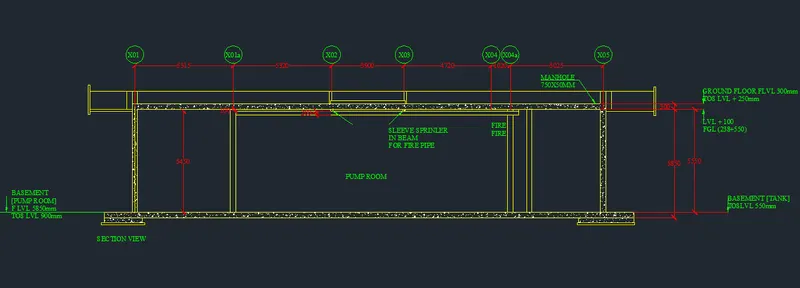
Creating Kitchen layout, Hatching of Architectural elements and sectional view of an Industrial Building in AutoCad
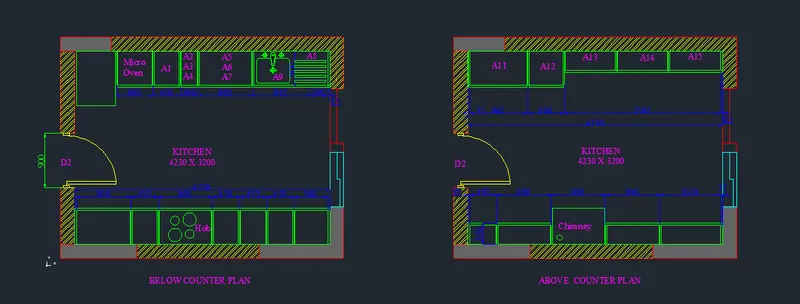
BELOW COUNTER PLAN
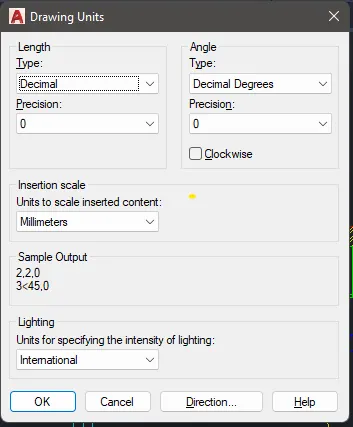
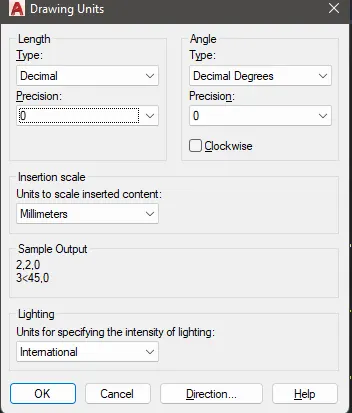
- Set the units in decimal millimeter
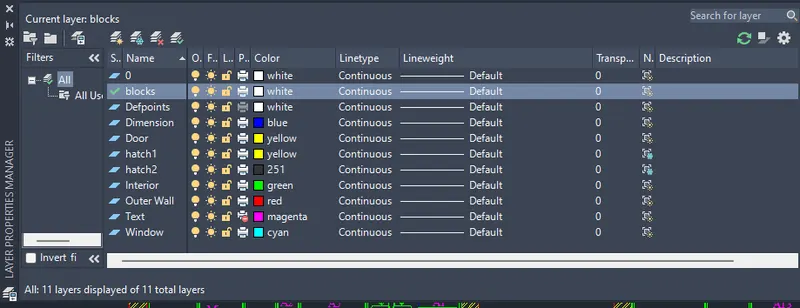
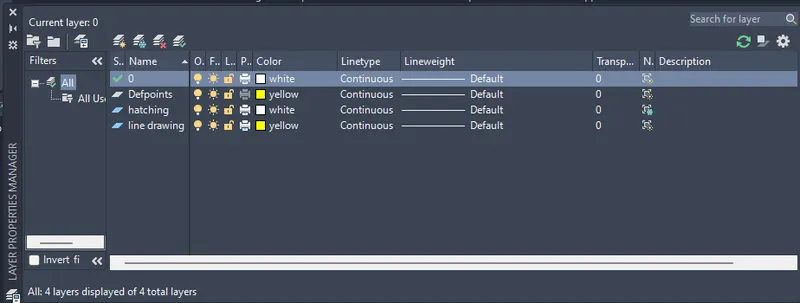
- Create a layer
- Set the limits of a page
- Now set the layer to outer wall
- Using line draw a rectangular of distance 4230 x 3200
- And outer wall thickness is 230mm
- From interior give an offset from left to right distance of 35mm, 900mm, 450mm, 900mm, 450mm, 450mm, 450mm, 560mm and 35mm.
- Give an offset of 600mm height
- Same as this draw opposite side with given distance
- After this change the layer to door and draw a door using line, trim & fillet etc.
- Now change to window and draw a window
- At last change to txt and give a naming
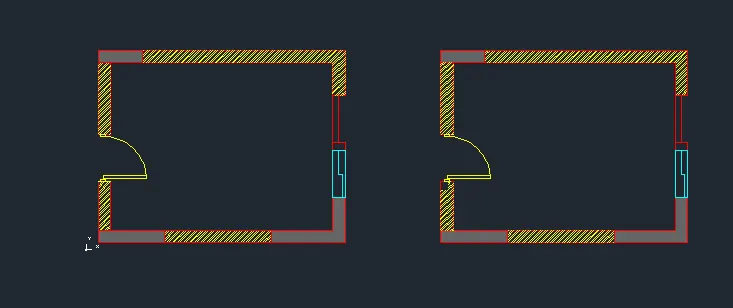
- Using hatch give the hatching to the walls
ABOVE COUNTER PLAN
- Using line draw a rectangular of distance 4230 x 3200
- And outer wall thickness is 230mm
- From interior give an offset from left to right distance of 35mm, 450mm, 900mm, 900mm, 1010mm and 35mm.
- Give an offset of 350mm height
- Same as this draw opposite side with given distance
- After this change the layer to door and draw a door using line, trim & fillet etc.
- Now change to window and draw a window
- At last change to txt and give a naming
- Using hatch give the hatching to the walls
___________________________________________________________________________________________________________________________________________________
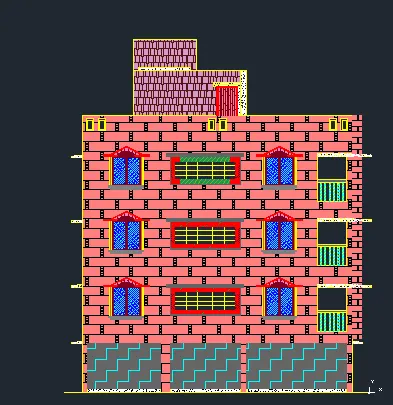
- After setting the sheet
- Create a layers
- Now by taking projection draw an elevation as shown fig
- draw an elevation
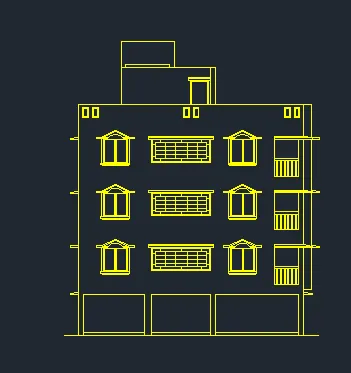
- Using hatch give a required hatch to an elevation
- Use different style and color to complete the drawing
- Draw using different layers
_____________________________________________________________________________________________________________________________________________________
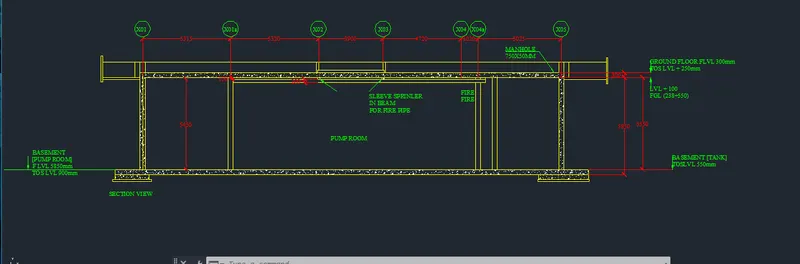
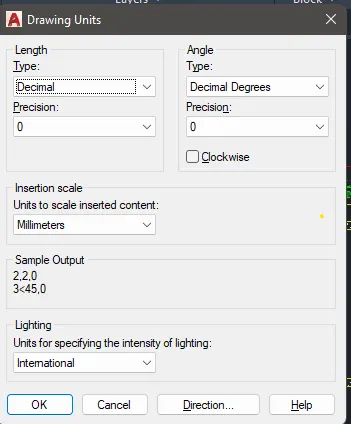
- Set the units and limits of the page
- Create a layers
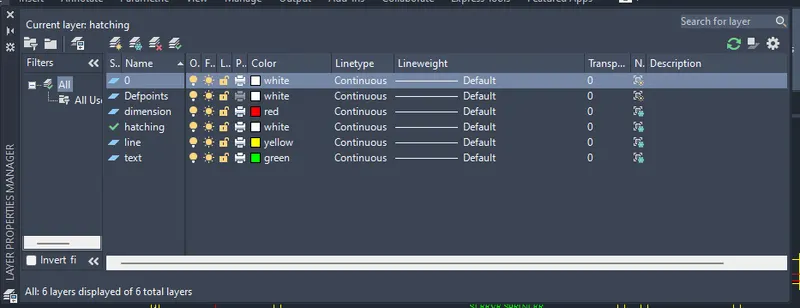
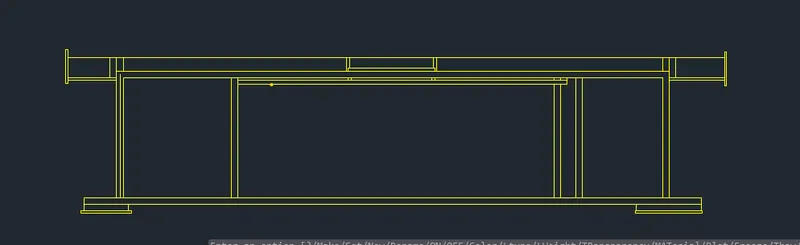
- After finishing drawing as shown in the fig
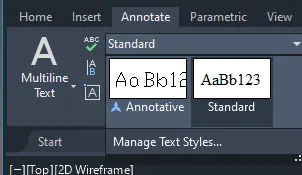
- Go to annotate ang click on text style
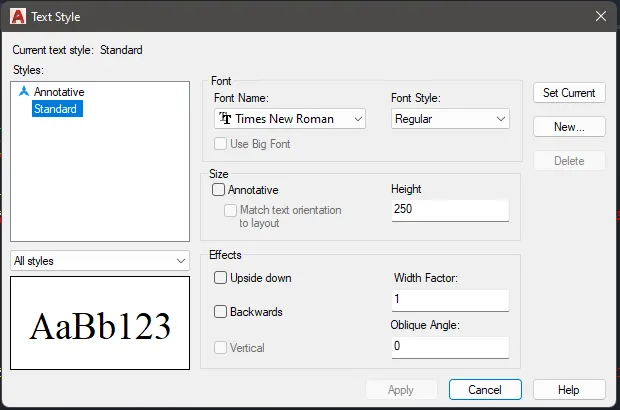
- Now change the style and height of the text set current and close
- Now give the text and dimension wherever necessary
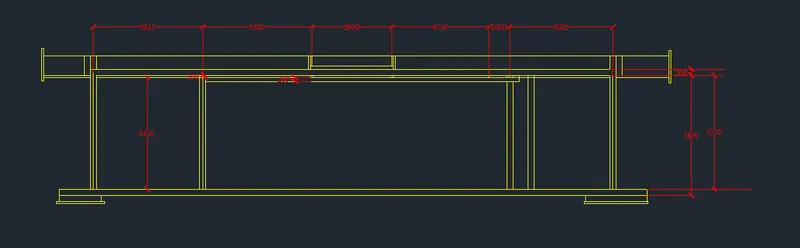
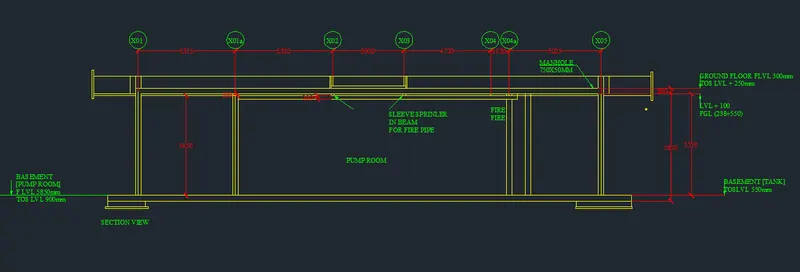
- Make sure the layer is in correct layer