Creating Conceptual mass in REVIT and Creation of Sinusoidal curve and a Parametric stadium using Dynamo
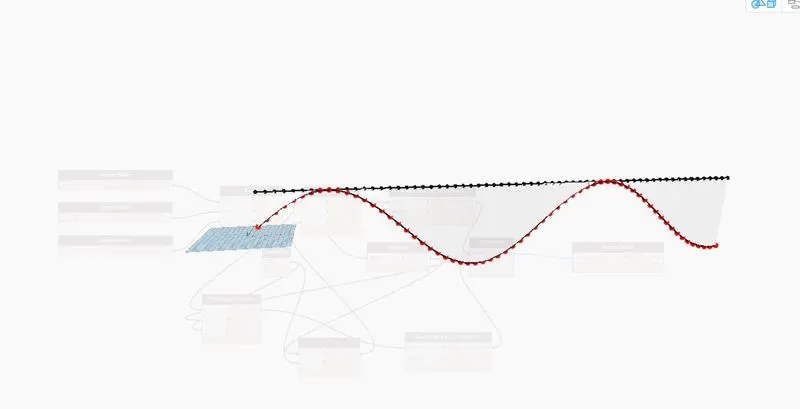
1. Using Dynamo create a set of sinusoidal points and create a curve and create a surface out of the curve.
A.) AIM:
To create a set of sinusoidal points and create a curve and create a surface out of the curve using dynamo.
PROCEDURE:
- Open the revit software.
- Select Architectural Template.
- Select Dynamo from the Manage tab.

- Choose new file.
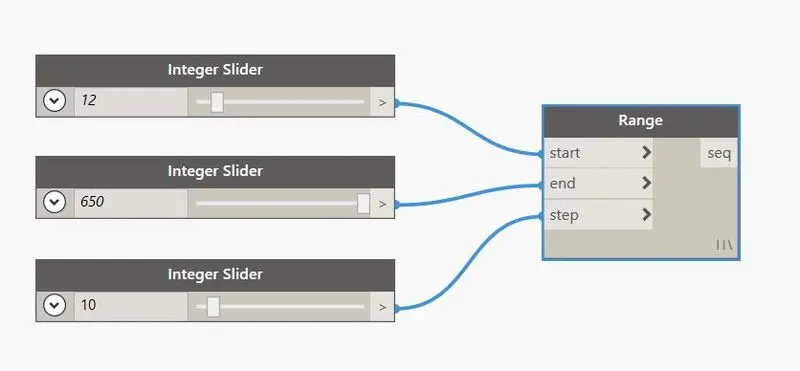
- Type Integer Slider in the search bar.
- Choose the 'Integer Slider' option.
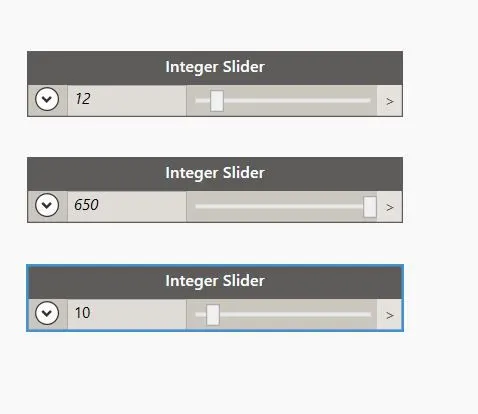
- Repeat the above step 2 times
- Adjust the values.
- Type Range in the search bar.
- Then connect the integer sliders with the range
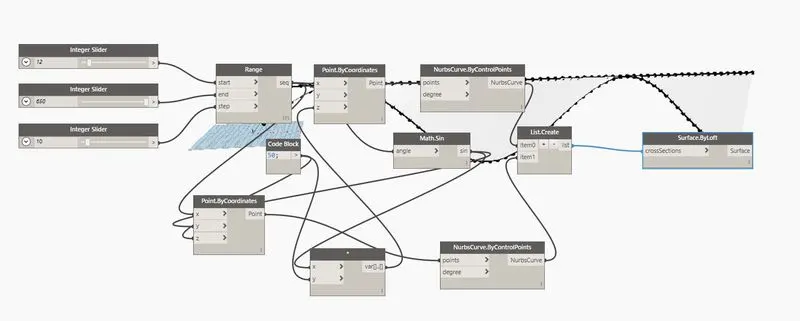
- Type ByCoordinates in the search bar.
- Now we have to connect the Range with the Point.ByCoordinates.
- Type 'Sin' in the search bar.
- Now connect the range with the Math.Sin
- Type '*' in the search bar.
- Connect the Math.Sin with the product (*).
- Type 'NurbsCurve' in the search bar and select the 'ByControlPoints' option.
- Now connect the Point.ByCoordinates with the NurbsCurve.ByControlPoints.
- Type 'List' in the search bar.
- Now Create 2 more list.
- Connect all to the list.
- Finally Type 'Surface' in the search bar.
- Choose the 'ByLoft (crossSections)' option.
- And finally connect the List Create with Surface.ByLoft.
RESULT:
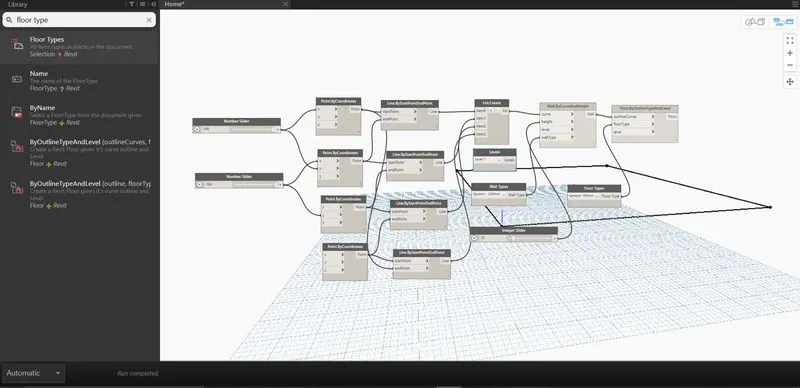
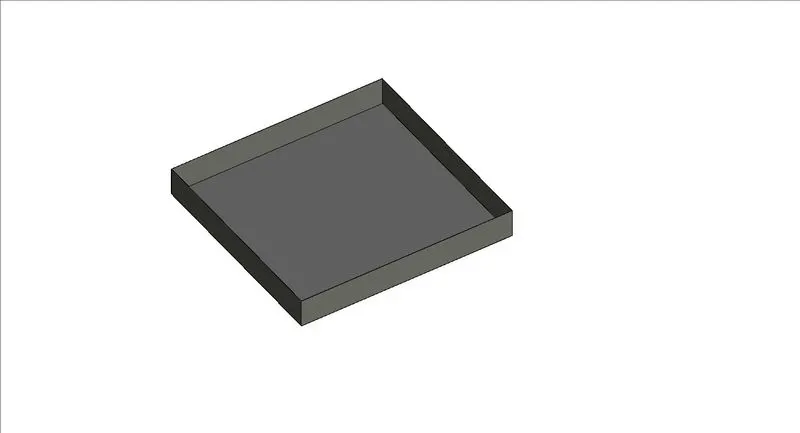
2. Create a conceptual layout of floor plan in dynamo . Using the tools available in dynamo link the lines to appropriate model elements in Revit by choosing the wall types and wall parameters. Make use of the sliders to slide through the height of the wall and length of the wall.
A.) AIM:
To create a conceptual layout of floor plan in dynamo.
PROCEDURE:
- Open the revit software.
- Select Architectural Template.
- Select Dynamo from the Manage tab.
- Type Integer Slider in the search bar.
- Choose the 'Integer Slider' option.
- Repeat the above step 2 times
- Adjust the values.
- Type 'ByCoordinates' in the search bar and select the 'ByCoordinates' option.
- Repeat the above step 3 times.
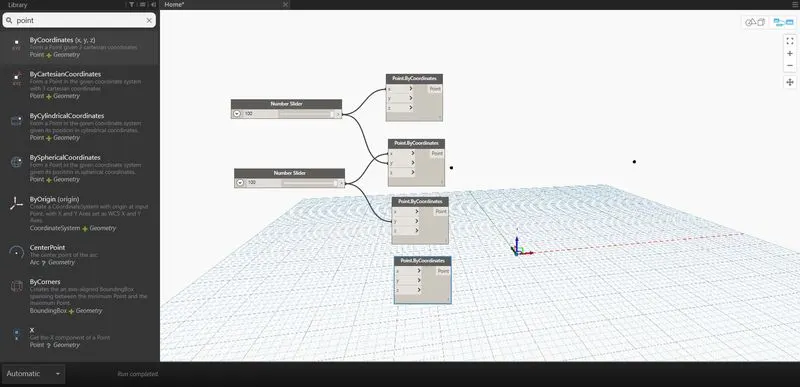
- Connect the Integer Sliders with Point.ByCoordinates.
- Type Line in the search bar and select the ByStartPointEndPoint option and repeat it 3 times.
- Connect the Point.ByCoordinates with Line.ByStartPointEndPoints.
- Type List in the search bar and create 3 more list.
- Connect the Line.ByStartPointEndPoints with List Create.
- Type Levels in the search bar and select the 'Levels' option and Select Level 1 as the levels.
- Type Wall in the search bar and select the 'Wall Types' option.
- Choose the type of wall.
- Type 'Integer Slider' in the search bar.
- Now type 'Wall' in the search bar and select the 'ByCurveAndHeight' option.
- Connect the List Create, Height, Levels and Wall Types with Wall.ByCurveAndHeight.
- Finally add the floors.
RESULT:
3. Create an array of model elements in Revit. Use dynamo to vary the properties of model elements by using the slider or code block.
A.) AIM:
To create an array of model elements in Revit.
PROCEDURE:
- Open a revit file and choose architectural template.
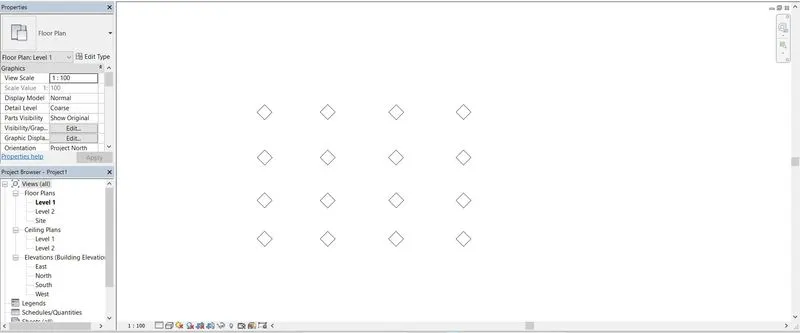
- Select the architectural tab and choose a column and place it in the file.
- Now make 16 similar columns.
- Open dynamo.
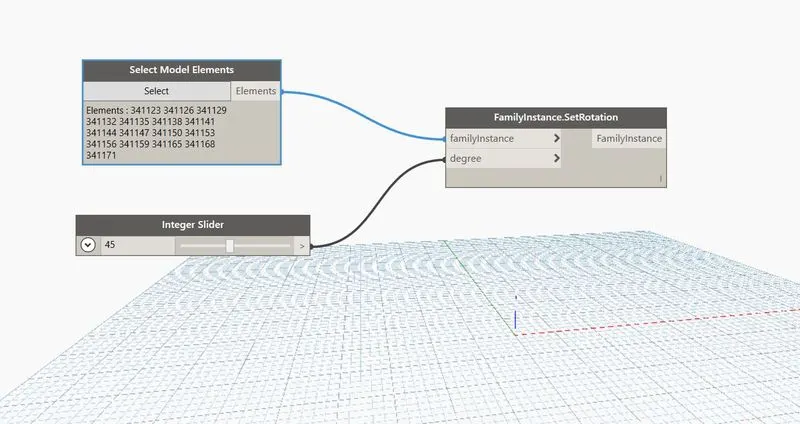
- Search select model elements, integer slider and set rotation.
- Rename the integer slide to the rotation angle 45.
- Finally select model elements block will be the input for family instance and integer slider will be for degree.
RESULT: