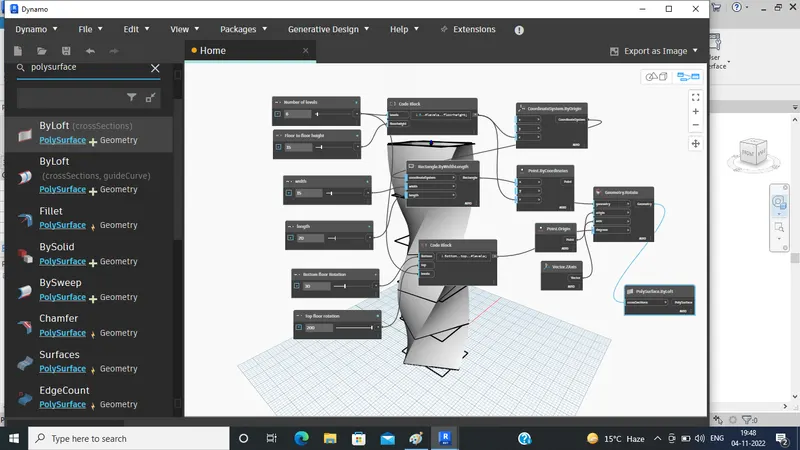
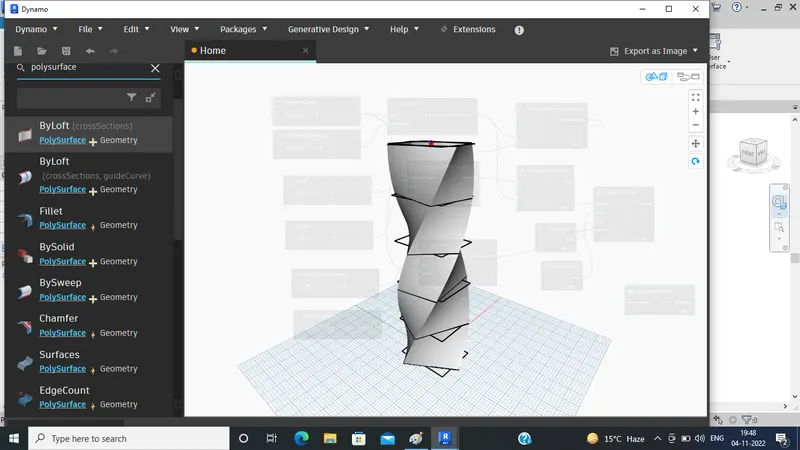
Creating Conceptual mass in REVIT and Creation of Sinusoidal curve and a Parametric stadium using Dynamo
PROJECT ON :-
Creating Conceptual mass in REVIT and Creation of Sinusoidal curve and a Parametric stadium using Dynamo
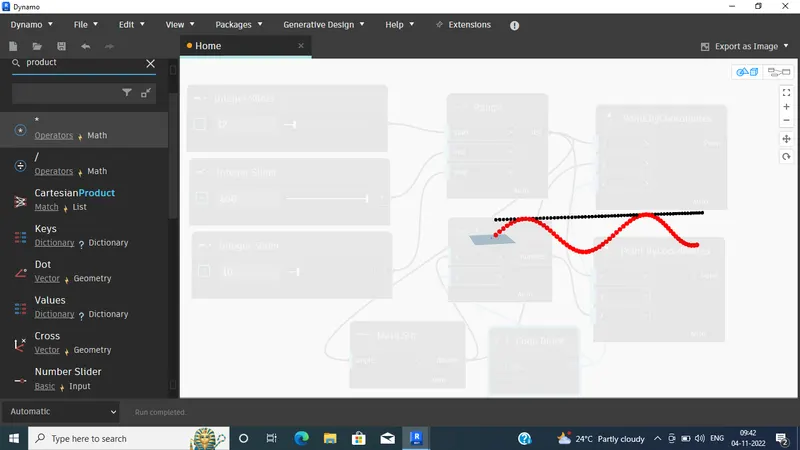
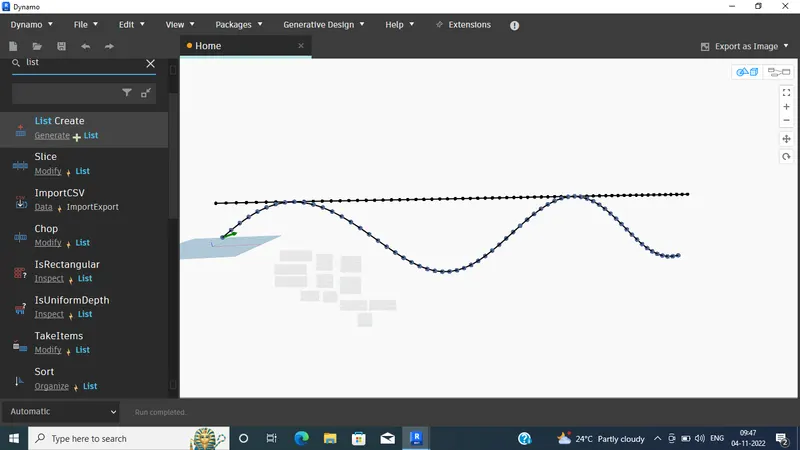
1) Using Dynamo create a set of sinusoidal points and create a curve and create a surface out of the curve.
Answer:-
Aim:- To create a set of sinusoidal points and to curve by using Dynamo.
Stepwise procedure:-
Step 1:
- Open the Revit software
- Open a New Architectural template
- Click>ok
Step 2:
- Now Go to the Manage tab
- Click on > Dynamo
- Dynamo window will open
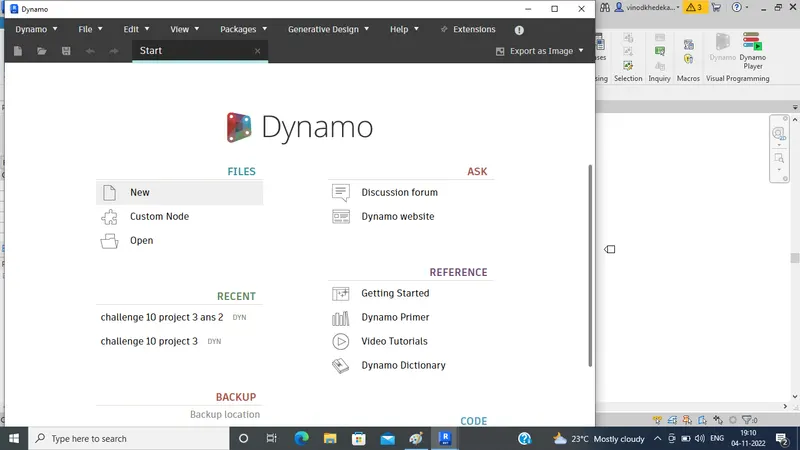
Step 3:
- Once open a dynamo window
- Click on > New
- Working screen will be shown
- Search > Integer slider (From search bar)
- Make 2 more copies of integer slider
- And arranged them in sequence
- And make it as integer values like below
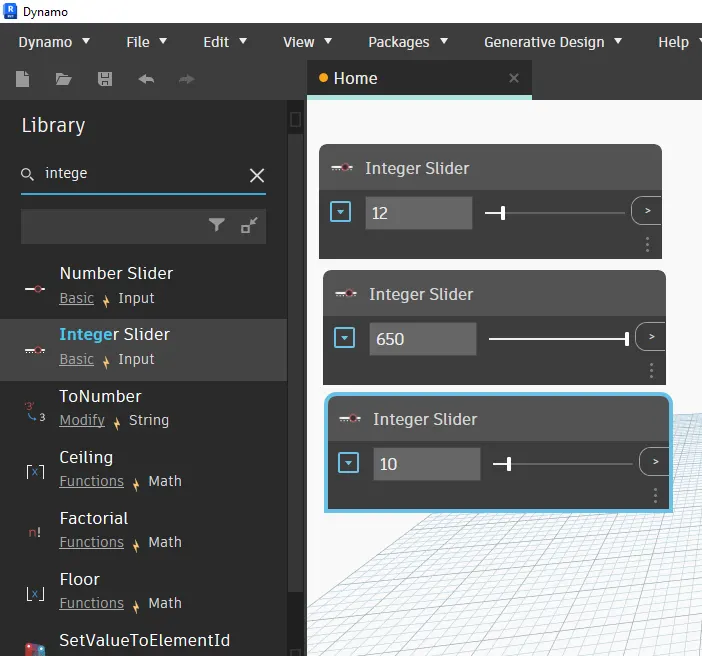
Step 4:
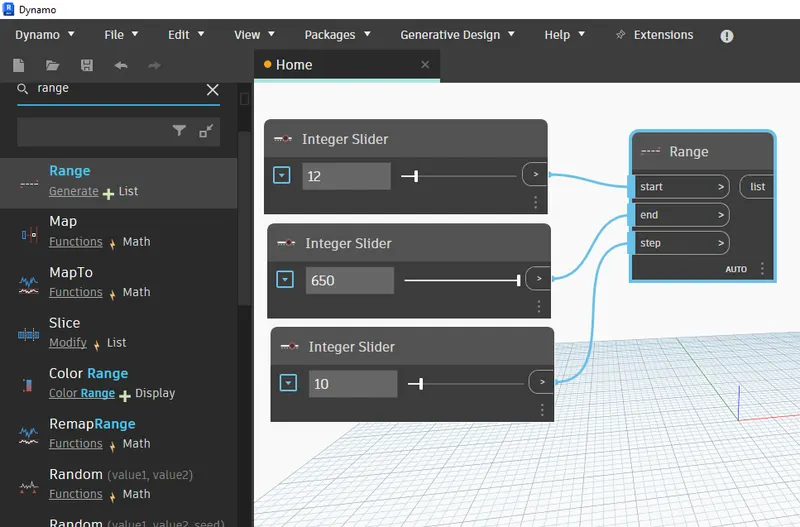
- Type > Range
- Range block will open
- Connects the sliders to the range as below
Step 5:
- Type > points
- Take points by coordinates
- Make 1 more copy of that
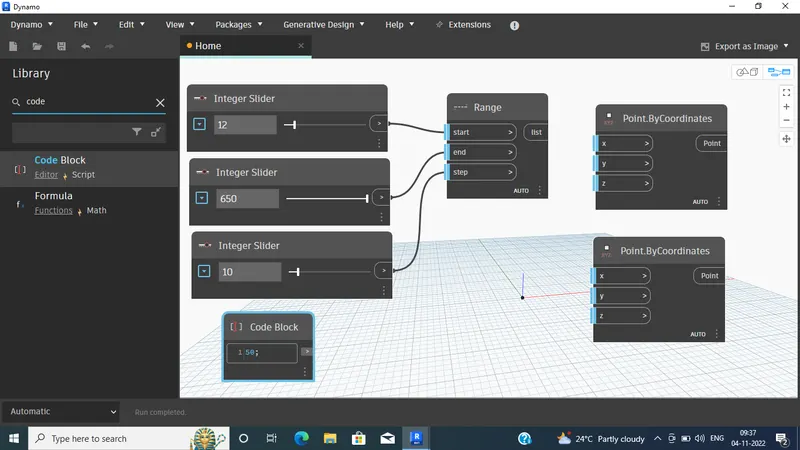
- Type > code block
- Assign this code block with value of 50
- Type > Math.sin
- Type > product *
- All the bove blocks will be open
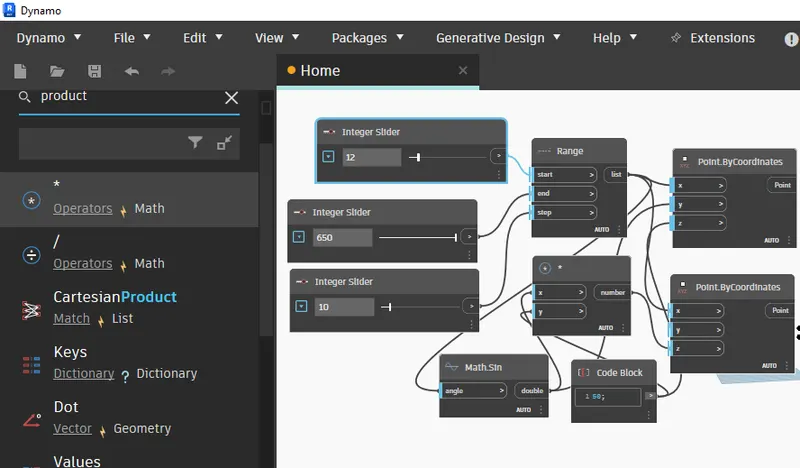
Step 6:
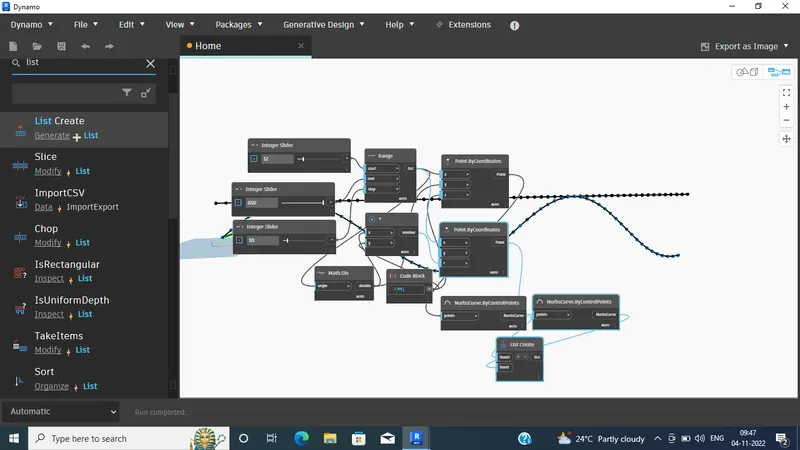
- Assign/connect product, code block, points by coordinate as following
- see it
Step 7:
- For creating curve
- Type > Nurbscurve
- Take > nurbscurve by control points
- Make one more copy
- Type > list
- Select > create list
- Click on + and add Item 1
- Connect point to point
- And connect nurbscurve for items in list
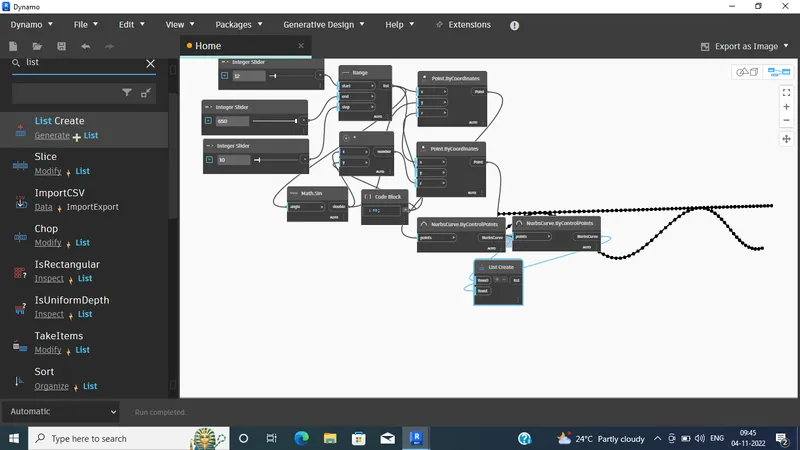
Result:
2) Create a conceptual layout of floor plan in dynamo . Using the tools available in dynamo link the lines to appropriate model elements in Revit by choosing the wall types and wall parameters. Make use of the sliders to slide through the height of the wall and length of the wall.
Answer:-
Aim:- To create conceptual layout of the floor plan by using Dynamo.
Stepwise procedure:-
Step 1:
- Open the Revit software
- Open a New Architectural template
- Click>ok
Step 2:
- Now Go to the Manage tab
- Click on > Dynamo
- Dynamo window will open
Step 3:
- Once open a dynamo window
- Click on > New
- Working screen will be shown
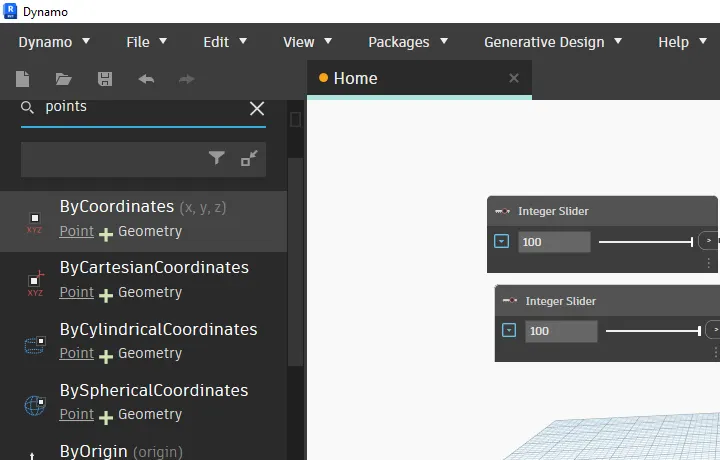
- Search > Integer slider (From search bar)
- Make 1 more copies of integer slider
- And arranged them in sequence
- And make it as integer values like below
Step 4:
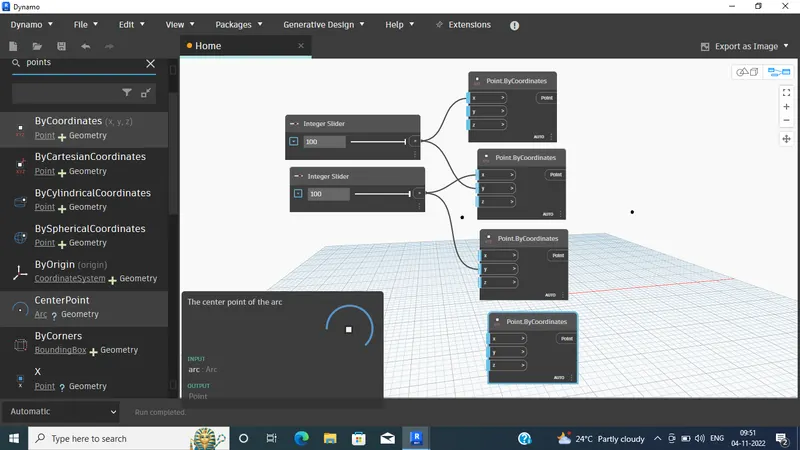
- Type > points by coordinates
- block will open
- Make 3 more copies
- Connects integer slider with coordinates
Step 5:
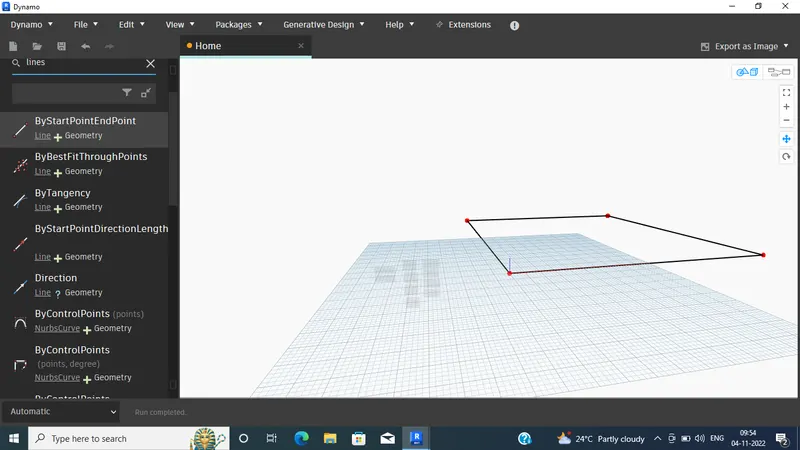
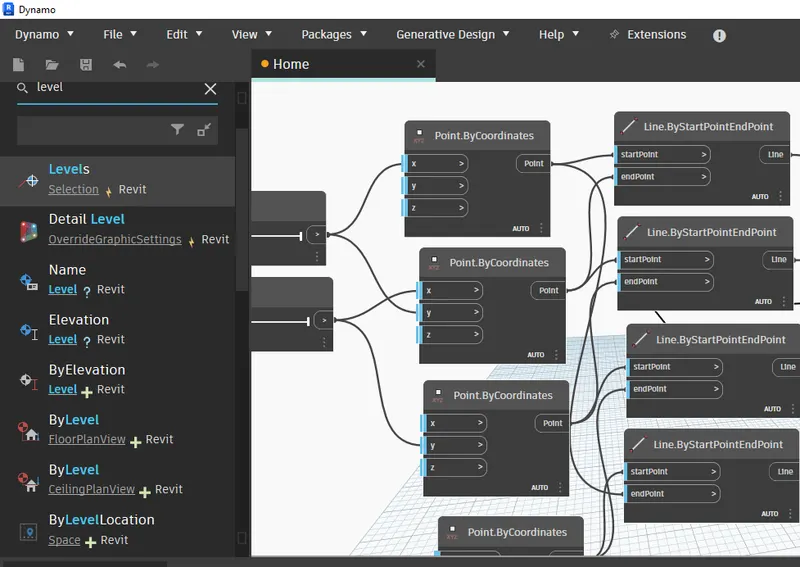
- Type > line
- Take line with start point and end points
- Make 3 more copy of that
- Connects the points of coordinates with the lines start and end points as below
Step 6:
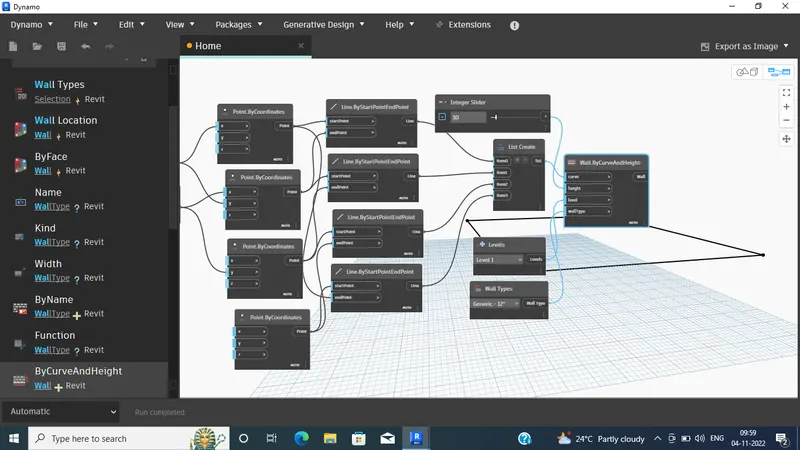
- Type > list
- Click on >+
- Make 4 iems
- Make a connection
Step 7:
- Type > levels
- Select level 1
- Type > wall type
- Select > generic 12’’
- Type > integer slider
- Put the value as 10
- Make the connection as below
Step 6:
- Go to the Revit screen
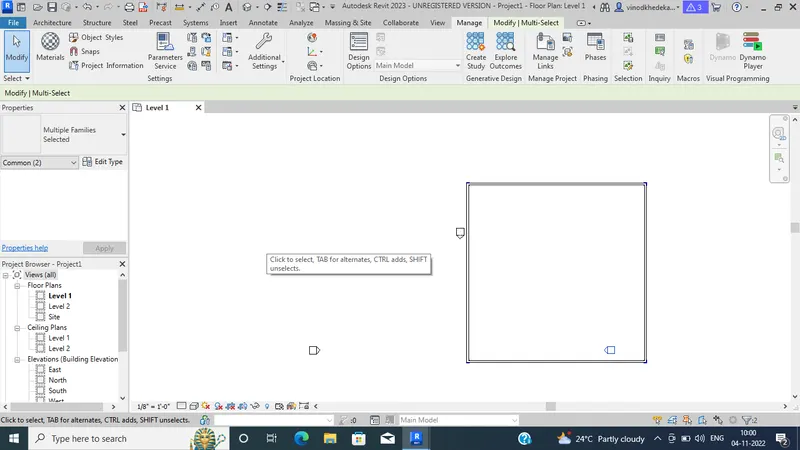
- Make it realistic 3D view
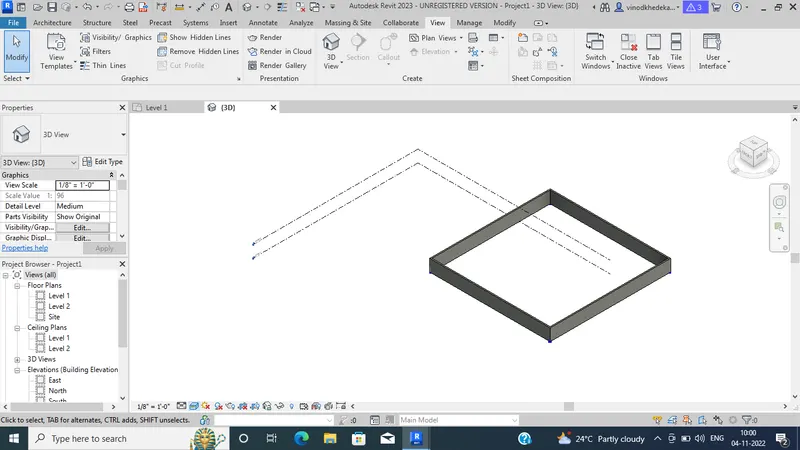
Step 7:
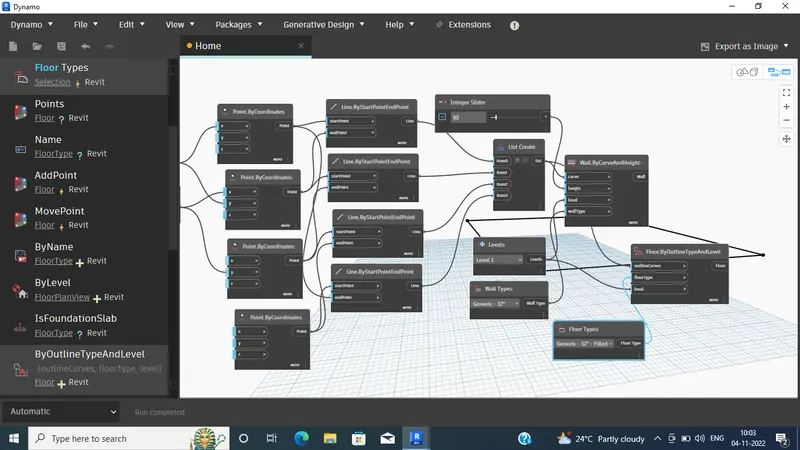
- For create floor
- Go to the Dynamo screen
- Type> Floor
- Select> floor by type and level
- Type > type
- Give Generic 12’’ filled
- Make connection as below
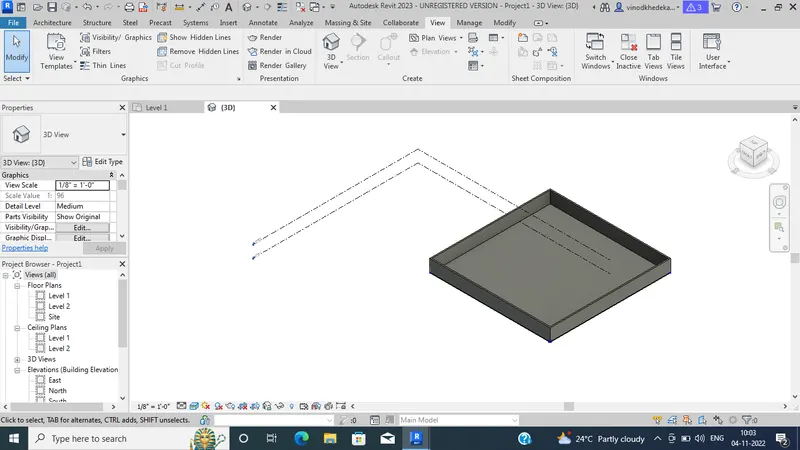
Result:
3) Create an array of model elements in Revit. Use dynamo to vary the properties of model elements by using the slider or code block
Answer:-
Aim:- To create an Array of model elements in Revit and vary the properties using Dynamo.
Stepwise procedure:-
Step 1:
- Open the Revit software
- Open a New Architectural template
- Click>ok
Step 2:
- Go to the Architecture tab
- Click on > column
- Select size
- Place the column in required place
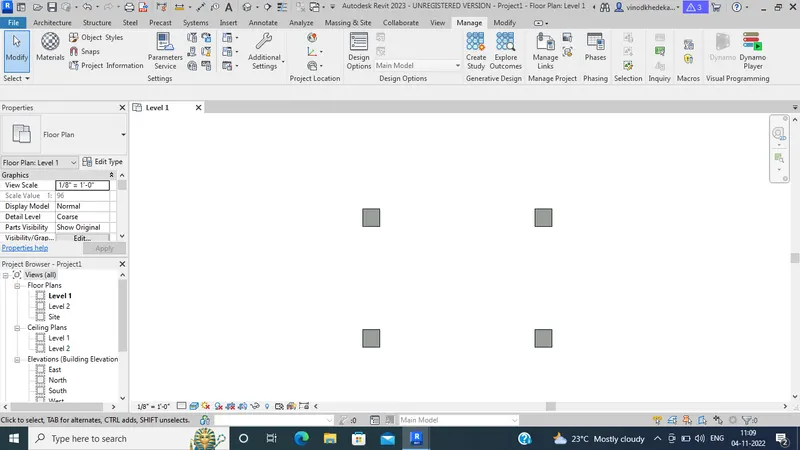
Step 3:
- Now Go to the Manage tab
- Click on > Dynamo
- Dynamo window will open
- Click > new
- New dynamo file will be open
Step 4:
- Type > Model element
- Select > Multiple model elements
- Click on > select
- Go to revit screen
- Select all columns
- Press enter
- Elements will be selected for dynamo
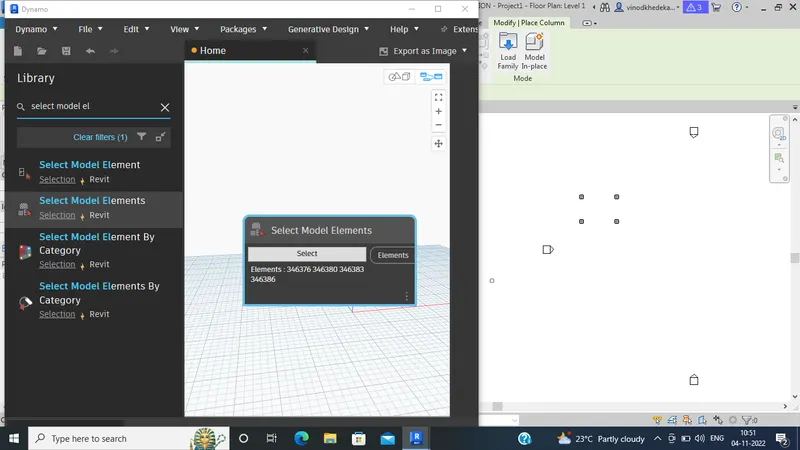
Step 5:
- I need to rotate the elements at 45%
- Type> rotation
- Select > Rotation by family instance
- Make the value as 45
- Type > Integer slider
Sep 6:
- Connect element to the family instance
- And Integer slider with degree
- see the view in revit screen with 45 degree rotation
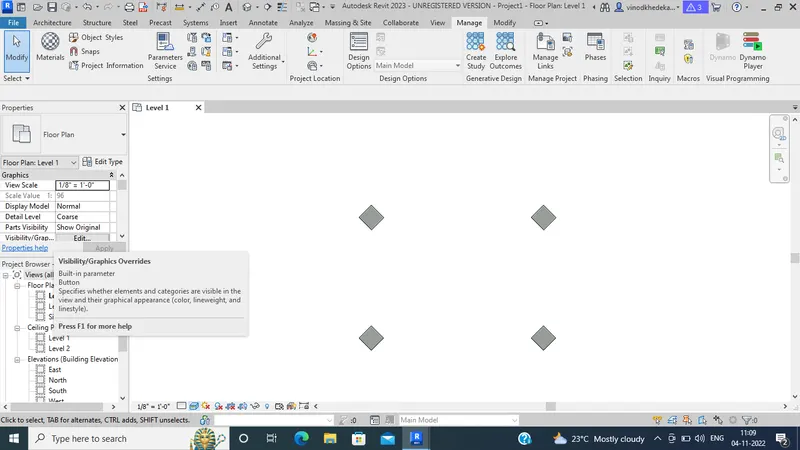
Result:
When u change the value in the integer slider 225 instead of the 45
see the view
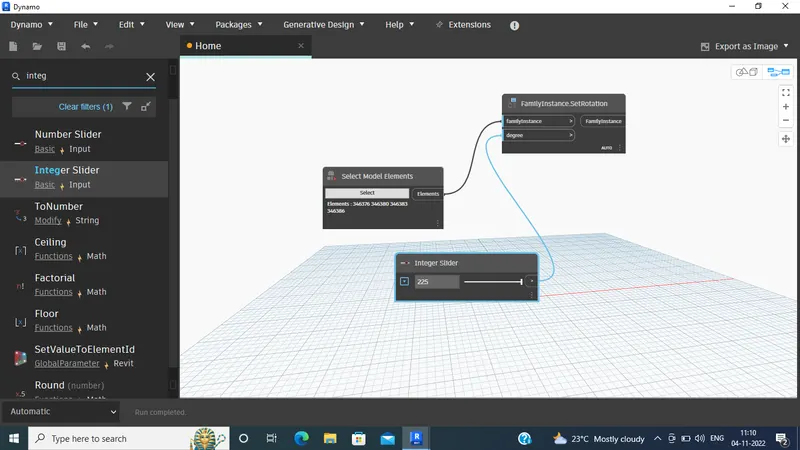
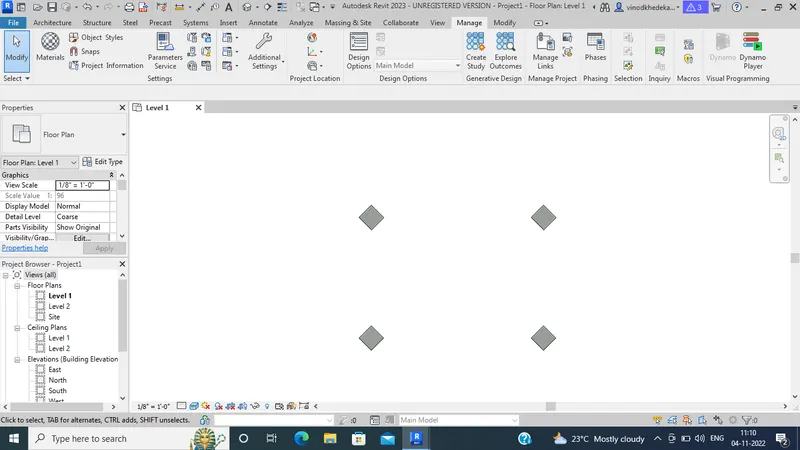
4) Create a conceptual mass in Revit and develop a parametric column by dividing the surfaces and apply the concepts similar to used in parametric walkway modelling. Use triangular bent or square shaped panels to add finish to the parametric column
Answer:-
Aim:- To create conceptual mass in Revit and create parametric design by using Dynamo.
Stepwise procedure:-
Step 1:
- Open the Revit software
- Open a New Architectural template
- Click>ok
Step 2:
- Click > file
- Click > New
- Click > Conceptual mass
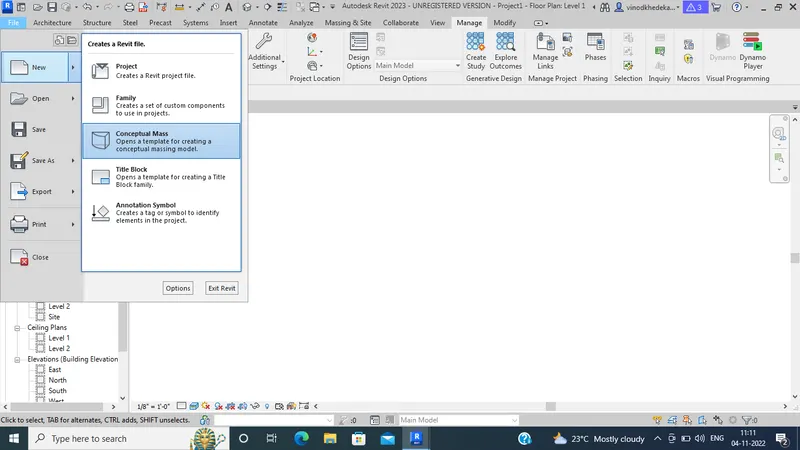
- Open conceptual mass folder
- Click> mass
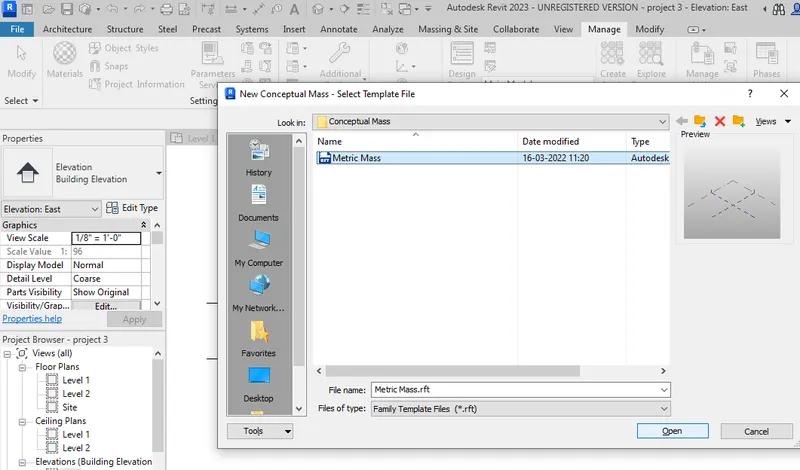
Step 3:
- Go to any one of the Elevation
- create the another one levels
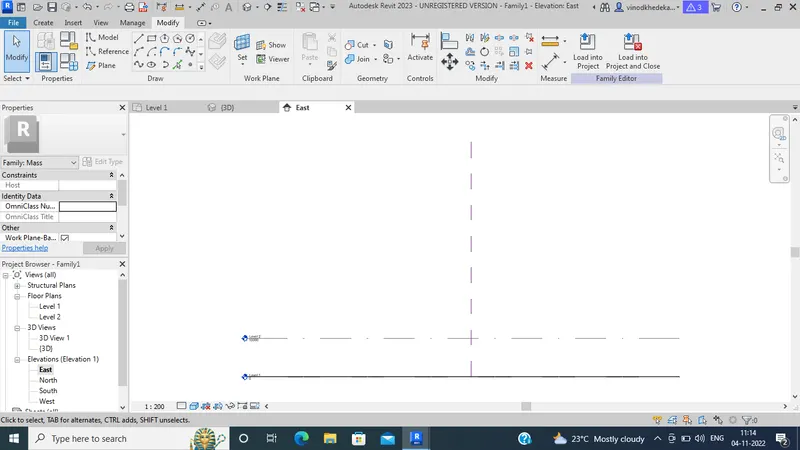
- Go to the create tab
- Click > model lines
- Click > Spline
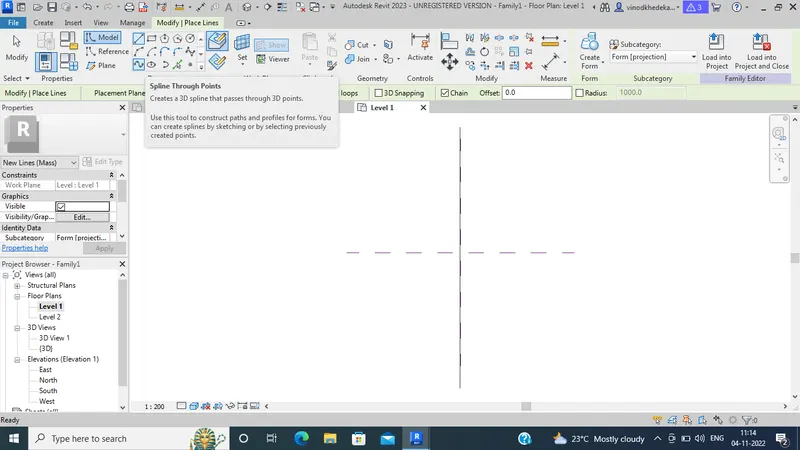
- Place the points
- Press enter.
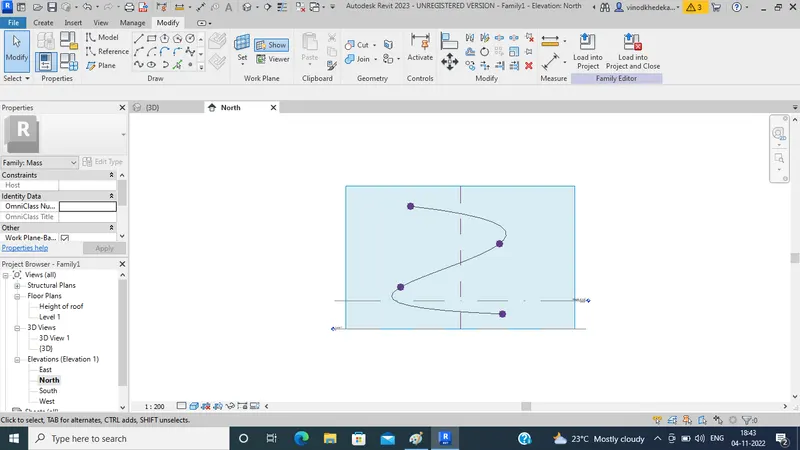
Step 4:
- Now , Just Go to 3D view
- Set the plane
- Click> set option
- Click> last point
- Click > show
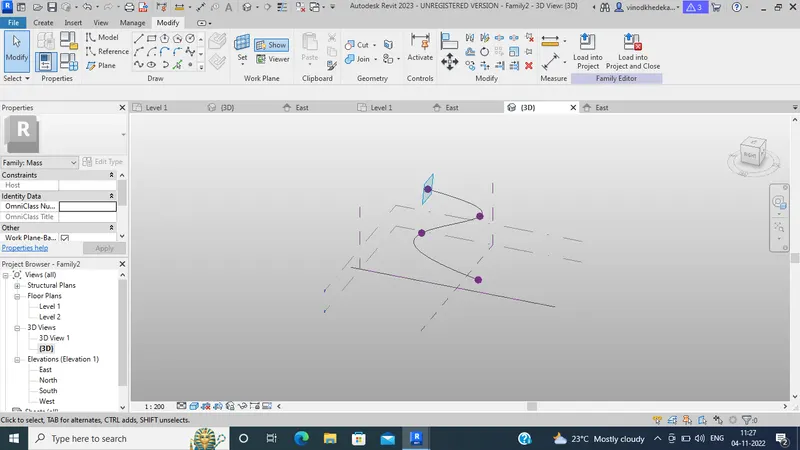
- Simmillarly place it to all points.
Step 5:
- Choose > Polygon
- Click point
- Give the height as 12’
- Press enter
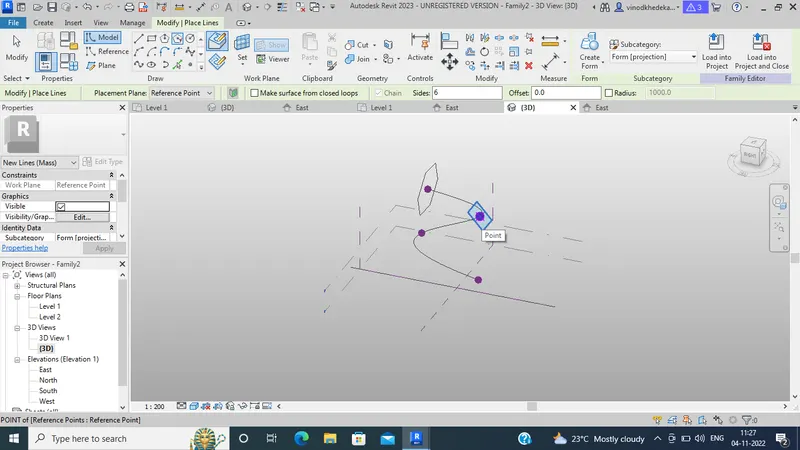
- Simmillarly create for all other points
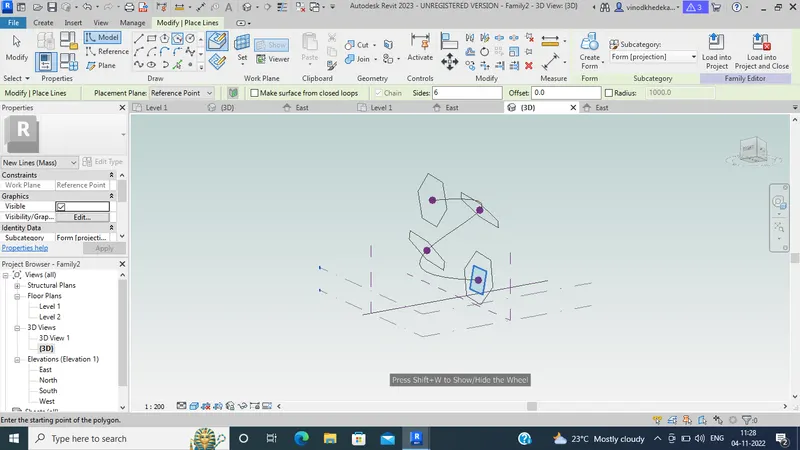
Step 6:
- Now, Need to spline to form
- Go to create option
- Select the curve
- Click on > create form
- Select > Solid form
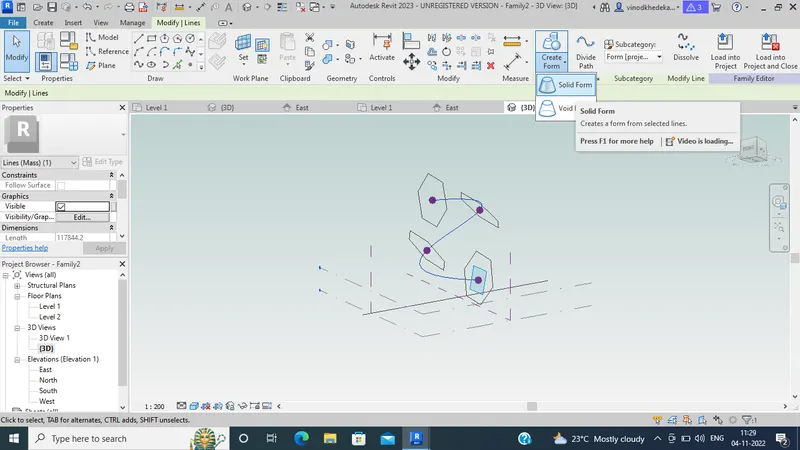
- See the view
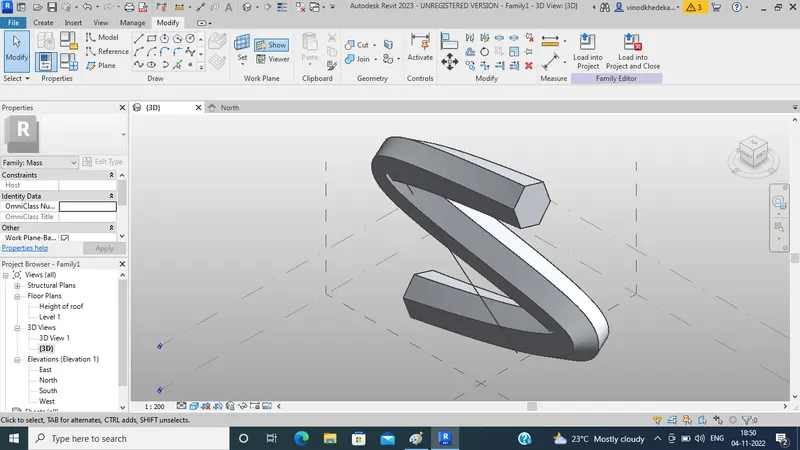
Step 7:
- Click > filter
- Checkmark on Form only
- Click > ok
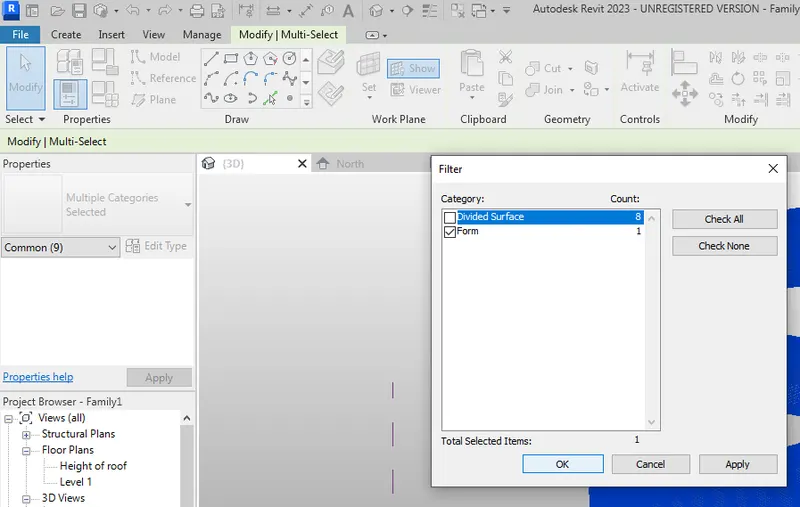
Step 8:
- Now , Apply Triangle bent
- Select the spline curve
- Click on > Divide surface
- Select pattern > Triangular bent.
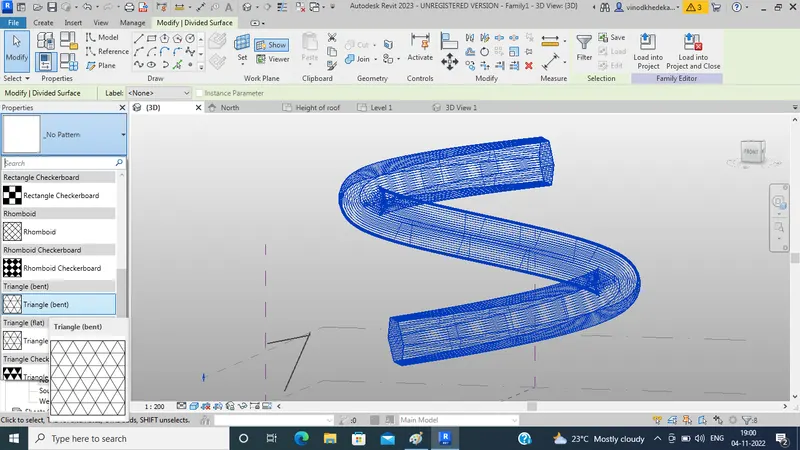
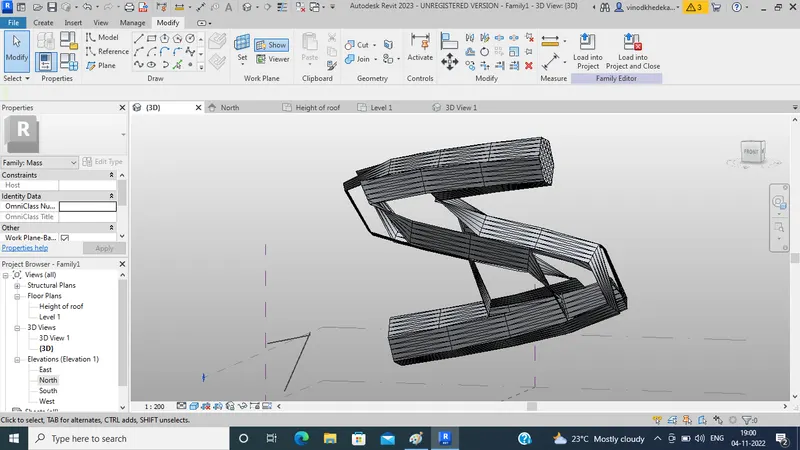
- From the properties browser
- Change the number > 50
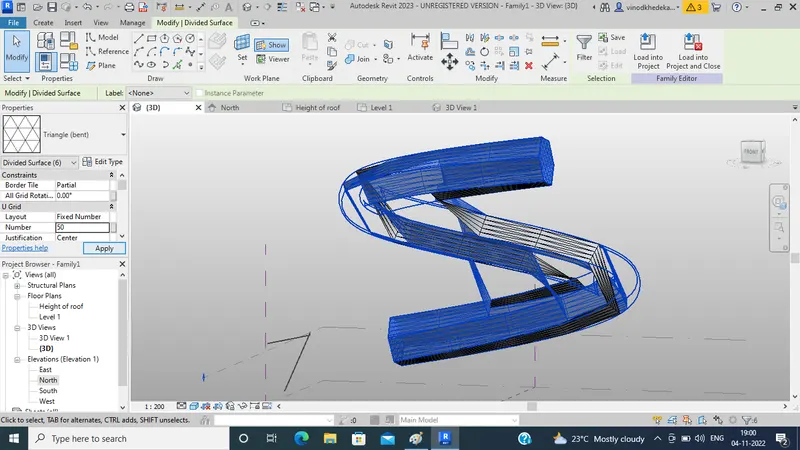
- Click > apply
- See the view
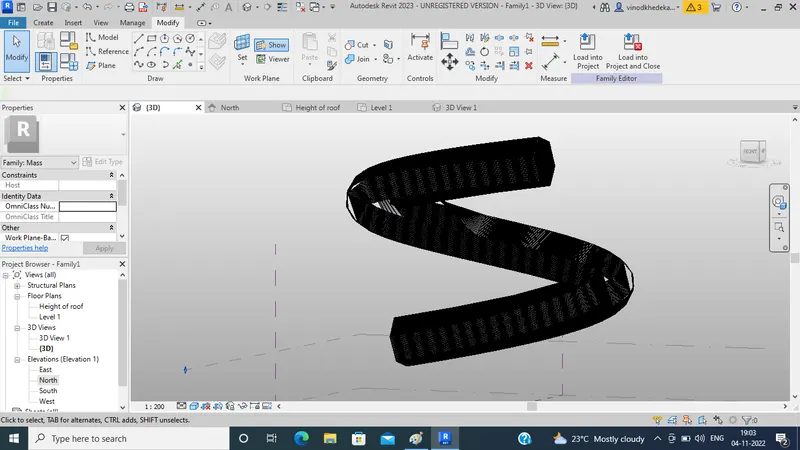
Result:
5) Use Dynamo to work on developing a Parametric Stadium. List your parameters and use the visual programming approach to complete the modelling, You can use the concepts discussed in parametric high rise tower in class for reference.
Answer:-
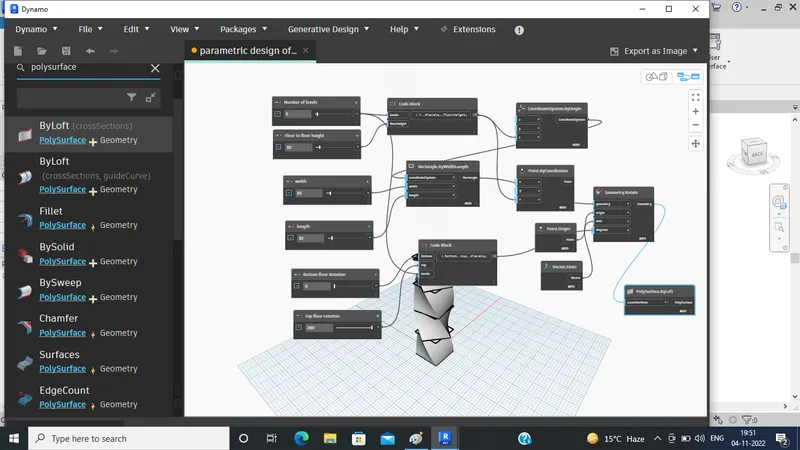
Aim:- To use the Dynamo to work on developing a parametric stadium.
Stepwise procedure:-
Step 1:
- Open the Revit software
- Open a New Architectural template
- Click>ok
Step 2:
- Open the Dynamo window (from the manage tab)
- Click on > new
Step 3:
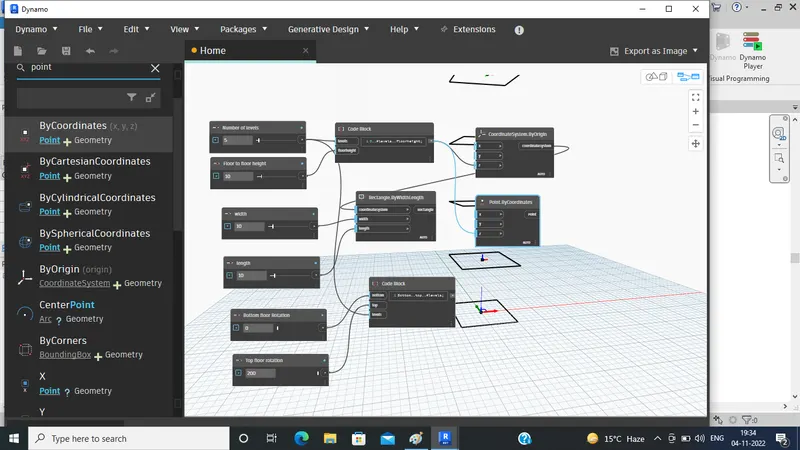
- Type > integer slider
- Make 1 more copy of that
- Assign the name as followings
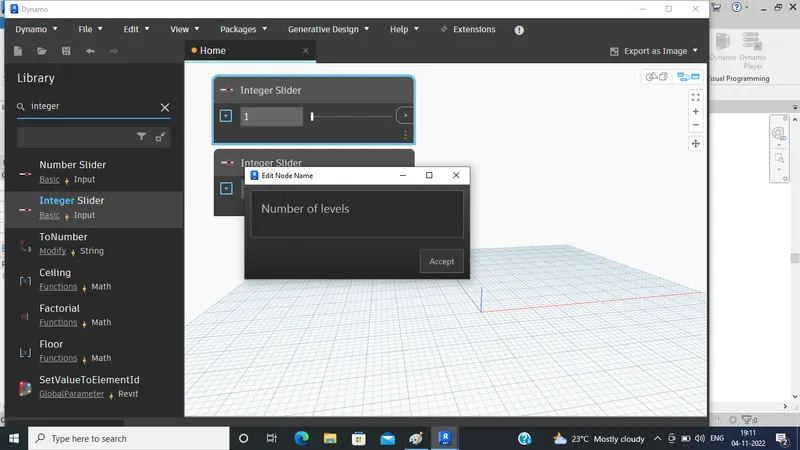
- Take the value of 1 for 5 and value 10 for the other
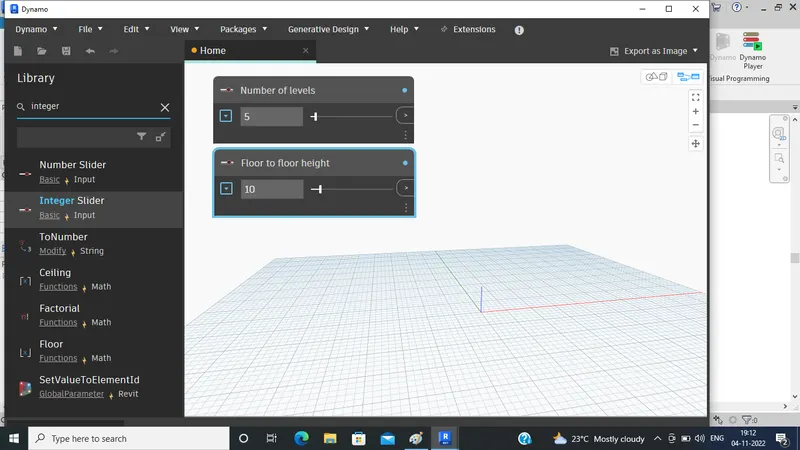
Step 4:
- Type > code block
- Call it as follows
- Made the connection as below
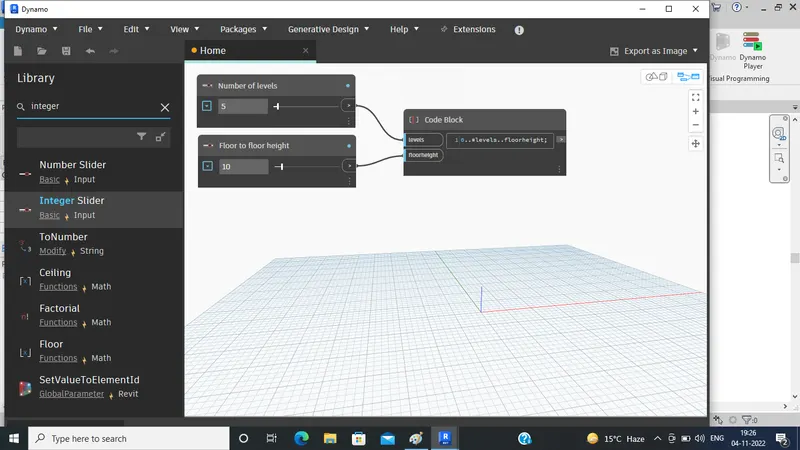
Step 5:
- Type > origin (x,y,z)
- Connect code block to z
- Type > integer slider
- Make 3 more copy of integer slider
- Renamed them as follows
- And also assign them with values
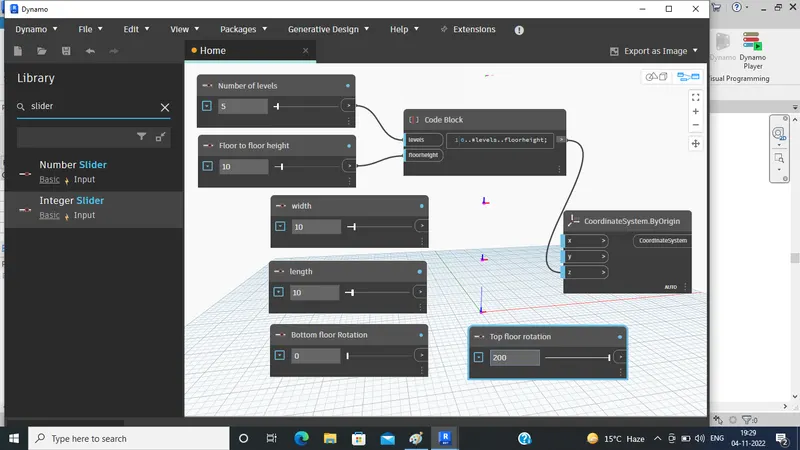
Step 6:
- Type > Rectangle
- Select > by width and length
- Make the connection
- Type > Vector
- Select vector z
- Type > Rotate
- Select > Rotate by origin, axis, degree
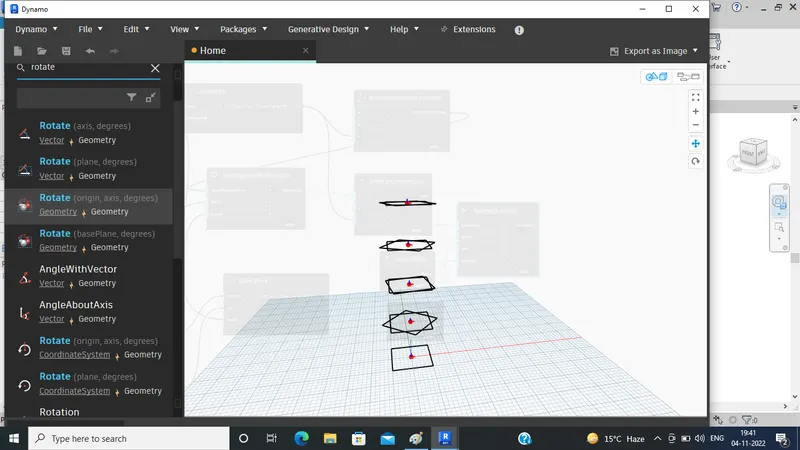
- see it in the Revit screen
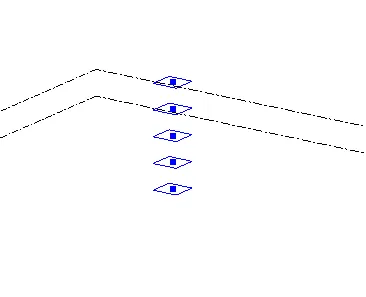
Step 7:
- Type > polysurface
- Select > By loft
- Make the connection
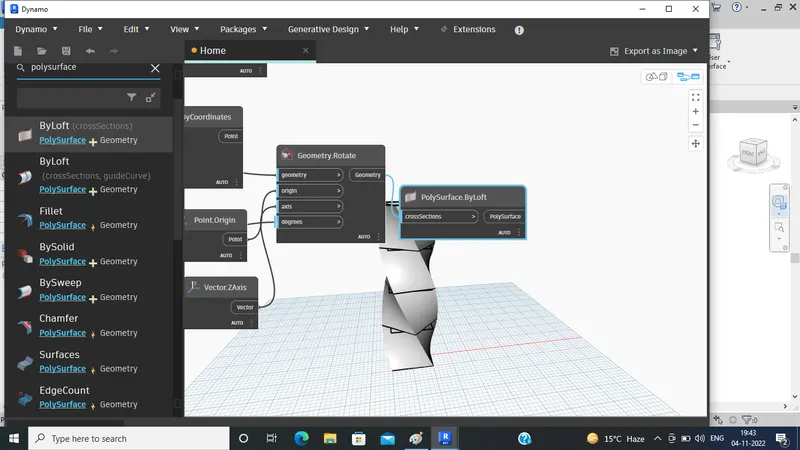
Result:
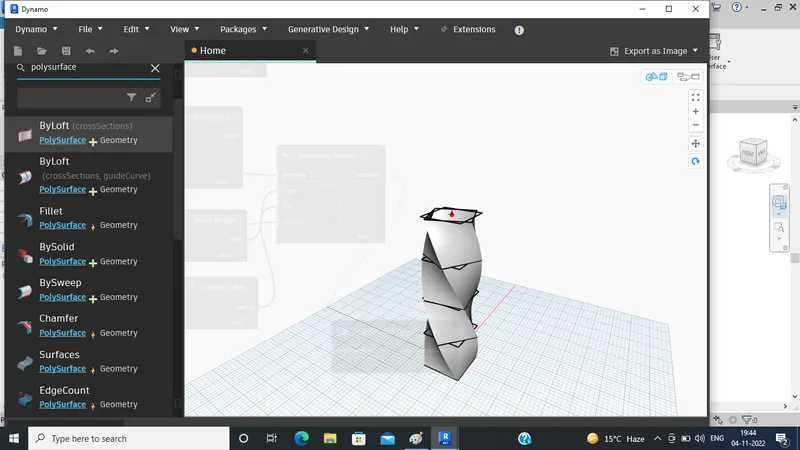
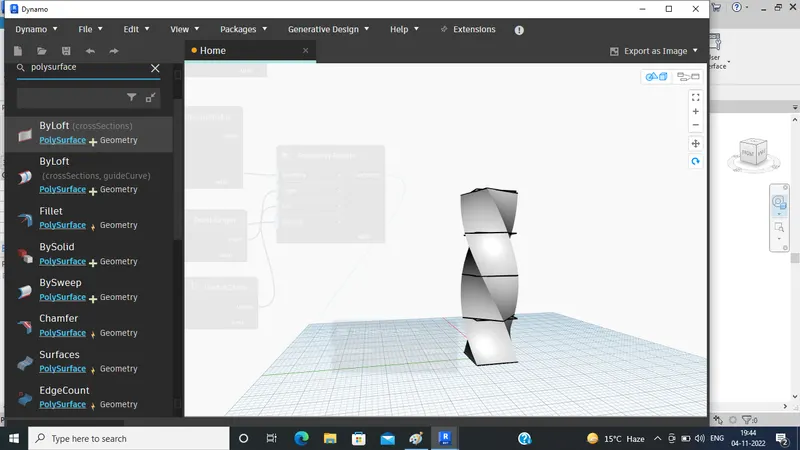
When you change the parameter that you want to change later
see the changes result: