Creating Conceptual mass in REVIT and Creation of Sinusoidal curve and a Parametric stadium using Dynamo
DYNAMO
1ANS :- AIM -To create the sinusoidal points and create the curve and create the surface
for the points and lines created
INTRODUCTION - creating the aim using the dynamo
PROCEDURE-
go to manage tab in which go to dynamo
the dynamo window opens
in dynamo search integer slider and input 3 integer slider
one for start , one for end , and one for step now give values to 3 integer sliders for 1 integer slider suppose give 12 , for 2 give 650 and 3rd 10 . next we need to create the range so in search type range, tab appears on screen and connect the integer sliders to the range for start , end , step .
then creating points by cordinate option - so type point.bycoordinate select bycoordinate and insert then go to search agin for the code block select and create of cordinate again as it is required one more now connections are made between them
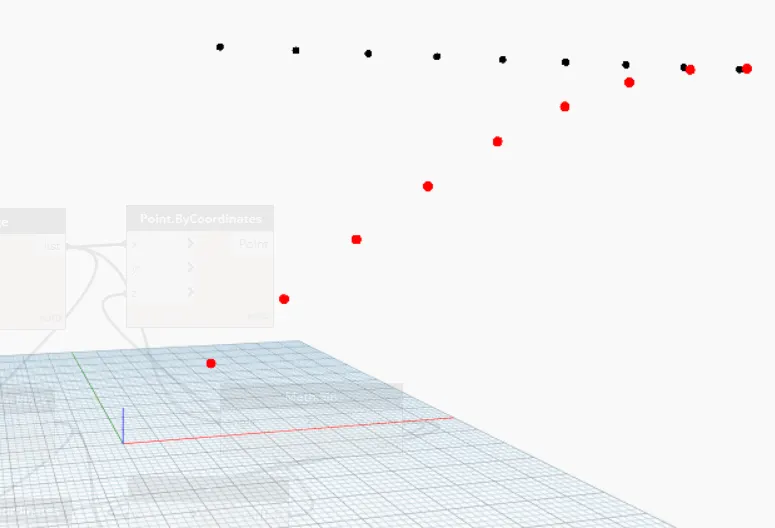
now we will get the POINTS and these are SINUSOIDAL points.
provide 50 for code block again the connctions are made from range to angle in math.sin and cordinate2
type product and take* mutiplication now creating of sinusoidal points is complete and now to create the SINUSOIDAL CURVE
go to search nurbs> by control points, take 2
list > list create
connections are made between them and CURVE is created
for SURFACE > by loft(cross section )
list create connect to cross section (surface by loft)
RESULT-
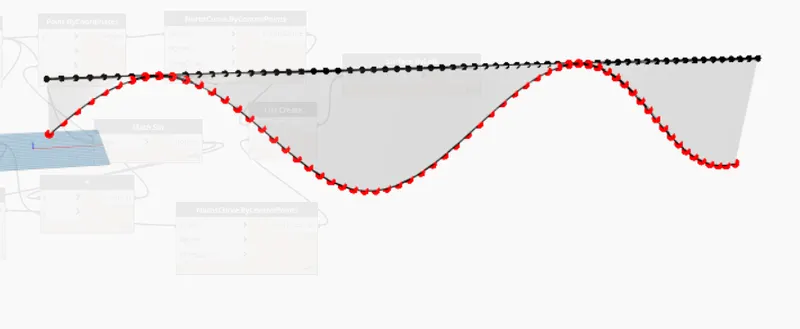
the SURFACE is created from points and lines .
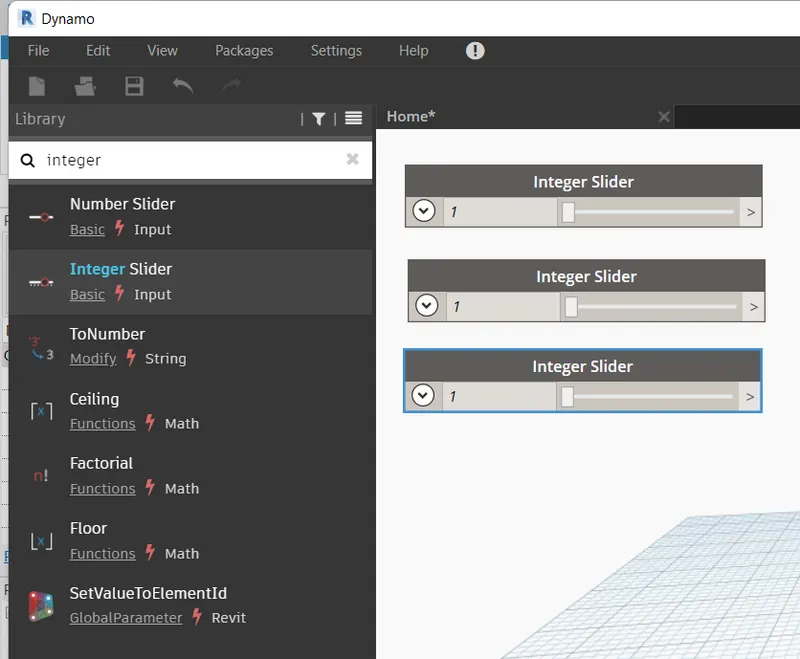
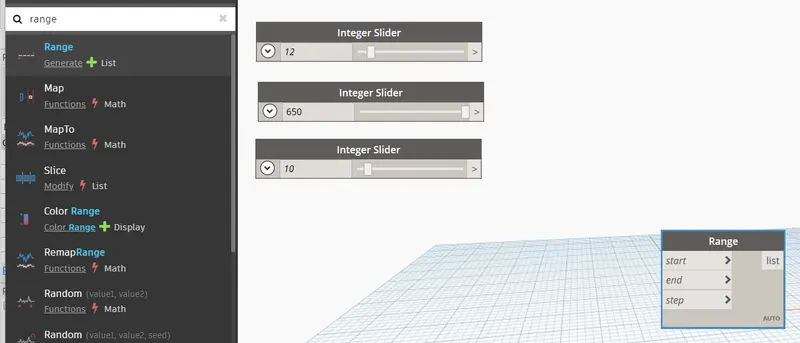
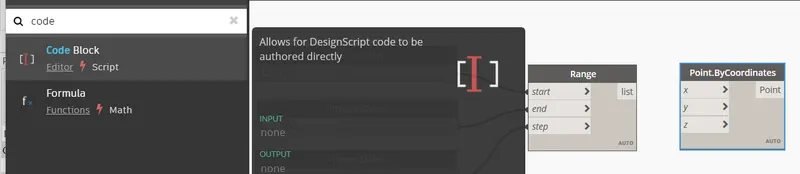
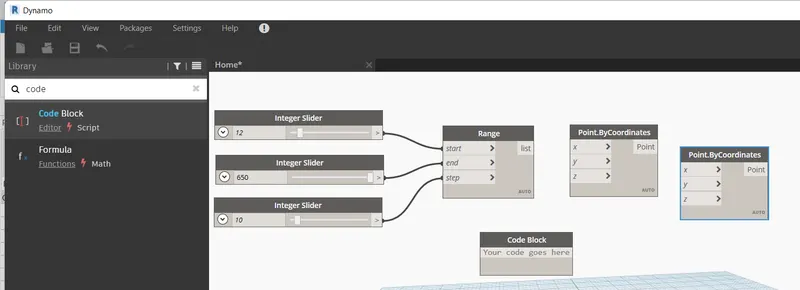
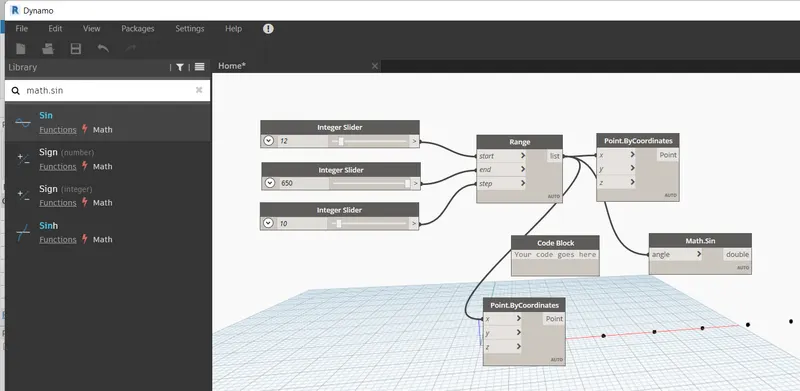
cretion of sinusoidal points
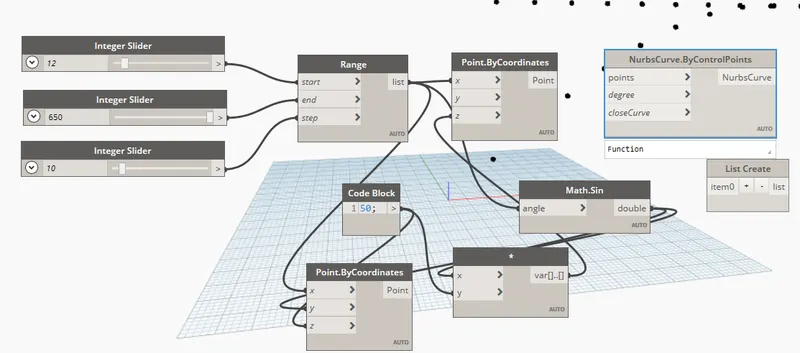
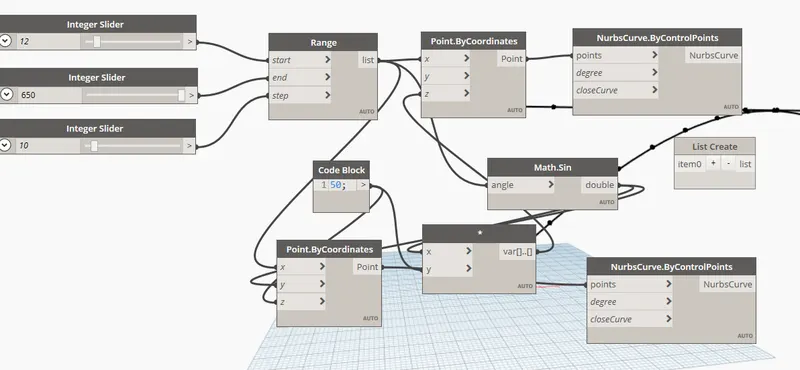
creation of surface using points and curves
2ans :- aim - to create the wall and of some height and floor
introduction - by using dynamo to create the aim of wall length and floor of type required.
procedure -
create two integer slider by going to search option type integer slider
for the drawing wall
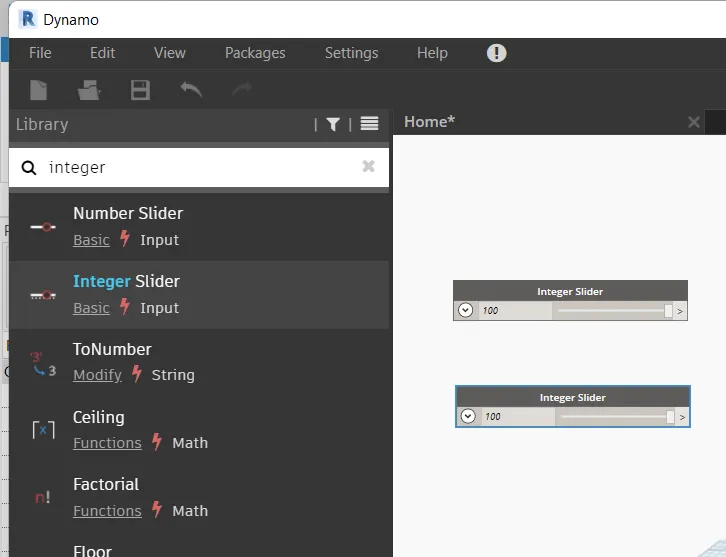
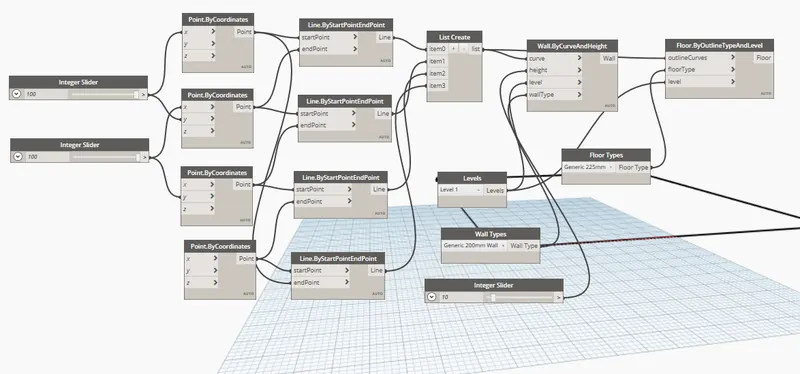
next create the cordinates (x,y,z) of 4 needed
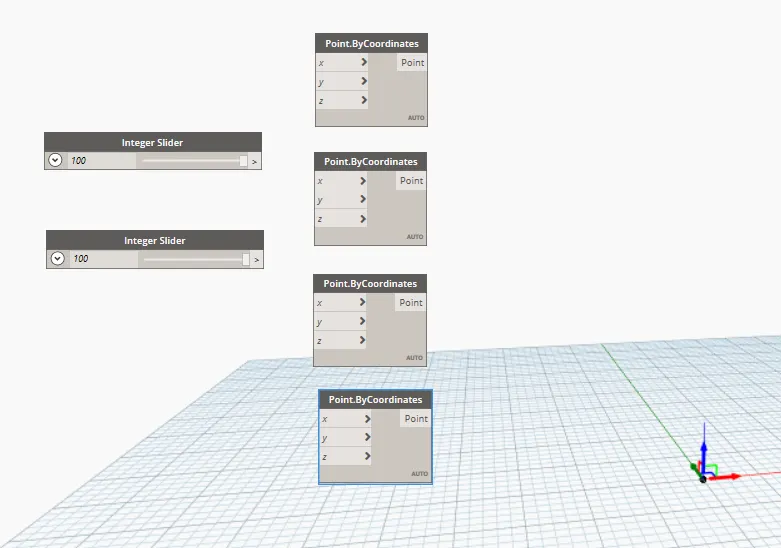
and connect the integer slider to point of cordinates where necessary
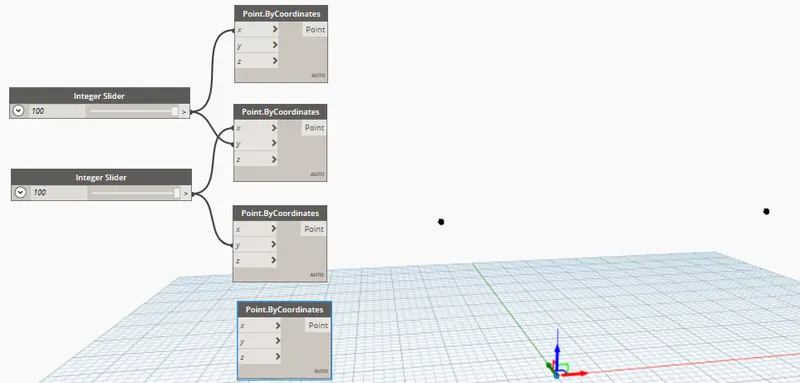
points created
to mak lines now go to serch for line > by start point to end point now join the connections between the points and lines as in below fig and the lines are created now to verify go to revit and check
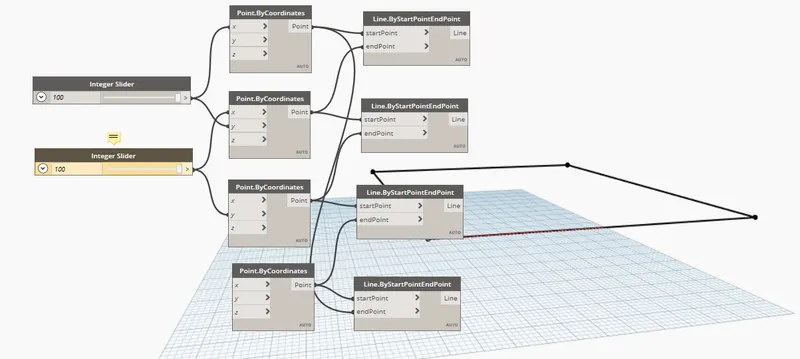
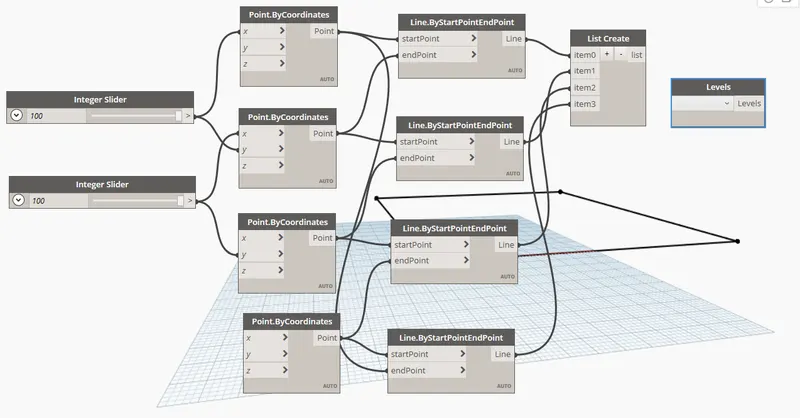
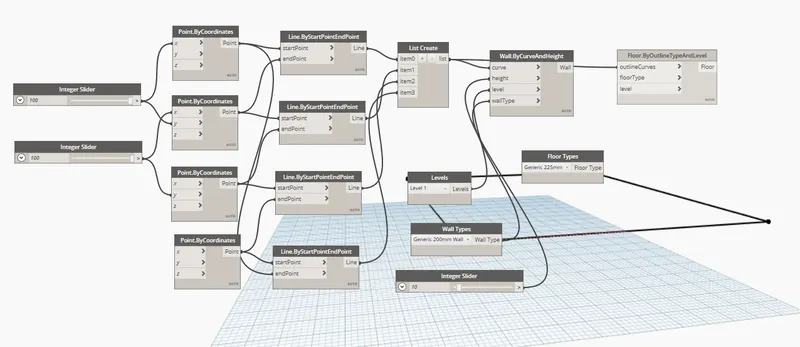
now to make walls connect lines to line create tabs and make items in it to 0,1,2,3 and set levels and wall types as imported from search and insertion of one integer slider is required
now connect them /join
next go to search wall by cement height and curve and it is created
3. ans :- aim and introduction - to create an array of model elements in revit and useing dynamo to vary the proprerties
of model elements by using the slider
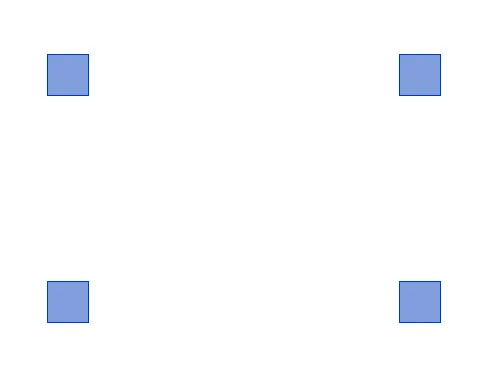
procedure - go to revit and insert some model elements
for example inserting the components ie architectural columns in revit model

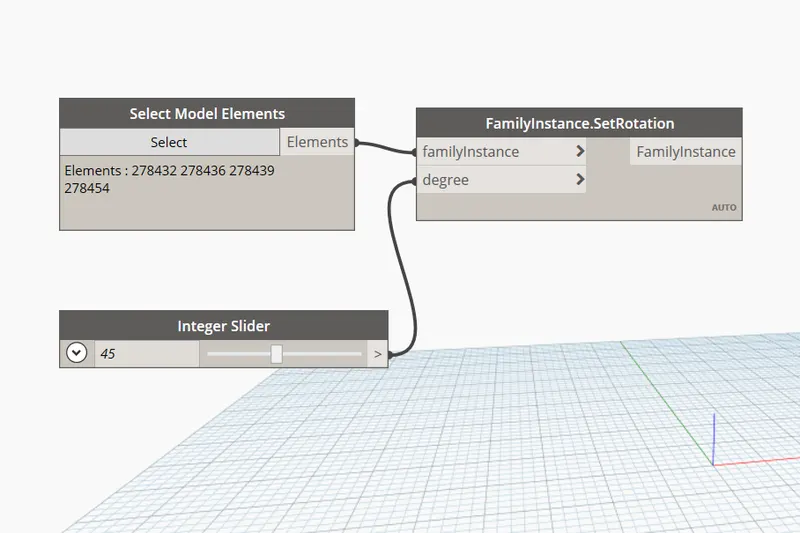
now go to dynamo search for model elements , in which select > model elements (multiple) integer slider
then go to search again and search rotation > set rotation and
again search and insert the integer slider and three tab appears on dynamo screen as below fig
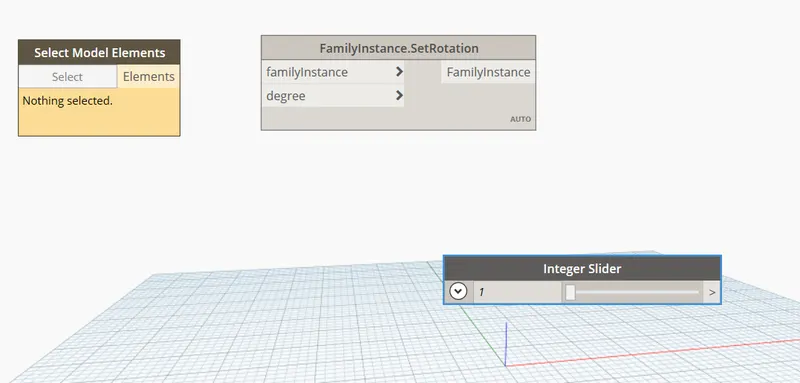
now in select model elements click on select and then go to revit model and select the components placed ( columns)
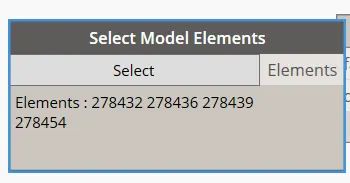
now it is automatically saved in the select model elements
and give some number for example 45 to integer slider for rotation and connect the element to familyinstance.set rotation and integer slider to familyinstance.set rotation
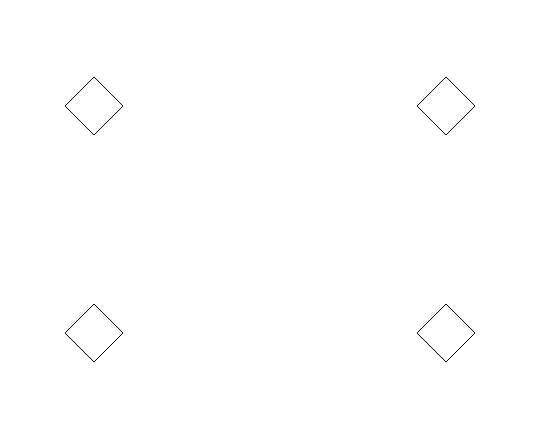
after doing this in revit model the columns are turned to 45 degress
and this is how we need to do by array option .
RESULT :-
4ans :-
aim and introduction - to create conceptual mass in revit and develop a parametric column
by dividing surface and using concepts apply which are similar used
. in parametric walkway modelling .
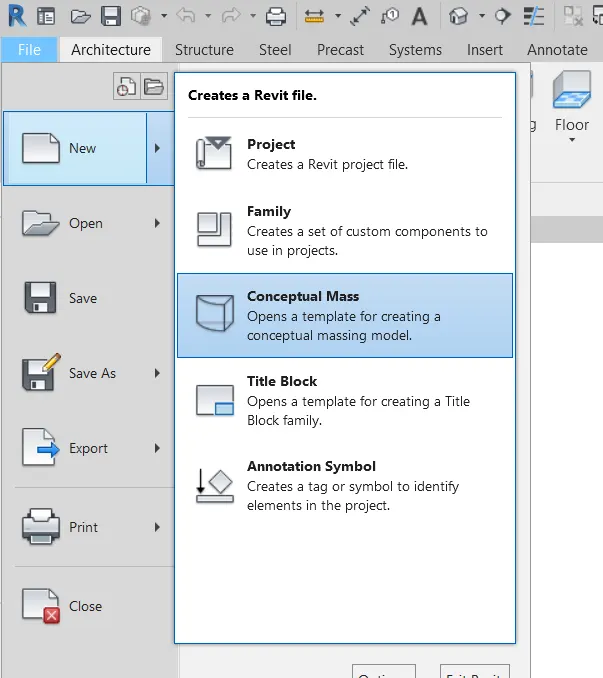
procedure in revit go to file
in which go to new > select the conceptual mass
> select metric mass
then create the levels and go to floor option > and set plane
after doing then go to dynamo