Creating Bar Bending schedule, Different Door types, and Creation of standard drawing templates using AutoCad
CHALLENGE WEEK - 8
AutoCADD Essential
Question no.1:
- AIM:
- To create a template and a title block.
- To use text and dimensions.
- Procedure:
- Select the line tool.
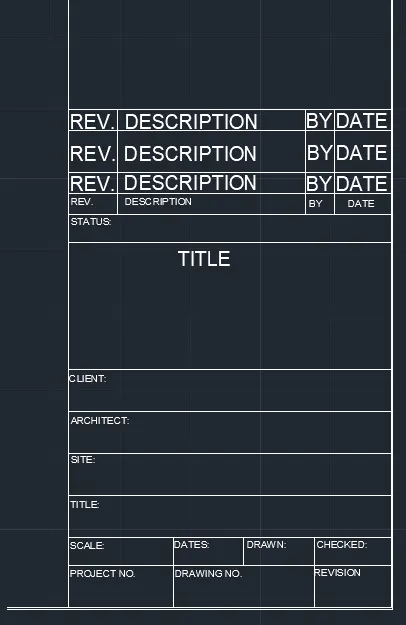
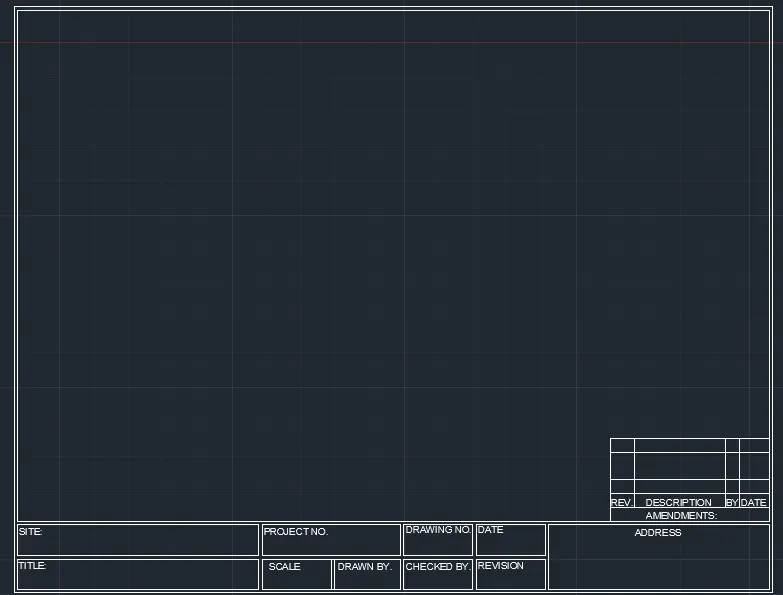
- The title block is drawn with line tool.
- The title block is drawn with required spacing for the all the titles and texts.
- The title block and templates are drawn to fit in MCA paper size.
- The Texts are given as given in standard industry templates.
- The created template along with title block is shown below
- RESULT:
- Thus the doors with different designs are created for the residential building.
- The drawing contains the texts of required sizes.
Question no.2:
- AIM:
- To create the doors type for warehouse.
- To use text and dimensions.
- Procedure:
- Select the line tool.
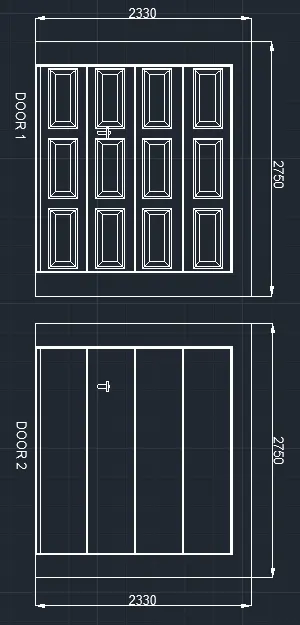
- Here 2 doors are drawn.
- The doors are drawn using rectangle tools.
- The door D1 has some designs.
- The designs are drawn by block.
- First a single design block is made.
- And then the same blok is copied to other places.
- The the doot lock is drawn and made as block.
- The door 2 hefre has a outframe similar to D1.
- As the door 1 outterpanel is made as a block.
- The same block is used for the door 2.
- Then the door lock block is used and the door 2 is done.
- Hence the required doors for the warehouse is created.
- RESULT:
- Hence the required doors for the warehouse is created.
- The drawing contains the texts of required sizes.
Question no.3:
- AIM:
- To create each symbol as a block with the name given in the legend.
- To use text and proper symbols.
- Procedure:
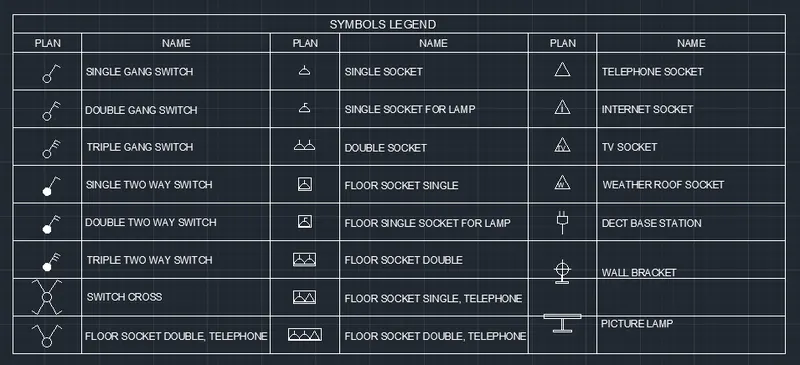
- Initially each symbol as shown in the input is drawn clearly.
- Then each symbol is made as separate blocks and saved with proper names.
- Then the create blocks are set as input into the tabular column.
- The tabular column is created as per the guided requirement.
- Then the required descriptions for respective blocks as per input is enterd in the the table.
- Thus the required tabular column with symbols and their respective descriptions are entered.
- RESULT:
- Hence the required legend is created with proper symbools.
- And proper descriptions fpr the symbols.
Question no.4:
- AIM:
- To create the door type for residential building as a block.
- To use text and dimensions.
- Procedure:
- Select the line tool.
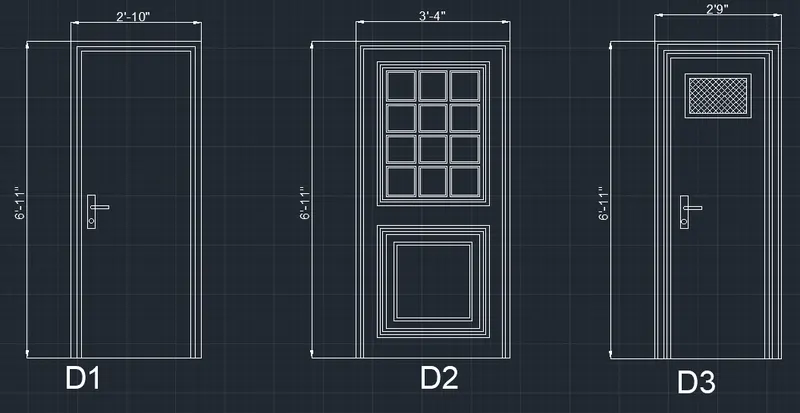
- The door to be drawn has designs.
- The door panel is drawn using rectangle tool.
- A total of 6 type of doors are drawn.
- Each door has a each type of designs on the panel.
- The door D1 has simple design panel.
- Rectangle is used maximum to create the door and made as block.
- The door lock is drawn using rectangle and circle tool.
- And the door lock is made as block.
- The door 2 ahs some rectangle design. one of the rectangle design was drawn and made as block.
- And are coppied to the respective positions.
- The bottom panel of D1 is of a rectangle and its offsets
- The door D3 is done by choosing the D1 door block
- And the required size of the design in the panel is drawn by using the rectangle tool.
- And the innter part of the design is hatched.
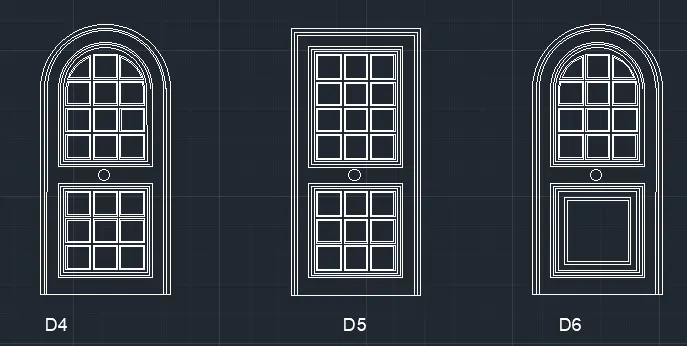
- Then the door D4 is of different type.
- Where the doors bottom is drawn using rectangle and then the top is drawn using rectangle and fillet is used for each rectangle.
- Including designs and the panel.
- Each box in the design is drawn using rectangle and offset is done.
- The the door D5 is drawn by using block of the door 1 and then then the required design is drawn with rectangle and its blocks.
- The door D6 is drawn using block of D4 and then some alterations are done by block editor.
- RESULT:
- The template along with title block is successfully created.
- The drawing contains the texts of required sizes.
Question no.5:
- AIM:
- To create each shape as a blockend.
- To use text and proper symbols.
- Procedure:
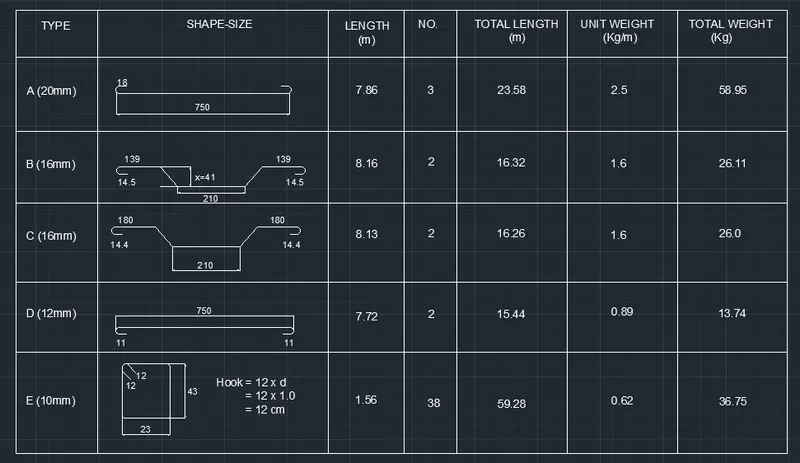
- The given shapes are drawn in autocadd initially.
- Then the corresponding dimentions of the shapes are marked.
- And then the shapes are made as blocks and given with proper names.
- Then these symbols are made input to the tabular colum.
- The tabular colum is created as per the requirement.
- Then the respective descriptions are entered into the tabular column.
- The description headings are also added to the tabular column.
- Thus created tabular column is shown below.
- RESULT:
- Hence the shapes are made as block and enterd in the tabular column.
- And proper descriptions for the symbols.