Creating Bar Bending schedule, Different Door types, and Creation of standard drawing templates using AutoCad
AIM:
- Creating Bar Bending schedules, Different Door types, and Creation of standard drawing templates using AutoCAD
INTRODUCTION:
- The main objective of this challenge is to understand more about the various tools in AutoCAD like creating and inserting blocks, adding parameters and assigning actions to the blocks to make them dynamic blocks, creating drawing files by using the write Block dialog box, Using the Design Center to locate, preview, copy, or insert blocks and existing drawings, Use the tool palettes to insert block, Edit blocks split a block, Rename block and delete an unused block, Understand block attributes, Create annotative blocks, Edit attribute tag names, Insert blocks with attributes and assign values to attributes, extract attribute values from inserted blocks, control attribute visibility, perform editing of attributes, and Insert a text file in a drawing to create a Bill of quantities.
- By Creating Bar Bending schedules, Different Door types, and the Creation of standard drawing templates one gets to experience the software and understand the drawings of various members in the construction.
PROCEDURE:
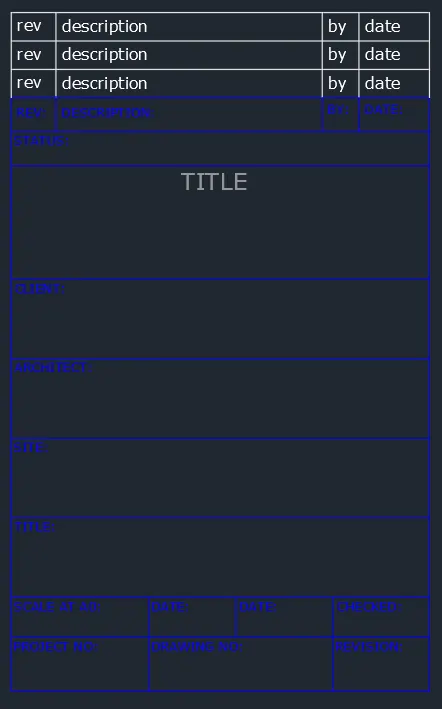
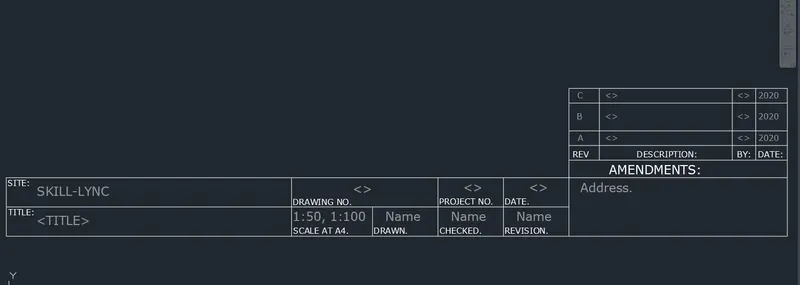
1. Create the templates as shown in the Figures. Take the size of the title block as per industry standards or you can assume it as per the size of the paper. Use text and attributes wherever required. After creating the title block you need to save it as a block with the names: Custom1_titleblock and Custom2_titleblock, respectively.
RESULT:
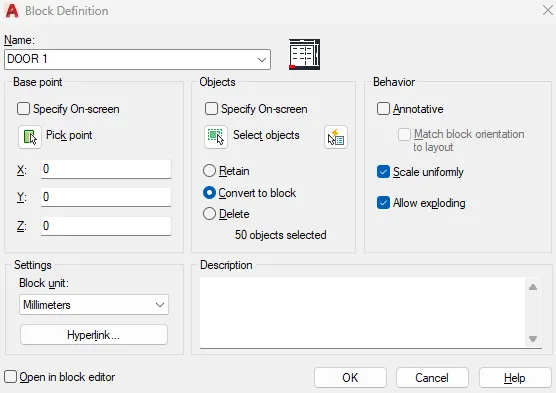
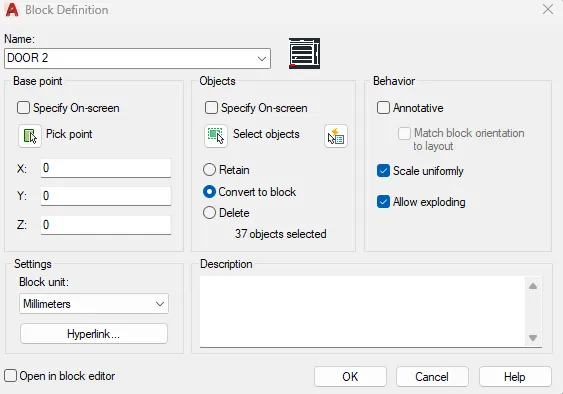
2. Create the doors type for warehouse as shown in the Figure. You need to create each door type as per standard size or given dimensions. Create the blocks of this door type after creating them.
RESULT:
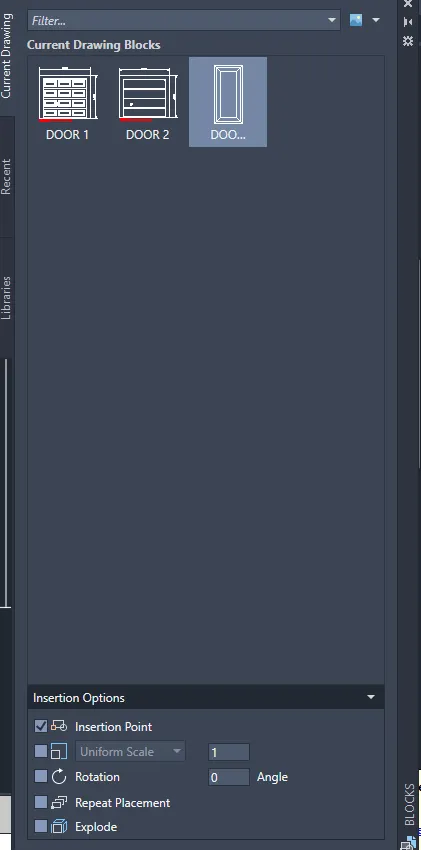
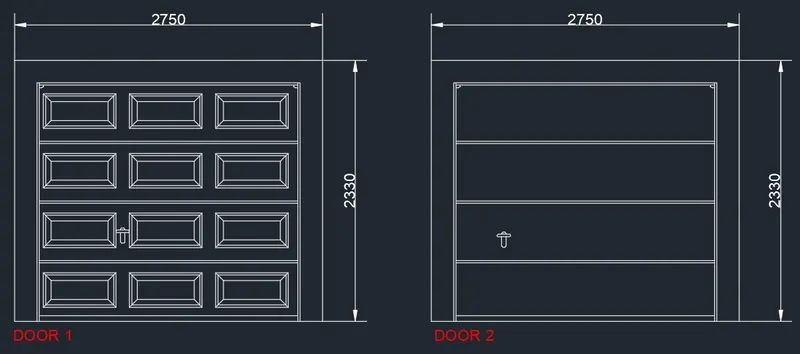
3. Create each symbol as a block with the name given in the legend. After creating the blocks arrange them in the legend as shown in the Figure.
RESULT:
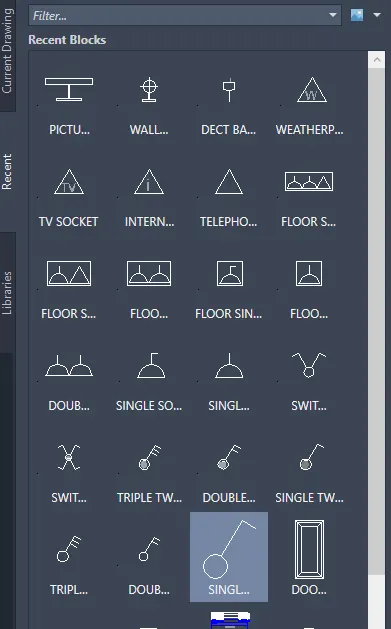
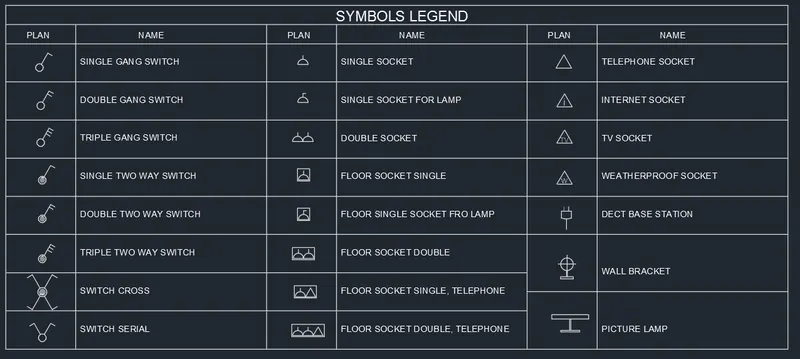
4. Create the door type for residential building as a block. Save the name of the blocks as type. Use given dimensions or assume dimensions as per industry standards.
RESULT:
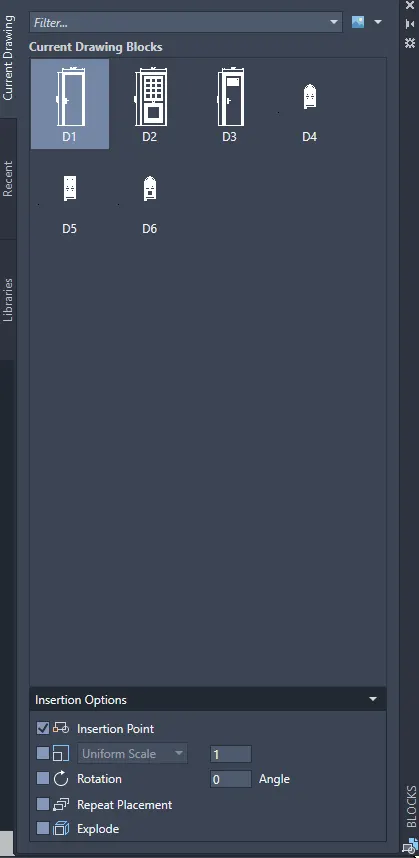
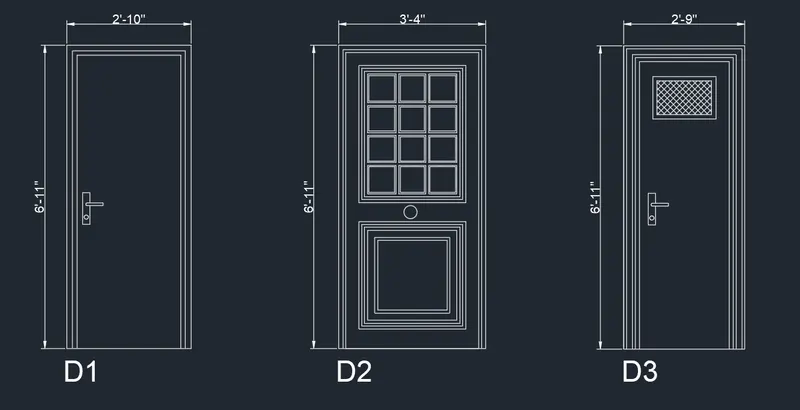
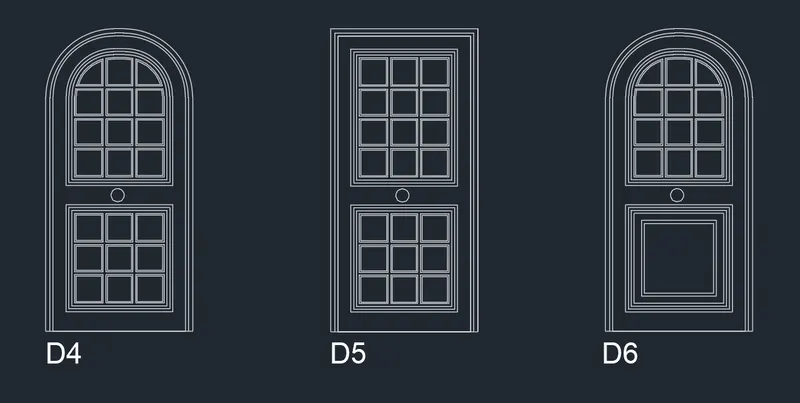
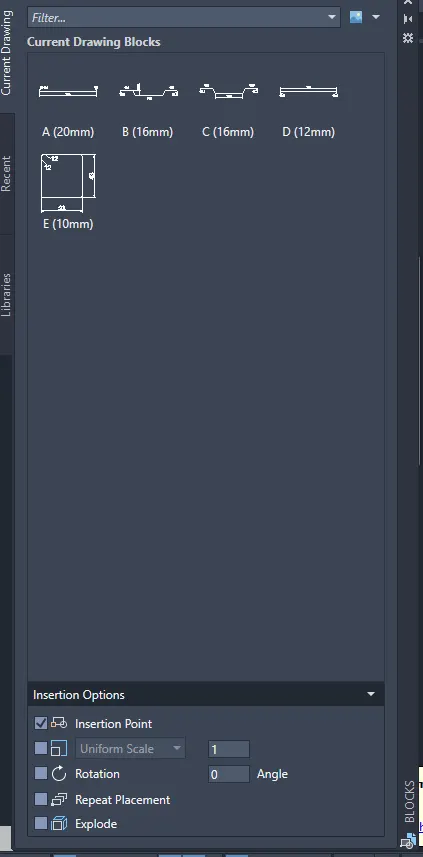
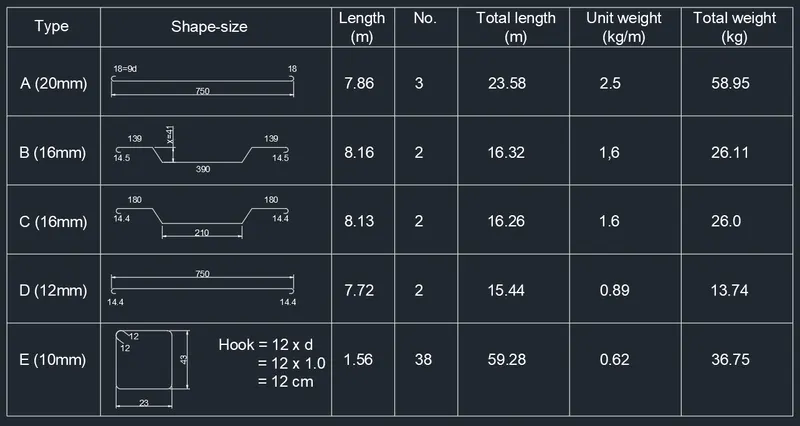
5. Create each shape as a block as shown in the Figure. Save the block and insert them on the table as shown in the Figure.
RESULT:
----------------x---------------