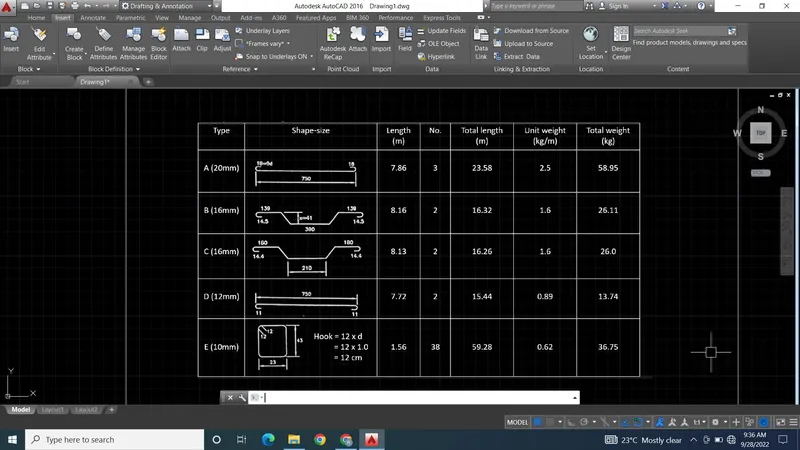
Creating Bar Bending schedule, Different Door types, and Creation of standard drawing templates using AutoCad
1.
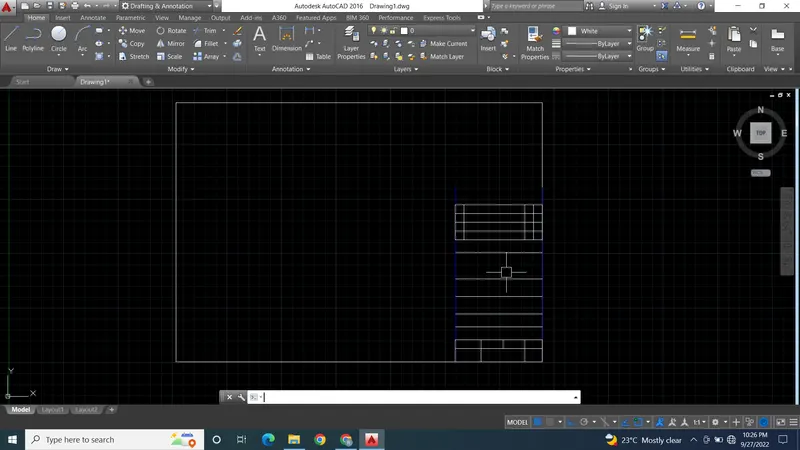
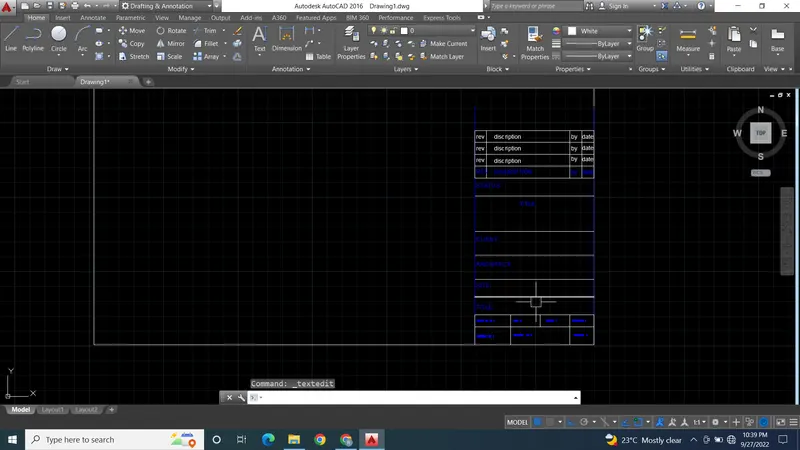
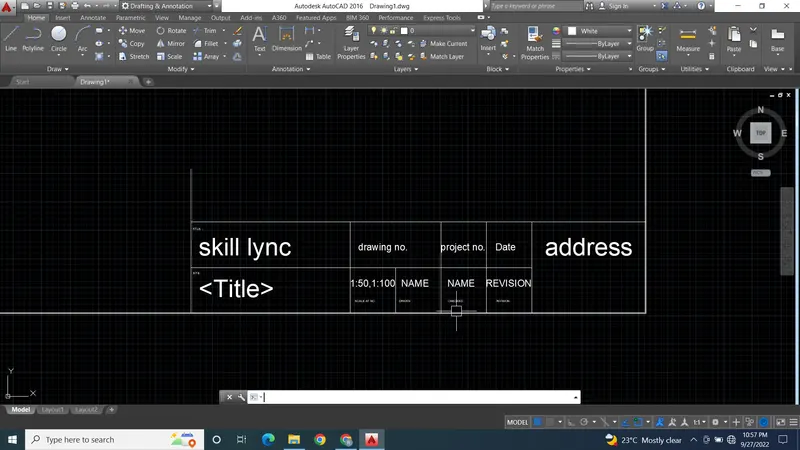
AIM - Creating templates as given in the challange and save this template as a block of name Custom1_titleblock and Custom2_title block.
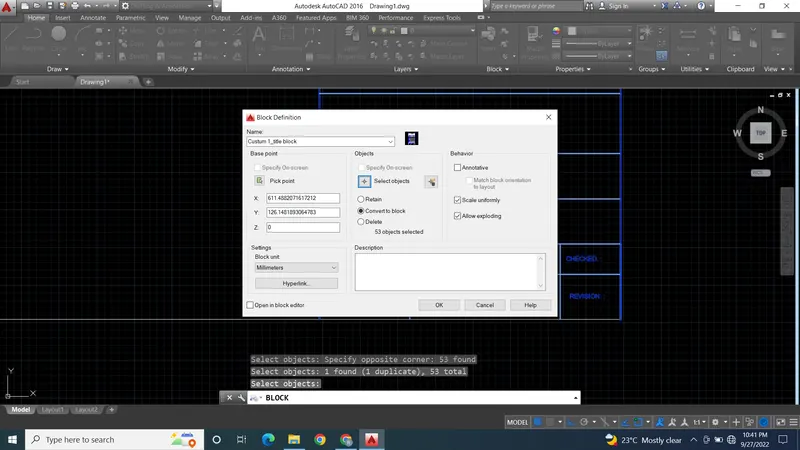
Procedure -
1. Start the auto cad and start drawing the template as given in the challange.
2. Select size of template as per A3 page size i.e. 430x297mm.
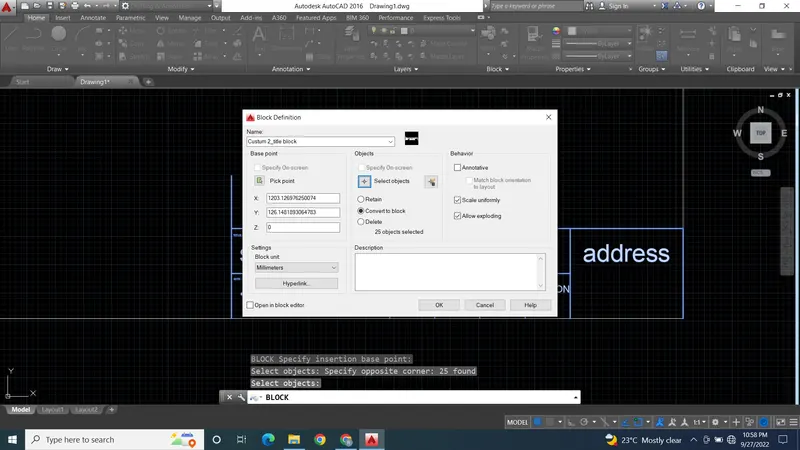
3. After creating the template now make it block by using block cammond.
4. Give name of block as custom1_titele block and custom2_title block.
5. Give the pick up point at and then select the drawing that we want as a block.
6. After completing the process click on ok and save the block to use it multiple times.
7. Take screen shots of step by step procedure and attach it in the result.
RESULT - Creating the template as per given in the challange using required tools in auto cad. Saving this templates as a block by converting them into block as custom1_titleblock and custom2_title blocks.
here are some screen shots of the procedure -
2.
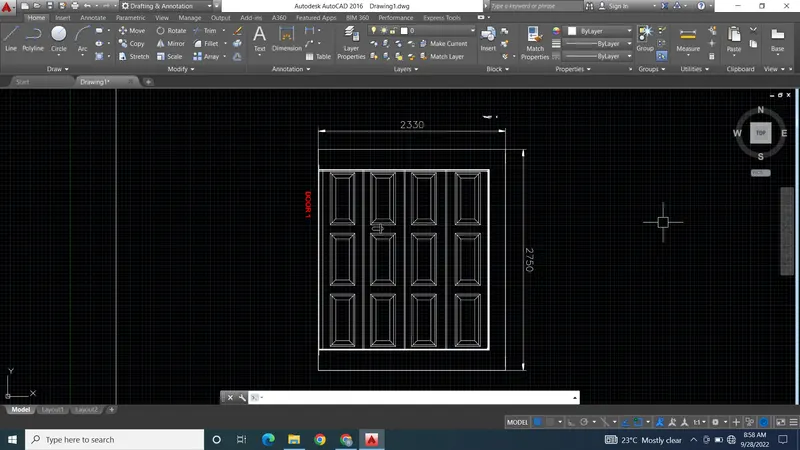
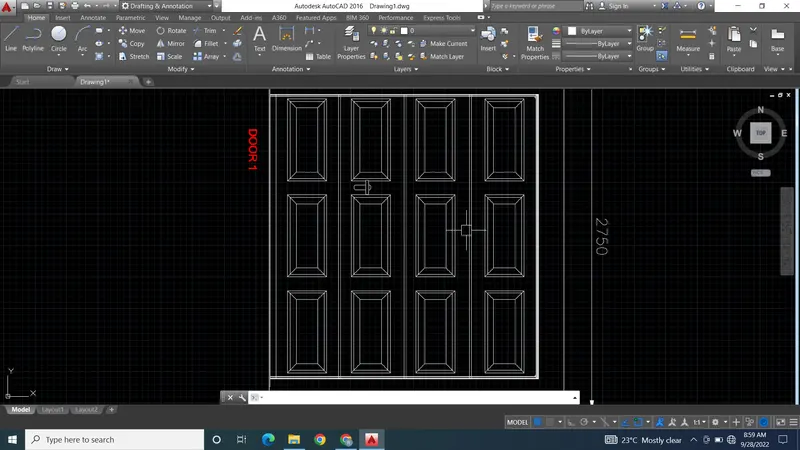
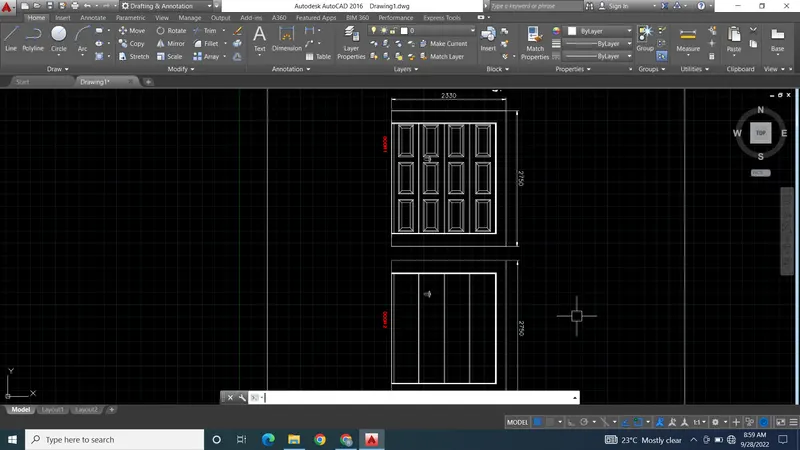
AIM - Create the doors type for warehouse as shown in the Figure. create each door type as per
standard size or given dimensions. Create the blocks of this door type after creating them.
PROCEDURE -
1. Start the auto cad and start drawing the template as given in the challange.
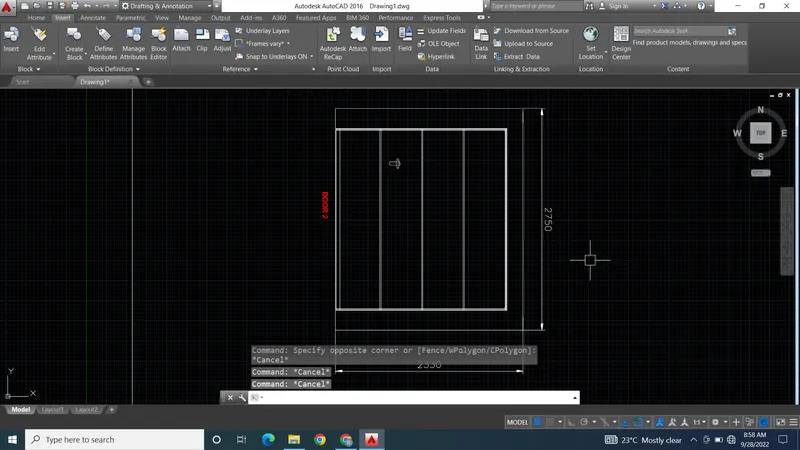
2. Select size of Door 2330x2750 mm.
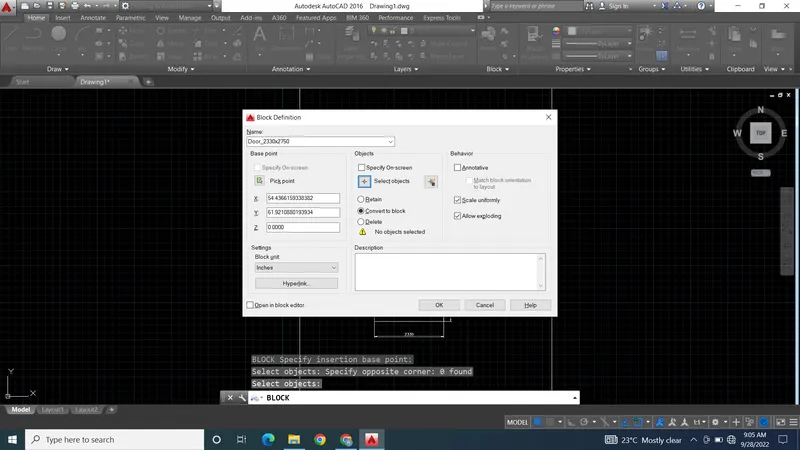
3. After creating the Door drawing now make it block by using block cammond.
4. Give name of block as door 2330x2750
5. Give the pick up point at and then select the drawing that we want as a block.
6. After completing the process click on ok and save the block to use it multiple times.
7. Take screen shots of step by step procedure and attach it in the result.
RESULT - Creating the DOOR as per given in the challange using required tools in auto cad. Saving this door as a block by converting them into block as door_2330x2750 mm.
here are some screen shots of step by step procedure -
3.
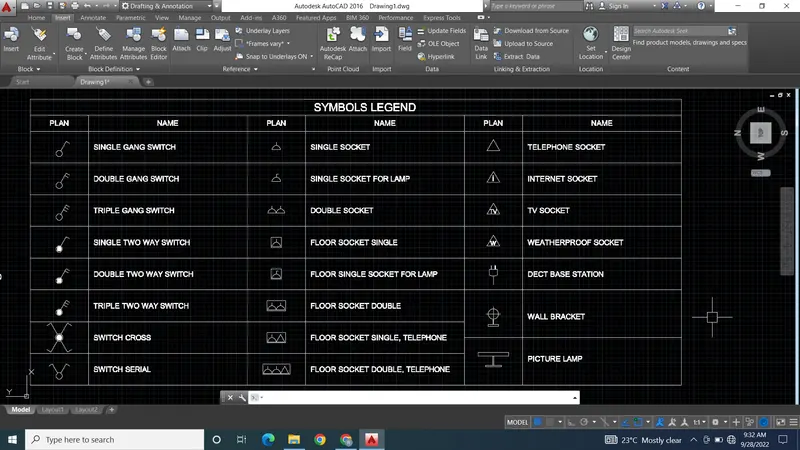
AIM - Create each electrical symbol as a block with the name given in the legend. After creating the blocks arrange
them in the legend as shown in the Figure.
PROCEDURE -
1. Start the auto cad and start drawing the template as given in the challange.
2. Create electrical symbols as per given in the drawing.
3. After creating the each symbol make a block of every symbol with the name given in the drawing.
4. After creating symblos make a table and arrange them as given in the challange drawing.
5. After completing the process click on ok and save the block to use it multiple times.
6. Take screen shots of step by step procedure and attach it in the result.
RESULT - Creating different electricals symbols as per given in the drawing. Save these symbols as a blocks with their names and arrange them in the table as per given drawing.
here are some screen shots of procedure -
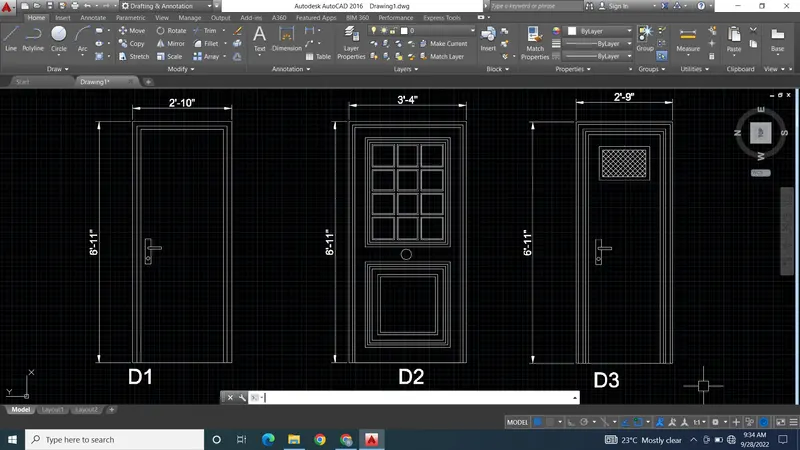
4.
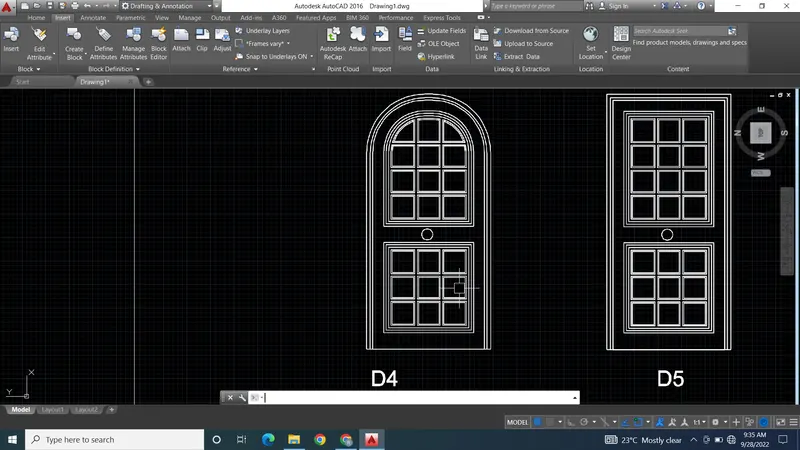
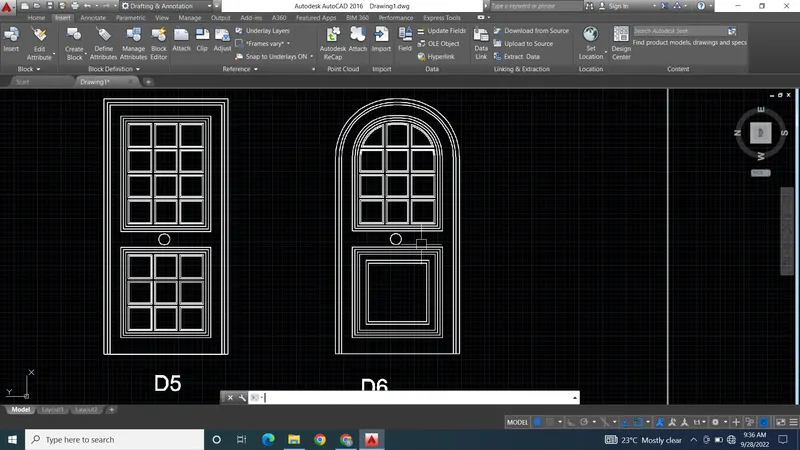
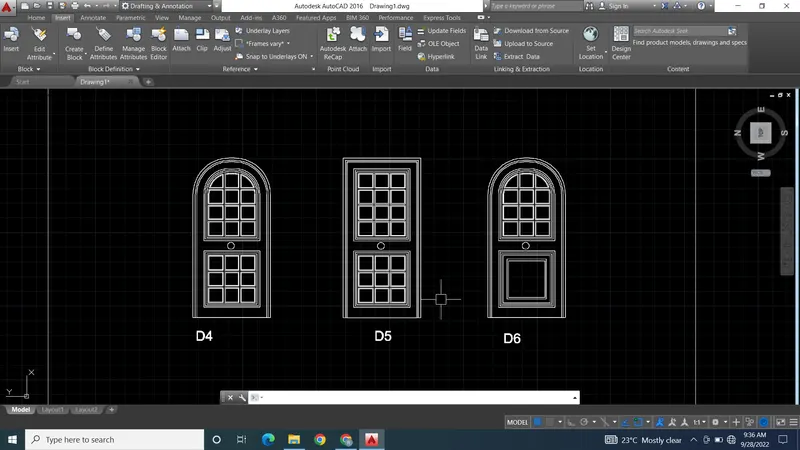
AIM - . Creating the door type for residential building as a block. Save the name of the blocks as type. Use given
dimension as per drawing.
PROCEDURE -
1. Start the auto cad and start drawing the template as given in the challange.
2. Select size of Door 2'10" X 6'11" .
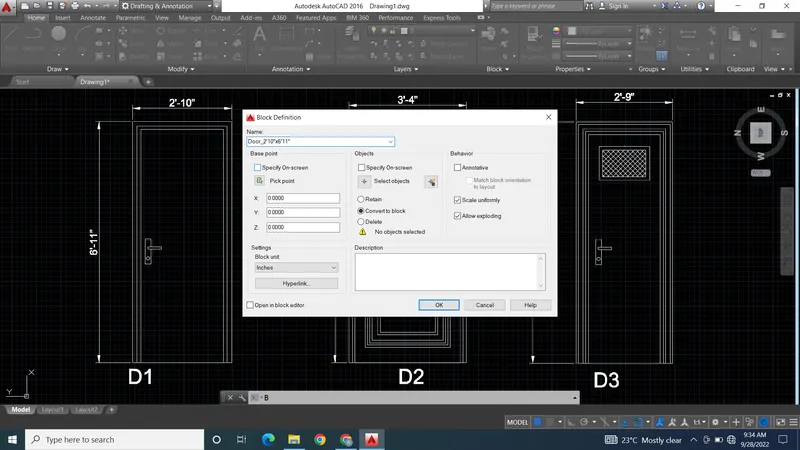
3. After creating the Door drawing now make it block by using block cammond.
4. Give name of block as door_2'10" X 6'11".
5. Give the pick up point at and then select the drawing that we want as a block.
6. After completing the process click on ok and save the block to use it multiple times.
7. Take screen shots of step by step procedure and attach it in the result.
RESULT - Creating door as per given in the challange makeing it block with name door_2'10" x 6'11" and save it.
here are some screen shots of procedure -
5.
AIM - Creating each shape as a block as shown in the Figure. Save the block and insert them on the table as
shown in the Figure.
PROCEDURE -
1. Start the auto cad and start drawing the template as given in the challange.
2. Create reinforcement shapes as per given in the drawing.
3. After creating the each shape make a block of every shape with the name given in the drawing.
4. After creating reinforcement make a table and arrange them as given in the challange drawing.
5. After completing the process click on ok and save the block to use it multiple times.
6. Take screen shots of step by step procedure and attach it in the result.
RESULT -
Creating different reinforcement shapes as per given in the drawing. Save these shapes as a blocks with their names and arrange them in the table as per given drawing.
here are some screen shots of procedure -