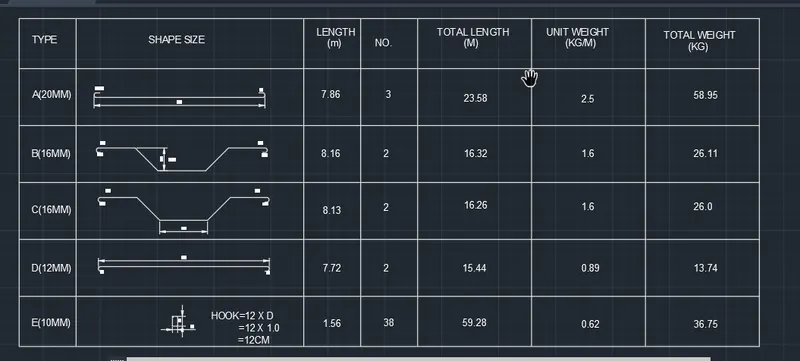
Creating Bar Bending schedule, Different Door types, and Creation of standard drawing templates using AutoCad
1) AIM:
To create custom1 title block and custom 2 title block using attributes and block command from Autocad software.
PROCEDURE:
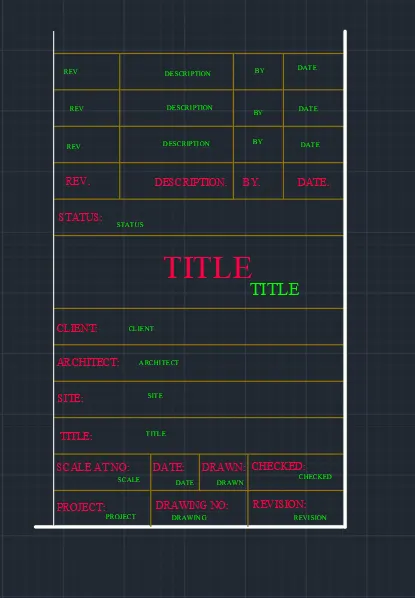
STEP 1 (CUSTOM 1-TITLE BLOCK)
- In the command prompt typel to draw the lines.
- In the ribbon tab annotate > mt line (to craft the text)
- Go to properties tab to change the colour
- In the ribbon bar > block > create block and name it custom 1 title block. there fore the block is created.
CUSTOM 1 TITLE BOX RESULT:
STEP 2( CUSTOM 2 TITLE BLOCK)
- In the command prompt type I to: draw the lines
- In ribbon tab > annotate > mline (to craft the text)
- Go to properties tab to change the colour
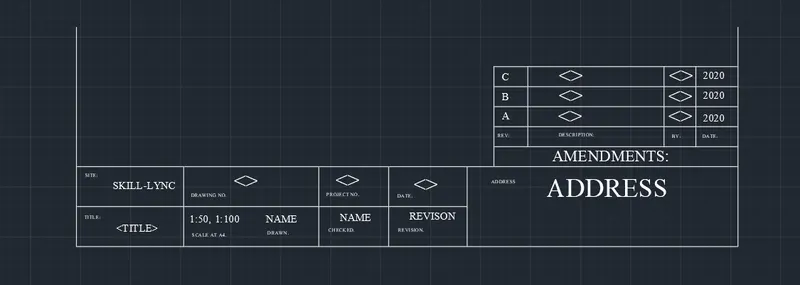
- In the ricon bar > block > create block and name it custom 2 titleblock there fore the block is created.
CUSTOM 2 TITLE BLOCK RESULT:
2) AIM:
To create the doors type for ware house to also crete the block of this door. type after creating them using autocad.
PROCEDURE:
STEP:1
- In the command prompt type the units in MM
- In the command prompt type the limax 100,100
- In the command prompt type the limits0,0
- In the command prompt type "L"draft the lines
- In the command prompt type "rec" to draft the box or rectangle.
- In the command prompt type "fillet" to get the curve edges.
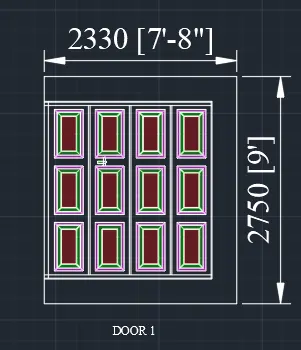
- In the nation tar dimensions (to give the dimensions of the door)
- In the rebbin bar annotation text (to give the text for the door)
- In the ribbon bar "SBLOCK" (to create the door block)
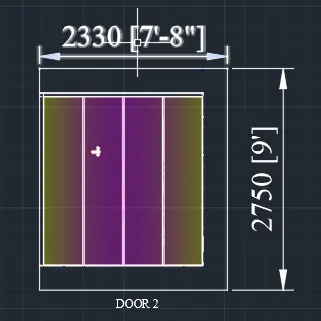
DOOR:1 WARE HOUSE RESULT:
STEP:2
- In the command prompt type "L" to draft the lines
- In the command prompt type "REC" draft the boxes or rectangle
- In the command prompt type "fillet" to get the curves edges
- In the command ribbon bar dimensions give the dimensions of the door
- In the ribbon bar anotation text ( to give the text for the door)
- In the ribbon bar block create block( to create the colour block)
DOOR:2 WARE HOUSE BLOCK RESULT:
3)AIM:
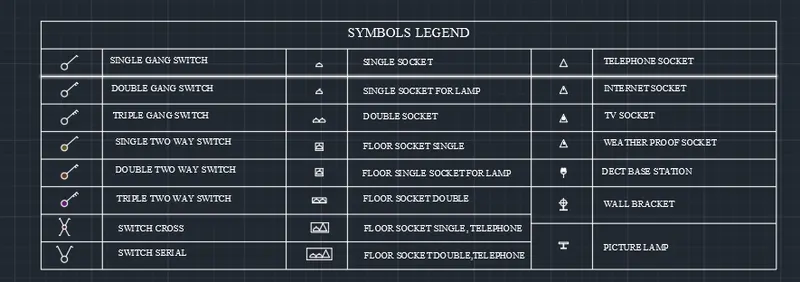
To create each symbol as a block with the name and then arrange them in the legend.
PROCEDURE:
- In the command prompt type "C" to get the circle.
- In the command prompt type 1 to get the lines
- In the ribbon bar > annotation > mt line text
- In the ribbon bar > block > block edit
- Same commands and procedure are followed for all the symbols
- In the command prompt type l to draw the lines
- In the command prompt type "arc" to draw the arc.
- In the command prompt type mtext
- In the ribbon bar > block > create block
- In the command prompt type l to draw the lines
- In the command prompt type mtext. in the ribbon bar > block > create block
- In the command prompt type l to drawthe lines
- In the command prompt type fillet to get the curves
- In the command prompt type mtext
- in the ribbon bar block > create block
- In the command prompt type I to insert the blocks
FINAL RESULT:
4)AIM
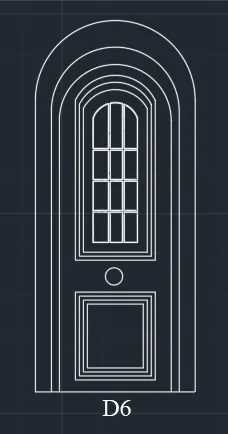
To create the door type for residential building as a block.
COMMANDS:
Limits
Rectangle
Offset
Trim
Extrode
etc.
PROCEDURE:
- In the command prompt type units > engineering > inches
- In the command prompt type limits 0,0 limax > 100,100
- In the command prompt type zoom > a
- In the command prompt type "L" to draw the lines
- In the command prompt type "B" create a block
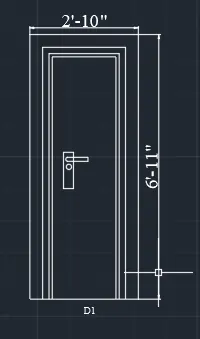
- In the command prompt type ATT > name of the block is save as type (plain single door)
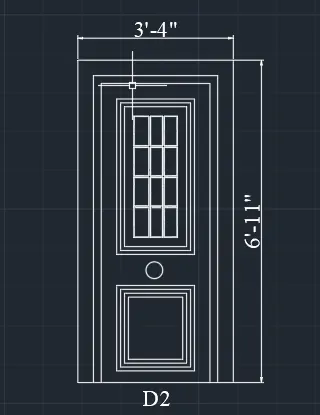
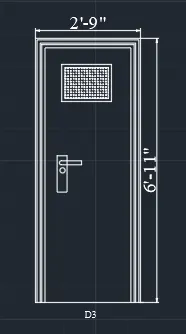
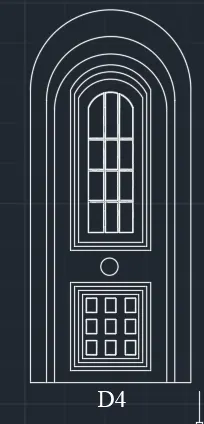
- The same command and procedure are used for the rest of the doors
- In the command prompt type arc to draw the "arc"
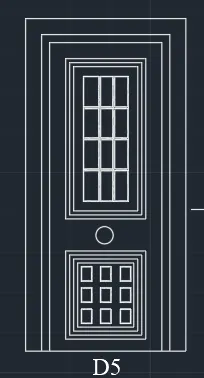
FINAL RESULT:
5) AIM:
To create each shape as a block and insert them on the table as given in the fig.
PROCEDURE:
- In the command prompt type unit > decimal > meters
- In the command prompt type limits >0,0
- In the command prompt type limax > 100,100
- In the command prompt type "L" to draw the desired lines
- In the command prompt type "pl" to draw the desired "arc, poly lines"
- In the command prompt type "mt" to give annotation and text
- In the command prompt type " b" to create the block
- In the command promt type "I" to insert the created in the block
- In the command prompt type table to insert the elements.
FINAL RESULT: