Creating Bar Bending schedule, Different Door types, and Creation of standard drawing templates using AutoCad
1)AIM:
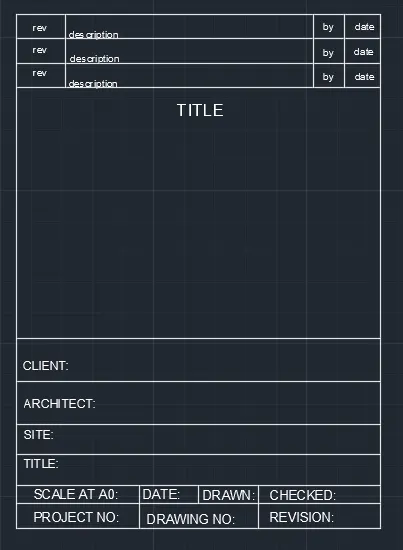
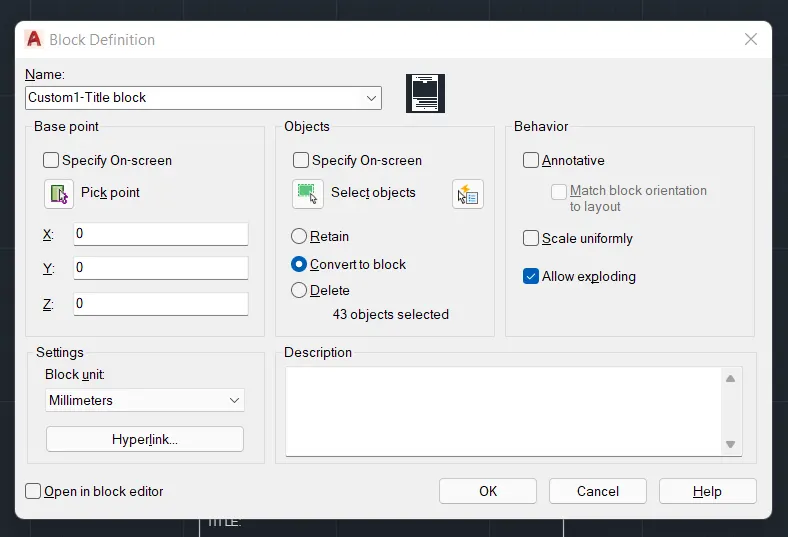
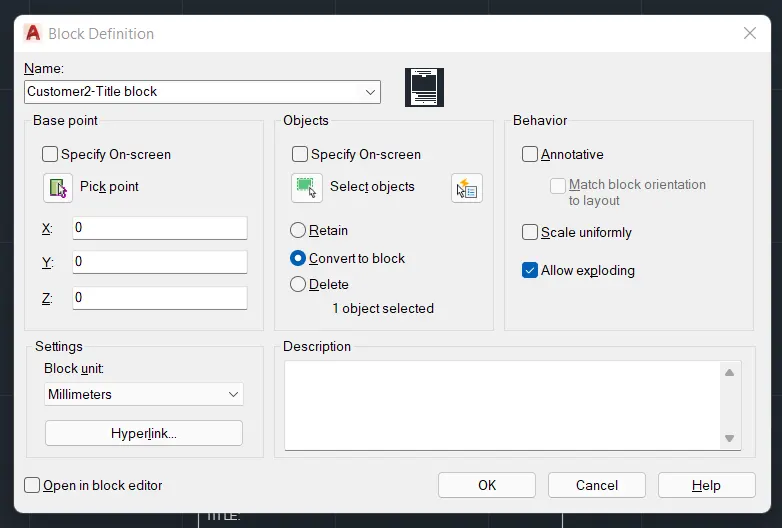
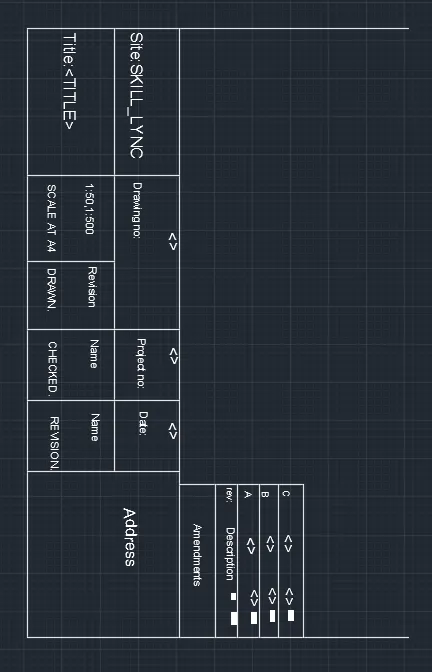
To Create the templates as shown in Figures. Take the size of the title block as per industry standards or you can assume it as per the size of the paper. Use text and attributes wherever required. After creating the title block you need to save it as a block with names: Custom1_titleblock and Custom2_titleblock, respectively.
PROCEDURE:
A title block is a template for a sheet and generally includes a border for the page and information about the design firm, such as its name, address, and logo. The title block can also display information about the project, client, and individual sheets, including issue dates and revision information
The templates are created as per IS standards using line,Mtext,trim commands
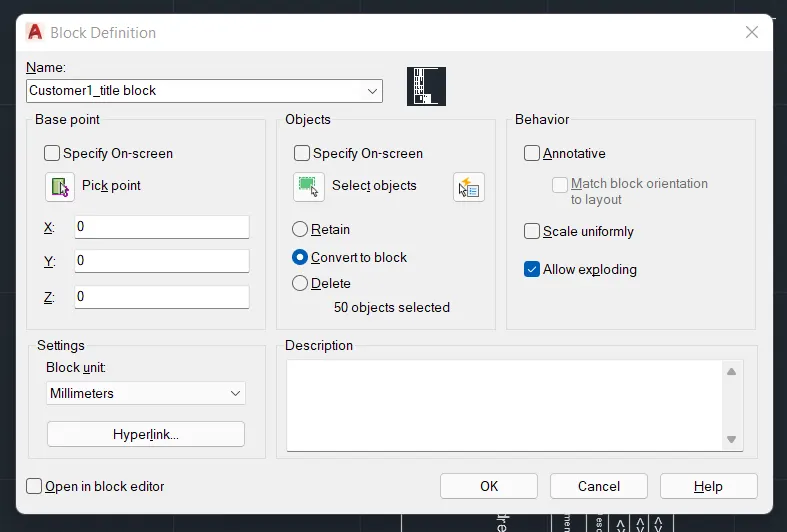
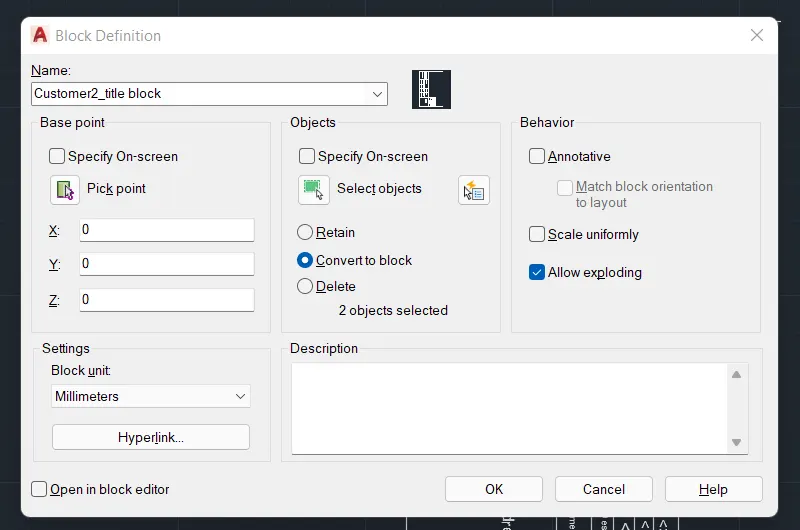
Create a titlle block as Customer1_title block,Customer2_title block
RESULT:
AIM:
To Create the templates as shown in Figures. Take the size of the title block as per industry standards or you can assume it as per the size of the paper. Use text and attributes wherever required. After creating the title block you need to save it as a block with names: Custom1_titleblock and Custom2_titleblock, respectively.
PROCEDURE:
A title block is a template for a sheet and generally includes a border for the page and information about the design firm, such as its name, address, and logo. The title block can also display information about the project, client, and individual sheets, including issue dates and revision information
Create a template outer line of vertical line dimension 800 & horizontal line of dimension 500
Using the command line,MTEXT,Trim the template is created
Create a titlle block as Customer1_title block,Customer2_title block
RESULT:
2)AIM:
Create the doors type for warehouse as shown in the Figure. You need to create each door type as per standard size or given dimensions. Create the blocks of this door type after creating them.
PROCEDURE:
Set the units to millimeters
Created the door using line command of dimension length 660 & width 360
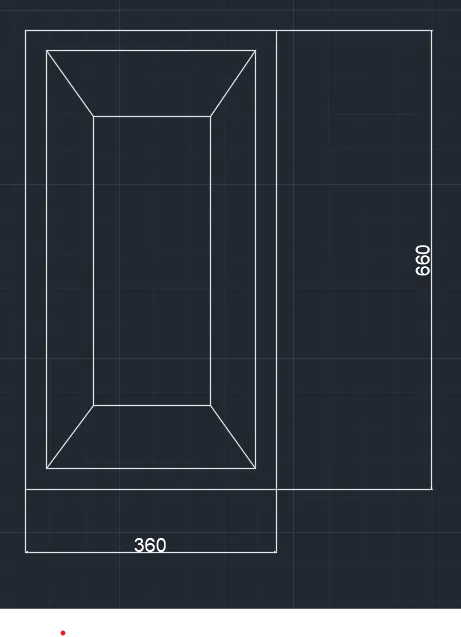
Now created the rectangle of given dimension length 2750 & widtgh 2300
Now copy & pasted the doors in required places
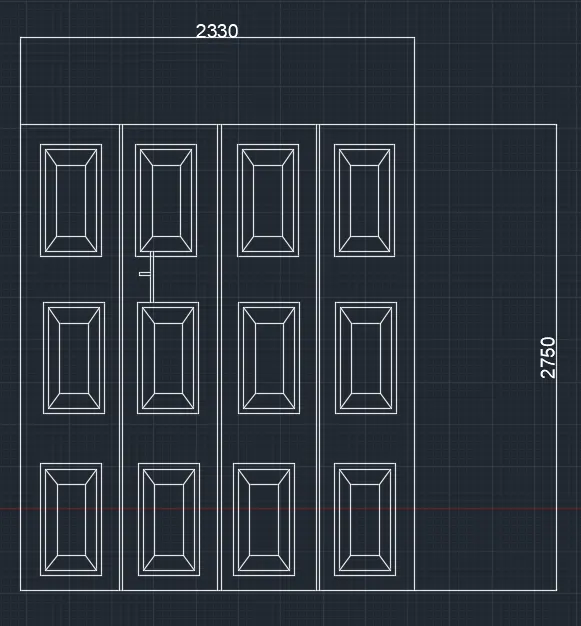
RESULT:
Create the elevation of the door using XL (ver) & XL(hor) command
Trim the unwanted lines
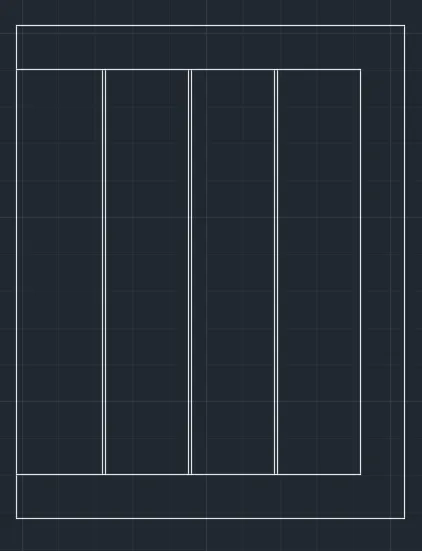
RESULT:
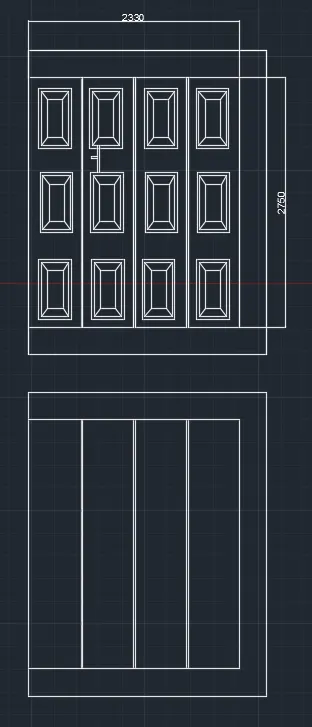
3)AIM:
Create each symbol as a block with the name given in the legend. After creating the blocks arrange them in the legend as shown in the Figure.
PROCEDURE:
Create a table of 6 column & 10 rows
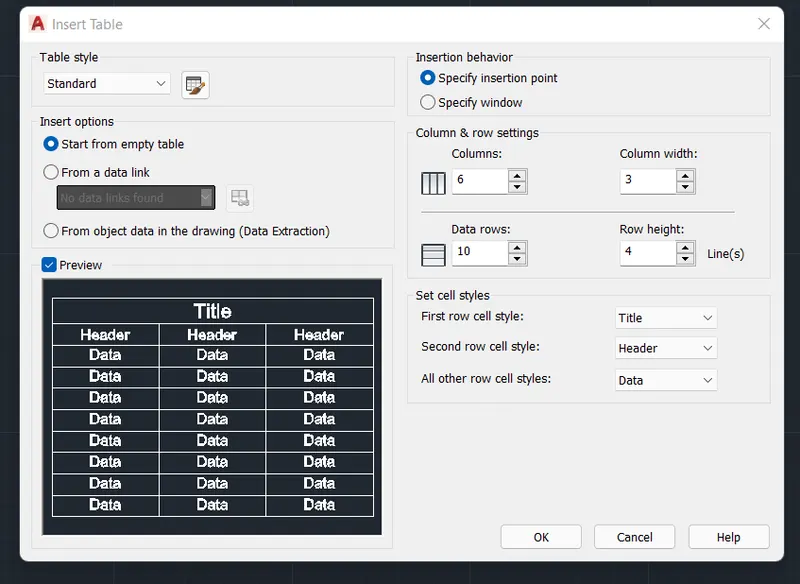
Type the words in created box using MTEXT
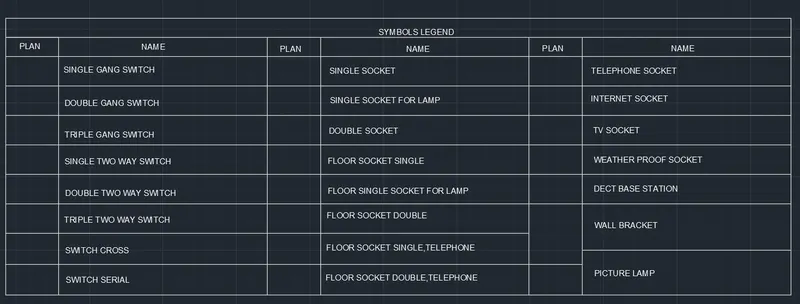
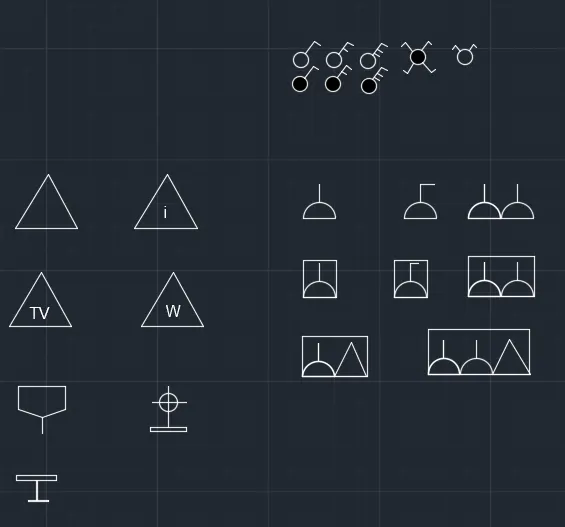
Symbols are created using circle,arc,rectangle,line command
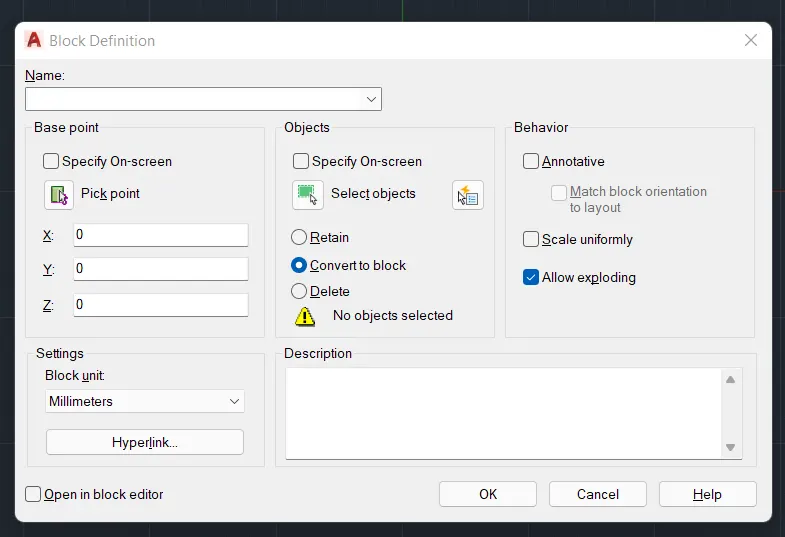
Create a block for each symbol using block command
Now created symbols are copy & pasted in required places
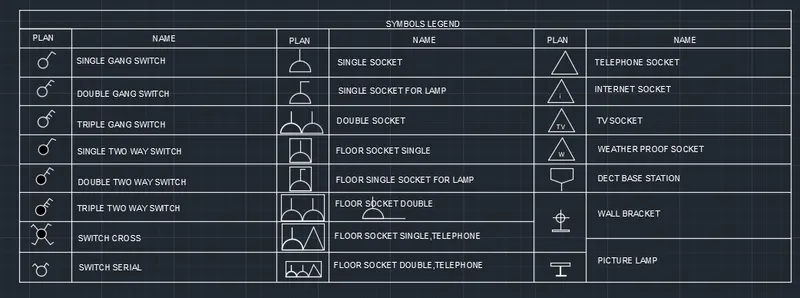
RESULT:
4)AIM:
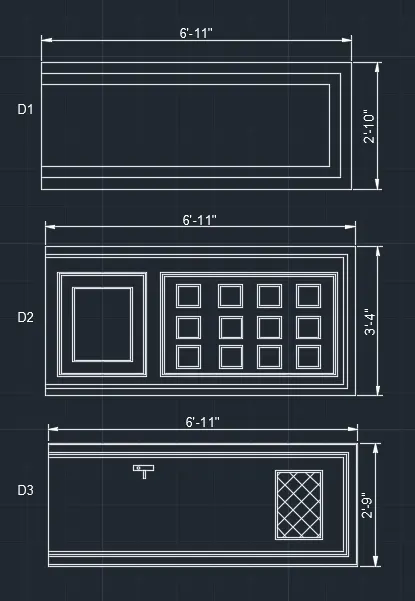
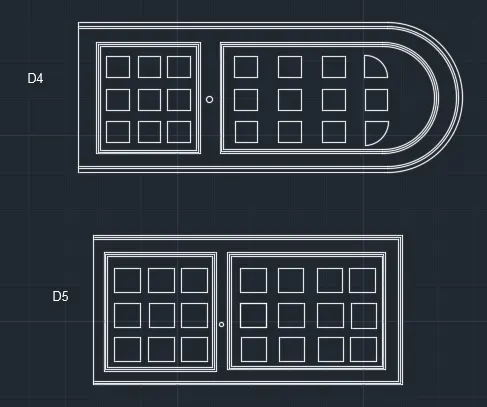
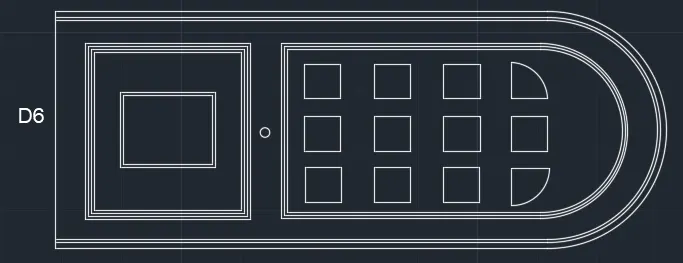
Create the door type for residential building as a block. Save the name of the blocks as type. Use given dimensions or assume dimensions as per industry standards.
PROCEDURE:
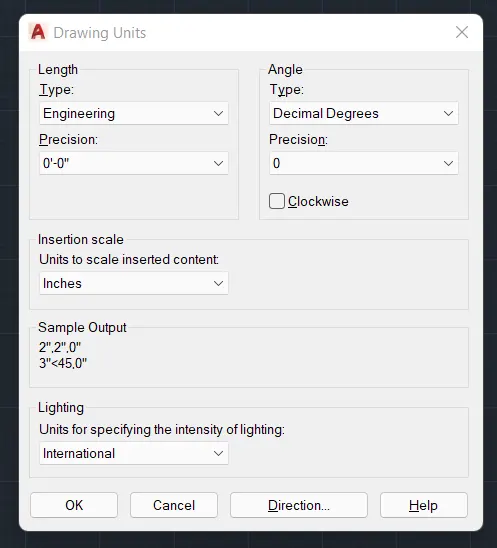
Set the units type emngineering , precision 0'-0",insertion scale to inches
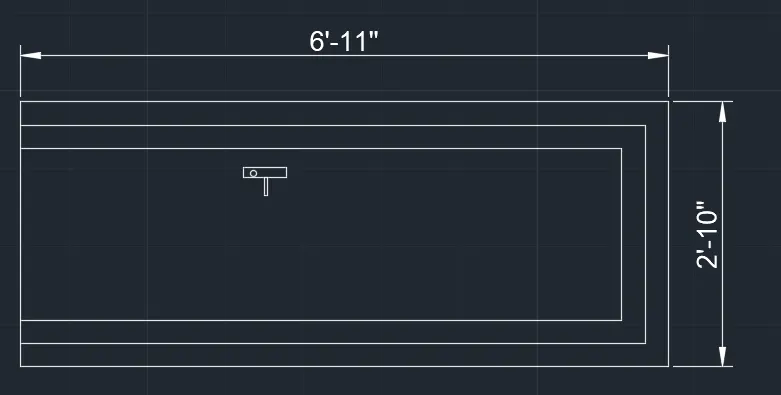
Draw door 1 of dimension length 6'-11" & width 2'-10"
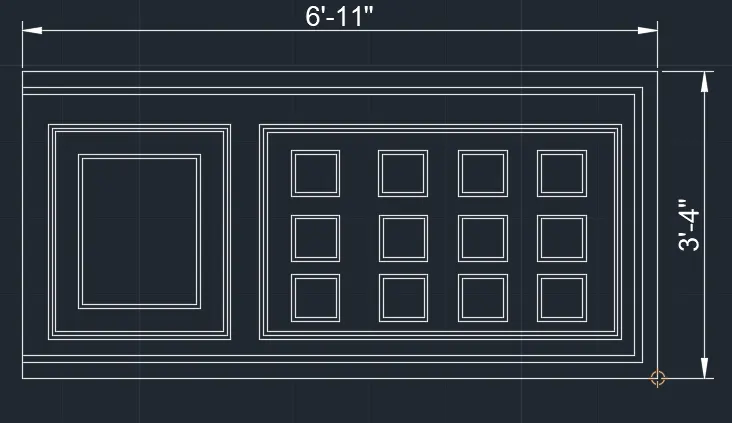
create door 1 of dimension length 6'-11" & width 3'-4"
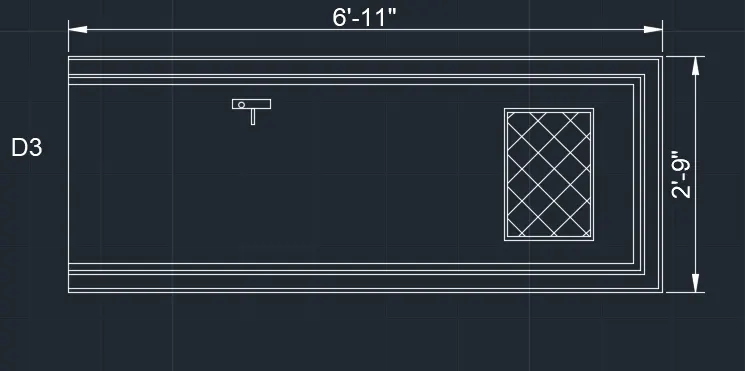
Create a door 3 of dimension length 6'-11" & width 2'-9"
create door 4 of dimension length 6'-11" & width 3'-4"
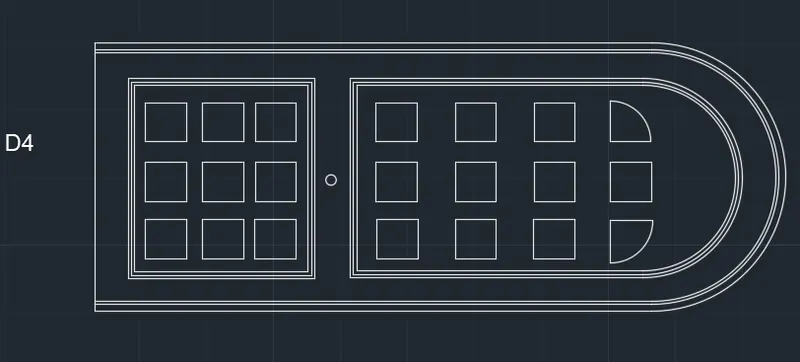
create door 4 of dimension length 6'-11" & width 3'-4"
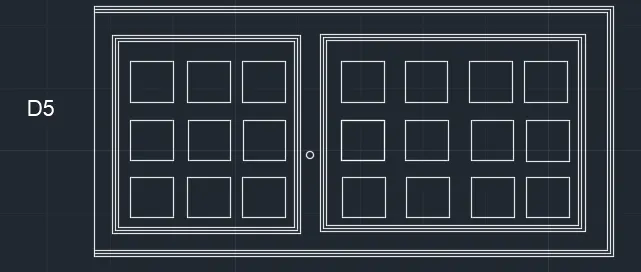
create door 4 of dimension length 6'-11" & width 3'-4"
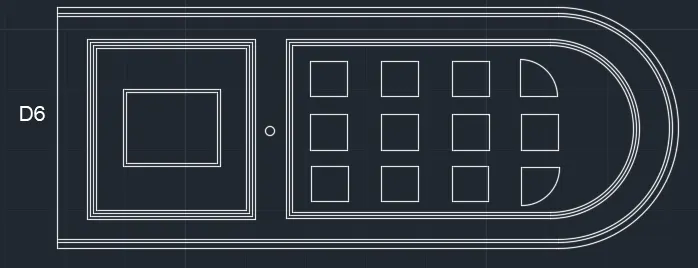
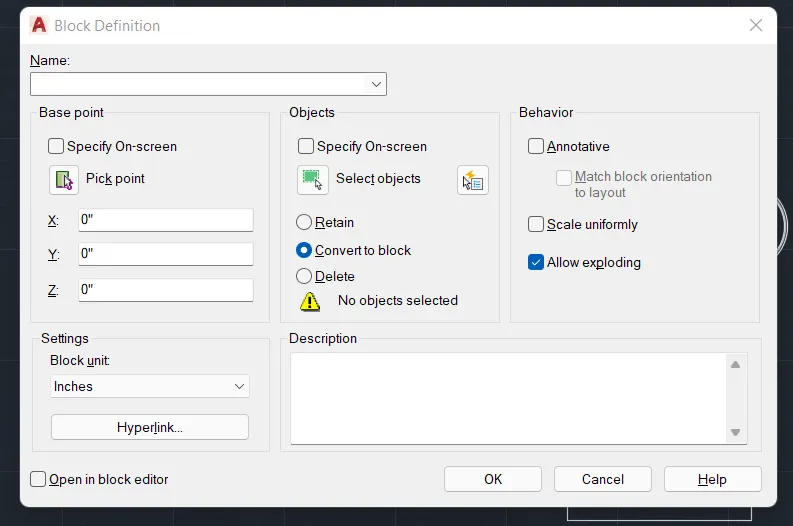
Create a block for each door
RESULT:
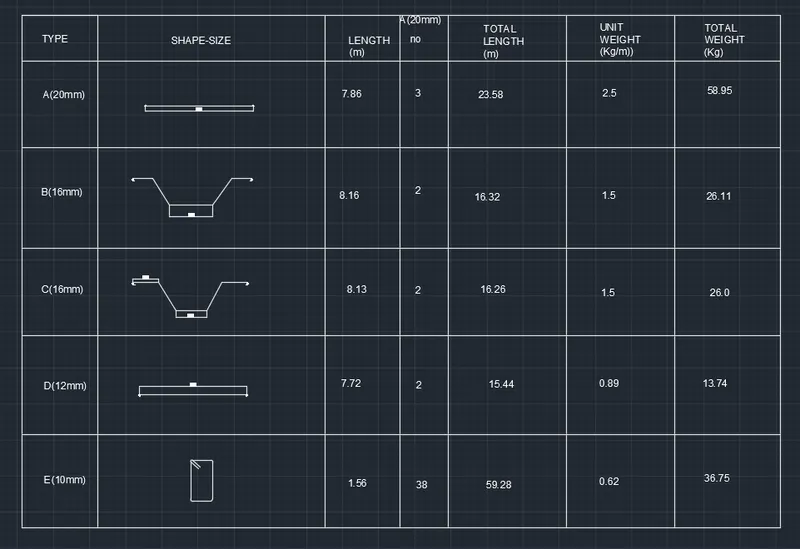
5)AIM:
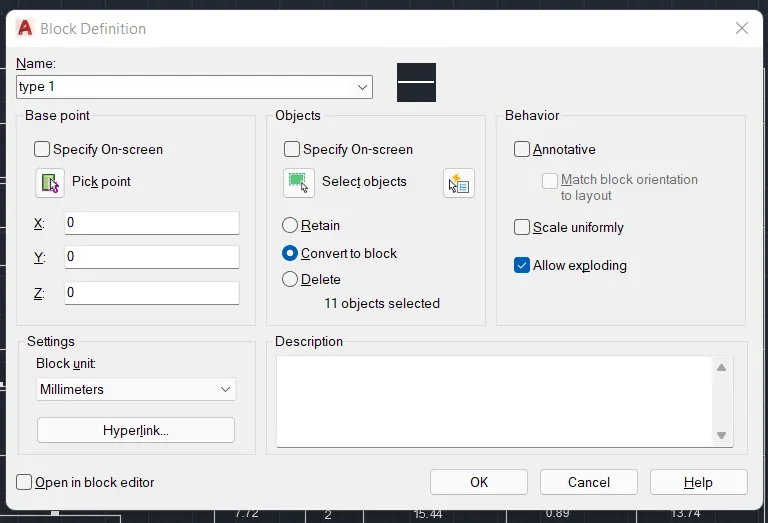
Create each shape as a block as shown in the Figure. Save the block and insert them on the table as shown in the Figure.
PROCEDURE:
Create each symbol as per given dimension
Create a block for each symbol & insert it
Create a table ,use MTEXT command for creating titles
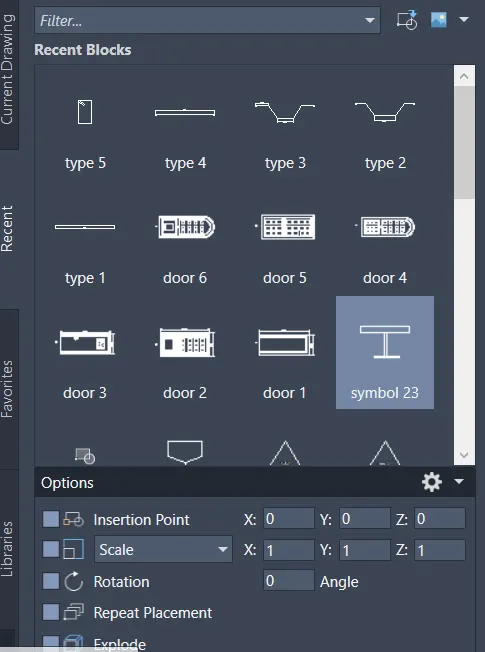
RESULT: