Creating Architectural and Structural model with 3D rendering using REVIT
1) Select the type of structure you want to build from one of the three below:
a. Multi-Unit Residential Apartment
b. Office Buildings
c. School
Ans :
Office Buildings
2) Assume reasonable assumptions for geographic and location details for your project modeling. Based on assumptions and type of structure selected identify the modeling requirements from NBC
The modelling requirements from NBC for office buildings are as follows,
- The FAR value of the building shall be 2.9
- The open space around the building shall not be less than 4.5m.
- The width of the road connecting the building shall be 30'
- The min. plot area should be 2800 sq.m and the min. size for each floor shall be 2000sq.m.
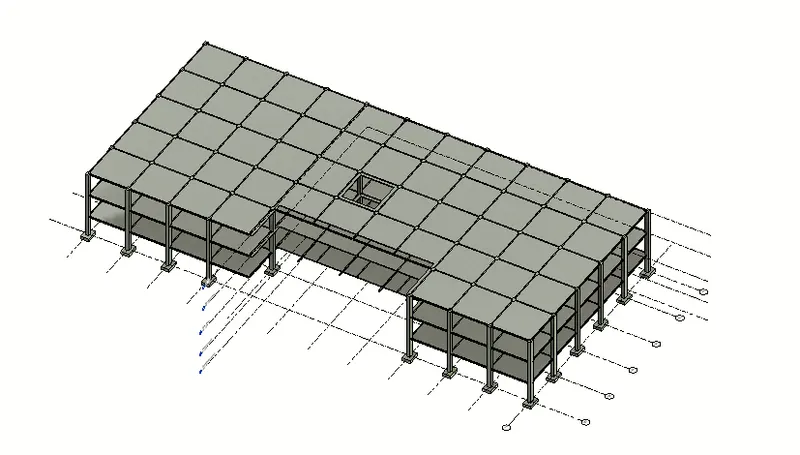
3) Using the structural model, include the following components based on the type of structure selected
a. Foundation – Isolated / Wall/Matt Foundation
b. Columns
c. Beams Connected to Columns
d. Roof Framing/ Truss
e. Floor / Decks
f. Floor Openings for Elevators and Stairs
Aim:
The aim is to include the above listed components based on the type of structure selected,
Result:
Hence the above listed compponents are included in the model.
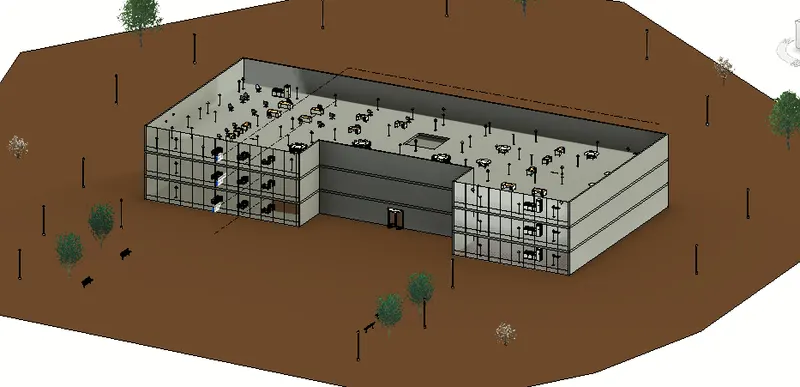
4) Using the architectural model, include the following components based on the type of structure selected
a. Wall Layout with appropriate material and finishing
b. Exterior façade with fancy finish
c. Interior partition walls to size rooms
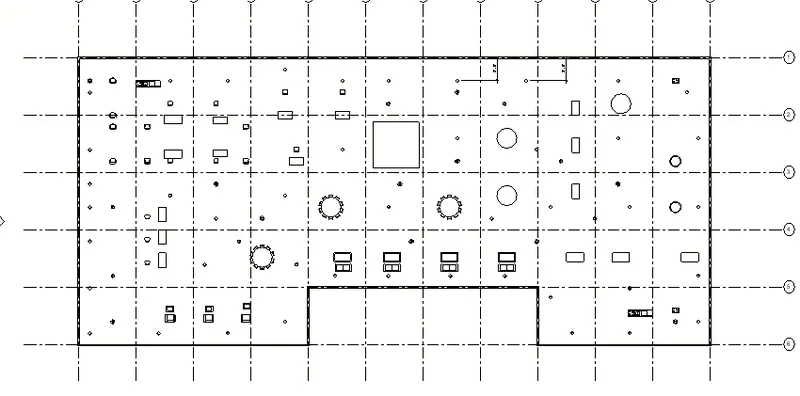
d. Components to add details to a room ( Desk, Chair, Lighting, Plumbing fixtures)
e. Add components such as stairs Elevators
f. Have at-least one side of the building with curtain walls and glass panels
g. Include interior and exterior lighting fixtures
h. Place proper topographic components from outside ( Trees, Parking, Plants) to add details to the model
Aim:
The aim is to include the above listed components based on the type of structure selected
Result:
Hence the above listed components are in place in the model.
5) Provide a set of drawings in an architectural and structural model to list the following details with categories and appropriate sheet templates included
a. Floor Plans with Annotations
b. Elevations
c. Sections
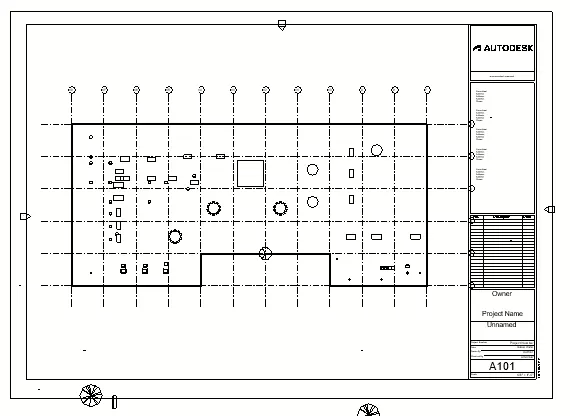
Floor Plan:
- Create the sheet and rename the same from the view option.
- Then drag the floor plan to the sheet and adjust the size of the view.
- Now the floor plan is created in the sheet.
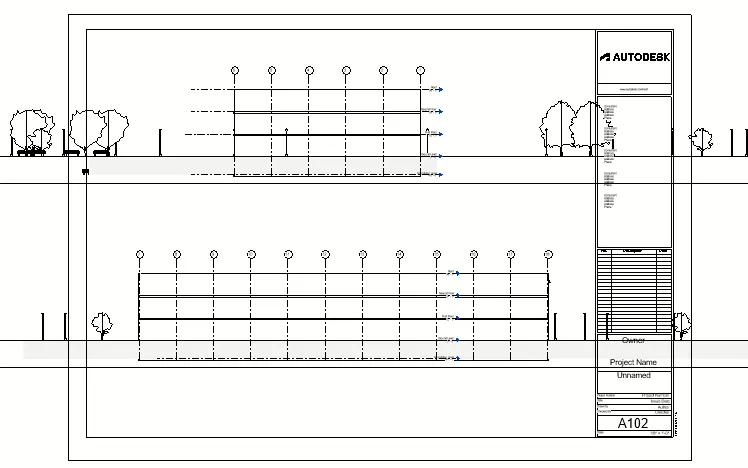
North - East Elevation:
- Create the sheet and rename the same from the view option.
- Then drag the North and East elevation from the elevation tab under properties to the sheet and adjust the size of the view.
- Now the elevation views are created in the sheet.
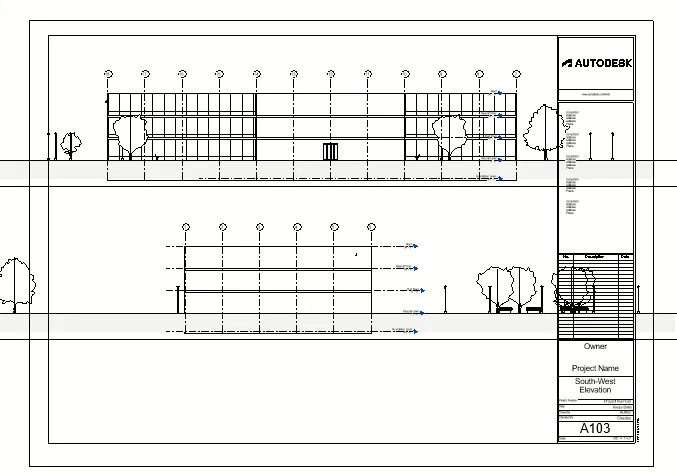
South-West Elevation:
- Create the sheet and rename the same from the view option.
- Then drag the South and west elevation from the elevation tab under properties to the sheet and adjust the size of the view.
- Now the elevation views are created in the sheet.
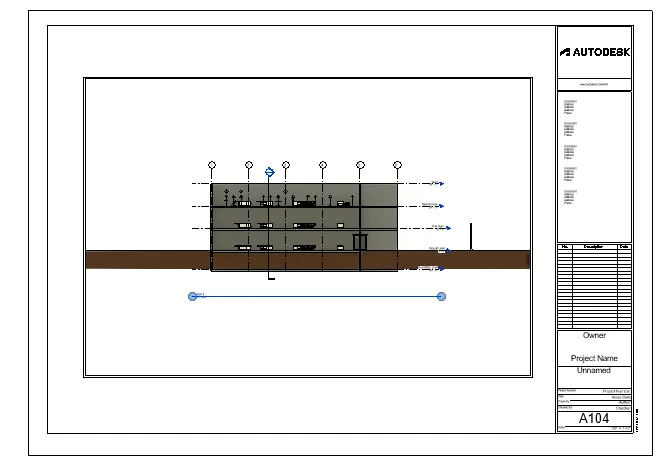
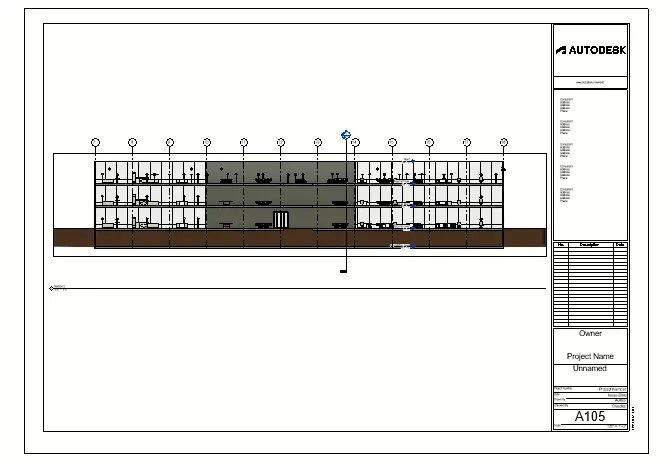
Sections:
- Create the sheet and rename the same from the view option.
- Then drag the section views from the section tab under properties to the sheet and adjust the size of the view.
- Now the section views are created in the sheet.
Result:
Hence the listed views are created using the above desrcibed respection features.
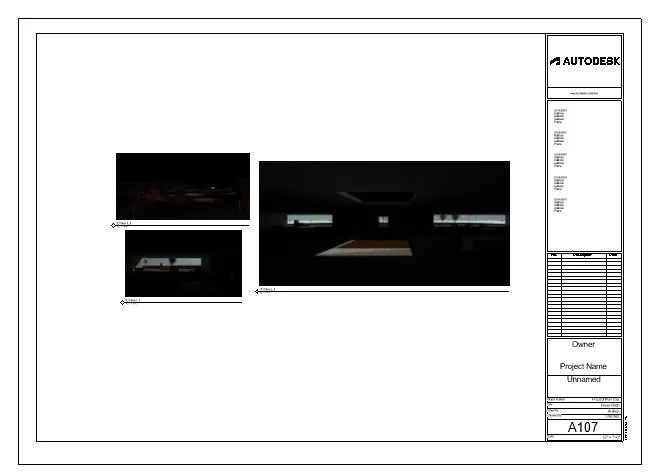
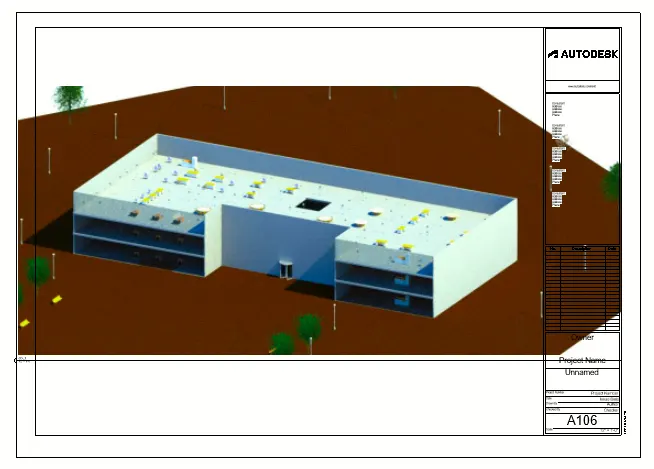
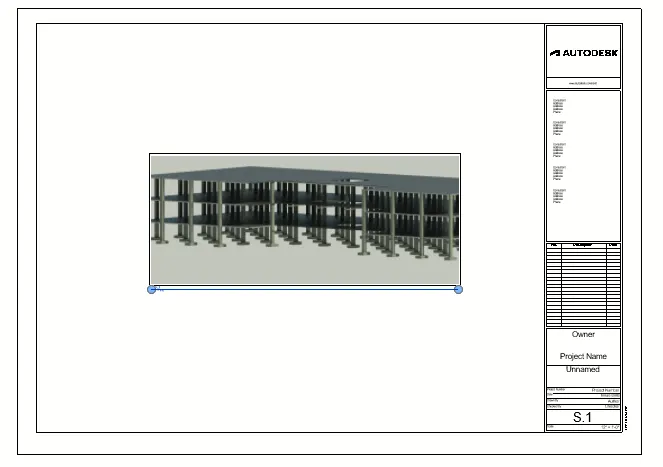
6) Using the Rendering settings, Render images of the 3D model produced and include the rendered images to the drawing sheets
a. Rendering from interior rooms
b. Rendering from out showing topographic features
c. Rendering through structural framing
Aim:
The aim is to render the model in above listed views,
Steps:
- Set the cameras in appropriate locations and save the views.
- Then select the view and use RR command to render, adjust the settings as per the requirements in exposure.
- Render the model in High quality and save the image.
- Create the sheet and inser the rendered images in the sheet and save.
Result:
Hence the rendering is completed and listed views are created.
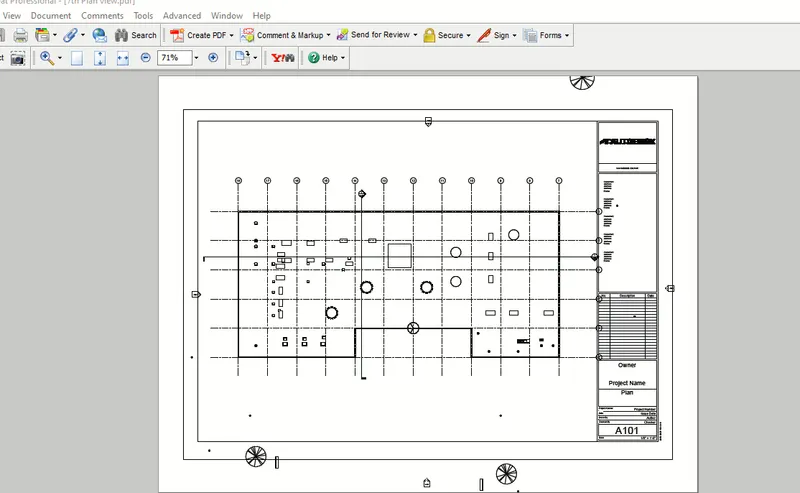
7) Print the set of drawing sheets created and submit the drawings from the architecture and structure model
Aim:
The aim is to print the set of drawing sheets created and submit the drawings from the architecture and structure model
Steps:
Select the views and use Ctrl +P option to print and save its as PDF.
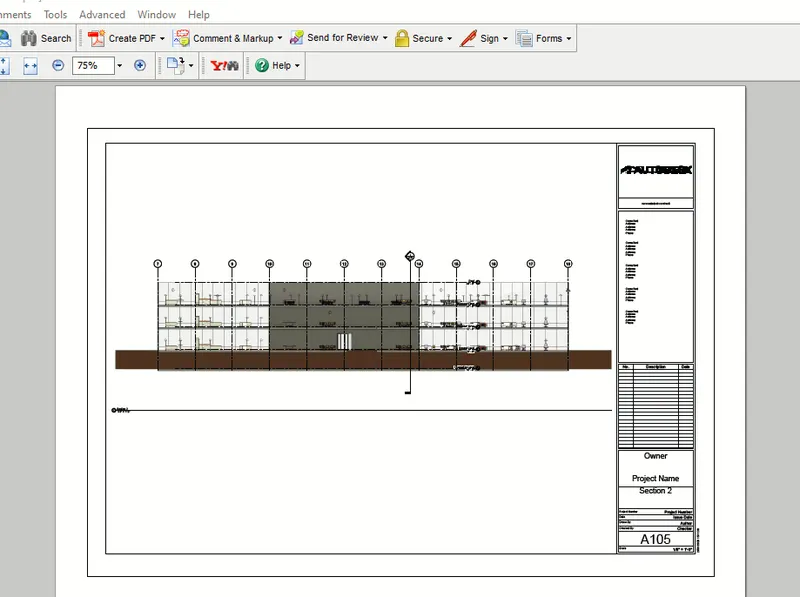
Result:
Hence the rendered view is printed and saved as PDF format using the Ctrl+P option.