Creating Architectural and Structural model with 3D rendering using REVIT
Q.1
The selected type to model is an "Office Building"
Q.2
The following assumptions are in compliance with the NBC:
- The open space around the building shall not be less than 4.5 m
- The type of construction is Type 2, hence the FAR value for a such business building shall be taken as 2.9
- The plot size is taken as 40 m x 70 m (2800 square meters), and the ground floor area is 1200 square meters so the FAR value is 2.3 which is within the limits of the NBC.
- The width of roads around the building is taken as 10 m
Q.4
1- Create a new metric architectural file.
2- Add levels & grids from the Architectural ribbon.
3- Add walls, floors & ceilings from the Architectural ribbon.
4- Add furniture & site components from the Architectural ribbon.
5- From the Site Plan move the Project Base Point to the intersection of axis A & 1
6- Save the file as "Architectural.rvt"
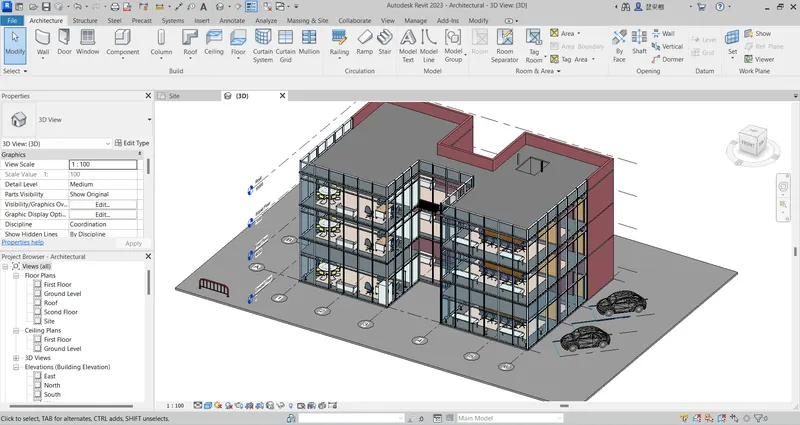
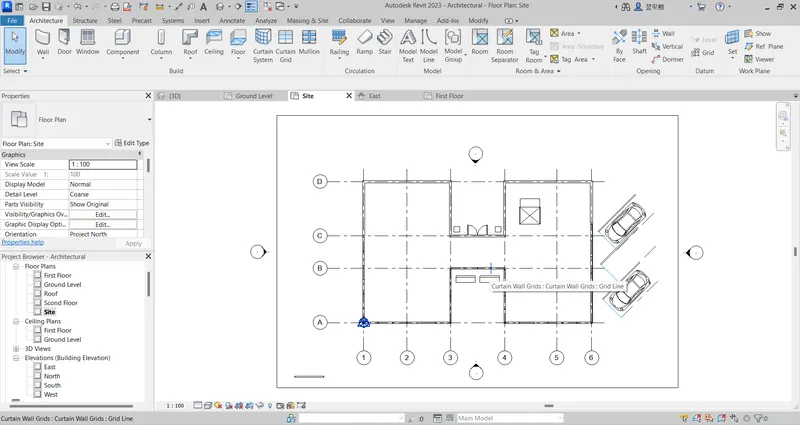
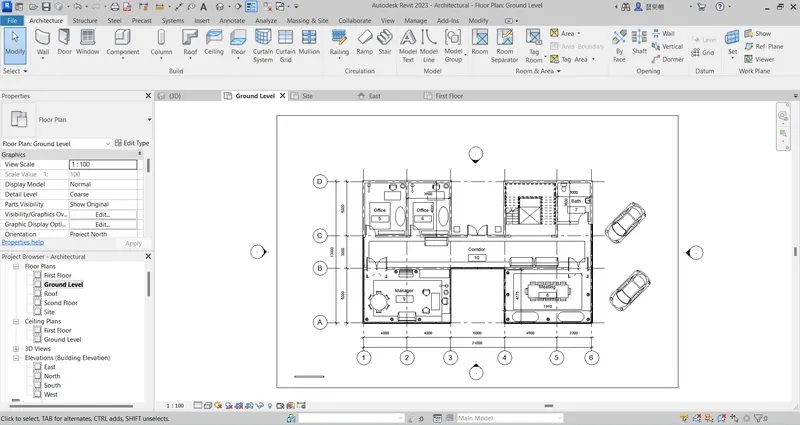
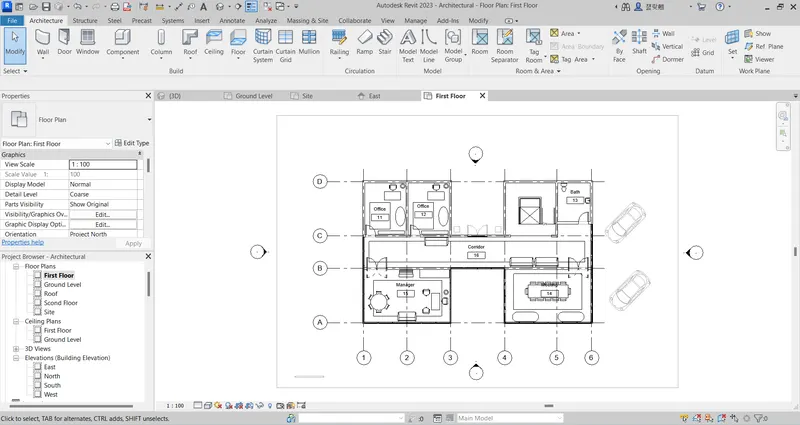
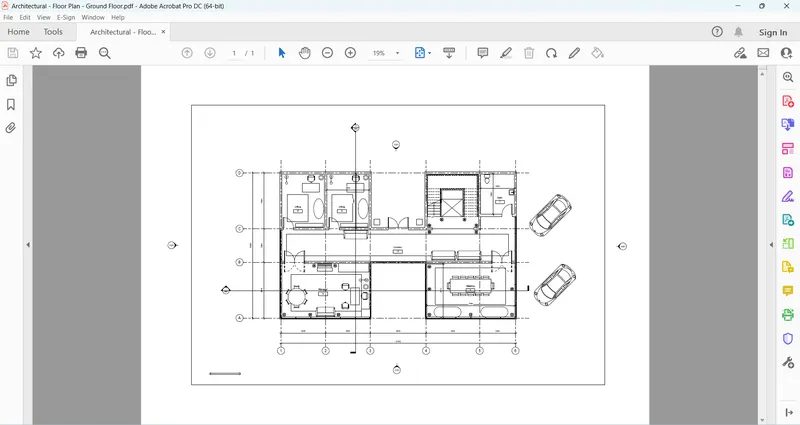
The following are screenshots for the 3D, Site, Ground Floor, First Floor, Second Floor & Roof Plan respectively:
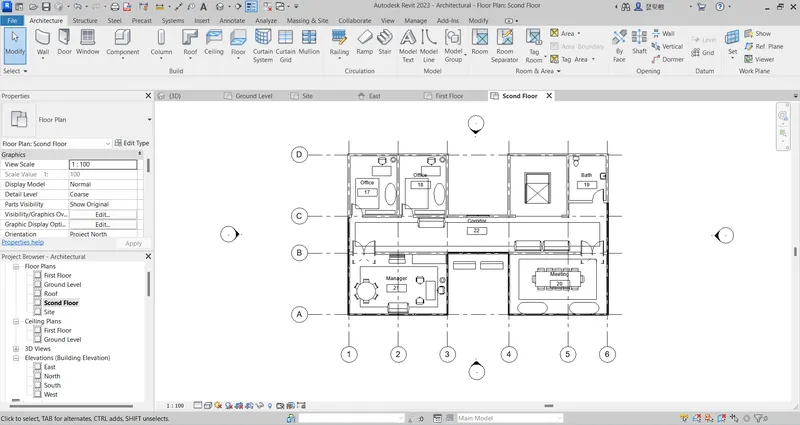
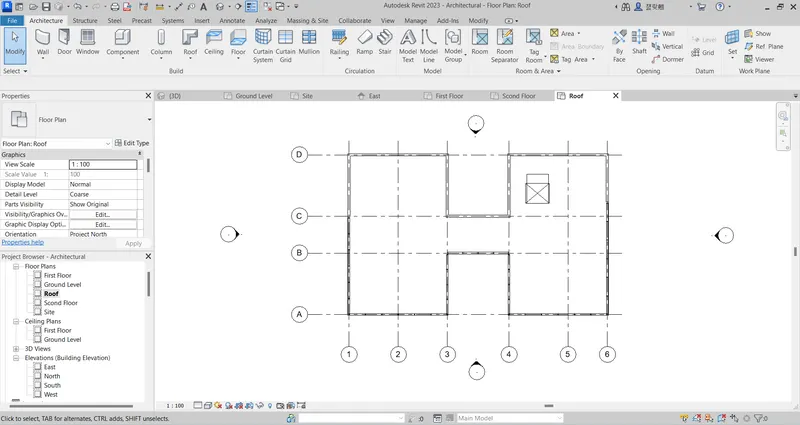
Q.3
1- Create a new metric structural file.
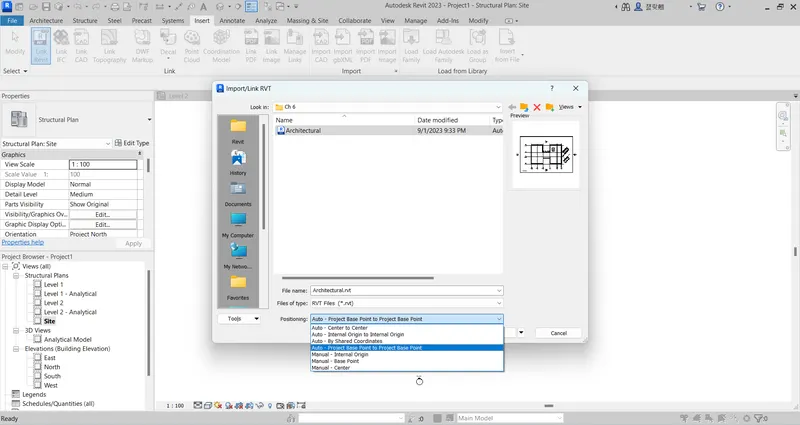
2- Insert the Architectural file as a link: Insert --> Revit Link --> Browse for the Architectural file --> Choose Base Point to Base Point
3- Copy the Axis, Levels, Floors, and Opening Shaft from the Architectural to the Structural File: Collaborat --> Copy/Monitor --> Multiple --> select & finish (the following is a screenshot of the copied items)
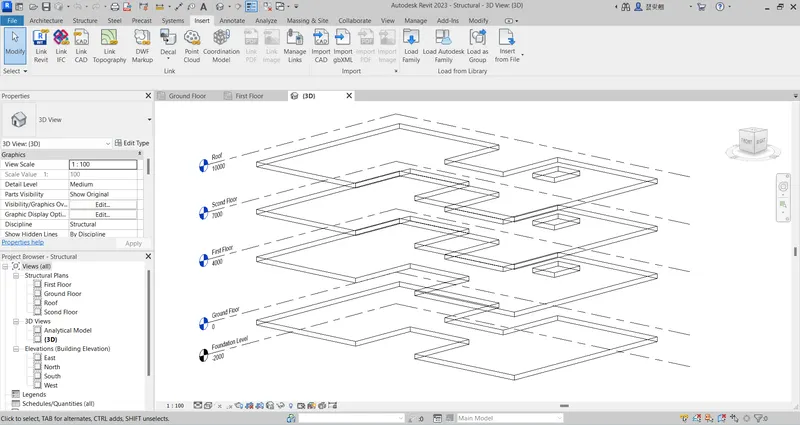
4- Add a new level & view for the foundation: Structure --> Level & View --> Plan Views --> Structural Plan
5- Add the Column: Structure --> Column --> At Grids
6- Add the Beams: Structure --> Beams --> At Grids
7- Copy the Columns & the Beams at the First & the Second floors: copy --> Paste --> Aligned to Selected Level
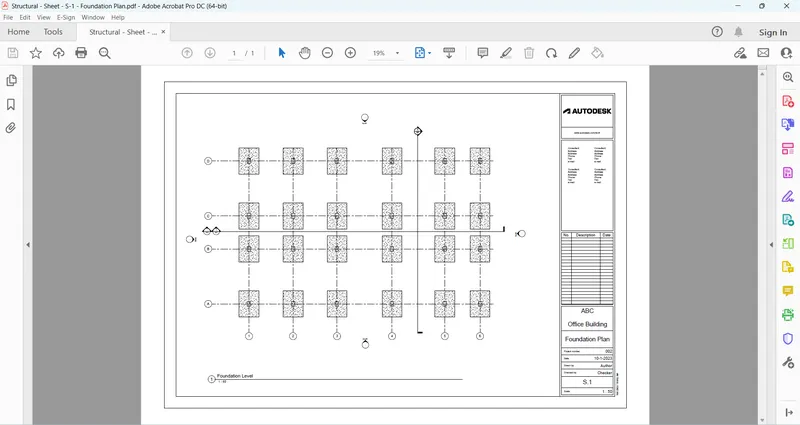
8- At Foundation Level draw the foundation: Structure --> Isolated --> At Grids
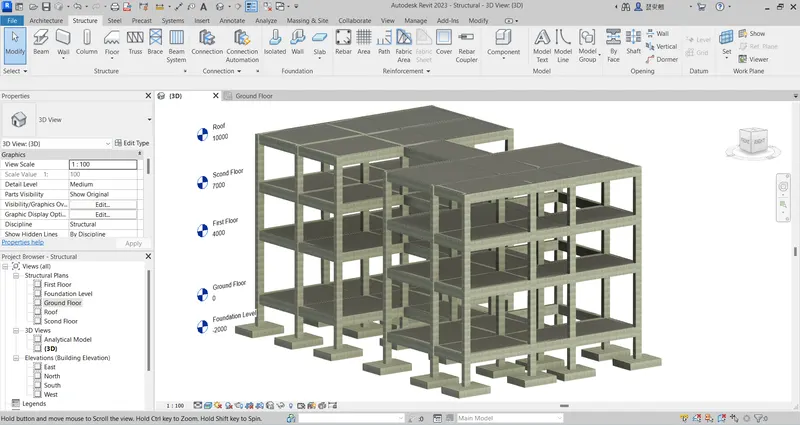
The following is the screenshot for the 3D view of the building structure
Q.5
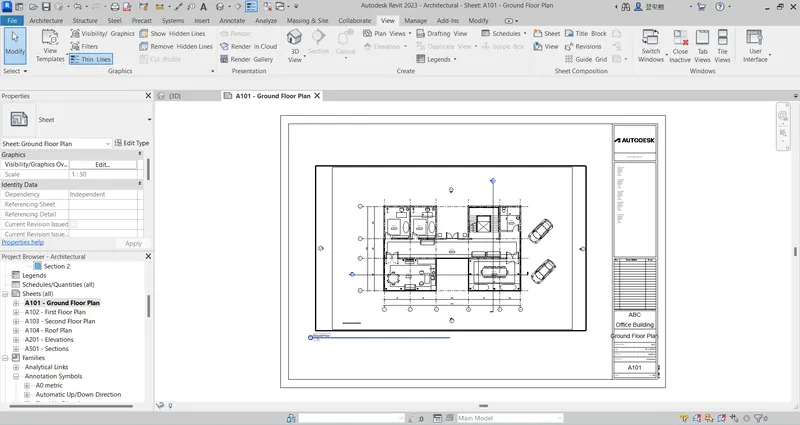
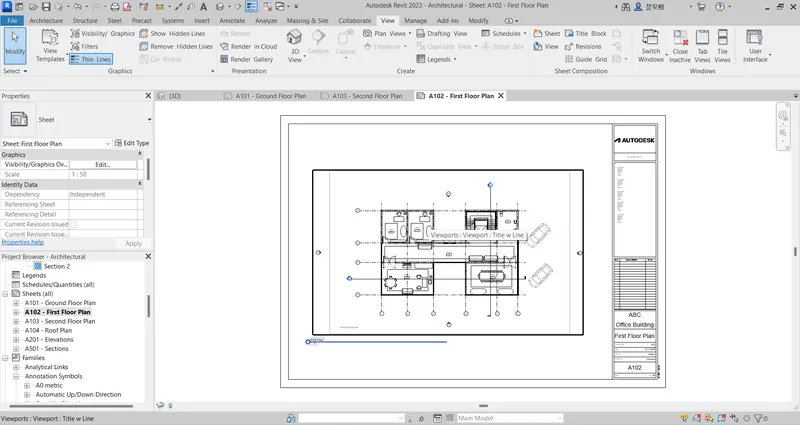
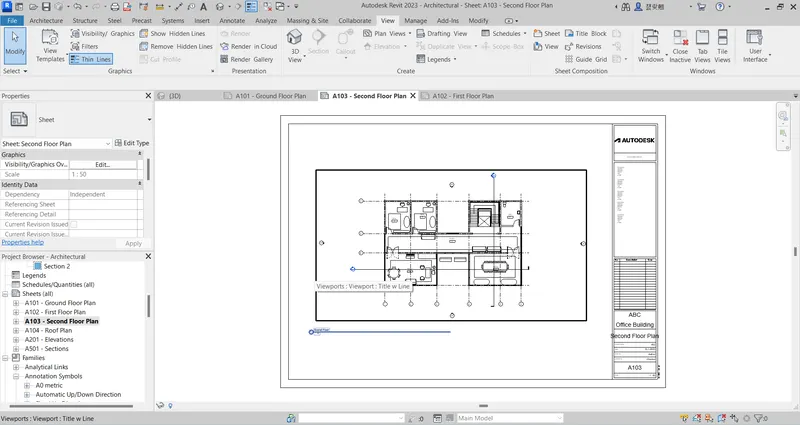
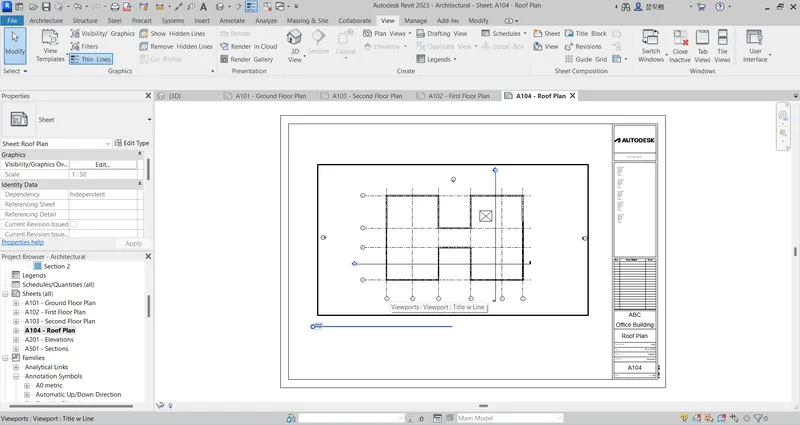
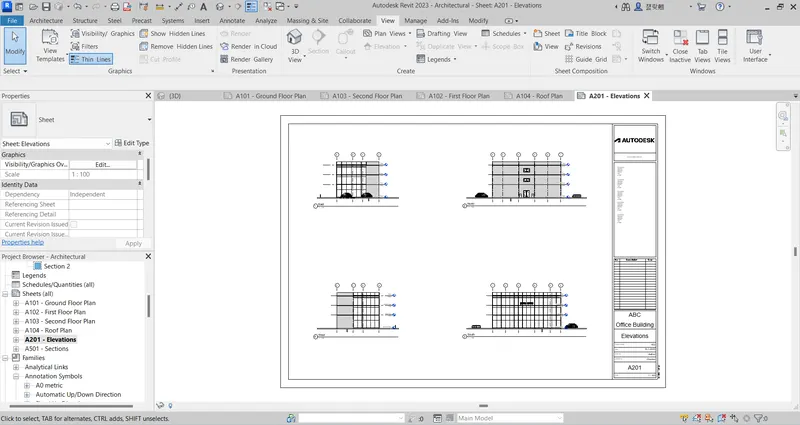
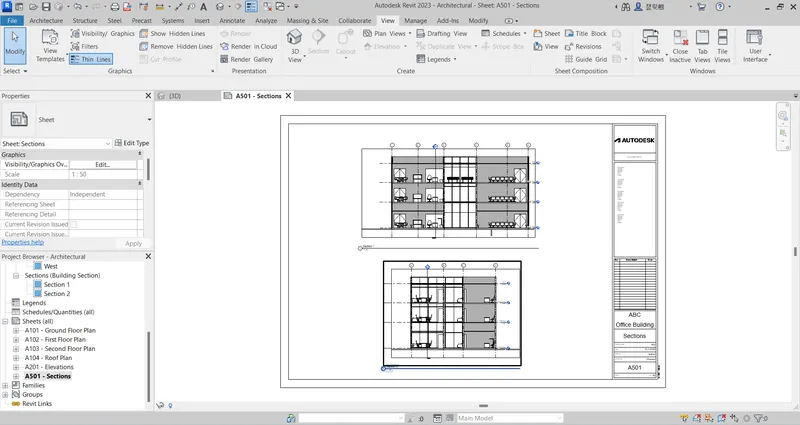
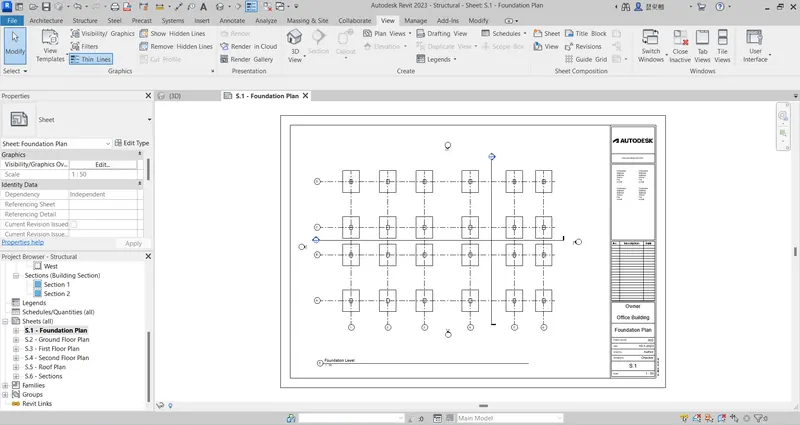
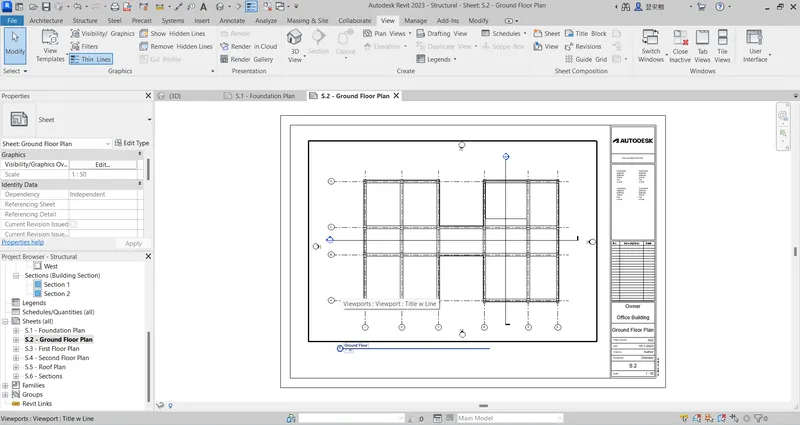
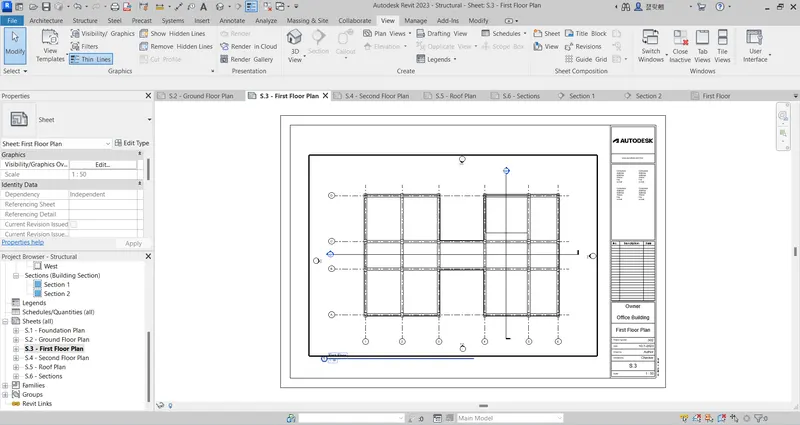
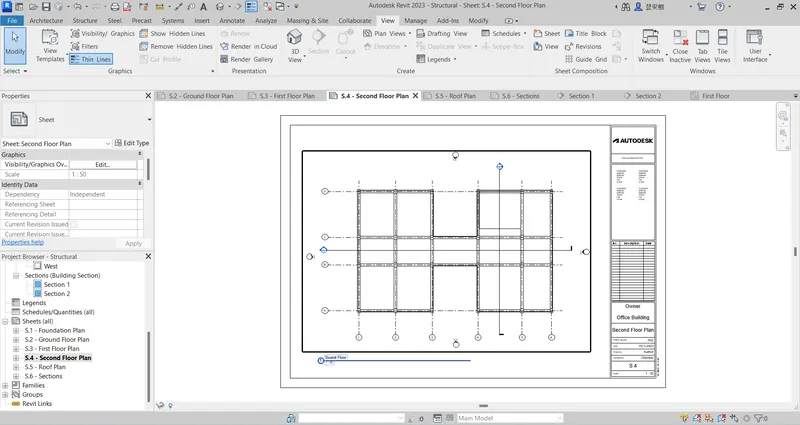
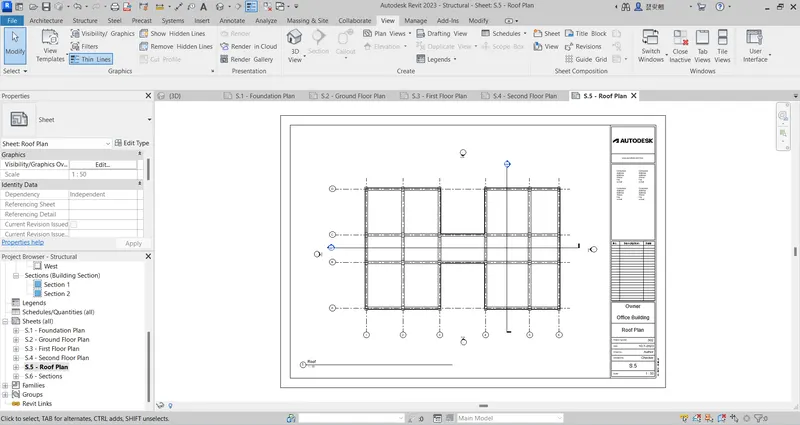
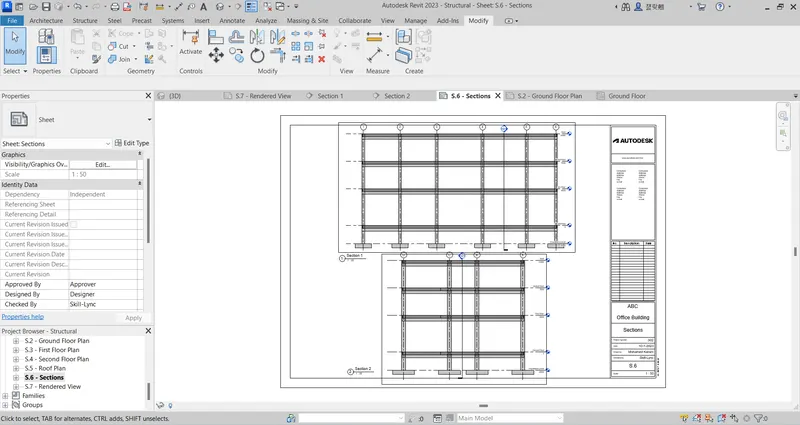
Create the required sheets: View --> Sheet
The following are screenshots for the required architectural sheets
The following are screenshots for the required structural sheets
Q.6
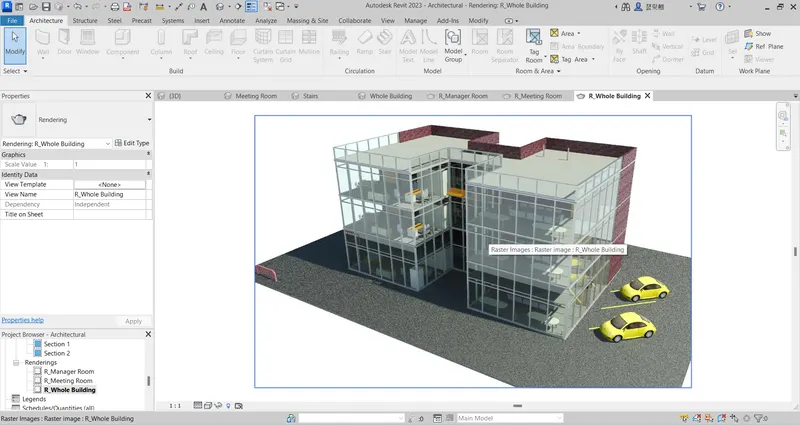
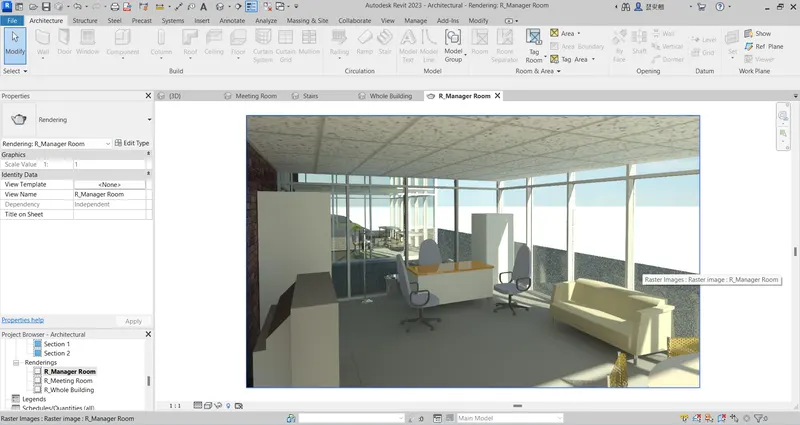
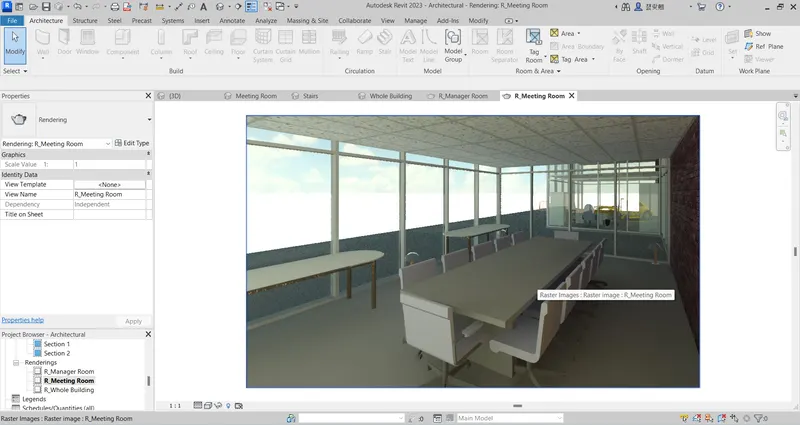
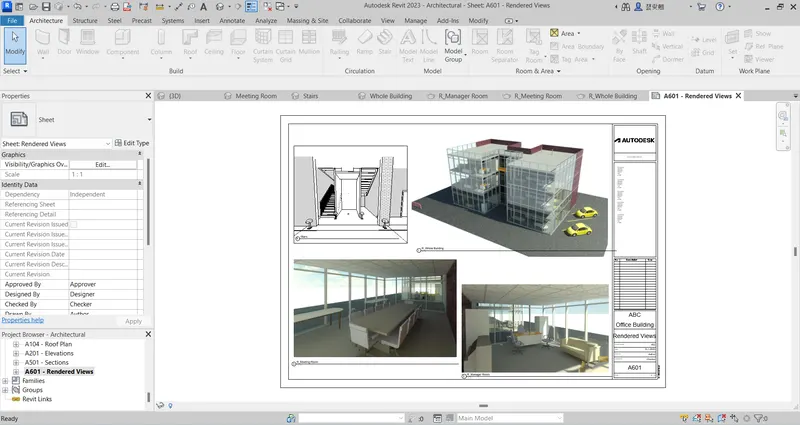
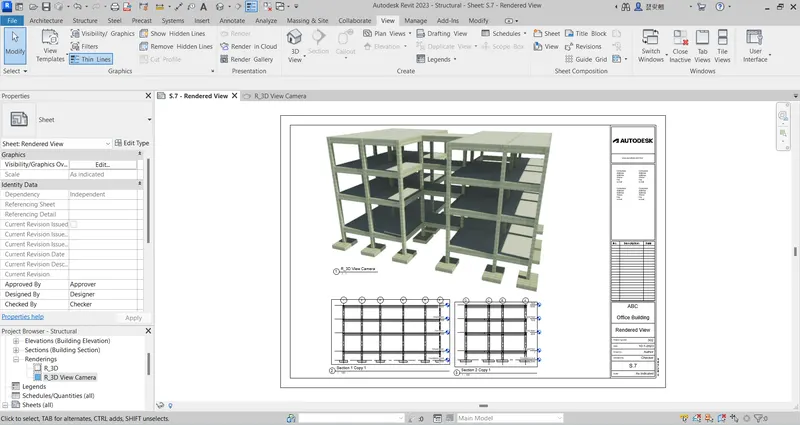
To render: View --> Render
The following are the rendered views for the architectural views
The following is the rendered view for the structural 3D view
Q.7
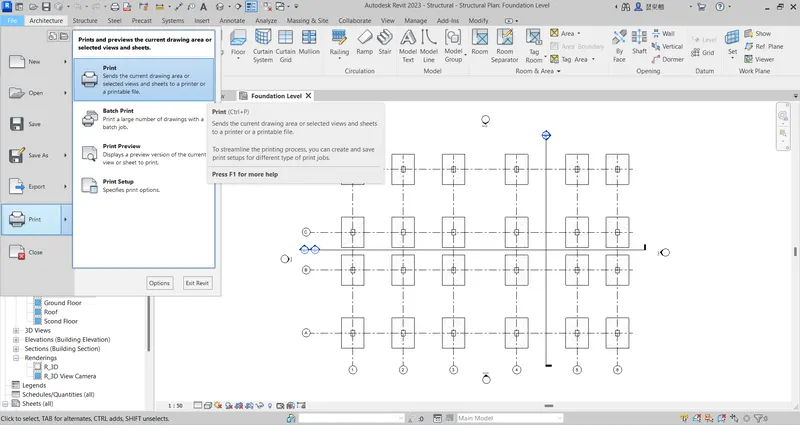
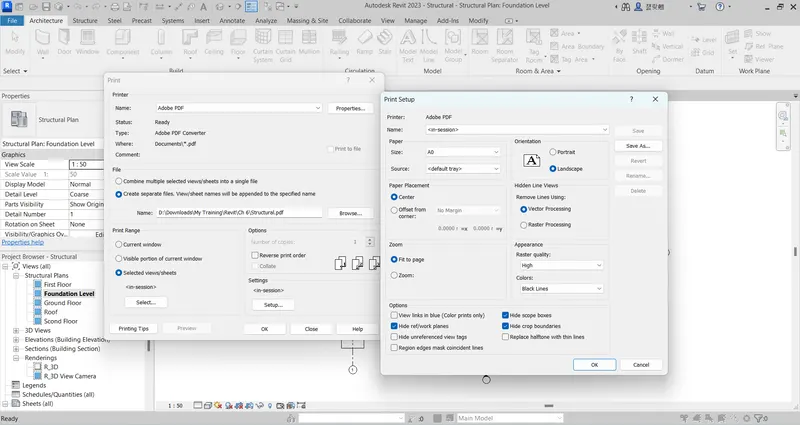
To print sheets: File --> Print
The project files are attached.
======================================================================================