Creating a Residence Layout, Seating plan, Toilet and Utility room plan using AutoCad
Creating the Residence Layout, Seating plan, Toilet and Utility Room in the AutoCAD.
1.Aim:- To crate or draw the Residence Plan in AutoCAD.
Introduction:-
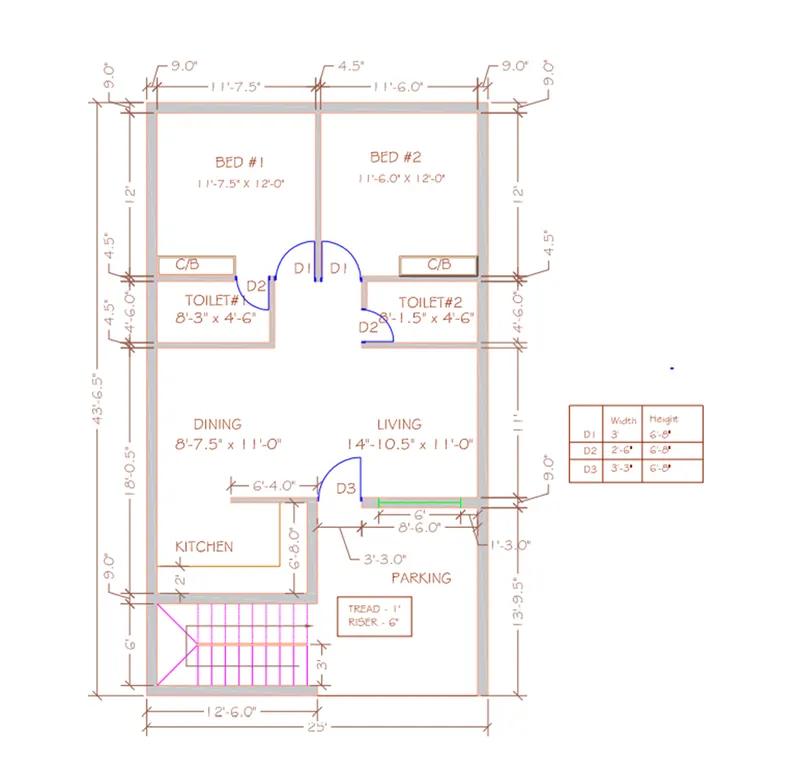
The Residential plan or a layout consisting the following units/parts:
- Two Bedrooms
- Two Toilets
- A kitchen
- Dining Room
- Living Room
- Parking units
- Staircase unit
Procedure:-
- Open the AutoCAD application
- Type Qnew and press enter
- Set the limits of the drawing , type LIMITS command
- Specify first corner as 0,0
- Specify upper right corner as 50’,50’
- Set default unit as Imperial [feet and Inches]
- Set the units unit unit command as engineering unit with the precision of 0’0.0’’
- Take the Xline command and draw both horizontal as well as vertical line
- Trim the negative coordinates
- Take the offsets at the 9.0’’ to both vertical and horizontal lines
- Take the offset to bottom horizontal line at the distance of 43’-6.5’’
- Trim all unwanted lines

- Using the same above procedure create the all rooms as per the specified dimensions
- Trim all the lines that are not in use.

- To create the staircase units
- Take the offset of the vertical line of right inner side of staircase unit
- Specify the distance at 1’
- Repeat the same to create the treads 9 times

- Create the door and windows using offset command and the Arc command (Start Center End)
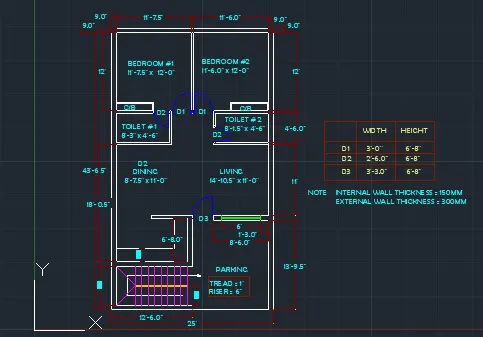
- To create the schedule of doors use Table command and write in single line text
- By use of layer command
- Give the colors to the units by using layer commands with our convenience
- Add all the dimensions specified in the given figure
Result:-
- Aim To draft the seating plan arrangement outdoor canopy in AutoCAD.
Introduction:-
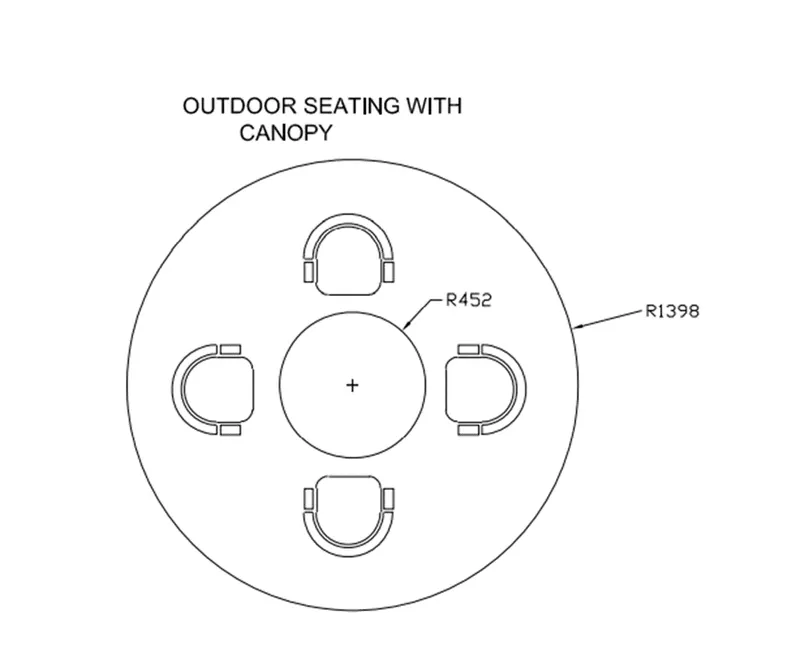
In this seating plan, consist of circular table and four chairs around the circle
Procedure :-
- Set the drawing sheet as Qnew
- Set the units as decimal with the precision of 0 [milimeters]
- Set the limits using limit command
- Specify the first corner as 0,0
- Specify the upper right corners as 2000,2000
- Take the Circle command
- Specify the center point randomly
- Specify the Radius as 1398 mm
- Again Take the circle command
- Specify the same center point as the drawn circle
- Specify the Radius as 452mm

- To create the seating:
- Give the line command
- Specify the dimensions as 500x250mm
- Draw the arc at top side of the rectangle using arc command by selecting [start end direction] from drop down
- Trim the top line of rectangle
- Take the offset to arc at the distance of 50 mm 2 times
- Create the offsets to left and right side of rectangle


- Take the Fillet command , and draw at the both bottom corners
- By selecting the lines and specifying the radius as 100 mm
- Move the created seating chair by giving the move command and specifying the base point as any corners of the chair
- Take on the position at top central portion keeping appropriate distance from the circle of radius 452 mm

- Give the Array command
- Select polar array
- Give the number of units as 4 units that I have
- Press enter

- Add all dimensions
Result:-

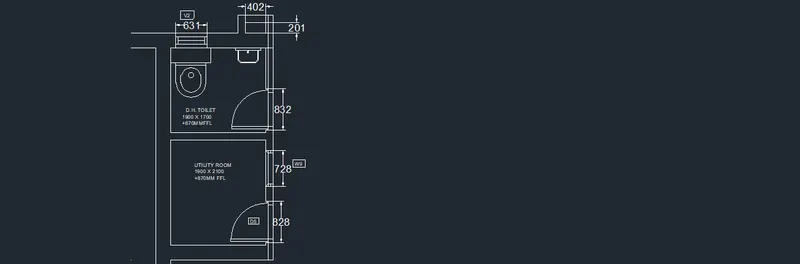
3.Aim: To draft the Toilet and Utility Room in the AutoCAD.
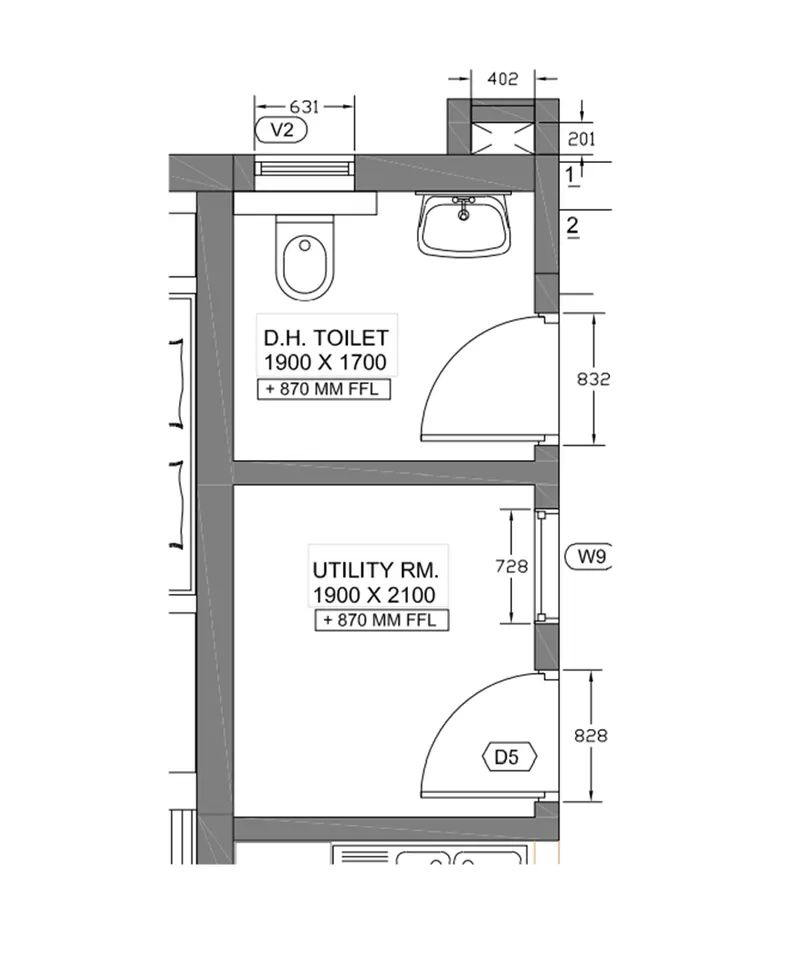
Introduction:- In this given drawing of the toilet and utility room parts
Procedure:-
- Take the Qnew drawing sheet
- Set the limits as convenience
- Set the units as Decimal [milimeter] with the precision of 0
- Take the Xline command draw the both vertical and horizontal lines
- Give the offset as 300mm for both the drawn lines
- Repeat same and create rooms as per the given dimensions

- Trim all the unwanted lines

- To create the opening of door an window use the offset, arc command and draft
- Sketch the Toilet seat and Basins assuming the size as convenience
- Use ARC , offset, CHA commands
- Then, Move and place in the appropriate position in the Toilet Room




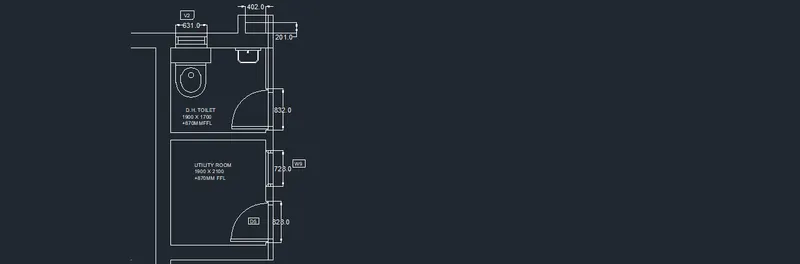
Result:-