Assignment 4
Assignment - 4
Simulating the Rupture plate.
Aim: To simulate the given rupture plate component in 7 different cases as per the condition given.
Abstract:
The given rupture plate component is to be simulated in 7 different cases. The first 6 simulations are to be done using the Johnson-Cook method, changing the property values as mentioned and are to be compared with each other. Case 7 simulation is done using the Plast_BRIT material application.
Methodology:
- Import the geometry using the solver deck option.
- Set the properties as mentioned for the assignment.
- Simulate the component using Radios in the analysis menu.
- Animate all the simulated components in the hyper view.
- Plot the graph for the simulated components and compare the results.
Procedure:
- Import the component using the solver deck and select the starter file. The given component will be as shown below.
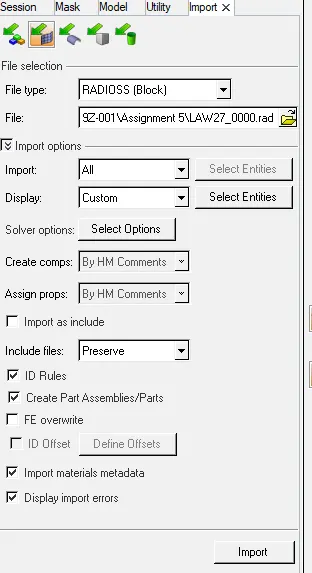
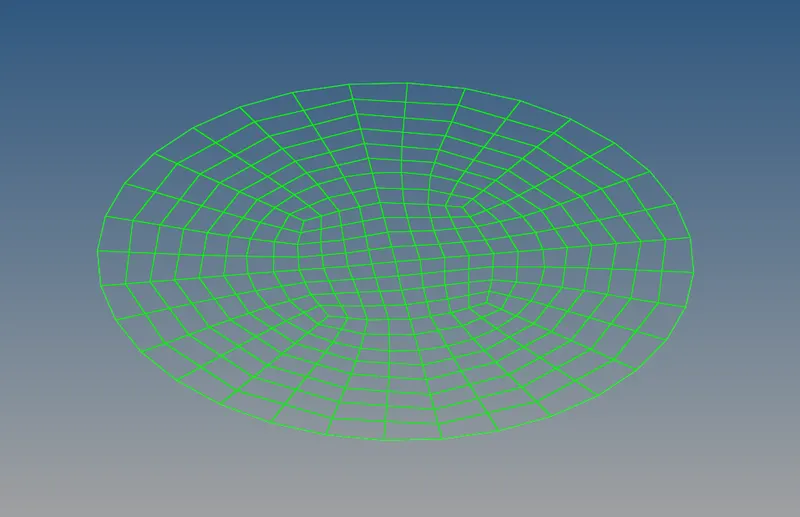
Fig 1: Import tab Fig 2: given component.
2. Simulate the component in 7 different cases. The components are simulated as shown in the below cases.
Case 1:
- As per the given condition for the first case, the given component failure file name is to be changed as 'Law2_epsmax_failure'.
The given component is to be simulated with no changes.
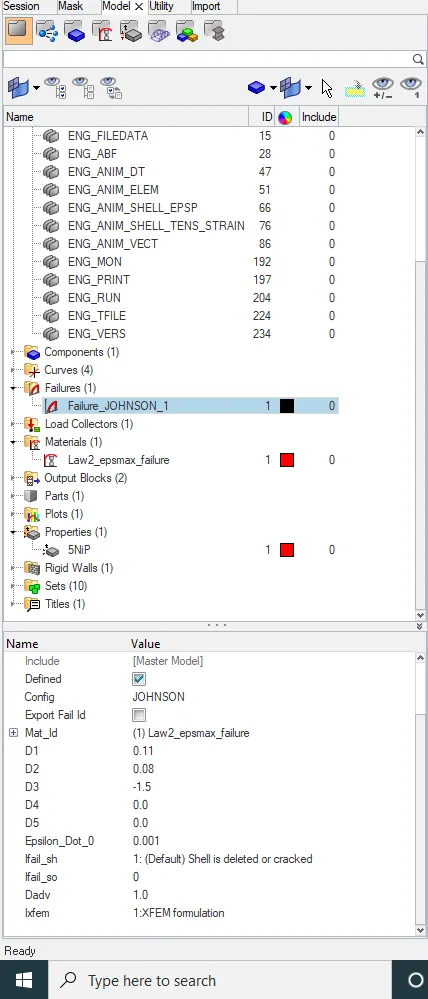
Fig 3: Failure file
2. Select the Radios option in the analysis menu. Create a new file and set the direction for saving the simulation through the radios control panel. Set the processing option as '-nt 4' select the include connection option and start the simulation of the component. The process may take a few minutes to calculate the simulation.

Fig 4: Radios control panel.
Case 2:
- For the 2nd case, the values in the failure card are to be changed as mentioned. The values to be changed are:
i) Ifail_sh = 1
ii) Dadv = 1
iii)Ixfem = 1
2. The material card name is to be changed to 'law2_epsmax_carck'
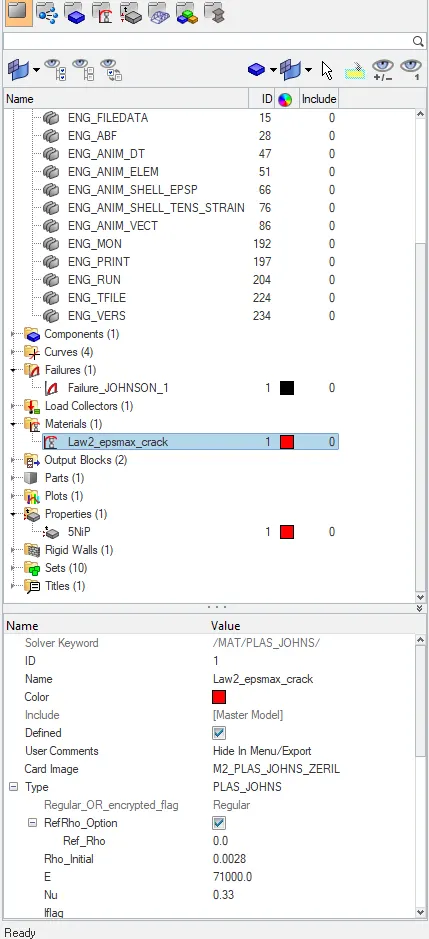
Fig 5: Case 2 material card
3. Create a new file as case 2 and start the simulation process as done for case 1.
Case 3:
1. For the 3rd challenge the failure card is to be deleted.
2. Delete the failure Johnson card and rename the material card name as 'Law2_epsmax_nofail'.
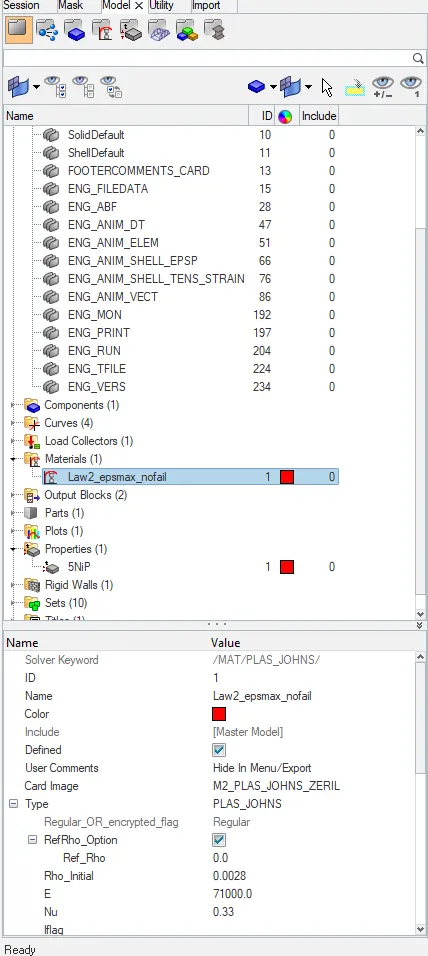
Fig 6: Case 3 material card.
3. Create a new file named as case 3, create the direction to save and start the simulation process.
Case 4:
1. In the 4th case the Eps_p_max value is to be deleted.
2. Change the value of the Eps_p_max to zero.
3. Change the name of the material card to 'Law2'.
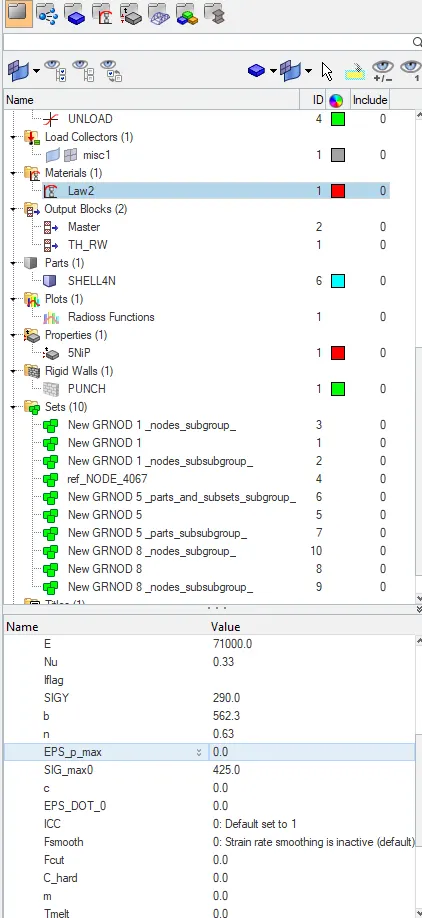
Fig 7: case 4 material card
4. Create a file named as case 4, set the direction in Radios and simulate the component.
Case 5:
1. In the 5th case the values of density, young's modulus and Poisson's ratio values are to be maintained the case.
2. The values for the mentioned properties are:
density = 0.0028
young's modulus = 71000
poisson's ratio = 0.33
3. Change the card name to law1_elastic.
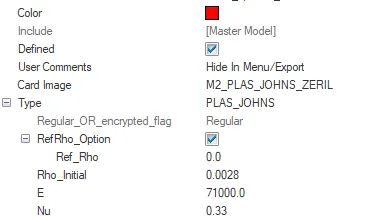
4. Create a file named as case 5 and start the simulation as done for the above cases.
Case 6:
1. In the 6th case the material type is to be changed as per the values required for the simulation.
2. The values are taken from the engine file.
3. Change the material type to law 36 elastoplastic and enter the values shown below.
young's modulus = 71000
poisson's ratio = 0.33
Eps_p_max = 0.16
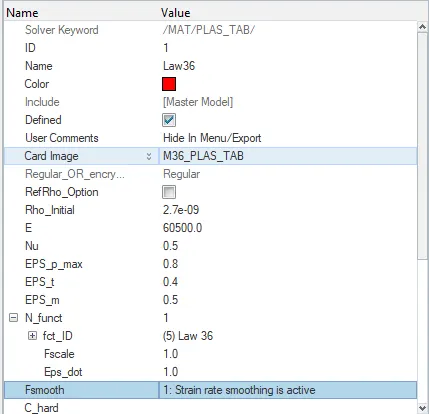
Fig 9: case 6 material card.
- A graph curve is to be plotted from the engine file. Create a new curve file in the tab bar and plot the graph accordingly.
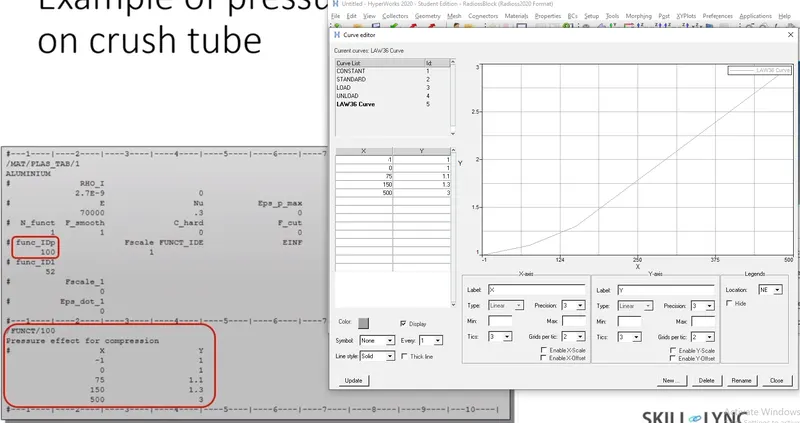
Fig 10: plotting graph as per the values given.
- Create a new file as case 6 and start the simulation as done for the previous cases.
Case 7:
1.In the 7th case the material type is to be changed to law 27(PLAS_BRIT).
- Change the type of the material card and compare the values of the material card and the slide given for the assignment. If needed change the values as per the given slide.
- Create a file named case 7, save the direction and simulate the process.
- The simulation and graph for case 7 are as shown below.
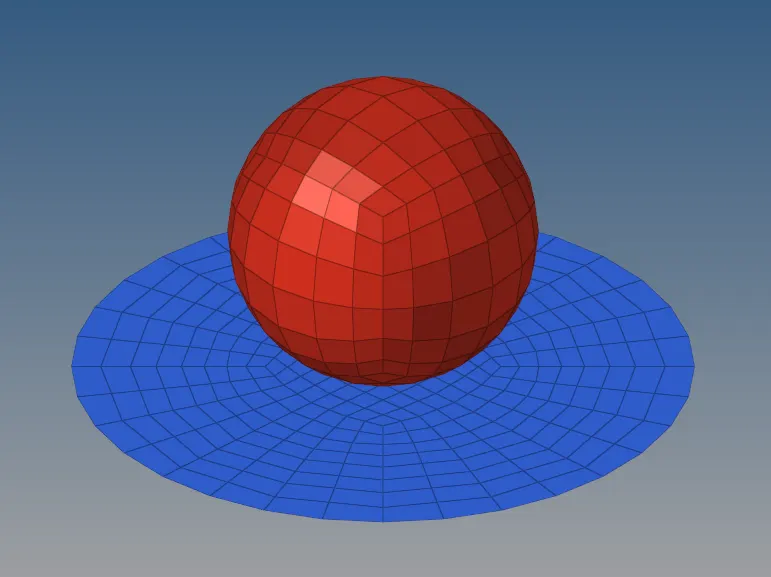
Fig 11: Case 7 animation
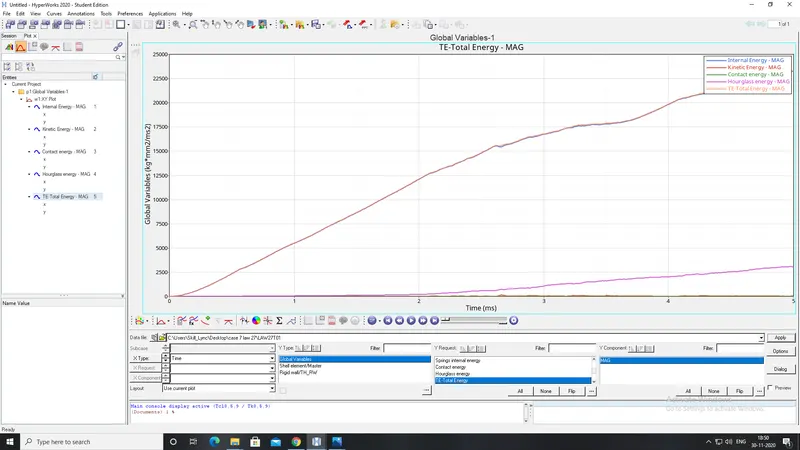
Fig 12: Case 7 graph
Viewing Simulation:
To view the simulated files, set the hyper mesh software mode to hyper view to start the animation.
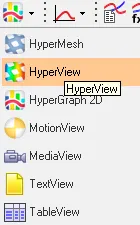
Fig 13: Selecting a hyper view option.
The animation files and the graph files will be saved in the newly created folder. Import the animation H3D file to the hyper view control panel and click on apply. The animation will start while playing the simulation.

Fig 14: hyper view control panel.
The component will be animated as shown.
Fig 15: animating component.
Plotting Graph:
A graph is to be plotted to analyze the change in the properties of the component. To check the graph set the hyper view mode to hypergraph model. Import the graph file to the hypergraph control panel. Select the properties to be analyzed in the graph as mentioned in the assignment.

Fig 15: Hypergraph control panel.
Observation:
The simulation and graph are as shown below.
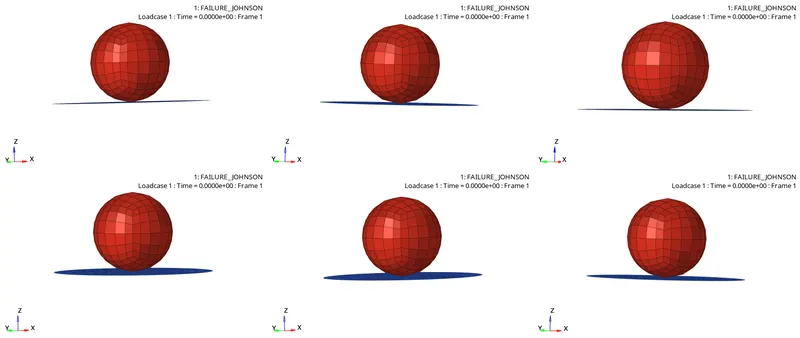
Fig 16: simulation of the component.
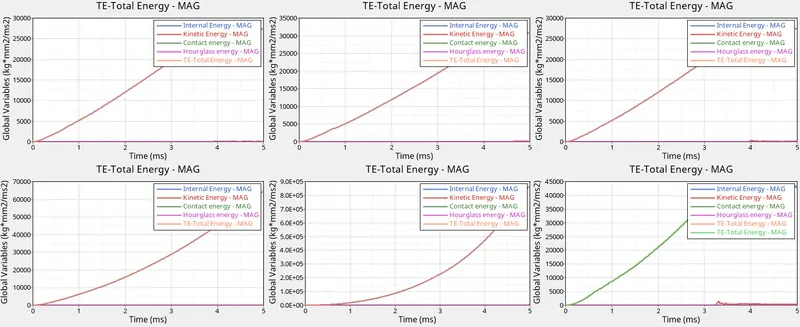
Fig 17: graphs for the simulation.
- As per the comparison, the cases 1,2 and 3 are almost similar. The initial and total energy is almost the same.
- A little bit variation is found in the kinetic energy at 4ms time in the first three cases.
- The initial and total energy is smooth in cases 4 and 5. Both have a time difference of 2ms, 5 cases being the greatest.
- The kinetic, hourglass and contact energies are constant in 4 and 5 cases.
- In the 6th case, the initial and total energies are having sudden raise in time compared to the remaining cases.
- The hourglass and contact energies are constant in case 6 whereas the kinetic energy has a sudden change near 3ms of time.
As per the above comparison to sustain the forces as per the mention properties, case 4 is preferable.
If the component is to be ruptured for a given time as per the given properties, cases 1 and 6 are suitable.
In case 5 the component won’t fail as the elasticity is more compared to the remaining cases.
Whereas cases 2 and 3 are not preferable as per the requirement.
Result :
Thus applying the properties, simulating and plotting a graph for the 7 cases and comparing the first 6 cases with each component is completed.
Learning outcomes:
- Learned the types of laws required for assigning the properties.
- Learned to simulate the components and plotting graphs.
- Learned to compare the simulations of the components using graphs.