Assignment 3
Assignment - 3
Simulation and Plotting Graph
Aim:
To simulate the given component and to plot the changes in properties of the component.
Abstract:
The given component is to be simulated with two different cases. Each case is to be analysed by crash testing and a graph is to be represented showing the change in the properties of the two cases. Both the cases are to be compared and are to be concluded accordingly.
Case 1:
1. Import the geometry in solver deck mode. Select the starter file for importing the model.
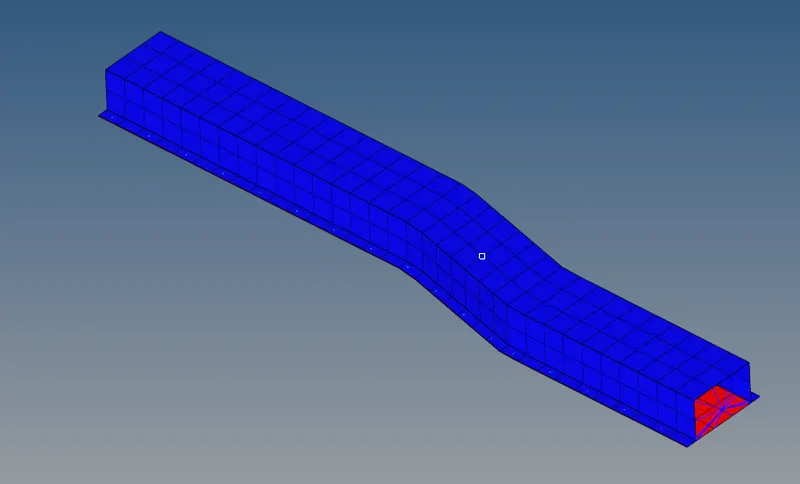
Fig 1: given model.
2. Open the cards of the geometry. Select the Engine run card andset the time stop mode to 55 as mentioned for the assignment.
Tstop is to represent the restricted time to stop the animation.
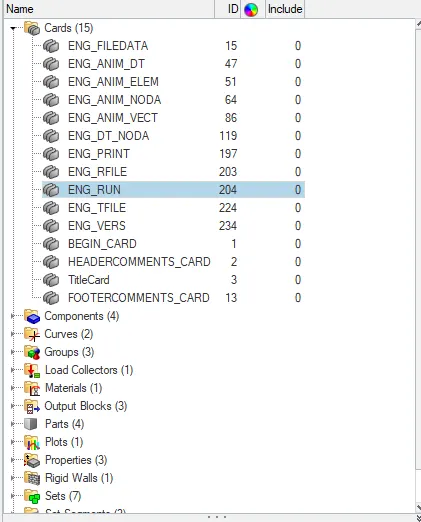
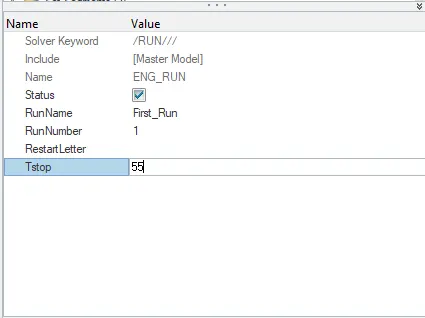
Fig 2: selecting cards in the Tab area Fig 3: Setting the Tstop time as mentioned.
3. To mention the animation time and the frequency select the engine animation time card and select the Tstart and Tfreq values as mentioned for the assignment.
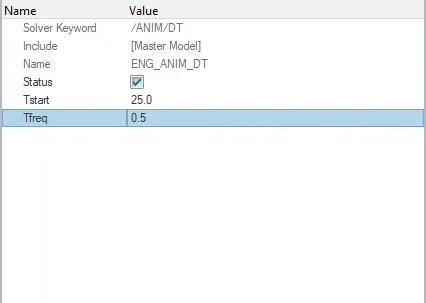
Fig 4: Engine animation card.
4. After setting the card animation values the model should be prepared for the simulation in radios. Select the Radios option in Analysis menu, browse the starter file in the input file option, save the direction of creating animation files in a new folder so that the files will be collected at one place. Select the include connection option and click on Radios option to prepare the model for simulation.

Fig 5: Analysis menu.

Fig 6: Radios control panel.
The process will take a few seconds for calculating the simulation.
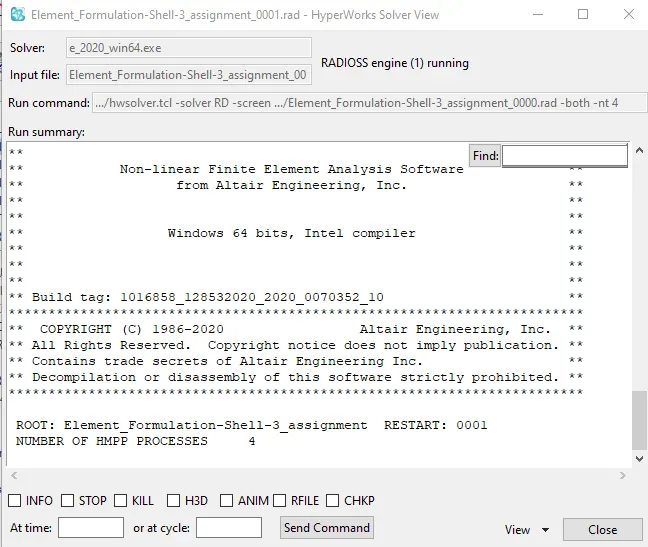
Fig 7: Radios calculation process.
After completion of the process, the file should show as normal termination which means the model is prepared for the animation process.
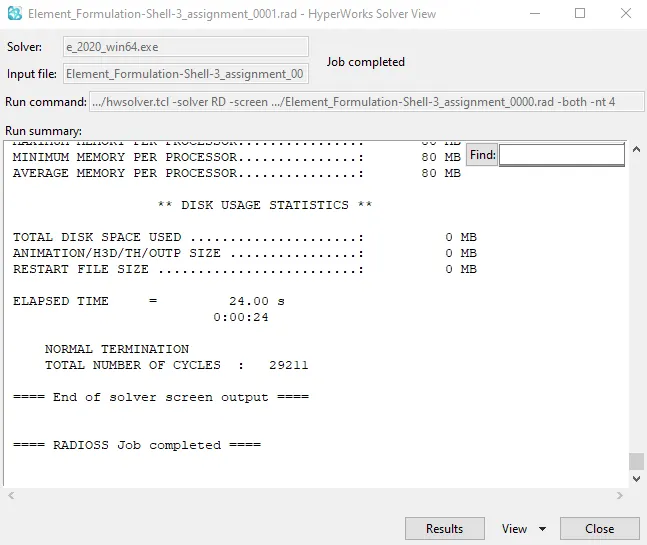
Fig 8: Radios job completion
5. Set the hyper mesh software mode to hyper view to start the animation.
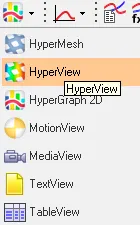
Fig 9: Selecting hyper view option.
6. The animation files and the graph files will be saved in the newly created folder. Import the animation H3D file to the hyper view control panel and click on apply. The animation will start while playing the simulation.

Fig 10: hyper view control panel.
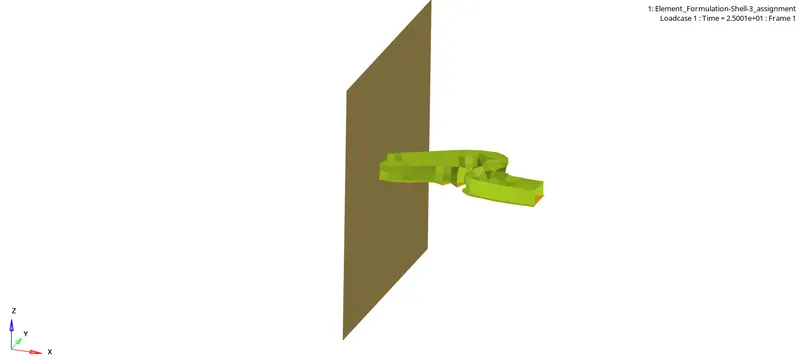
Fig 11: screenshot was taken while animation.
7. A graph is to be plotted to analyze the change in the properties of the component. To check the graph set the hyper view mode to hypergraph model. Import the graph file to the hypergraph control panel. Select the properties to be analyzed in the graph as mentioned in the assignment.

Fig 12: Hypergraph control panel.
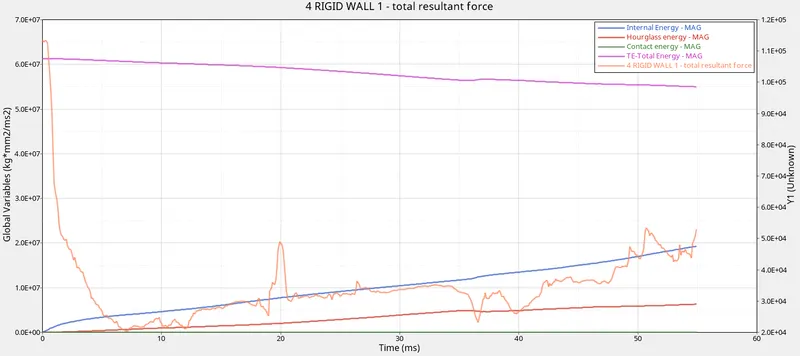
Fig 13: Plotted graph as per the mentioned properties.
Case 2:
1. For the same component change the mentioned properties as mentioned for the assignment. Properties which are in PSHELL card are to be changed. The properties for the case 2 simulations are as shown in table 1.
|
Ishell =24 |
QEPH 4 nodes shells are the best combination of cost and accuracy. | |
|
Ismstr=2 |
Full geometric nonlinearities (default)with possible small strain formulation activation in RADIOSS Engine. | |
|
Ish3n=2 |
Standard 3 noded shell (C0)with modification for large rotation(default) |
|
| N=5 | Number of integration points set to 5 for accuracy bending. | |
|
Ithick=1 |
Thickness change is taken into account for accuracy. |
|
|
Iplas=1 |
Iterative plasticity for good accuracy. |
Table 1: case 2 parameters.
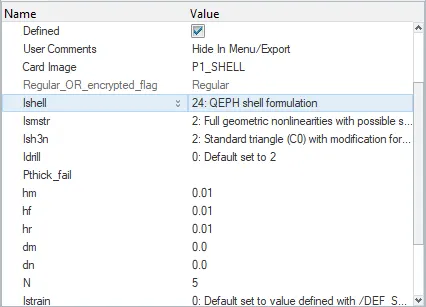
Fig 14: changing the parameters.
2. Follow the procedure for simulation and graph plotting as done for case 1. The graph plotted for case 2 is as shown below.
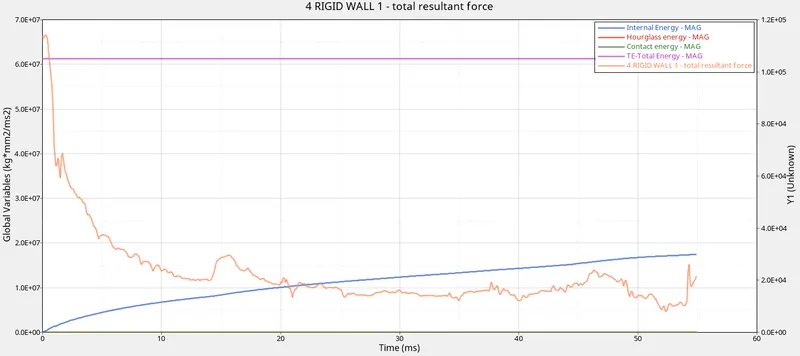
Fig 15: case 2 hypergraph.
Observation:
The simulation and plotting graph for both cases are completed. Comparing both the graph cases.
Fig 16: case 1
Fig 17: case 2
From the above graph
- The initial energy is high in case 1.
- Hourglass is constant in case 2 at 0 whereas there is an increase in case 1.
- The total energy is constant in case 2 near 6.0E+07 whereas there is a decrease in case 1.
Hourglass:
Hourglassing is an instability that happens in reduced integrated elements (Typically, quad4 and hexa8 elements). The reduced integration has two benefits 1) faster and 2) can give better bending results (less stiff), but it can also produce a shearing mode that has no strain energy associated with it and as a result, the elements can form an hourglass shape with no strain energy.
- Hourglass nodes are non-physical modes of deformation that occur in under integrated elements that produce no stress.
- Reduced integration leads to non-physical zero-energy modes.
- Hourglass can be controlled in two methods.
- 1)Perturbation(Q4 elements) (viscous)
- 2) Physical stabilization (QEPH elements)
Result:
Thus simulating and plotting graphs for both the cases, comparing both cases are completed.
Conclusion:
Due to the change in the properties of case two, the hourglass value is maintained constant.