Assignment 2-RADIOSS Engine File Editing & 3D Meshing Challenge
1. Calculate the speed of sound in steel rail
C= E/ρ
E/ρ
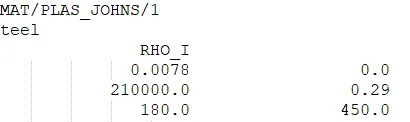
from the rad file we can get the material values of E and rho
E= 210000, Rho=0.0078
substitute the values, C= 210000/0.0078=5188.75 m/s
2. calculate Time taken the shock wave travel from one end to other
we know that the time calculation formula, T=distance / speed
ie, T=1/C= 1/5188.75= 0.1927ms
3. 0.1927ms
4. editing the engine file
to edit the engine file we need to upload the 000.rad file
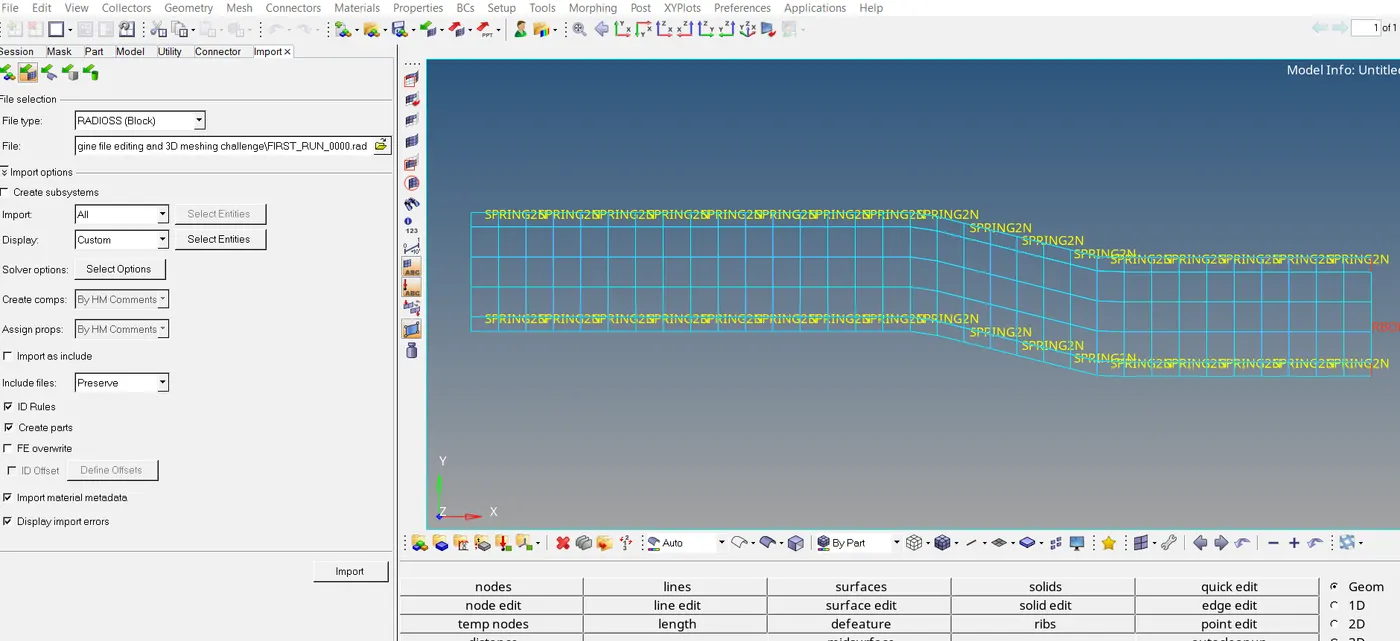
editing the tstop
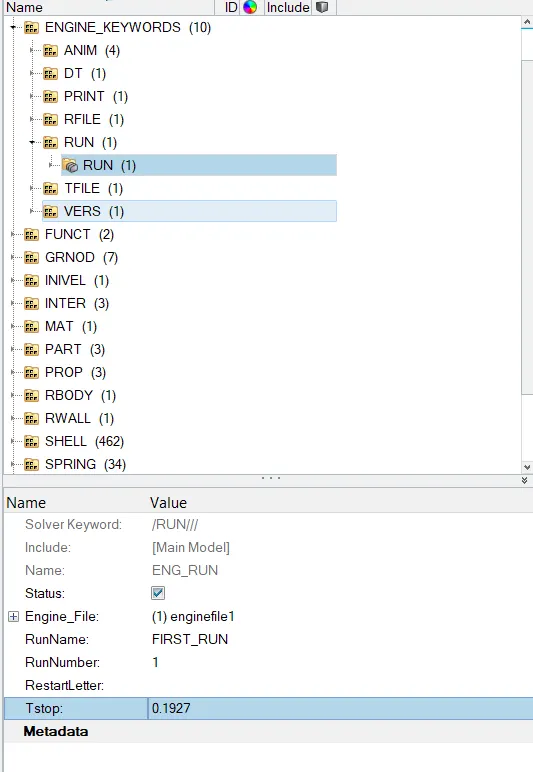
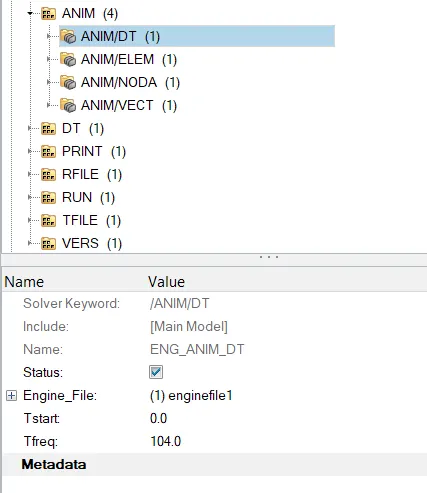
5.Set the frequency of animation output to a time that will give 20 animation steps(
(1/C)*time
(1/0.1927)*20 times
=104HZ
changing ANIM DT value
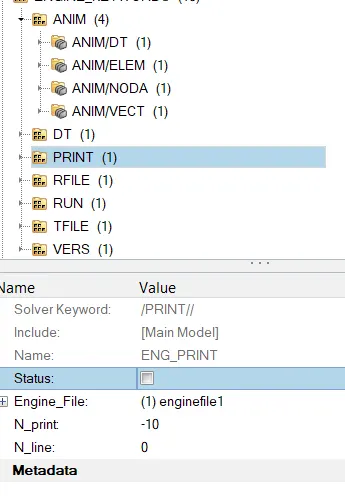
6.Change print -10
ARM BRACKET
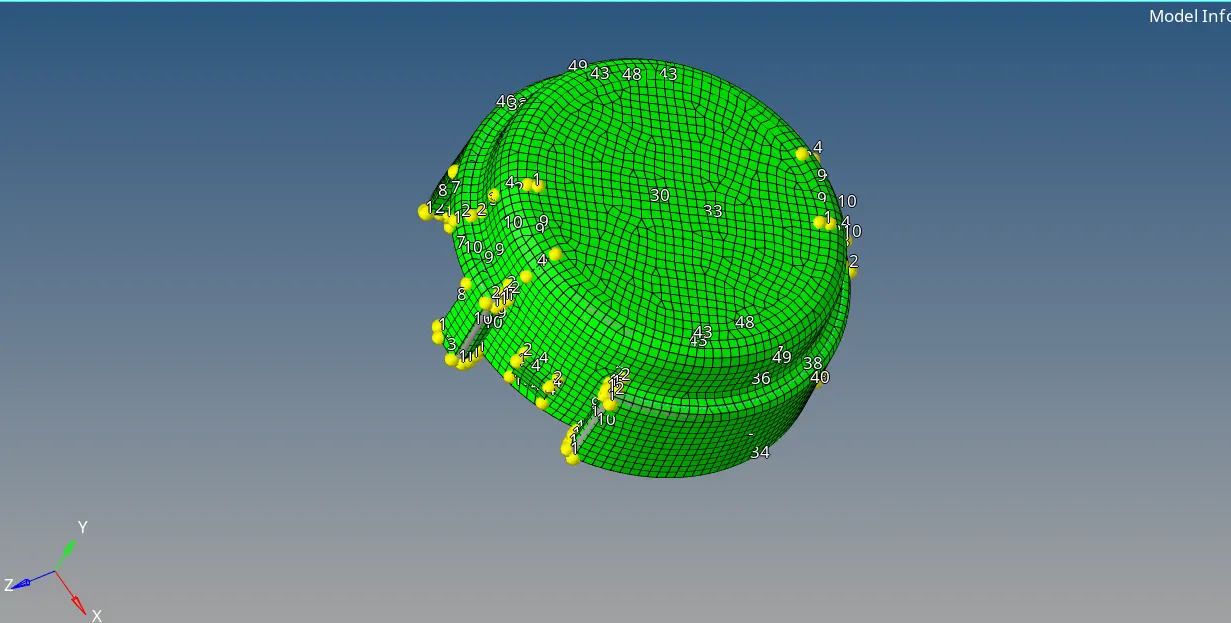
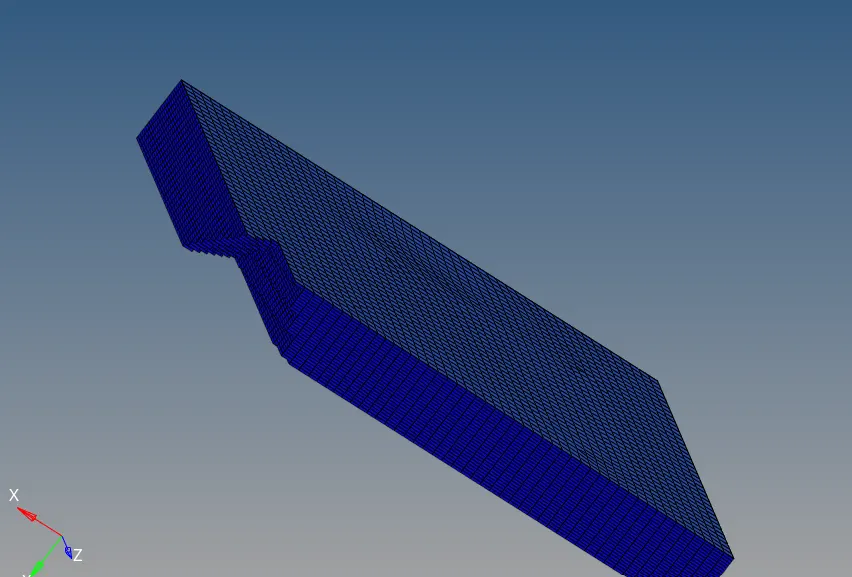
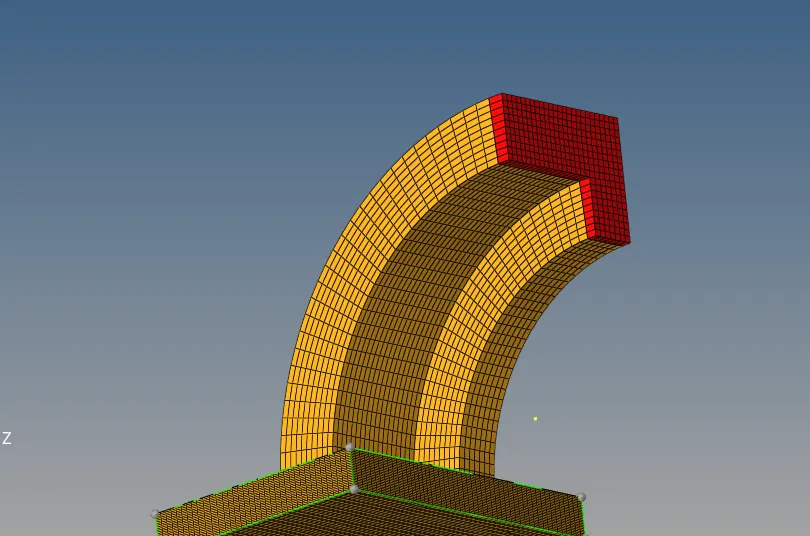
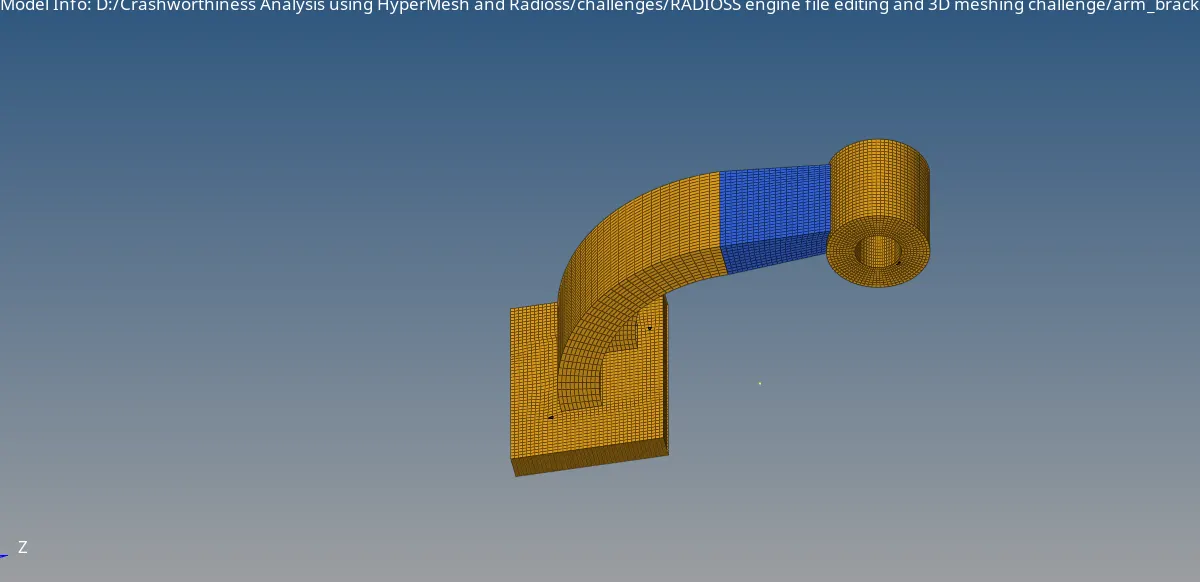
After importing the model in Hypermesh, we will look for surface defects in the model in order to perform Geometry cleanup. As there were no surface defects in the model, we will proceed for meshing. There are four components in the model which are base, arm curve, arm straight and boss. So we will mesh them one by one. At first, we will mesh base component as it can then be useful to mesh the other three components. We will make it as our current component and hide all other components. For base component, we will create 2D mesh on its top surface by selecting the mesh type as mixed. So basically we will create all 2D quad elements on the surface. To convert it to 3D hexa elements, we will offset these elements. So we will go to elem offset panel in 3D page. Here, under solid layers panel, we will select the 2D elements to offset, mention the number of layers as 5 and total thickness which is measured as 25 and then click on offset command. This will create 3D hexa elements by offsetting the 2D elements in 5 layers to a thickness of 25.
images are given below
HOUSING
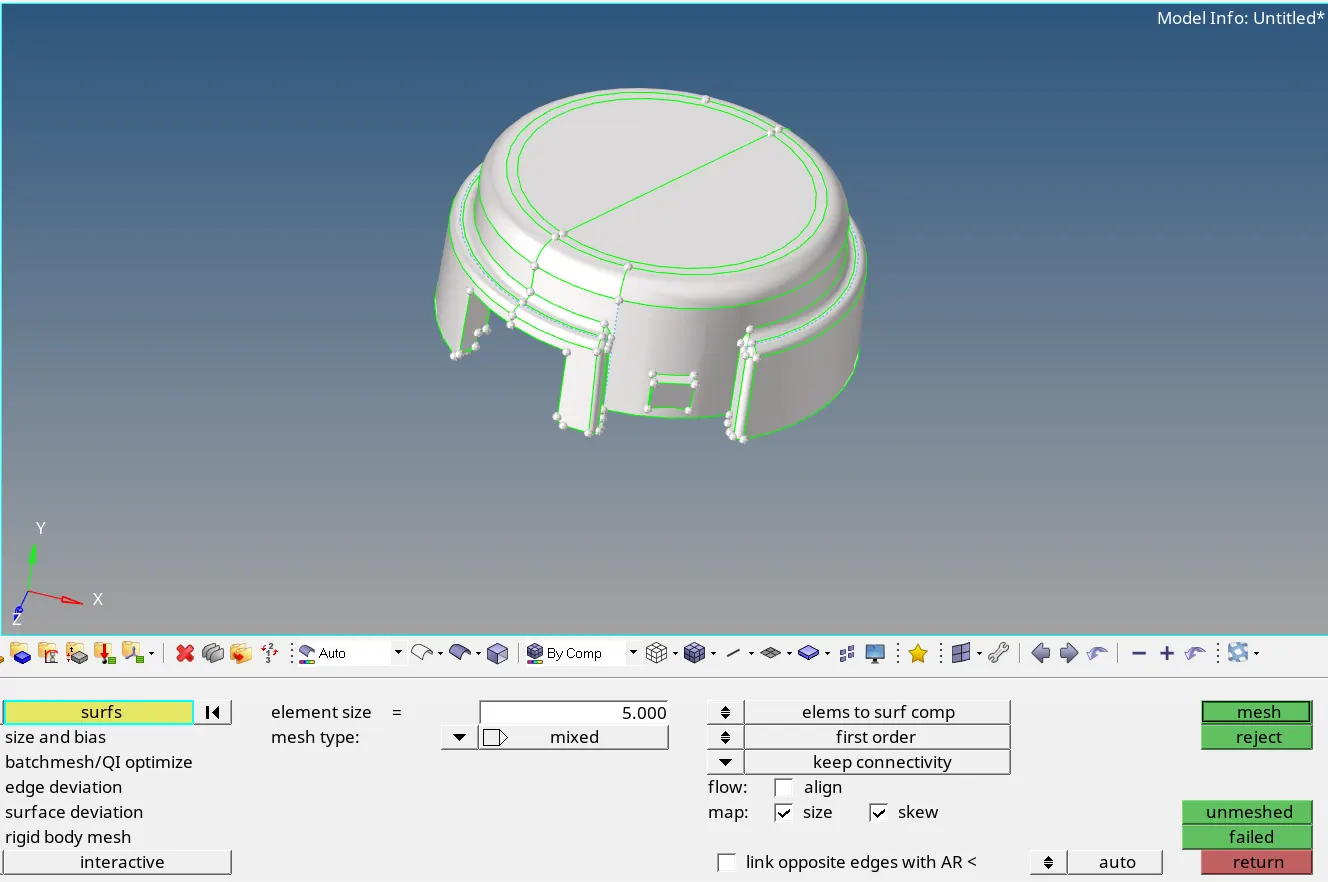
Important thing is we have to select the mesh type as trais only and click on mesh. After creating 2D tria elements on the hub, we have to convert it to 3D tetra elements. For this we will go to tetramesh panel in 3D page where we will select the 2D tria elements under Fixed trias/quads to tetra mesh option. Here, we have maintain tet collapse criteria as >0.15 which we will specify before meshing in Tetramesh parameters sub-panel.
n order to check for tet collapse criteria, we will navigate to check elems panel by F10 shortcut key and check for tet collapse in 3d sub-panel. Here, as we specified the tet collapse criteria to be greater than 0.15 in Tetramesh panel before meshing, we have zero elements failing in tet collapse.
images are given below