Assignment 2-RADIOSS Engine File Editing & 3D Meshing Challenge
RADIOSS Engine File Editing & 3D Meshing Challenge
OBJECTIVE :
- To check the material properties of the rail component and calculate the speed of sound in steel rail.
- To calculate the time takes for a shock wave to travel from one end of the rail to the other given that the length of the rail is 1000 mm.
- To edit the engine file so that the stress wave can be monitored, moving from one end of the rail to the other during impact.
- To set the frequency of animation output to a time that will give 20 animation steps in the engine file.
- To perform 3D meshing on the given components with given quality parameters.
1) Calculate the speed of sound in steel rail
Sol:
Formula for "Speed of sound" C=">√E/ρ">ρ
- from the given 0000.rad file we can get the material properties of steel rail
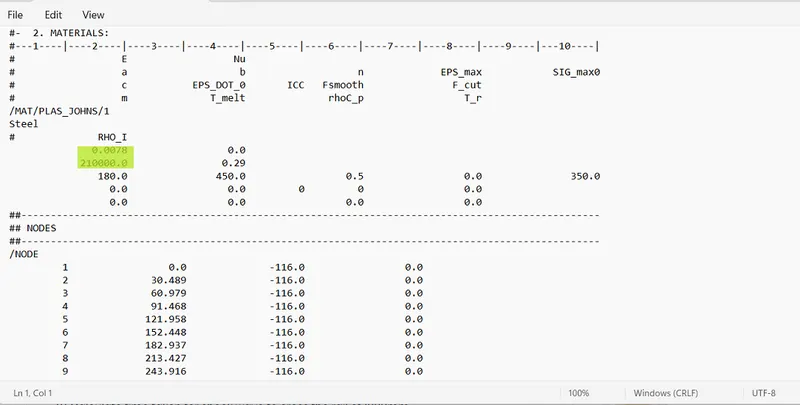
- From the above image we can see the value of E=210000 Mpa(N/mm^2) ; ρ">ρ=0.0078 g/mm^3,
now using the above mentioned formula, we can substitute the values and get the speed of sound i.e,
c=">√210000/0.0078
=5188.75 m/s
2) Calculate time taken for shock wave to cross the rail of 1000mm
- Formula for time taken t=l/c
t=1000/5188.75
=0.1927ms(milli seconds)
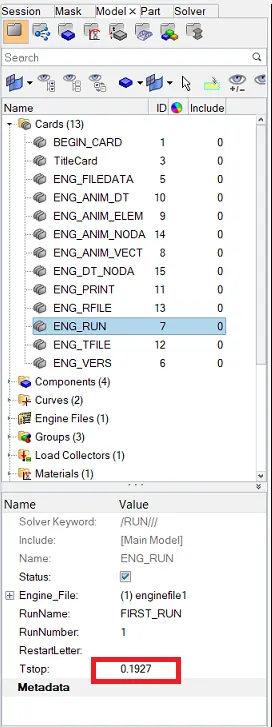
3) Time for sound to travel length of rail is = 0.1927ms
Importing and reading RADIOSS Starter file to answer the given Questions :
- First, we have to check the material properties of the rail component. There are two multiple ways to check the material properties.
- One of the ways is to import the file in Radioss and check for the material properties. So after opening the Hypermesh, we will choose our user profile as RADIOSS.
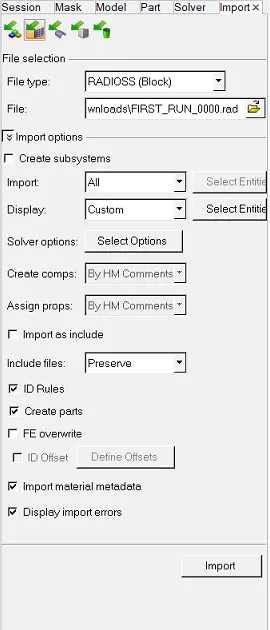
- Then we will import the starter file in Radioss. In our case, the given file name is FIRST_RUN_0000.rad, we will import this file under Import Solver Deck browser as shown below,
4) The engine file edited according to the above calculated values, its shown in below image
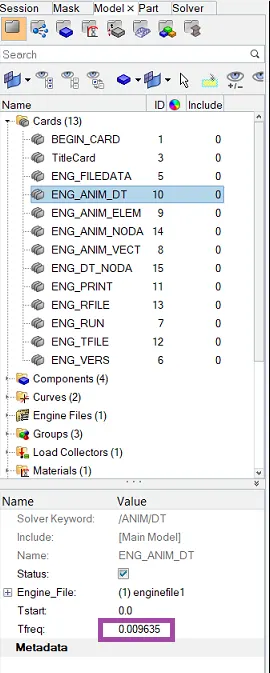
5)Set the frequency of animation output to a time that will give 20 animation steps(/ANIM/DT)
- Formula for time frequency = No. of time step/ No. of animation step
=0.1927/20
=0.009635 ms(milli seconds)
- set the above calculated frequency in 0001.rad file(import the .rad file into the software and edit the cards) like shown below
6) Set the N_print value as -10
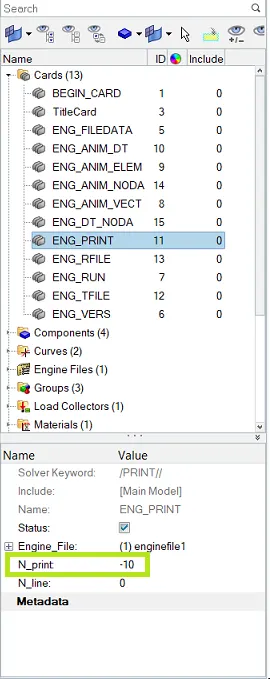
- Now after changing all the values Export the solver deck file in .rad format
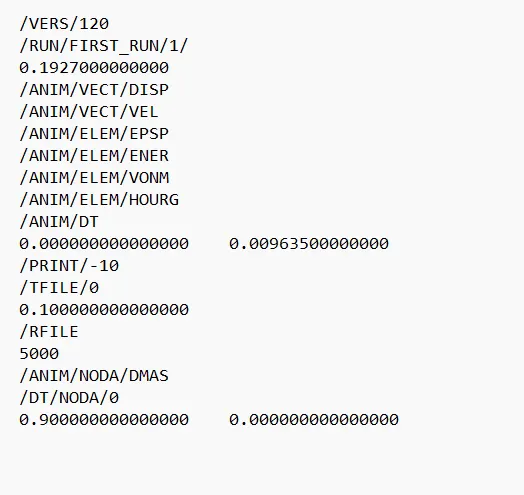
- The above image is the final radioss engine file after making all the changes
- The same radioss file is attached in challenge asset
Objective:
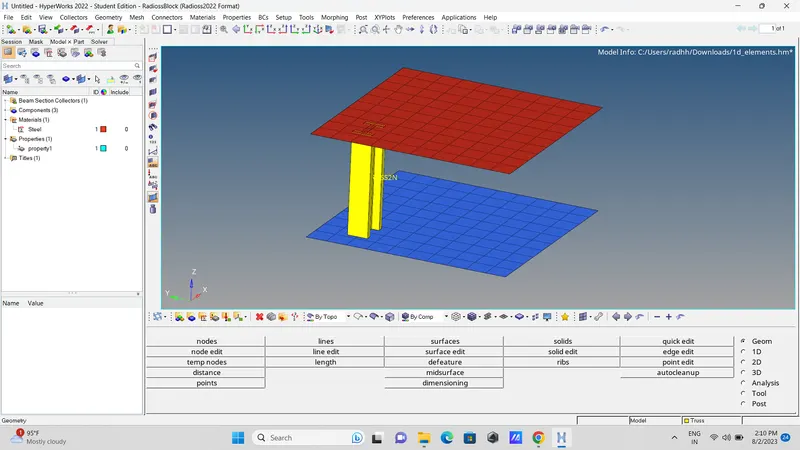
To mesh the given file and connect it by any one 1D connector
Steps:-
- Directly open the .hm file into the software
- Mesh both the surfaces
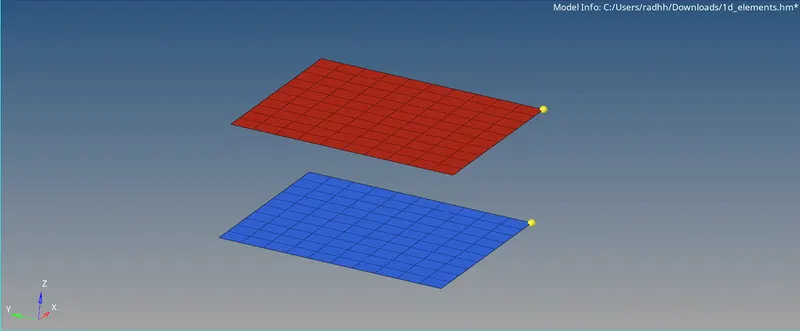
- Go to 1D>connectors>rods select any two nodes to connect,
- Now the connection is done , after which new property card should be assigned to the component with property card image of "P2_Trus"
- New hyper beam has to be created , go to hyperbeam and select required cross section and give the required dimension as shown below
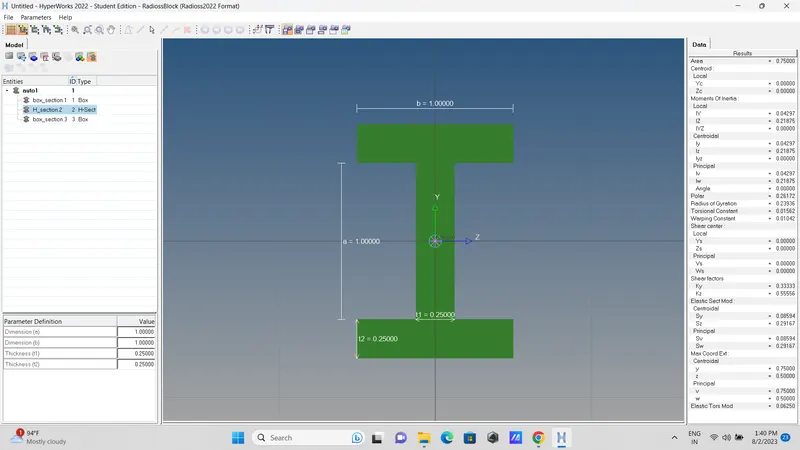
- The final result is shown in below image
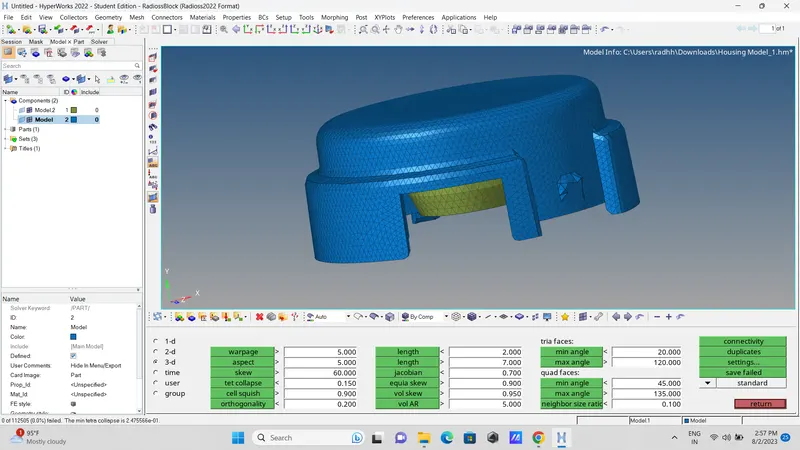
Steps for 3d tetra mesh model:-
- Open the model directly since it is in .hm format
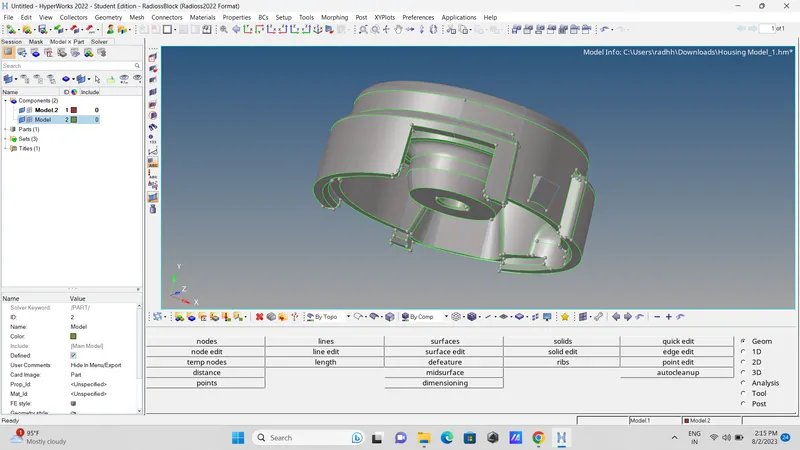
- Check for any geometrical error, in this case we dont have any so carry on with 2d mesh first
- Mesh the each components according to the given quality criteria with tria elements
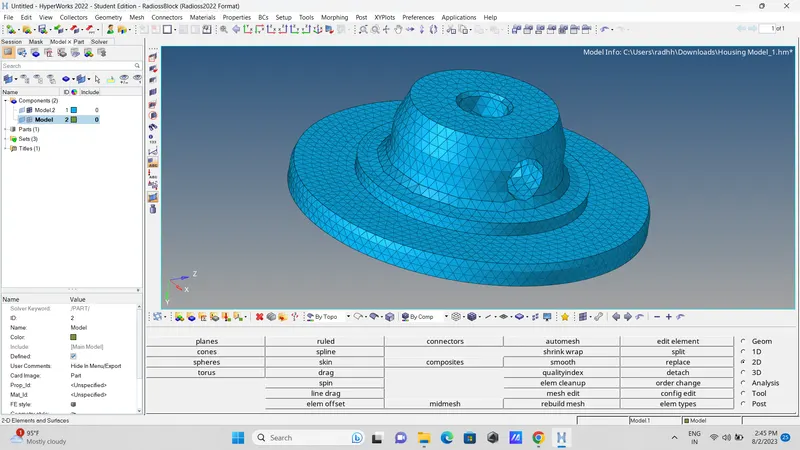
- Now we have to convert the 2d mesh element to tetra elements by 3d>tetramesh select the elements and mesh with required tet collapse value
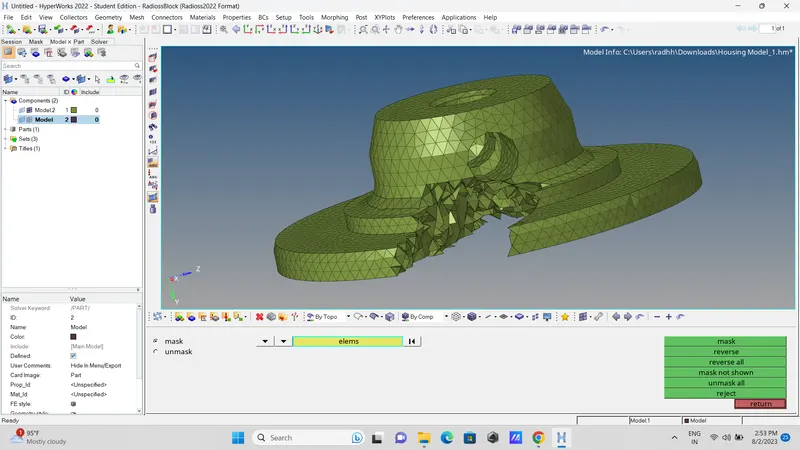
- Do the same to the other components and make sure no tet collpase errors should be present
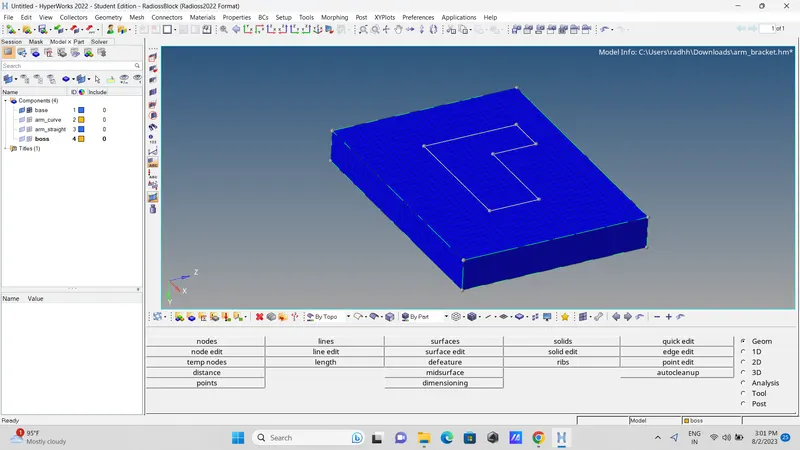
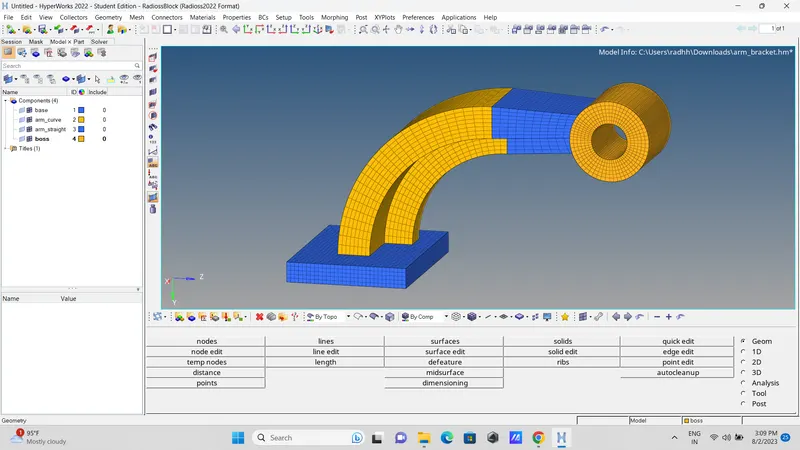
Steps for 3D hexa mesh 0f arm bracket model:
- In this model we have four components , one by one we will be meshing the model
- We have different methods to perform 3d hexa mesh like Element offset, spin,Linear solid, solid map...etc
- We will be using these methods to perfrom hexa mesh on each component, depending upon the components geometry
- Firstly the base , it is just a rectangular cube it is better to mesh the top surface with only quad element and use element offset option
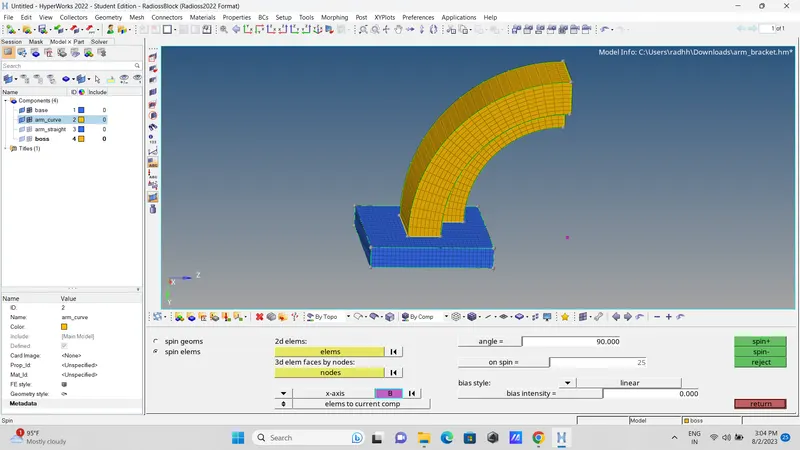
- Next component is curved arm, to mesh this model select the common 2d element between base and arm curve component , spin the element using base node and axis to rotate
- To mesh the arm straight component , use 3d>linear solid option
- We should mesh each end by 2d element and join the same in this method
- Already one end of arm stright component is meshed by hexa element , to extract 2d element from hexa element , go to tools>faces extract faces option
- One end of the component will have 2d elements, mesh the other end with same number of elements to avoid penta elements
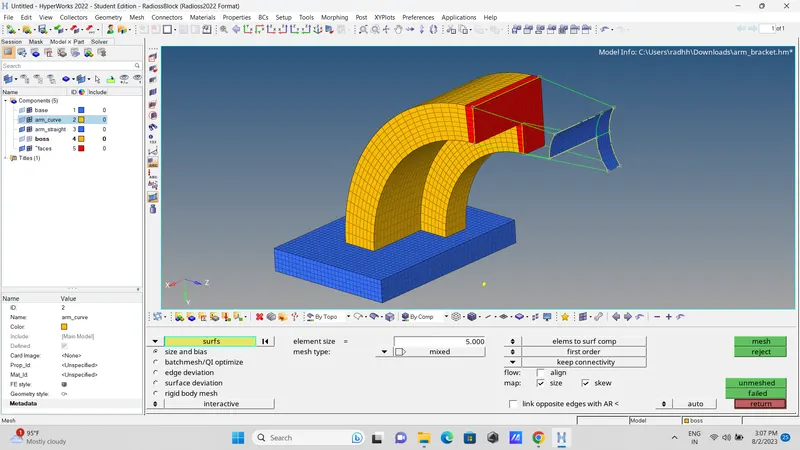
- To mesh the boss component we will be using Solid map option
- Mesh the boss one side and solid map the element to the ither end by nodes
- Now after meshing all the components by hexa elements we have to delete all the 2d elements present in the model
- Go to delete option select elements by config option and slect quad 4 element, now all the 2 element will be deleted
CONCLUSION:
- Understood how to calculate speed of sound in different material, frequency, time step
- Understood how to read input radioss file
- Understood how import the radioss solver deck file anf feed the value
- Understood how to export the file in .rad format
- Got to know how to create 3d tetra mesh and hexa mesh
- Learnt how to give diffrent type of 1D connection and hyperbeam concept