Assignment 2-RADIOSS Engine File Editing & 3D Meshing Challenge
Aim: To check the material properties of the rail component and calculate the speed of sound in steel rail. To calculate the time takes for a shock wave to travel from one end of the rail to the other given that the length of the rail is 1000 mm. To edit the engine file so that the stress wave can be monitored.
Procedure :
1. Open hypermesh & select Radioss Profile.
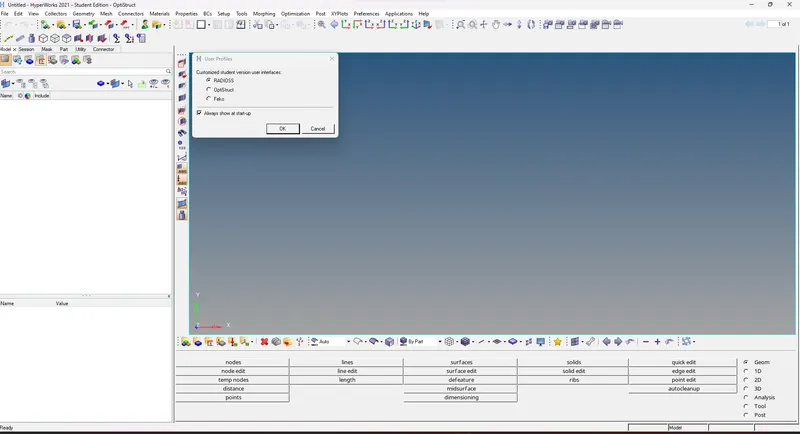
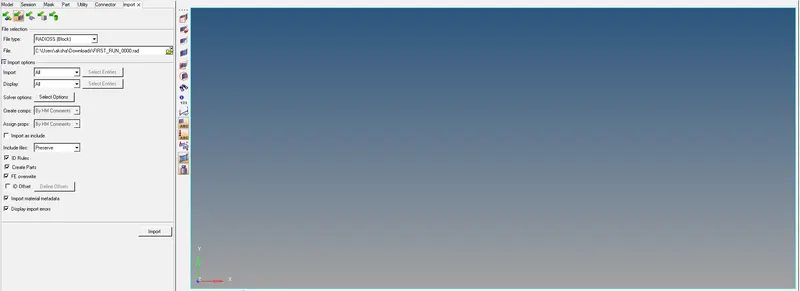
2. Click on the import solver option & open the First_Run_0000.rad file as shown :
3. After opening the model click on the materials tab and check the property of the material as shown :
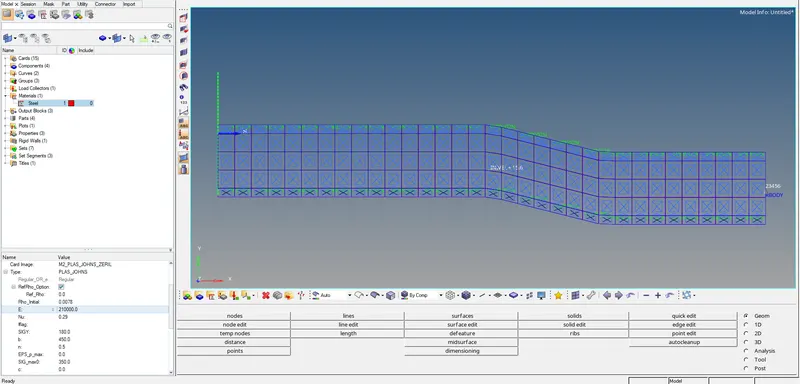
4. Calculate the speed of sound in steel rail and the time is taken for a shock wave to travel from one end of the rail to the other for a length of 1000mm :
E=210000 Mpa
c=√210000/0.0078 =5188.75 m/s
The time it took for the shock wave to cross the rail of 1000mm
The formula for the time taken is t=l/c
t=1/5188.75=0.1927ms(milliseconds)
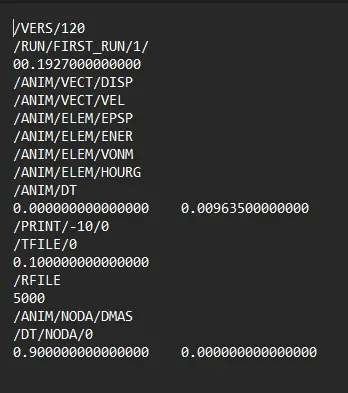
`Tfreq = Time divide Number of animation steps = 0.1927 divide 20 = 0.009635`
Edit the First_Run_0001.rad file as shown below :
1D (connectors) & 3D Meshing (Tetra & Hexa):
Open the model in hypermesh & mesh both the surfaces as shown :
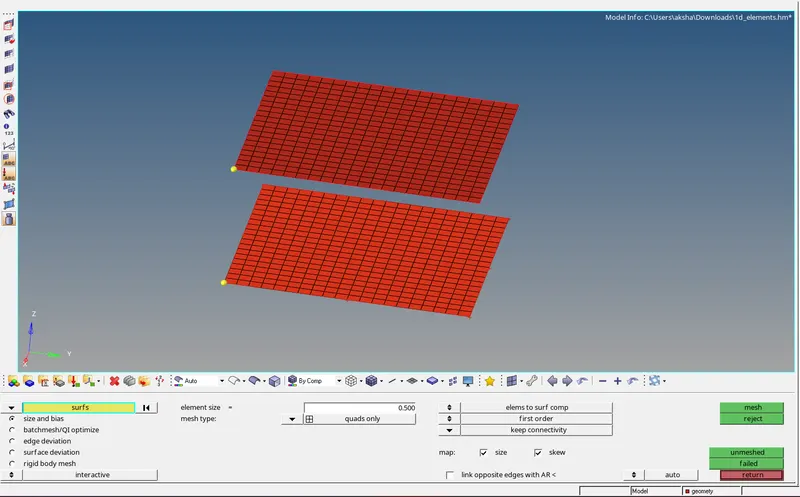
Create 1d Connectors as shown :
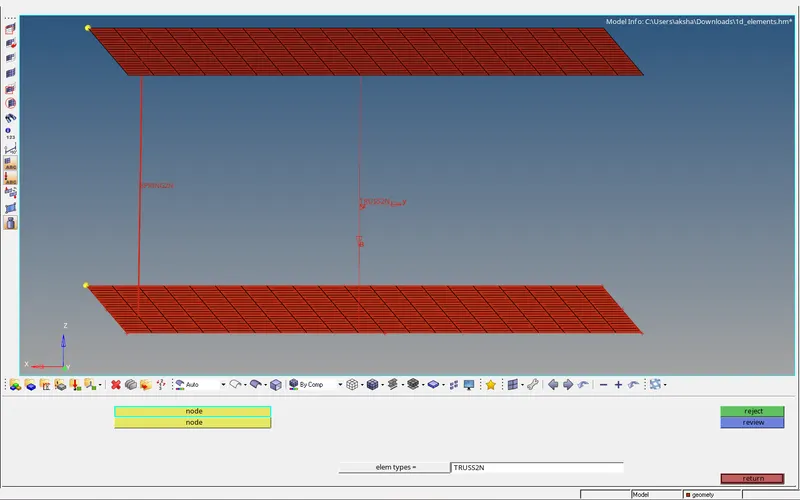
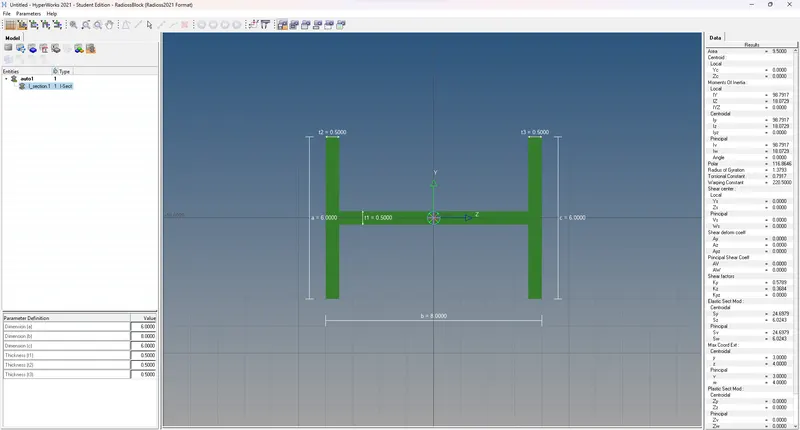
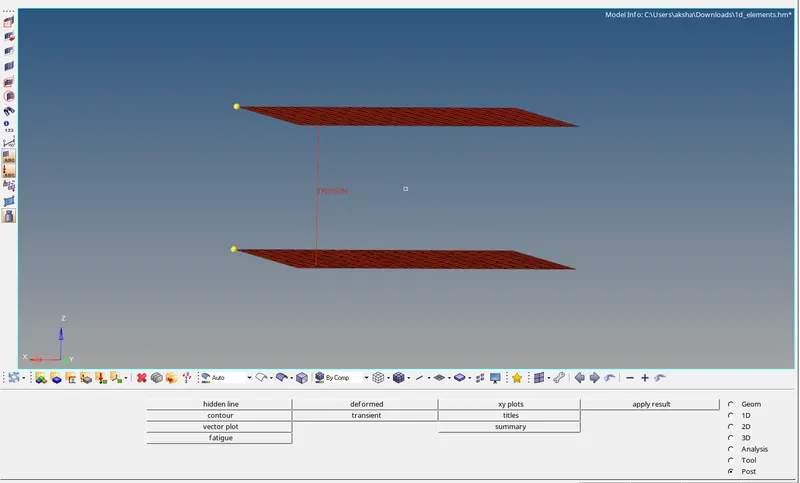
Open the 2nd model :
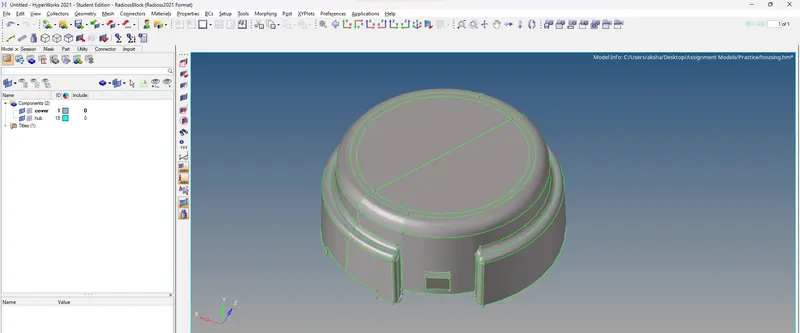
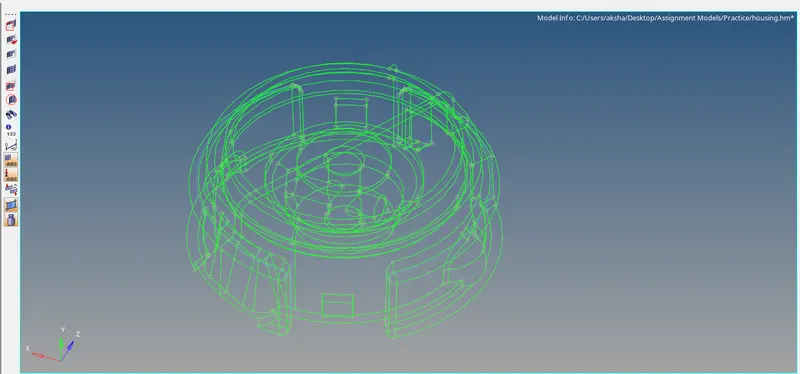
Check for any geometrical errors in the model :
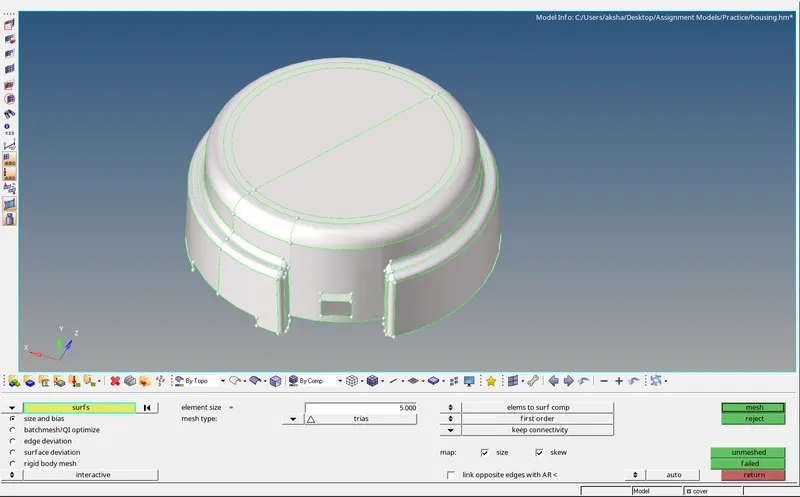
Proceed for 2d meshing on the element with only tria's selected as shown :
Now, do the tetra meshing from the tetra meshing panel :
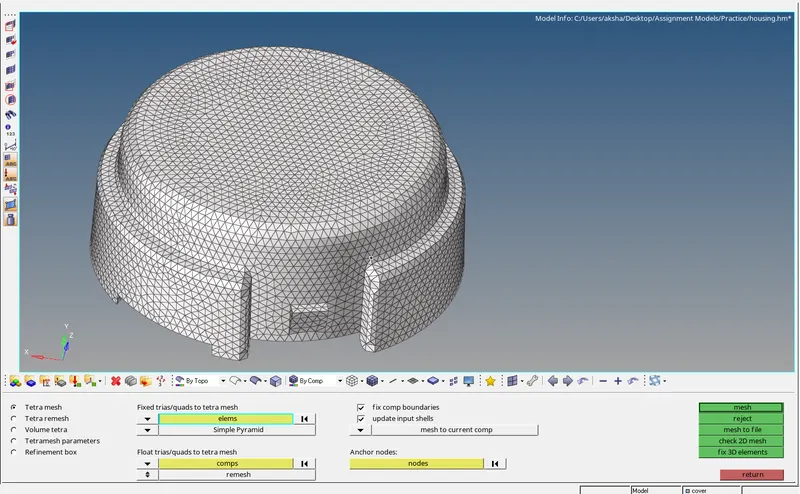
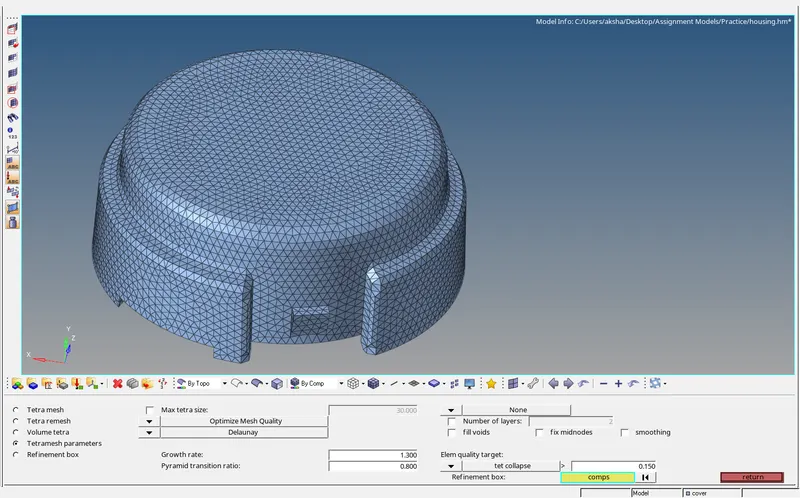
Now we check that the tetra mesh has succeeded by masking the elements as shown :
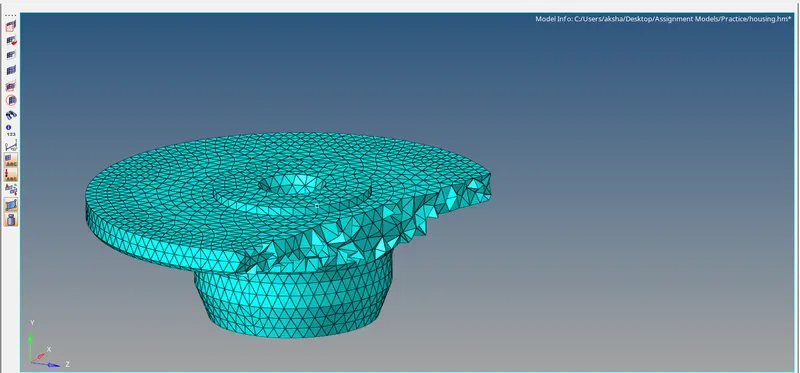
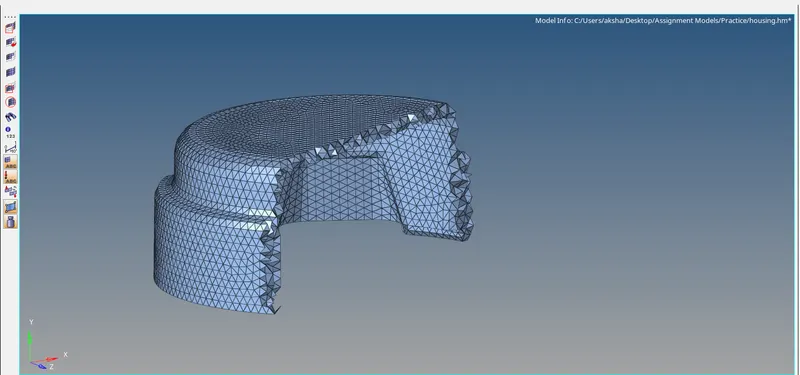
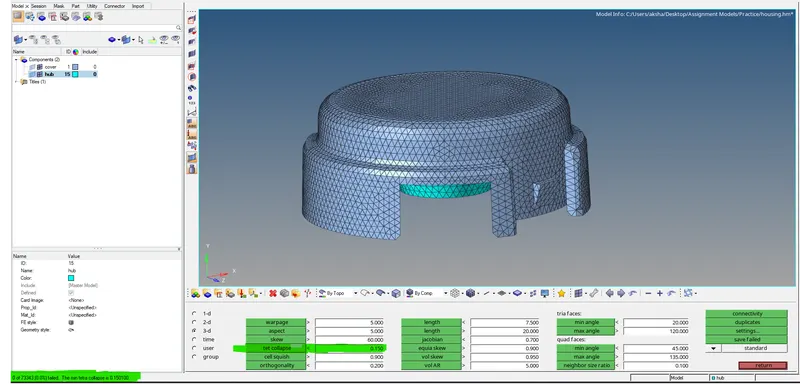
Check for any element failures :
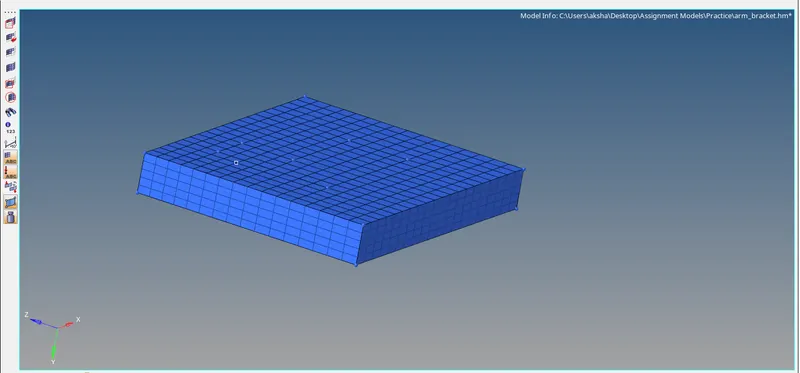
Open the 3rd model and proceed by creating a 2d mesh on the top surface as shown :
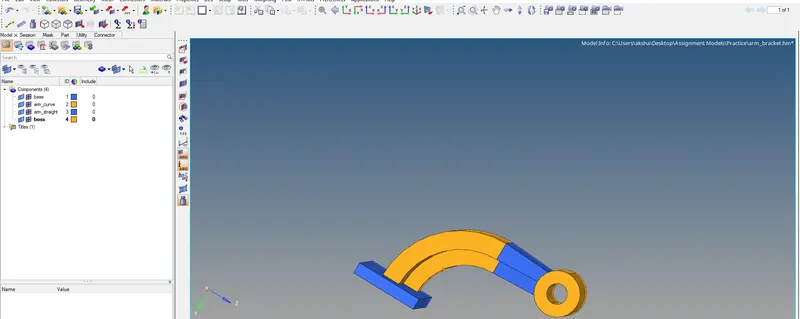
Now we start creating the mesh by 'base', isolate the base, and perform 2d meshing as shown :
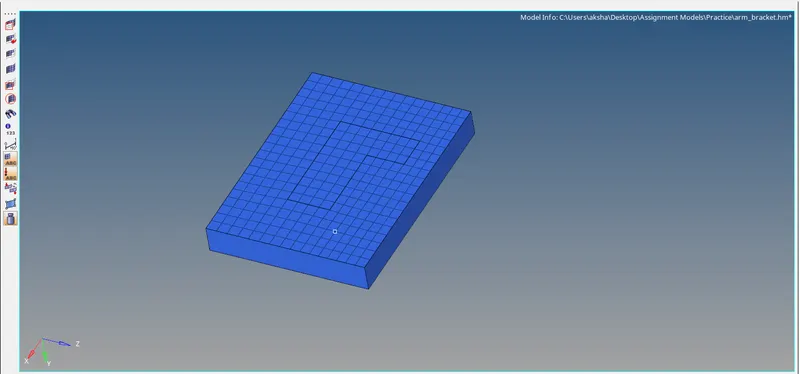
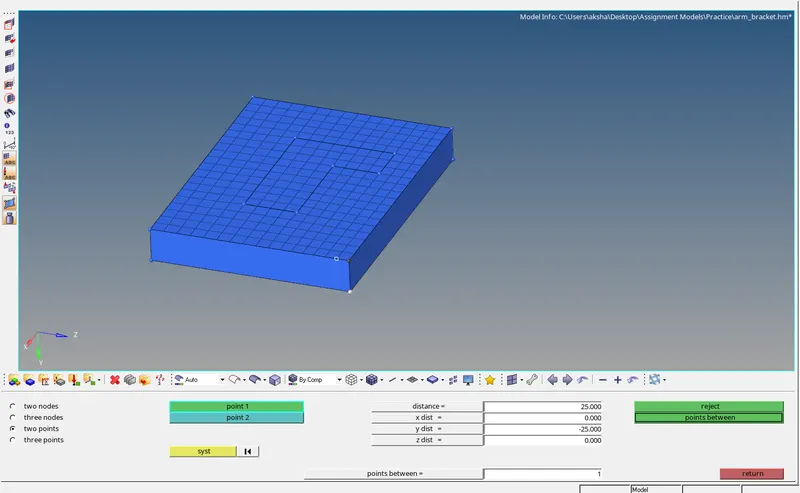
For creating a Hexa mesh on this model we first measure the model and then go for Elem offset as shown :
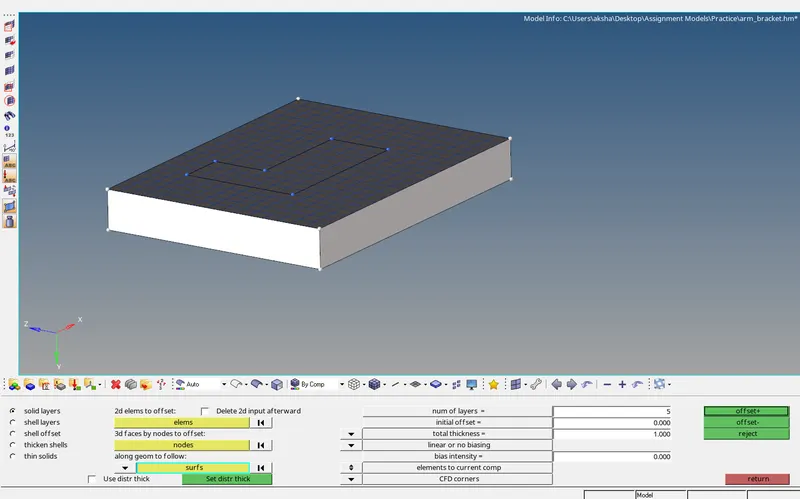
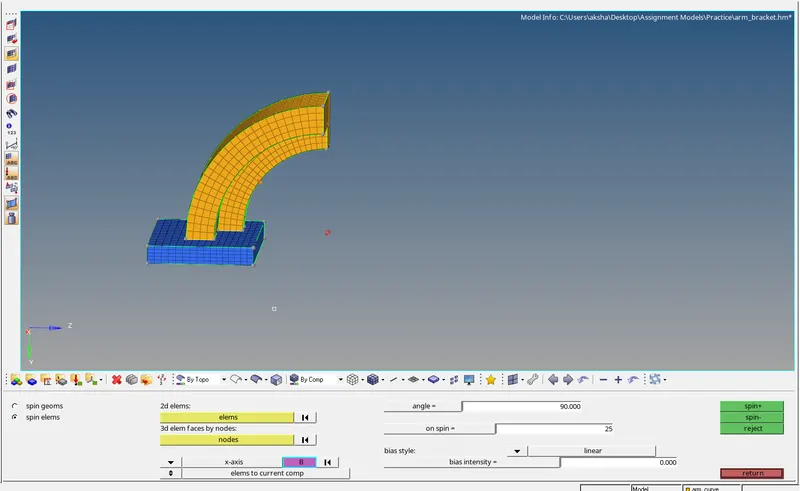
For the arm_curve we will use the spin option by selecting the appropriate elements and settings as shown below :
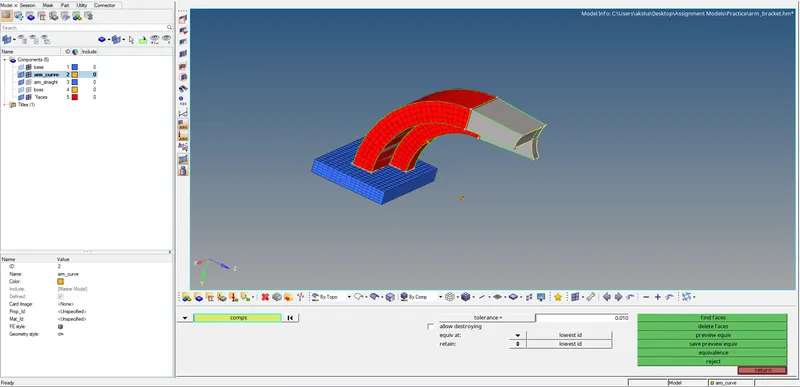
For arm_straight we use the find faces option and for 3d meshing, we use the 3d>linear solid option as shown below :
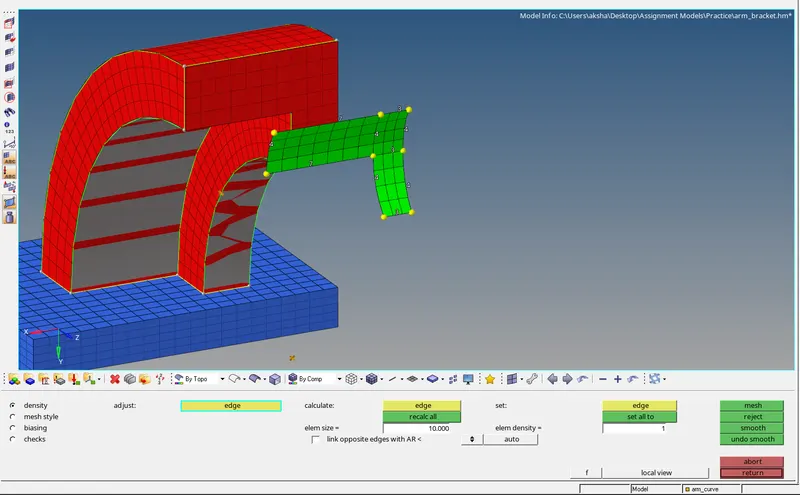
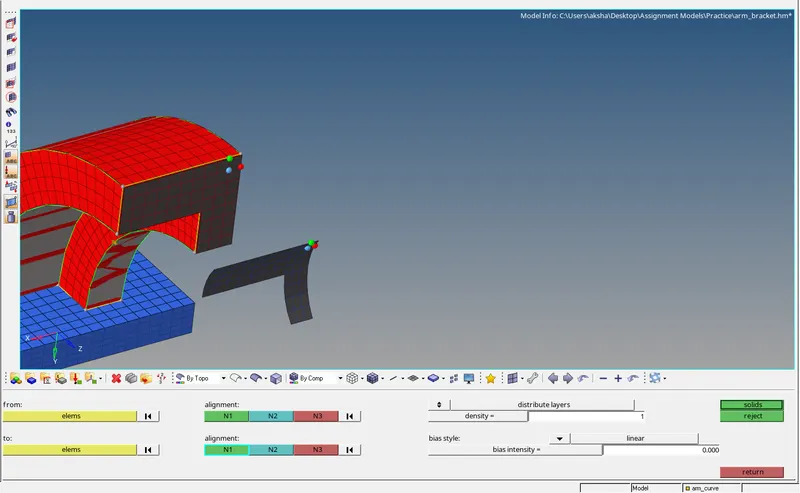
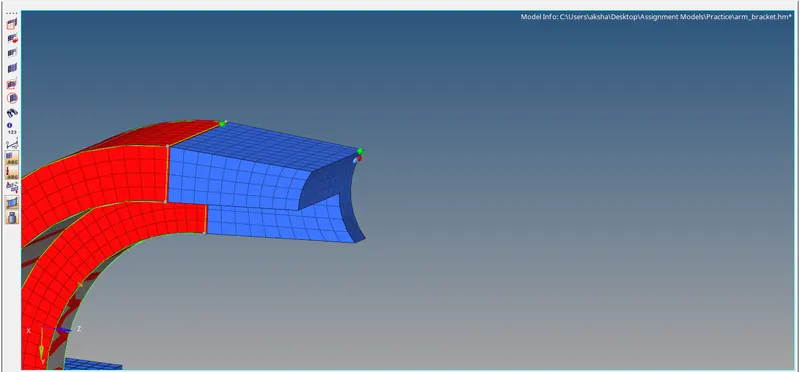
Now, for the boss component, we mesh the top surface and use the drag to create the hex mesh
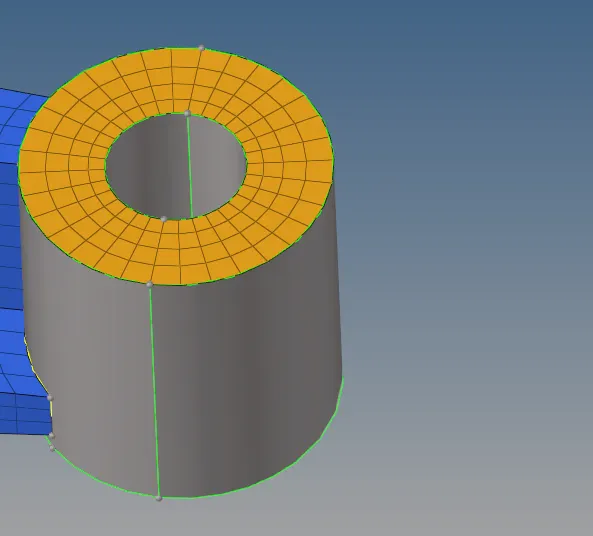
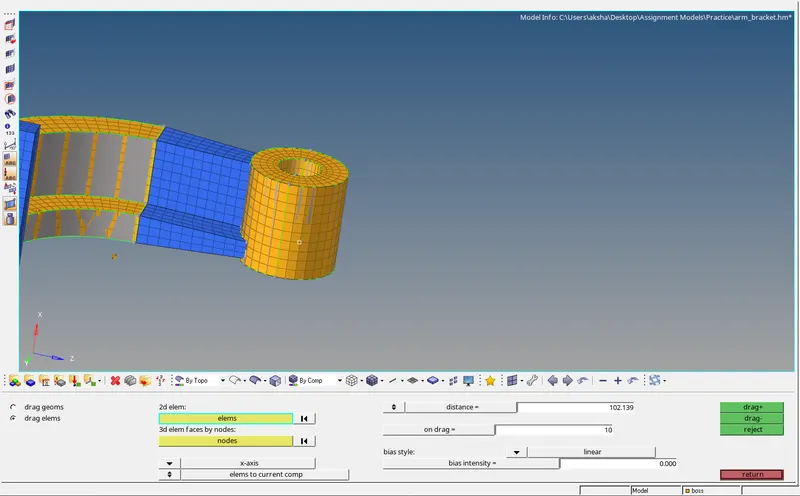
Now we delete the 2d elements by selecting the elements by config>quad4>delete as shown :
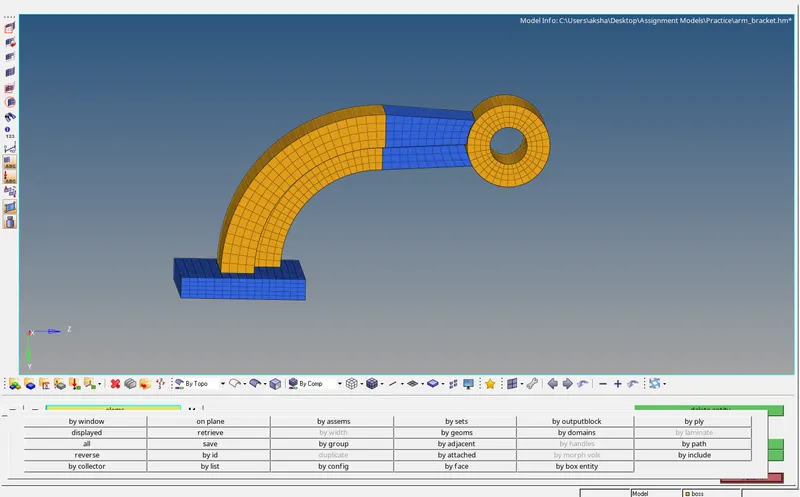
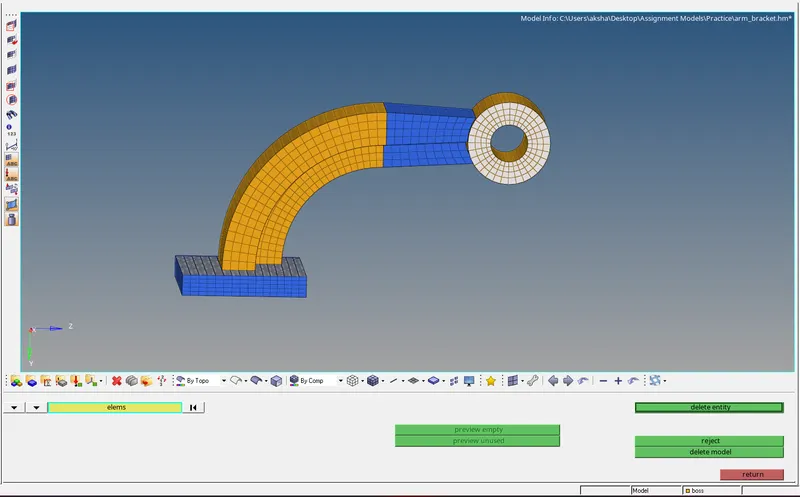
The Hex Mesh has been successfully created :
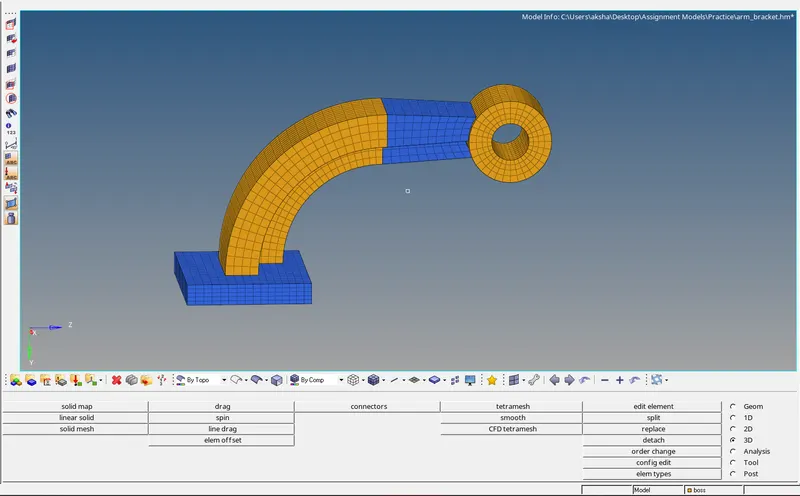
Result:
All the tasks have been successfully carried out.